Test API with Postman
This article explains how to use Postman to test the Aqara Studio API.
Overview
Postman is a popular API debugging and interface testing tool with an intuitive interface and convenient operation. It supports sending various types of HTTP requests (such as GET, POST, PATCH, etc.), allows you to flexibly set request parameters, and displays response results in real time, making it easy for developers to debug and verify APIs.
Before you begin
Before you begin, please make sure you have met the following requirements:
- Downloaded and installed Postman.
- Obtained an Aqara Studio Token. If you haven't acquired one yet, please read the Developer Guide - Acquiring Essential Information.
Download the YAML File
- Click here to download the Aqara Data Export API YAML file package.
- Unzip the downloaded file to get a file named
data-export-api.yaml.
Import the YAML File
-
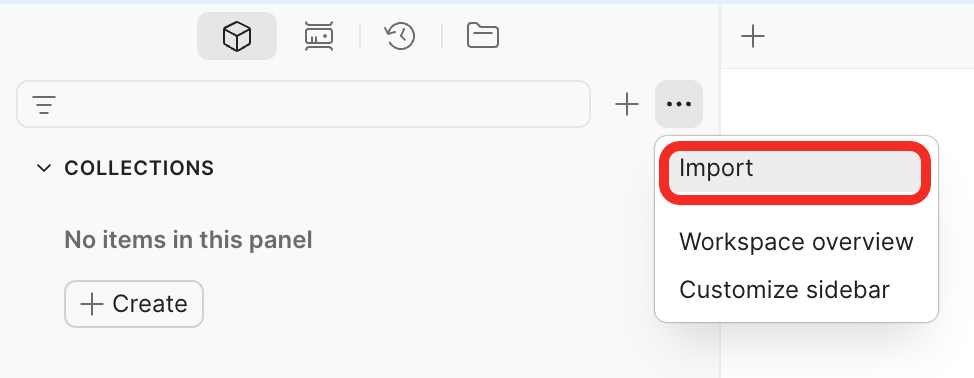
Open Postman, and click ... > Import in the left sidebar.
-
Upload the extracted
data-export-api.yamlfile to the popup.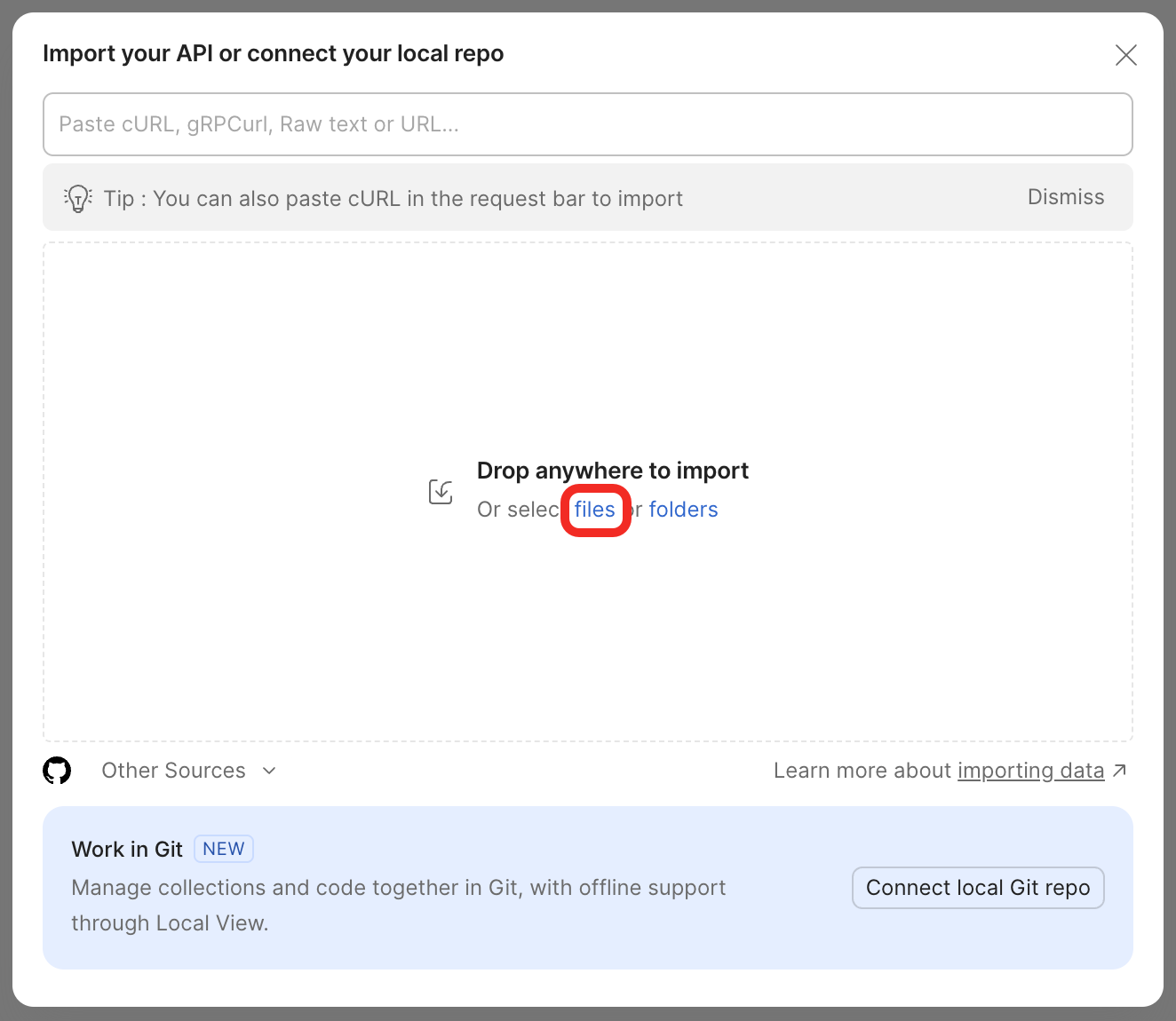
-
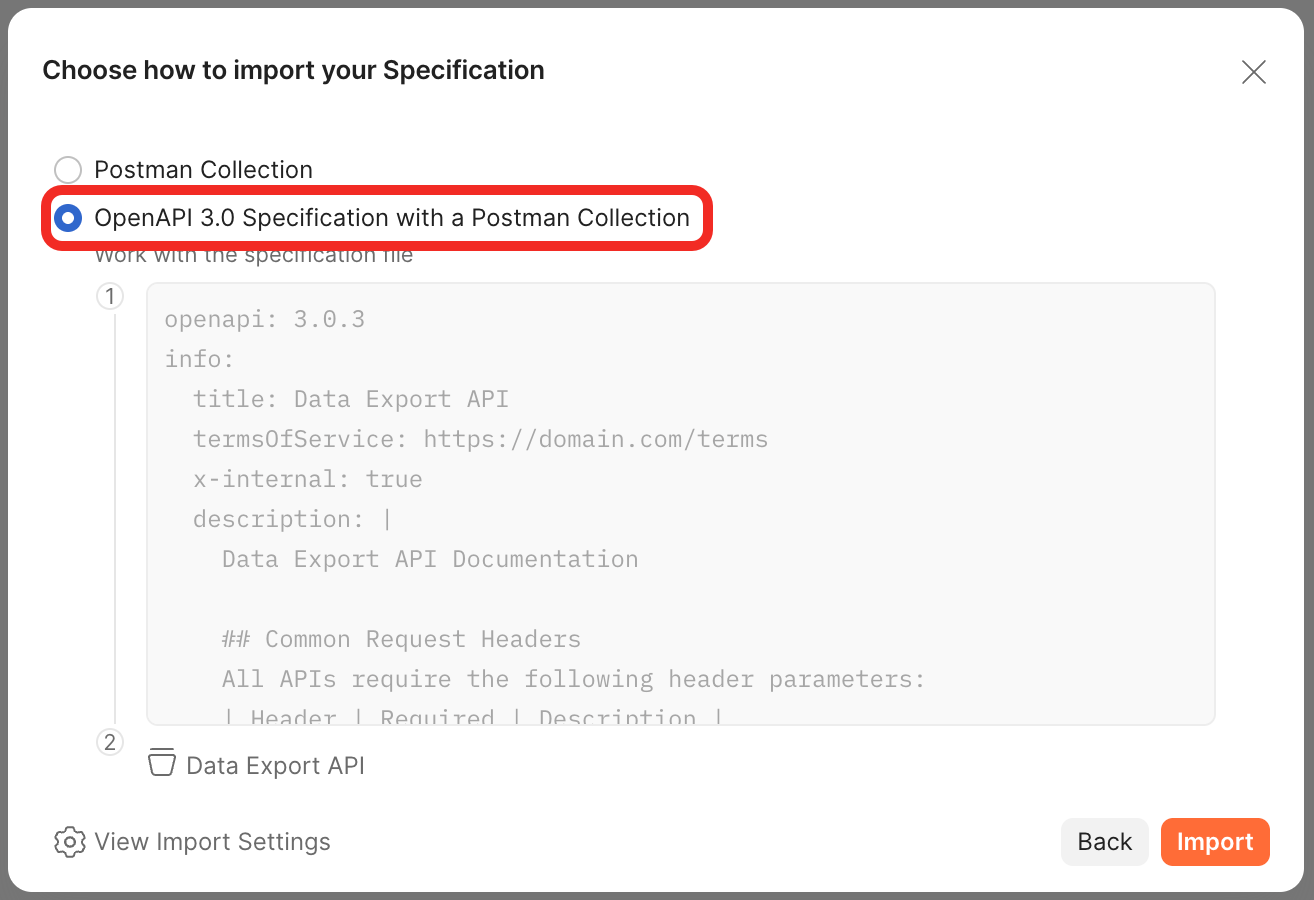
In the popup, select OpenAPI 3.0 with a Postman Collection, and click the Import button.
-
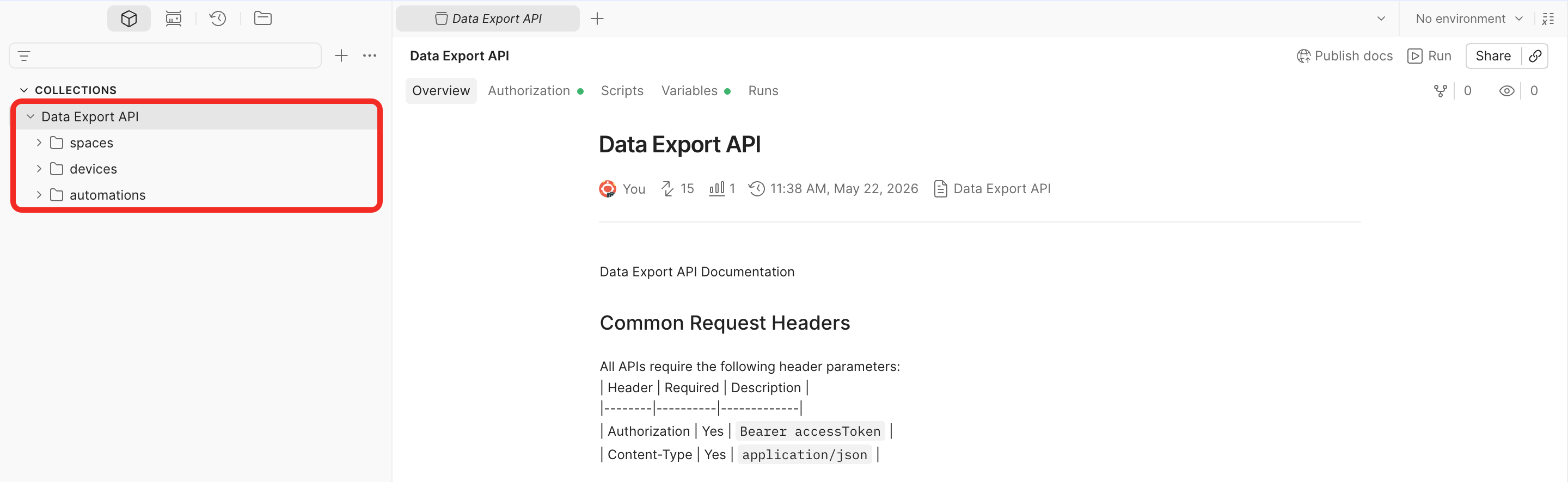
After a successful import, you will see the Data Export API collection in the sidebar.
Configure the Token and Host Address
Before testing the API, you need to configure the token and host address.
-
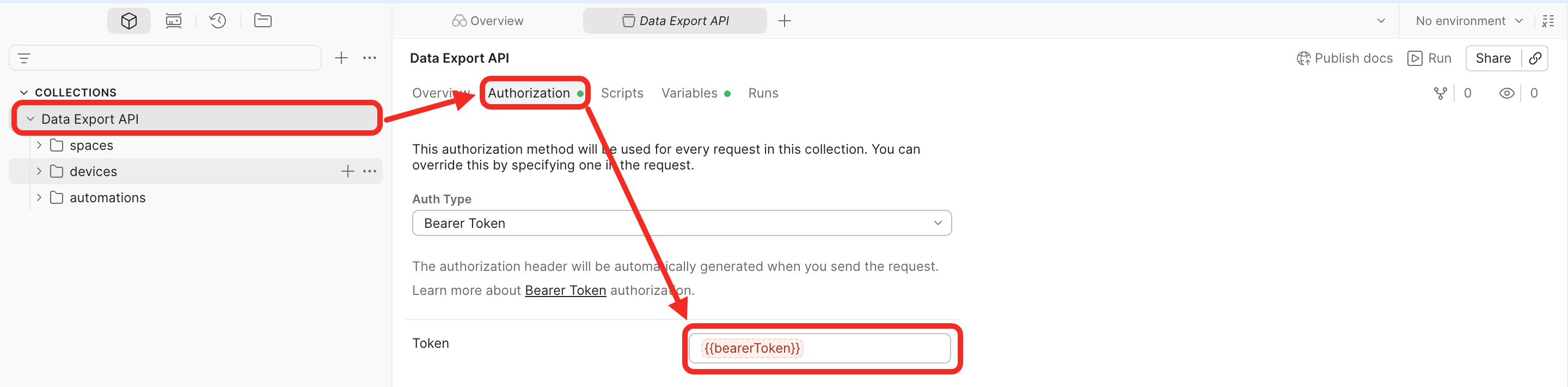
In the left sidebar, click Data Export API, switch to the Authorization tab, and input the Token you have obtained from Aqara Studio.
 tip
tipPlease make sure the Type is set to
Bearer Token. If not, selectBearer Tokenfrom the dropdown menu. -
Switch to the Variables tab, and enter your Aqara Studio service address under the host field. Both local LAN IP (http) and remote addresses (https) are supported.

Test APIs
This section uses the List Spaces API and Query Trait Values API as examples to show how to test APIs with Postman.
List Spaces API
API Documentation: List Spaces.
-
In the Postman sidebar, select
Data Export API > spaces > List Spaces. UncheckparentSpaceId, no need to configure the request Body, then click the Send button to fetch the complete list of spaces.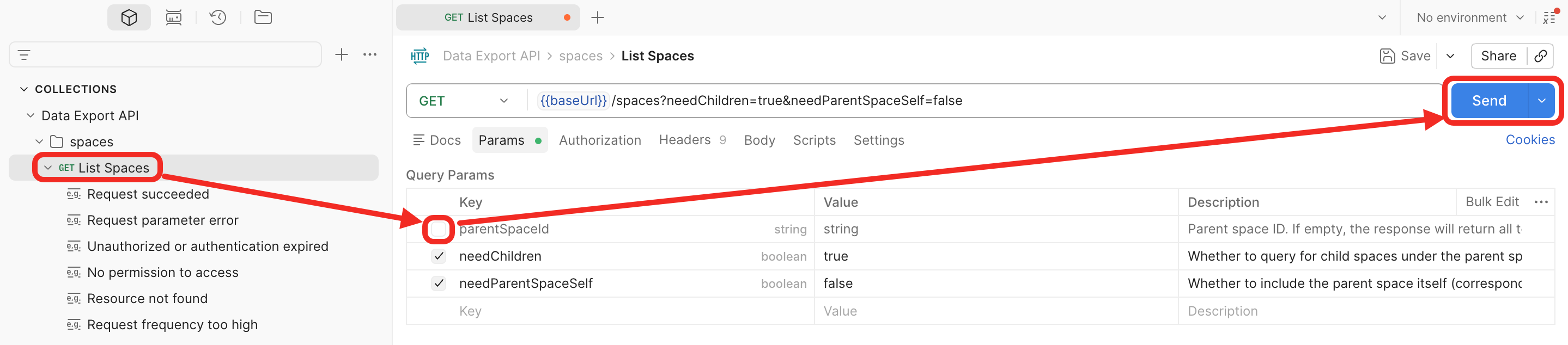
-
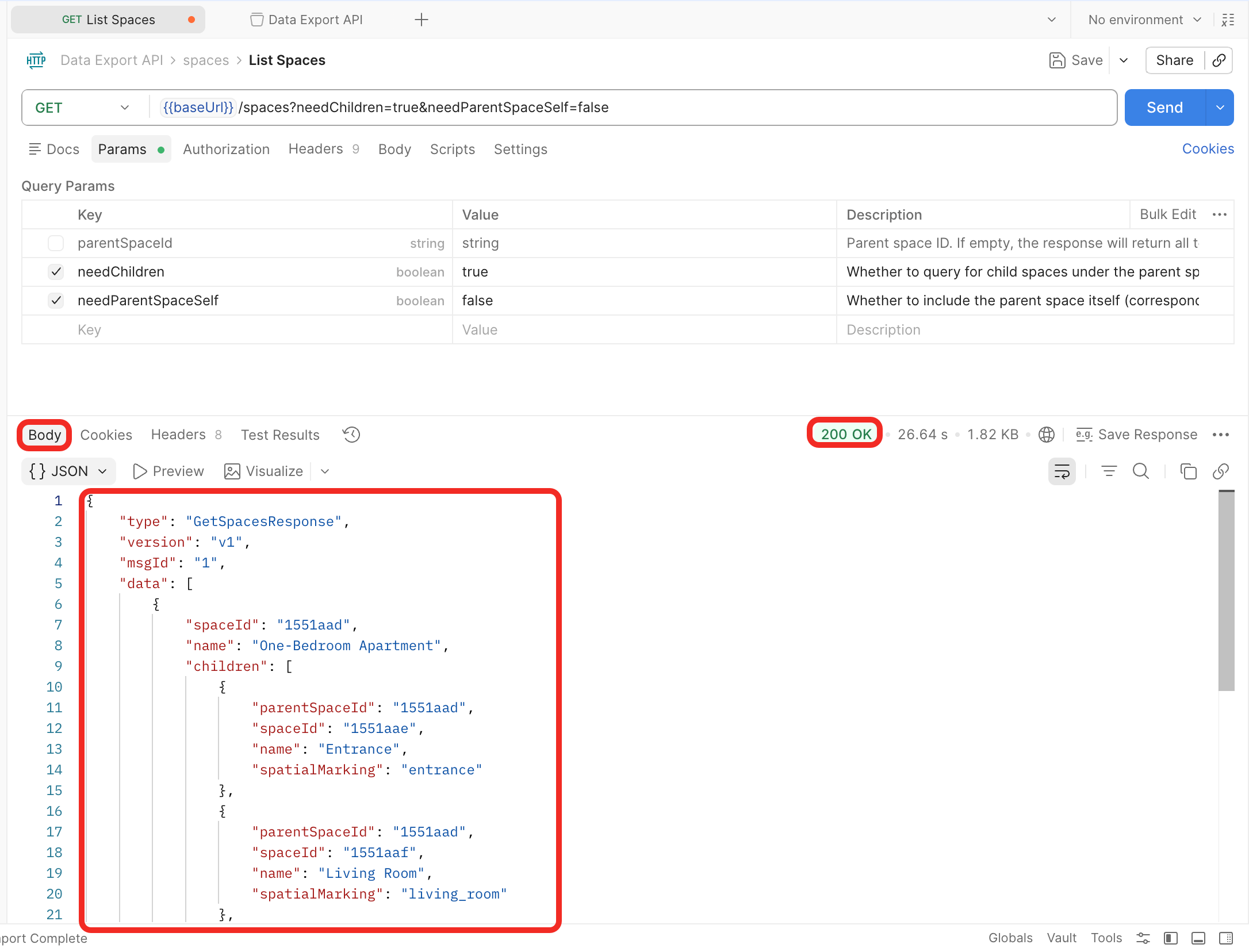
In the Body section below, confirm that the HTTP status code is 200, which indicates the request was successful.
-
If yes: Check whether the
codefield is 0.- 0: The list was retrieved successfully, and you can view the space list in the JSON response.
- Not 0: Indicates failure; please check the
messagein the response for troubleshooting.
-
If no: The request failed; check the
messagein the response for troubleshooting.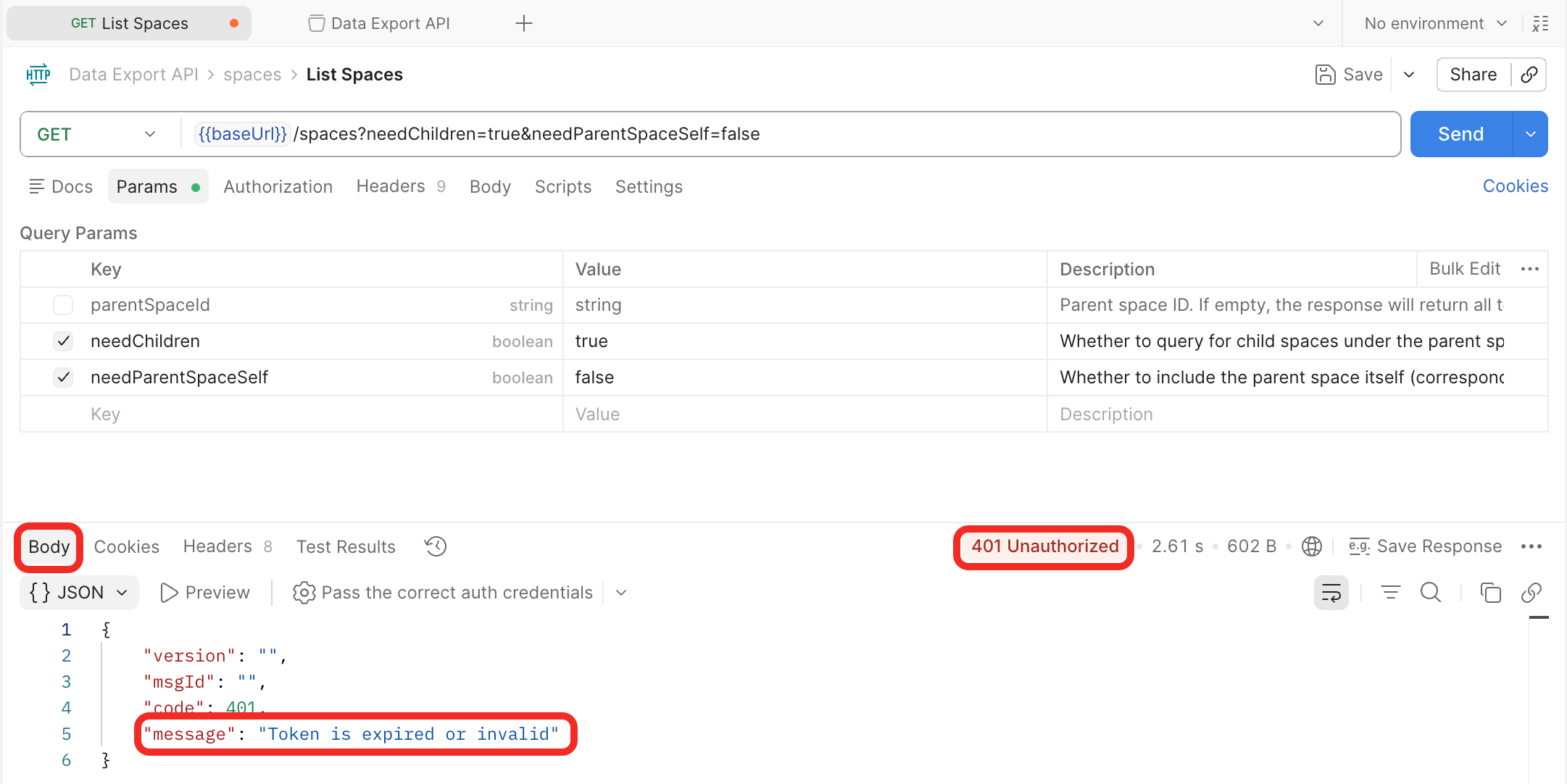
-
Query Trait Values API
API Documentation: Query Trait Values.
-
In the Postman sidebar, select
Data Export API > devices > traits > read > Query Trait Values, then click Body.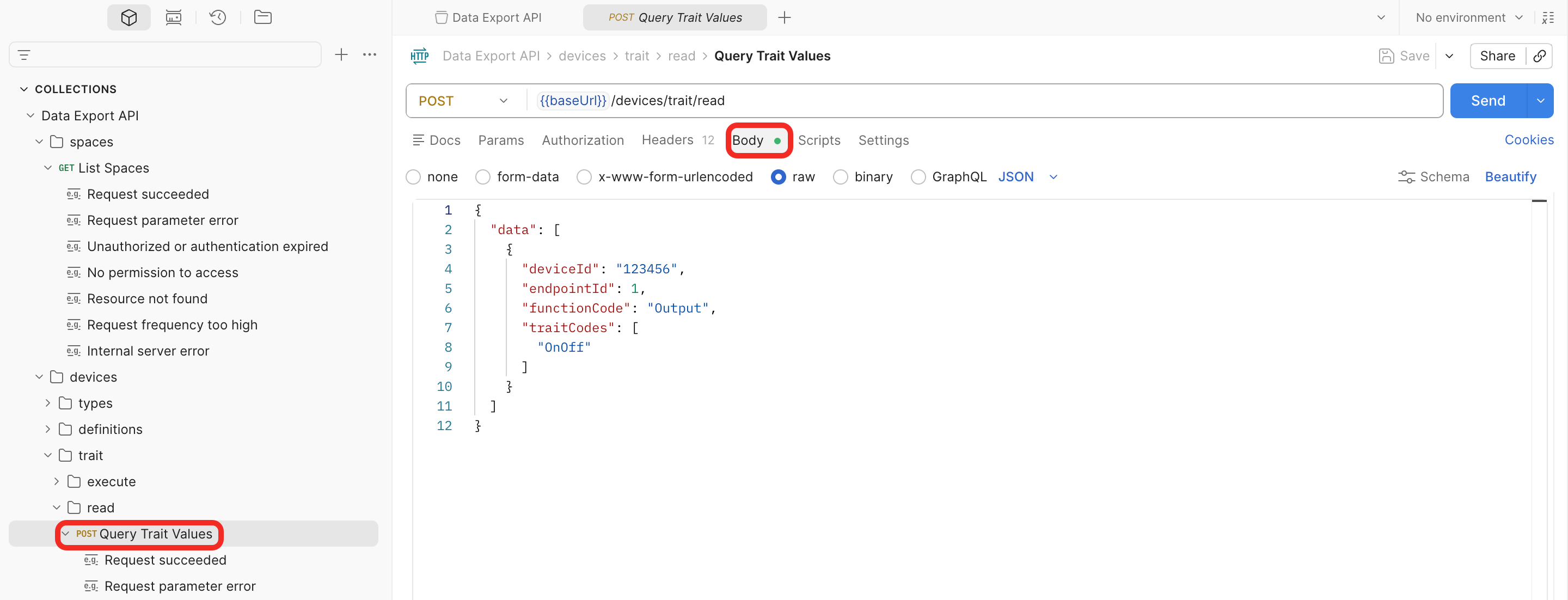
-
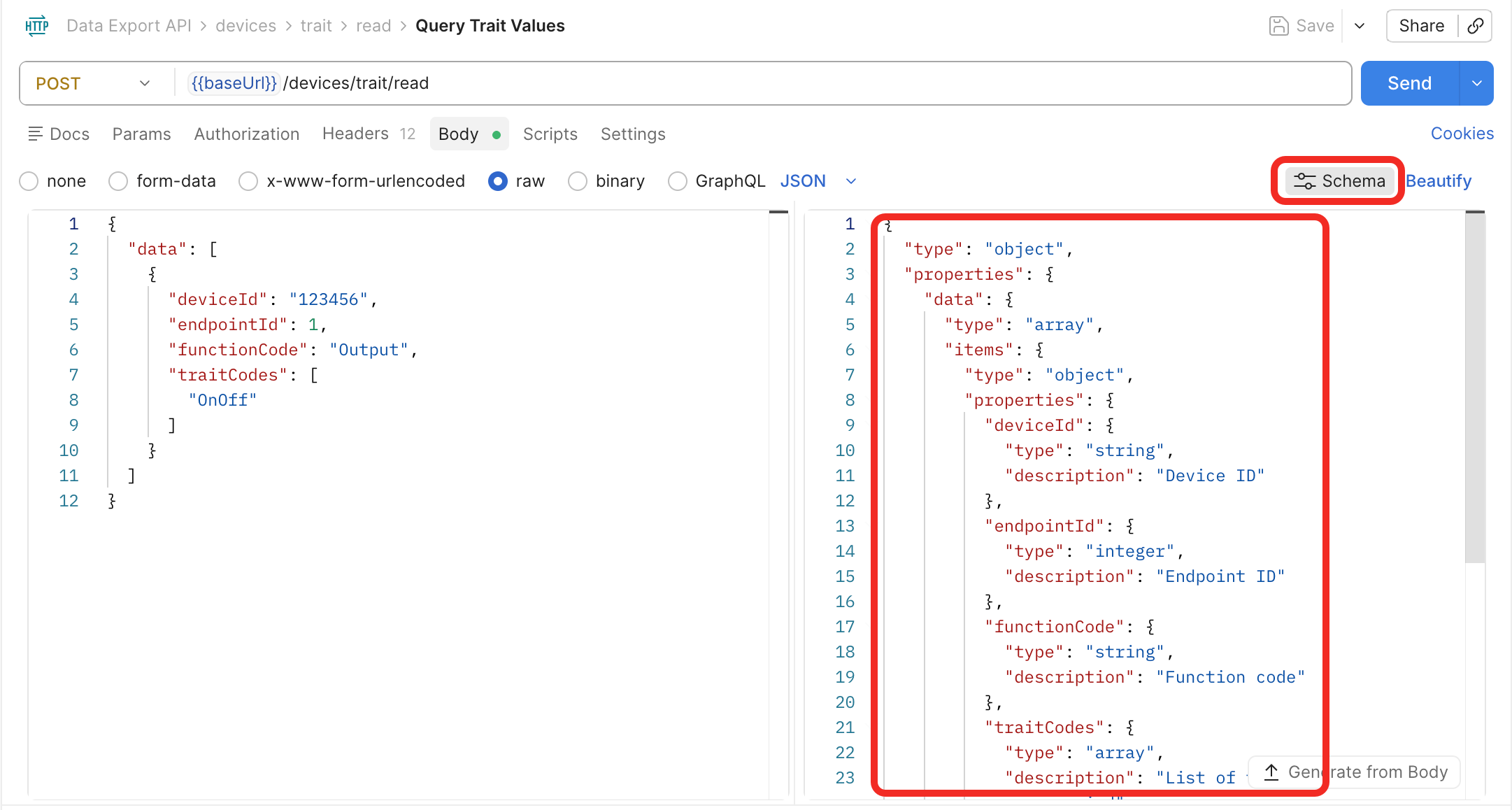
Since this is a POST request, click Schema to view the description of the Body fields.
-
In the
dataobject, fill in the device ID, endpoint ID, function code, and the list of trait codes to query. Then click the Send button to request the Trait values.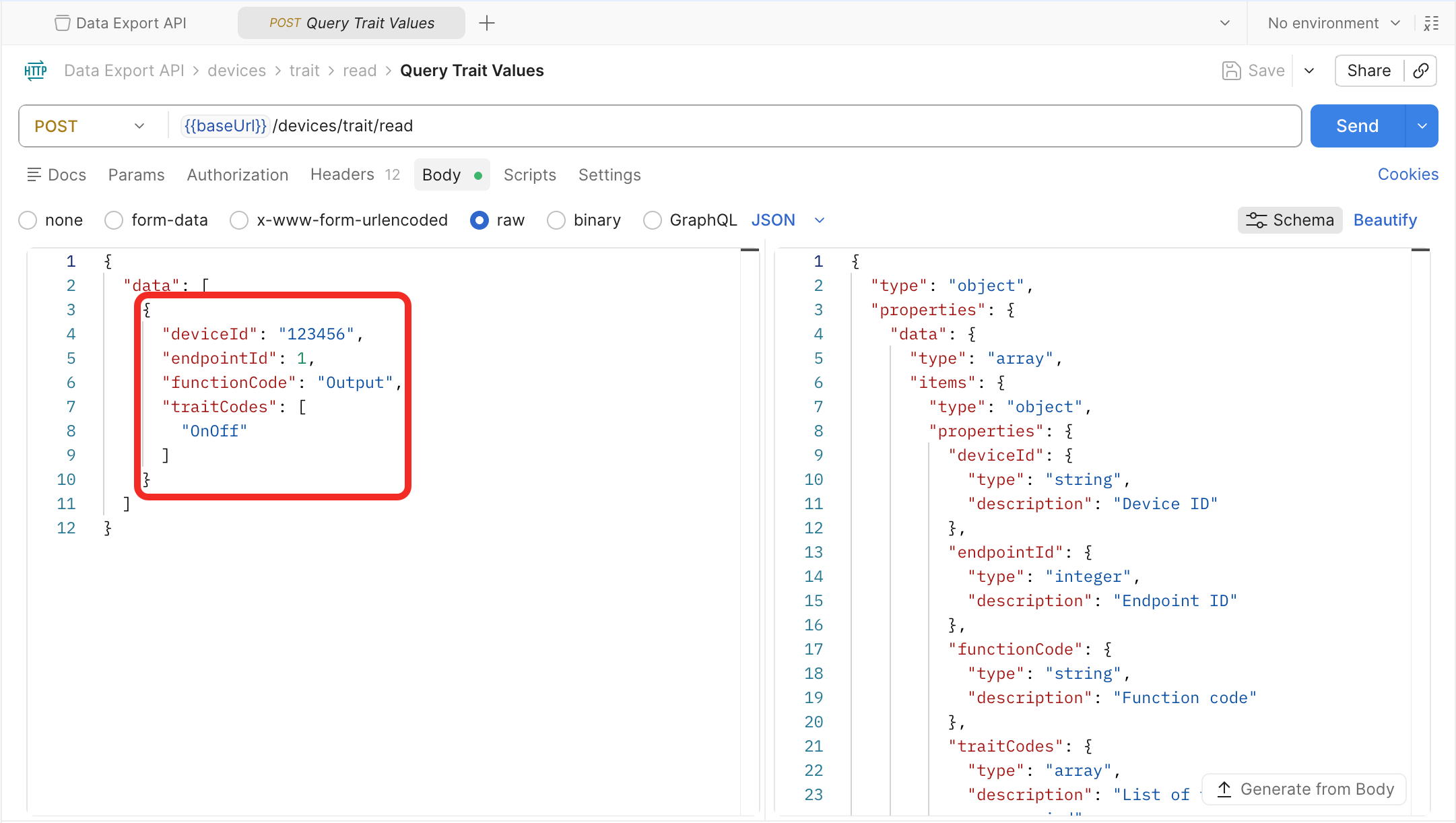
-
Similar to the List Spaces API, check the HTTP status code in the Body section below. If it is 200, the request was successful.