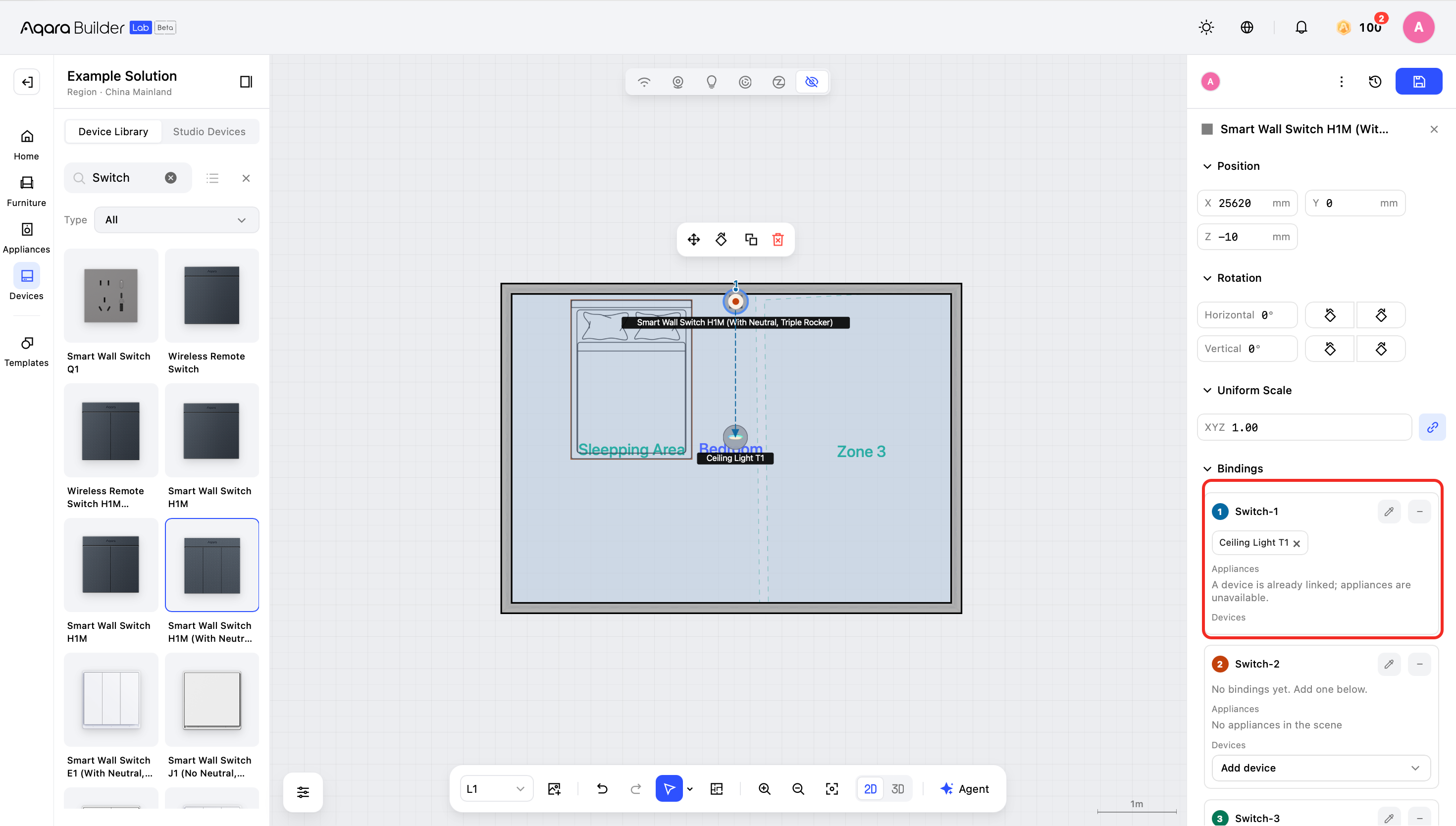
Add Switches
Place each switch in the correct position, then choose which devices each button will control.
Adding a Switch
- Open the Device Library.
- Find the switch you want to add.
- Add the switch to the room.
- Place it in the correct room and on the correct wall.
- Make sure the number of buttons is accurate to your actual situation.
Choose the Devices Controlled by a Switch
- Select a switch that you have placed.
- Open Switch-Controlled Devices.
- Select the button you want to configure.
- Choose one or more devices for the button to control.
- Configure the remaining buttons as needed.
- Review the control assignments and save.
Keep the following in mind:
- One button can control multiple devices.
- After you choose the first controlled device for a button, you can only add other devices of the same category.
- If the first controlled device is an Aqara smart device, you can only add other Aqara smart devices.
- If the first controlled device is a third-party smart device, you can only add other third-party smart devices.
- The same device can be controlled by multiple buttons.