DIN Rail Hub AX100M
Product Information
Basic Information
| Parameter | Description |
|---|---|
| English name | DIN Rail Hub AX100M |
| Chinese name | 配电箱网关 AX100M |
| Product model | ZHWG30LM (CN version) / HM-G07D (GL version) |
| Product type | Hub |
| Barcode | 6978350350851 (White / CN version) / 6978350350875 / 0192784003459 (White / GL version) |
| SKU | AG049CNB01 (CN version) / AG049GLB02 (GL version) |
| Product ID | A01699 (CN version) / A01701 (GL version) |
Product Specifications
Basic Specifications
| Parameter | Description |
|---|---|
| Product dimensions | 95 × 26.8 × 61 mm |
| Operating temperature | -10°C to 50°C |
| Operating humidity | 0% to 95% RH, non-condensing |
| Wireless protocols | Wi-Fi IEEE 802.11 a/b/g/n/ac/ax 2.4 GHz / 5 GHz (Wi-Fi 6), Zigbee/Thread IEEE 802.15.4, Bluetooth |
| Type-C input | 5V⎓1A |
| Power input | 12V-24V⎓, 0.6A (DC terminals connected to power module) |
| Ethernet | RJ45, 100 Mbps (PoE not supported) |
| RS485 | 10 Mbit/s Max, 8-pin terminal (GND/B/A for connecting Aqara RS-485 sub-devices; V-/V+ for power module) |
| Applicable standard | GB 4943.1-2022 |
| Package dimensions | 178 × 111 × 35 mm |
| Package contents |
|
Main Materials
PC+ABS
Product Appearance
Wireframe
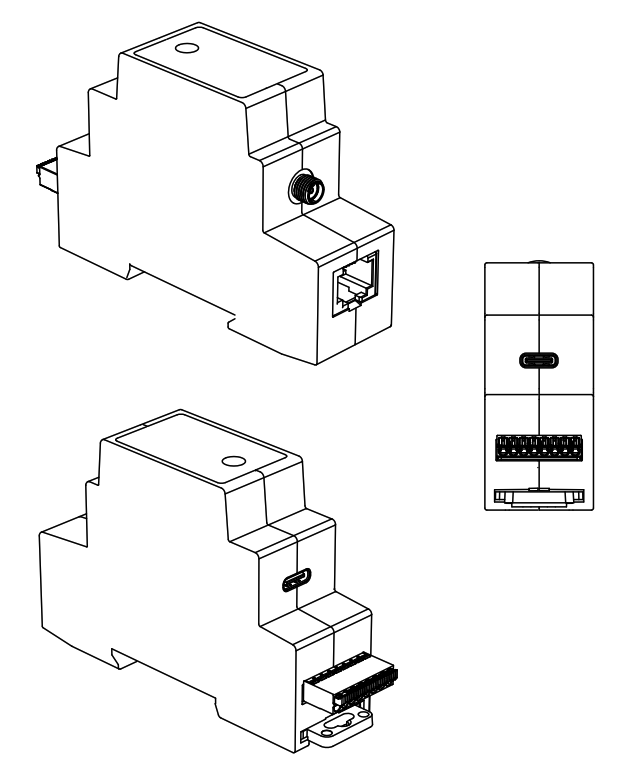
Product Overview
Aqara DIN Rail Hub AX100M is a hub designed to meet DIN rail installation requirements for distribution boxes, and can be mounted on a standard DIN rail. It supports both Zigbee and Thread protocols, Matter Controller and Thread Border Router functions, and can act as a Matter Bridge to connect bound Zigbee sub-devices to third-party Matter ecosystems. It supports Aqara RS-485 sub-devices, enabling pairing, network configuration, and control management via wired RS485 connection. It supports dual-band 2.4 GHz and 5 GHz Wi-Fi, and can be powered via USB Type-C or a power module.
Sales Information
Sales Regions
| Version | Sales region |
|---|---|
| CN version | Chinese Mainland |
| GL version | European Union |
Installation Instructions
Installation Prerequisites
Installation tools: connecting wires (twisted pair or AWG 28 electronic wire recommended; to be prepared by the user)
Installation Precautions
- Before installation, make sure the main power switch is turned off! Wire the hub only when it is powered off to avoid electrical accidents.
- Use with the dedicated Aqara power module. The power module outputs 24 V and can supply power to the DC ports of Aqara DIN Rail Hub AX100M and Aqara RS-485 sub-devices. If another power module is required, confirm the specifications with Aqara technical support before installation to avoid damage.
User Instructions
Quick Setup
1. Select Power Supply Method and Install
This product supports two power supply methods: using a power module or Type-C.
Before installation, make sure the main power switch is turned off! Wire the hub only when it is powered off.
Power via Power Module DC Port
- Turn off the main power supply switch;
- Insert the matching female terminal into the hub DC interface;
- Connect the hub V+ and V- ports to the power module output V+ and V- with connecting wires;
- Connect the mains wires to the power module input, then turn on the main power supply.
Power via Type-C
Use a 5V⎓1A power adapter with a USB Type-C cable to connect the adapter to the hub Type-C port for power supply (power cable and adapter are not included).
2. Hub Antenna Installation
Due to the installation environment, the distribution box may shield Zigbee and Thread signals. Use the antenna included in the package. Screw the antenna SMA connector into the SMA port on the hub, and install the antenna outside the distribution box so the hub can communicate with Zigbee and Thread sub-devices outside the box.
3. Wait for the Hub to Start
The hub indicator changes from solid yellow to fast flashing yellow.
4. Hub Binding
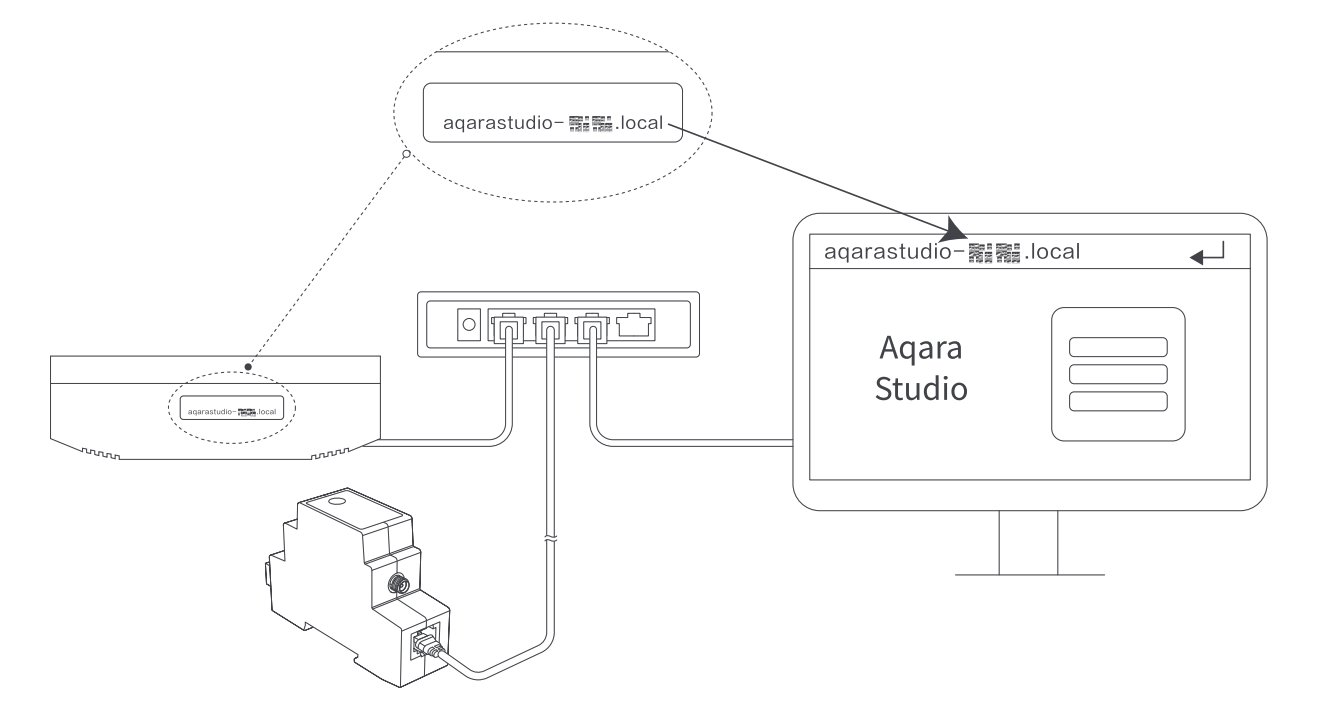
Connect DIN Rail Hub AX100M to the router, place it on the same LAN as M300, then sign in to the M300 Aqara Studio management page. See the Aqara Hub Integration Guide for details.
5. Bind Sub-Devices
| Sub-device protocol | Pairing guide |
|---|---|
| Zigbee | Zigbee Device Integration Guide |
| Aqara RS-485 | Aqara RS-485 Device Integration Guide |
| Matter Over Thread | Thread devices must be bound to AX100M via the Aqara Life App. |
Product Features
Recommended Number of Connected Sub-Devices
Recommended connected sub-devices:
| Sub-device protocol | Recommended quantity |
|---|---|
| Zigbee | 40 |
| Thread | 40 |
| Aqara RS-485 | 32 |
Within these limits, Aqara lab testing confirms good automation success rates.
Interface Description
| Interface | Description |
|---|---|
| Indicator | Hub status indicator |
| Button | Hub function button for triggering different hub functions |
| Type-C USB | Power interface for a Type-C cable with a 5V⎓1A power adapter (power cable and adapter are not included) |
| SMA | antenna interface (package includes an 80 cm magnetic antenna) |
| RJ45 | Ethernet interface for wired network connection |
| 8-pin terminal | Push-in terminal block, left to right: NC/NC/NC/GND/B/A/V-/V+; GND/B/A are RS485 terminals for Aqara RS-485 sub-devices; V-/V+ connect to the power module |
Button Description
| Operation | Description |
|---|---|
| Press and hold the function button for more than 10 seconds | Reset network parameters (user configuration data remains unchanged); when anti-misdelete mode is enabled, unbinding from the hub side is not available |
| Press the function button quickly 10 times | Restore factory settings (clear all user data to factory state) |
| Press the function button quickly 3 times | Enter Zigbee sub-device pairing mode |
Indicator Description
| Indicator status | Description |
|---|---|
| Solid yellow | Starting up |
| Fast flashing yellow | Waiting for network connection |
| Fast flashing blue | Connecting to network |
| Slow flashing blue | Network connected, account binding in progress |
| Solid blue | Working normally |
| Solid white | Powered on for 10 minutes without network configuration |
| Flashing purple | Sub-device pairing allowed |
| Slow flashing yellow | Firmware upgrading |
| Off | Indicator turned off / hub not powered / hub in sleep mode |
Key Capabilities
- Can serve as a Zigbee hub and Thread Border Router to connect Aqara Zigbee and Thread sub-devices
- Can serve as a Matter Bridge to connect bound Aqara Zigbee sub-devices to third-party Matter ecosystems
- Supports Matter Controller to add third-party Matter devices
- Connects Aqara RS-485 sub-devices via RS485 wired interface (supports up to 32 Aqara RS-485 sub-devices) for pairing, connection, and control
- Supports dual-band 2.4 GHz & 5 GHz Wi-Fi 6 wireless networking and RJ45 wired networking
- Can connect to third-party Matter platforms (Google, Alexa, Samsung SmartThings, etc.)
Precautions
Usage Precautions
- This product is not a toy. Keep it away from children;
- For indoor use only. Do not use in humid environments or outdoors;
- Keep dry. Do not spill water or other liquids onto this product;
- Do not place this product near heat sources. Do not place it in an enclosed space unless adequate ventilation is provided;
- Do not attempt to repair this product yourself. Repairs should be performed by authorized professionals;
- This product and its sub-devices are intended only to improve home convenience and entertainment, and for device status alerts. They should not be used as security equipment for homes, buildings, warehouses, or any other premises. If users violate the product instructions and these precautions and use the product for security purposes, the manufacturer assumes no responsibility for any resulting risks or property loss;
- Use an adapter with a minimum output of 5VDC 1A, or a power module of 12-24V⎓, 0.6A
Automation Information
Supported Automation Triggers
| Feature | Trigger condition |
|---|---|
| Anti-misdelete notification | Equals / does not equal button-triggered reset / button-triggered factory reset |
Supported Automation Actions
- Restart the entire device;
- Delay duration
Product Certification
Product Certification
SRRC, quality inspection report, CE.
Troubleshooting Guide
Fault Symptoms, Possible Causes, and Solutions
Common pairing failures:
- After power-on, press and hold the hub button for more than 10 seconds, wait until the yellow light flashes, then retry adding;
- Check whether the router has Wi-Fi anti-sharing settings enabled, which may prevent the hub from connecting to the network;
- Check whether the router has AP isolation enabled, which may prevent the phone from discovering the hub on the LAN;
- Avoid connecting to bridged networks.
Specific Notes
Low-Power Radio Device Instructions
- The Zigbee/Thread technology used in this product complies with the technical requirements for Category F general-purpose low-power devices in the Catalogue and Technical Requirements for Low-Power Short-Range Radio Transmission Equipment, and is used for data transmission. It uses an integrated antenna. For control, adjustment, and switch operations, refer to the relevant sections of the product manual;
- Do not change the usage scenario or conditions without authorization, expand the transmission frequency range, increase transmit power (including adding an RF power amplifier), or modify the transmitting antenna;
- Do not cause harmful interference to other legitimate radio stations, and do not claim protection from harmful interference;
- Must tolerate interference from industrial, scientific, and medical (ISM) equipment that radiates RF energy, or from other legitimate radio stations;
- If harmful interference is caused to other legitimate radio stations, stop using the product immediately and take measures to eliminate the interference before continuing use;
- When used in aircraft or within electromagnetic environment protection areas designated by laws, regulations, national provisions, or standards-such as radio astronomy observatories, weather radar stations, satellite earth stations (including TT&C, ranging, receiving, and navigation stations), military/civilian radio stations, and airports-comply with electromagnetic environment protection requirements and relevant industry authorities;
- Do not use model remote controllers within a 5,000-meter radius centered on an airport runway midpoint;
- Operating temperature for the low-power device is -10°C to +50°C; power supply is Type-C 5V⎓1A or power module 12-24V⎓, 0.6A.
Product Selling Points
Selling Point Description
- DIN rail mounting for distribution box scenarios
- Dual power options: USB-C / DC terminals
- External SMA antenna to manage Zigbee & Thread sub-devices outside the distribution box
- Dual-band 2.4 GHz & 5 GHz Wi-Fi 6 for more stable connections
- Dual protocol: Zigbee hub + Thread Border Router
- Can act as Matter Bridge / Matter Controller to connect to third-party Matter ecosystems
- RS485 wired connection for Aqara RS-485 sub-devices (supports up to 32 Aqara RS-485 sub-devices)
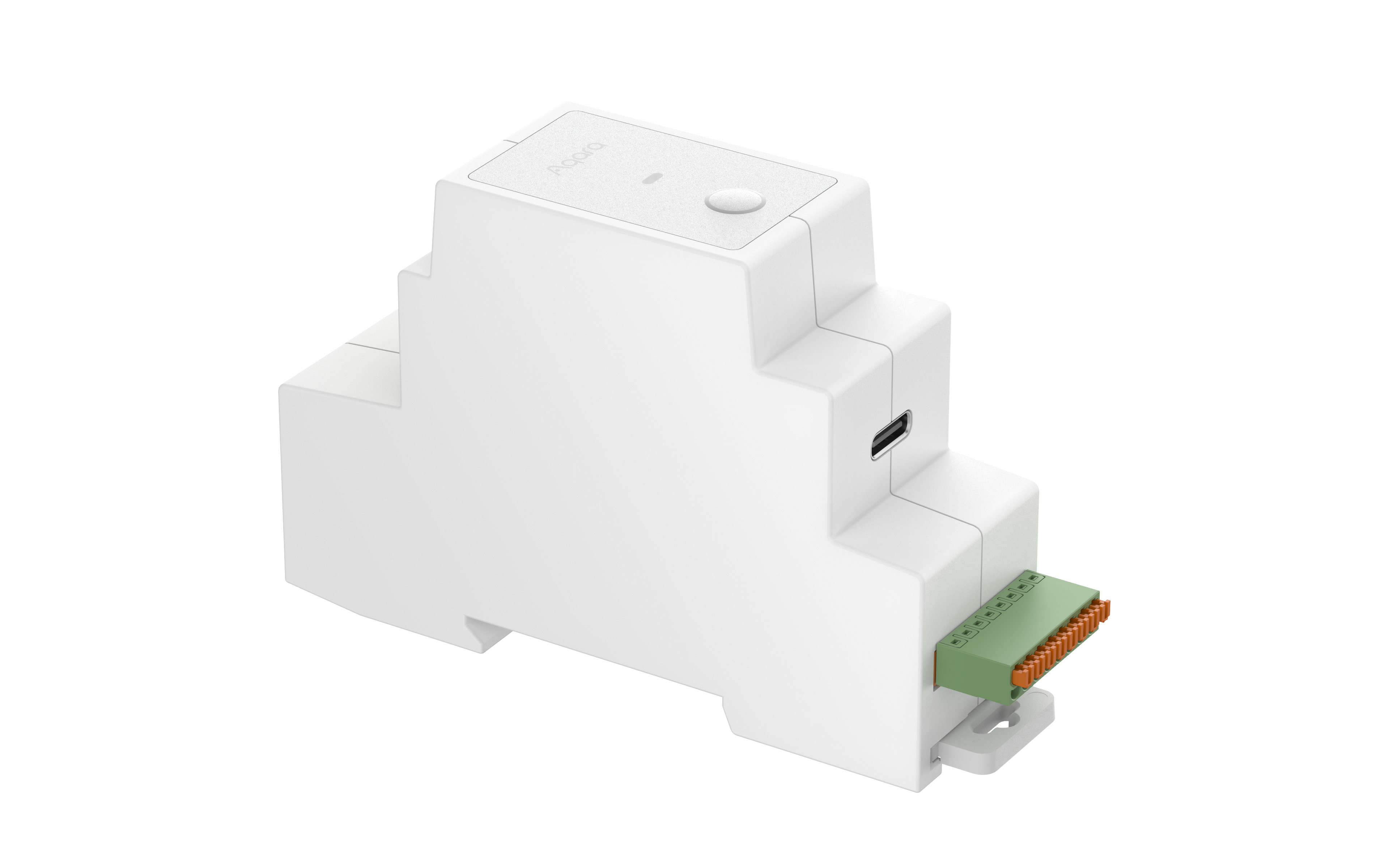
Product Image / Selling Point Poster
FAQ
DIN Rail Hub AX100M FAQ
Does DIN Rail Hub AX100M support third-party RS485 protocols such as Modbus RTU or BACnet MS/TP?
Not supported.
What are the pros and cons of wired RS-485 compared with wireless Zigbee & Thread?
RS-485 is simple and reliable, and once deployed requires almost no maintenance; however, it requires pre-installation and makes adding new devices more difficult.