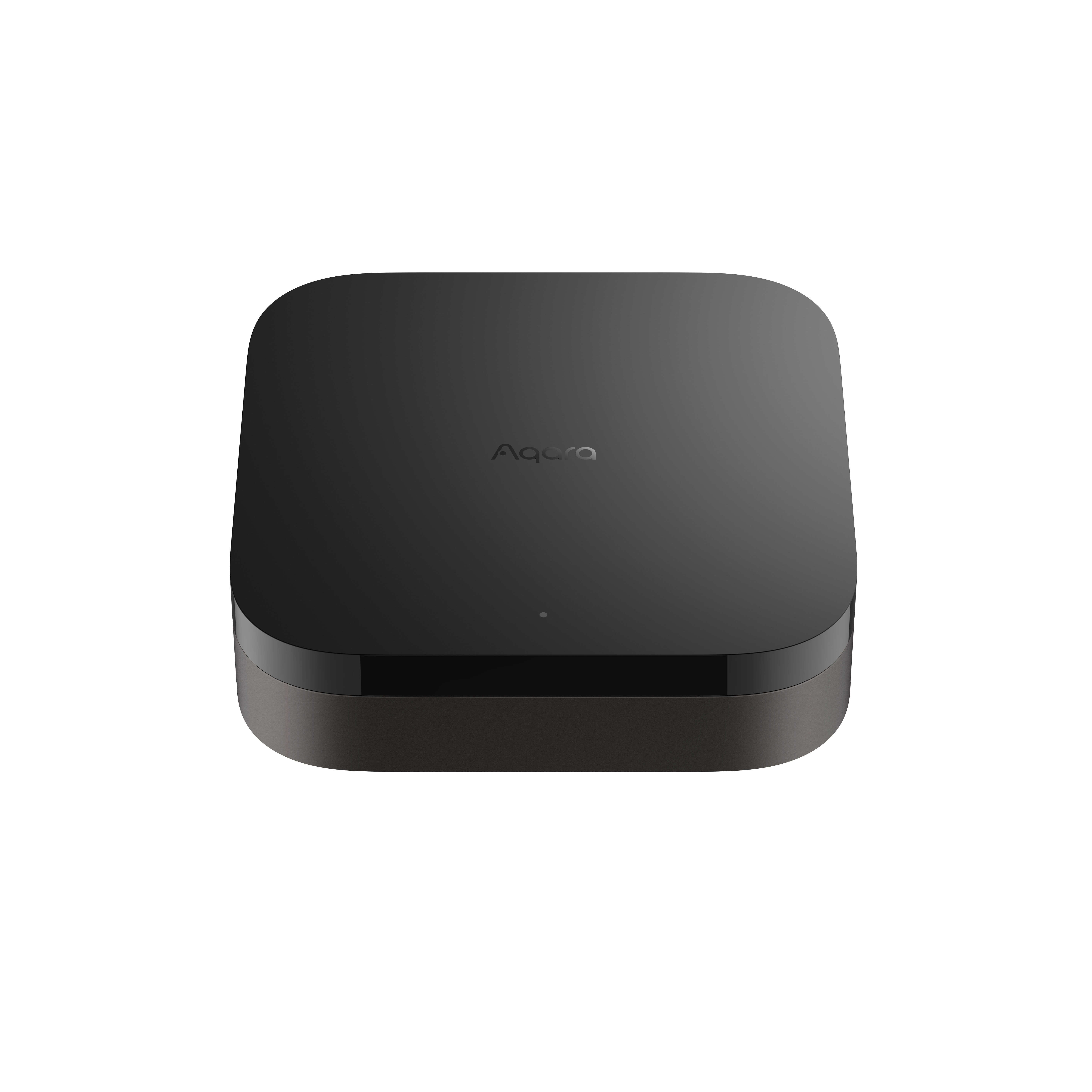
Edge Hub M300
Product Information
Basic Information
| Parameter | Description |
|---|---|
| Chinese name | 智慧边端 M300 |
| English name | Edge Hub M300 |
| Product model | ZHWG27LM (CN) / HM-G04D (Global) |
| Product type | Hub |
| Barcode | 6978350350103 (CN) / 6978350350028, 0192784002803 (Global) |
| SKU | AG048CNB01 (CN) / AG048GLB02 (Global) |
| Product ID | A01842 (CN) / A01841 (Global) |
Product Specifications
Basic Specifications
| Parameter | Description |
|---|---|
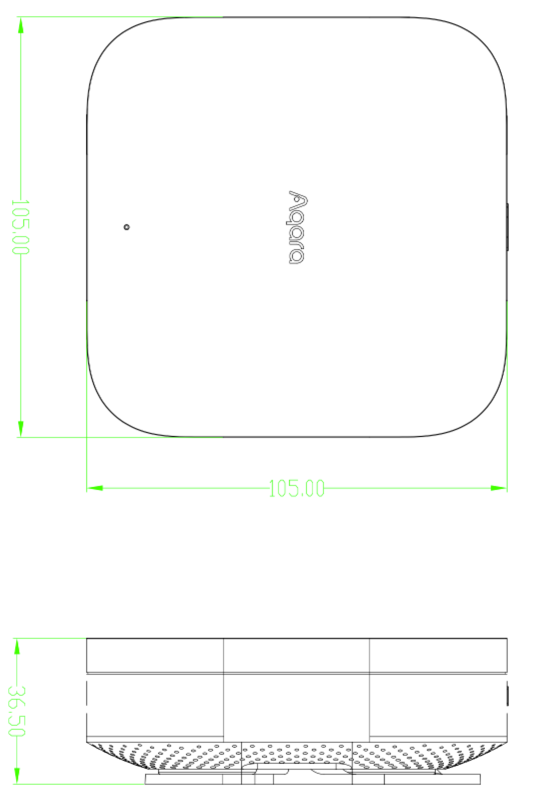
| Dimensions | 105 × 105 × 36.5 mm |
| Net weight | 160 g |
| Operating temperature | −10°C to 50°C |
| Operating humidity | 0%–95% RH, non-condensing |
| Wireless protocols | Wi-Fi IEEE 802.11 a/b/g/n/ac 2.4 GHz / 5 GHz (Wi-Fi 5, WPA3 supported); Zigbee/Thread IEEE 802.15.4; Bluetooth |
| Power input | 5V⎓2A (USB Type-C) |
| PoE input | 48V⎓0.27A (RJ45, IEEE 802.3af supported) |
| Ethernet | RJ45, 100 Mbps, PoE powered |
| Storage | 64 GB eMMC; microSD expansion supported (up to 512 GB) |
| Compliance standard | GB 4943.1-2022 |
| Package dimensions | Same as Hub M3 outer packaging (approx. 111 × 112 × 58 mm) |
| Package contents |
*Power adapter is not included |
Main Materials
PC+ABS
Product Appearance
Wireframe
Product Overview
Aqara Edge Hub M300 is the official hardware controller for the Aqara Studio spatial intelligence OS. It serves as both a local edge hub and a gateway. Because the Aqara Studio platform is pre-installed and embedded directly in the M300’s solid-state storage (“hub-integrated” model), the device takes on several key architectural roles:
- Highly available local hardware controller and primary physical commissioning hub;
- Multi-protocol industrial-grade gateway that bridges wireless topologies with traditional wired building automation standards;
- Local host server running the Aqara Studio web-based configuration console and user dashboard;
- High-performance local execution engine for complex multi-threaded scripts and edge automation tasks;
- Secure local API integration endpoint with a built-in MCP server.
Sales Information
Sales Regions
Chinese Mainland, North America, Europe, Russia
Installation Guide
Installation Prerequisites
Use an adapter with a minimum output of 5 VDC 2 A (adapter not included), or power the device via RJ45 using a PoE router/switch that supports IEEE 802.3af.
The product supports desktop placement, wall mounting, and ceiling mounting. When used on a desk, place it on a flat surface and do not block the front IR emitter area.
Installation Precautions
- This product is not a toy. Keep it away from children.
- For indoor use only. Do not use in damp environments or outdoors.
- Keep dry. Do not spill water or other liquids on the product.
- Keep away from heat sources. Do not place in enclosed spaces without adequate ventilation.
- Do not attempt to repair the product yourself. Servicing must be performed by authorized professionals.
- This product and its child devices are intended only to improve home entertainment and convenience, and for device status notifications. They must not be used as security equipment for homes, buildings, warehouses, or any other premises. If a user violates these instructions and uses the product for security purposes, the manufacturer assumes no liability for any resulting risks or property damage.
- Use an adapter with a minimum output of 5 VDC 2 A.
- When Type-C and PoE power are connected at the same time, the device draws power from PoE first.
User Guide
Quick Setup
1. Choose a power method
1.1 Type-C power
Use a 5V⎓2A power adapter and the USB-A to USB-C cable to power the hub via the Type-C port (adapter sold separately).
1.2 PoE power
Use a PoE-capable router or network switch connected to the hub’s RJ45 port for both power and network connectivity.
*Note: When both mains power and PoE are connected, the device draws power from PoE first.
2. Wait for the hub to start
The indicator lights solid yellow; after startup it enters fast yellow flashing (waiting for Studio login/configuration).
3. Connect to the network and access Aqara Studio
Wired connection is recommended: connect the M300 to a router/switch with an Ethernet cable, keep the PC on the same LAN, and open the address on the device management sticker in a browser (e.g., aqarastudio-EEFF.local) to access Studio.
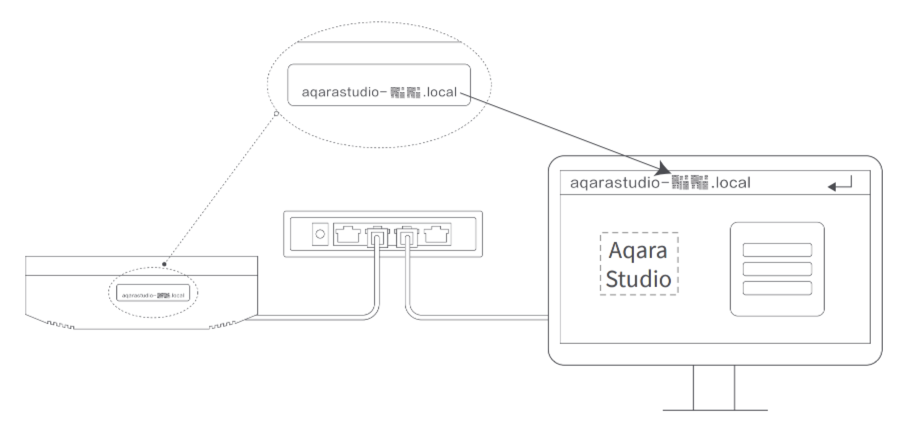
On first use, initialize the admin username and password in the Studio web console. If initialization times out, reboot the device and try again (do not factory reset).
4. Bind child devices
Bind Zigbee devices: see the Zigbee device add flow
Bind Matter Over Thread devices: see the Matter device add flow
Product Features
Ports & interfaces
| Interface | Description |
|---|---|
| Indicator | Single RGB status LED |
| Button | Protruding function button for joining networks, adding child devices, clearing alarms, reset, etc. |
| Type-C | Power (5V⎓2A) and data; can connect a 4G/5G module via a dock for cellular internet |
| RJ45 | 100 Mbps Ethernet, IEEE 802.3af PoE supported |
| microSD | Expansion card slot (up to 512 GB) |
| Speaker | Ringtones and voice prompts |
| IR | 6 IR emitters + 1 IR receiver; IR learning and remote control supported |
Button operations
| Operation | Description |
|---|---|
| Hold the function button for 10 seconds | Restore network parameters (available when anti-accidental-deletion is off; no response when on—red LED flashes 3 times quickly) |
| Press the function button 10 times quickly | Factory reset (available when button factory-reset disable is off; no response when on—red LED flashes 3 times quickly) |
| Press the function button once | Stop adding Zigbee child devices / stop voice playback |
| Press the function button 3 times quickly | Enter Zigbee child-device pairing (purple LED slow flash) |
| Press the function button 5 times quickly, then hold for 3 seconds | Enter network standby mode (disable Zigbee/Thread and other radios; solid purple; restored after power cycle) |
LED indicators
| Indicator status | Description |
|---|---|
| Solid yellow | Starting up |
| Fast yellow flash | Waiting for Studio login/configuration (connect to a router and enter the management address in a browser) |
| Fast blue flash | Connecting to the network |
| Slow blue flash | Offline after joining the network |
| Solid blue | Studio login complete; operating normally |
| Solid white | Unable to connect to the router for about 10 minutes / retry commissioning |
| Slow yellow flash | Hub firmware or Studio firmware upgrading |
| Slow purple flash | Zigbee child-device pairing allowed |
| Solid purple | Network standby mode |
| Green LED flashes slowly twice | “Identify” gateway clicked while adding a child device |
| Red LED flashes 3 times quickly | Anti-accidental-deletion is on; related delete/reset actions are blocked |
Key capabilities
- Runs Aqara Studio on-device; supports local logic blocks, graphical automation, and web management
- Can act as a Zigbee gateway, Thread Border Router, and Matter Controller / Matter commissioner
- Supports Matter Bridge of Zigbee devices to third-party platforms
- Supports dual-band 2.4 GHz & 5 GHz Wi-Fi 5 and RJ45 wired networking, including static IP
- Supports dual power: Type-C / PoE
- Supports IR remote control and learning, ringtone playback, local log storage, and SD card expansion
- Supports B2B O&M features such as child-device anti-accidental-deletion, static IP, and full device reboot
Precautions
Usage Precautions
- This product is not a toy. Keep it away from children.
- For indoor use only. Do not use in damp environments or outdoors.
- Keep dry. Do not spill water or other liquids on the product.
- Keep away from heat sources. Do not place in enclosed spaces without adequate ventilation.
- Do not attempt to repair the product yourself. Servicing must be performed by authorized professionals.
- This product and its child devices are intended only to improve home entertainment and convenience, and for device status notifications. They must not be used as security equipment for homes, buildings, warehouses, or any other premises. If a user violates these instructions and uses the product for security purposes, the manufacturer assumes no liability for any resulting risks or property damage.
- Use an adapter with a minimum output of 5 VDC 2 A.
Automation
Supported Automation Triggers
| Trait | Trigger condition |
|---|---|
| Anti-accidental-deletion setting | equals/does not equal button-triggered reset / button-triggered factory reset |
| Volume | equals/does not equal/greater than/greater than or equal to/less than/less than or equal to 0–100 |
Supported Automation Conditions
| Trait | Condition |
|---|---|
| Volume | equals/does not equal/greater than/greater than or equal to/less than/less than or equal to 0–100 |
Supported Automation Actions
- Reboot the entire device; delay duration;
- Set volume (0–100);
- Play ringtone (play/stop, index, volume, duration)
Product Certification
SRRC, quality inspection report, FCC, CE, RoHS, EAC
Troubleshooting
Symptoms, Possible Causes, and Solutions
Common configuration failures:
- After power-on, hold the function button for more than 10 seconds until the yellow LED flashes quickly, then retry;
- Confirm the device and PC are on the same LAN and enter the management address on the device correctly;
- Check whether the router has Wi-Fi anti-sharing / AP isolation enabled;
- Avoid bridged networks where possible;
- If first-time account initialization times out, reboot the device (do not factory reset) and restart initialization.
Unable to reset/factory-reset due to anti-accidental-deletion: Change the anti-accidental-deletion setting and the disable-button-factory-reset option in Aqara Studio, then try again.
Special Notes
Micropower Device Usage Notes
- The Zigbee/Thread technology used in this product complies with the technical requirements for Category F general micropower devices in the “Catalog and Technical Requirements for Micropower Short-Range Radio Transmitters,” for data transmission applications. It uses an integrated antenna. For control, adjustment, and switch usage, refer to the relevant sections of the product manual.
- Do not change the usage scenario or conditions without authorization, expand the transmit frequency range, increase transmit power (including adding an RF power amplifier), or modify the transmit antenna.
- Must not cause harmful interference to other authorized radio stations, and may not claim protection from harmful interference.
- Must accept interference from industrial, scientific, and medical (ISM) equipment that radiates RF energy, or from other authorized radio stations.
- If harmful interference is caused to other authorized radio stations, stop using the device immediately and resume only after measures have been taken to eliminate the interference.
- When using micropower devices inside aircraft or within electromagnetic environment protection zones for military and civilian radio stations (including radio astronomy observatories, weather radar stations, and satellite earth stations for TT&C, ranging, reception, and navigation), airports, and similar sites designated by laws, regulations, national provisions, or standards, comply with electromagnetic environment protection rules and the requirements of relevant industry authorities.
- Use of model remote controllers is prohibited within a 5,000-meter radius centered on an airport runway midpoint.
- Operating temperature for the micropower device is −10°C to +50°C; power supply is 5V⎓2A or 48V⎓0.27A.
Product Selling Points
Selling Point Description
- Intelligent hub gateway with built-in Aqara Studio
- Cross-protocol management platform
- Universal IR remote control
- Local automation control
- Multi-ecosystem support (HomeKit / Matter, etc.)
- Dual-band Wi-Fi 5
- Expandable high-capacity local storage (8 GB eMMC + SD card)
- PoE power & wireless connectivity
Product Image