Hub M100 Pro
Product Information
Basic Information
| Parameter | Description |
|---|---|
| English Name | Hub M100 Pro |
| Chinese Name | 网关 M100 Pro |
| Product model | ZHWG25LM (CN version) / HM-G02D, HM-G02E (GL version) |
| Product type | Hub (Aqara Studio series, supports connecting to Aqara Studio) |
| Barcode | 6978350355658 (CN version) / 6978350355146, 192784004760 (GL version) |
| SKU | AG046CNW02 (CN version) / AG046GLW03 (GL version) |
| Product ID | A02224 (CN version) / A02162 (GL version) |
Product Specifications
Basic Specifications
| Parameter | Description |
|---|---|
| Product dimensions | 108 × 30 × 8 mm |
| Operating temperature | -10°C to 40°C |
| Operating humidity | 0% to 95% RH, non-condensing |
| Wireless protocols | Wi-Fi IEEE 802.11 b/g/n/ax 2.4 GHz (Wi-Fi 6), Zigbee/Thread IEEE 802.15.4, Bluetooth |
| Power input | 5V⎓0.5A (USB-A interface) |
| Applicable standard | GB 4943.1-2022 |
| Net weight | 40g |
| Package contents |
|
Main Materials
PC+ABS
Product Appearance
Wireframe
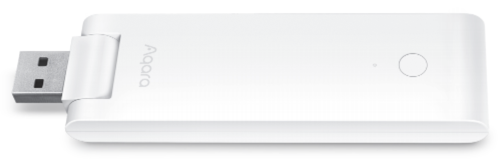
Product Overview
The Hub M100 Pro is a cost-effective Matter Hub launched by Aqara for Aqara Studio, and connects to the Aqara Studio platform. It supports simultaneous connection of Zigbee and Thread child devices and can be used as a Thread Border Router and Matter Controller. It uses an ARM dual-core A7 SoC at 1GHz and supports 2.4 GHz Wi-Fi 6 wireless connectivity. The product is compact and flexible to install, and can be powered from sockets and appliances with a standard USB-A interface. It can also connect to third-party Matter ecosystems.
This product has no Ethernet port and does not support wired networking; it only supports wireless (Wi-Fi) connection. It does not support pairing with the Aqara Home app and must be used with the Aqara Life app.
Sales Information
Sales Regions
| Version | Sales region |
|---|---|
| CN version | Chinese Mainland |
| GL version | European Union and other overseas markets |
Installation Instructions
Installation Prerequisites
Installation tools: none required. Plug the built-in USB-A interface into a power source with a standard USB-A port (socket / appliance / 5V⎓0.5A power adapter) to power the hub.
Installation Precautions
- Use a compliant 5V⎓0.5A power source; avoid adapters with insufficient output.
- This product has no Ethernet port and only supports wireless (Wi-Fi) networking.
- For indoor use only. Do not use in humid environments or outdoors.
- Do not block the product body or damage the USB-A interface.
User Instructions
Quick Setup
1. Power on
Plug the hub into a power source with a standard USB-A interface (socket, appliance, or 5V⎓0.5A power adapter).
2. Wait for startup
The indicator lights up and the hub enters the pairing-ready state (see "Product Features" for indicator descriptions).
3. Pairing (wireless)
This product has no Ethernet port and does not support wired networking; it only supports wireless (Wi-Fi) connection. Complete the initial Wi-Fi configuration via the Aqara Life app, then connect to Aqara Studio (it does not support pairing with the Aqara Home app). See the Aqara Studio pairing guide for details.
4. Connect to Aqara Studio
In Aqara Studio, go to "Device Management → Aqara Hub", click "Discover Devices", search the LAN, and add this hub.
5. Bind child devices
- Bind Zigbee devices: see the Zigbee device pairing guide;
- Bind Thread devices: see the Thread device pairing guide.
6. Reset network parameters / restore factory settings
See the button description in "Product Features".
Product Features
Key capabilities
- Matter Hub: Thread Border Router + Matter Controller;
- Multi-protocol Hub: connects Thread and Zigbee devices to Aqara Studio and third-party Matter ecosystems;
- Hub replacement: supports replacement between M100 Pro Hubs; M3 Pro, M200 Pro, and AX200M can also replace M100 Pro, enhancing disaster recovery;
- Local automation: automation created in Aqara Studio runs on the Hub, works offline;
- Universal USB-A power interface for flexible installation and use;
- 2.4GHz Wi-Fi 6, IEEE 802.11 b/g/n/ax.
Interface description
| Interface | Description |
|---|---|
| USB-A interface | Power input for connecting a power source with a standard USB-A port |
| Button | 1 physical button for factory reset, child device pairing, alarm cancellation, etc. |
| Indicator | 1 RGB indicator for device status display |
Button description
| Operation | Description |
|---|---|
| Press the function button quickly 3 times | Enter Zigbee child device pairing mode |
| Press and hold the function button for more than 10 seconds | Reset network parameters (user configuration data remains unchanged) |
| Press the function button quickly 10 times | Restore factory settings (clear all user data to factory state) |
Indicator description
The RGB indicator shows the device working status (refer to the official user manual for the exact color/flash meanings; TBD).
Precautions
Usage Precautions
- This product is not a toy. Keep it away from children;
- For indoor use only. Do not use in humid environments or outdoors;
- Keep dry. Do not spill water or other liquids onto this product;
- Do not place this product near heat sources. Do not place it in an enclosed space unless adequate ventilation is provided;
- Do not attempt to repair this product yourself. Repairs should be performed by authorized professionals;
- This product and its child devices are intended only to improve home convenience and entertainment, and for device status alerts. They should not be used as security equipment for homes, buildings, warehouses, or any other premises. If users violate the product instructions and these precautions and use the product for security purposes, the manufacturer assumes no responsibility for any resulting risks or property loss.
Supported Hub Information
Hub Replacement
Supports replacement between M100 Pro Hubs, and replacement of M100 Pro by M3 Pro, M200 Pro, or AX200M.
Automation Information
Supported Automation Triggers
Device status change (online/offline), anti-misdelete notification (button-triggered reset / factory reset)
Supported Automation Actions
Restart the entire device; delay duration; run scene
Product Certification
CN version: SRRC, quality inspection report
GL version: CE, FCC, EAC, RCM, KC RRA, JATE, TELEC
Product Warranty
Warranty Statement
After-sales service for this product is provided strictly in accordance with the Law of the People’s Republic of China on the Protection of Consumer Rights and Interests and the Product Quality Law of the People’s Republic of China, under the three-guarantee (return/replacement/repair) policy.
Warranty Policy
Within the three-guarantee validity period, you may enjoy free return, replacement, and repair services in accordance with these provisions. Return, replacement, and repair shall be handled with the invoice.
- Unconditional return within 7 days from the day after receipt (e-commerce purchase channels); logistics fees are borne by the user;
- If this product has a performance fault listed in the Product Performance Fault Table, and it is confirmed by the after-sales service center, you may enjoy the corresponding services free of charge.
Because packaging is required to ensure safe transportation, it is recommended that you keep the packaging box for at least 30 days from the day after receipt.
Non-Warranty Terms
- Unauthorized repair, misuse, collision, negligence, abuse, liquid ingress, accidents, modification, incorrect use of non-original accessories, or tearing/altering labels or anti-counterfeit marks;
- Beyond the three-guarantee validity period;
- Damage caused by force majeure;
- Conditions that do not match the performance faults listed in the Product Performance Fault Table;
- Performance faults listed in the Product Performance Fault Table that are caused by human factors to this product or its accessories.
Product Performance Fault Table
- Surface cracking caused by structural or material factors
- Product fails to power on
- Indicator failure
- Button failure
- Wi-Fi connection failure
- Unable to restore factory settings
- Other factory hardware faults that prevent normal function
Troubleshooting Guide
Fault Symptoms, Possible Causes, and Solutions
Common pairing failures:
- After power-on, press and hold the hub button for more than 10 seconds, wait until the indicator enters the pairing state, then retry adding;
- Check whether the router has Wi-Fi anti-sharing settings enabled, which may prevent the hub from connecting to the network;
- Check whether the router has AP isolation enabled, which may prevent the hub from being discovered on the LAN;
- Avoid connecting to bridged networks.
Specific Notes
Low-Power Radio Device Instructions
- The Zigbee/Thread technology used in this product complies with the technical requirements for Category F general-purpose low-power devices in the Catalogue and Technical Requirements for Low-Power Short-Range Radio Transmission Equipment, and is used for data transmission. It uses an integrated antenna. For control, adjustment, and switch operations, refer to the relevant sections of the product manual;
- Do not change the usage scenario or conditions without authorization, expand the transmission frequency range, increase transmit power (including adding an RF power amplifier), or modify the transmitting antenna;
- Do not cause harmful interference to other legitimate radio stations, and do not claim protection from harmful interference;
- Must tolerate interference from industrial, scientific, and medical (ISM) equipment that radiates RF energy, or from other legitimate radio stations;
- If harmful interference is caused to other legitimate radio stations, stop using the product immediately and take measures to eliminate the interference before continuing use;
- When used in aircraft or within electromagnetic environment protection areas designated by laws, regulations, national provisions, or standards—such as radio astronomy observatories, weather radar stations, satellite earth stations (including TT&C, ranging, receiving, and navigation stations), military/civilian radio stations, and airports—comply with electromagnetic environment protection requirements and relevant industry authorities;
- Do not use model remote controllers within a 5,000-meter radius centered on an airport runway midpoint;
- Operating temperature for the low-power device is -10°C to +40°C; power supply is 5V⎓0.5A.
Product Selling Points
Selling Point Description
- Matter Hub: works as Thread Border Router and Matter Controller
- Multi-protocol Hub: Zigbee + Thread, connects to Aqara Studio and third-party Matter ecosystems
- Hub replacement: M3 Pro, M200 Pro, and AX200M can replace M100 Pro for disaster recovery
- Local automation: Aqara Studio automation runs on the Hub, works offline
- Universal USB-A power interface for flexible installation and use
- 2.4GHz Wi-Fi 6 for more stable connections
Product Image
FAQ
Does Hub M100 Pro support the Aqara Home app?
No. Hub M100 Pro is designed for the Aqara Studio platform; pairing is done via the Aqara Life app, and it does not support pairing with the Aqara Home app.
Does Hub M100 Pro have an Ethernet port, and can it connect via wired networking?
No Ethernet port; wired networking is not supported. It only supports wireless (Wi-Fi) connection.
Does Hub M100 Pro support Matter?
Yes. It works as a Matter Controller and Thread Border Router.