Panel Hub AX150S
Product Information
Basic Information
| Parameter | Description |
|---|---|
| English Name | Panel Hub AX150S |
| Chinese Name | 妙控场景屏 AX150S |
| Product Model | CN Version: ZNZKP22LM (PoE Base) / ZNZKP23LM (Switch Base) Global Version: MP-K17D (PoE Base) |
| Product Type | Scene Panel / Hub / Switch (Switch Base) |
| Barcode |
|
| SKU |
|
| Product ID |
|
| SPU | AK216 |
Specifications
General Specifications
| Parameter | Description |
|---|---|
| Product Dimensions | 86 × 86 × 43.70 mm |
| Screen Size | 3.95-inch full-screen display, LCD color screen |
| Screen Resolution | 480 × 480 |
| Operating Temperature | 0°C ~ 40°C |
| Operating Humidity | 0% ~ 95% RH, non-condensing |
| DDR | 256MB |
| Flash | 256MB |
| Wireless Protocols | Wi-Fi IEEE 802.11 a/b/g/n/ac/ax 2.4 GHz / 5 GHz (Wi-Fi 6), Zigbee/Thread IEEE 802.15.4, Bluetooth BLE |
| PoE Input (PoE Base Version) | 48V⎓0.27A |
| AC Input (Switch Base Version) | 100-240V~, 50/60Hz |
| Panel Power Supply | 5V 2A (supplied via pin header from base) |
| Sensors | TOF proximity sensor, ambient light sensor, temperature & humidity sensor |
| Speaker | Buzzer |
| Watchdog | Supported |
| Safety Standard | GB 4943.1-2022 |
| In the Box | Panel Hub AX150S ×1, Screws ×2, User Manual ×1 |
Main Materials
Plastic housing, full-screen glass cover (AF anti-fingerprint coating), steel bracket.
Product Appearance
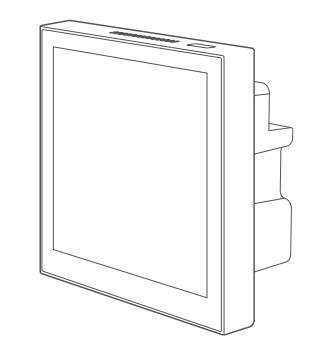
Wireframe
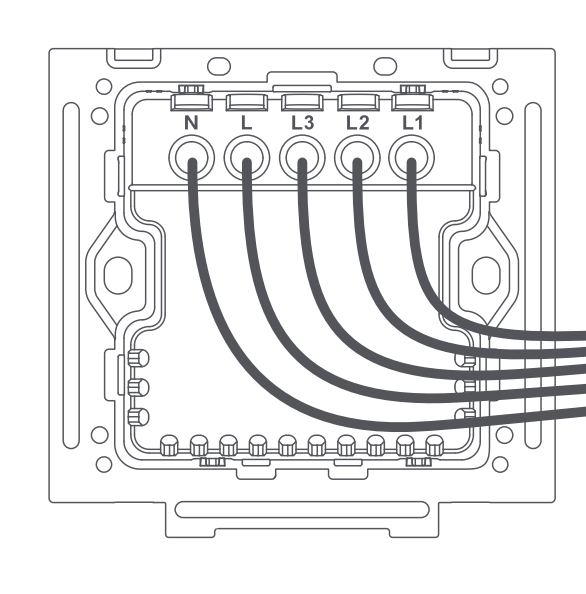
Switch Base:
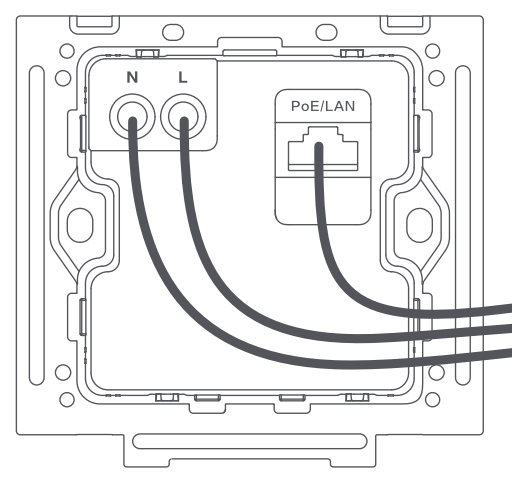
PoE Base:
Appearance Features:
- Standard 86 wall box size, full-screen design
- Colors: Grey, White
- Logo: Aqara
- Supports gang installation
Product Overview
The Aqara Panel Hub AX150S is a scene control touch panel designed specifically for B2B customers, used in conjunction with the Aqara Studio platform. Based on the standard 86 wall box form factor, it enables quick replacement of traditional wall switches. It adopts an all-new thing model architecture (not the legacy point-value scheme), supports local network pairing without cloud dependency, and allows flexible configuration of on-screen devices, scenes, and standby content through Studio logic blocks.
The product supports multiple base compatibility (PoE Ethernet base, switch base) and features a built-in Zigbee hub function and temperature & humidity sensor. It supports both Zigbee and Thread dual protocols, with Matter Controller and Thread Border Router capabilities, enabling paired Zigbee sub-devices to connect to third-party Matter ecosystems. It supports dual-band 2.4GHz and 5GHz Wi-Fi 6 wireless networking. The screen supports up to 12 pages and allows custom screensavers and wallpapers.
As a scene control touch panel entry point, it enables linked device control while offering future software and hardware customization extensibility. It supports both close-range touch control and remote APP operation.
Sales Information
Sales Regions
- Mainland China (4 SKUs): PoE Base + Grey, PoE Base + White, Switch Base + Grey, Switch Base + White
- Hong Kong/Macau/Taiwan, Southeast Asia, Middle East, Africa (2 SKUs): PoE Base + Grey, PoE Base + White
- EU (2 SKUs): EU-standard 2-channel relay + Grey, EU-standard 2-channel relay + White
Sales Channels
B2B exclusive, sold through solution-based channels.
Installation
Installation Requirements
Installation Location: Recessed wall installation at traditional switch positions (standard 86 wall box), requires live and neutral wire power supply.
Do NOT install in high-humidity environments (bathrooms, kitchens, etc.).
Installation Tool: Screwdriver (for terminal screws).
Accessories: Mounting screws ×2.
Installation Precautions
Please ensure the main power switch is turned OFF before installation! Connect wiring only when the device is powered off to prevent electrical hazards.
PoE Base Version Installation
- Turn off the main power supply switch;
- Use a screwdriver to loosen the terminal screws on the back; connect the live wire to the L terminal and the neutral wire to the N terminal;
- Plug the Ethernet cable into the PoE/LAN port;
- Verify correct wiring and tighten the terminal screws;
- Secure the base to the wall junction box using the provided screws (screw torque not to exceed 0.7 N·m);
- Attach the screen panel onto the base.
Switch Base Version Installation
- Turn off the main power supply switch;
- Use a screwdriver to loosen the terminal screws on the back; connect the live wire to the L terminal and the neutral wire to the N terminal;
- Verify correct wiring and tighten the terminal screws;
- Secure the base to the wall junction box using the provided screws (screw torque not to exceed 0.7 N·m);
- Attach the screen panel onto the base.
User Guide
Quick Setup
1. Power On and Wait for Startup
After connecting to power, the device boots automatically, the screen displays normally, and enters the network pairing prompt page.
2. Add to Aqara Studio
PoE Base Version
The PoE Base version supports pairing via Studio or Aqara Life:
- Studio Pairing (Recommended): Ensure that both the M300 and AX150S are on the same local network. After connecting the PoE base to the router via Ethernet, visit the Studio Web page, click "Add Device" under Aqara Hub, discover the device, and then import and add it. For details, see Aqara Hub Integration.
- Aqara Life Pairing: Open the Aqara Life APP → Tap "Studio Mode" at the bottom of the login page → Add a new Studio instance (manually enter IP address or domain name) → Log in to Studio → Follow the on-screen guide to complete device setup.
Switch Base Version
The Switch Base version pairs via Aqara Life:
- Open the Aqara Life APP → Tap "Studio Mode" at the bottom of the login page → Add a new Studio instance → Log in → Follow the on-screen guide to complete device setup.
3. Configure On-Screen Content via Studio
After the device is paired, configure device cards, scenes, standby screens, and other content through the Studio Web page. Click "Publish" to display the configured content on the screen.
Please upgrade the Panel Hub AX150S, the Edge Hub M300, and Aqara Studio to the latest firmware version before use.
Product Features
Feature Description
Sub-device Capacity
| Sub-device Type | Recommended Quantity |
|---|---|
| Zigbee | 40 |
| Thread | 40 |
Within these limits, the Aqara lab has verified reliable automation success rates.
Screen & Interaction
- 3.95-inch full-screen display, 480×480 resolution, LCD color screen, multi-touch
- TOF proximity sensor: Automatic screen wake on approach
- Ambient light sensor: Automatic screen-off in dark environments
- Temperature & humidity sensor: Real-time ambient temperature and humidity display on screen
- Supports up to 12 pages
- Gesture controls: Swipe up to turn pages, swipe down for Control Center/Notification Center, swipe left/right to switch dashboards
Cards & Components
- Supports drag-and-drop device cards and free-form component library combinations
- Supported card types: Lights, Opening Curtains, Temperature & Humidity, Air Conditioning, Switches, Energy Consumption, Scenes
- Coming: Smart plugs, roller blinds
- Cards can be freely assigned attributes and displayed on screen after publishing
You can assign any attributes to the cards.
After saving the page, the following image appears.
Standby & Wallpaper
- 3 built-in standby screens (time, date, and information cards can be freely combined)
- Supports default wallpaper switching
Template Function
Supports saving as template and quick application (system templates / custom templates)
Studio Configuration Capabilities
- Configure devices, scenes, settings, standby screens, and other content from Studio to the panel
- Supports per-user personalized configuration
- Configurable items include: language switching, Wi-Fi, static IP, sound, sleep mode, firmware update, passwords, etc.
- Zigbee Hub: Add and manage Zigbee sub-devices
- Thread Border Router: Add and manage Thread sub-devices
- Matter Controller: Connect to third-party Matter devices
- Local Pairing: Device pairing without cloud dependency
- Local Automation: Supports hub function and Studio logic blocks
LAN Control
Control devices and scenes across gateways within the local network when there is no internet connection.
Wireless Switches
- Built-in 6-channel wireless switch function; names and icons can be changed in Studio
- Wireless switches can be used to bind automations across platforms, enabling control of products on other platforms
Smart Load (MARS-Tech)
- The Switch Base supports three modes: Standard Load, Smart Load, and Pulse Control
- Each channel supports up to 24 associated load devices
Other Features
- OTA update
- Notification Center (view and dismiss notifications)
- Control Center (return to home, mute, screen-off, settings, brightness adjustment)
- Energy consumption data display (shown by spatial dimension)
- 12/24-hour time format switching
Interface Description (PoE Base Version)
| Interface | Description |
|---|---|
| PoE/LAN Port | Ethernet port for wired network connection and PoE power supply. |
| L/N Terminals | Live and neutral wire power terminals. |
| Pin Header Interface | Connects the screen panel to the base. |
Interface Description (Switch Base Version)
| Interface | Description |
|---|---|
| L/N Terminals | Live and neutral wire power terminals (100-240V AC). |
| Relay Output | 3-channel relay ( CN Version) / 2-channel relay (EU version), 10A per channel, total power 2200W. |
| Pin Header Interface | Connects the screen panel to the base, 5V 2A DC output. |
Button Description
| Operation | Description |
|---|---|
| Short press | Toggle screen on/off |
| Long press 10 seconds continuously | Restart device |
| Long press over 20 seconds | Force restart |
Multi-Base Compatibility
Supports the following base types:
| Base Type | Description |
|---|---|
| PoE Ethernet Base | Provides wired network connection and PoE power supply. |
| Switch Base (3-channel relay, CN Version) | Live/neutral wire power supply with relay switch control. |
| Switch Base (2-channel relay, EU version) | EU-standard design. |
Bases are automatically identified; the software supports base switching logic.
Precautions
- Installation of this product involves high-voltage electricity and must be performed by qualified professionals in accordance with electrical codes and the product specification manual;
- This product is for indoor use only. Do not use in humid environments (bathrooms, kitchens, etc.) or outdoors;
- Keep away from moisture. Do not spill water or other liquids on this product;
- Do not place this product near a heat source;
- Do not use unauthorized third-party software to update device firmware or system, as this may pose security risks. Online updates are recommended;
- Ensure the microphone hole at the top of the screen is not blocked (if applicable), as blockage will reduce audio quality;
- Do not attempt to repair this product yourself. All repairs should be performed by authorized professionals;
- Do not scratch the touchscreen with sharp objects;
- This product and its sub-devices are intended solely for enhancing home entertainment, convenience, and device status alerts. They should not be used as security devices in homes, buildings, warehouses, or any other locations. The manufacturer assumes no responsibility for any risks or property damage resulting from using the product for security purposes in violation of the usage instructions and these precautions.
Voice Control
The AX150S device itself does not support voice assistants (no microphone, no speaker); the audio output is a buzzer only.
Troubleshooting
Common Pairing Failures
- Please confirm that the AX150S and the Studio device (e.g., M300) are on the same local network;
- Please confirm that both the device firmware and Studio are updated to the latest version;
- For the PoE Base version, check whether the Ethernet cable is properly connected to the router;
- Check whether the router has Wi-Fi access control enabled, preventing the device from connecting to the network;
- Check whether the router has AP isolation enabled, preventing the phone from discovering the device on the local network;
- It is recommended not to connect to a bridged network;
If the device has not completed pairing within 10 minutes, AP and Bluetooth pairing methods will be disabled. You will need to tap the refresh button on the screen or power cycle the device to re-enter the configurable state.
Factory Reset
Swipe down on the screen to enter the system settings menu. Follow the on-screen prompts to perform a factory reset. Factory reset will clear all function settings and network data.
Regulatory Notes
Low-Power Device Usage Instructions
- The Zigbee/Thread technology used in this product complies with the technical requirements for general low-power equipment Category F in the "Catalog and Technical Requirements for Short-Range Low-Power Radio Transmitting Equipment," and is used for data transmission applications. It uses an integrated antenna. For control, adjustment, and switch usage, please refer to the relevant content in the product user manual;
- Do not change the usage scenario or conditions, expand the transmission frequency range, or increase the transmission power (including adding RF power amplifiers) without authorization. Do not modify the transmitting antenna without authorization;
- This device must not cause harmful interference to other legitimate radio stations, nor may it claim protection from harmful interference;
- This device must accept interference from industrial, scientific, and medical (ISM) equipment or other legitimate radio stations that radiate RF energy;
- If harmful interference occurs to other legitimate radio stations, use of this device must be stopped immediately, and measures must be taken to eliminate the interference before use can resume;
- Use of low-power equipment on aircraft and within the electromagnetic environment protection zones of radio astronomy observatories, meteorological radar stations, satellite earth stations (including tracking, ranging, receiving, and navigation stations), military and civilian radio stations, and airports shall comply with electromagnetic environment protection and relevant industry regulatory requirements;
- Use of any model remote controllers within a 5,000-meter radius centered on the airport runway center point is prohibited;
- The operating temperature for the low-power device is 0°C ~ 40°C.
Product Selling Points
- B2B exclusive, professionally configured via the Studio platform
- All-new thing model architecture for flexible on-screen content configuration (devices, scenes, standby screens, wallpapers, etc.)
- Local network pairing, no cloud dependency
- Standard 86 wall box installation, quick replacement of traditional switches
- Multi-base compatibility: PoE Ethernet base, switch base (2-channel / 3-channel)
- 3.95-inch full-screen display, 480×480 HD touch
- Zigbee Hub + Thread Border Router dual protocol
- Matter Controller for controlling third-party Matter ecosystem devices
- Built-in temperature & humidity sensor
- Dual-band 2.4G & 5GHz Wi-Fi 6 for more stable connectivity
- LAN control — control devices and scenes even without internet
- Multiple screensavers and wallpapers supported, personalized per user
- Supports up to 12 pages
- Built-in 6-channel wireless switch
- TOF proximity wake + ambient light auto screen-off
- MARS-Tech smart load support (Switch Base version)
FAQ
What is the main difference between the AX150S and the AX100S?
The AX150S is an upgraded version of the AX100S, with the main chip upgraded to SSD 2351Q, 256MB DDR, added temperature & humidity sensor, support for more base types, and the configuration platform migrated from Aqara Home to Studio, adopting the new thing model architecture.
Why migrate from Aqara Home to Studio?
Studio is a professional configuration platform designed for B2B customers, offering more flexible new thing model, local configuration, logic blocks, and other capabilities that better suit the professional needs of B2B customers.
What information can be configured from Studio to the screen?
Scenes and devices, AX150S settings, multiple standby screens, and designed standby screens can all be configured. Some features support batch configuration.
What is the specific range of LAN control?
When there is no internet connection, the AX150S and its sub-devices can control devices and scenes across gateways within the local network.
What is the voice assistant support status?
The AX150S device itself does not support voice assistants (no microphone). The audio output is a buzzer only.
How many pages does the screen support at most?
It supports up to 12 pages.
What is the difference in pairing methods between the PoE Base version and the Switch Base version?
The PoE Base version supports direct pairing via Studio (automatically discovered after Ethernet connection) as well as Aqara Life pairing — two methods in total; the Switch Base version only supports pairing via Aqara Life.
What device types does the AX150S support for cards?
Currently supported: Lights, switches, curtains (opening curtains), air conditioning, temperature & humidity sensors, scenes, and energy consumption cards.