Manage Projects
Projects organize and manage Studios. Every Studio must belong to a project.
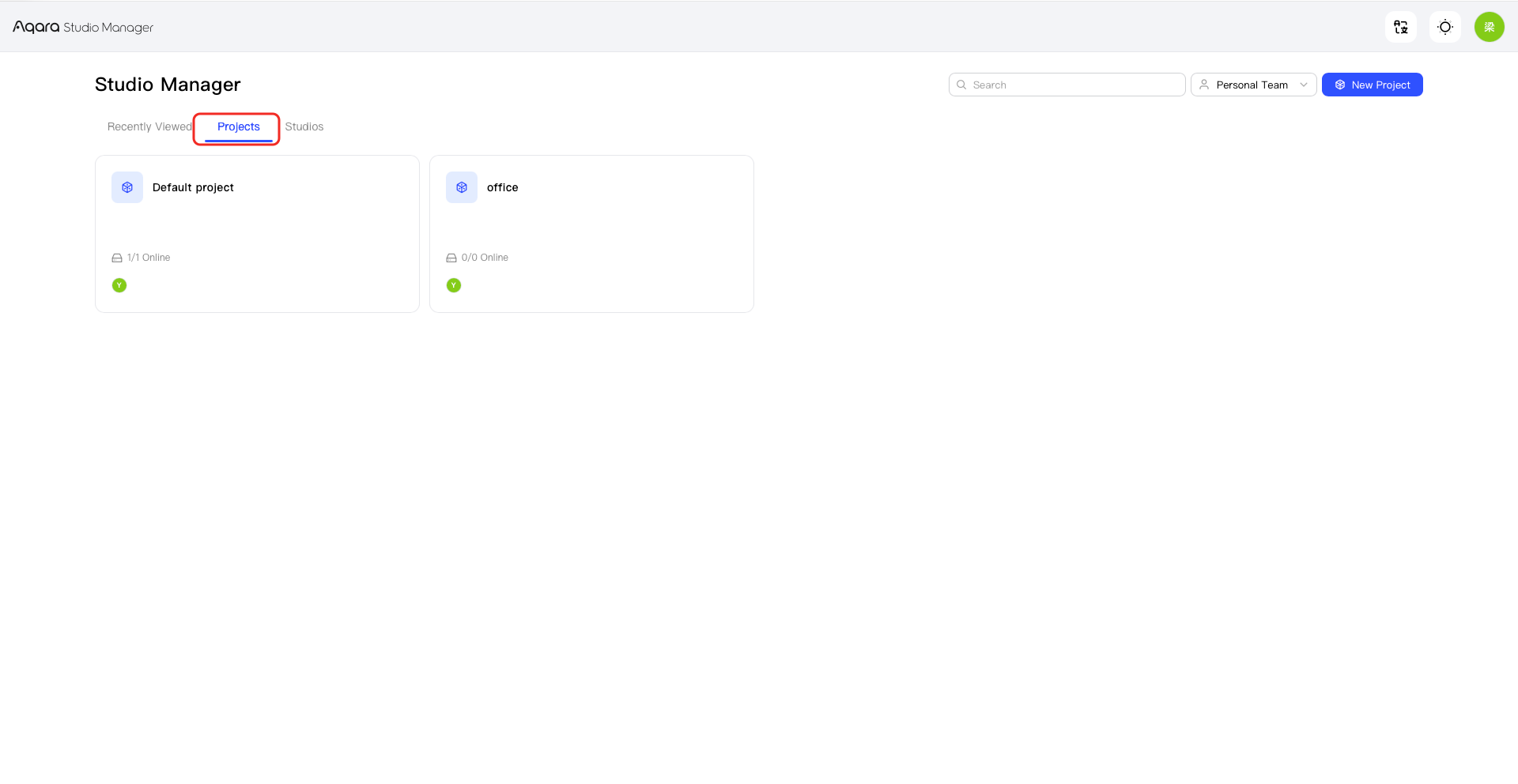
View Projects
- Open Studio Manager.
- Confirm the current account, Personal Team, and Region.
- Open the project list.
- Find the project you need.
- Open the project to view its Studios.
Create a Project
- Open the project list.
- Select the option to create a project.
- Enter the project details.
- Confirm details.
- Check that the new project appears in the list.
Edit a Project
- Find the project you want to change.
- Open the project's edit options.
- Update the available project details.
- Save your changes.
Delete a Project
The Default project cannot be deleted like a regular project. You also cannot delete a project that still contains a Studio.
To delete an empty, non-default project:
- Open the project you want to delete.
- Select Delete Project.
- Review the project details and deletion message.
- Confirm the deletion.
Move a Studio
Studio Move transfers a Studio from its current project to another project.
- In Studio Manager, find the Studio you want to move.
- Open Studio Move.
- Select the destination project.
- Verify the current project, destination project, and Studio.
- Confirm the move.
- Open the destination project and check the Studio.