Spatial Multi-Sensor FP400 Pro
Product Introduction
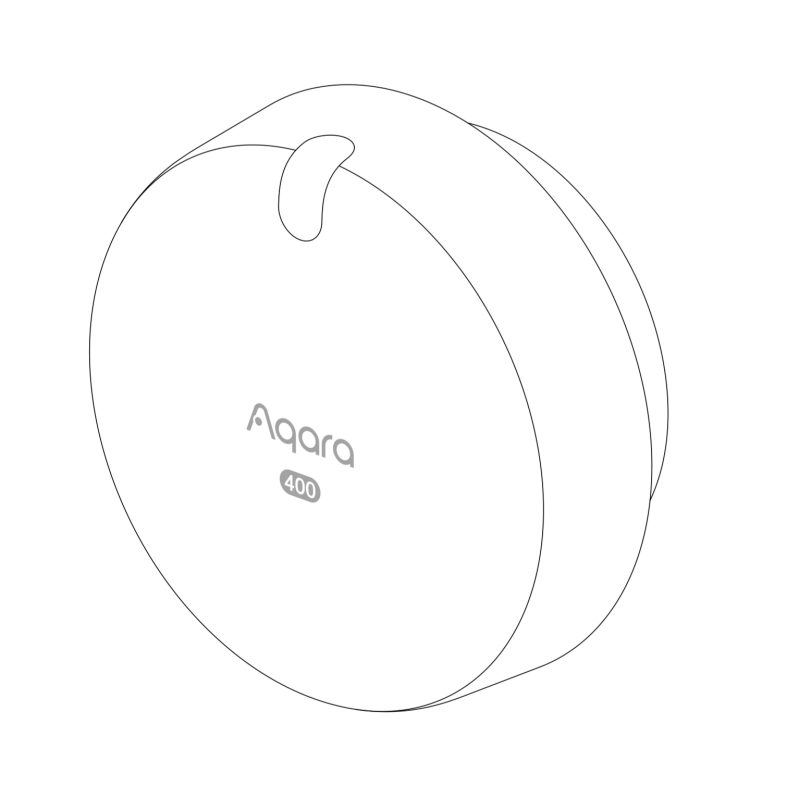
The Aqara Spatial Multi-Sensor FP400 Pro, equipped with high-precision millimeter-wave radar technology, integrates presence detection, multi-person tracking, AI Enhanced Person Detection, posture recognition, assisted fall detection, entry/exit people counting, and illuminance detection. Centered on precise sensing, it creates a refined, whole-home active smart experience.
The product features powerful spatial perception capabilities, supporting up to 8 custom zones based on 320 fine-grid divisions. It can simultaneously track the real-time position and movement direction of up to 10 targets, precisely distinguishing left/right entry and exit, forward/backward movement, approaching/leaving, and seamlessly linking with various smart devices to trigger personalized spatial automation scenes for seamless intelligent interaction.
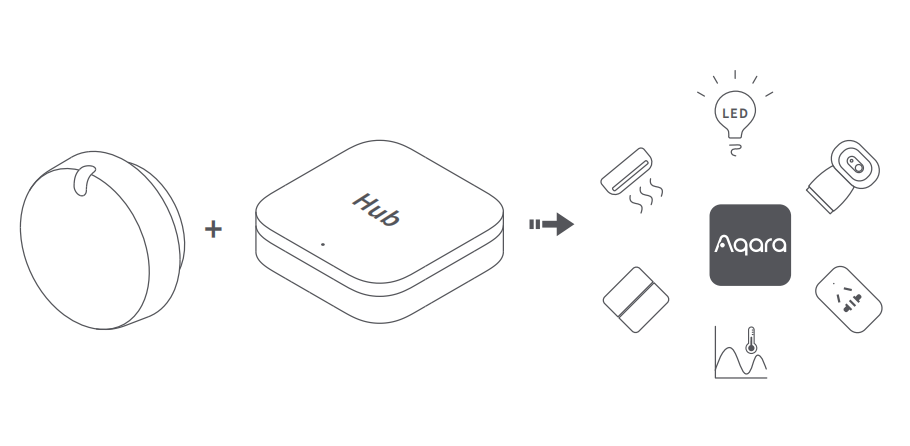
- This device must be used with an Aqara hub to access full functionality.
- Due to protocol limitations and third-party ecosystem support, functions may vary across different protocols and ecosystems. Assisted fall detection, posture recognition, and people counting are only supported within the Aqara ecosystem.
Product Components
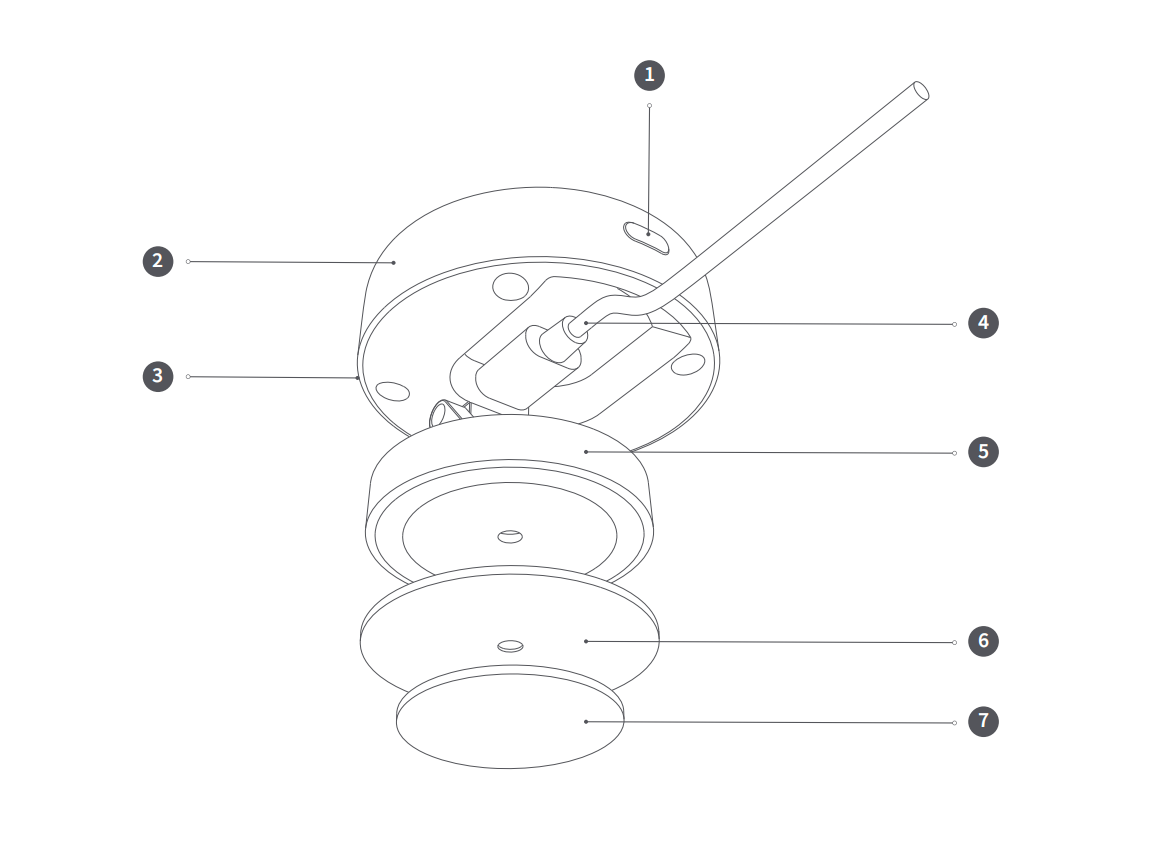
1: Reset Button
2: Body
3: Indicator Light
4: USB-C Power Cord
5: Bracket
6: Magnetic Plate
7: Adhesive Backing
Device Installation
Installation Method
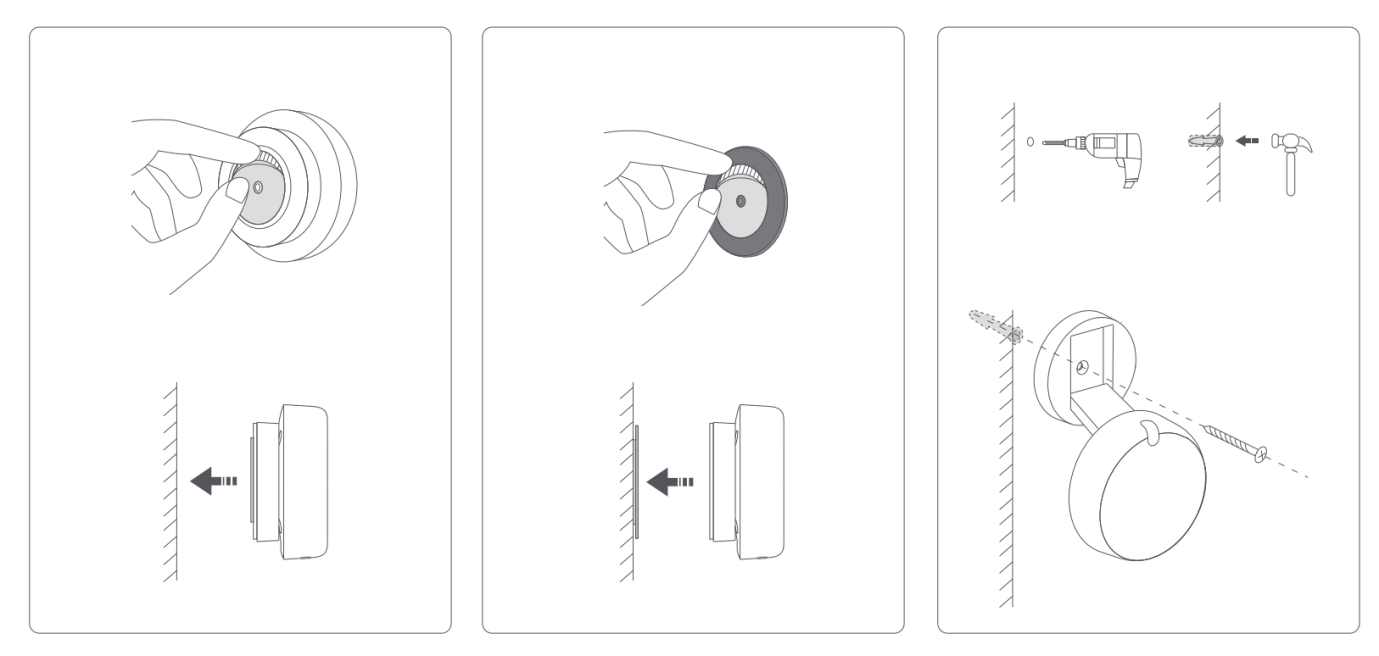
The device can be mounted using adhesive, magnetic base mounting, or wall anchors and screws. It supports both side mounting and ceiling mounting. Different mounting methods and installation heights may affect the detection range. Users can choose an appropriate installation position based on the desired detection range and fine-tune coverage by adjusting the mounting angle and device tilt angle.
Wall Mounting
- Recommended installation height: 1.5 m–2 m
- Detection angle: horizontal 120°, vertical 100°
- Maximum movement detection range: forward 10 meters, width 8 meters (excessive tilt may reduce detection range)
- For detecting a larger area, it is recommended to install in the middle of the wall, with the radar front facing the shorter side of the area to be detected
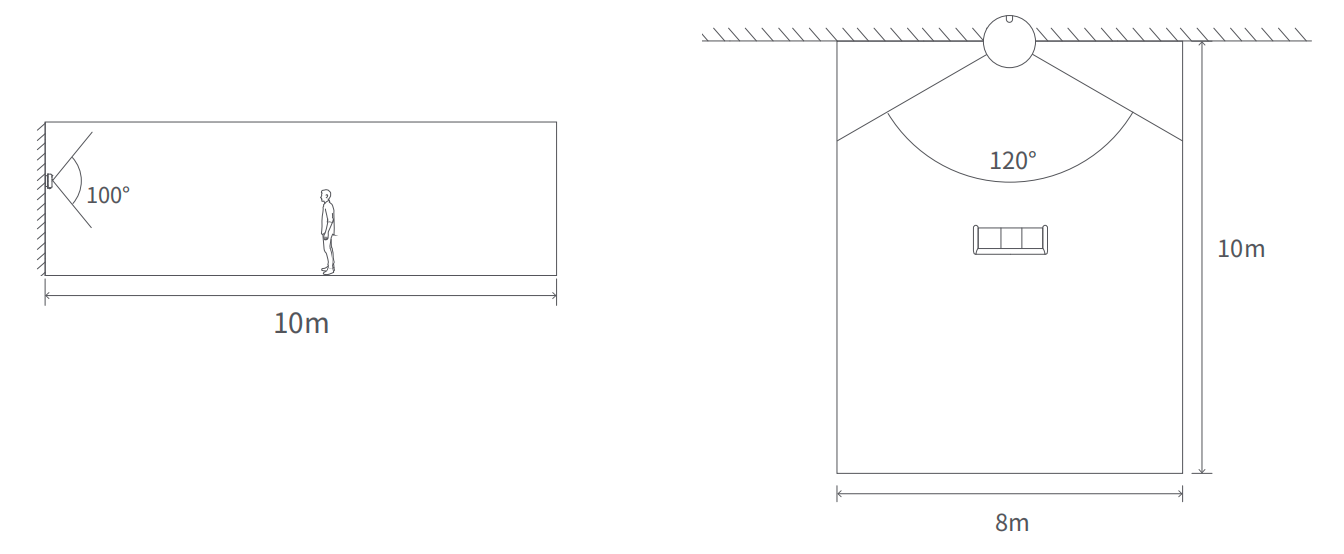
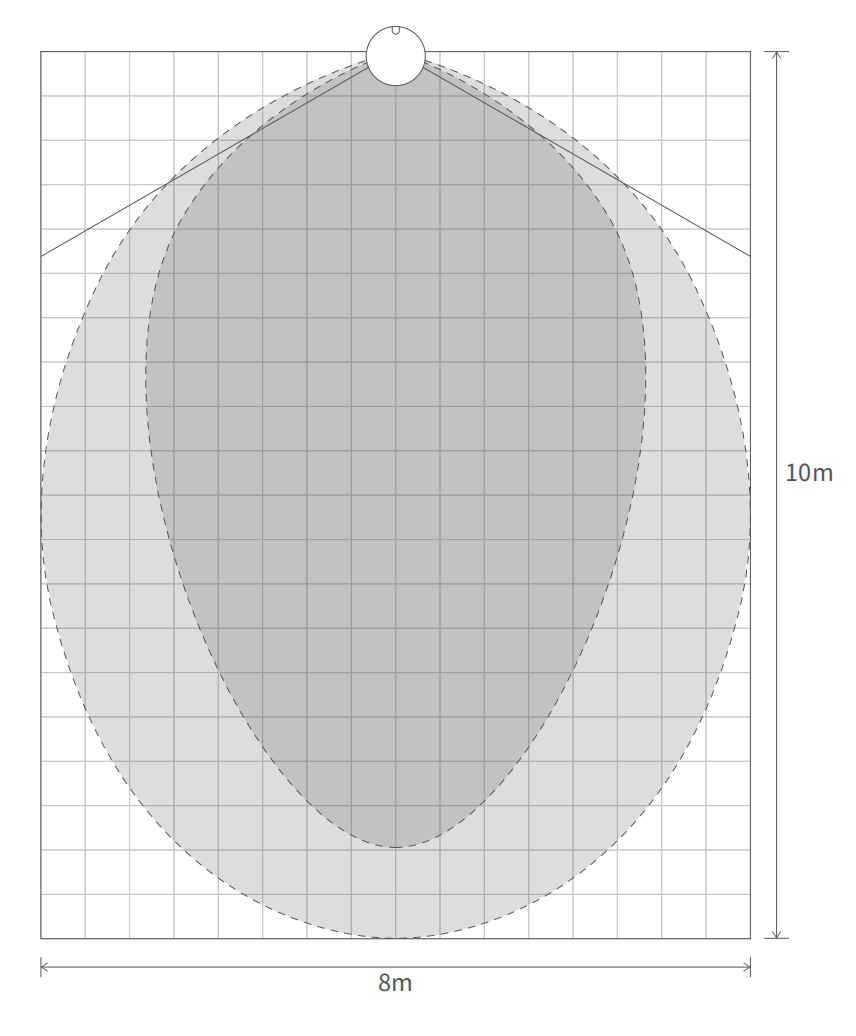
- The above are maximum detection ranges measured in laboratory environments. Actual movement and presence detection ranges may vary due to installation height, installation angle, wall reflection, environmental interference, target posture, etc. There are detection blind spots beyond 120°, so avoid placing critical detection areas (especially entrances and exits) in blind spots.
- For detecting a larger area, it is recommended to install in the middle of the wall, with the radar front facing the shorter side of the area to be detected.
- It is recommended to maintain a distance of more than 0.5 meters from walls and windows. Being too close can cause multipath echoes from wall reflections, resulting in false targets (ghost images) and location jumps.
Wall Corner Installation
- Installation Height: 1.5 m–2 m
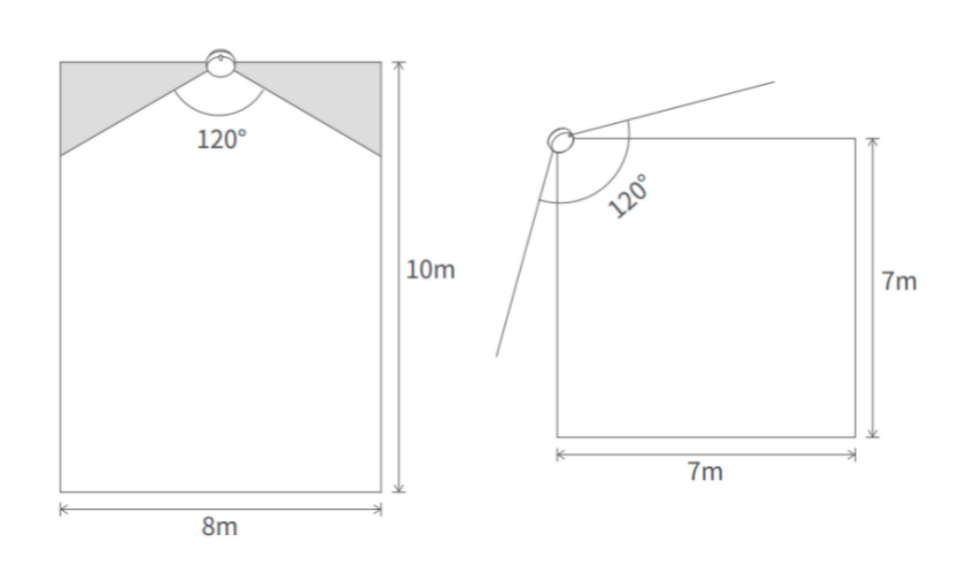
- Detection Angle: Horizontal 120°, Vertical 100°
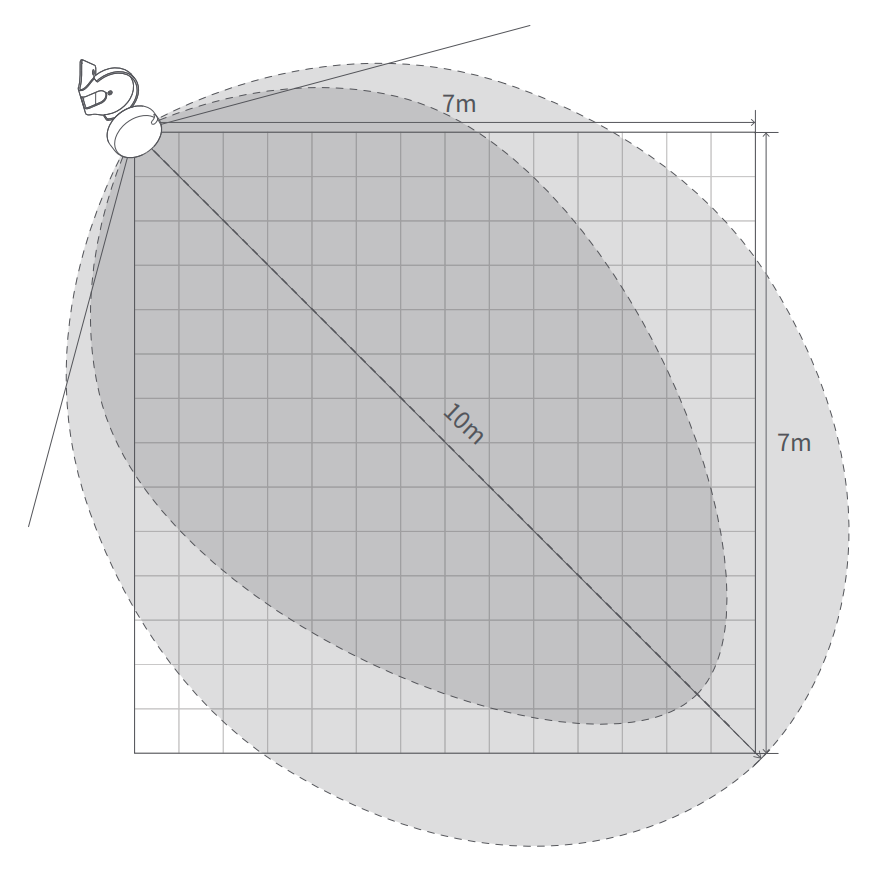
- Maximum Detection Range: 7 m × 7 m (excessive tilt may reduce detection range)
By installing at the wall corner, the 120° detection angle can cover the wall corner, avoiding detection blind spots at large angles on both sides when mounted on the wall surface
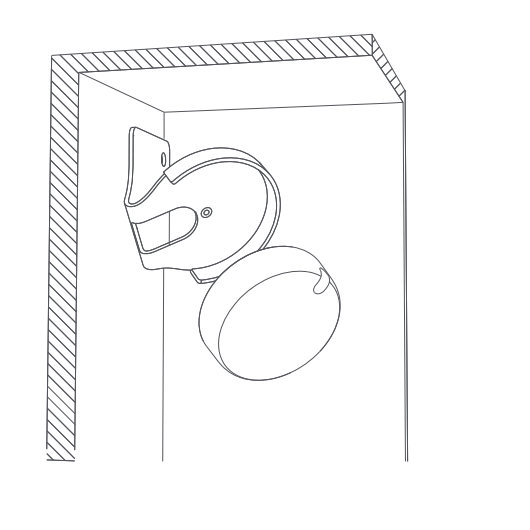
- Wall corner bracket (Presence Sensor Bracket) is optional; accessories shall be subject to the product accessory list.
- The above are maximum detection ranges measured in laboratory environments. Actual movement and presence detection ranges may vary due to installation height, installation angle, wall reflection, environmental interference, target posture, and other factors.
- Wall corner installation can effectively avoid long-distance blind spots on both sides of the wall and is preferred over wall middle installation.
Ceiling Installation
- Installation height: 3 m–4 m, placed directly above the area to be detected
- Detection angle: using the device’s logo as reference, horizontal 120°, vertical 100°
- Installation requirements: adjust the device to be horizontal, with the device’s logo aligned horizontally with the detection area’s long side and the indicator light facing upward on the app’s map
- Maximum detection range: at 3 m installation height, the maximum person movement detection range is an ellipse 5 × 6 m directly below the radar, while maximum person presence detection range is an ellipse 4 × 5 m directly below the radar
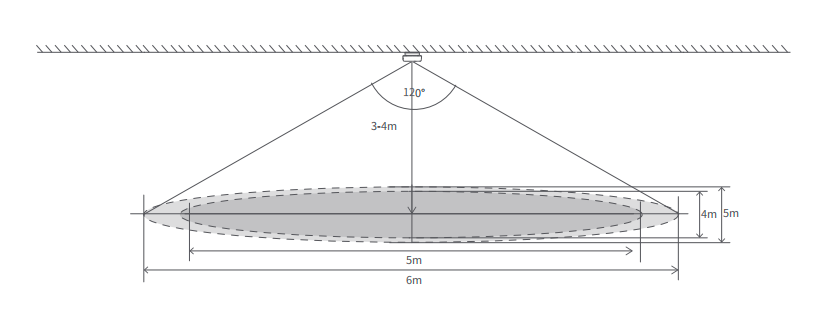
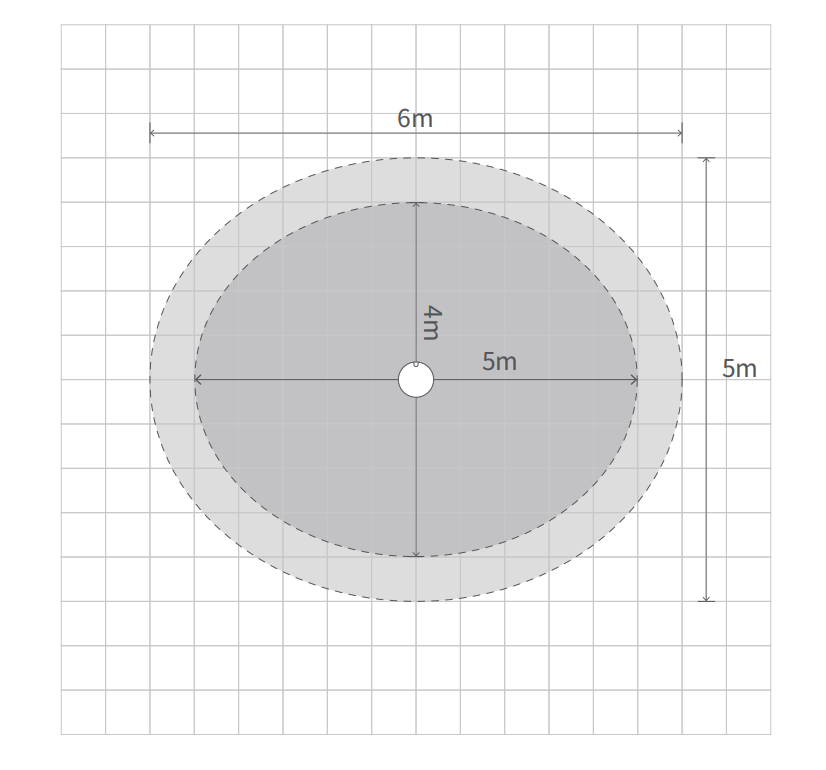
- The above maximum detection range is measured under laboratory conditions. Actual motion and presence detection ranges may vary due to installation height, ceiling reflectivity, environmental interference, target posture, and other factors.
Installation Recommendations
- Based on actual detection range requirements, install the device on walls, wall corners, ceilings, and similar locations using adhesive or magnetic mounting. Point the device’s front toward the area to be detected and adjust the angle accordingly.
- To cover a larger detection range, it is recommended to use side mounting at an installation height of around 2 meters, slightly tilted downward to cover the main human activity area.
- When side-mounted on walls or wall corners, the recommended installation height is 1.5–2 m, which better detects the full range of human postures including standing, sitting, lying down, and falls. If installed at other heights, adjust the bracket’s tilt angle to cover the main activity area.
- To avoid device detection blind spots, it is recommended to install in wall corners, with the device facing the wall corner’s center line, effectively avoiding radar FOV blind spots at long distances.
- It is recommended to face the sensor toward the front chest area of people, making it easier to detect respiratory micro-movements and maintain static presence detection.
- During installation, try to avoid facing large metal, glass, or other highly reflective surfaces, and avoid installing near air conditioning vents, air purifiers, or fans.
- For installation heights below 2 meters, adhesive or magnetic mounting can be used. For heights exceeding 2 meters, screw mounting is required.
- If the installation location setting does not match the actual situation, it will affect detection performance. Do not move the device’s installation position after completing the installation setup, as it will impact the detection accuracy of the map area. If you need to change the device location, switch the installation method in the app and complete the guided process again.
Device Network Pairing
Power Up the Device
Connect the device’s USB cable to a 5V 1A power source. After powering up, the device will automatically enter pairing mode, and the LED indicator will start slowly blinking blue.
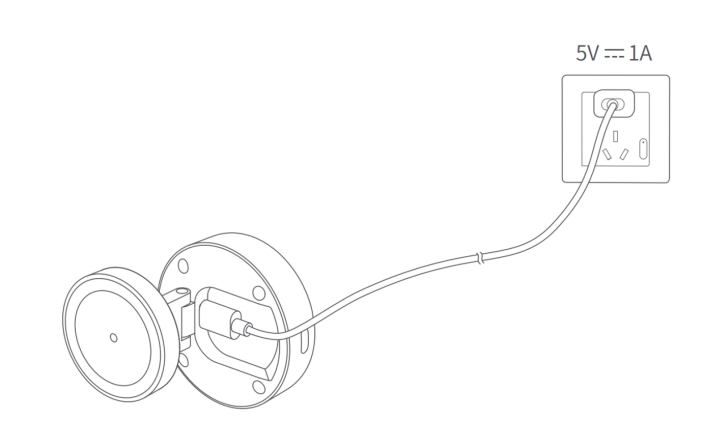
Enter Pairing Mode
If the network pairing window has passed, press and hold the reset button for 5 seconds until the LED indicator starts blinking, then release. The device will enter network pairing mode again.
Add the Device
After entering pairing mode, follow the instructions in the Aqara Studio platform to complete device addition.
- The device must be in pairing mode during the adding process. If the indicator light is in another state, press and hold the reset button for 5 seconds to re-enter pairing mode.
- Full device functionality is supported within the Aqara ecosystem. If the device is added directly to a third-party Matter platform by scanning the device’s Matter code, it can only function as 1 omnidirectional presence sensor and 1 light sensor when synced to the third-party platform.
- When adding to other platforms, be sure to scan the Matter pairing code generated by the app. Do not scan the original QR code on the device or manual, otherwise pairing will fail.
- Actual functionality may be limited by Matter standard functions and third-party Matter platform support.
Main Functions
Presence Detection
Detect the presence or absence of people in the entire space and in each custom zone.
The response speed of "occupied" / "unoccupied" status is affected by environmental interference, target posture, installation conditions, and other factors. There may be a delay in triggering the unoccupied state. See the "Absence Confirmation Period" section below.
Multi-Person Tracking
Real-time positioning of targets in the space can be viewed on the device’s homepage. By creating custom zones, it supports triggering occupancy status by zone, with the ability to simultaneously track up to 10 targets.
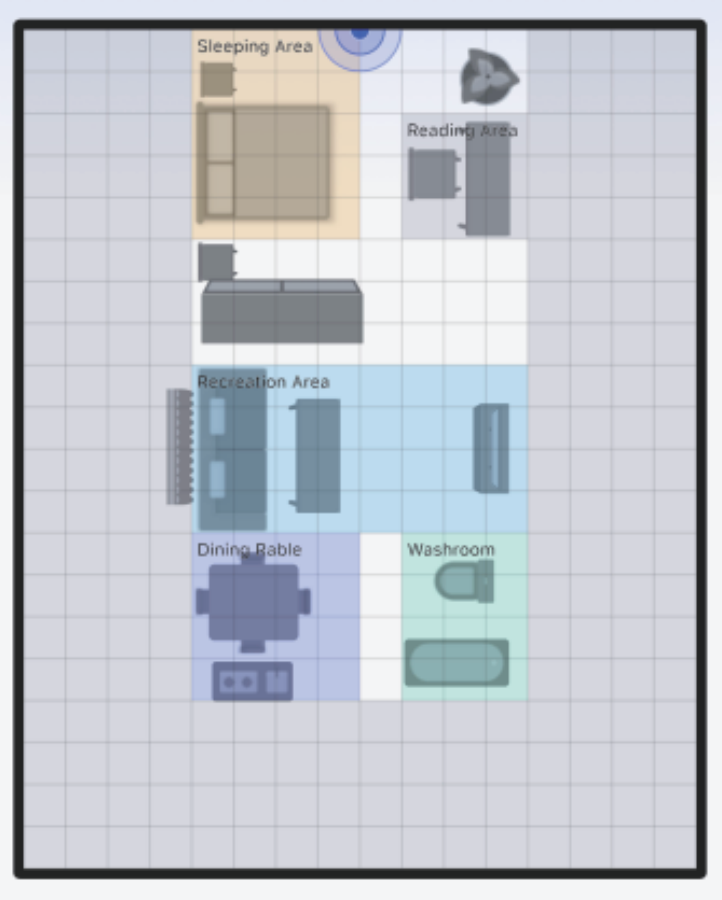
- Targets separated by 1 meter or more can achieve optimal target distinction and detection performance.
- When two targets are less than approximately 1 meter apart, point cloud mixing may occur, potentially causing algorithm instability, target adhesion, and other phenomena. These are physical limitations of current millimeter-wave radar technology. It is recommended to maintain appropriate spacing and set densely populated areas as larger monitoring zones rather than fine-grained positioning.
Zone Division
The device supports up to 8 custom zone settings. Custom zones can be further configured as the following types:
Monitoring Zone
You can divide the home into different functional zones based on how each space is used, and use the defined monitoring zones for zone-based automation management. Specifying the monitoring zone type helps the device better adjust corresponding parameters to provide the most suitable recognition performance.
Interference Source
Interference sources can be set based on the location of moving objects such as fans, air conditioners, and plants. Interference sources can be set as point-like or area-like, and micro-movements within the interference area will be ignored after setting.
Environmental interference is an important factor affecting device accuracy. The FP400 Pro supports AI interference source identification. When the algorithm detects potential interference sources in the space, it prompts the user to confirm and configure the corresponding area as an interference source. It also supports users actively configuring interference sources to filter specific interference areas in the space.
- Common interference source types have been optimized in the algorithm: fans, air purifiers, sweeping robots, subtle plant movements, curtains, roller shades, pets, toilets, air conditioners, and refrigerators. For unlisted interference sources, recognition performance may decrease, with a certain probability of misidentification as a person.
Entry/Exit
After setting the entry/exit, the speed of target creation and target removal at entry/exit positions can be improved, enhancing detection accuracy and trigger speed. It is recommended to configure according to the actual area after installation.
Boundary
Setting boundaries reduces misjudgments in person coordinate display, commonly known as ghosting, and avoids interference from wall reflections, large mirrors, metal, and other reflective surfaces, improving monitoring accuracy.
Boundary is the most important configuration once person positioning is enabled. Without boundaries, the device is more likely to generate false targets due to signal reflections on walls. After creating boundaries, no targets will be created outside the boundaries, and valid targets will not enter the boundaries, effectively improving detection accuracy.
- Large glass curtain walls, stainless steel surfaces, smooth ceramic tiles, or mirror-like surfaces are the main sources of ghosting. It is recommended to prioritize setting these areas as boundaries to effectively reduce reflective interference.
- Person positioning errors caused by multipath reflections can also be reduced through boundary settings.
Posture Recognition
When enabled, the system recognizes sitting, standing, and lying postures of human targets and displays them in the homepage zone.
Based on millimeter-wave depth radar and advanced AI algorithms, it can recognize multiple human postures including standing, sitting, and lying flat. Posture data is synced in real time to the app map, supporting independent posture determination across 8 custom zones.
Better results can be achieved in single-person scenarios. When there are more than 5 human targets, or targets are close together within 0.5 meters, it may not be possible to distinguish specific targets and postures.
Detection range: posture recognition relies on richer radar point cloud data and has stricter requirements for target distance. When side-mounted, the optimal detection distance is within 5 meters, directly in front of the radar detection zone. When ceiling-mounted at 3 m height, optimal performance is within a 2-meter radius directly below the radar.
Assisted Fall Detection
When enabled, it can assist in monitoring fall events of people in the space, suitable for elderly care and rehabilitation scenarios.
- Assisted fall detection sensitivity supports different sensitivity levels for different monitoring needs. The higher the sensitivity, the easier it is to determine a fall.
- Fall confirmation delay is used to delay triggering the fall state. The fall state must be maintained for the entire set duration before triggering the "someone fallen" state.
- Fall exclusion zone can be used to avoid false alarms in areas such as sofas or beds.
Monitoring mechanism: it integrates descent speed, body height change, torso spread area, and duration of stillness after falling, combined with AI algorithms to distinguish normal sitting or lying down from sudden falls or inability to get up. Upon detecting a fall posture, an alert notification is immediately pushed.
Detection range: assisted fall detection relies on richer radar point cloud data and has stricter requirements for target distance. When side-mounted, the optimal detection distance is within 5 meters, directly in front of the radar detection zone. When ceiling-mounted at 3 m height, optimal performance is within a 2-meter radius directly below the radar.
- The assisted fall detection function is only supported within the Aqara ecosystem. Third-party Matter ecosystems do not sync fall alert status.
- The millimeter-wave assisted fall detection of this product is an auxiliary alert function, not a medical device, and cannot replace manual monitoring or medical treatment.
- This function relies on millimeter-wave radar and AI posture algorithms to perform suspected fall identification and alert notifications for human posture changes within the detection range. Affected by environment, installation conditions, human posture, and obstacle occlusion, it cannot achieve 100% recognition of all fall events, and there is a possibility of false alarms and missed alarms.
Data Statistics
Real-Time People Count
Enabling "Real-Time People Count" provides real-time occupancy display and time-segmented people count statistics. The homepage displays a real-time people count card; tap it to enter the time-segmented statistics page.
- When staying on the app’s device homepage for a long time, the app may not refresh in real time. If the displayed people count is inaccurate, exit the device page and re-enter to obtain the accurate real-time count.
- In scenarios with multiple people present, the people count may have a deviation of 1–3 persons due to point cloud aliasing and mutual occlusion, which is normal under current technical conditions and does not constitute a device failure.
Visit Count
When enabled, it accumulates the total visit count and average dwell time for the entire area and each zone. Visit count is based on the number of times targets enter, without distinguishing specific targets.
Average Dwell Time
When enabled, it calculates the average dwell time of targets in the entire area and each zone. Since the device cannot distinguish individual targets, the provided values are for reference only.
Cumulative Walking Distance
The cumulative walking distance function is suitable for single-person scenarios. By tracking target trajectories in real time, it calculates the daily walking distance of the target within the entire area and is recommended for elderly care and rehabilitation scenarios.
AI Enhanced Person Detection
Enabling "AI Enhanced Person Detection" uses AI algorithms to identify sweeping robots, pets, moving toys, and similar objects as interference targets, reducing interference with person detection results. It is recommended to enable this only in scenarios with these interference targets present.
- After a new target is created, it requires approximately 2–3 seconds of initial confirmation. During this time, the target will be displayed as "..." with unknown identity, and related automations will be correspondingly delayed.
- Low-height targets and crawling posture targets have a certain probability of not being stably recognized as human, or being misclassified as pets.
- The effective range of AI Enhanced Person Detection is within 5 meters. Interference targets beyond this distance may not be accurately identified and excluded.
Static and Dynamic Detection
The device monitors whether people in the space are in a stationary or active state. When someone moves with significant amplitude or more than 50 cm, the device reports "people moving". When all targets in the space have an activity range smaller than 50 cm or are in a micro-motion state, the device reports "all people stationary".
Illuminance Detection
The device monitors environmental light intensity in real time and enables automation scenarios based on lighting conditions and occupancy status.
The illuminance sensor is located on the upper front of the device and is affected by installation location, orientation, and light angle. It is intended for automation trends, not as a professional illuminance measuring instrument.
Entry/Exit People Counting (Standalone Mode)
This function supports detecting the number of people entering and leaving the entry/exit zone and determines the current occupancy of the space based on the difference between the two values.
This function operates in standalone mode and cannot be used simultaneously with other functions such as presence detection, target positioning, assisted fall detection, posture detection, real-time people count, and data statistics.
More Configuration Options
Presence Detection Sensitivity
Presence detection sensitivity is configured for the entire space. The higher the sensitivity, the easier it is to trigger and maintain the occupied state. High sensitivity is suitable for areas where people are typically stationary, while low sensitivity is suitable for areas with frequent and larger body movements.
Absence Confirmation Period
The Absence Confirmation Period precisely determines whether the area is in an unoccupied state, avoiding false reports caused by brief departures, small movements, or environmental interference. Users can set different Absence Confirmation Periods for the entire space and each custom zone.
- The actual trigger time for an unoccupied state may not equal the configured period, because more cycles might be needed in complex environments.
- When the period for the whole space and custom zones is inconsistent, the space may be judged as unoccupied while a zone is still judged as occupied.
- The unoccupied determination response speed is affected by environmental interference. In scenarios with pets, fans, or curtain swaying, the unoccupied determination may experience additional delay.
AI Spatial Learning
AI Spatial Learning can intelligently learn the environmental background, exclude interference from glass, metal, mirrors, and other reflective surfaces, and improve detection accuracy.
It is recommended to actively perform AI Spatial Learning after device installation. During normal use, the device will continue learning the space background through AI to adapt to real-time environmental changes.
If ghost targets frequently appear when no one is present, it is recommended to actively perform AI Spatial Learning to restore normal operation.
Omnidirectional and Left-Right Monitoring
Users can configure omnidirectional monitoring and left-right monitoring in "Detection Direction", with omnidirectional monitoring as the default.
Omnidirectional monitoring can detect the presence status of all people within the sensing range. Left-right monitoring can detect the movement direction of people on the left and right sides of the space, helping distinguish left entry, right entry, left exit, and right exit.
When left-right monitoring is selected, the "enter / leave" automation conditions will be split into directional events. Left-right monitoring only applies to the entire area; zones do not distinguish left/right entry/exit events.
If there is no directional monitoring requirement, it is recommended to use the default omnidirectional monitoring.
Proximity Sensing Distance
This setting affects the proximity sensing distance for people relative to the device and to specified zones. Low, medium, and high settings correspond to thresholds of 1 meter, 2 meters, and 3 meters respectively.
Both global and zone-based automations have "approach / leave" events. Any target approaching or leaving this threshold will trigger the corresponding event.
Turn Off Indicator Light
When enabled, the indicator lights are completely turned off during specified periods, including most statuses and alerts.
Network reset and other pairing-related indicator functions are not within the Turn Off Indicator Light scope and can still function normally during setup.
Automation Configuration
Users can add device-related automations by clicking "+" in the top right corner of the app’s "Automations" page.
Automation Conditions
| General Automation Conditions | Zone Automation Conditions |
|---|---|
| Occupied | Supported |
| Unoccupied | Supported |
| Occupied for a Certain Duration | Supported |
| Unoccupied for a Certain Duration | Supported |
| Approaching | Supported |
| Leaving | Supported |
| Enter (omnidirectional mode supported) | Supported |
| Leave (omnidirectional mode supported) | Supported |
| Left Entry (left-right mode supported) | / |
| Right Entry (left-right mode supported) | / |
| Left Exit (left-right mode supported) | / |
| Right Exit (left-right mode supported) | / |
| Real-Time People Count Greater Than | Supported |
| Real-Time People Count Equal To | Supported |
| All People in Space Remain Stationary for a Certain Duration | / |
| People Moving in Space for a Certain Duration | / |
| Illuminance Rises To | / |
| Illuminance Drops To | / |
| Above Specified Illuminance | / |
| Below Specified Illuminance | / |
| Someone Fallen | Supported |
| Suspected Fall Detected | Supported |
| Someone Fallen for a Certain Duration | Supported |
| Someone Sitting for More Than a Certain Duration | Supported |
| Someone Lying Down for More Than a Certain Duration | Supported |
| Someone Standing for More Than a Certain Duration | Supported |
Automation Recommendations
- WHEN "(Zone) Occupied" AND "Below Set Light Level", THEN "Turn On Light".
- WHEN "Unoccupied for a Set Duration", THEN "Turn Off Light" AND "Turn Off Air Conditioning".
- WHEN "Left Entry", THEN "Home Mode"; WHEN "Right Exit", THEN "Away Mode".
- WHEN the TV zone detects "Approaching", THEN "Trigger Reminder".
- WHEN "All People in Space Remain Stationary for a Set Duration", THEN "Sleep Mode".
- WHEN "People Moving in Space for a Set Duration", THEN "Motion Mode".
- WHEN "Real-Time People Count Greater Than 3", THEN "Reception Mode" and "Set Air Conditioning to 24°C".
- WHEN "Someone Enters Specified Zone", THEN "Turn On Light"; WHEN "Someone Leaves Specified Zone", THEN "Turn Off Light".
- WHEN "Someone Fallen" or "Suspected Fall Detected", THEN "Push Alert Notification".
- WHEN "Someone Sitting for 30 Minutes", THEN "Push Reminder".
More Use Tips
- After installation, perform "AI Spatial Learning" in the app when no one is present so the device can quickly adapt to the environment.
- If the device mistakenly identifies an unoccupied space as occupied, it is generally due to environmental micro-motion interference. Use AI Spatial Learning or set the corresponding area as an interference source.
- Configure the detection range according to actual needs, set unnecessary detection areas as boundaries, and mark entry and exit areas to improve detection speed and accuracy.
- Although the device continuously learns the environment, it is still recommended to avoid installing it near air conditioning vents, air purifiers, or fans.
- The AI Enhanced Person Detection function can reduce false alarms caused by pets and robotic vacuum cleaners.
- Regularly check target trajectories in the app and update interference source and boundary settings as needed.
- If you need both a larger monitored area and more detailed zones, first define reasonable monitoring zones, then adjust sensitivity and the Absence Confirmation Period.
- After bathroom installation, perform AI Spatial Learning to reduce interference from tile and mirror reflections on fall detection.
- In spaces with pets, enable AI Enhanced Person Detection and reduce fall detection sensitivity to reduce false alerts.
Indicator Light and Button Description
Indicator Light Status
| Indicator Light Status | Device Status |
|---|---|
| Blue light flashes quickly 1 time | Tap the device; the reset button LED will flash blue 1 time |
| Blue light flashes 3 times | Appears when powered on, re-powered, or after factory reset, indicating normal power supply |
| Blue breathing (Thread firmware) / Purple breathing (Zigbee firmware) | Indicates the device is in broadcasting mode. After 10 minutes, broadcasting ends, the light turns off, and the device enters deep sleep mode |
| Blue light continuously flashing | During reset or pairing, the blue light continues to flash quickly, indicating pairing is in progress |
| Blue light stays on for 1 second | Indicates successful addition |
Reset Button Description
| Button Action | Description |
|---|---|
| Single press the reset button | Check Zigbee hub connection and verify the hub is within valid distance |
| Press and hold the reset button for more than 5s | Reset the device and enter pairing mode |
| Quickly press the reset button 10 times | Restore factory settings |
Device Reset
Device reset only resets the network and enters re-pairing mode without deleting local data. Confirm the device is powered on, press and hold the reset button for 5s, release the button when the light flashes quickly, and the device will reset and enter Bluetooth broadcasting mode.
Factory Reset
Factory reset resets the network and deletes all local and cloud data. Confirm the device is powered on, quickly press the reset button 10 times, and the device will enter factory reset state.
Product Parameters
| Parameter | Description |
|---|---|
| Product Model | KJCGQ12LM, PS-S06D |
| Wireless Protocols | Zigbee, Thread, Bluetooth |
| Rated Input | 5V 1A |
| Interface | USB-C |
| Product Dimensions | 64 × 64 × 29.5 mm |
| Operating Temperature | -10°C to +50°C |
| Operating Humidity | 0–95%RH, non-condensing |
| Waterproof Rating | IPX5 |
| Execution Standard | GB4943.1-2022 |
Troubleshooting Guide
Unable to Pair or Device Unresponsive
- Confirm the device is powered by a 5V 1A standard power supply and the indicator light responds normally after power-on.
- Press and hold the reset button for 5s to put the device in pairing mode.
- Place the device close to the hub or Matter hub to reduce communication distance.
- Confirm the hub is online and functioning normally.
- If issues persist, quickly press the reset button 10 times to restore factory settings and retry.
False Alarm "Occupied" (No Person Detected as Present)
| Possible Causes | Troubleshooting and Resolution Steps |
|---|---|
|
|
Missed Detection "Occupied" (Person Detected as Unoccupied)
| Possible Causes | Troubleshooting and Resolution Steps |
|---|---|
|
|
Static Target Detection Instability
| Possible Causes | Troubleshooting and Resolution Steps |
|---|---|
|
|
Frequent Target Positioning Jumps or Ghosting
| Possible Causes | Troubleshooting and Resolution Steps |
|---|---|
|
|
Inaccurate People Counting
| Possible Causes | Troubleshooting and Resolution Steps |
|---|---|
|
|
Assisted Fall Detection False Alarms
| Possible Causes | Troubleshooting and Resolution Steps |
|---|---|
|
|
Assisted Fall Detection Missed Detections
| Possible Causes | Troubleshooting and Resolution Steps |
|---|---|
|
|
Frequently Asked Questions (FAQ)
Installation and Deployment
What position and height are recommended for FP400 Pro installation?
Recommended side-mounting height is 1.5–2 m, balancing detection accuracy for standing, seated, and static breathing scenarios. For larger coverage, use side-mounting at around 2 m. Recommended ceiling-mounting height is 3–4 m. For blind-spot-free detection, corner installation is preferred.
Can FP400 Pro be installed in humid environments such as bathrooms or kitchens?
Yes. This product has an IPX5 protection rating, meaning it is splash-resistant and suitable for use in humid indoor environments such as bathrooms and kitchens. However, keep it away from open flames and areas exposed to direct high-temperature steam.
Why does corner installation provide better angle coverage than middle-of-wall installation?
Corner installation makes full use of the 120° detection angle, eliminating long-distance blind spots on both sides that may occur with wall mounting. This provides more even detection coverage and effectively reduces missed detections.
Is it normal if the device's detection range differs from the specifications in the manual?
Yes. The values stated in the manual represent the maximum detection range under ideal laboratory conditions. In actual use, mounting height, angle, wall or metal reflections, airflow, target posture, and obstructions can all affect the effective range, and unavoidable blind spots may exist.
Functions and Recognition Accuracy
When people are sleeping or sitting still for a long time, will the device incorrectly detect them as absent?
FP400 Pro uses millimeter-wave radar to precisely detect subtle human breathing movements. With proper configuration, it can reliably identify static presence. We recommend setting detection sensitivity to high and extending the Absence Confirmation Period to significantly reduce false negatives when stationary.
Can FP400 Pro detect falls or human posture?
Yes. FP400 Pro is equipped with AI posture recognition and assisted fall detection algorithms. The assisted fall detection function is only supported within the Aqara ecosystem.
My home has pets or robotic vacuum cleaners, and there are frequent false alerts indicating presence. What should I do?
Enable AI Enhanced Person Detection, set the frequently affected areas as interference sources, and reduce detection sensitivity appropriately if needed.
There are false targets appearing in the app that are not people. What is happening?
These are typically ghost targets caused by multipath echoes from strong reflective surfaces such as walls, metal, mirrors, and glass. Set reflective areas as boundaries or readjust the installation angle.
Even though there is clearly no one in the space, the app still shows occupied. What is the reason?
The most common causes are environmental micro-motion interference, residual ghost targets, or reflective surfaces. Set the relevant areas as interference sources or boundaries and perform AI Spatial Learning.
A person is in the room, but the app shows unoccupied. What could be the reason?
Common causes include improper mounting, sensitivity set too low, the person being in a distant edge zone, or the person remaining extremely still. Increase sensitivity and extend the Absence Confirmation Period.
Can assisted fall detection distinguish between normal lying down and a fall?
It uses multiple AI features such as descent speed, body height, torso spread area, and stillness duration to distinguish normal lying down from falls. Correct installation and bed-related configuration help reduce false alarms.
Will humid bathroom environments reduce fall detection accuracy?
The device has an IPX5 waterproof rating, and moisture does not affect radar detection. Avoid direct shower spray and perform AI Spatial Learning after installation.
Multi-Target and Positioning
Is it normal for the people count to be inaccurate when multiple people are present?
Yes. A certain deviation is normal because overlapping point clouds and occlusion between targets can cause a 1–3 person variance.
Why does detection become unstable when two people are close together?
When two targets are less than approximately 1 meter apart, point cloud aliasing may occur, causing unstable classification or target adhesion.
Why does the app’s displayed positioning suddenly jump when one person stands close to another after entering?
When a target is too close to another target, the algorithm pauses classification to avoid point cloud aliasing. Normal operation resumes once they separate again.
Why does target positioning occasionally jump to walls or windows, then return to normal after a while?
This is typically ghosting caused by signal reflections. Set reflective surface areas as boundaries, or perform AI Spatial Learning.
Product Capability Boundary Description
Supported Target Types
FP400 Pro is specially optimized for common interference sources such as fans, air purifiers, sweeping robots, micro-motion plants, curtains, pets, toilets, air conditioners, and refrigerators. Recognition performance may decrease for other unlisted interference sources.
Multi-Target Tracking Accuracy
In scenarios with multiple targets simultaneously, when two targets are less than about 1 meter apart, point clouds may overlap, potentially causing unstable classification, target adhesion, or people counting deviations. This is a physical limitation of current millimeter-wave radar technology.
Static Detection Accuracy
The device captures human breathing micro-movements through millimeter-wave radar to achieve presence detection. Detection is generally stable in normal sitting and standing postures. For deep sleep, long-distance, or edge-area targets, detection may be less stable.
Detection Range and Blind Areas
The detection range stated in the manual is the maximum value under ideal laboratory conditions. In actual use, the effective range may be smaller due to installation height, tilt angle, reflection, airflow, target posture, and obstructions. Avoid placing critical areas in blind areas outside the stated FOV.
Target Classification Boundaries
Low-height targets such as children under approximately 1.4 meters and crawling posture targets have a certain probability of not being stably identified as human, or being misclassified as pets.
Assisted Fall Detection Capability Boundaries
Assisted fall detection is only an auxiliary alert function, not a medical device, and cannot replace manual supervision or emergency medical response. Detection is affected by installation, occlusion, and posture, so false alarms and missed alarms remain possible.
- Bluetooth® word mark and logos are registered trademarks of the Bluetooth SIG, and Shenzhen Lumi United Technology Co., Ltd. has obtained permission for their use. Other trademarks and trade names belong to their respective owners.
- Using the "Works with Apple" badge means that the accessory is specifically designed to work with the technology indicated on the badge and has been certified by developers, meeting Apple performance standards. Apple is not responsible for the operation of this product or its compliance with safety regulations.
- Please read this manual carefully and keep it safe.
- Service Hotline: 400-990-7930 (Weekdays 10:00~18:00)
- Service Website: www.aqara.com/support
- Service Email: service@aqara.com
- Manufacturer: Shenzhen Lumi United Technology Co., Ltd.
- Address: Room 801-804, Building 1, Chongwen Park, Nanshan Intelligence Park, 3370 Liuxian Avenue, Futian Community, Taoyuan Street, Nanshan District, Shenzhen