Alarm Management
This guide will provide you with a comprehensive understanding of Aqara Studio’s alarm services, including configuration, viewing, and handling of alarms. Through uninterrupted real-time monitoring of all connected devices, the Alarms presents various alarm information collectively. It allows you to detect and address potential risks promptly and safeguard the security and stability of smart spaces.
Overview
Aqara Studio offers complete alarm monitoring and management features. It comes with preset default alarm rules for monitoring protocol communication exceptions and device disconnections. Also, it supports user-defined alarm strategies. Therefore, users can detect risks and respond quickly in real time.
- Multi-dimensional parameter binding: Device properties (such as temperature, humidity) and business parameters (such as device operation mode) can be linked to trigger alarms dynamically.
- Typical configuration examples:
- When the device temperature continuously exceeds 80°C for 5 minutes, a "High Temperature Alarm" is triggered.
- When the instantaneous device power drops below 10W, a "Low Power Abnormal Alarm" is triggered.
- When the device is in "Night Mode" and a motion signal is detected, a "Night Intrusion Alarm" is triggered.
Check Alarm Information
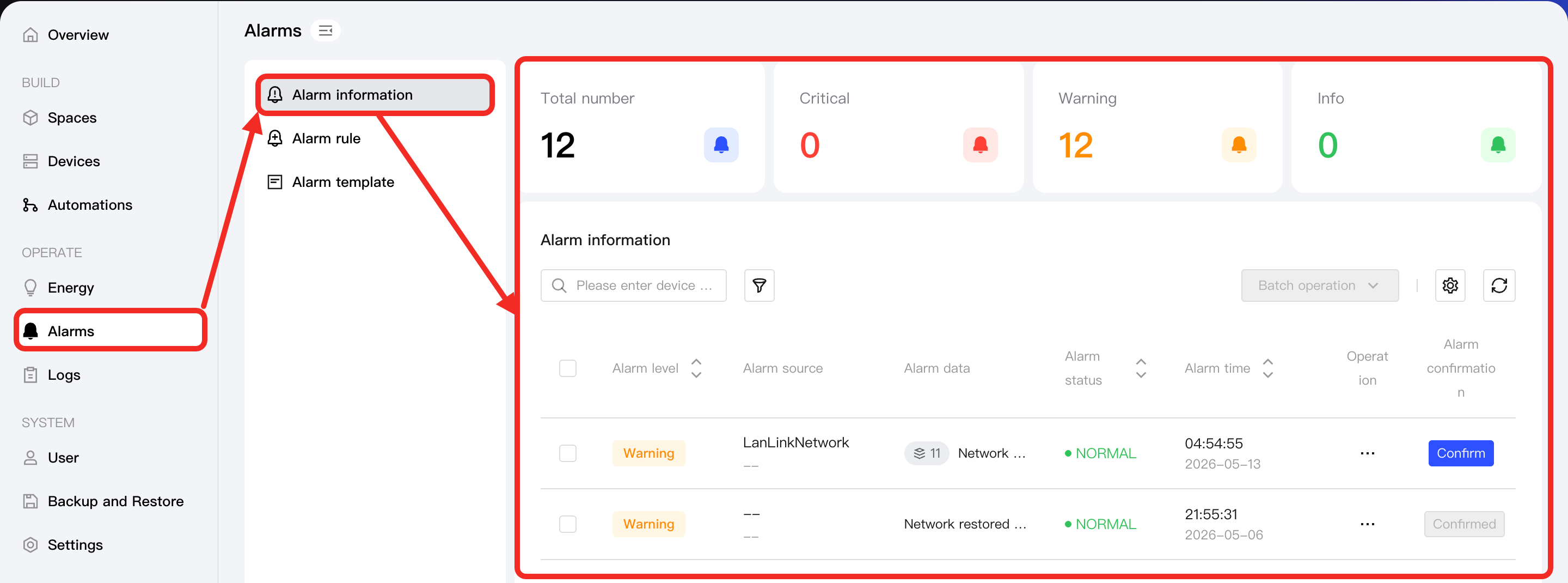
You can view alarm information on the Alarm Center > Alarm Information page. This page displays key details such as the level, source, data, and status of alarm events, making it convenient for users to view and manage alarms in a unified way.
Alarm Classes
Alarms can be divided into two classes: default alarms and custom alarms:
| Dimension | Default Alarm | Custom Alarm |
|---|---|---|
| Meaning | Alarms for protocol communication failures and device offline events. | User-defined alarms for specific device function points. |
| Alarm Level |
| Users can customize alarm levels: Critical, Warning, Info. |
| Configured by | Aqara Studio | User |
| Configurability | Not modifiable | Creatable, modifiable, deletable |
| Trigger Condition | Communication errors, and device offline | Device function point value meets user-defined alarm rule |
Default alarms are used to ensure the basic availability of the platform and devices; these rules are maintained by the system, and cannot be modified or deleted by users.
Custom Alarm Information Table
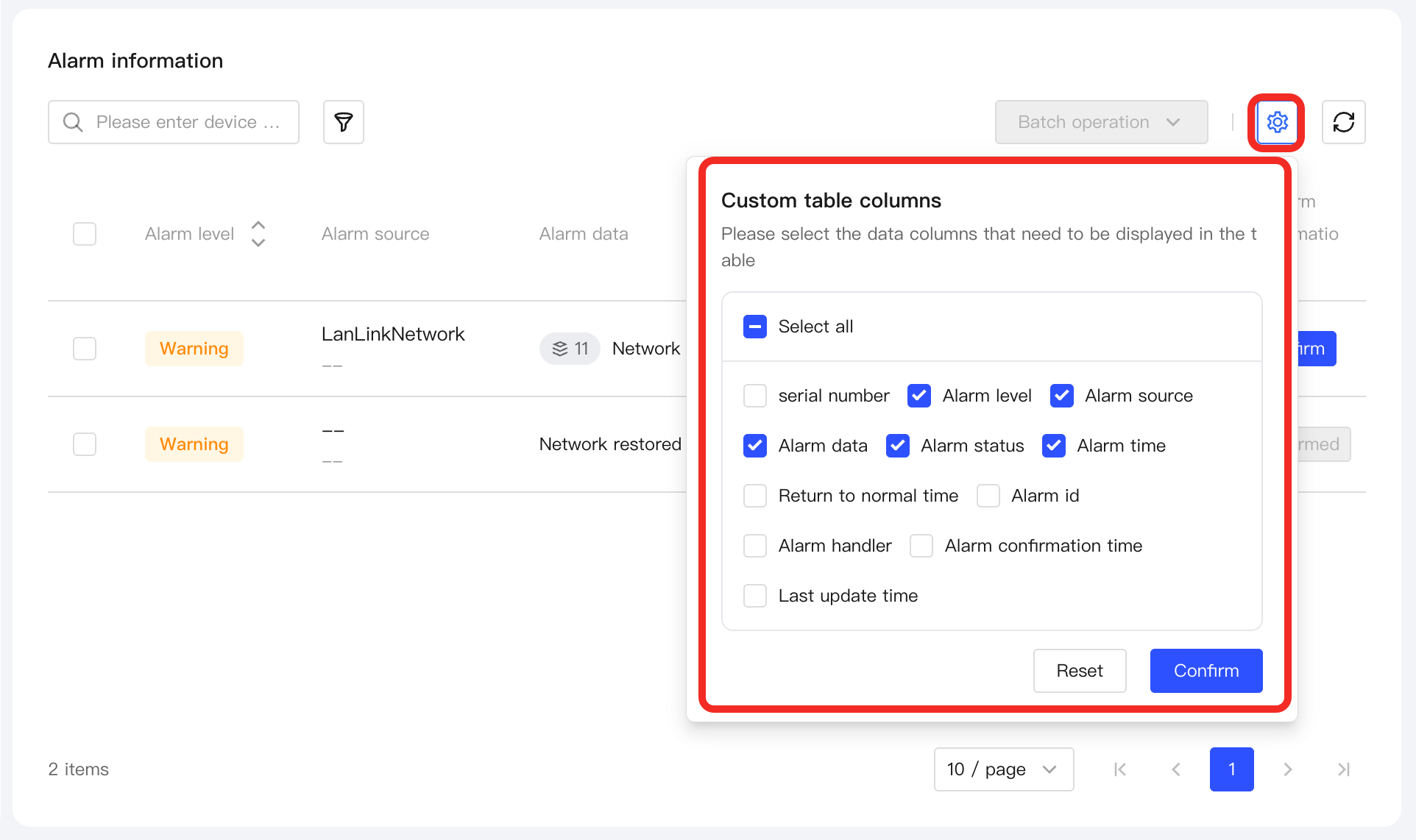
To filter columns in the alarm information table, click the ⚙ icon. In the Custom table columns popup, select the fields you want to display, then click the Confirm button to apply your settings:
Alarm Details
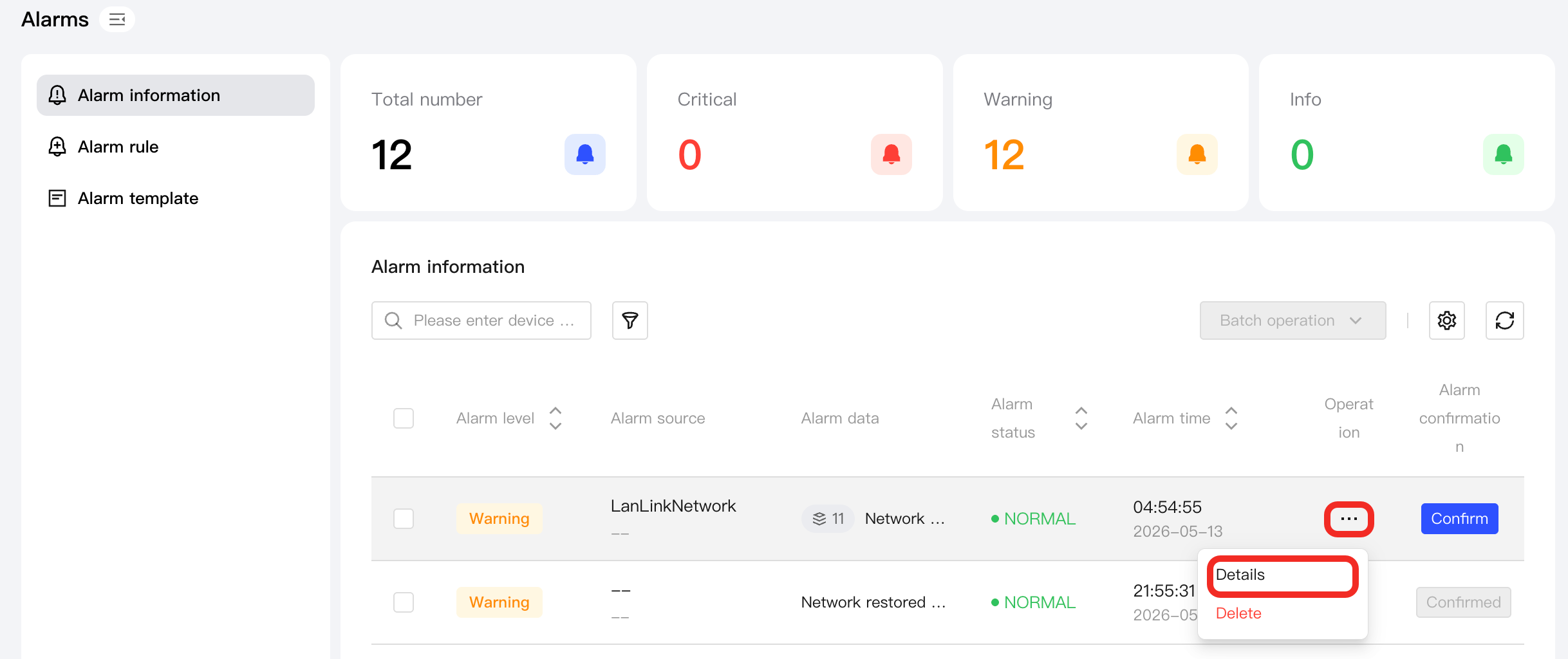
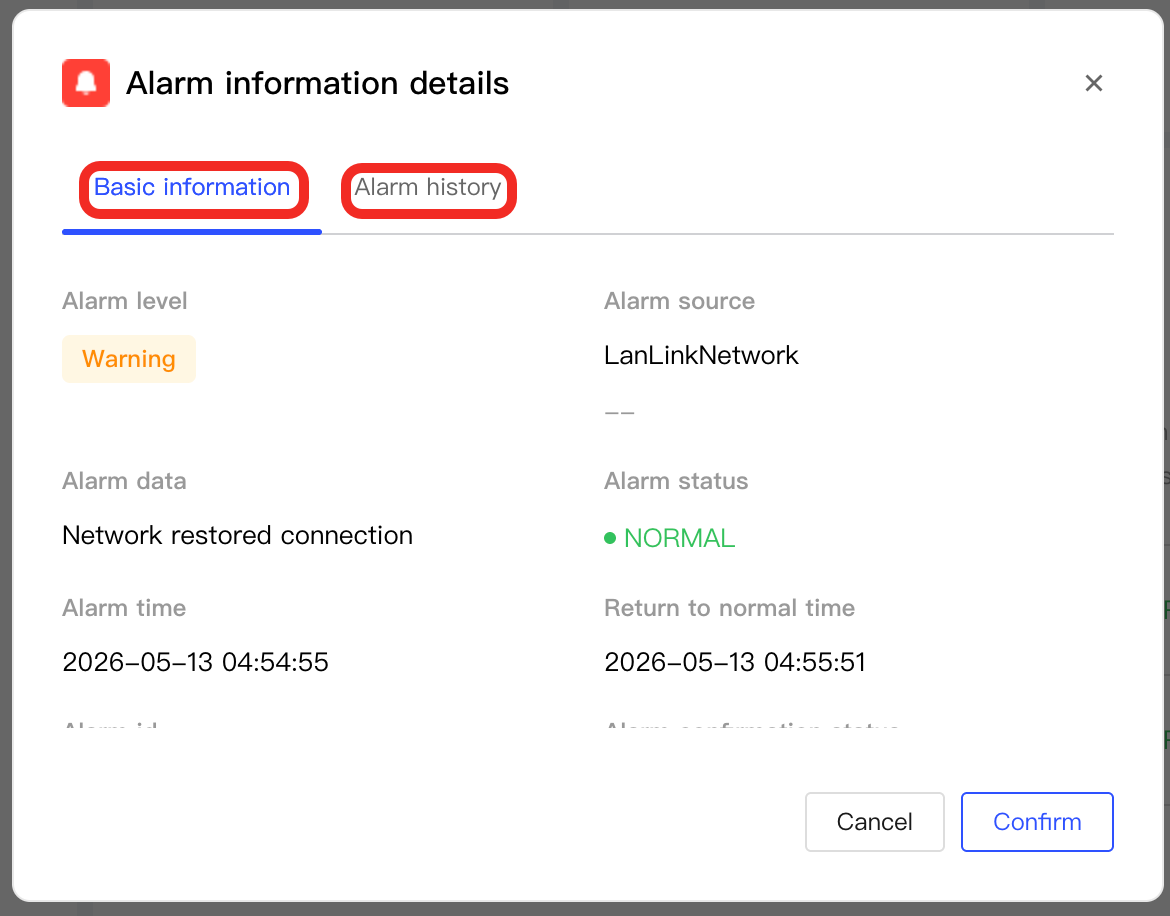
In the alarm information table, find any alarm and click ... > Details to view the detailed information for the alarm, including basic information and alarm history.
Basic Information
The basic information includes the following fields:
| Field | Description |
|---|---|
| Alarm level | The urgency level of the alarm. Options include Critical, Warning, and Info. |
| Alarm source | The source that triggered the alarm. |
| Alarm data | The detailed description of the alarm. For custom function point alarms, this shows the alarm name you configured. |
| Alarm status | The current status of the alarm. Options include:
|
| Alarm time | The time when the alarm was triggered. |
| Return to normal time | The time when the alarm was cleared and returned to normal. |
| Alarm ID | The unique identifier of the alarm. |
| Alarm confirmation status | Whether the alarm has been confirmed or not. Options include:
|
| Alarm handler | The user who performed the confirmation operation. |
| Alarm confirmation time | When the alarm was confirmed. |
| Last updated time | The most recent time the alarm information was updated. |
Alarm History
Alarm history is used to record the complete process of each trigger and recovery for the same alarm. The system aggregates multiple identical and unconfirmed alarm events for easier viewing and tracking.
Once a user acknowledges an alarm, if the alarm is triggered again, it will be considered a new alarm and will not be included in the previous alarm history.
Alarm history includes the following fields:
| Field | Description |
|---|---|
| Alarm data | Detailed description of the alarm. For custom function point alarms, your custom alarm name will be displayed here. |
| Alarm status | The current status of the alarm:
|
| Alarm time | The specific time when the alarm was triggered. |
| Return to normal time | The time when the alarm returned to normal. |
Alarm Aggregation
The system aggregates all unconfirmed alarms of the same rule, and displays them as a single record. By viewing the number in the Alarm data field of this record, you can know how many alarms are aggregated together.
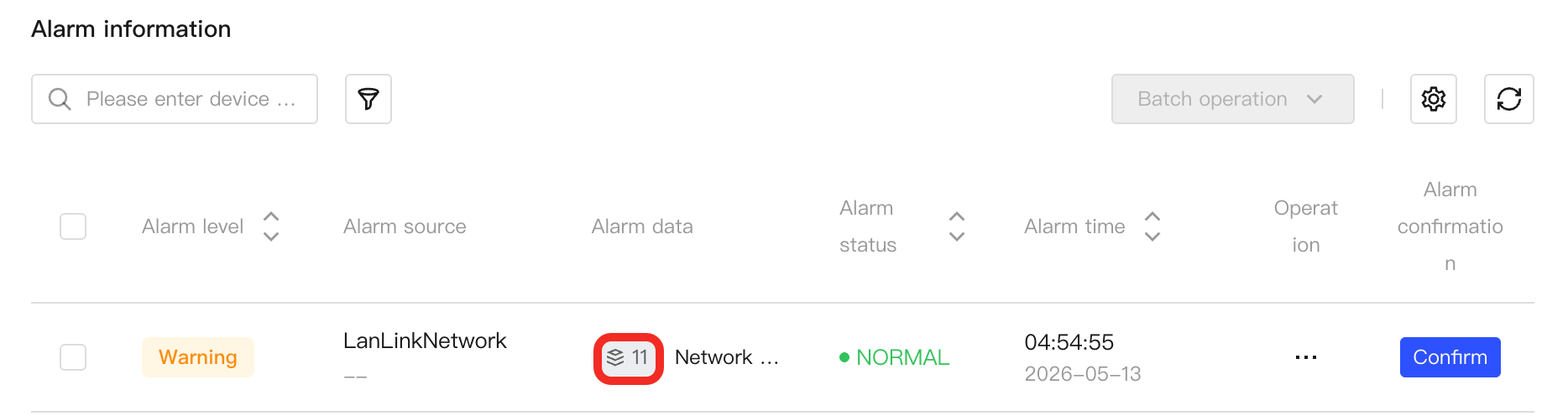
Click the number to view the aggregated alarm list (alarm history).
Alarm Confirmation
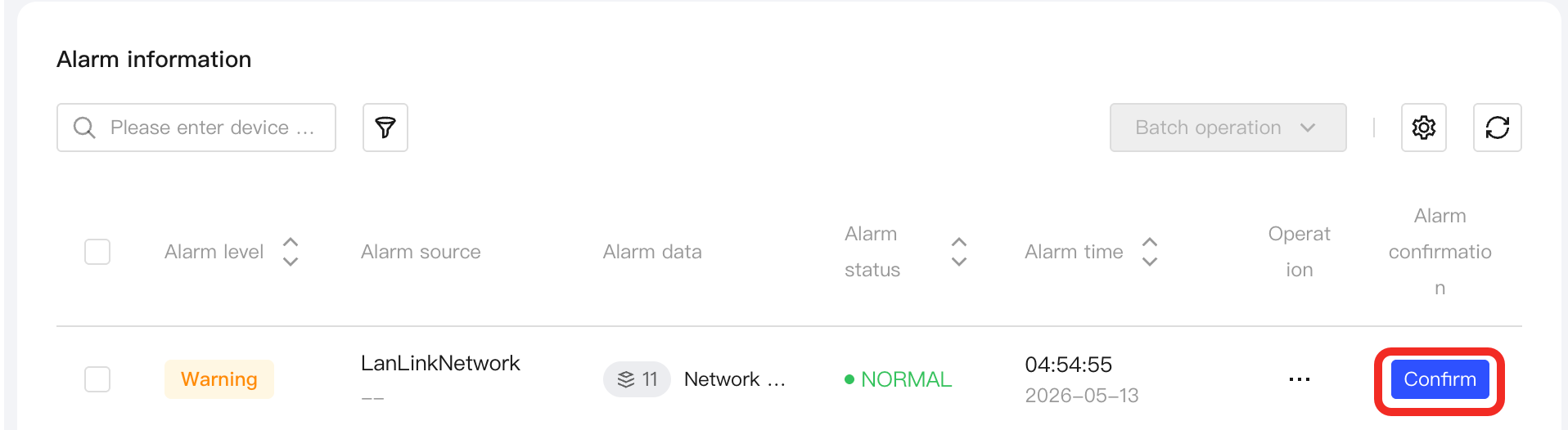
When you receive an alarm, you can click the Confirm button to indicate that the alarm has been confirmed. After confirmation, the alarm's confirmation status will change to Confirmed.
Alarm Rule Configuration
The Alarm Center supports flexible configuration of alarm rules for device function points, enabling real-time monitoring and timely response to abnormal states.
-
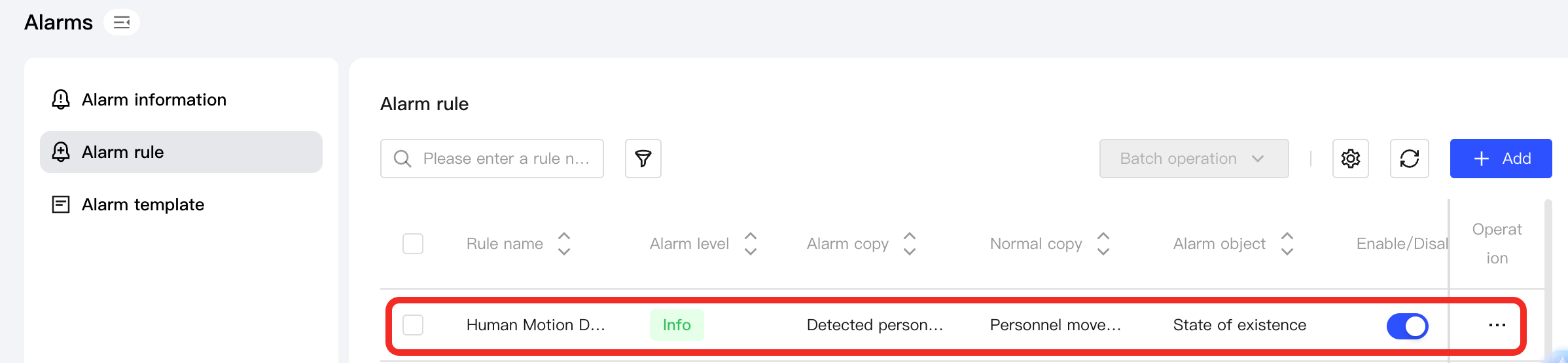
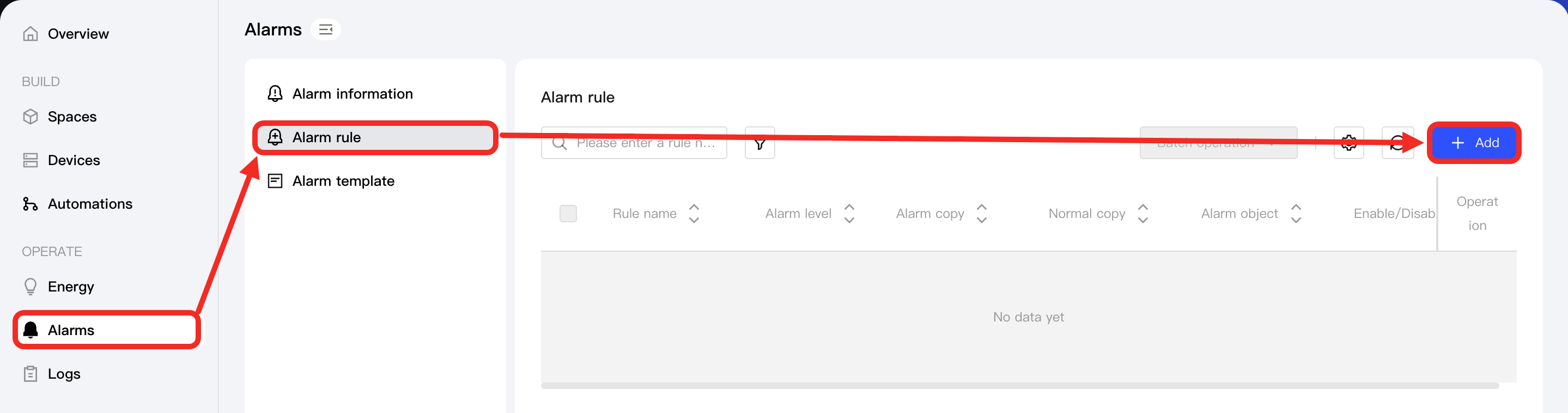
Go to Alarms > Alarm rule page and click the Add button.
-
In the pop-up window, you will see the Alarm information section and the Alarm object section.
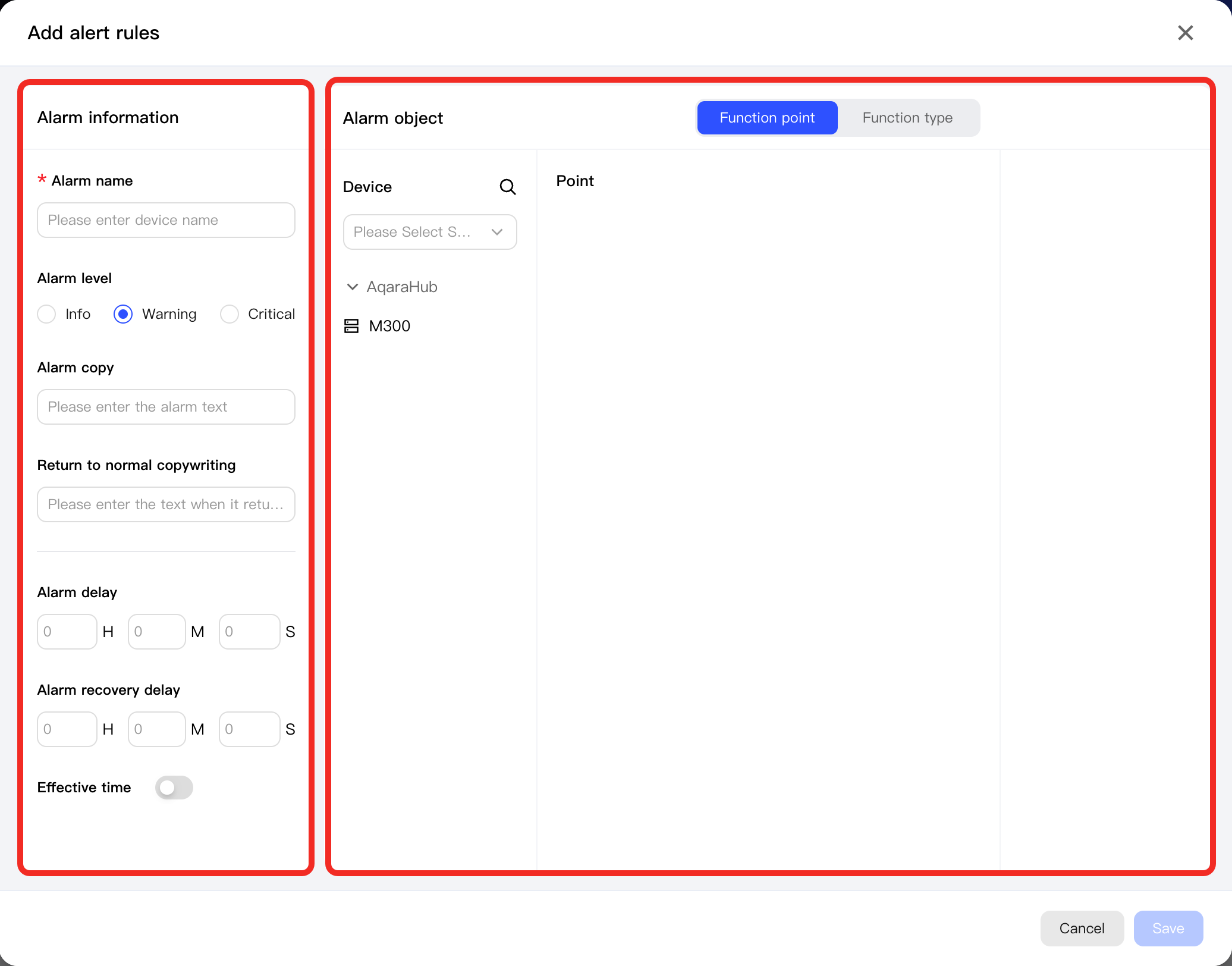
The Alarm information section is used to configure the following parameters:
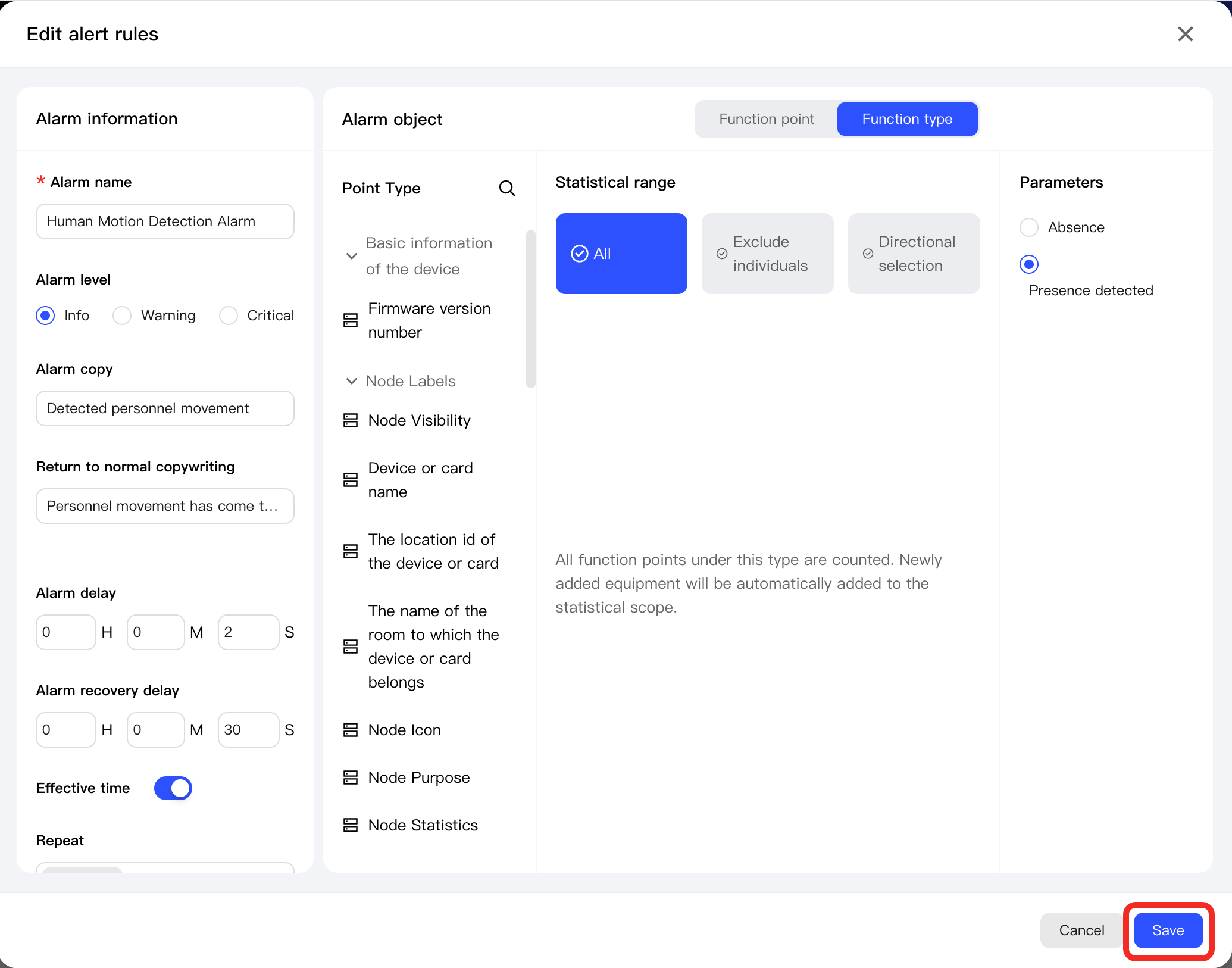
Parameter Description Alarm name The custom name of the alarm. Alarm level The urgency level of the alarm. Options include Critical, Warning, and Info. Alarm copy The message shown to the user when the alarm is triggered. Return to normal copy The message shown to the user after recovery. Alarm delay The system will only send an alarm to the user if the function point stays abnormal for this period. This helps to avoid false alarms caused by short fluctuations. Alarm recovery delay After the function point leaves the alarm state, it must stay normal for this period to be considered recovered. This prevents frequent reminders due to temporary changes. Effective time The time when the alarm rule takes effect. In the Alarm object section, you can select objects either by function point or function type.
-
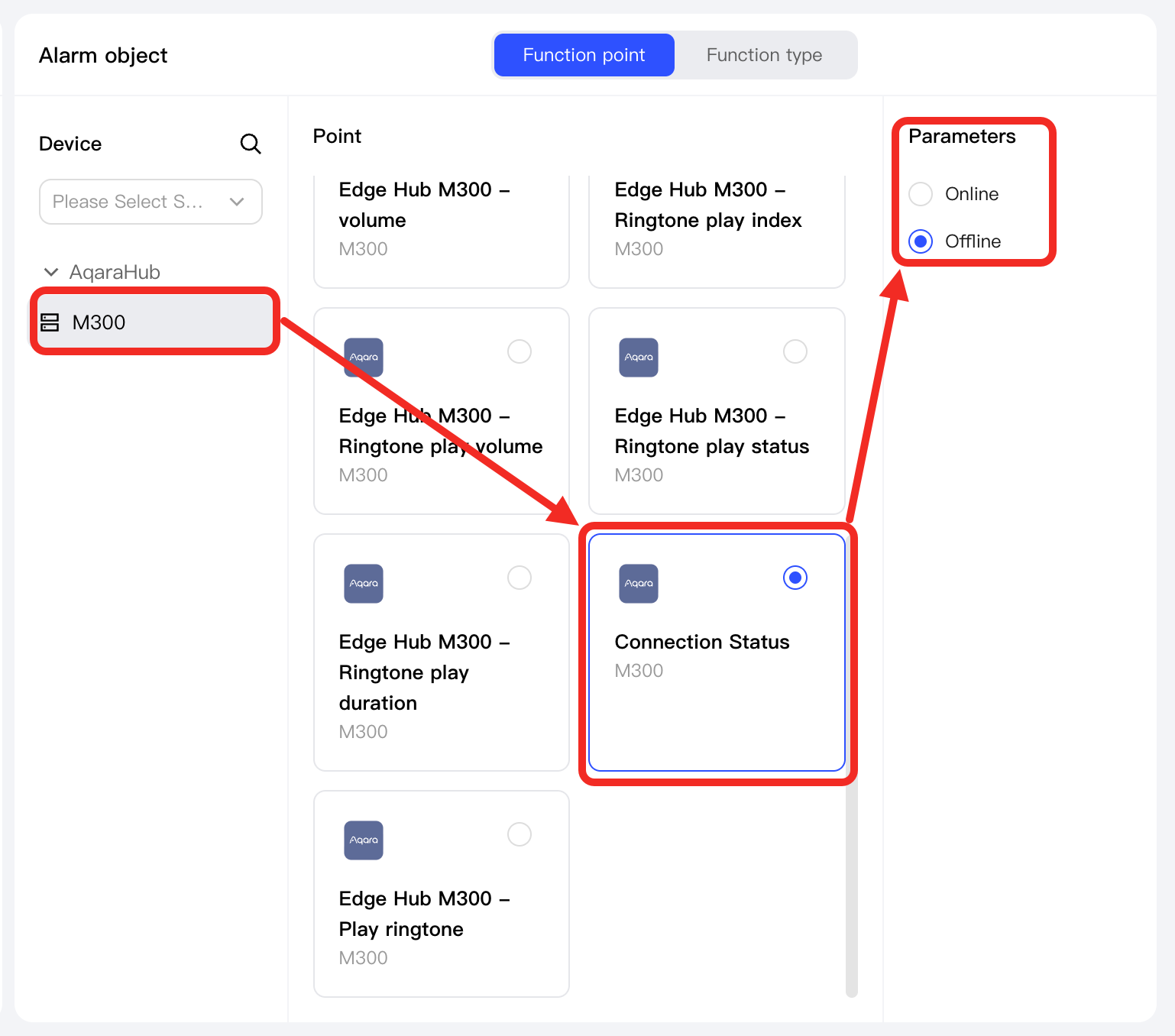
When selecting an object by function point:
- First select the target device, then choose the specific function point under it.
- Then, configure alarm trigger conditions for this function point:
- For Boolean types, you can set the alarm to trigger on either true or false;
- For numeric types, you can flexibly configure upper and lower limits, alarm deadband, and other parameters to achieve refined abnormal monitoring.
 tip
tipFor numeric function points, the parameters are as follows:
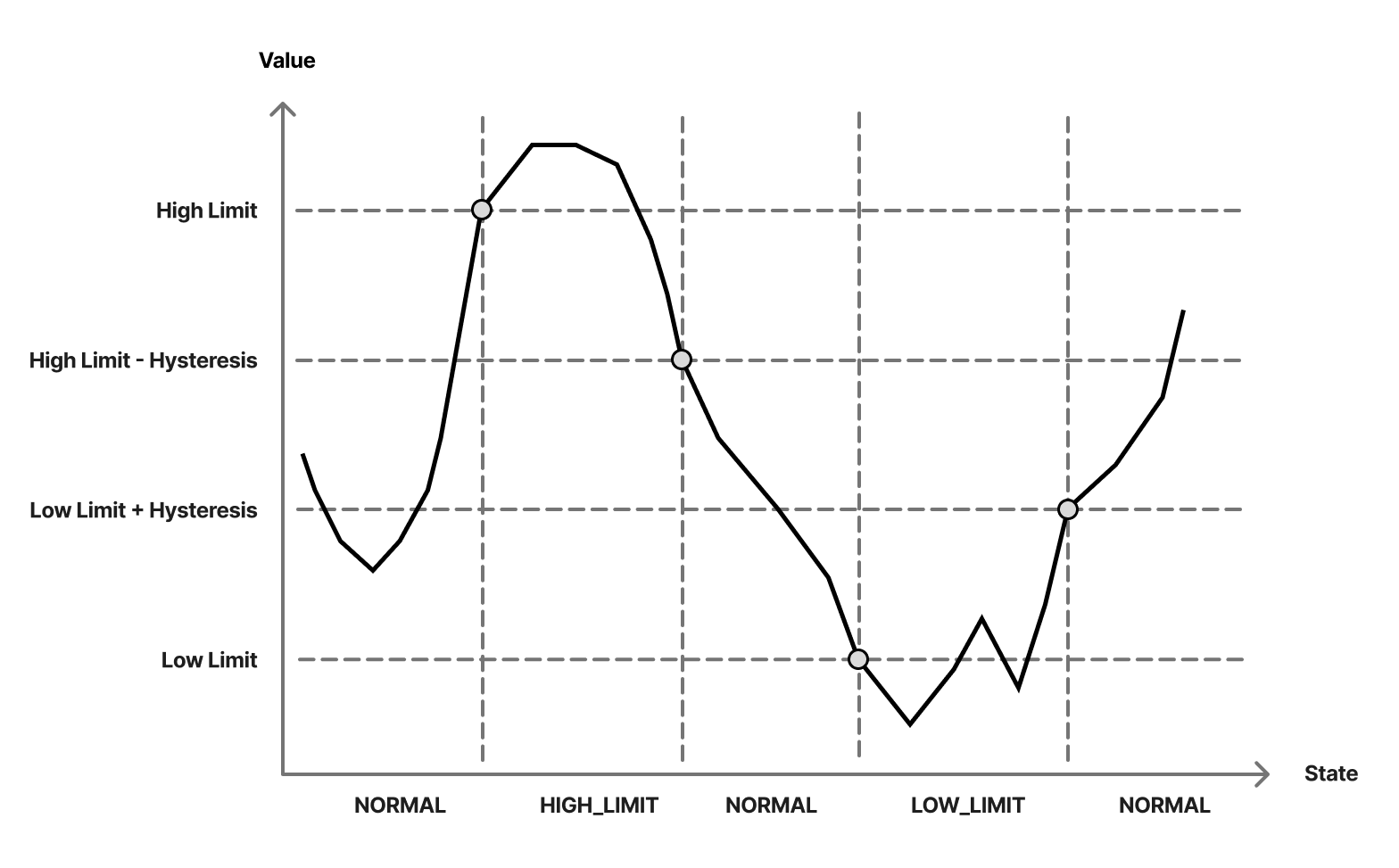
Parameter Description Comparison method Select the comparison method, such as out of range, greater than, less than, etc. Low Limit (Only effective when the comparison method is out of range) The lowest allowed normal value. When the device reading drops below the low limit, the alarm state changes to OFF_NORMAL (LOW_LIMIT). High Limit (Only effective when the comparison method is out of range) The highest allowed normal value. When the device reading exceeds the high limit, the alarm state changes to OFF_NORMAL (HIGH_LIMIT). Hysteresis It is used to prevent frequent state switching due to small fluctuations near the threshold. - When the low limit is enabled: Once the reading drops to the low limit and becomes abnormal, the state will only return to normal when the reading rises above the lower limit plus the hysteresis.
- When the high limit is enabled: Once the reading rises to the high limit and becomes OFF_NORMAL, the state will only return to normal when the reading drops below the high limit minus the hysteresis.
The diagram below shows how the alarm state responds as the device reading crosses the low and high limits, as well as when it returns to the recovery points (low limit + hysteresis, and high limit - hysteresis).
-
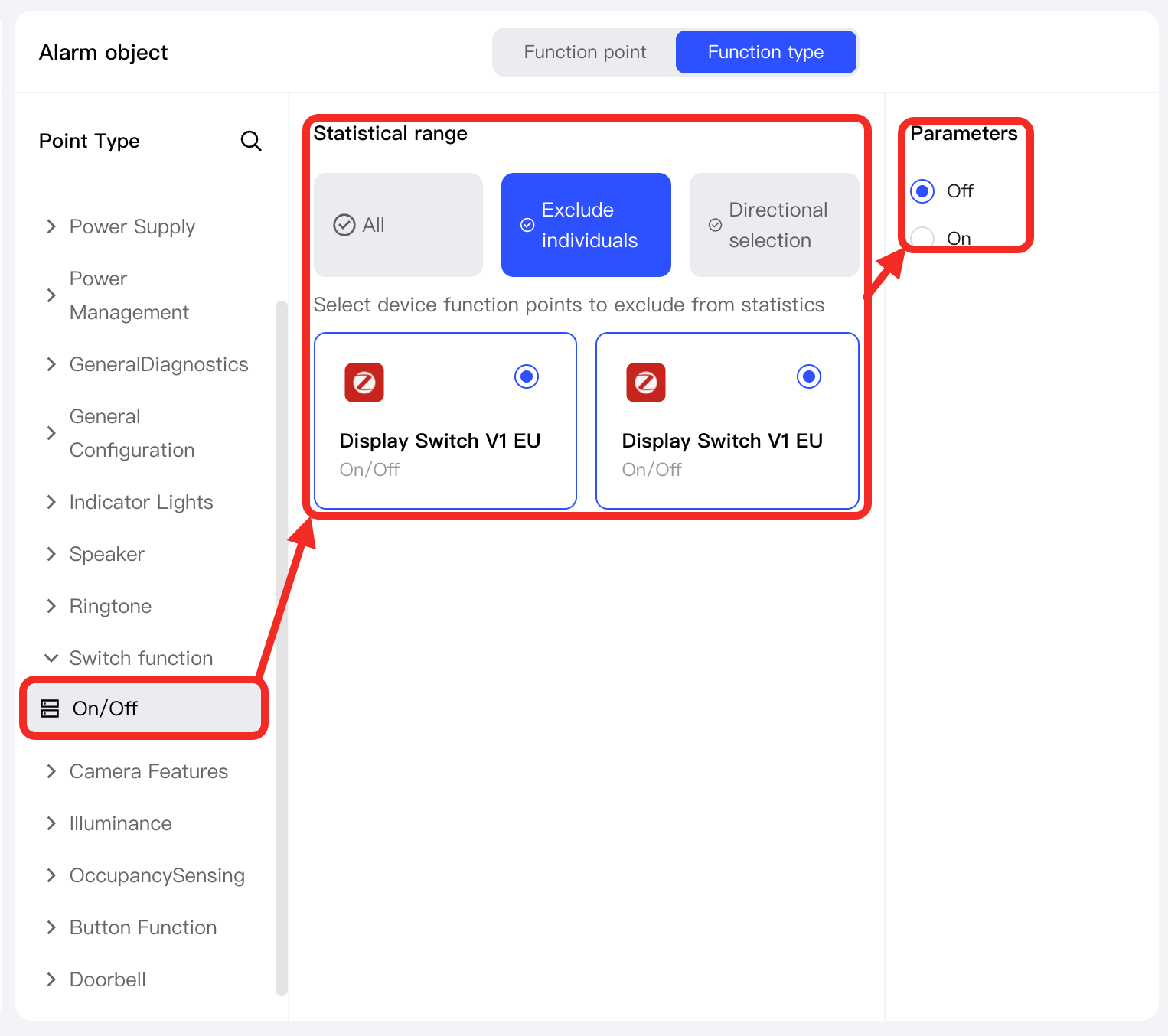
When selecting objects by function type:
- First specify the target function type (such as Switch, Temperature, Humidity, etc.), and the system will automatically filter out all function points of that type.
- Then, you can quickly select all points, select multiple points in bulk, or invert the selection of target function points.
- Finally, configure the alarm trigger conditions for the selected function points: for Boolean types, you can set the alarm to trigger on true or false; for numeric types, you can flexibly set upper and lower limits, alarm hysteresis, and other parameters for refined abnormal monitoring.
-
-
After configuration is complete, click the Save button. The new alarm rule will be added to the list and enabled by default.
-
Once the alarm rule is enabled, whenever the value of a device function point meets the alarm condition, you can view the alarm status, trigger time, and confirm the alarm in Alarm Information.
Alarm Template
-
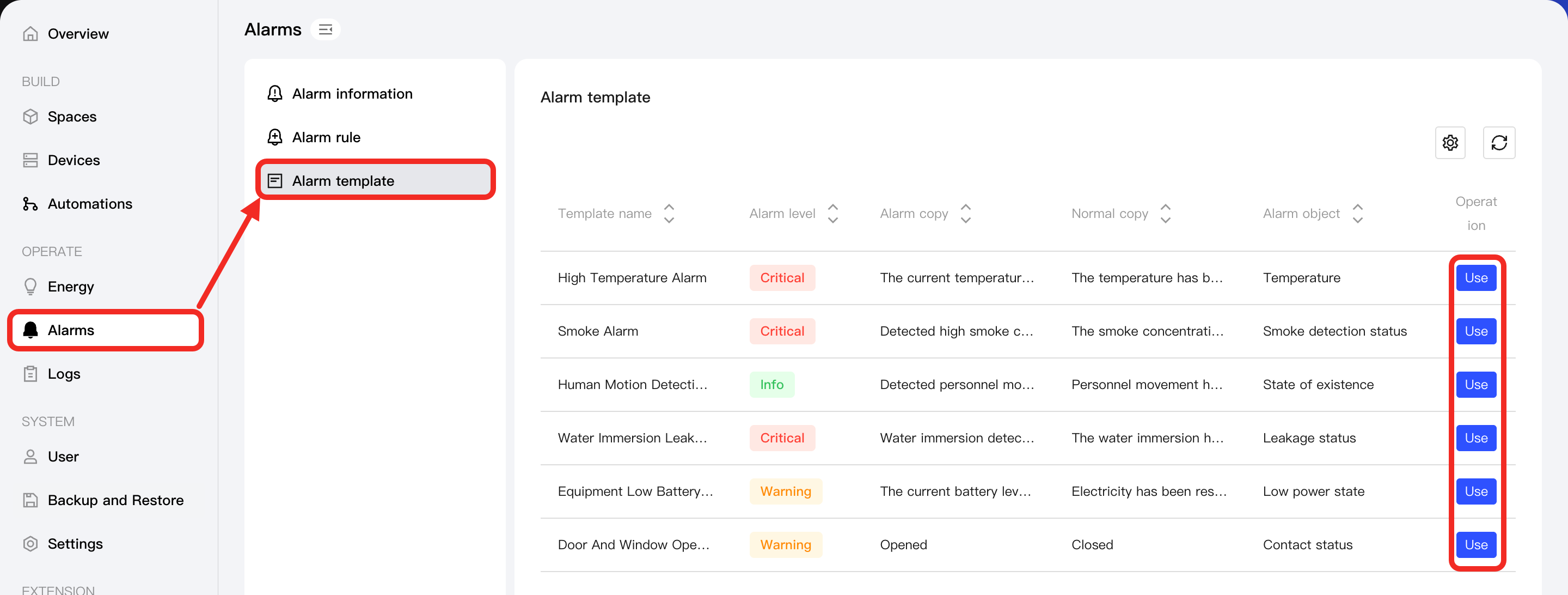
Click Alarms in the left navigation bar and select Alarm Template. You will see that Aqara Studio provides multiple alarm templates.
Click the Use button on any template. If there are devices in Aqara Studio that support this rule, you will be able to view and edit the alarm rule in the template drawer.
-
In the edit drawer, you can configure the alarm rule. After completing the configuration, click the Save button.
-
The newly created alarm rule will be added to the alarm rule list and enabled by default.