KNX IP
This document explains how to connect KNX/IP devices to Aqara Studio.
Prerequisites
Before you start, please make sure:
- You have added the KNX/IP device in ETS6, assigned group addresses, and obtained the physical address and DPT (Data Point Type). For tutorials, see the official ETS6 Professional documentation or watch ETS for beginners, a video series released by KNX Association,.
- Your Windows computer, KNX/IP device, and Aqara Gateway are all connected to the same local network.
Add a KNX/IP Device
-
In the left sidebar, click to enter the Devices page. In the left Protocols and Devices panel, click the ... button and select Add Protocol.

-
Select
KNX IPin the popup.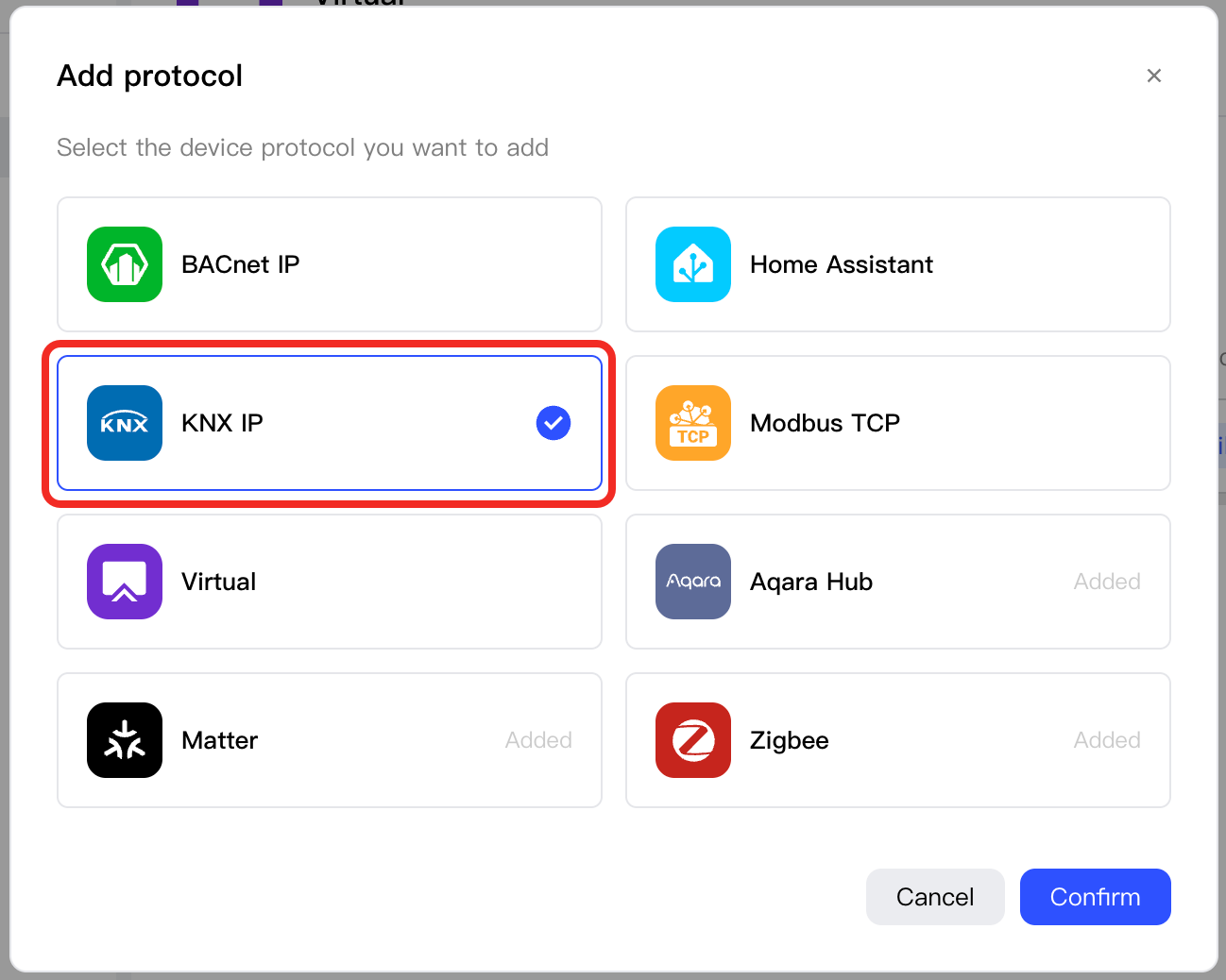
-
Click
KNX IP, switch to the Add Device tab.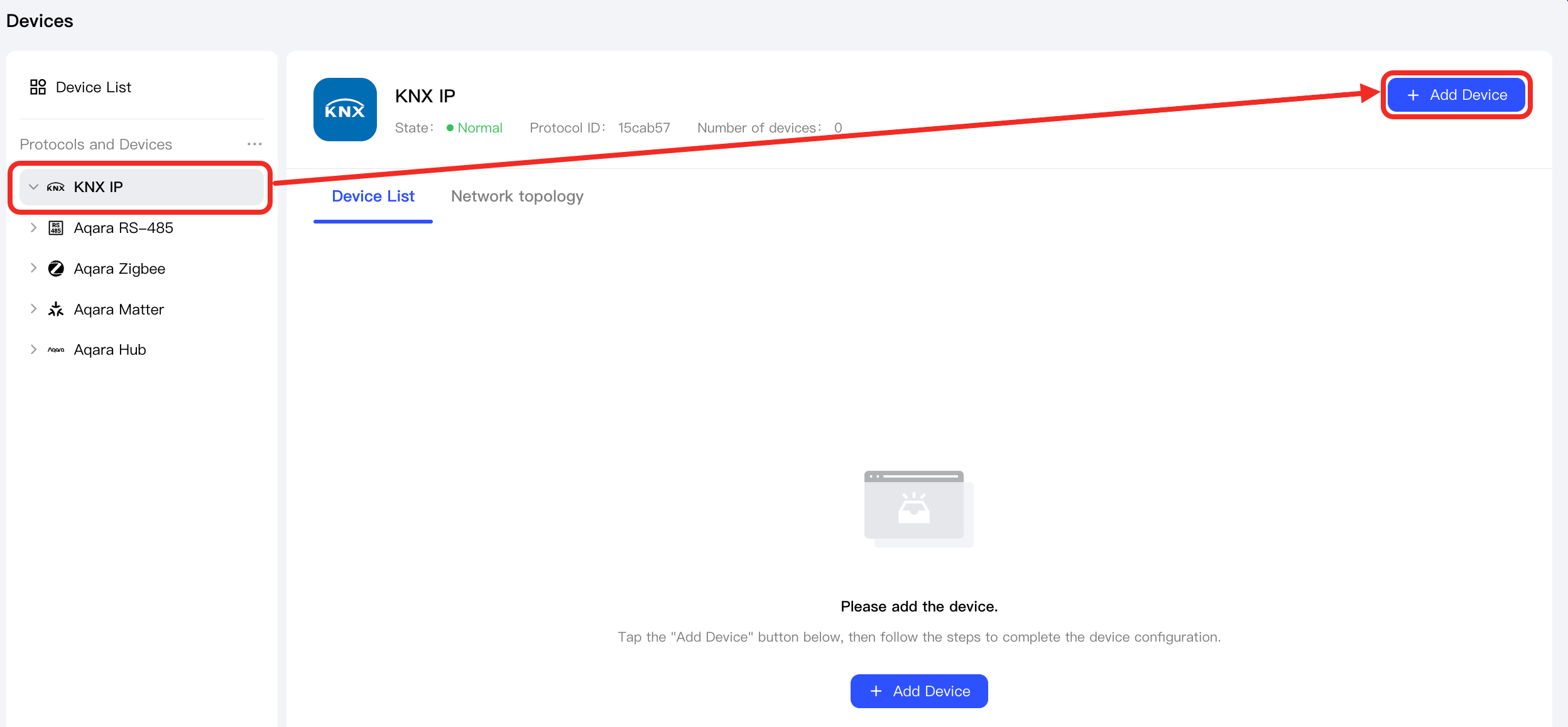
-
fill in the following parameters, and then click the Save and continue button.
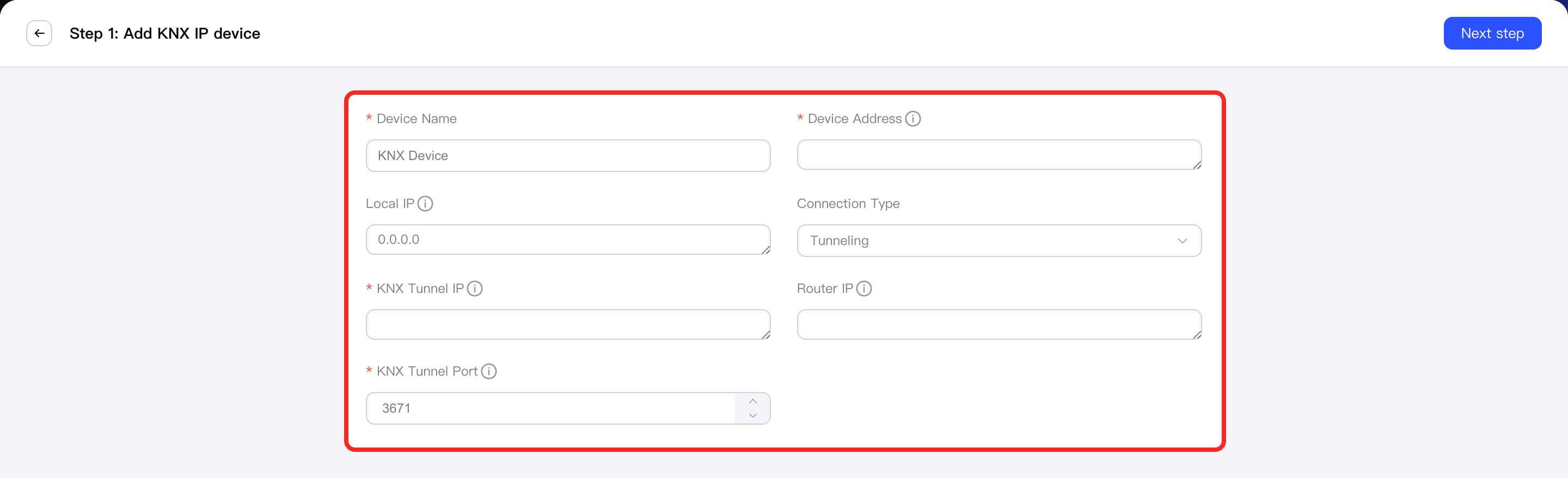
The relevant parameters are shown in the following table:
Parameter Description Device Name The name you set for this device. Device Address The unique address of the KNX device in the KNX network. Enter the physical address set in ETS6, using a three-part format (e.g., 1.1.0). Local IP The IP address of your local device (client) for KNX network communication. By default, 0.0.0.0 means the system will auto-assign an IP. Connection Type Choose the supported connection mode: - Tunneling: For point-to-point connections (such as programming download, smart home system).
- Routing: For multicast connections (like monitoring bus traffic or group-control).
KNX Tunnel IP The IP address of the KNX tunnel server, needed for KNX/IP tunneling connections. This device acts as a gateway between KNX and IP networks, forwarding KNX packets. Required for "Tunneling mode". Format: xxx.xxx.xxx.xxx (e.g., 192.168.1.100) Router IP The IP address of the KNX/IP router, required if using "Routing" mode. It acts as a network router and forwards KNX packets to target devices. KNX Tunnel Port The port number used by the KNX interface device. This is required for "Tunneling" mode. The default is 3671. If you have changed the port, please enter your custom value. -
Import the KNXPROJ file or group address XML file for the device (both can be exported via ETS6).
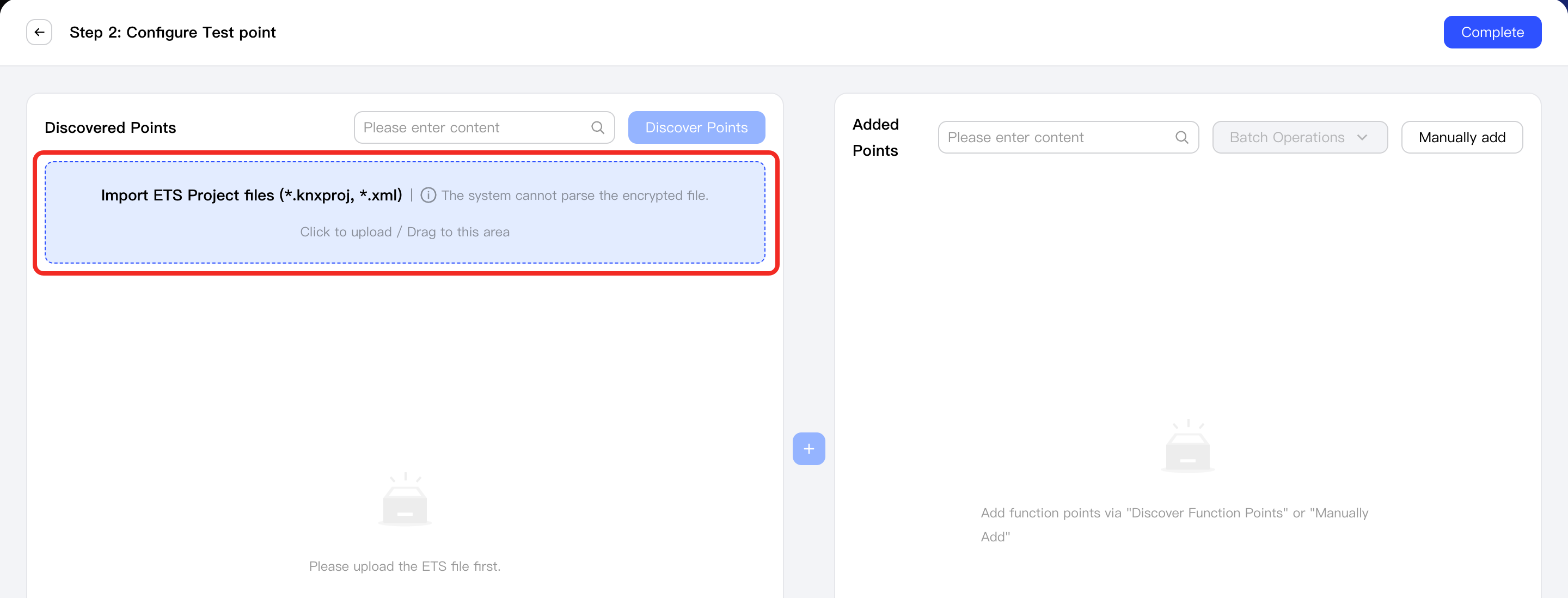
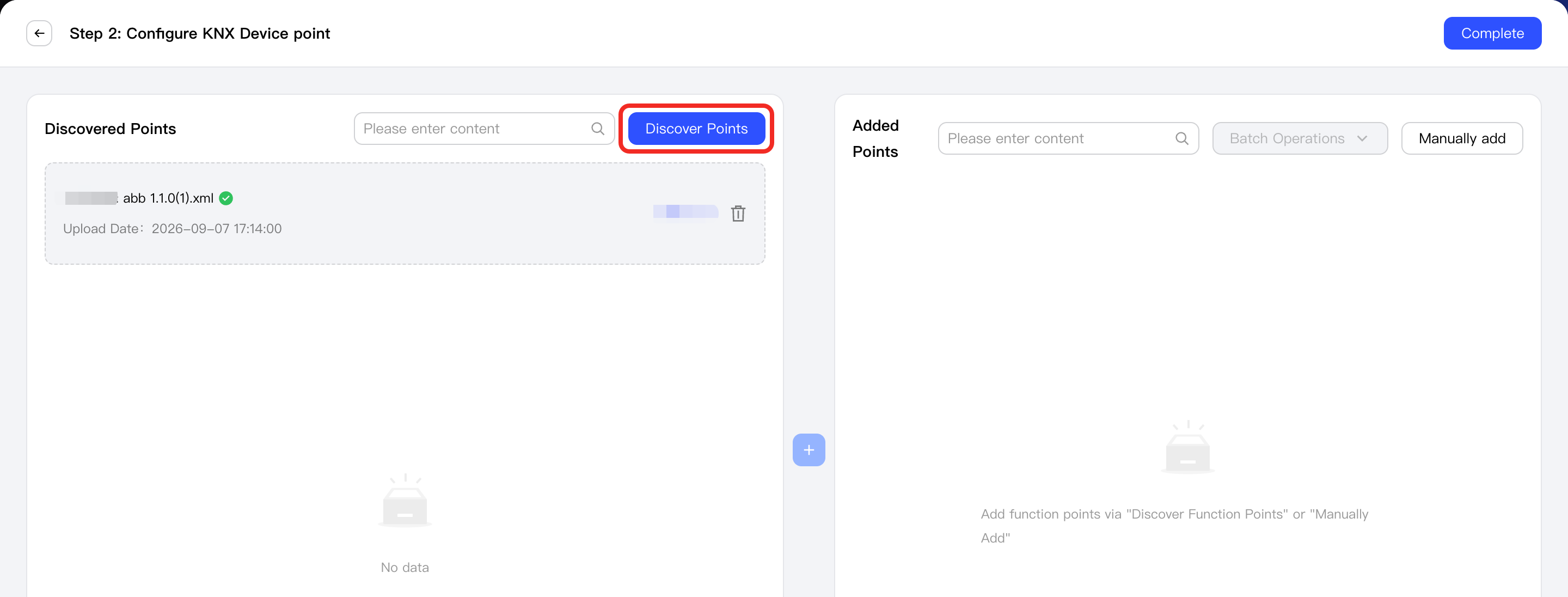
- After a successful upload, click the Discover Points button. The system will automatically parse the file and generate a list of available data points to add.
-
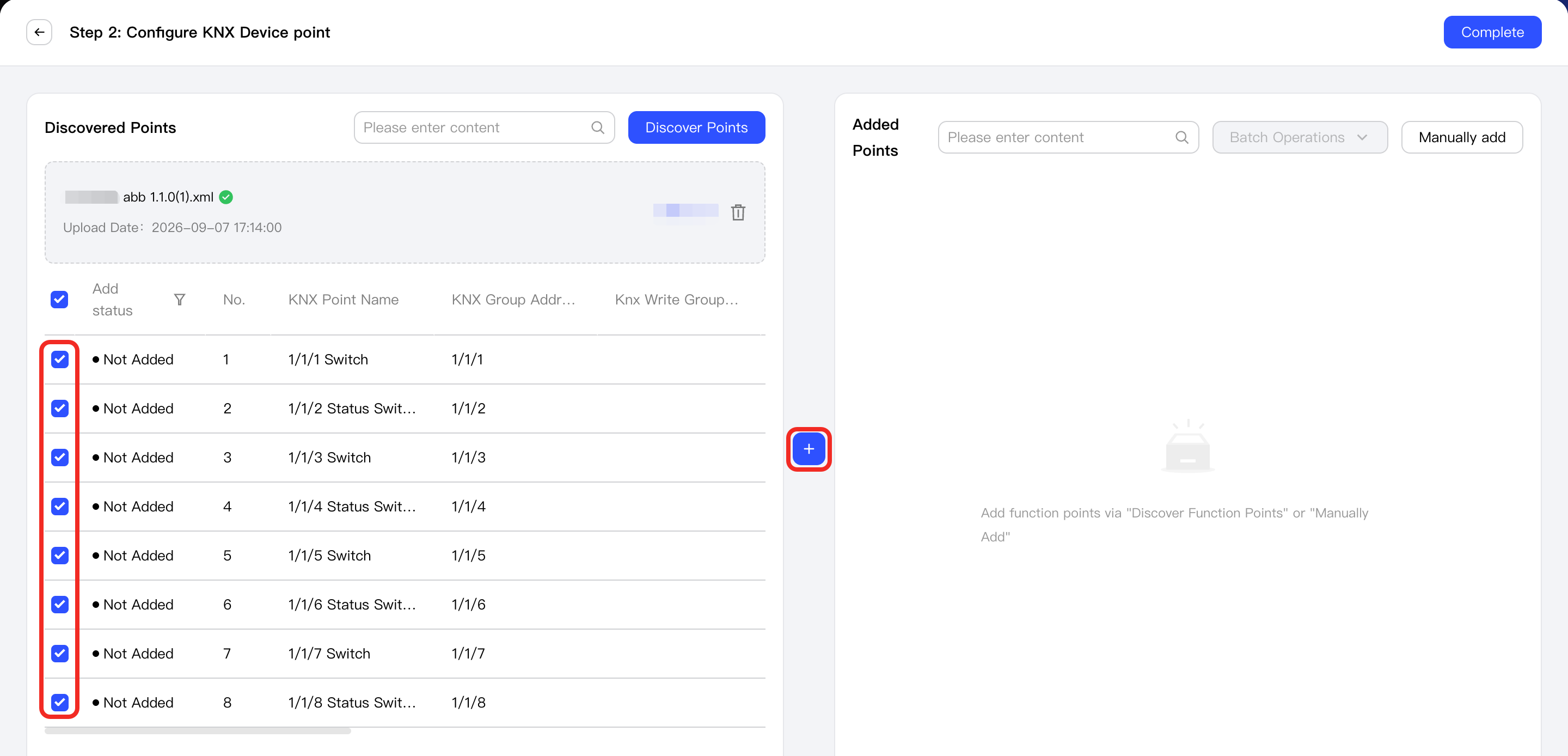
Select the points you need, then click the + button in the middle.
Aqara Studio automatically maps each point to a matching type in the Aqara Spec protocol based on the point type. In the left Point Configuration panel, go to Type Setting > Aqara Spec and confirm that the recommended type matches the actual function of the point. If it does not, change it to the correct point type.
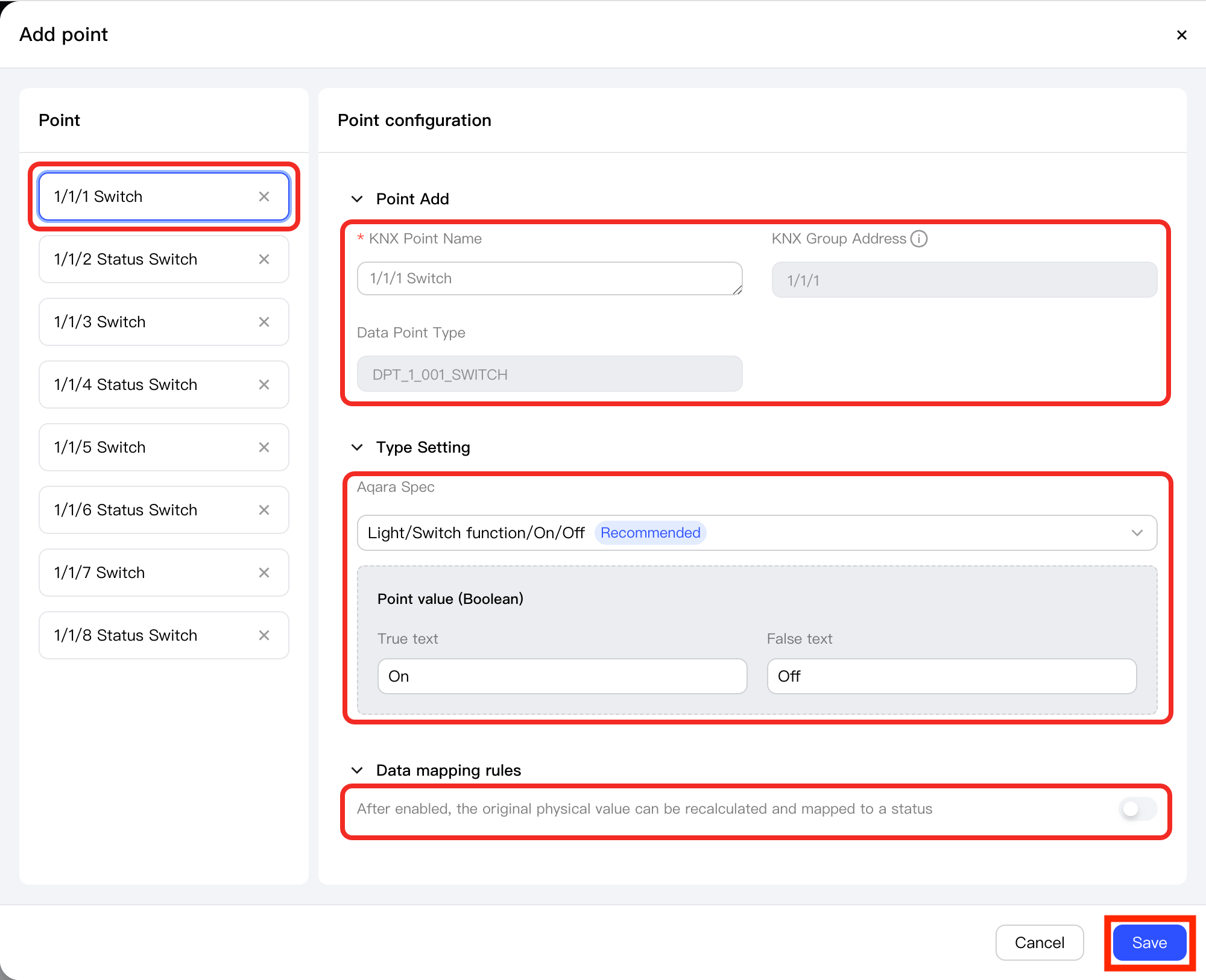
If the data type of a KNX IP device point does not match the selected Aqara Spec point data type, the system will trigger Data Mapping. Configure the mapping between the original values and the Aqara Spec target values in Data Mapping Rules.
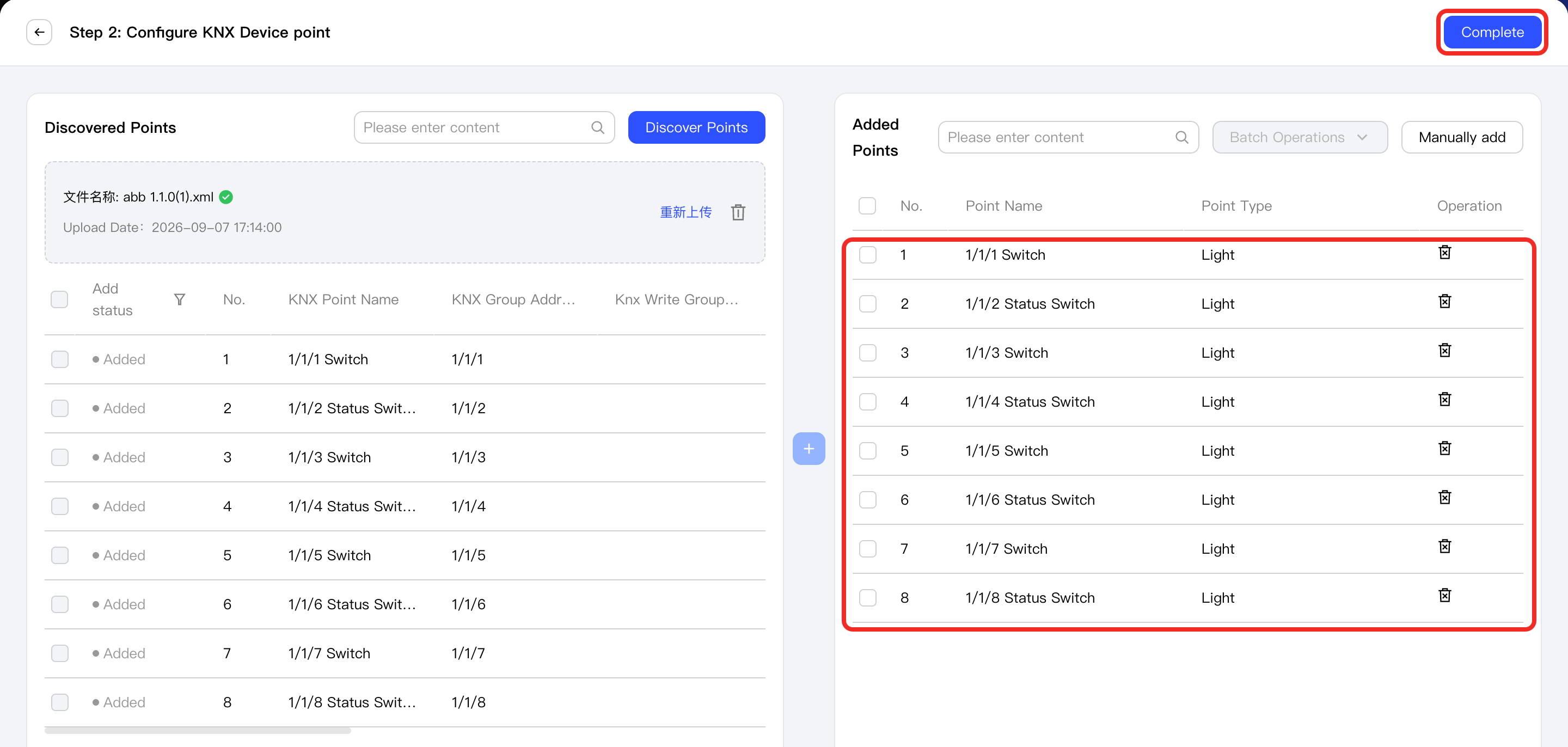
Newly added points appear in the Added Points list on the right and are also shown under the related device in the device tree on the left.
-
Return to the Devices page. You will find the added device under the KNX IP node in the Protocols & Devices tree. Select the device to view its point list.
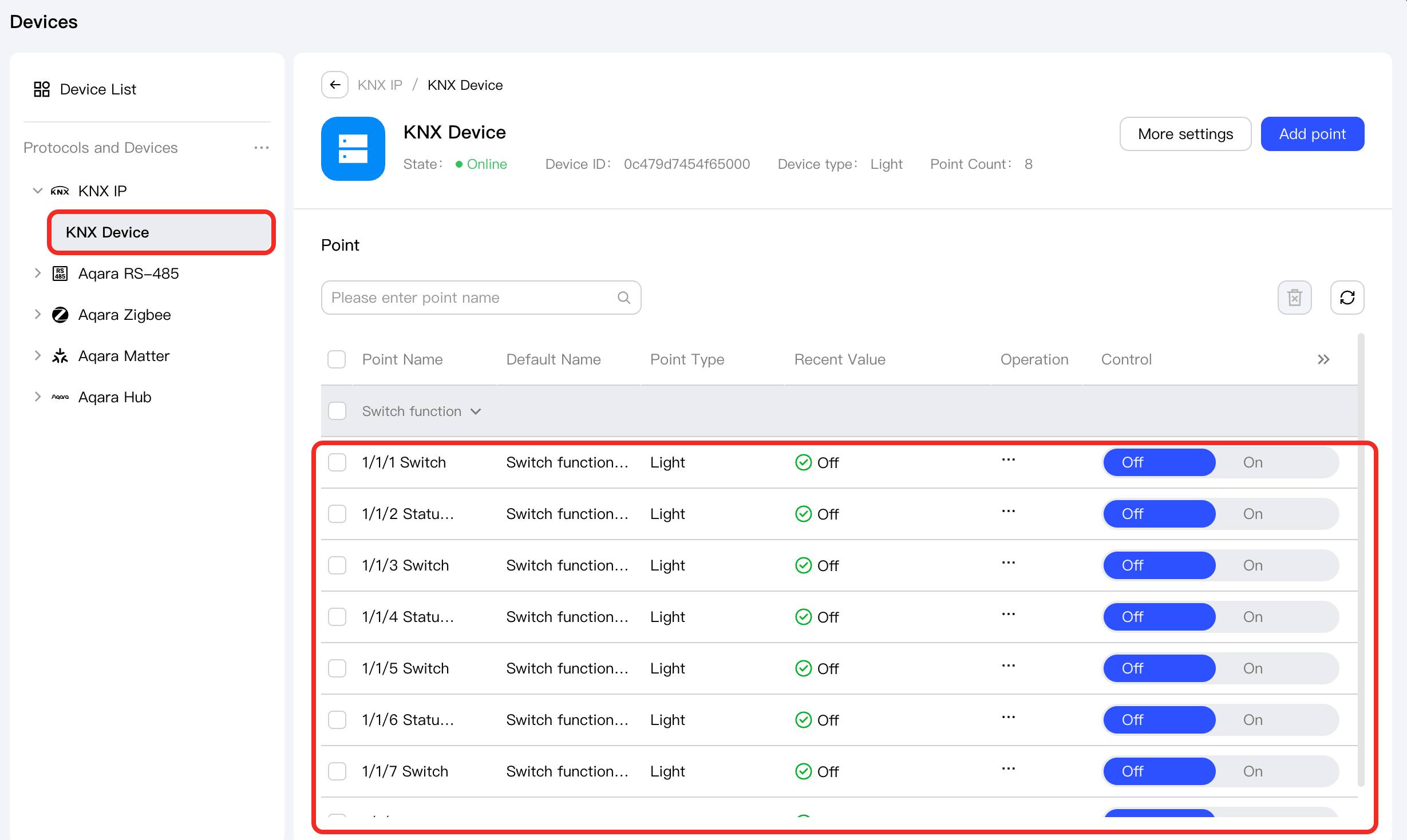
Next Steps
Now, you can view details and control the device, or use the device in automation.
FAQ
How to manually add KNX points
-
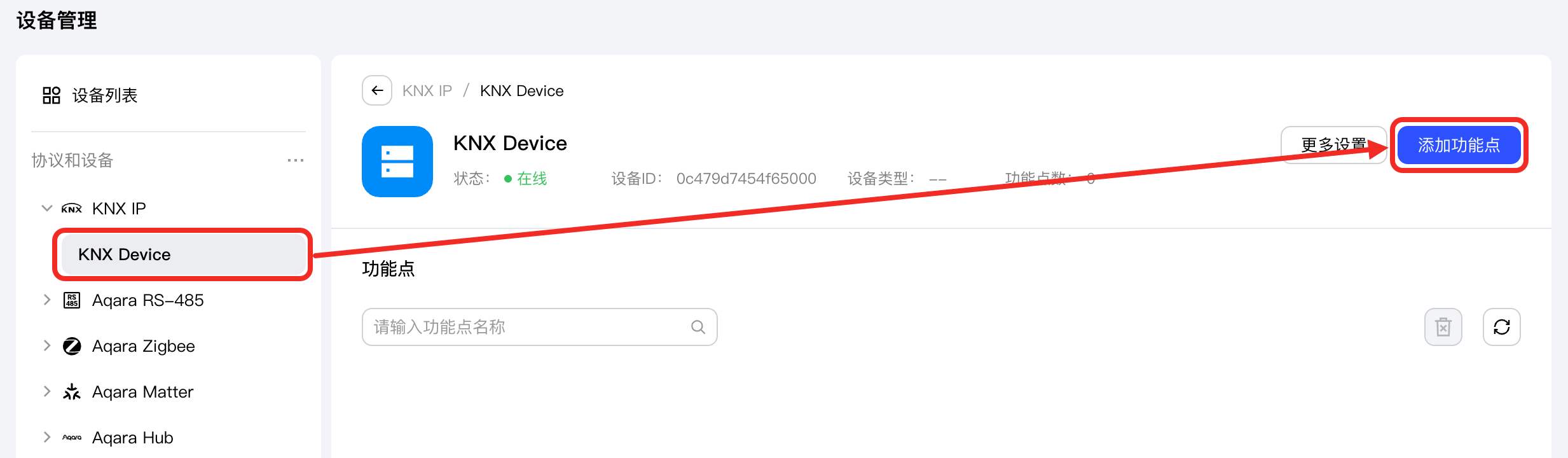
In the left sidebar, click to enter the Devices page. In the left Protocols & Devices tree, select the device to open its management page. Click the Add Point button.
-
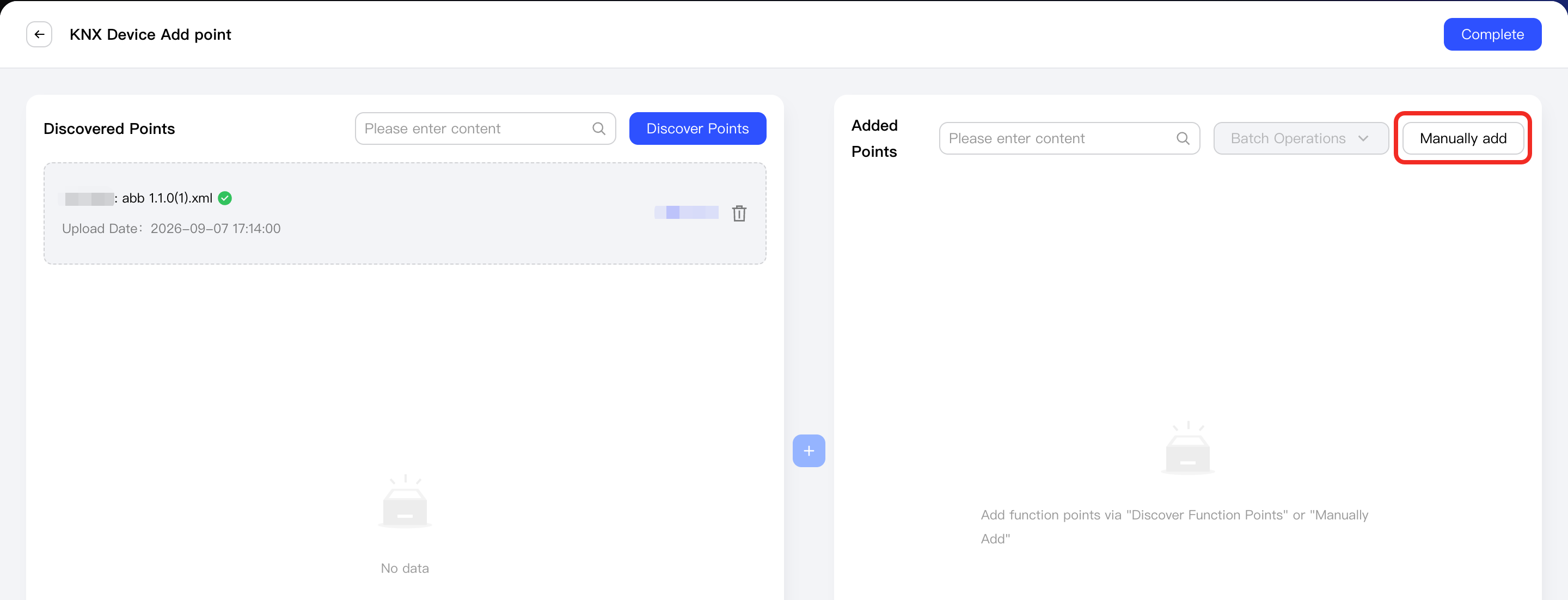
On the Add Point page, click the Manually Add button.
-
In the Add Point dialog, you can click the + button in the Point list on the left to manually add a point.
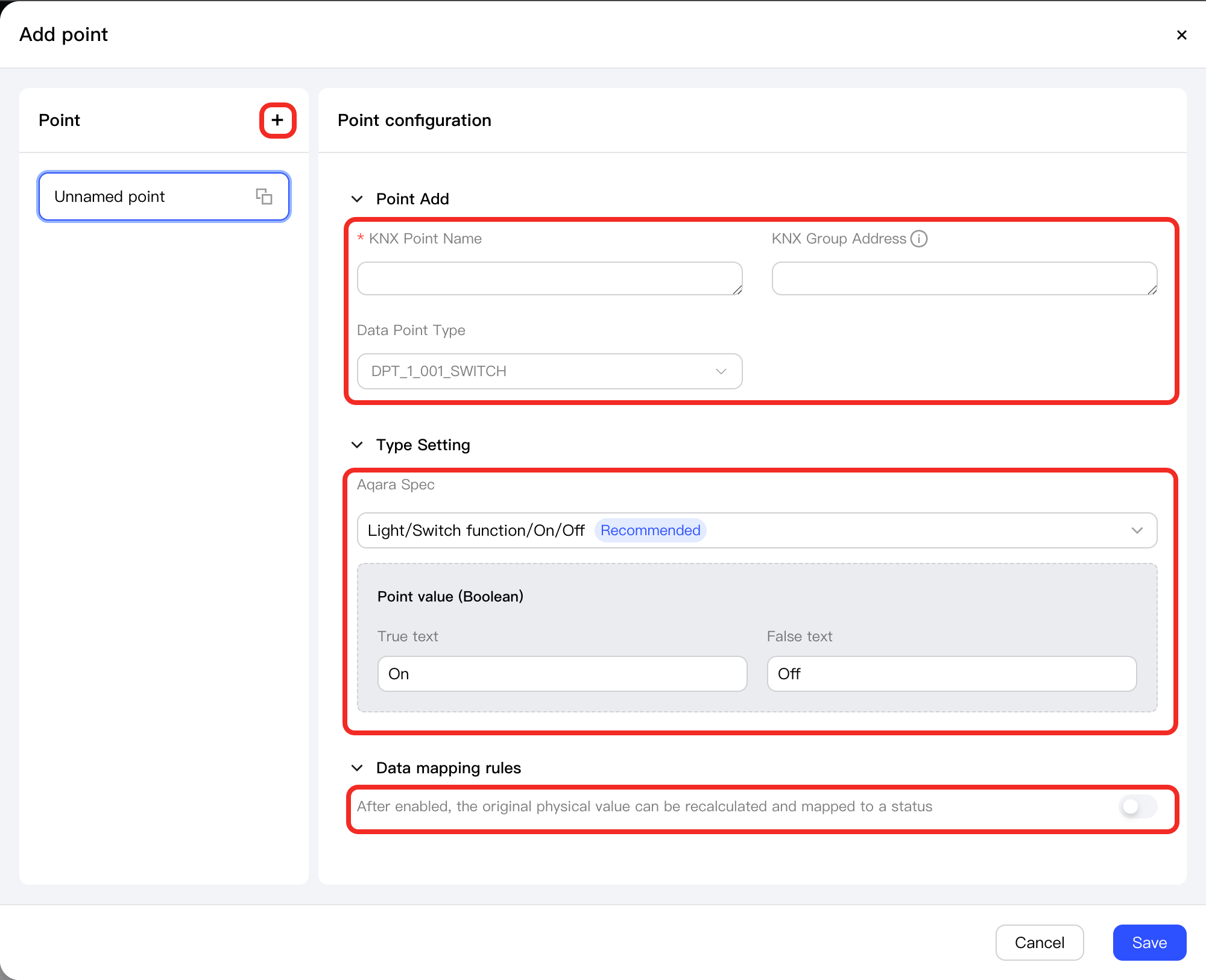
After selecting the newly added point, you can configure its parameters as follows:
-
Point Add:
Parameter Required Description KNX Point Name ✔ You can customize the name of this point. KNX Group Address ✔ The KNX group address of the point, this field is configured on ETS6. Data Point Type ✔ The data type (DPT) of the point, this field is configured on ETS6. -
Type Setting:
-
When the value of the point is numeric:
Parameter Type Parameter Name Required Description Example Configuration Aqara Spec - ✔ Associates this point with the corresponding function point in the Aqara Spec protocol for standardized control and management. Air Conditioner/Heater Cooler/Set temperature Point Value (Number) Min value ✔ The minimum value for this numeric function point. 16 Max value ✔ The maximum value for this numeric function point. 30 Step ✔ The step of the value range for this point. 1 Unit ✔ The unit of the value range for this point. Celsius (℃) Precision ✔ The precision of the value range for this point. Supported: - Integer
- 1 decimal place
- 2 decimal places
- 3 decimal places
Integer -
When the value of the point is boolean:
Parameter Type Parameter Name Required Description Example Configuration Aqara Spec - ✔ Associates this point with the corresponding function point in the Aqara Spec protocol for standardized control and management. Door and Window Sensor/Contact/Contact Status Point Value (Boolean) True text ✔ Display text when the boolean function point value is true.Closed False text ✔ Display text when the boolean function point value is false.Open
-
-
Data Mapping Rules: After enabled, the original physical value can be recalculated and mapped to a status. Please refer to Numerical Mapping Functions for more details.
- When the data area type of the point is different from the Aqara Spec type (for example, a numeric type needs to be mapped to a boolean type, or a boolean type needs to be mapped to a numeric type), please enable this option to achieve conversion and mapping between the physical value and the standard function point type.
- If the data area type of the point and the Aqara Spec type are the same, you do not need to enable this option.
-