Modbus TCP
This guide explains how to connect Modbus TCP devices to Aqara Studio.
Prerequisites
Before you begin, please make sure:
- Your Modbus TCP device, Aqara Gateway, and your computer are all on the same local network.
- Your Modbus TCP device is properly configured for Modbus TCP communication. Please refer to your product manual or contact your device manufacturer for support if needed.
Add a Modbus TCP Device
-
In the left sidebar, click to enter the Devices page. In the left Protocols and Devices panel, click the ... button and select Add Protocol.

-
Select
Modbus TCPin the popup.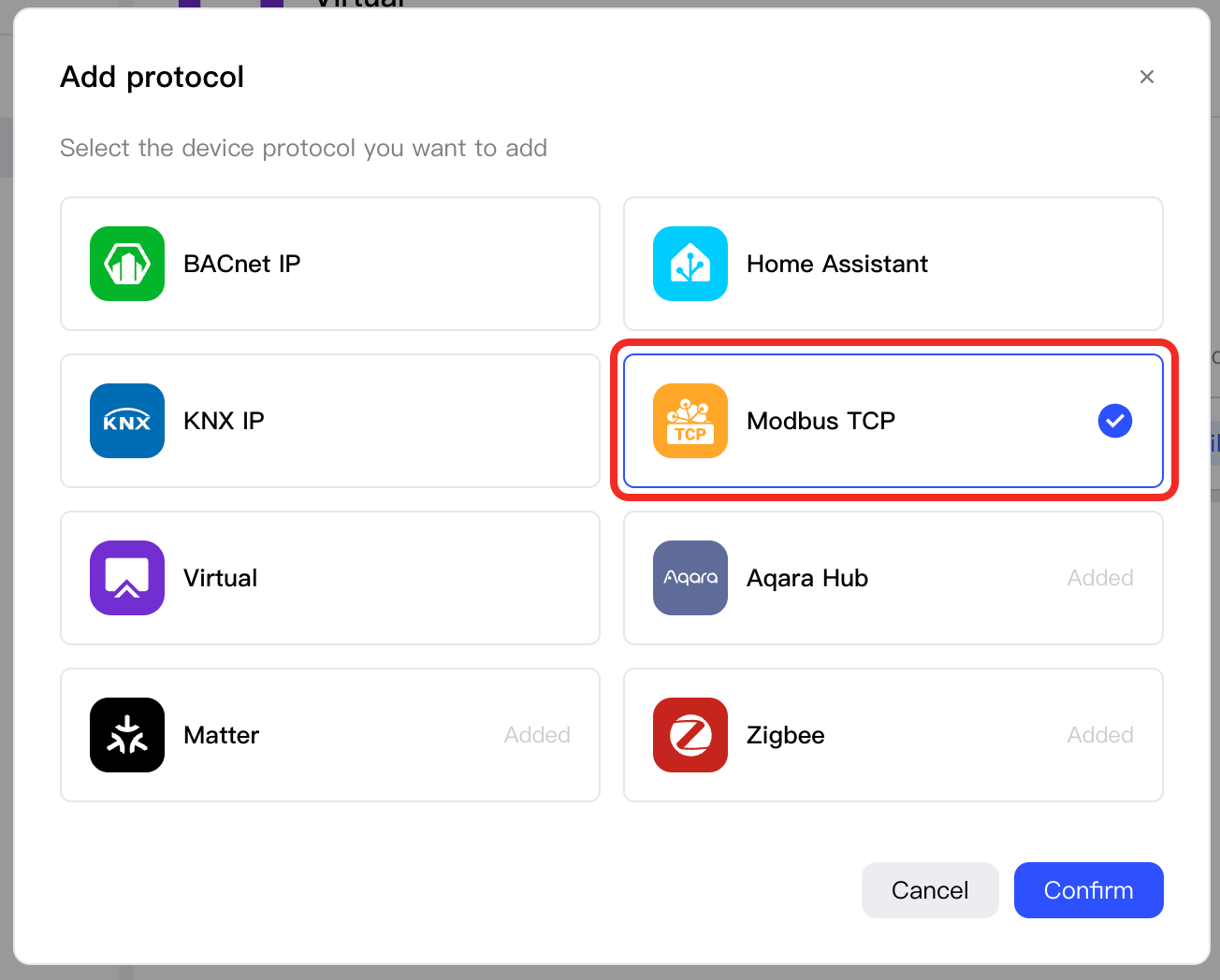
-
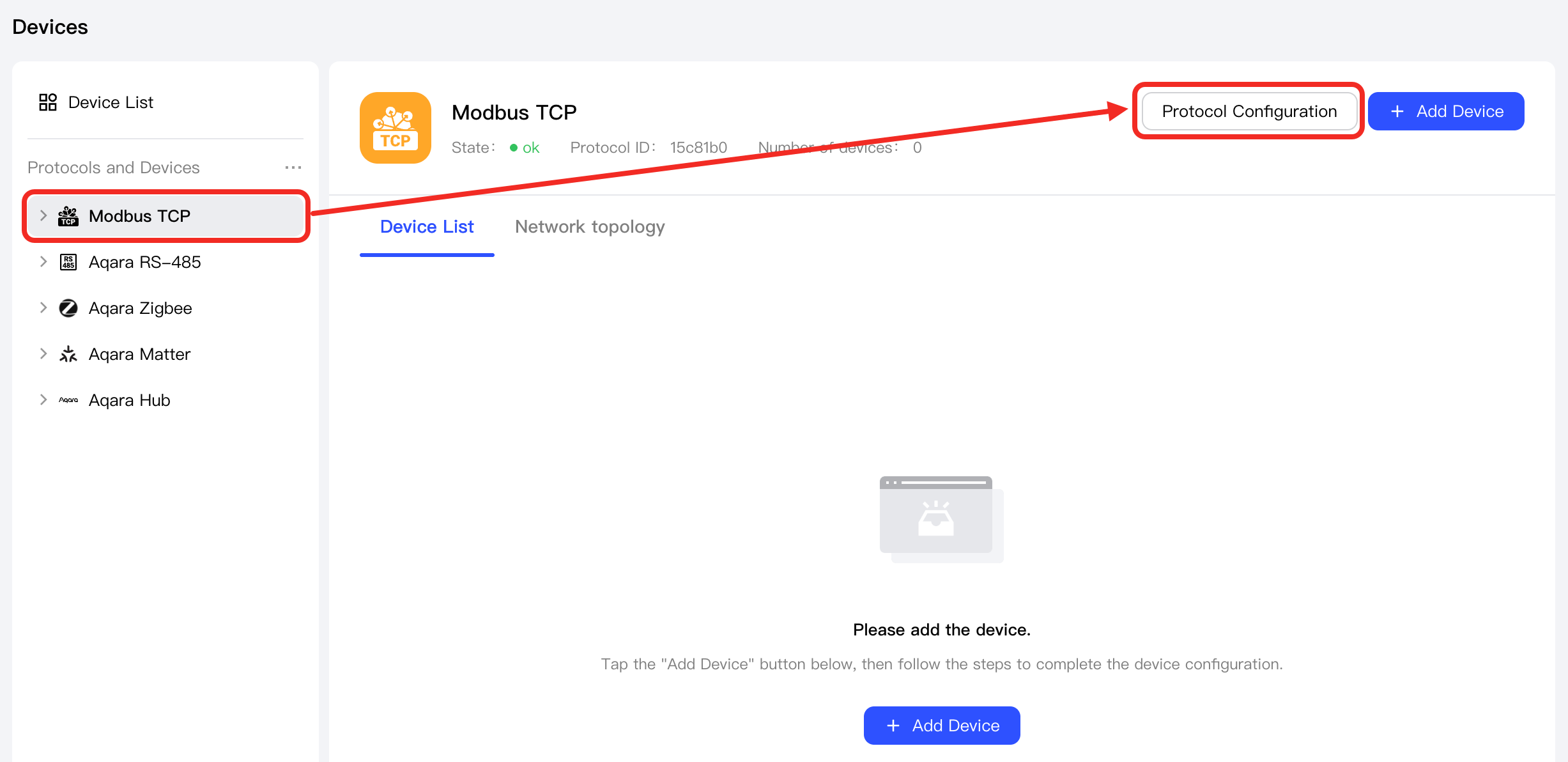
In the left Protocols and Devices tree, select the newly added Modbus TCP node, click the Protocol Configuration button, you can set the advanced configuration. Once the configuration is complete, click the Close button:
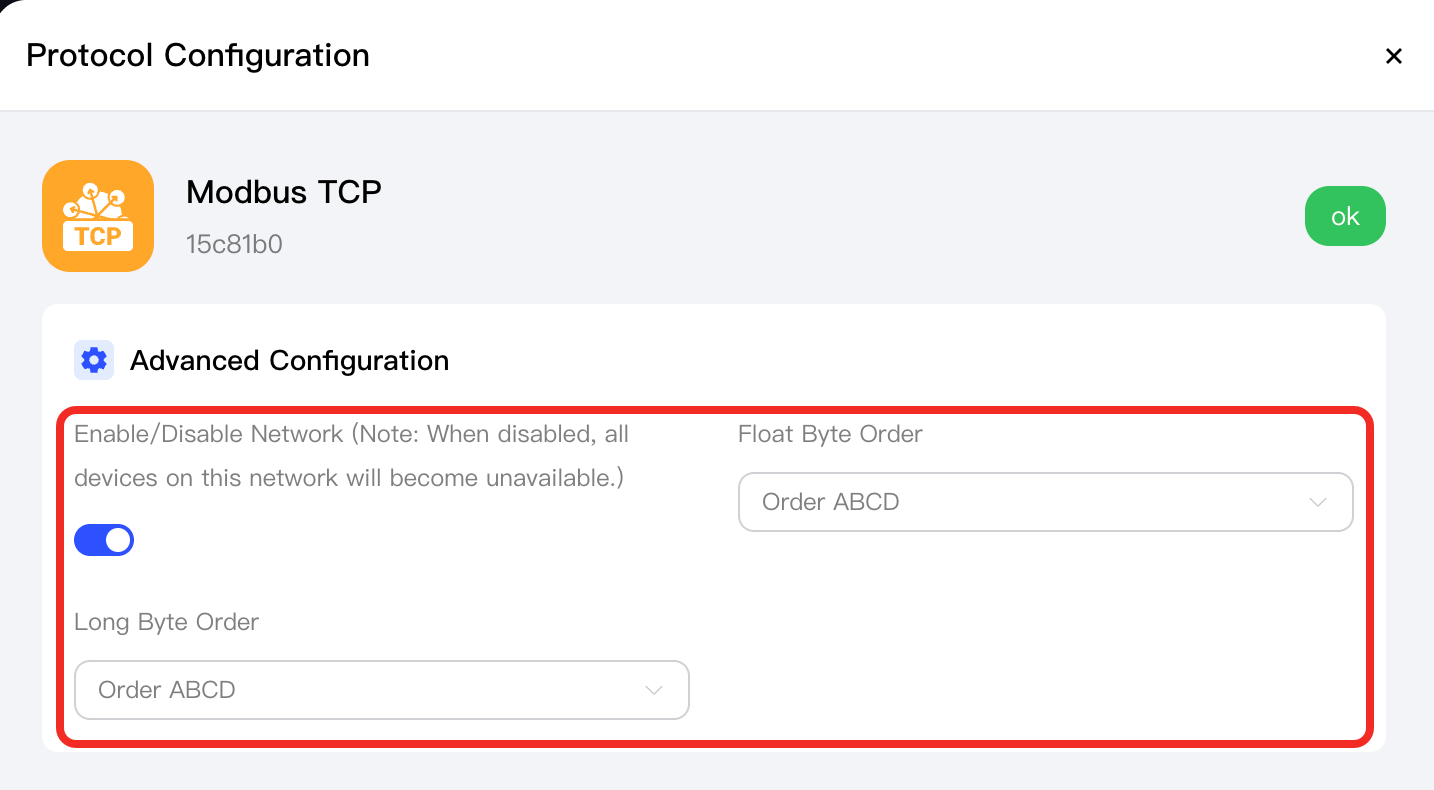
Parameter Description Enable/Disable Device Note: If disabled, this device will not be available. Float Byte Order The byte order used for 32-bit float values. Supported orders: - Order BADC
- Order ABCD (default)
- Order CDAB
- Order DCBA
Long Byte Order The byte order for 64-bit long integer values. Supported orders: - Order BADC
- Order ABCD (default)
- Order CDAB
- Order DCBA
-
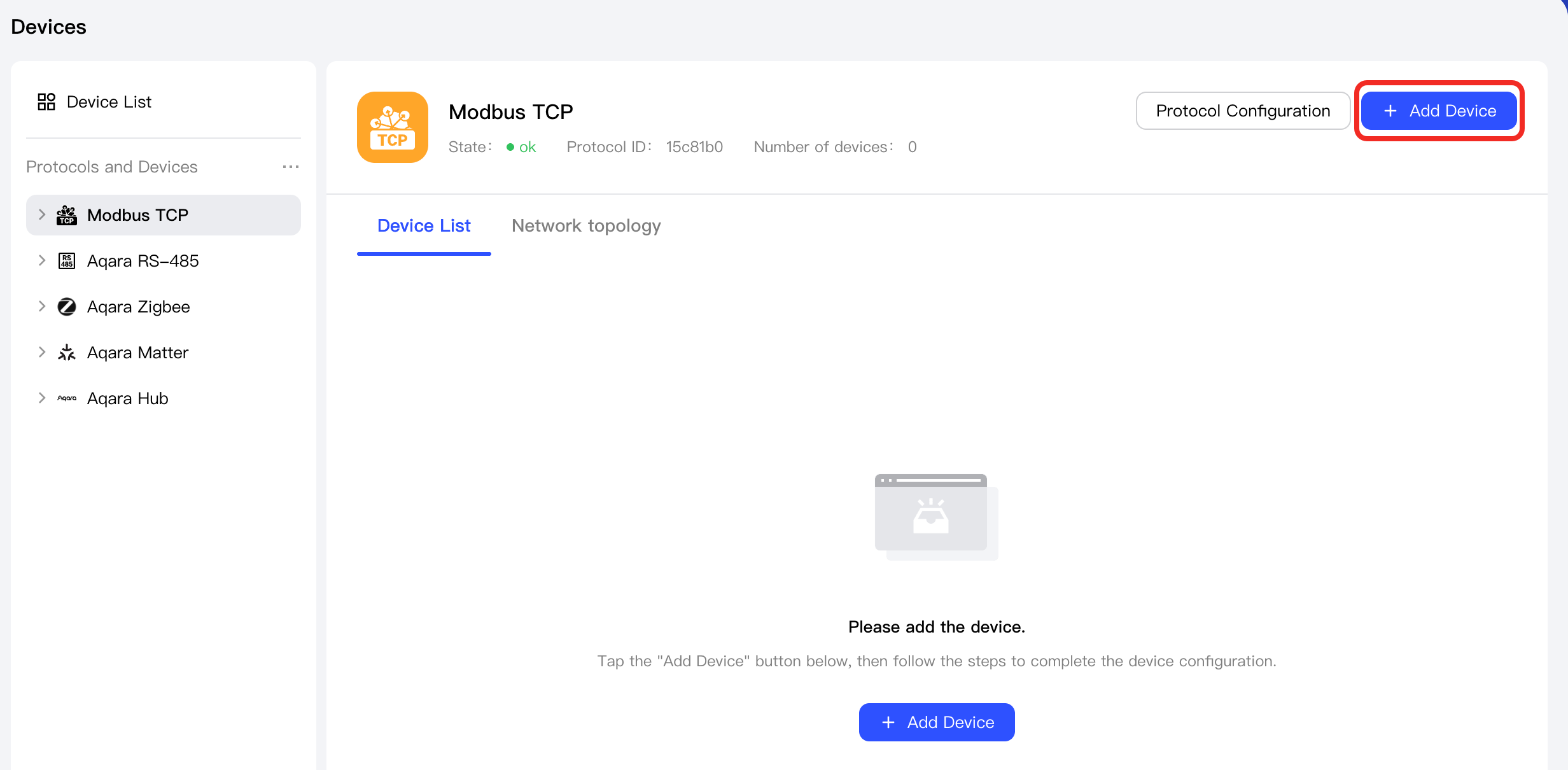
Click the Add Device button to enter the add process.
-
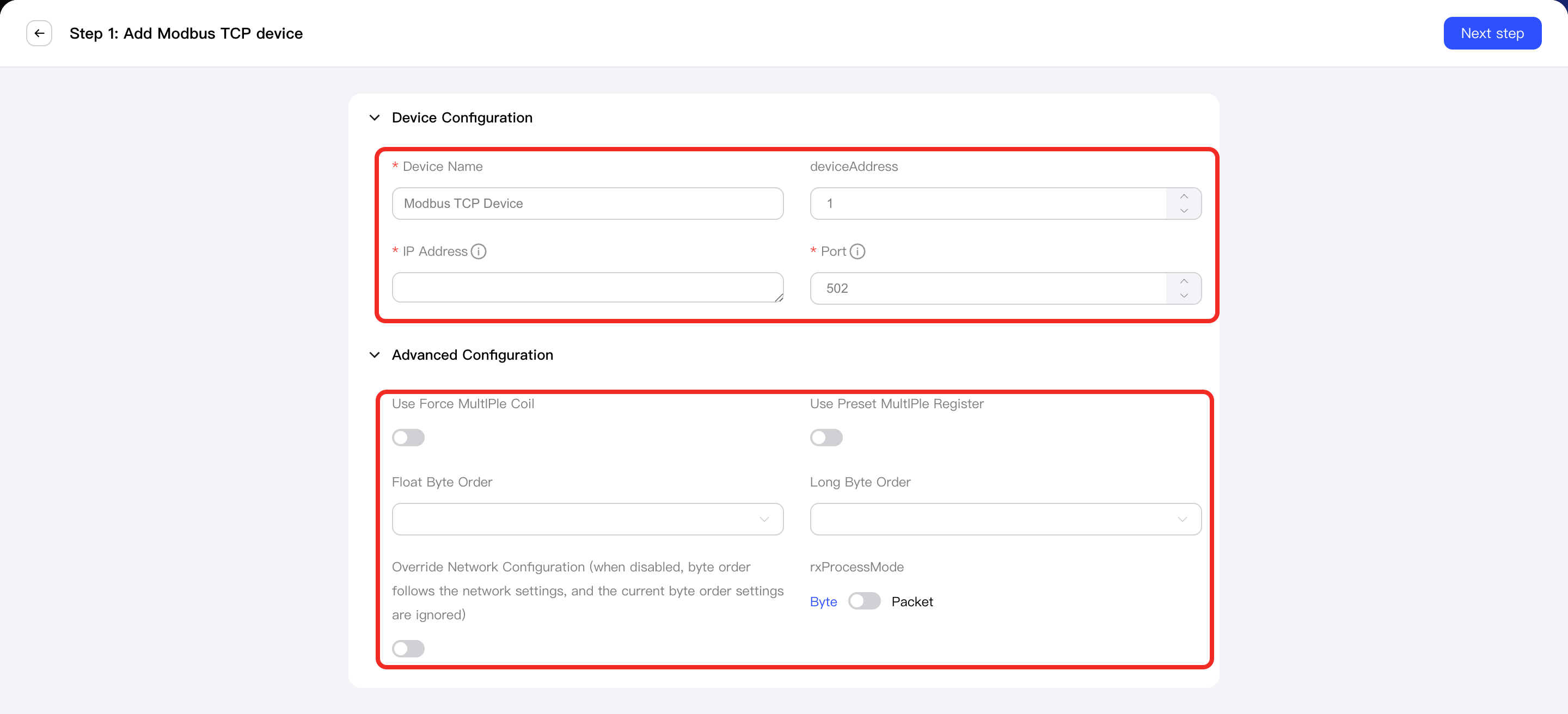
In the step 1, configure the device configuration and advanced configuration of the target Modbus TCP device. Once finished, click the Next button.
-
Device Configuration:
Parameter Name Required Description Device Name ✔ The name you define for this device. Device Address ✘ The slave device address (unit identifier), range 0~255. IP Address ✔ The IP address of this device. Port ✔ The Modbus TCP communication port, default is 502. TCP Frame Mode ✘ Supported values: - Modbus TCP
- RTU Over TCP
- ASCII Over TCP
-
Advanced Configuration:
Parameter Name Required Description Use Force MultIPle Coil ✔ Whether to use the "Force Multiple Coils" command to write multiple coils (Modbus function code 15). Use Preset MultIPle Register ✔ Whether to use the "Preset Multiple Registers" command to write multiple holding registers (Modbus function code 16). Float Byte Order ✔ The byte order used for 32-bit float values. Supported orders: - Order BADC
- Order ABCD (default)
- Order CDAB
- Order DCBA
Long Byte Order ✔ The byte order for 64-bit long integer values. Supported orders: - Order BADC
- Order ABCD (default)
- Order CDAB
- Order DCBA
Overwrite Network Configuration ✔ Whether to overwrite the network configuration. If not enabled, the network configuration will be used. Rx Process Mode ✔ Choose how received data is processed: - Byte: Byte stream mode.
- Packet: Packet mode.
-
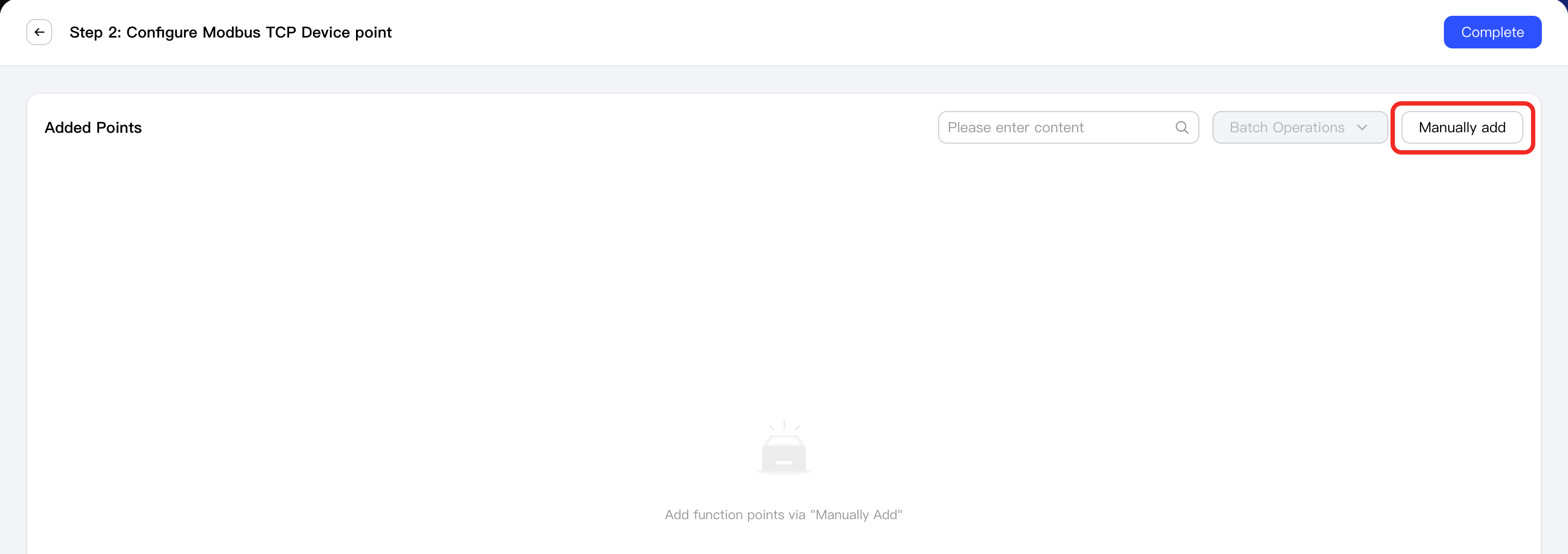
In the step 2, click the Manually Add button to start adding points.
-
In the list of function points, click the + button to add a new function point.
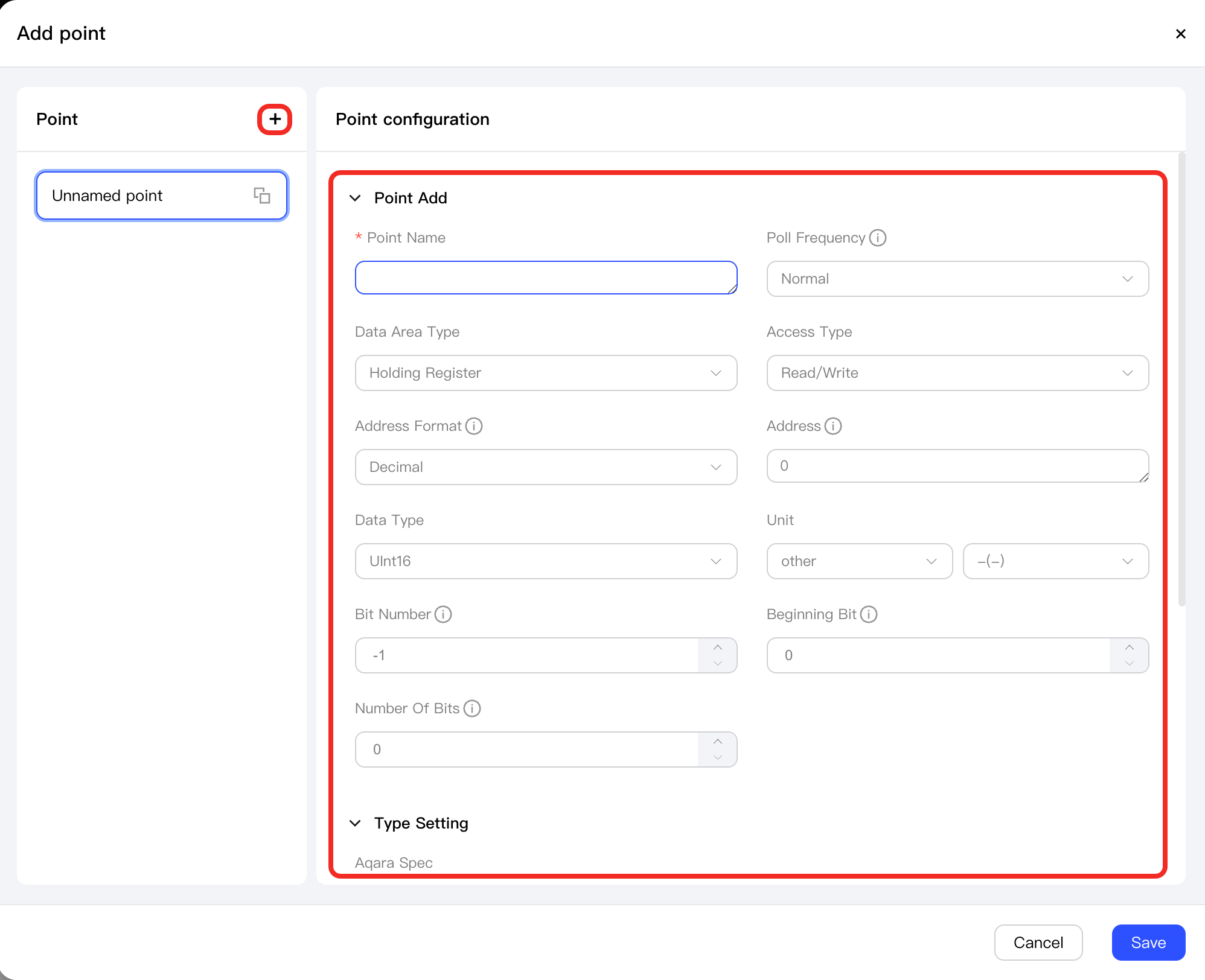
After adding a point, you can configure the following parameter types for it: Point Add, Type Setting, and Data Mapping Rules.
- Point Addition:
Parameter Name Required Description Example Configuration Point Name ✔ The custom name you define for this point. - Poll Frequency ✘ Controls the polling frequency of this point. Supported options: - Fast: 1 second, for high-frequency polling (suitable for key controls)
- Normal: 5 seconds, standard frequency
- Slow: 30 seconds, low frequency (for non-real-time status)
Normal Data Area Type ✔ Supported types: - Holding Register
- Input Register
- Discrete Coil
- Discrete Input
Holding Register Access Type ✘ Supported: - Read Only
- Read/Write
Read/Write Address Format ✔ Address format type, supports: - Hex: e.g., 0x0013
- Decimal: e.g., 19
- Modbus: e.g., 00001, 10001, 30001, 40001
Decimal Address ✔ Enter the value according to the selected address format. hex example: 000A; decimal example: 10; modbus examples: 00001, 10001, 30001, 40001 10 Data Type Required for numeric points Data type. When register type is Holding Register or Input Register, this is required. Supported: - UInt16
- Int16
- UInt32
- Int32
- Float32
Int16 Unit Required for numeric points Customize a suitable unit for this point. - Bit Number Required for numeric points Used to read a specified single bit from a 16-bit holding or input register. Bit numbers are zero-based and range from 0 to 15, where 0 is the least significant bit. A value of -1 indicates that this configuration is not used. -1 Beginning Bit Required for numeric points If a group of consecutive bits in a 16-bit register represents a value or state enum, fill in the start bit of this data segment. Numbered from 0, range 0-15, where 0 is the least significant bit. 0 Number of Bits Required for numeric points If a group of consecutive bits in a 16-bit register represents a value or state enum, fill in the number of consecutive bits starting from the start bit. Range: 1-16; start bit + number of bits must not exceed 16. Currently only supports extracting consecutive segments from a single 16-bit register. 1 - Type Setting:
- When the register type is Holding Register or Input Register:
Parameter Parameter Name Required Description Example Configuration Aqara Spec - ✔ Associates this point with the corresponding function point in the Aqara Spec protocol for standardized control and management. Air Conditioner/Heater Cooler/Set temperature Point Value (Number) Min value ✔ The minimum value for this numeric function point. 16 Max value ✔ The maximum value for this numeric function point. 30 Step ✔ The step of the value range for this point. 1 Unit ✔ The unit of the value range for this point. Celsius (℃) Precision ✔ The precision of the value range for this point. Supported: - Integer
- 1 decimal place
- 2 decimal places
- 3 decimal places
Integer - When the register type is Discrete Coil or Discrete Input:
Parameter Parameter Name Required Description Example Configuration Aqara Spec - ✔ Associates this point with the corresponding function point in the Aqara Spec protocol for standardized control and management. Door and Window Sensor/Contact/Contact Status Point Value (Boolean) True text ✔ Display text when the boolean function point value is true.Closed False text ✔ Display text when the boolean function point value is false.Open
- When the register type is Holding Register or Input Register:
- Data Mapping Rules: After enabled, the original physical value can be recalculated and mapped to a status. Please refer to Numerical Mapping Functions for more details.
- When the data area type of the point is different from the Aqara Spec type (for example, a numeric type needs to be mapped to a boolean type, or a boolean type needs to be mapped to a numeric type), please enable this option to achieve conversion and mapping between the physical value and the standard function point type.
- If the data area type of the point and the Aqara Spec type are the same, you do not need to enable this option.
- Point Addition:
-
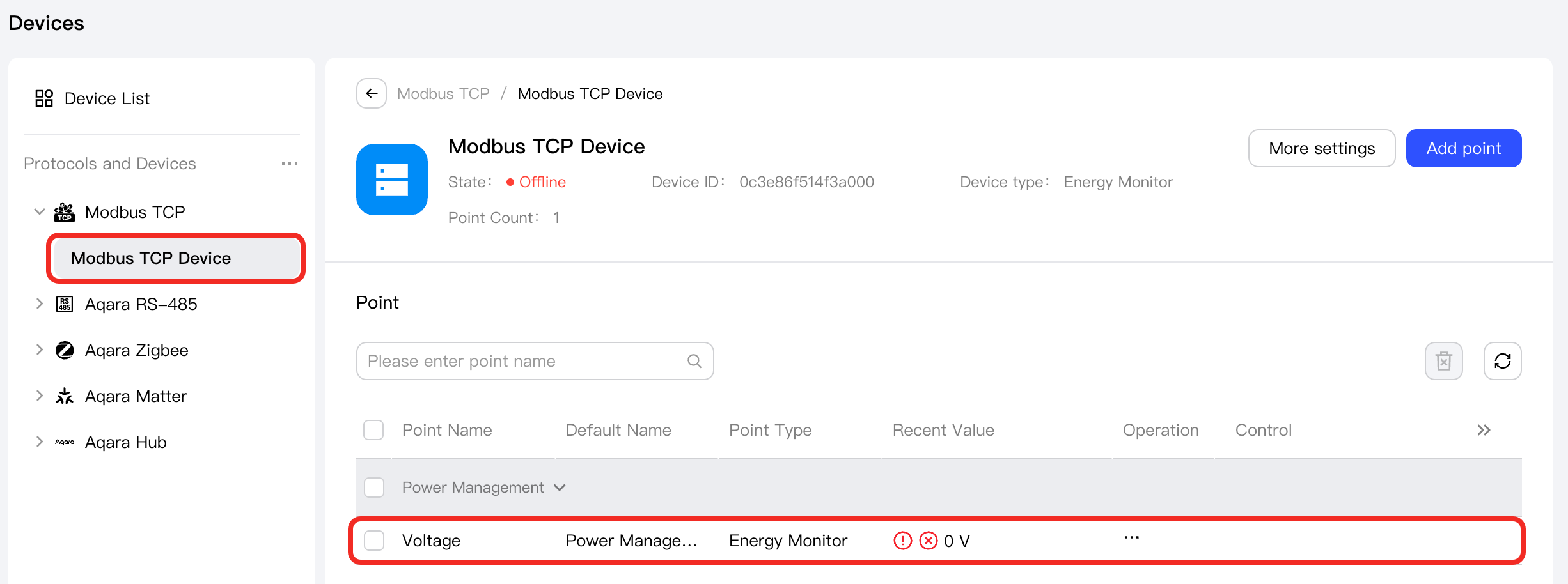
After completing the point addition, return to the Devices page, and you can see the newly added Modbus TCP device under the Modbus TCP node.
Select this device, and you can see the newly added points in the Points list in the device details page.
Next Steps
Now, you can view details and control the device, or use the device in automation.