Space Management
Overview
Space management forms the foundation of efficient device organization and intelligent interactions in smart home systems. In Aqara Studio, you can flexibly define your building's structure, create hierarchical spatial areas, and link various smart devices or physical entities (such as furniture, structures, etc.) according to practical needs to accurately map your real environment. This process lays a solid groundwork for advanced functionalities like automation, data analytics, and permission management, while greatly improving device management efficiency and user experience.
Space management also supports standardized ontological semantic modeling, which is essential for integrating third-party AI Agents or using OpenClaw for intelligent space management. Through reasonable division and configuration of spaces, Aqara Studio strongly supports the construction of intelligent, convenient, and secure office and residential environments.
Create a Space
After entering Spaces from the left sidebar, you will see that Aqara Studio offers space templates that you can select and quickly create preset spatial layouts. You can also flexibly customize the space structure to meet your personalized needs.
-
Using a Template: Select a template that fits your home to create a general space structure, which includes a predefined parent space and several subspaces.
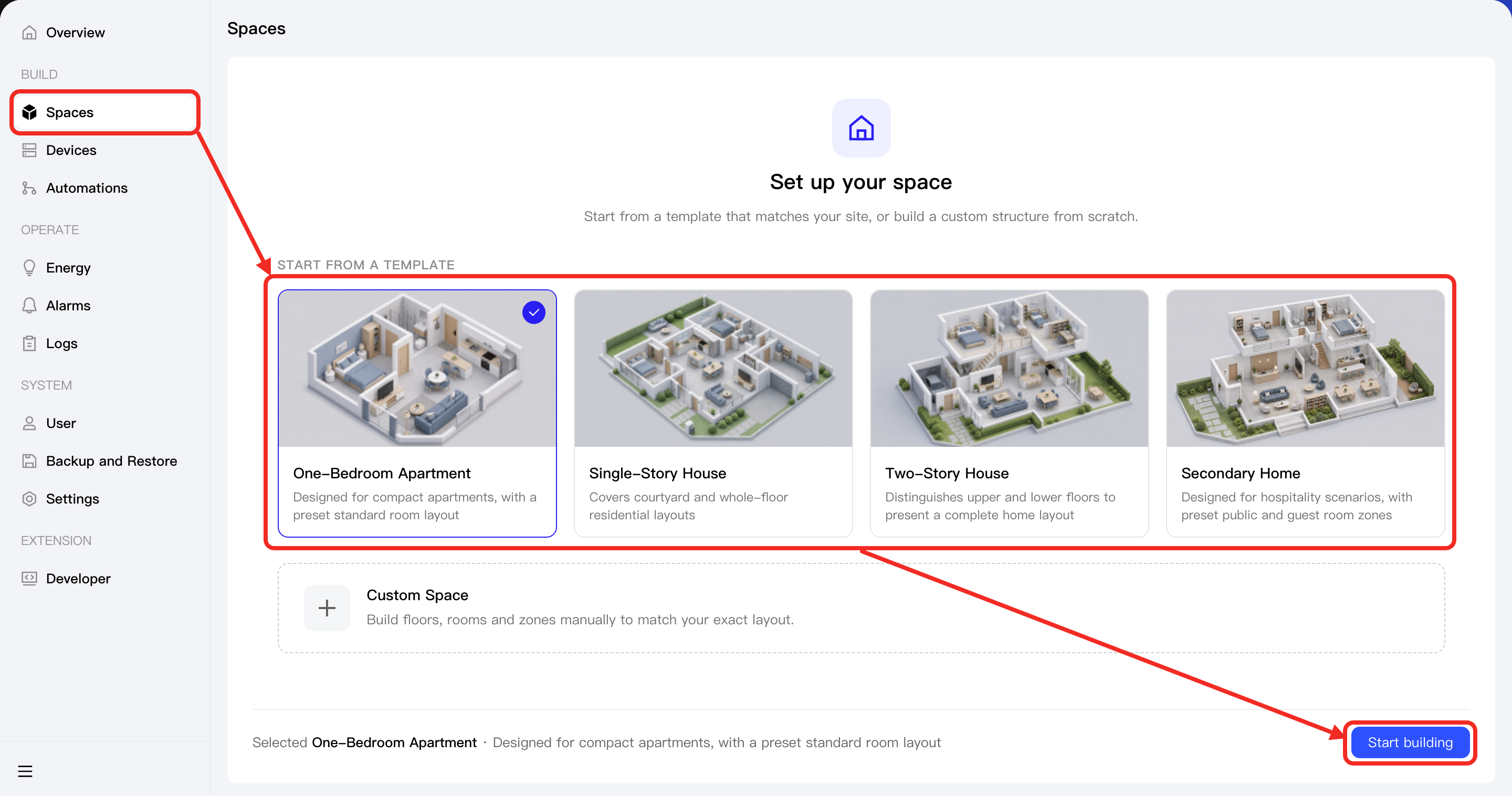
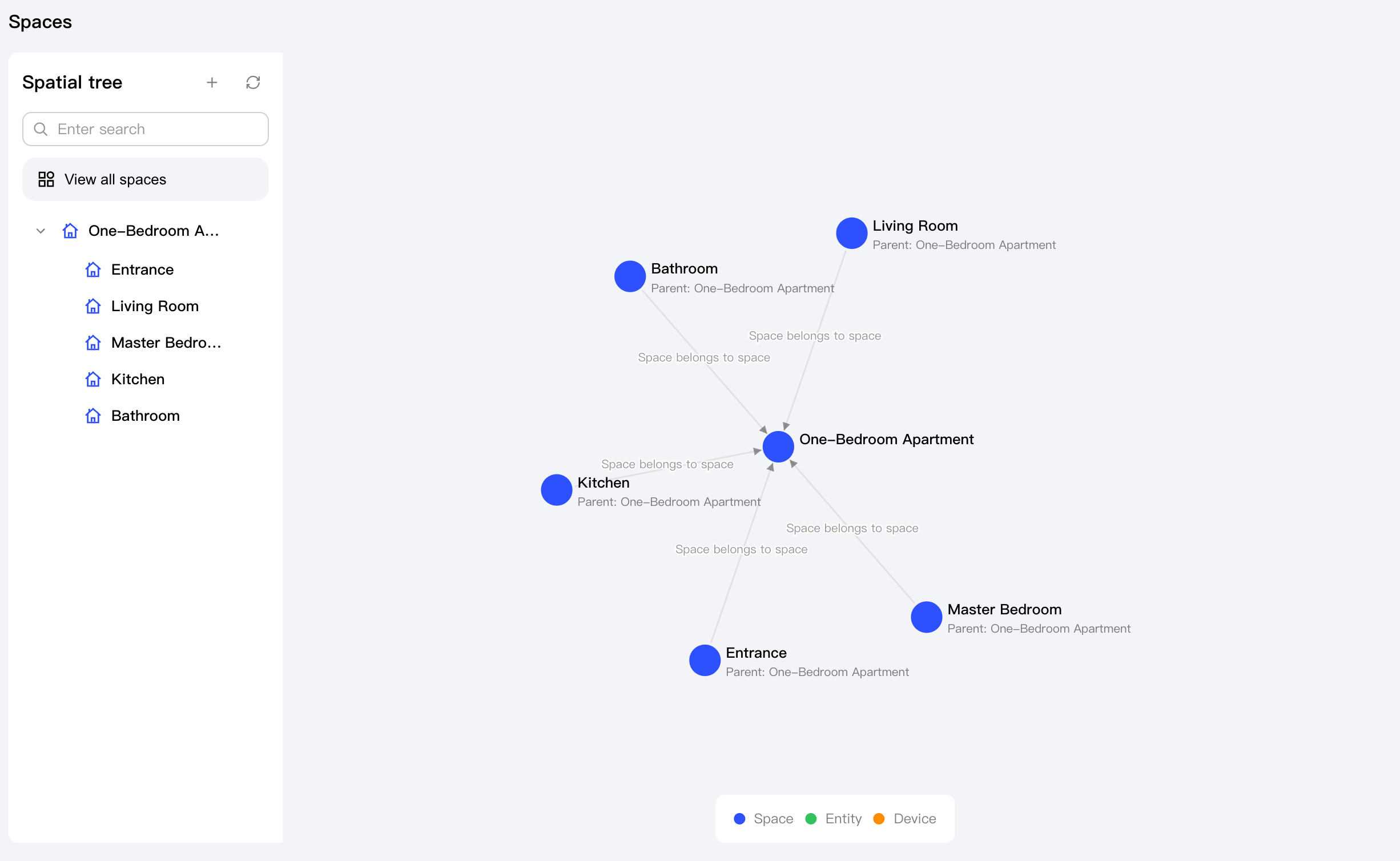
-
Custom Space: Select custom space to create a parent space.
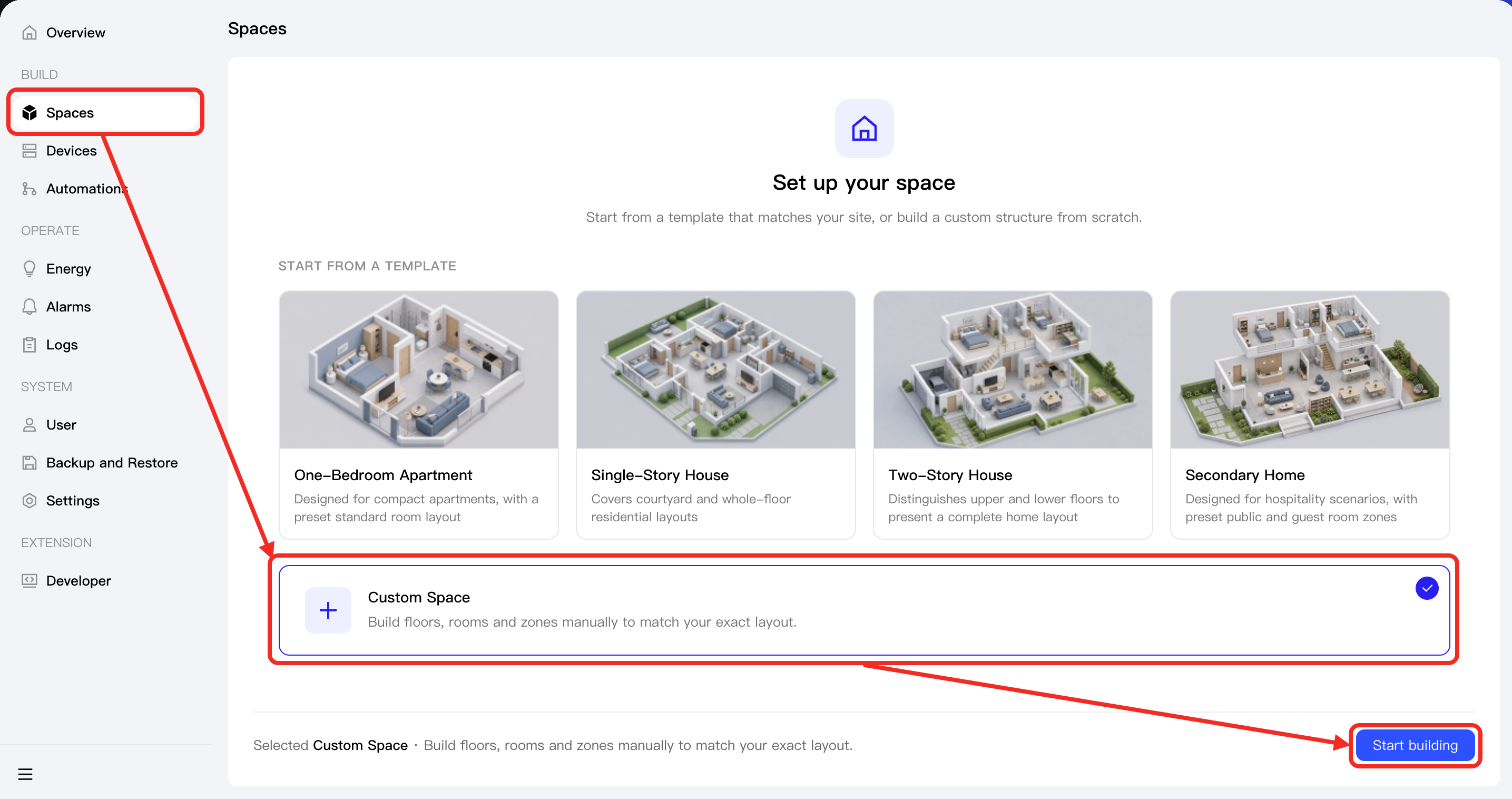
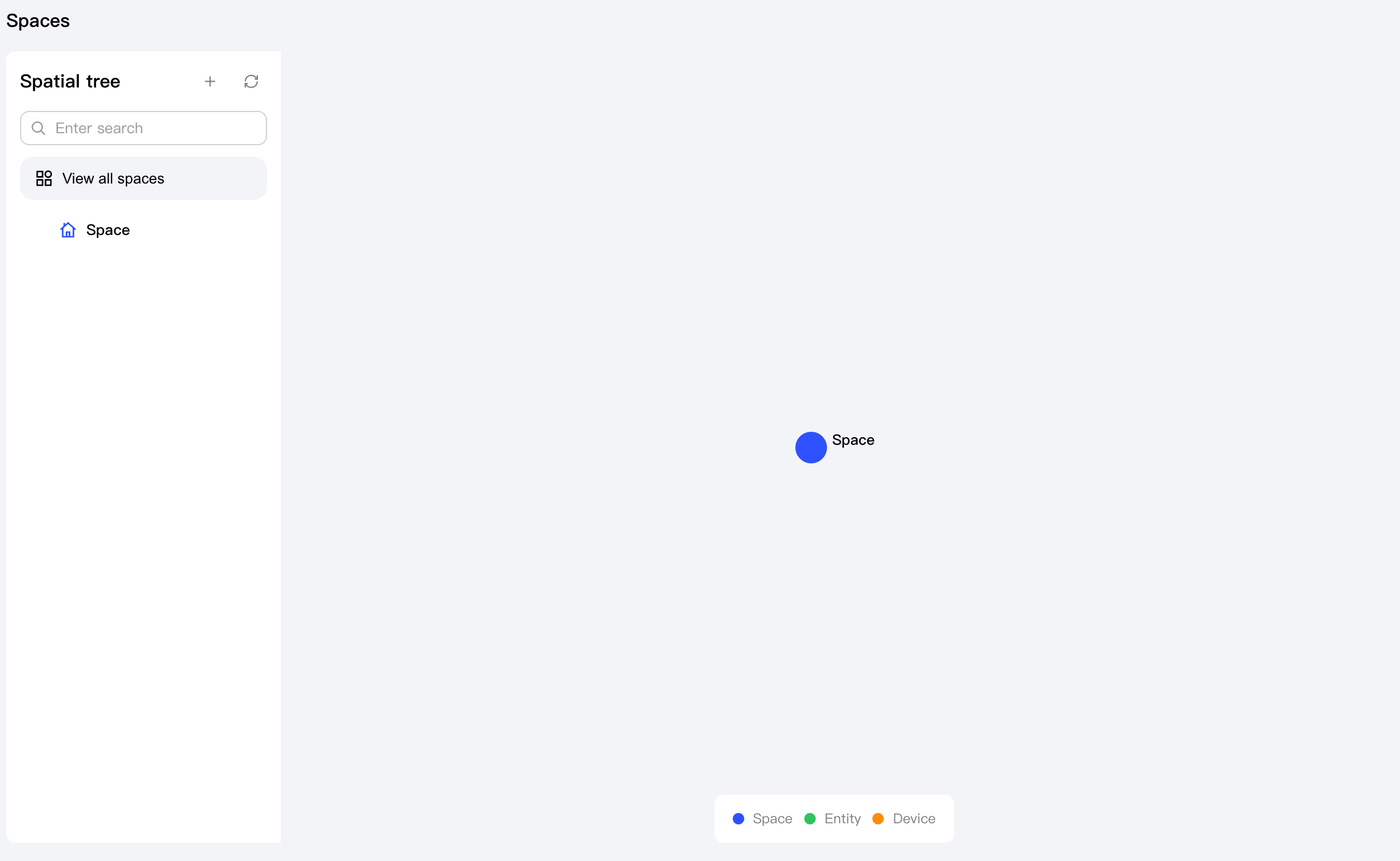
Add Spaces and Entities
After creating a space, you can add subspaces or entities (such as furniture, structures, etc.) under the space.
- Space types: space (general), floor, room, zone (functional zone).
- Entity types: facility (general), furniture, bed, sofa, chair, table, cabinet, component, wall, door, window, floor, ceiling.
The workflow is as follows:
- Select a space in the left spatial tree, click the ... button, and choose New space or New entity from the dropdown list.
- In the popup window, select a space or entity.
- After adding, the new space or entity will appear under the corresponding node in the spatial tree. At the same time, you can see the source space node linked to the new node on the spatial graph.
Link Devices
Associating devices with spaces not only allows you to intuitively understand the distribution and ownership of each device in the actual space, but also facilitates unified management, device locating, troubleshooting, and smart scene setups.
The association process is as follows:
- Select a space in the left spatial tree, click the ... button, and choose Bind Devices from the dropdown menu.
- In the popup, select one or more devices and click Confirm.
- Expand the corresponding space in the left spatial tree, and you will see the newly associated device displayed under that space. Similarly, you will see a new device node linked to that space on the spatial graph.
- Navigate to Device Management from the left sidebar, view the Basic Information of the associated device, and you will see its space information has been updated. If you want to adjust its space association, click the edit icon here.
Update Spaces and Entities
If you want to modify the information of a space or entity, click that space or entity. Its editing drawer will pop up from the right side of the page, and you can edit its name, coordinates, and other specific fields.
Establish Relationships
After completing space creation, adding entities, and linking devices, you can establish relationships among these spaces, entities, and devices. This allows you to describe physical or logical relations between entities more clearly, which helps AI better understand your spatial structure and device distribution, thus executing your commands more effectively.
Through relationships, you can express spatial hierarchies, entity ownership, physical connections such as doors or walls connecting spaces, installation positions of devices on entities, and spatial positional information among different devices and entities.
The available relationships depend on the types of the selected source node and target node, as detailed below:
| Relationship | Source Node Type | Target Node Type | Quantity Limit | Description |
|---|---|---|---|---|
| Space belongs to space | Space | Space | 1 | Indicates which parent space the space belongs to. |
| Connects | Door | Space | - | Indicates a door connects two spaces, acting as a passage. Useful for describing physical connections between rooms. |
| Installed inside | Device |
| - | Indicates the device is installed inside an entity or device. |
| Installed on top | Device |
| - | Indicates the device is installed on top of an entity or device. |
| Sub Meter Belongs to Main Meter | Device | Device | 1 | The sub meter (source node) is subordinate to the main meter (target node). |
| Belongs To Space |
| Space | 1 | Indicates which space the entity or device belongs to. |
| Works for |
| Space | - | Indicates which space the entity or device operates upon. |
| Camera/mmWave covers a space | Device | Space | - | Indicates the coverage area of a camera or mmWave device, suitable for describing devices that can sense people or actions within a space. |
| Adjacent to | All Types | All Types | - | Indicates two nodes are physically next to each other and unobstructed. Commonly used for "side by side" or "connected" scenarios. |
| Below | All Types | All Types | - | The source node is below the target node. |
| Opposed to | All Types | All Types | - | The source node is spatially opposite to the target node. Used for describing "opposite ends" or "face to face" positions. |
| Near to | All Types | All Types | - | The nodes are close to each other but not necessarily directly connected. Common in spatial layout associations. |
| Above | All Types | All Types | - | The source node is above the target node. |
| Visible to | All Types | All Types | - | The source node can be seen directly from the target node. |
| Accessible from | All Types | All Types | - | The source node is accessible from the target node. |
Workflow:
-
Click on a space, entity, or device to set it as the source node for the relationship. Its editing drawer will appear on the right; find the Connection relationships area.
-
Click the Add button to open the editing dialog.
-
In Target node, select a space, entity, or device. Then, in Relation type, select the desired relationship type, and finally click Confirm to complete relationship creation.
-
After creating a relationship, you can see it visually in the space graph.