BACnet
This document explains how to connect BACnet devices to Aqara Studio.
Prerequisites
Before you start, please make sure your network meets these conditions based on your device type:
- For BACnet/IP devices: The BACnet/IP device, Aqara gateway, and your computer must be on the same local area network (LAN).
- For BACnet MS/TP devices: The BACnet MS/TP device is already connected to a BACRouter, and the BACRouter, Aqara gateway, and your computer are all on the same LAN.
Add A BACnet Device
-
In the left sidebar, click to enter the Devices page. In the left Protocols and Devices panel, click the ... button and select Add Protocol.

-
Select
BACnet IPin the popup.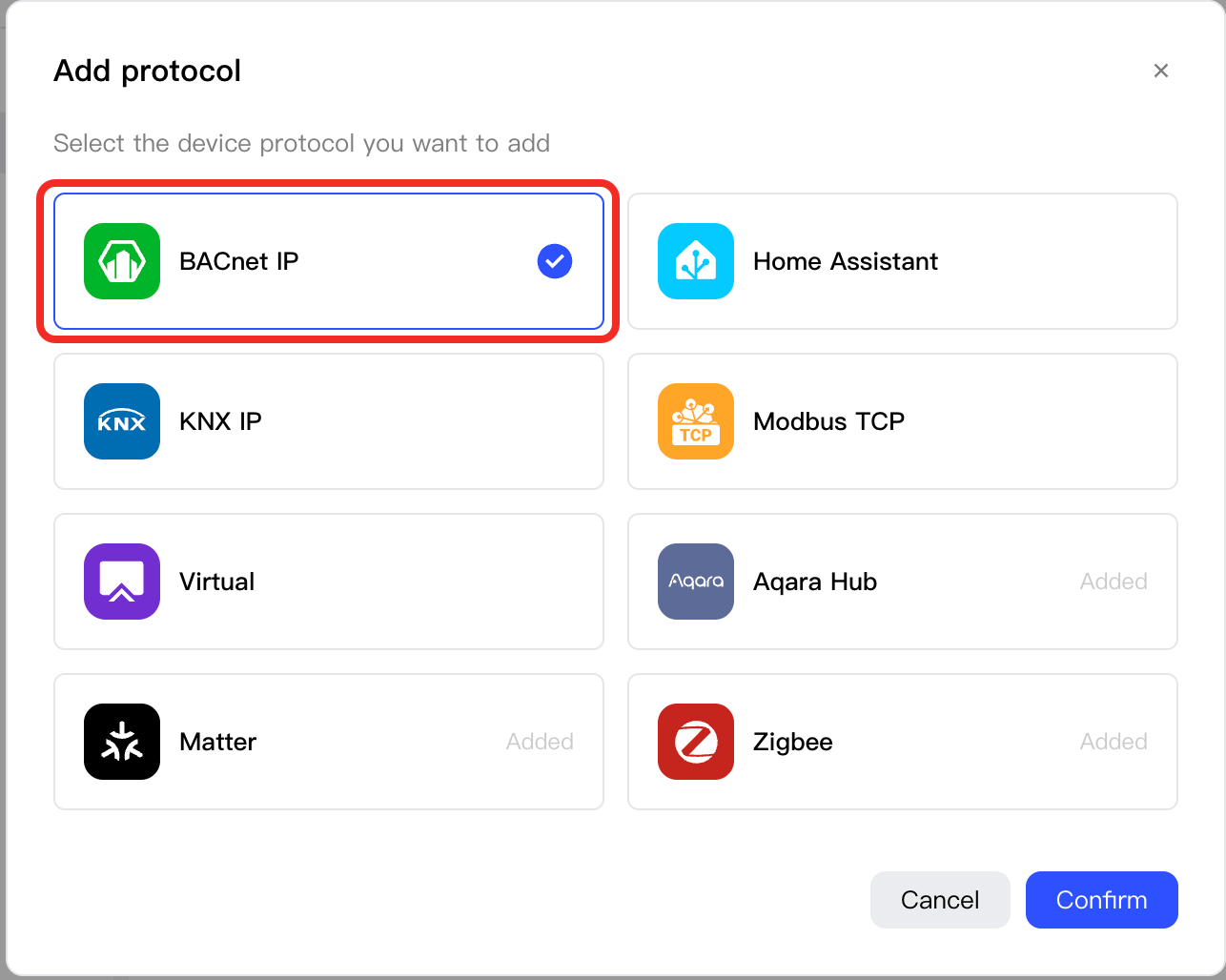
-
Select
BACnet IP, and click theProtocol Configurationbutton, you need to configure the parameters of the protocol.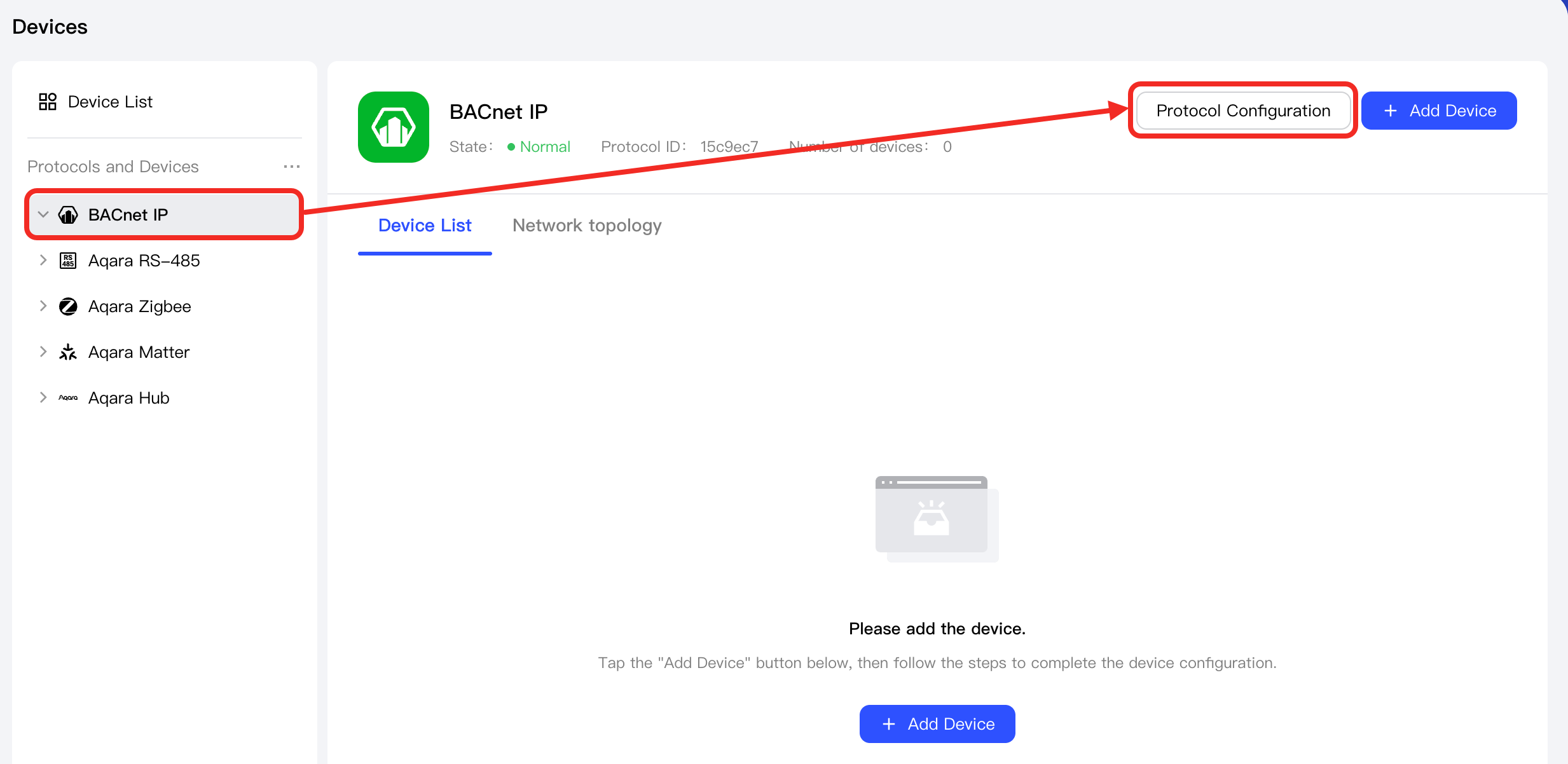
You can configure the following types of parameters: Basic Configuration, Worker Mode Configuration, Advanced Configuration.
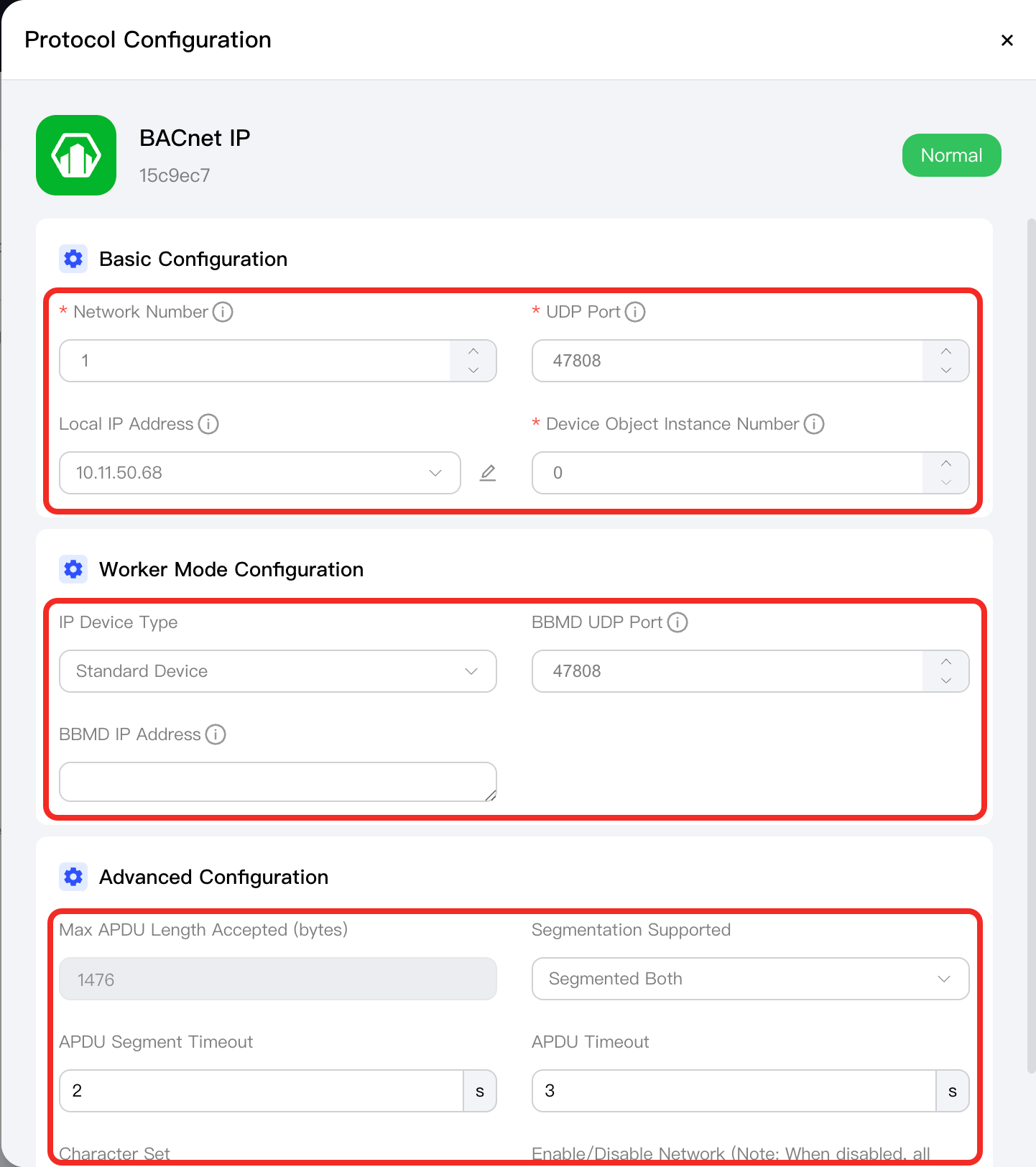
The relevant parameters are shown in the following table:
Category Parameter Required Description Example Basic Configuration Network Number ✔ It identifies the logical subnet, and must be unique. Range: [0, 65535]. - 0: Local network
- 65535: Broadcast network
1 UDP Port ✔ The UDP port for BACnet/IP communication. Default is 47808 (0xBAC0). 47808 Local IP Address ✘ The IP address of the device on which Aqara Studio is deployed. Format: xxx.xxx.xxx.xxx (for example, 192.168.1.100). Default is 0.0.0.0, which allows the system to assign it automatically. 1 Device Object Instance Number ✔ A unique identifier for the BACnet device on the BACnet network. Range: [0, 4194303]. 1 Worker Mode Configuration BACnet/IP Device Type ✘ The following options are supported: - Standard Device: General BACnet devices (such as controllers, servers, clients) that use UDP port 47808 (default).
- Foreign Device: Not on the local subnet, must be registered with BBMD to enable cross-subnet communication.
- Broadcast Management Device (BBMD): Manages foreign device registration, forwards broadcast messages, and maintains the broadcast table.
Standard Device BBMD UDP Port ✘ The listening port for BBMD services, default is 47808. Required if the BACnet/IP device mode is Foreign DeviceorBroadcast Management Device.47808 BBMD IP Address ✘ The IP address of the BBMD. This is the target for foreign device registration and is used for cross-subnet broadcasts. Required if device mode is Foreign DeviceorBroadcast Management Device.null Advanced Configuration Max APDU Length Accepted (bytes) ✘ The maximum supported APDU (Application Protocol Data Unit) length in bytes. It is recommended to set no larger than 1476. 1076 Segmentation Supported ✘ Options: - Segmented Both (default): The device supports segmented APDU messages both for sending and receiving.
- Segmented Transmit: Only supports sending segmented messages.
- Segmented Receive: Only supports receiving segmented messages.
- No Segmentation: Does not support segmented messages. Only messages within the max APDU length are supported.
Segmented Both APDU Segment Timeout ✘ The timeout for waiting for a segment acknowledgment when transmitting segmented APDU. Default is 2000ms. 2s APDU Timeout ✘ Applies only for non-segmented APDU transfers. Defines how long to wait for a response (such as ACK or Error). Default is 30000ms. 30s Character Set ✘ The character set used, to ensure text information can be correctly encoded and decoded between devices. Supported options: - ISO_10646_UTF8
- IBM_MICROSOFT_DBCS
- JIS_X0208
- ISO_10646_UCS4
- ISO_10646_UCS2
- ISO_8859_1
- UNKNOWN
ISO_10646_UTF8 Enable/Disable Network ✘ Note: If disabled, devices on this network will not work. - -
Click the Add Device button.
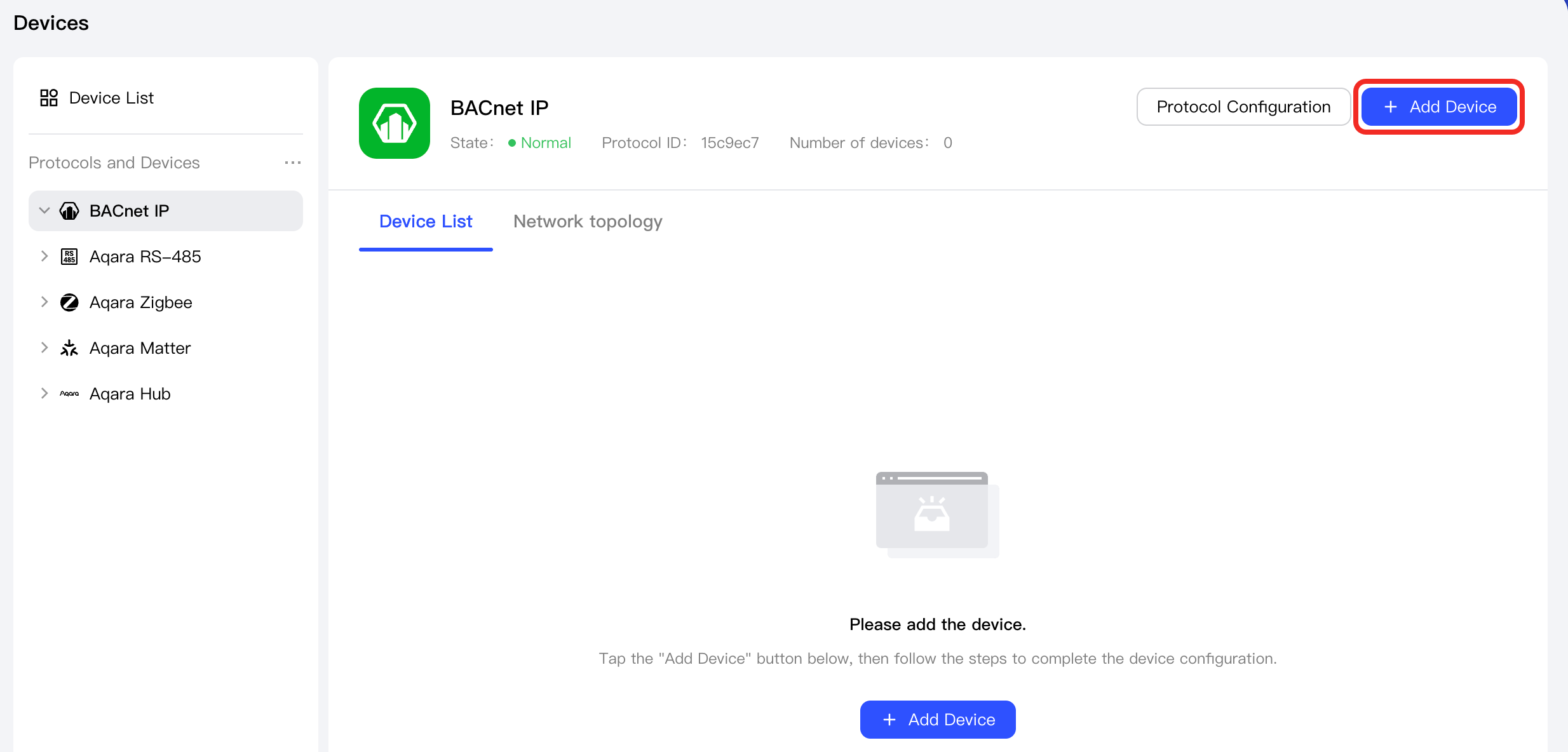
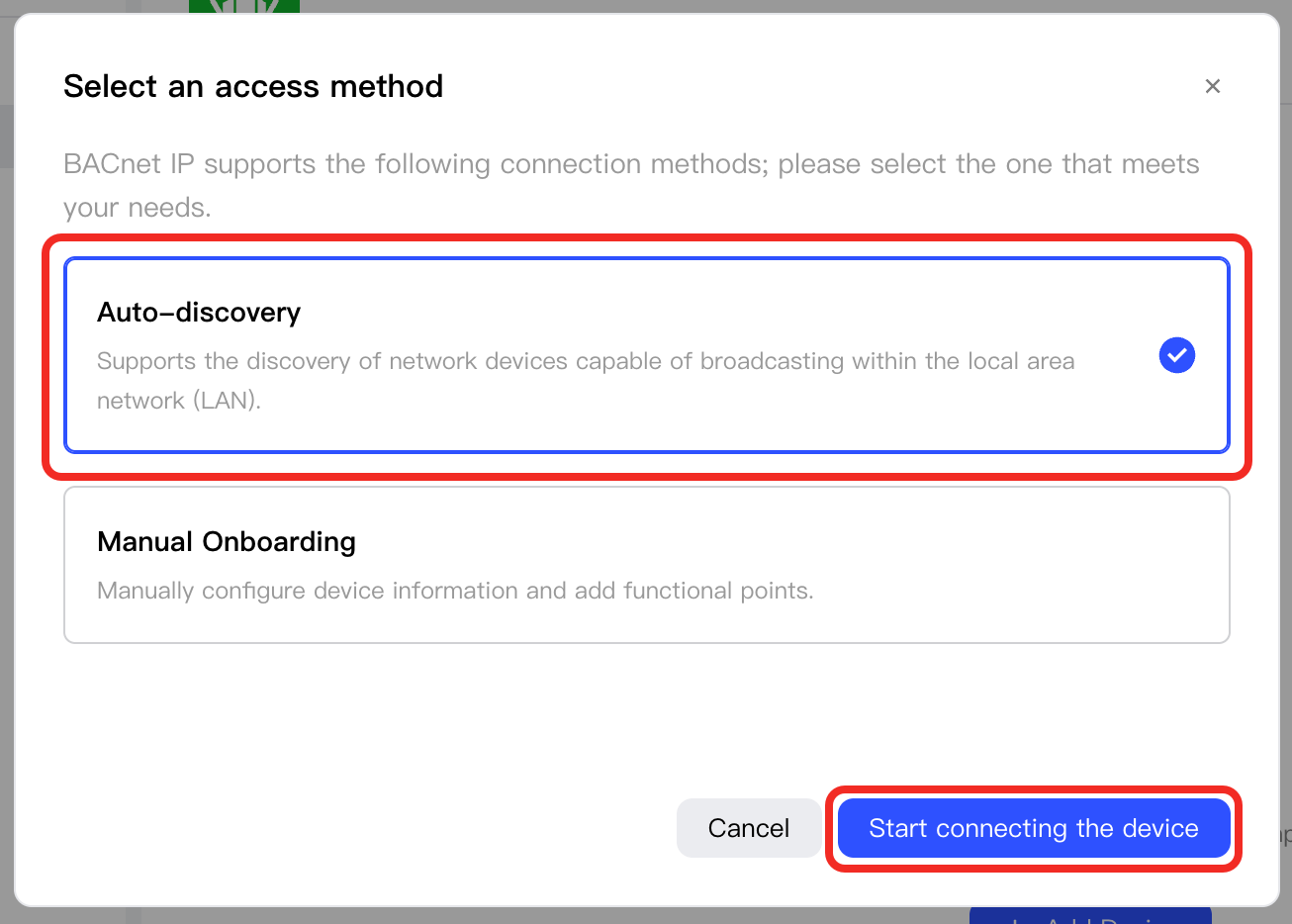
In the popup, select Auto Discovery and click the Start connecting the device button.
-
(Optional) Click the ⚙ button to set up device discovery rules.
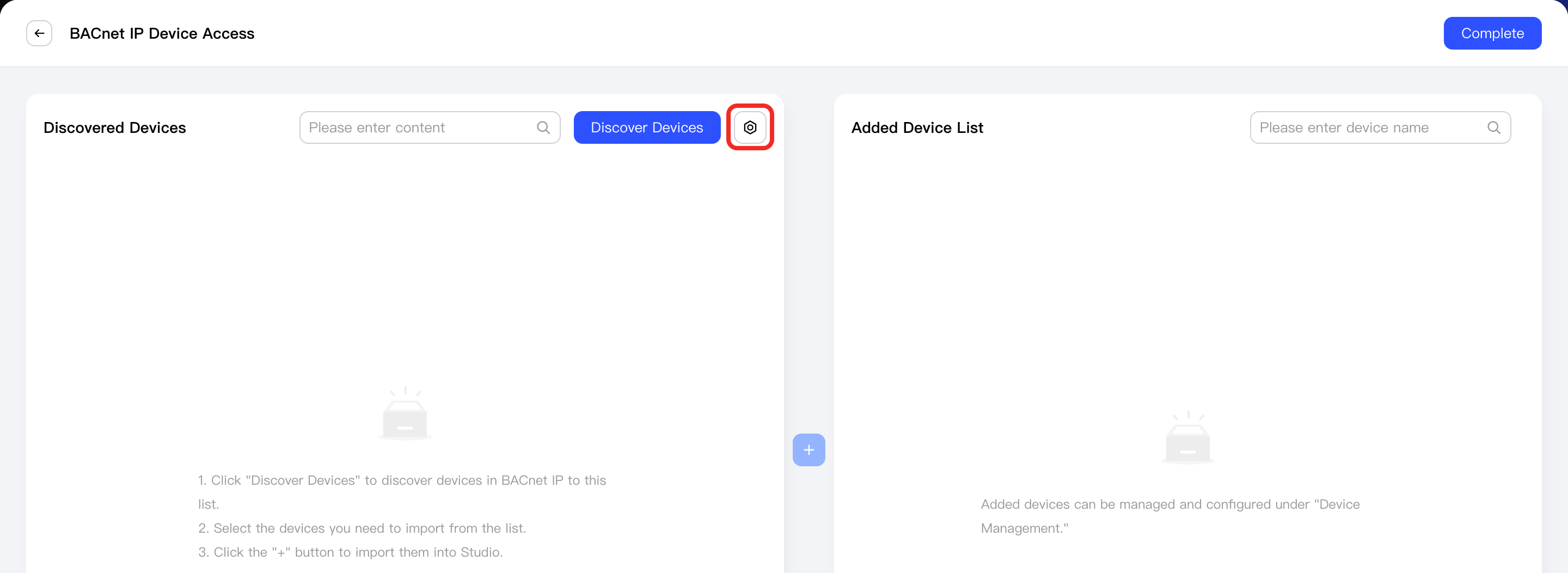
The relevant parameters are described in the following table:
Field Name Description Device objectId ≥ Search for devices with instance numbers greater than or equal to this value. Minimum is 0. Device objectId ≤ Search for devices with instance numbers less than or equal to this value. Maximum is 4194302. Network Instance Filter Control which network numbers to discover, such as 1,2,3,4. Default isall.Wait Response Time The time for the discovery process, in seconds.
Note: If device discovery fails or some devices are not found, adjust this field based on network conditions.Max Wait Time The maximum time to wait for the discovery process, in seconds. Default is 10 seconds. -
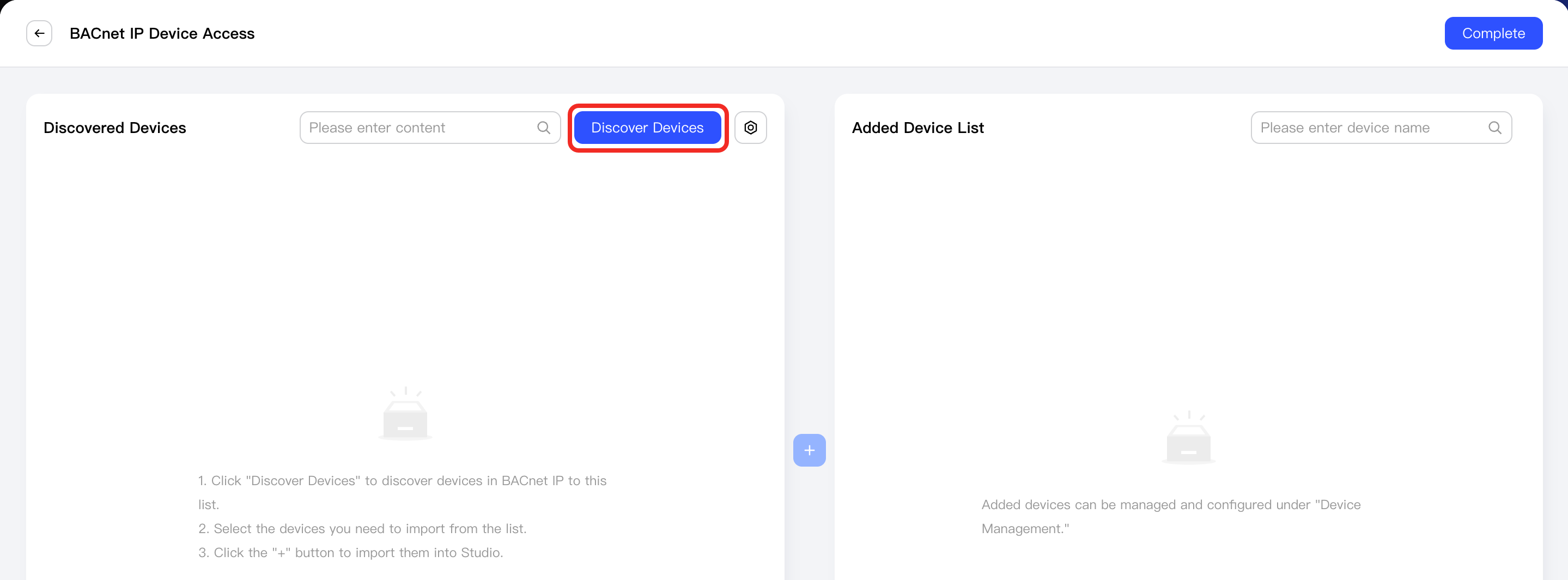
Click the “Discover Devices” button. Aqara Studio will then scan the network to find devices.
tipIf Aqara Studio does not find your BACnet device, you can also add the device manually.
-
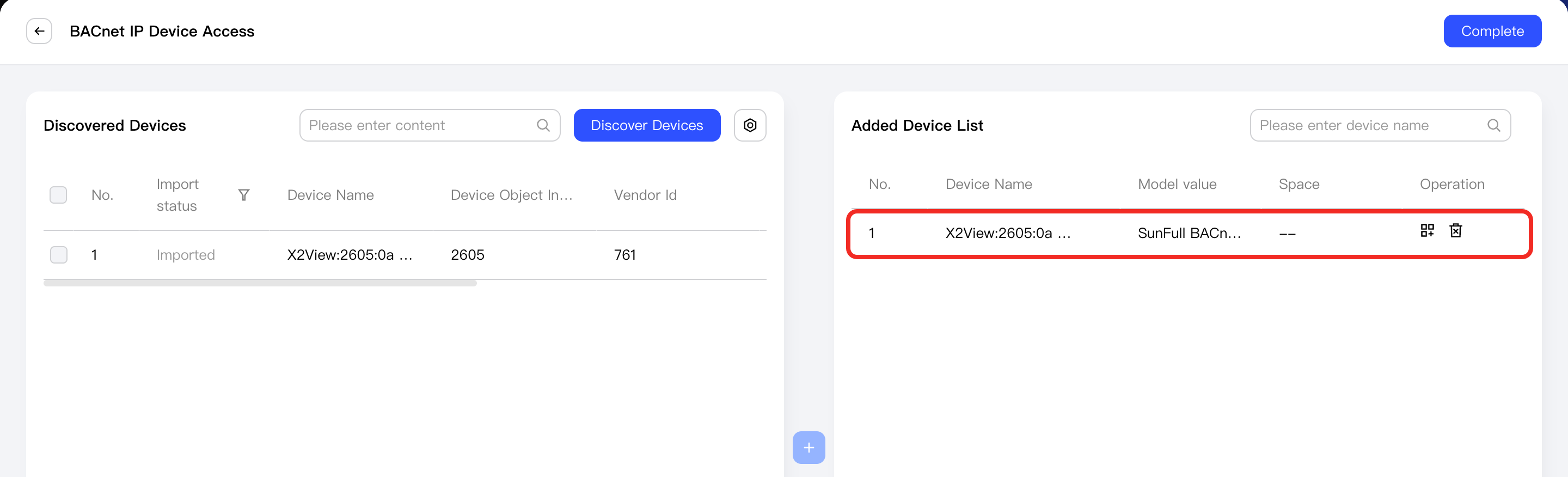
Select the device(s) you want to add, and click the "+" button in the center.
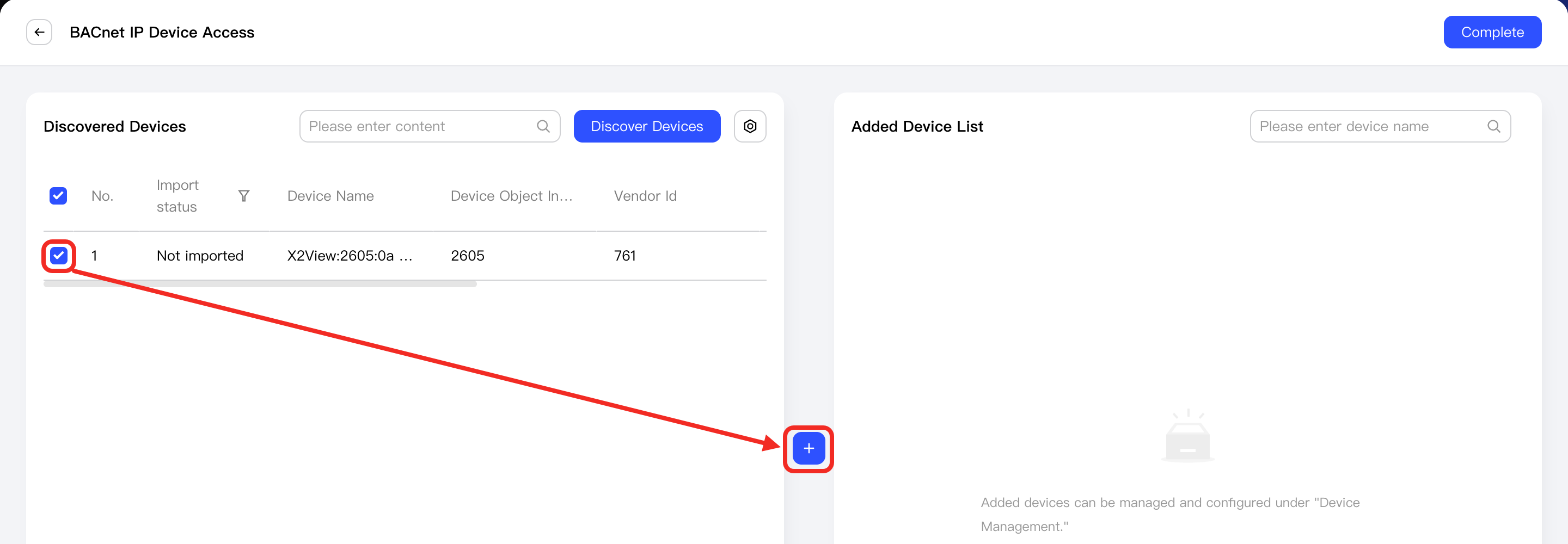
Newly added devices will appear in the Added Device List on the right. Click the Complete button to exit the add device process.
-
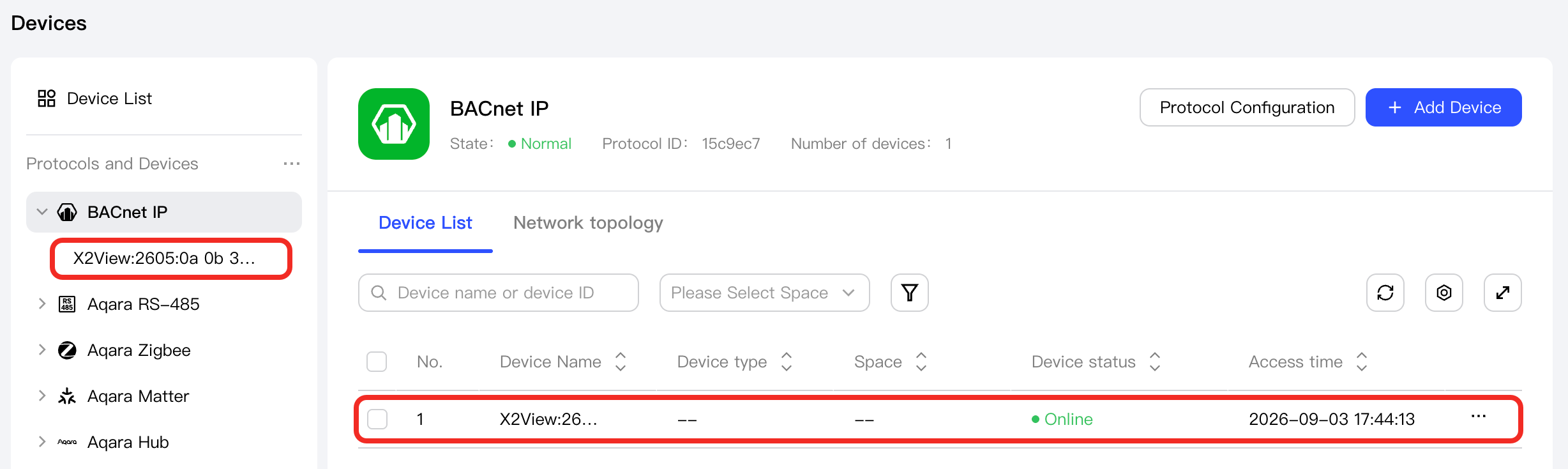
You will then see the successfully added devices under the BACnet IP node in the left Protocols and Devices panel, as well as in the device list on the BACnet IP management page.
Add Points
-
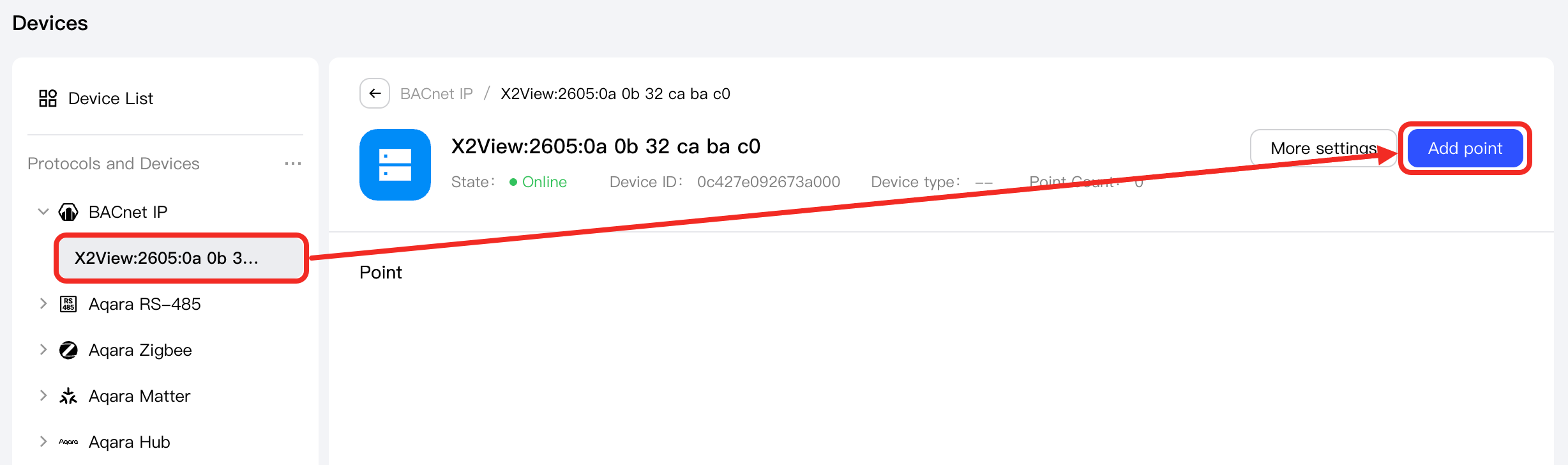
Under the BACnet IP node, select a BACnet device and click the Add Point button.
-
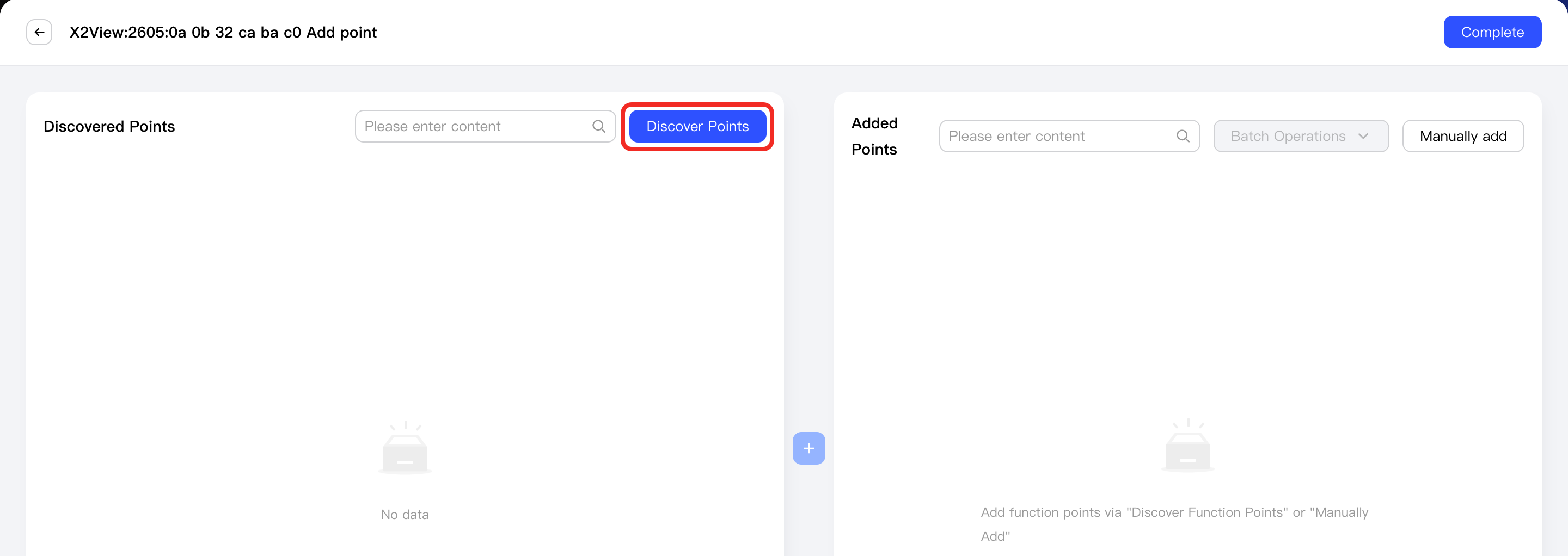
In the "Add point" page, click Discover Points button, Aqara Studio will begin scanning to discover function points for this device.
tipIf the system does not discover the function points you need, you can also add them manually.
-
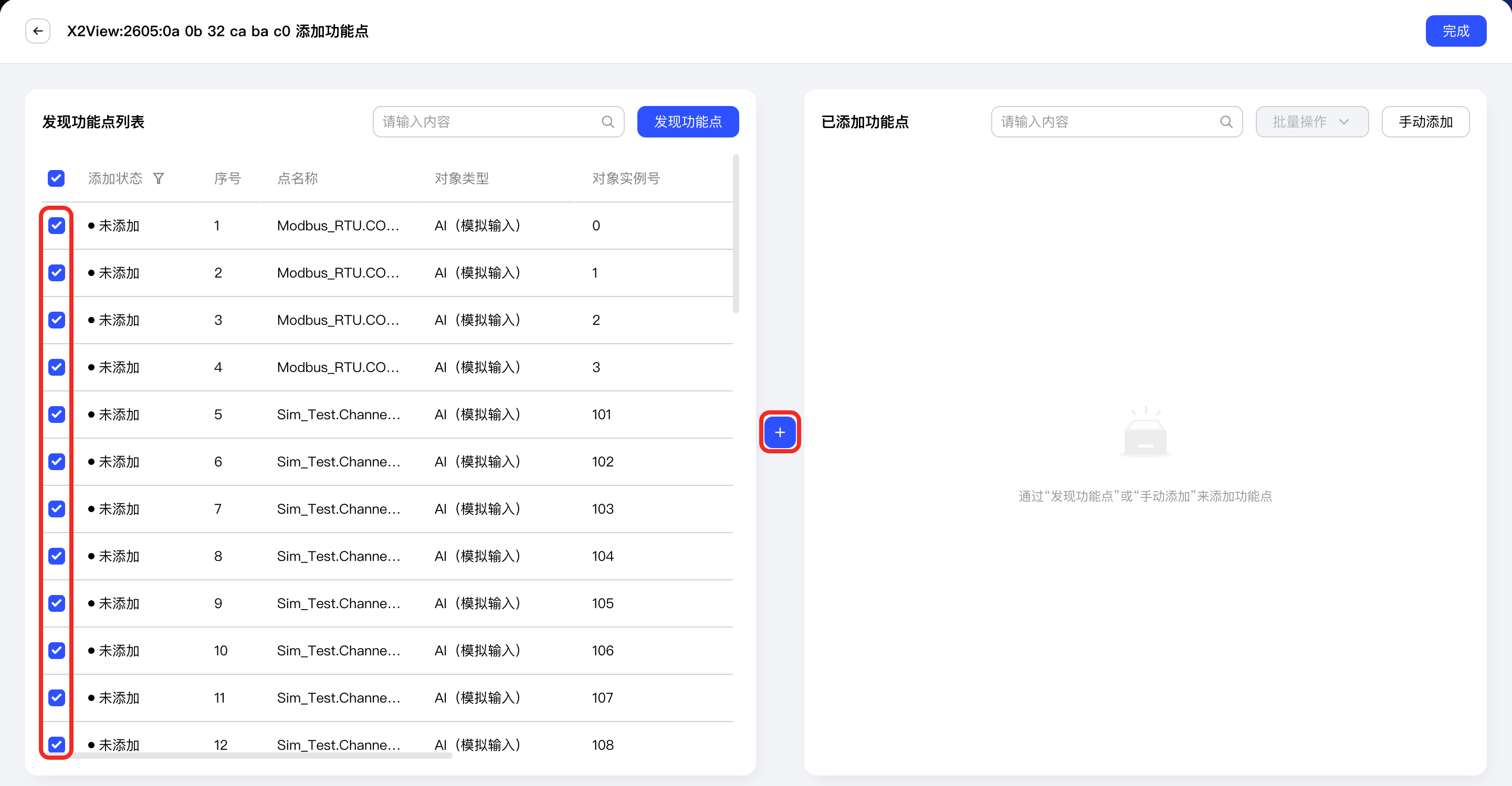
Select the required points and click the blue "+" button.
-
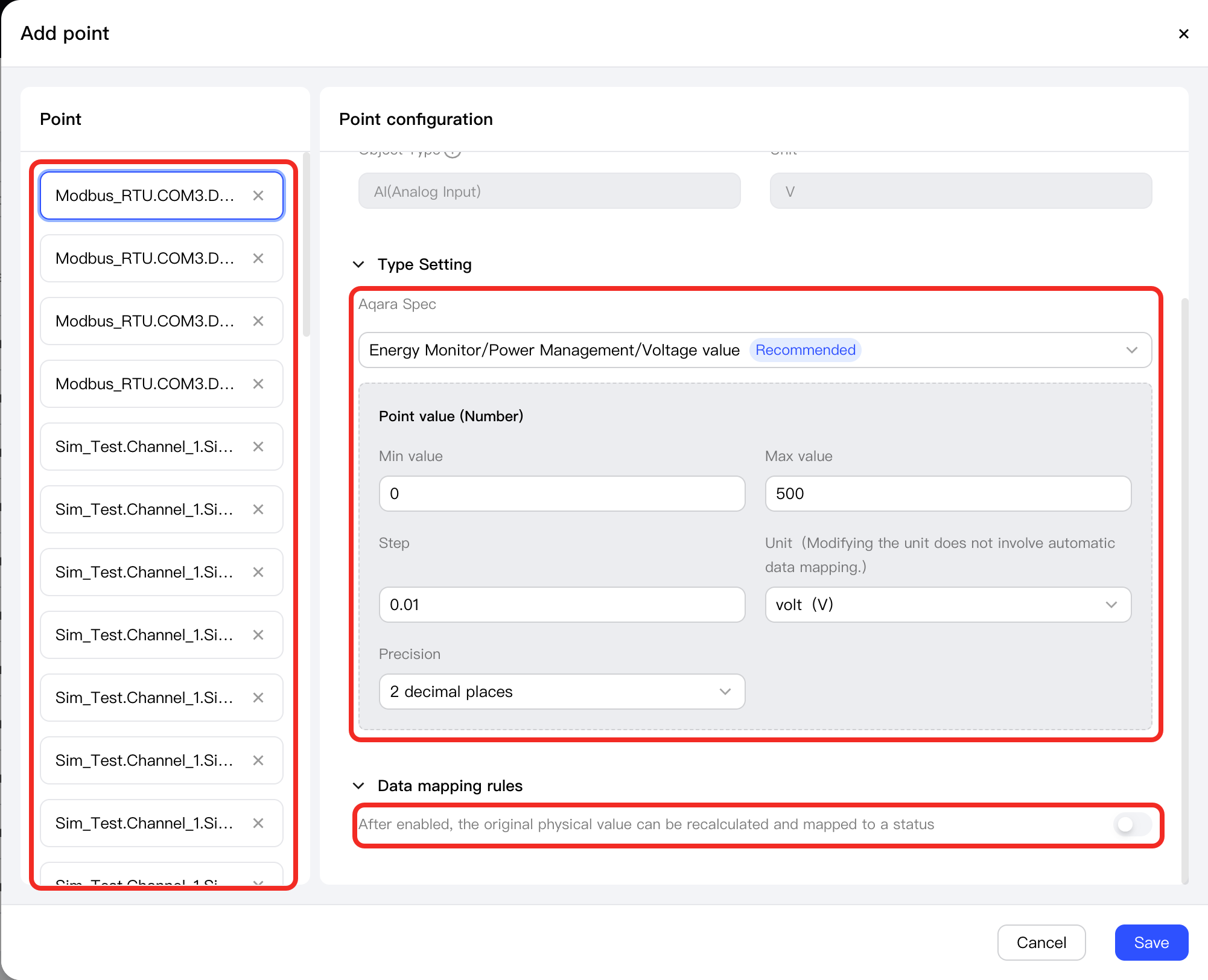
You will then see the Add Point popup. In the left Point list, select a point.
Aqara Studio will automatically associate the function point with a matching type in the Aqara Spec protocol based on the point type. In the left Point Configuration panel, find Type Setting > Aqara Spec, and confirm whether the recommended type matches the actual function of this point. If not, adjust it to the correct function point.
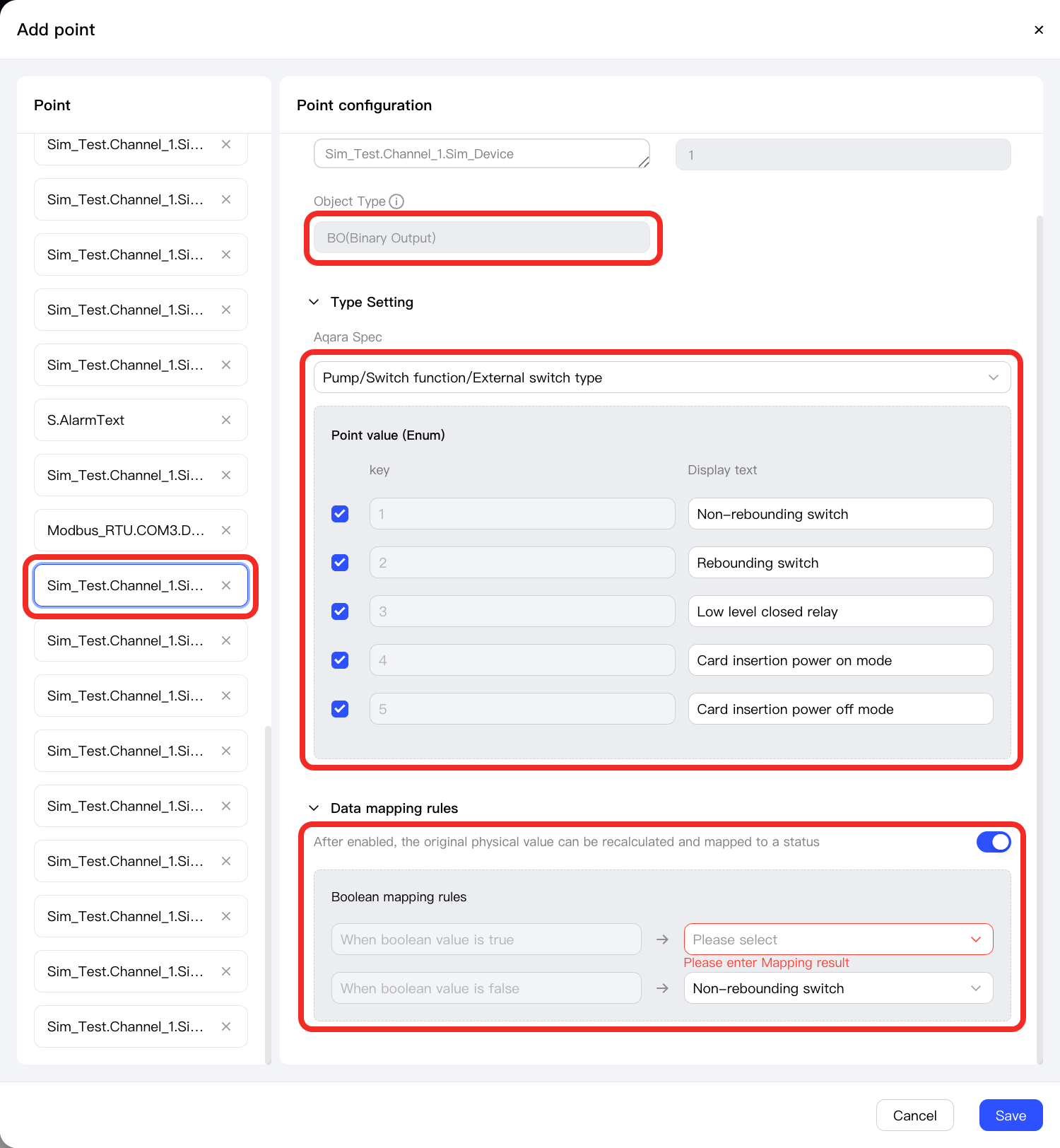
If the point of the BACnet device does not match the data type of the Aqara Spec point you selected, the system will trigger Data Mapping. Please configure the mapping relationship between the original value and the target value in the Aqara Spec in the Data mapping rules.
After completing the configuration of one point, you can select other points in the Point list to continue configuring. After all function points are configured, click the Complete button to exit the function point configuration process.
-
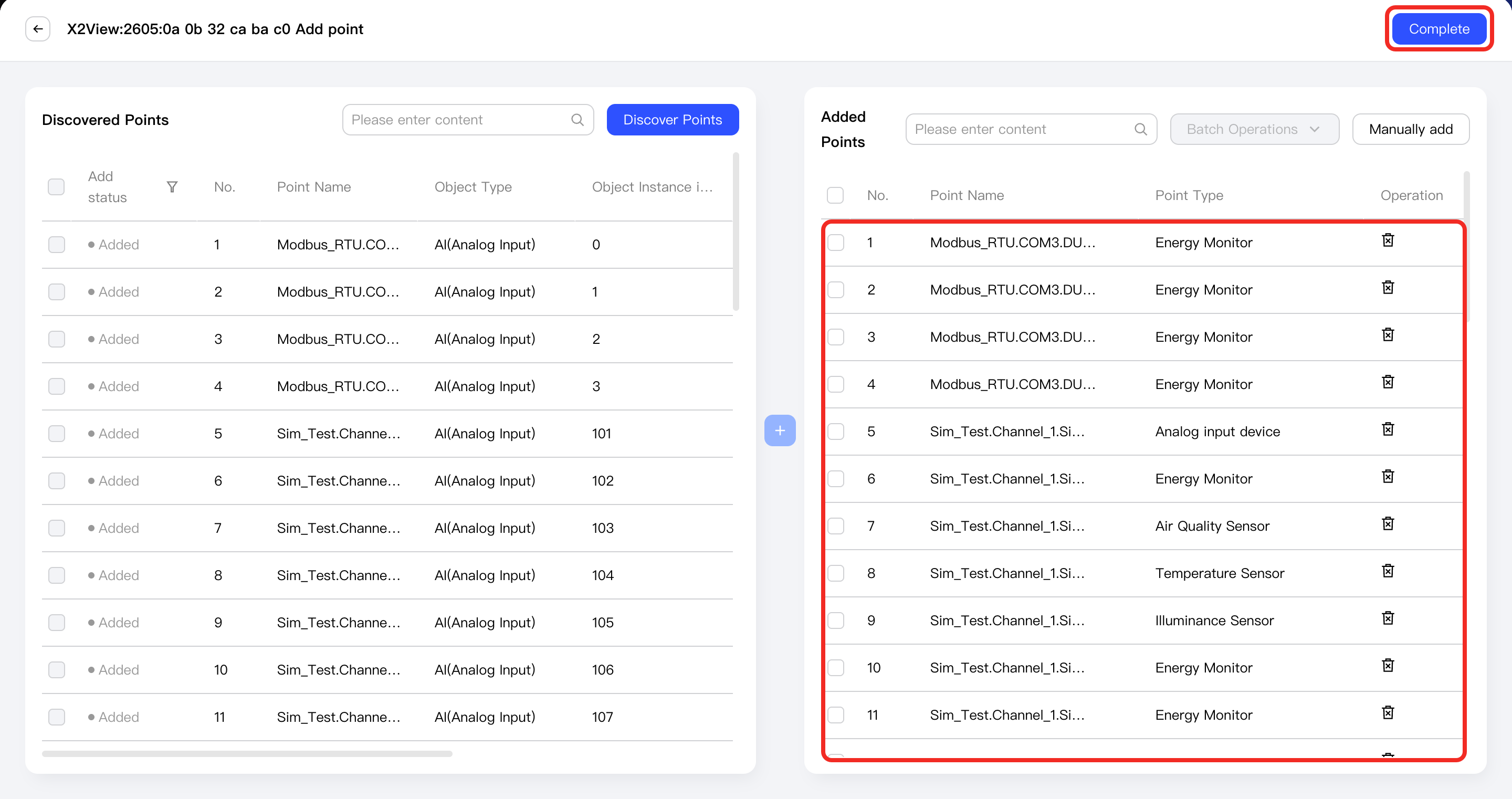
Aqara Studio will automatically add the points. The newly added points will appear in the Added Points list on the right. Click the Complete button to exit the add point process.
-
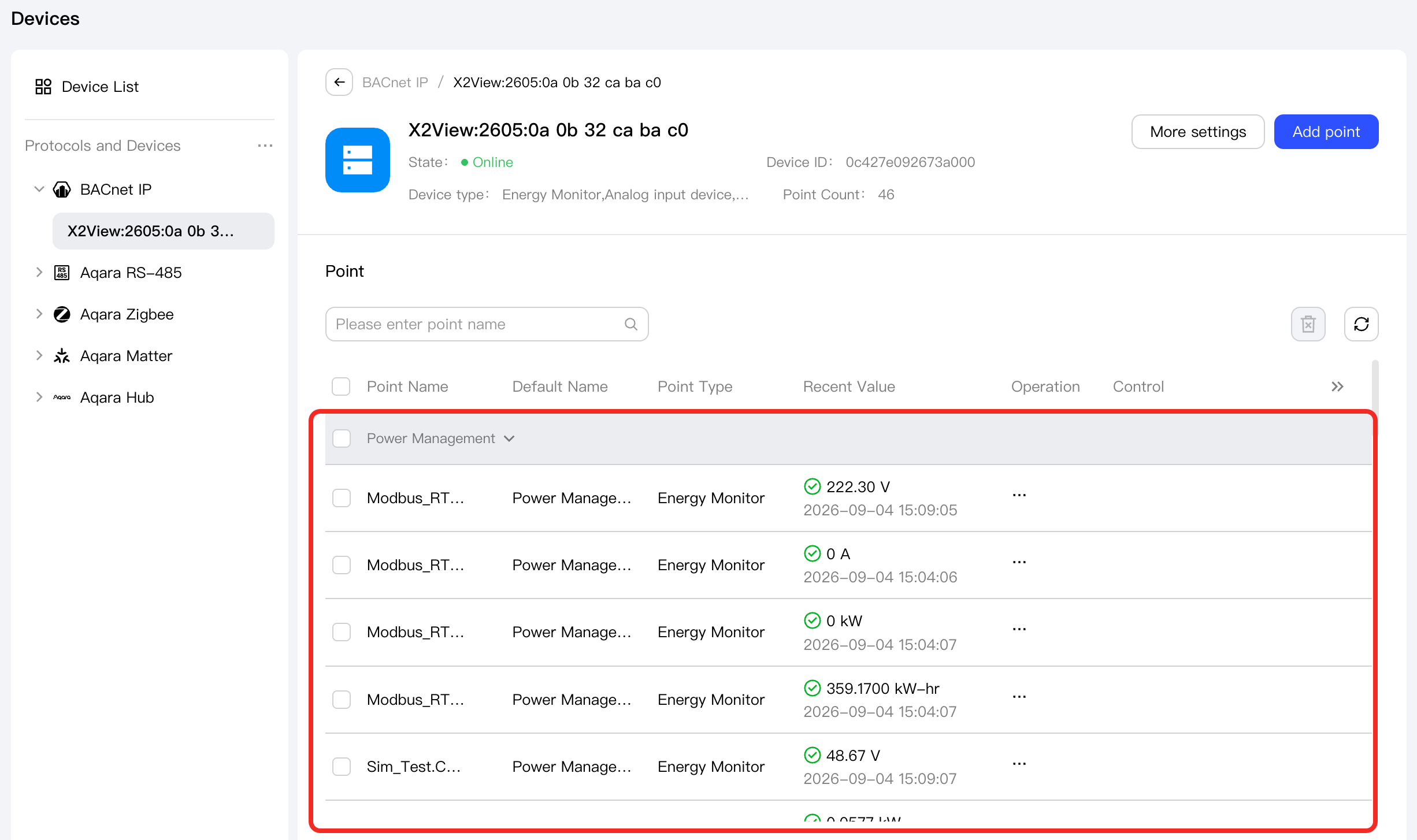
You will then see the added points on the BACnet device management page.
Next Steps
Now, you can view details and control the device, or use the device in automation.
FAQ
How to Handle BACnet Devices Not Discovered by Aqara Studio
If Aqara Studio does not discover your BACnet device, please follow these steps to manually add it:
-
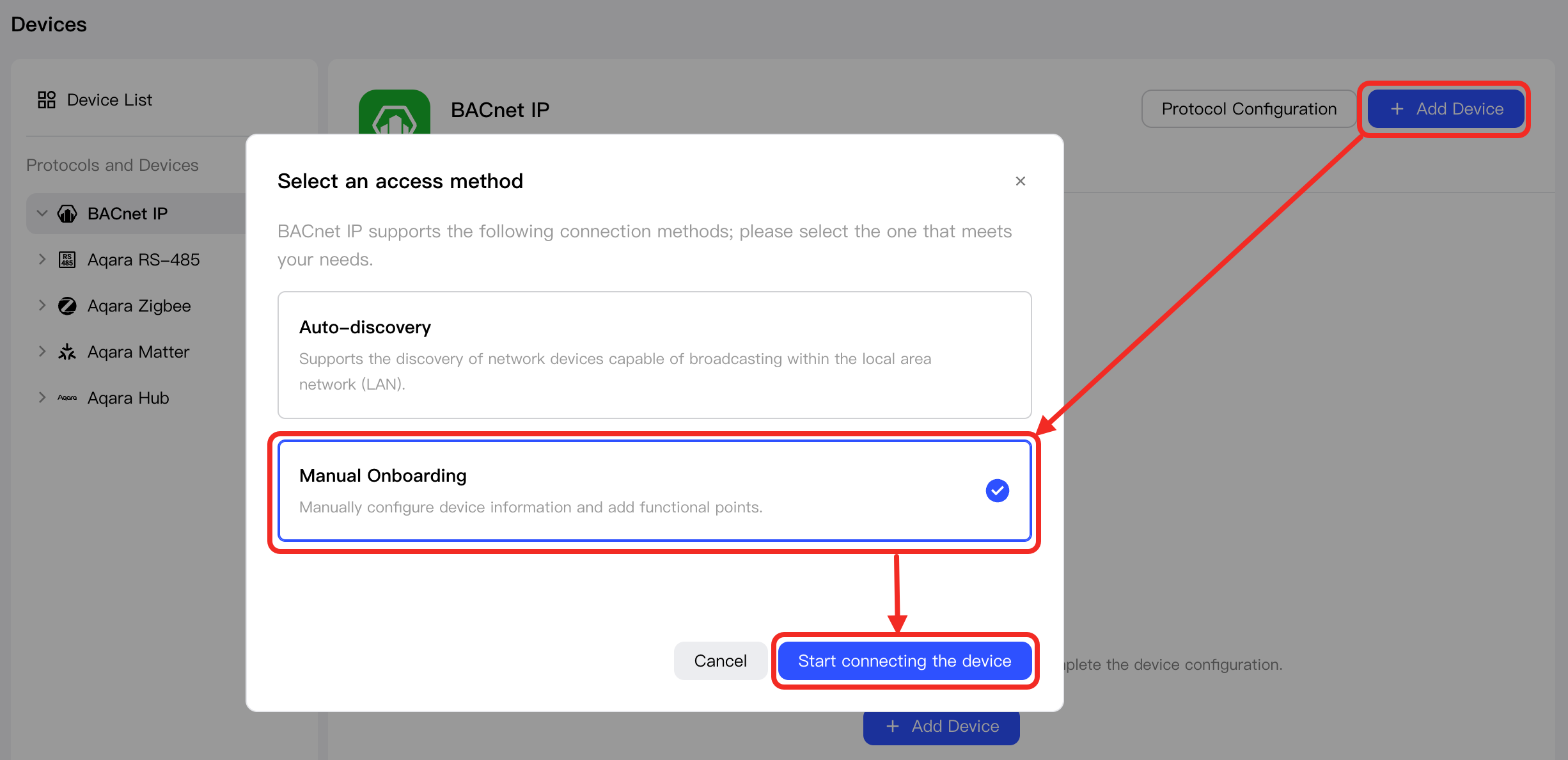
Return to the BACnet IP management page, click the Add Device button, then select Manual Onboarding and click the Start connecting the device button in the popup.
-
Fill in the following device information, then click the Next step button.
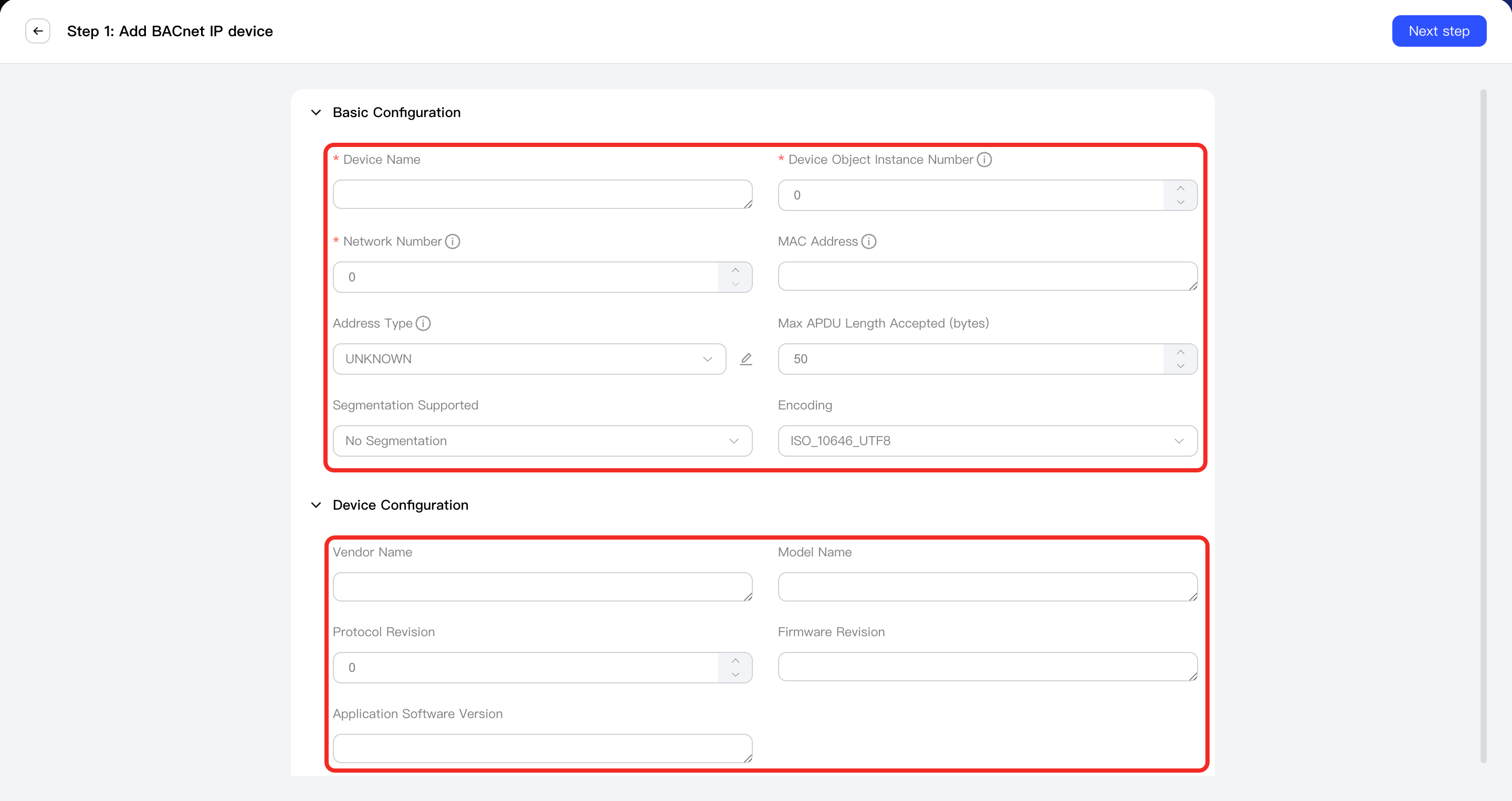
Details for each parameter are as follows:
-
Basic Configuration:
Parameter Required Description Example Device Name ✔ Your custom name for the BACnet device. Device Object Instance Number ✔ Unique ID for the BACnet device on the BACnet network. Range: [0, 4194303]. 1 Network Number ✔ Identifies the logical subnet, must be unique. Range: [0,65535]. 0: Local, 65535: Broadcast 1 MAC Address ✘ MAC address of the device. - Address Type ✘ Specify the format and protocol type of MAC address: - UNKNOWN: Unknown type
- ETHERNET: 6-byte Ethernet MAC, format AA:BB:CC:DD:EE:FF
- IP: 4-6 byte IP address, format 192.168.1.1:47808
- MSTP: 1 byte, Master-Slave/Token-Passing
- SC: 6-byte Secure Connection, WebSocket
- Max APDU Length Accepted (bytes) ✘ The maximum APDU (Application Protocol Data Unit) length in bytes. Recommended no larger than 1476. 1076 Segmentation Supported ✘ Options: - Send and Receive Segmentation (default): Supports both sending and receiving segmented APDUs.
- Send Only: Only supports sending segmented messages.
- Receive Only: Can only receive segmented messages.
- No Segmentation: Only unsegmented messages within the length limit are supported.
Send and Receive Segmentation Encoding ✘ Character encoding used. Supported: - ISO_10646_UTF8
- IBM_MICROSOFT_DBCS
- JIS_X0208
- ISO_10646_UCS4
- ISO_10646_UCS2
- ISO_8859_1
- UNKNOWN
ISO_10646_UTF8 -
Device Configuration:
Parameter Required Description Example Vendor Name ✘ Name of the device manufacturer. - Model Name ✘ Model name of the device. - Protocol Revision ✘ Enter the Protocol_Revisionproperty from BACnet.- Firmware Version ✘ Enter the Firmware_Revisionproperty from BACnet.- Application Software Version ✘ Enter the Application_Software_Versionproperty from BACnet.-
-
-
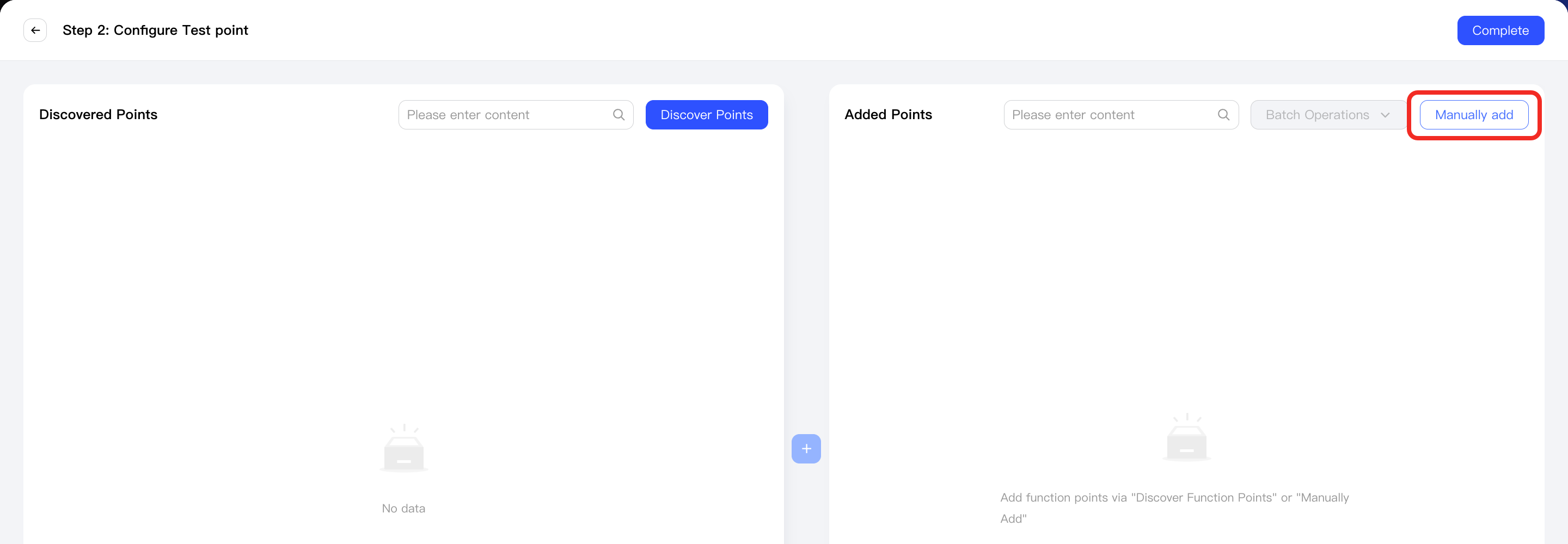
Click the Manually Add button, start manually adding points, please refer to How to Handle BACnet Points Not Discovered by Aqara Studio for detailed steps.
How to Handle BACnet Points Not Discovered by Aqara Studio
If Aqara Studio does not find the points you need, please follow these steps to manually add them:
-
Return to the BACnet IP device management page, click the Add Point button.
-
Click the Manually Add button.
In the Add Point popup, you can click the + button in the left Point list to manually add a point.
After selecting the newly added point, you can configure its parameters. Details are as follows:
-
Point Add:
Parameter Required Description Point Name ✔ You can customize the name of this point. Object Instance identifier ✔ The object instance identifier of this point. Range: [0, 4194303]. Object Type ✔ Object Type is a standard in Bacnet protocol used to define data point types, specifying the format, range, and meaning of data. You can read the description of this BACnet device to understand the object type of the point you need. Unit ✘ The unit for this point. -
Type Setting:
-
When the value of the point is numeric:
Parameter Type Parameter Name Required Description Example Configuration Aqara Spec - ✔ Associates this point with the corresponding function point in the Aqara Spec protocol for standardized control and management. Air Conditioner/Heater Cooler/Set temperature Point Value (Number) Min value ✔ The minimum value for this numeric function point. 16 Max value ✔ The maximum value for this numeric function point. 30 Step ✔ The step of the value range for this point. 1 Unit ✔ The unit of the value range for this point. Celsius (℃) Precision ✔ The precision of the value range for this point. Supported: - Integer
- 1 decimal place
- 2 decimal places
- 3 decimal places
Integer -
When the value of the point is boolean:
Parameter Type Parameter Name Required Description Example Configuration Aqara Spec - ✔ Associates this point with the corresponding function point in the Aqara Spec protocol for standardized control and management. Door and Window Sensor/Contact/Contact Status Point Value (Boolean) True text ✔ Display text when the boolean function point value is true.Closed False text ✔ Display text when the boolean function point value is false.Open
-
-
Data Mapping Rules: After enabled, the original physical value can be recalculated and mapped to a status. Please refer to Numerical Mapping Functions for more details.
- When the data area type of the point is different from the Aqara Spec type (for example, a numeric type needs to be mapped to a boolean type, or a boolean type needs to be mapped to a numeric type), please enable this option to achieve conversion and mapping between the physical value and the standard function point type.
- If the data area type of the point and the Aqara Spec type are the same, you do not need to enable this option.
-
-
After configuring all points, click the Complete button to exit the point adding process.