HTTP
This guide will show you how to integrate HTTP protocol devices into Aqara Studio by writing JS scripts, and how to map device function points according to the Aqara Data Model Specification, enabling device discovery, addition, and control of function points.
Prerequisites
Before you begin, please ensure that the target HTTP device and Aqara Studio are on the same local area network (LAN).
Learn and Write JavaScript Scripts
Please refer to the JavaScript script (for HTTP) guide to write a JavaScript script that complies with the Aqara Data Model Specification. This script instructs Aqara Studio how to discover devices, and add and control function points.
Add HTTP Devices
-
In the left sidebar, click to enter the Devices page. In the left Protocols and Devices panel, click the ... button and select Add Protocol.

-
In the popup, select
Httpto add an HTTP node.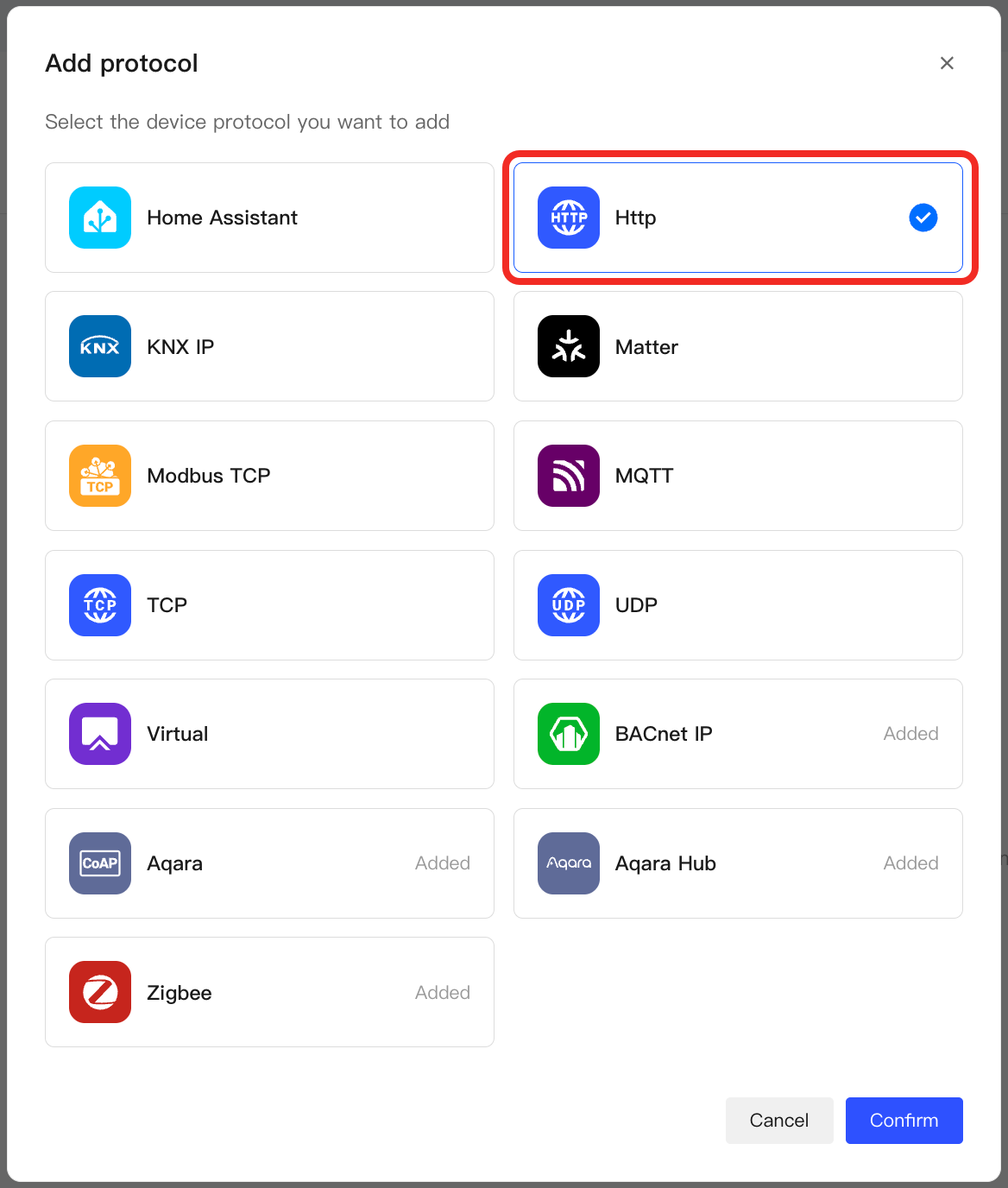
-
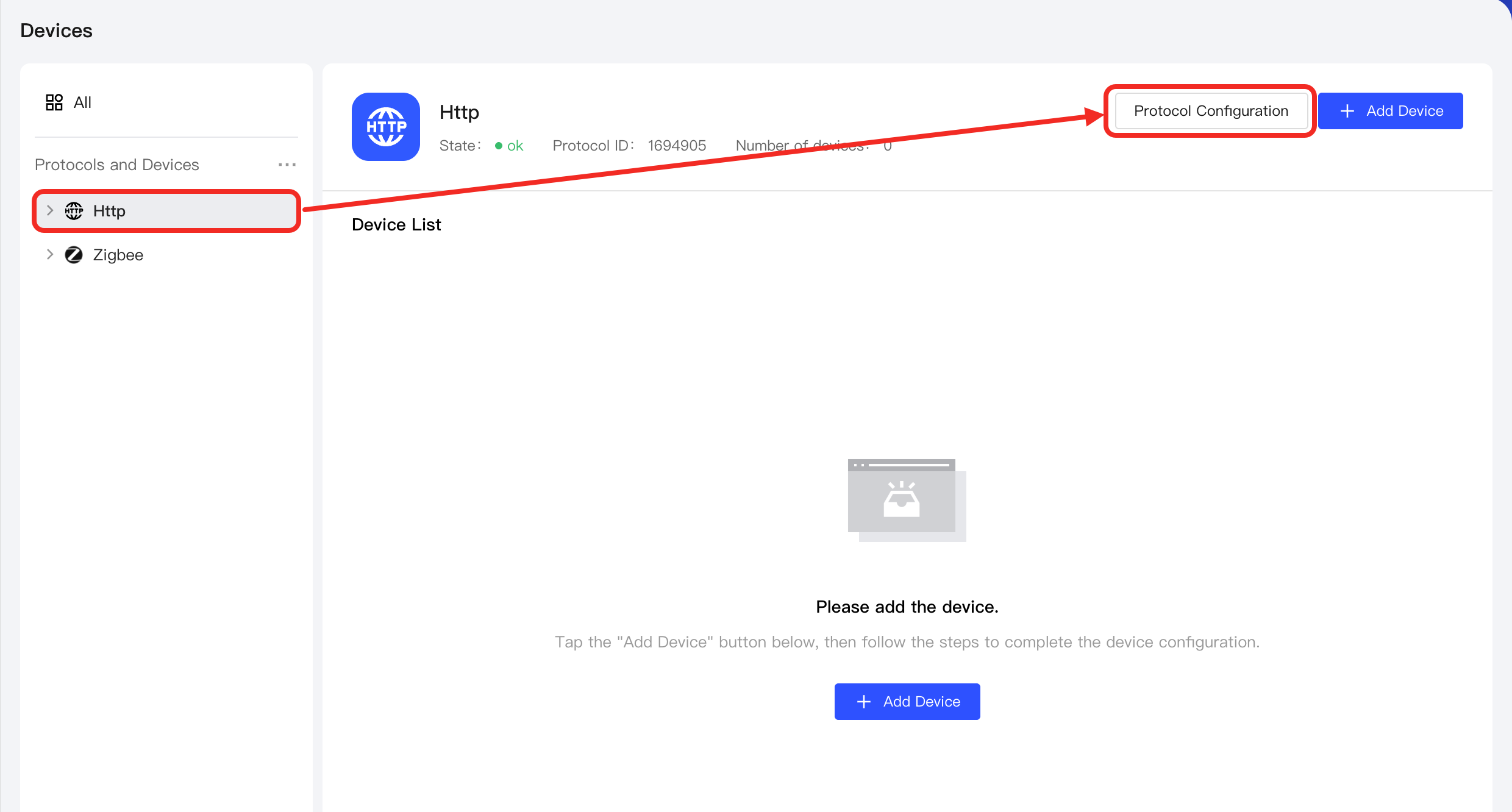
Select the node to enter the management page. Click the Protocol Configuration button.
-
Configure the following parameters for the HTTP device to be integrated.
Parameter Description Use TLS Whether to use TLS encryption for HTTP communication. IP Address The gateway IP address of the HTTP device to be integrated. Port The network port on which the device receives and processes HTTP requests. Enable/Disable Network If disabled, the device on this network will be unavailable. 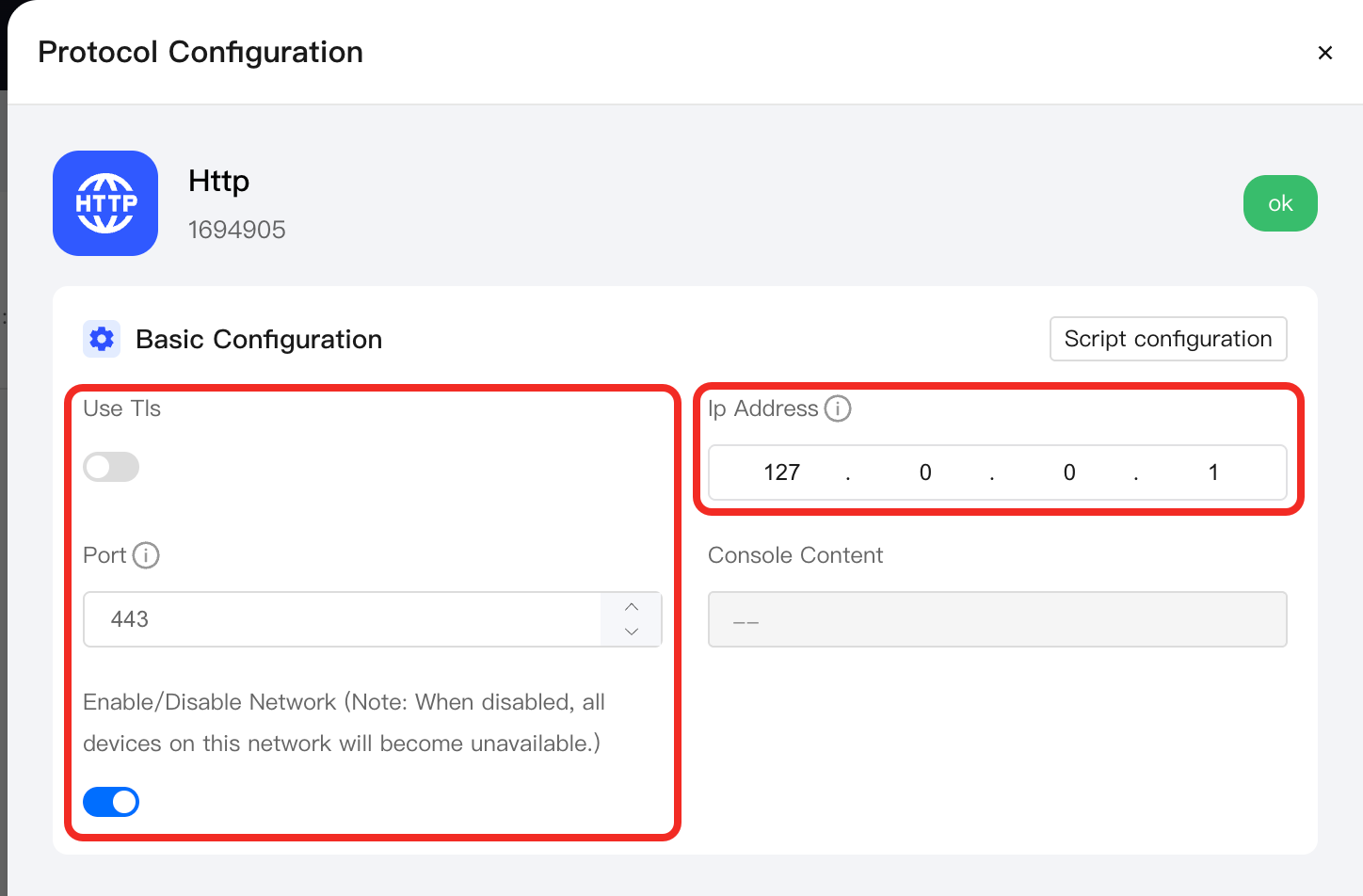
-
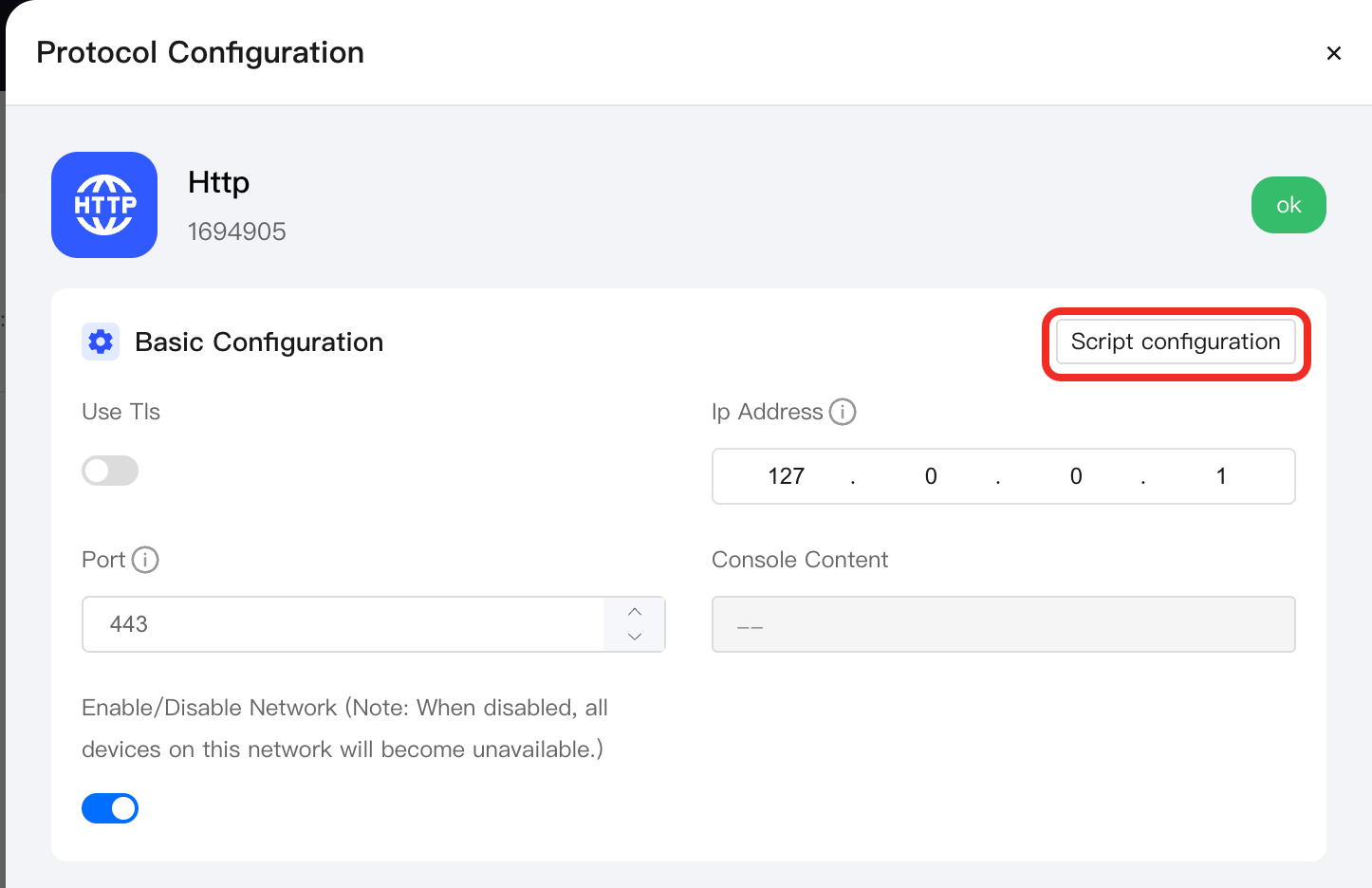
Click the Script Configuration button.
-
Paste the JavaScript script you wrote into the code editor, ensuring that the HTTP device and its function points can be correctly recognized and managed by Aqara Studio.
-
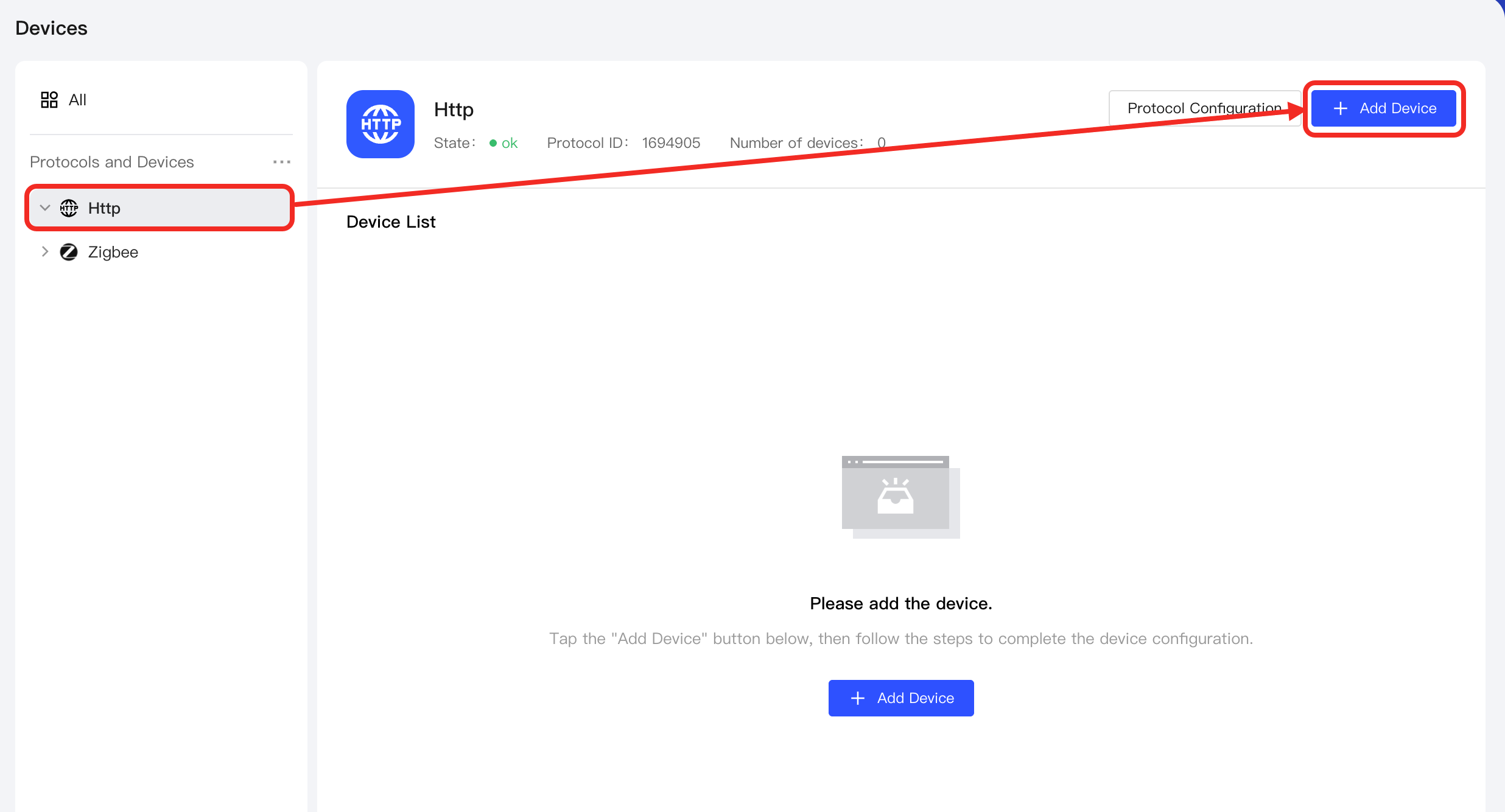
Return to the HTTP management page and click the Add Device button.
-
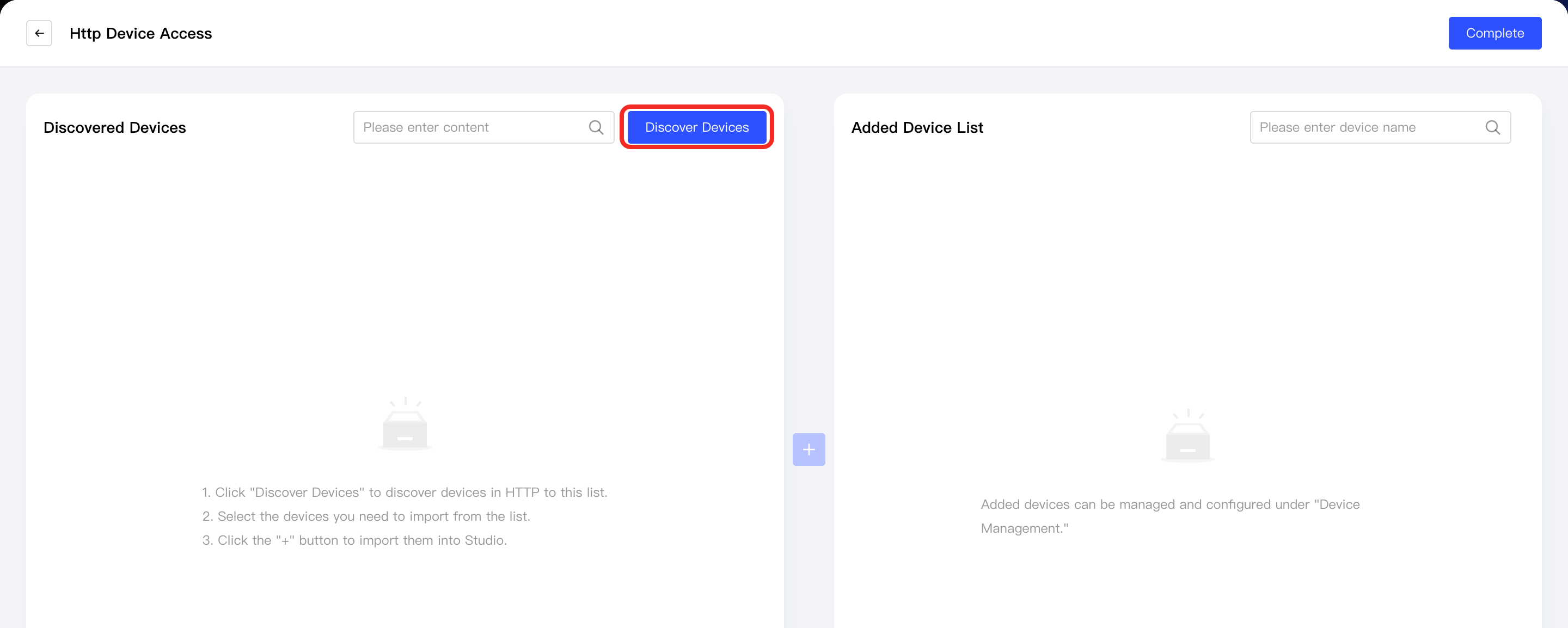
Click the Discover Devices button.
Aqara Studio will automatically scan for and identify HTTP devices that can be integrated based on the script you wrote. Discovered devices will appear in the Discovered Devices list.
-
Select the devices to integrate and click the + button in the center.
Newly added devices will appear in the Added Device List on the right. Click the Complete button to exit the add device process.
-
You will then see the successfully added devices under the HTTP node in the left Protocols and Devices panel, as well as in the device list on the HTTP management page.
Add Points
-
Under the HTTP node, select an HTTP device and click the Add Point button.
-
Click the Discover Points button.
-
In the Discovered Points list, check the required points and click the middle + button.
Newly added points will appear in the Added Points list on the right. Click the Complete button to exit the add points process.
-
You will then see the successfully added points on the management page of that HTTP device.
Add Multiple HTTP Devices
Each HTTP node can be associated with only one HTTP device. If you need to integrate multiple HTTP devices, add multiple HTTP nodes in the left Protocols and Devices panel, and then configure each node with its corresponding HTTP device information separately. Do not modify the device parameters within an existing HTTP node.
Multi-Gateway HTTP Device Integration
Each HTTP node can only be associated with HTTP devices under a single gateway. If you need to integrate HTTP devices under different gateways, add multiple HTTP nodes in the left Protocols and Devices panel, and configure the gateway information separately for each node. Do not modify an existing node's network parameters to connect devices from other gateways.
Next Steps
Now, you can view details and control the device, or use the device in automation.