Matter
tip
This document is only applicable to the hub-integrated model of Aqara Studio.
This document explains how to connect Matter devices to Aqara Studio.
Process
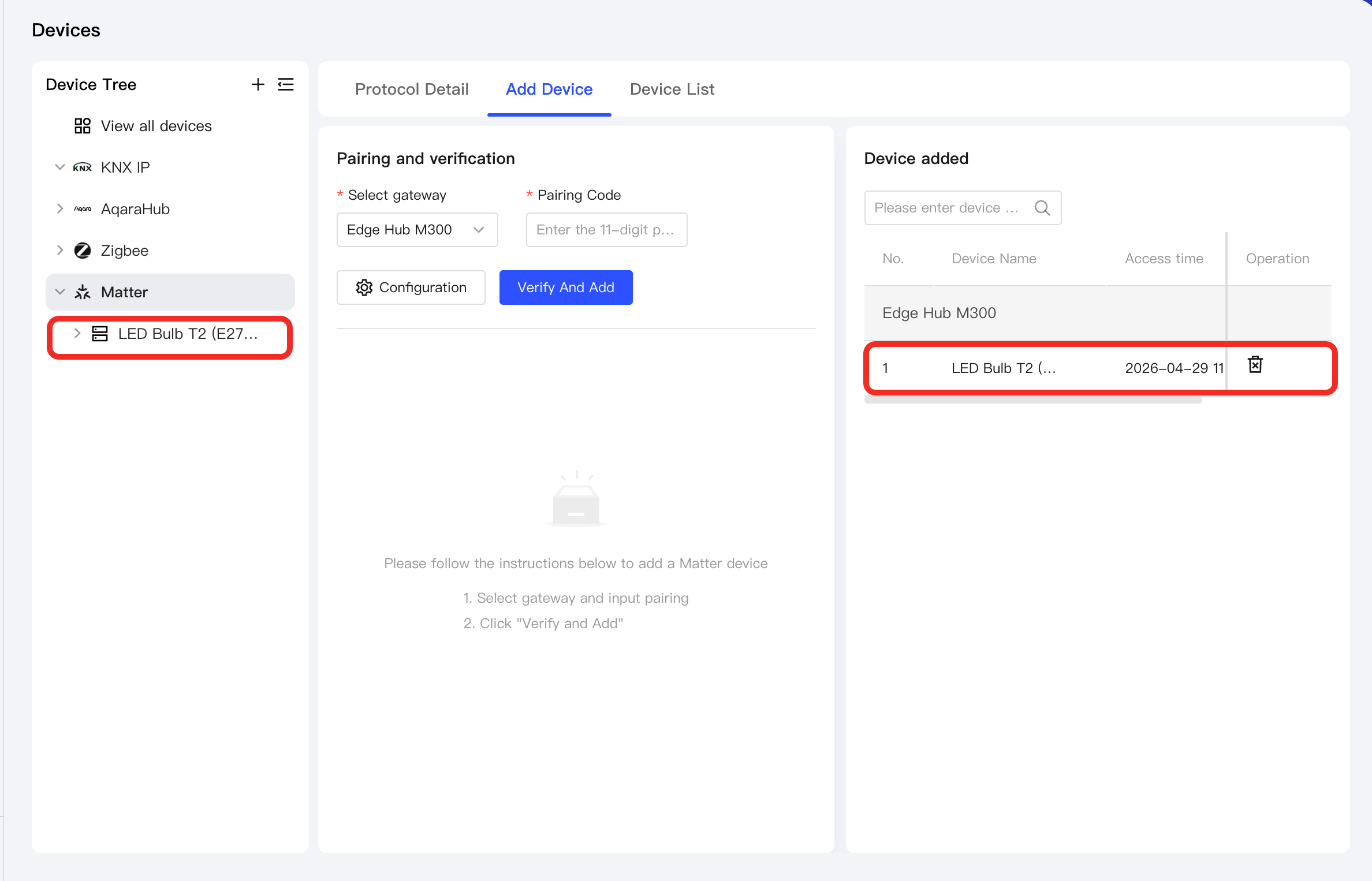
- In the left sidebar, click to enter the Devices page. Select
Matterto open the management page.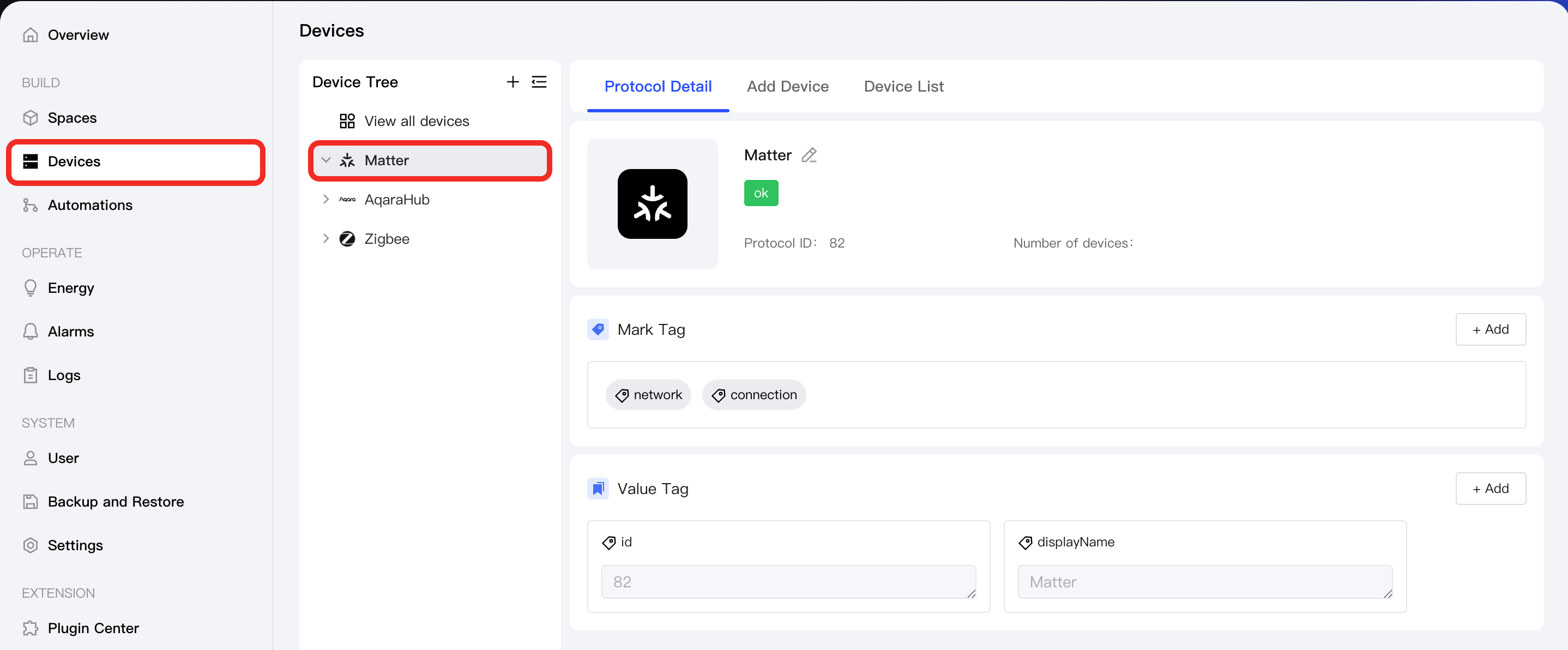
- Go to the
Add Devicetab. In the Select gateway dropdown, select the gateway to which you want to bind sub-devices.
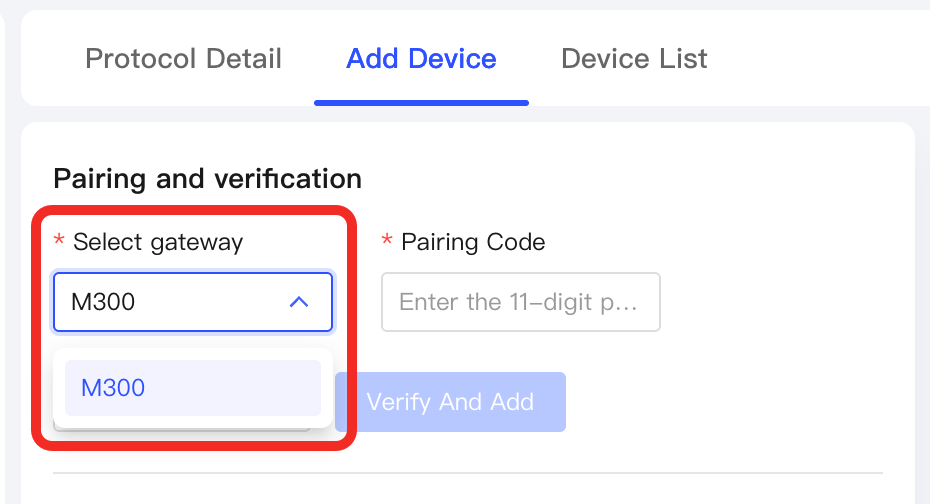
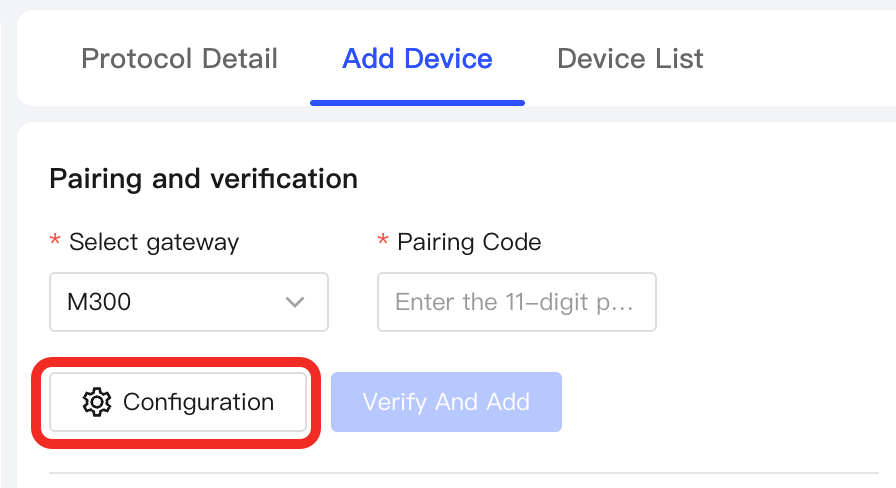
- Click the Configuration button to set up Wi-Fi information for the sub-device.
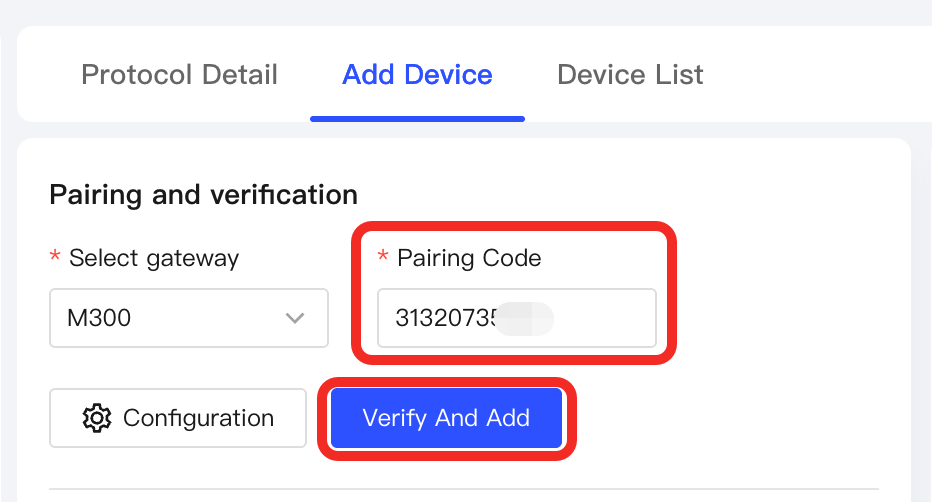
- Put the sub-device into pairing mode, and enter its 11-digit Matter pairing code. Click Verify and Add.
- Once the sub-device is successfully found and bound, it will appear in the Device added list.
Next Steps
Now, you can view details and control the device, or use the device in automation.
FAQ
How do I connect Aqara devices that support dual-protocol or multi-protocol by Matter?
If your Aqara device supports Matter as well as other protocols, please follow these steps to connect via Matter:
- If the device is already in Matter mode, you can connect following the process described in this document.
- If the device uses another protocol, first switch the device to Matter mode on the Aqara Home App. After switching, follow this document’s process to connect.