MQTT
This guide will show you how to integrate MQTT protocol devices into Aqara Studio by writing JS scripts, and how to map device function points according to the Aqara Data Model Specification, enabling device discovery, addition, and control of function points.
Prerequisites
Before you begin, please ensure that the MQTT device to be integrated is already connected to an MQTT Broker.
Learn and Write JavaScript Scripts
Please refer to the JavaScript script (for MQTT) guide to write a JavaScript script that complies with the Aqara Data Model Specification. This script instructs Aqara Studio how to discover devices, and add and control function points.
Add an MQTT Device
-
In the left sidebar, click to enter the Devices page. In the left Protocols and Devices panel, click the ... button and select Add Protocol.

-
In the popup, select
MQTTto add an MQTT node.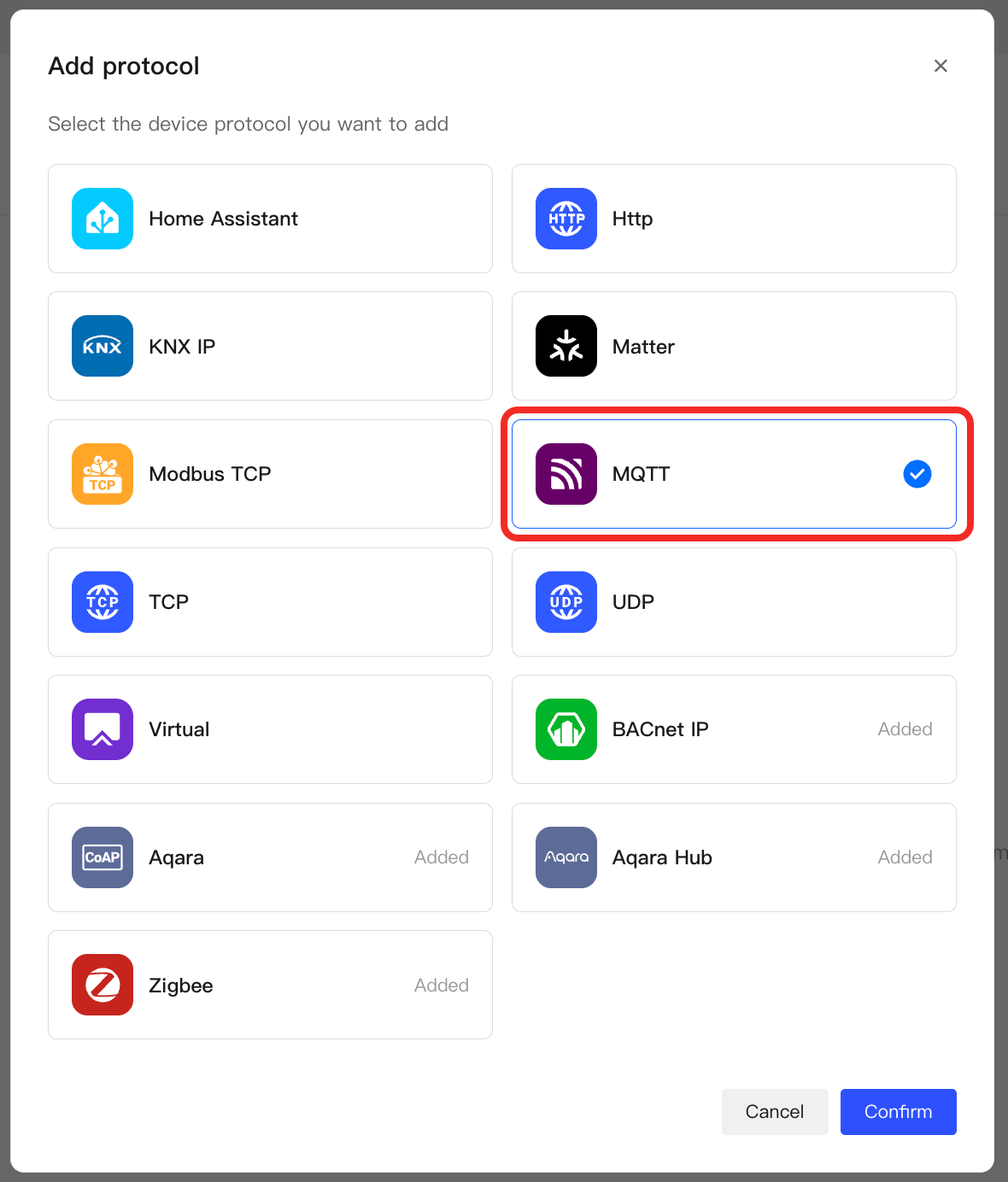
-
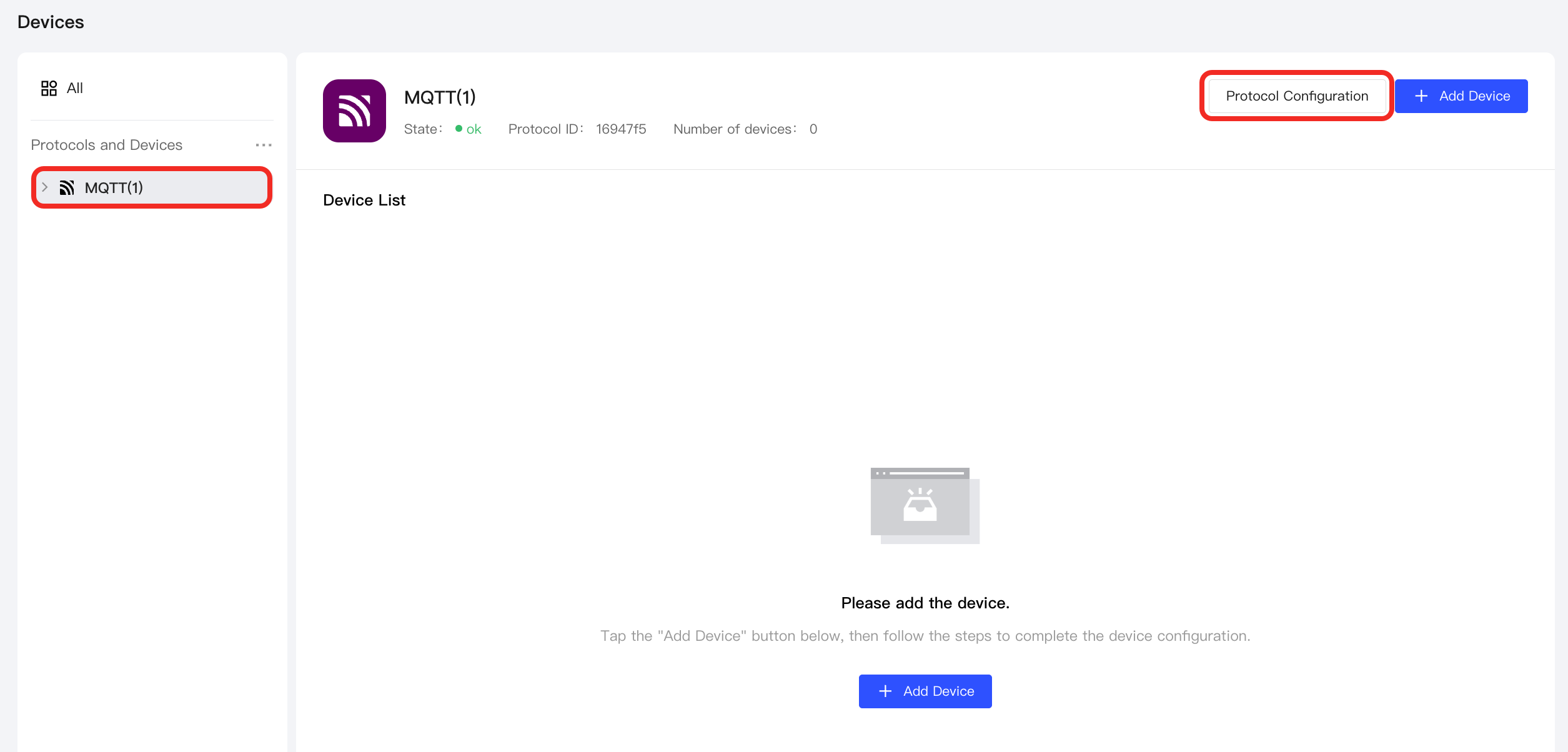
Select the node to enter the management page. Click the Protocol Configuration button.
-
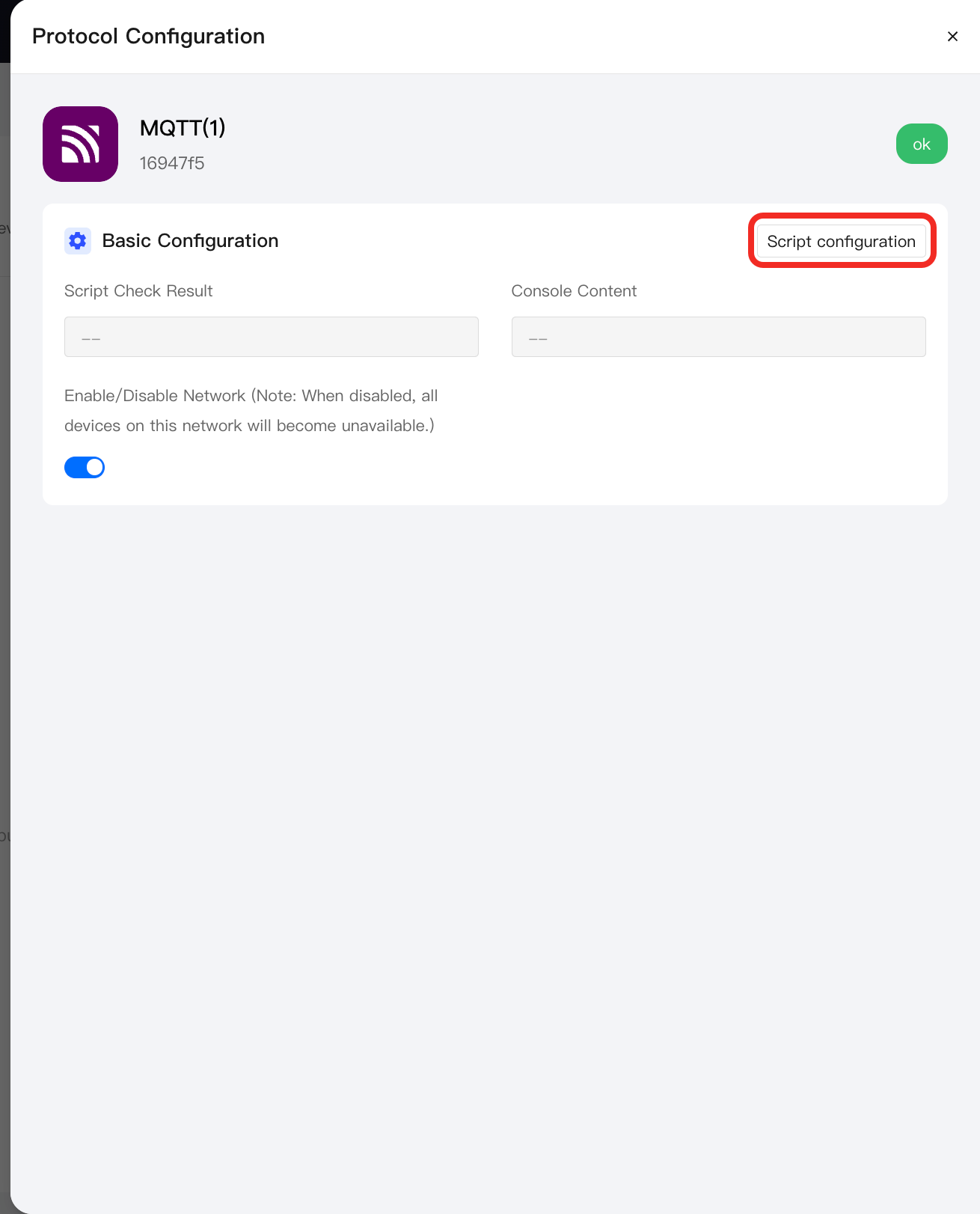
In the popup, click the Script Configuration button.
-
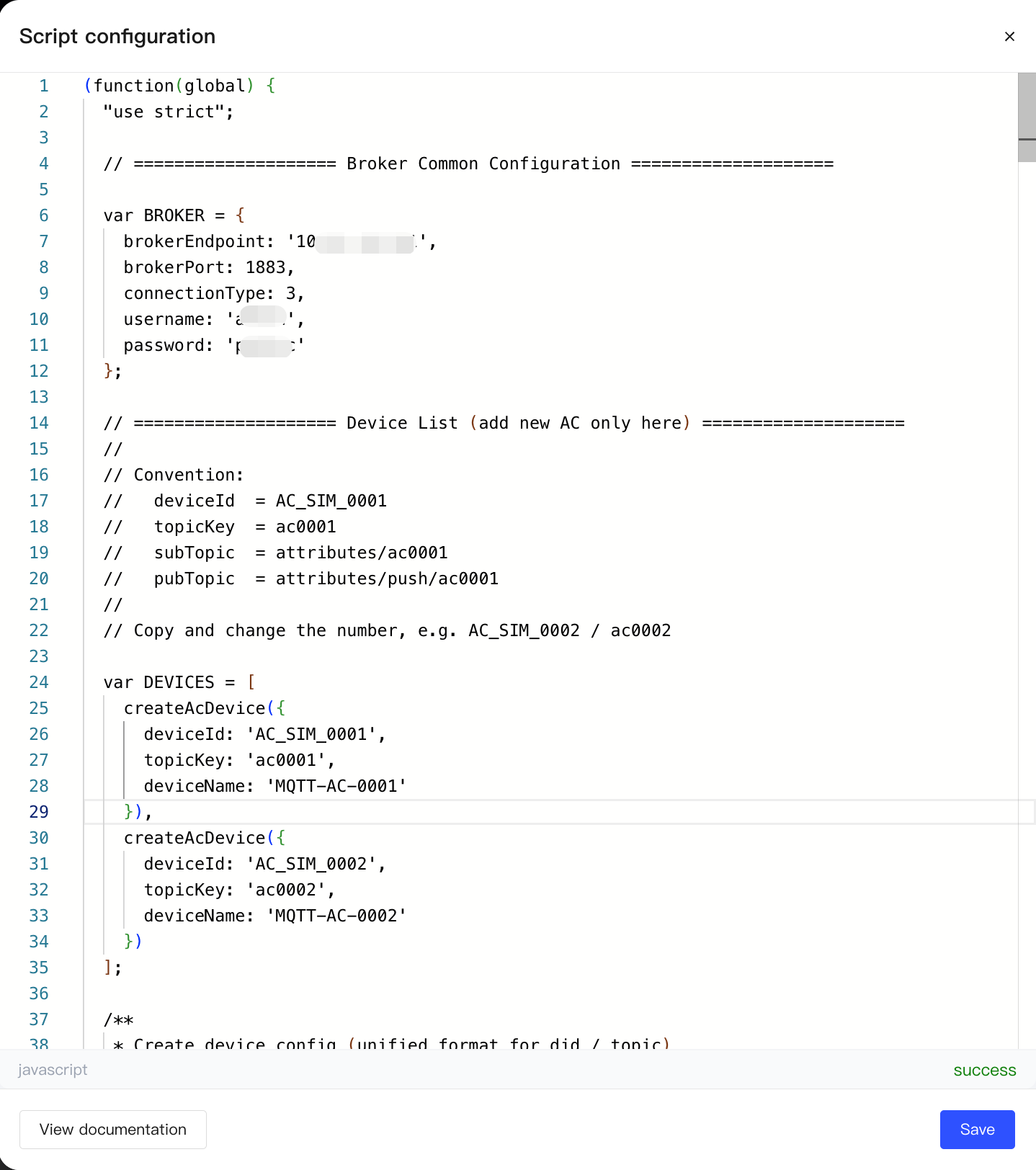
Paste the JavaScript script you wrote into the code editor, ensuring that the MQTT device and its function points can be correctly recognized and managed by Aqara Studio. After completing it, click Save.
-
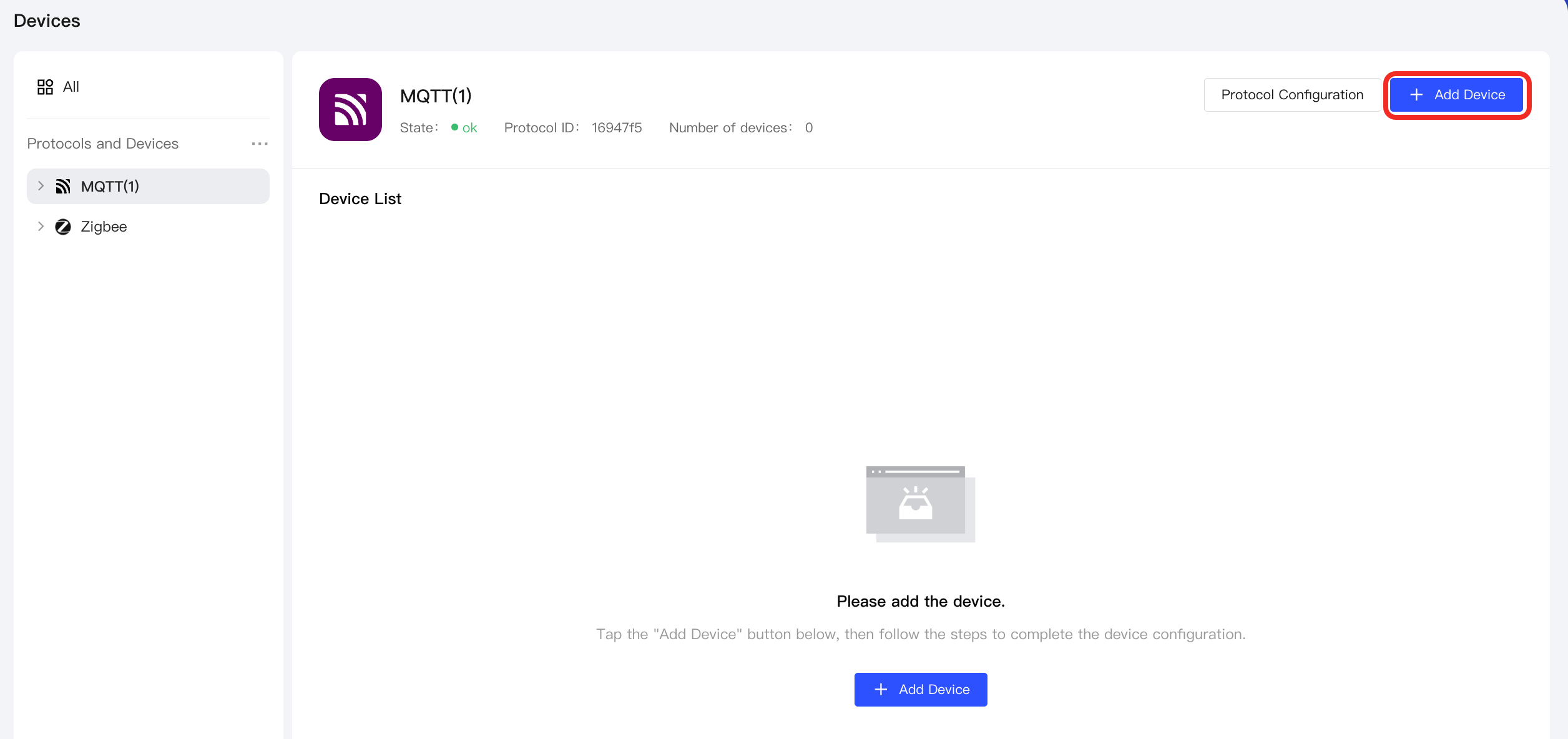
Return to the MQTT management page and click the Add Device button.
-
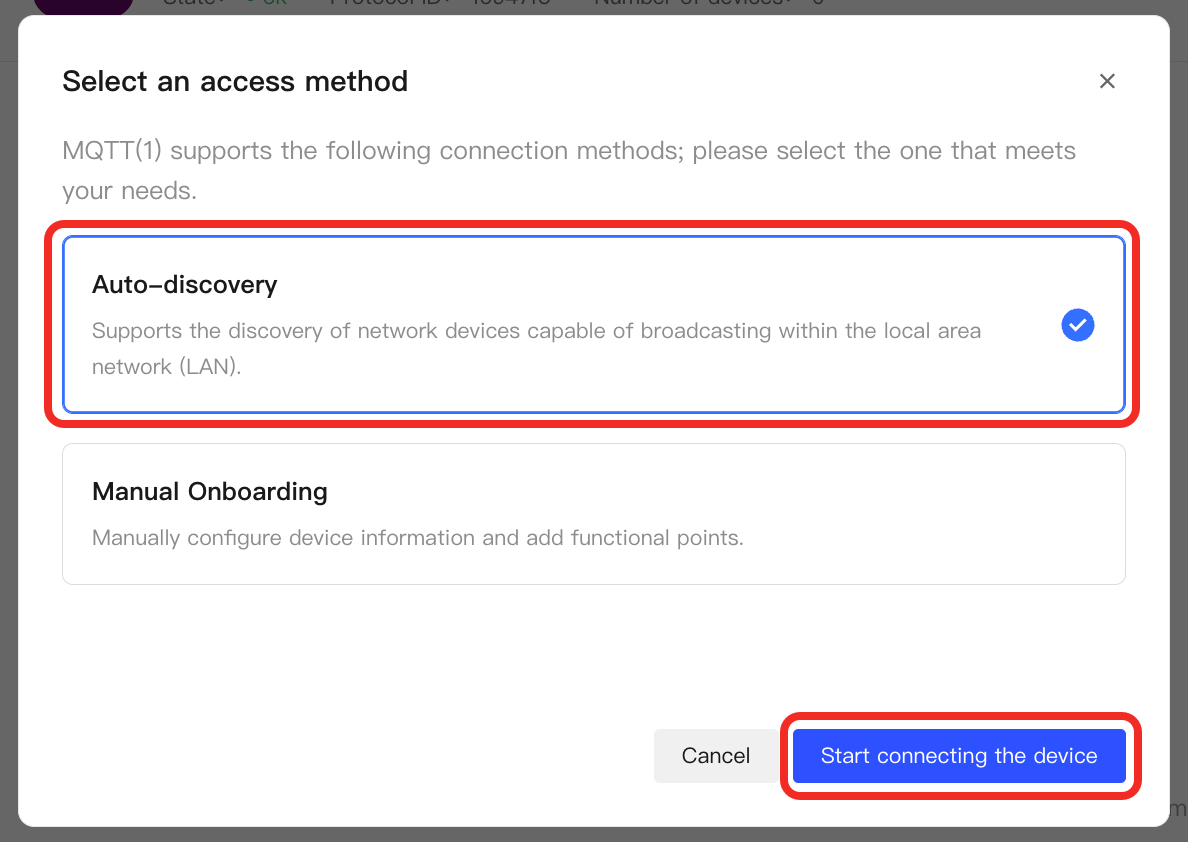
In the popup, select Auto Discovery as the integration method, then select Start Integrating Device to proceed to the next step.
-
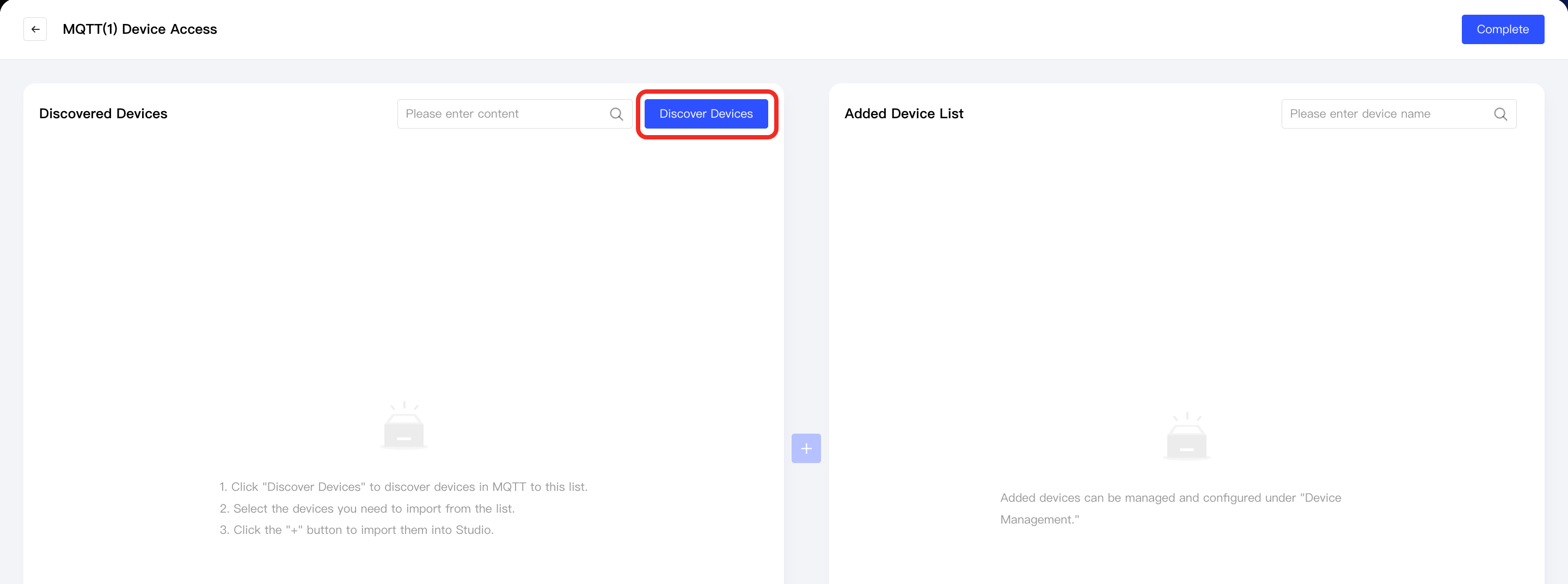
Click the Discover Devices button.
Aqara Studio will automatically discover and identify MQTT devices that can be integrated based on the script you wrote, and the discovered devices will be displayed in the Discovered Devices list.
-
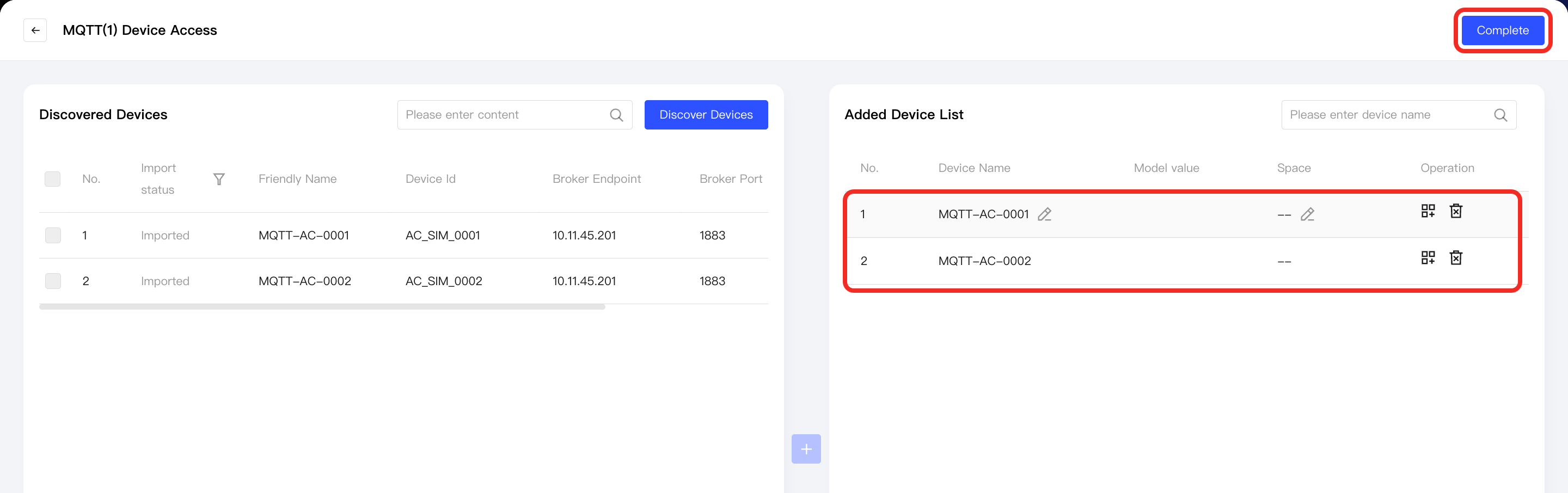
Select the devices to integrate and click the + button in the center.
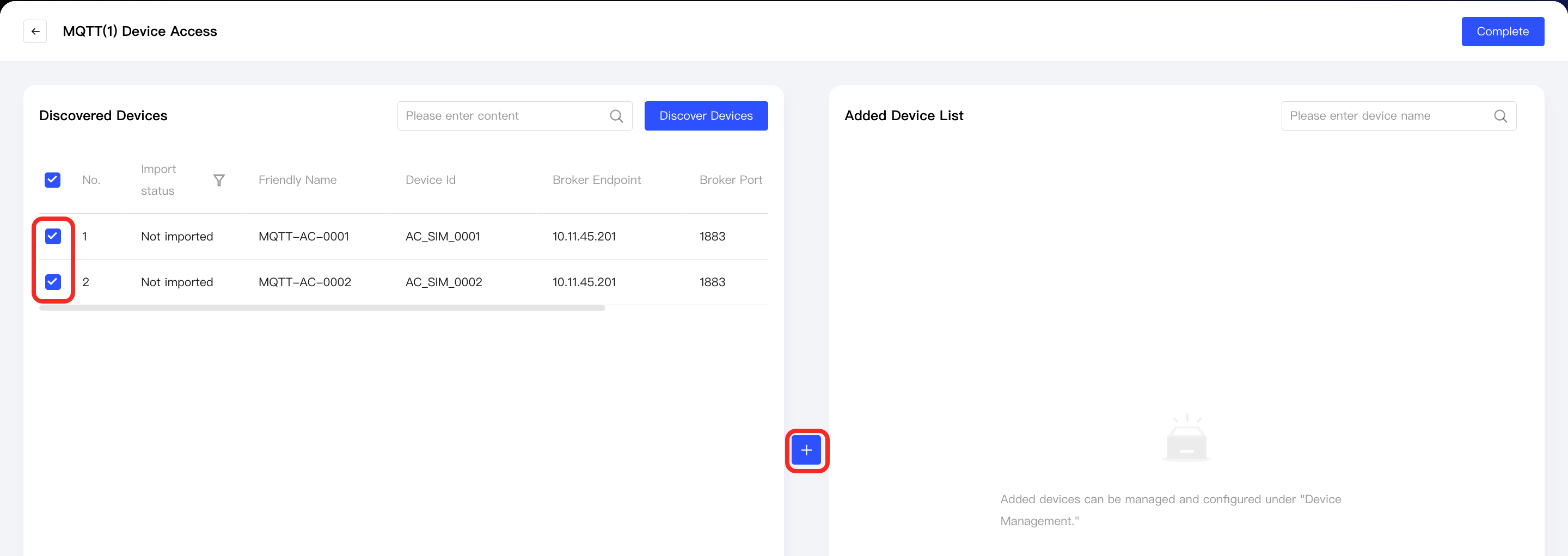
Newly added devices will appear in the Added Device List on the right. Click the Complete button to exit the add device process.
-
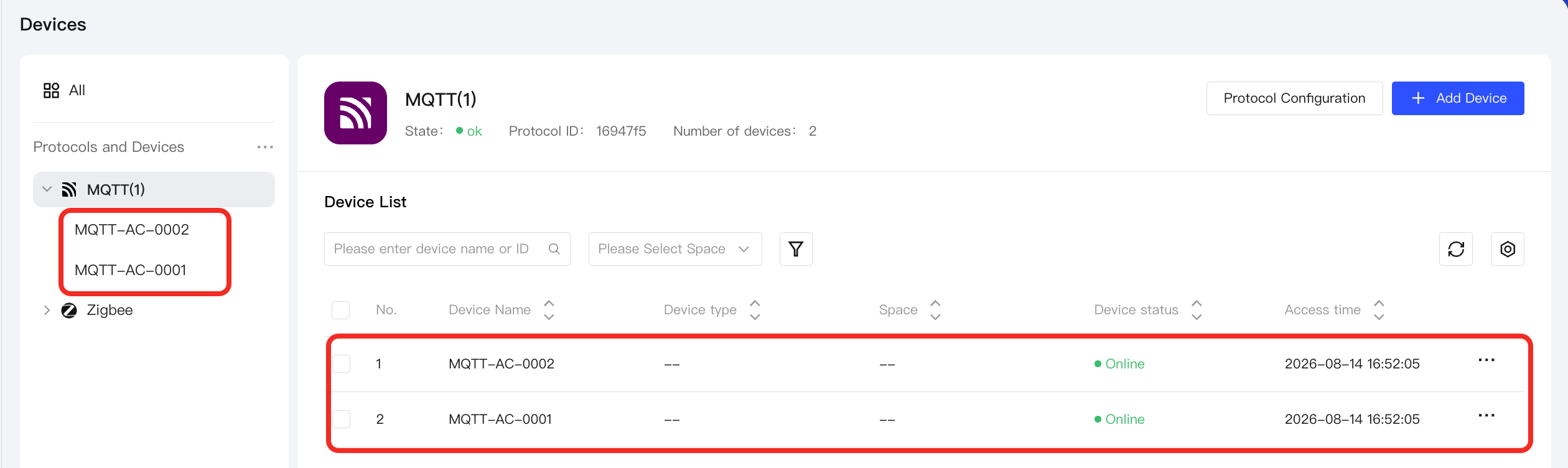
You will then see the successfully added devices under the MQTT node in the left Protocols and Devices panel, as well as in the device list on the MQTT management page.
Add Points
-
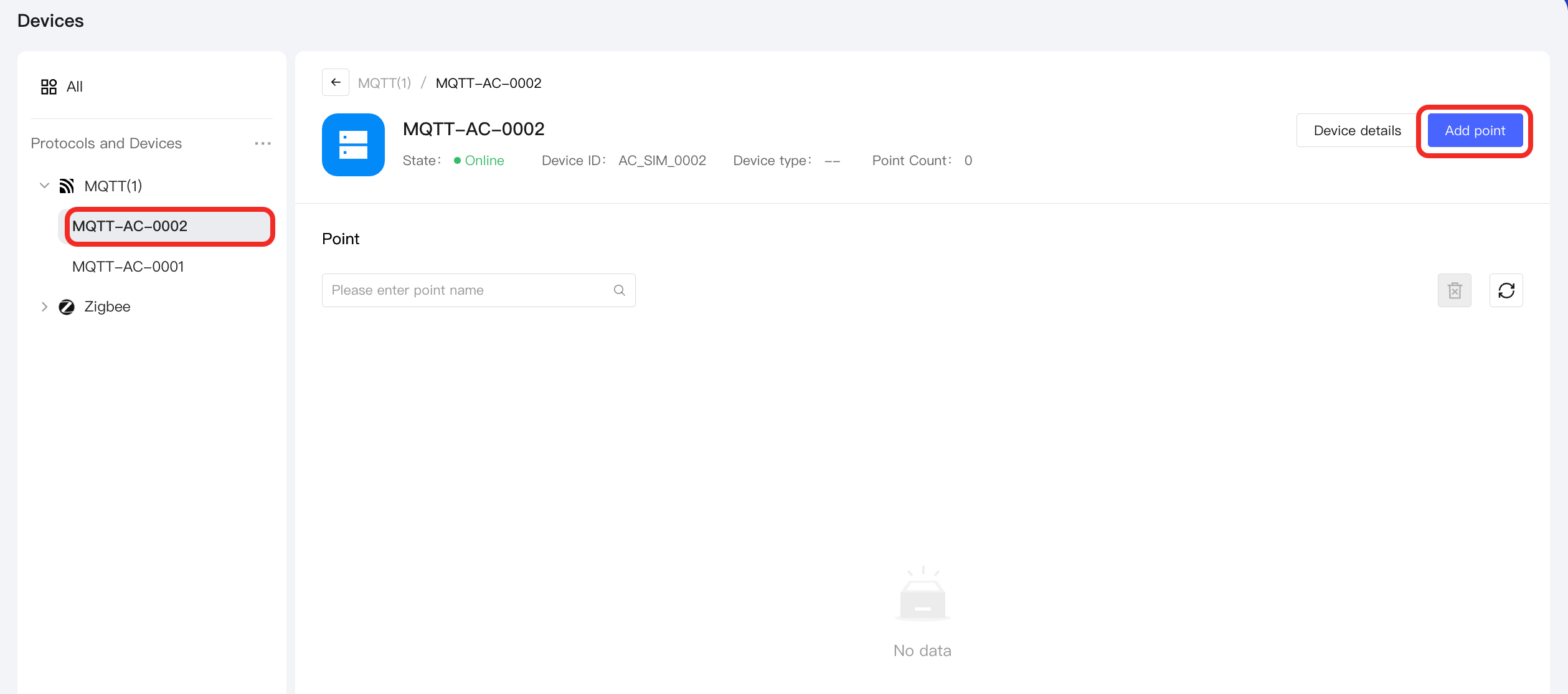
Under the MQTT node, select an MQTT device and click the Add Point button.
-
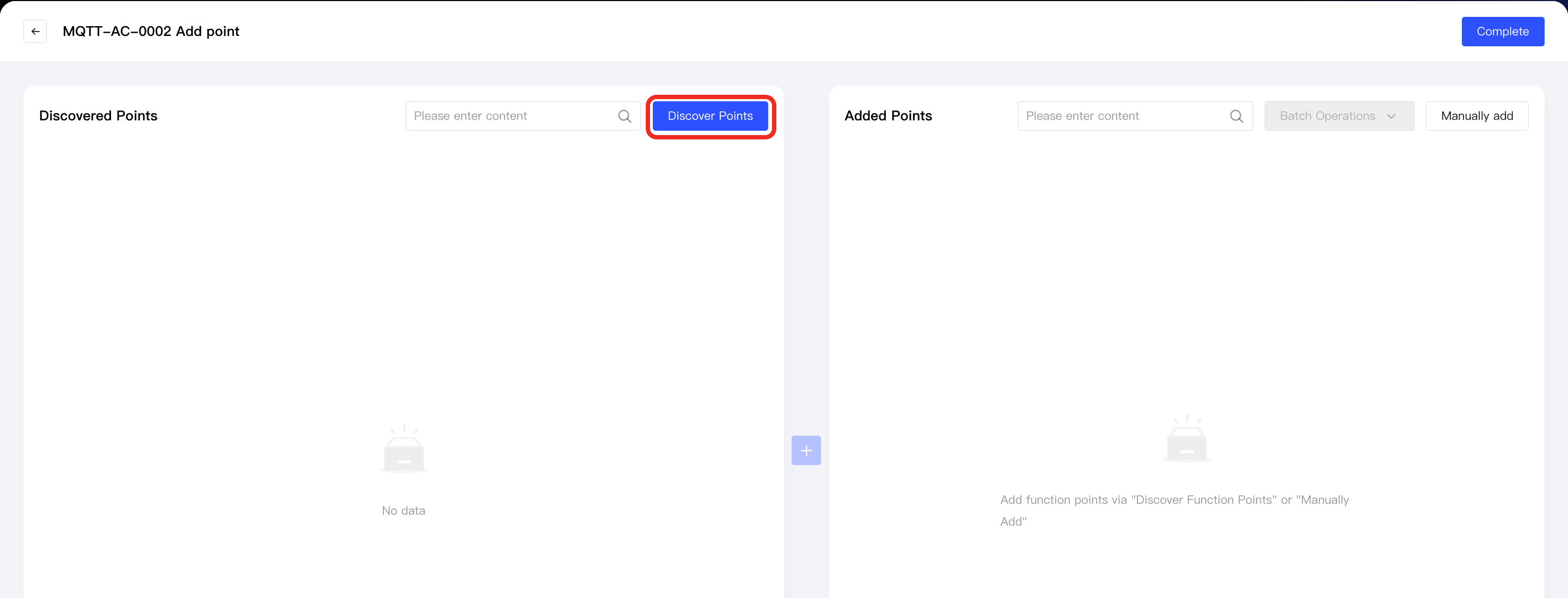
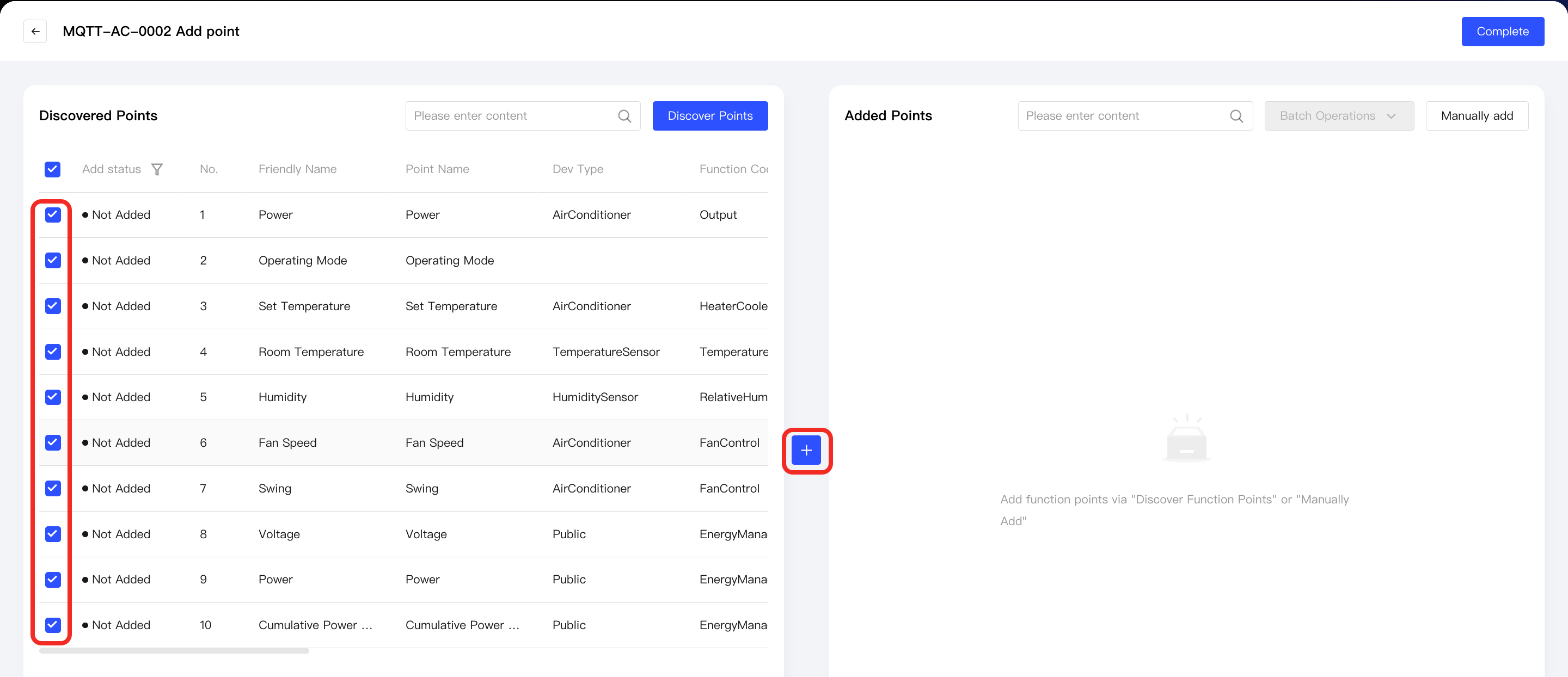
Click the Discover Points button.
-
In the Discovered Points list, check the required points and click the middle + button.
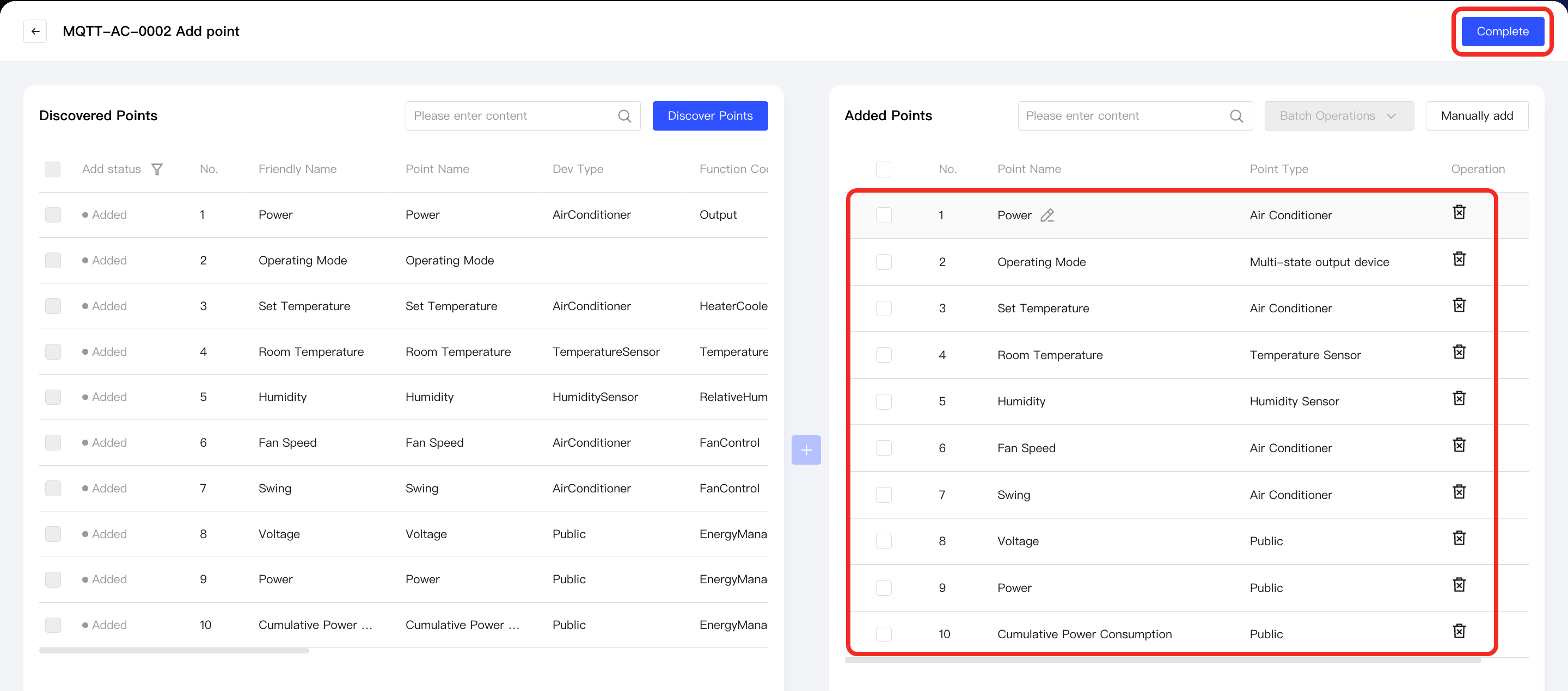
Newly added points will appear in the Added Points list on the right. Click the Complete button to exit the add points process.
-
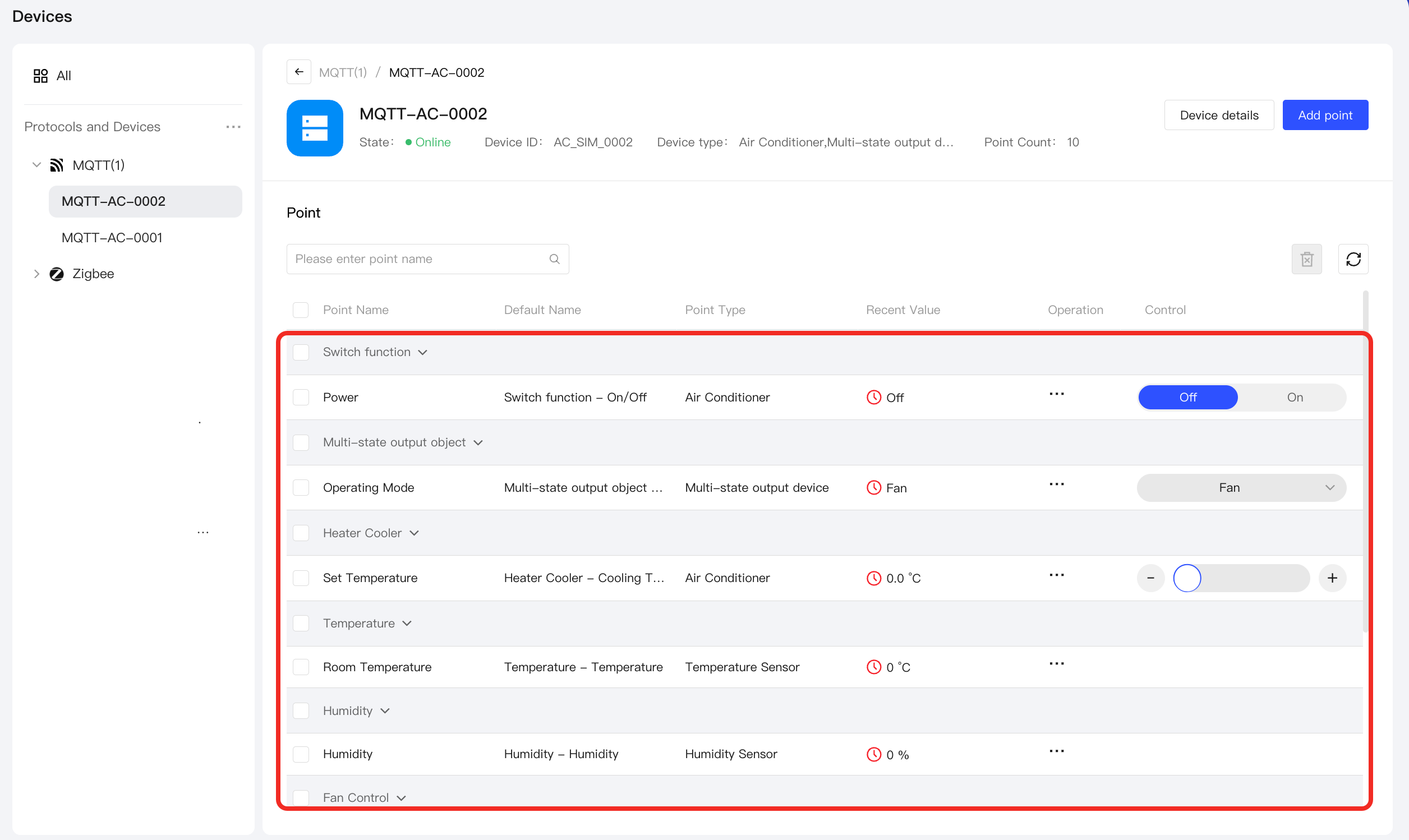
You will then see the successfully added points on the management page of that MQTT device.
Next Steps
Now, you can view details and control the device, or use the device in automation.
FAQ
How to Handle MQTT Device Data Points Not Discovered by Aqara Studio
If Aqara Studio does not detect the data points you need, please go to the "Add Point" page and click the "Manually Add" button. In the popup, enter the required parameters to manually add the point.
Detailed parameter descriptions are as follows:
| Parameter | Required | Description |
|---|---|---|
| Friendly Name | ✔ | Data point ID. Please consult the device manufacturer for the real ID, so Aqara Studio can discover the point. |
| Point Name | ✘ | Custom name for the data point. |
| Dev Type | ✘ | Corresponds to deviceType in the Aqara Data Model Specification. Fill this in when defining points based on Aqara Spec. For available values, see Device Types. |
| Function Code | ✘ | Corresponds to functionCode in the Aqara Data Model Specification. Fill this in when defining points based on Aqara Spec. For available values, see Function Codes. |
| Trait Code | ✘ | Corresponds to traitCode in the Aqara Data Model Specification. Fill this in when defining points based on Aqara Spec. For available values, see Trait Codes. |
| Data Type | ✘ | Data point type. Supported values:
|
| Access | ✘ | Access type:
|
| Sub Topic | ✘ | Topic that Aqara Studio subscribes to for the latest data for this point. Please fill in according to the device protocol or manufacturer documentation. |
| Pub Topic | ✘ | Topic used by Aqara Studio to send messages to control this point. Please fill in according to the device protocol or manufacturer documentation. (For read-only points, leave this blank) |