Home Assistant
Aqara Studio supports connecting IoT devices from the Home Assistant ecosystem. Currently, only device types that follow the Aqara device specification are supported.
Prerequisites
Before you begin, make sure that:
- Your Home Assistant ecosystem devices, your computer, and Aqara Studio are all connected to the same local network.
- You have completed the following Home Assistant basic setup:
- Home Assistant is installed. Refer to the official Home Assistant Installation guide for details.
- Devices in the Home Assistant ecosystem have been discovered and integrated. For details, see the Onboarding documentation.
How to Get a Home Assistant Token
- In your web browser, visit:
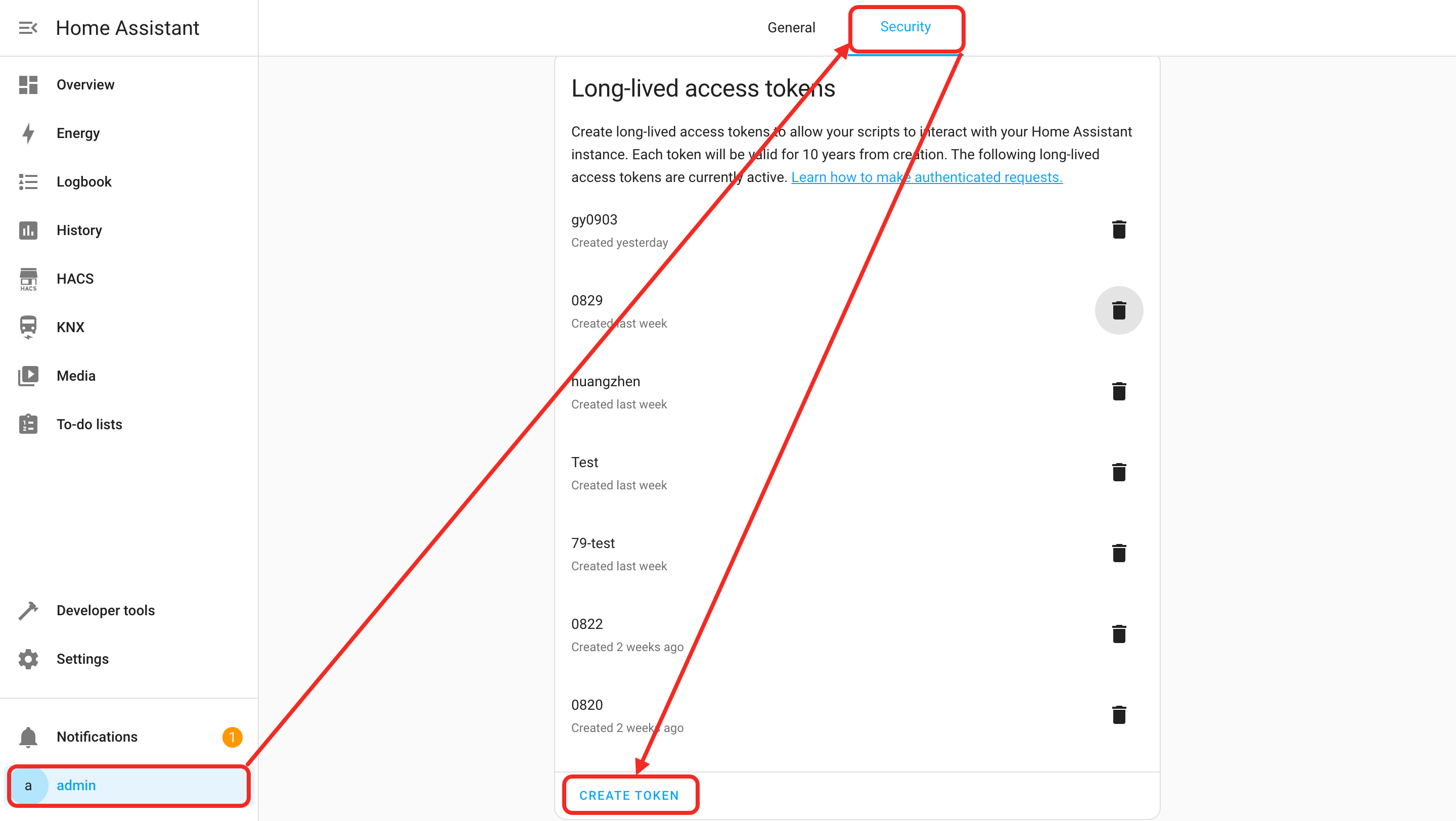
http://homeassistant.local:8123. (If you have changed the Home Assistant port, use your actual port here.) - Click your account icon at the bottom right of the page to enter your profile.
- In your profile, click the "Security" tab. Find "Long-Lived Access Tokens" and click "Create Token". This will generate a Home Assistant token, which you will use to add Home Assistant ecosystem devices in Aqara Studio.
Add Home Assistant Ecosystem Devices
- In the left sidebar, click to enter the Devices page. In the device tree on the left, click the "+" button.
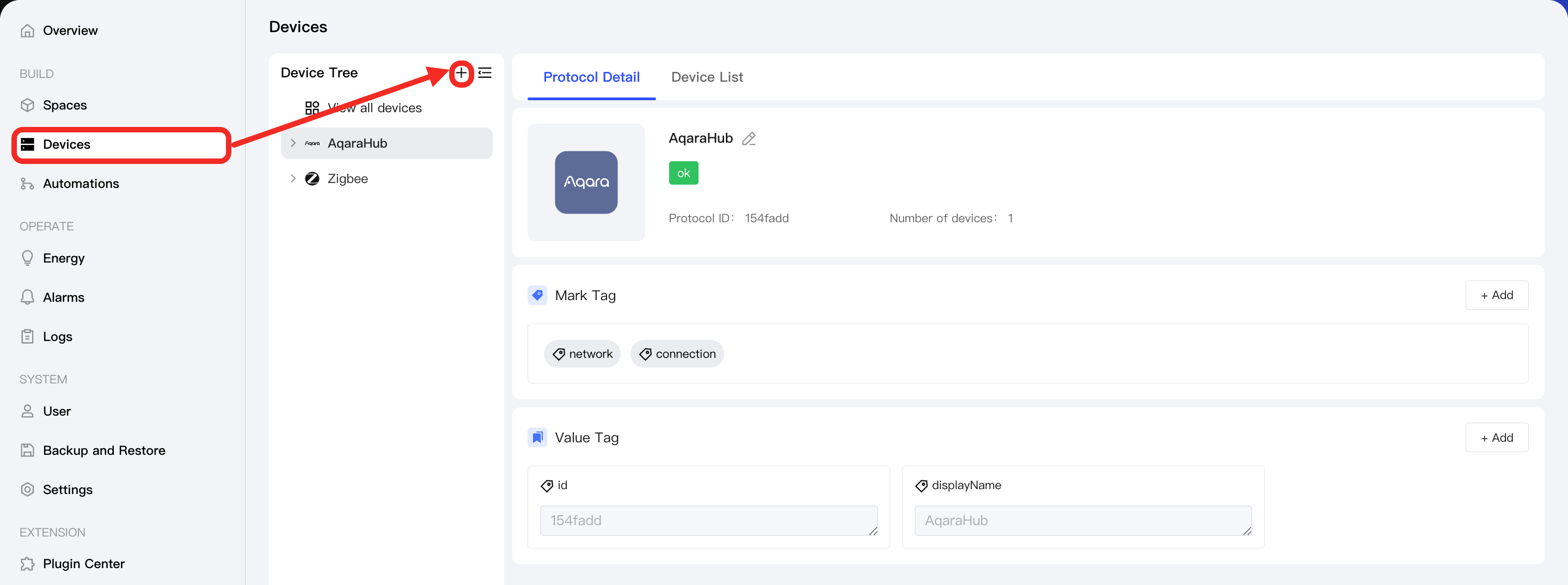
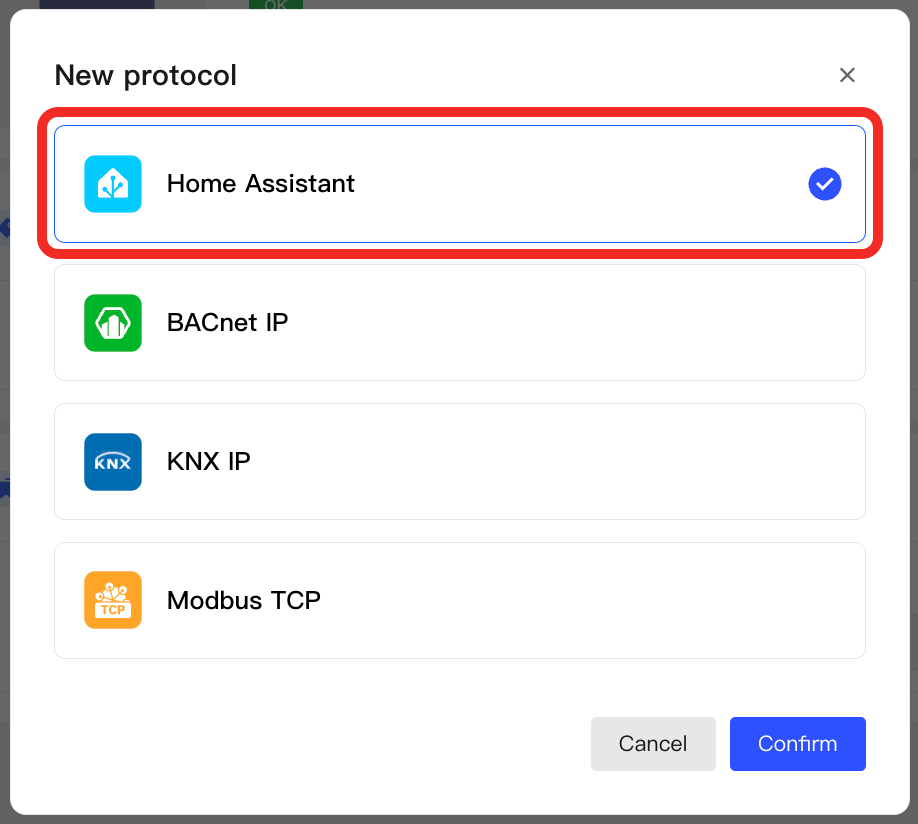
- In the popup, select
Home Assistantto add theHome Assistant.
- Select the
Home Assistantfolder to enter the Home Assistant management page. - Go to the Protocol Configuration tab. In "Basic Configuration", type in the local IP address, port, and the token of your Home Assistant system.

- Go to the
Add Devicetab and click the "Discover Devices" button. Aqara Studio will automatically find devices from your Home Assistant.
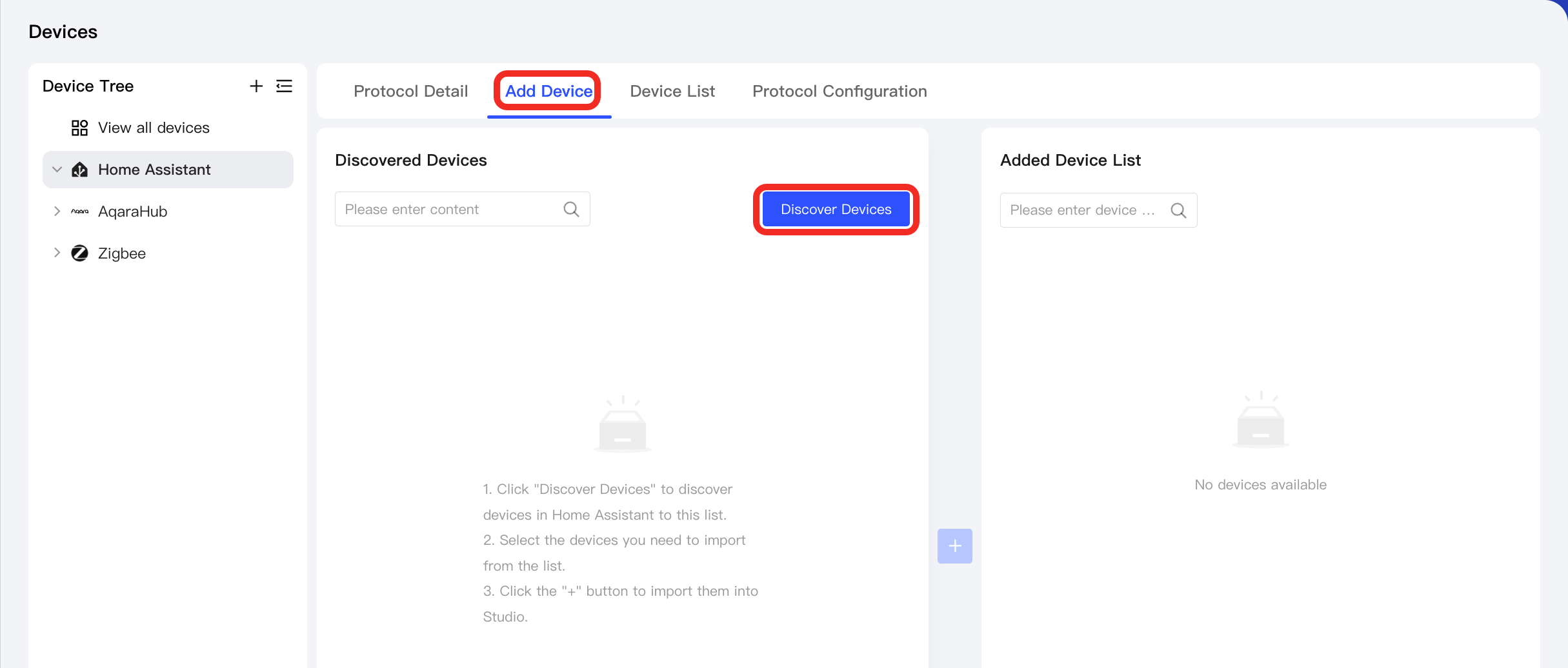
- After selecting the devices you wish to add, click the "+" button in the center. The newly added devices will appear in the Added Device List on the right, and will also be visible under Home Assistant on the left device tree.
Supported Device Types
- Light
- Media Player
- Vacuum
- Switch
- Climate
- Select
- Binary Sensor
- Lock
- Sensor
- FlowSensor
- AirQualitySensor
- TemperatureSensor
- PressureSensor
- ParticulateMatterSensor (PM1, PM2.5, PM10)
- IlluminanceSensor
- HumiditySensor
- NaturalGasAlarm
- CO2Sensor
- AtmosphericPressureSensor
Next Steps
Now, you can view details and control the device, or use the device in automation.