View and Control Function Points
This article explains how to view and operate device function points in Aqara Studio. You will learn how to check real-time status and control devices by writing function point fields.
Steps
-
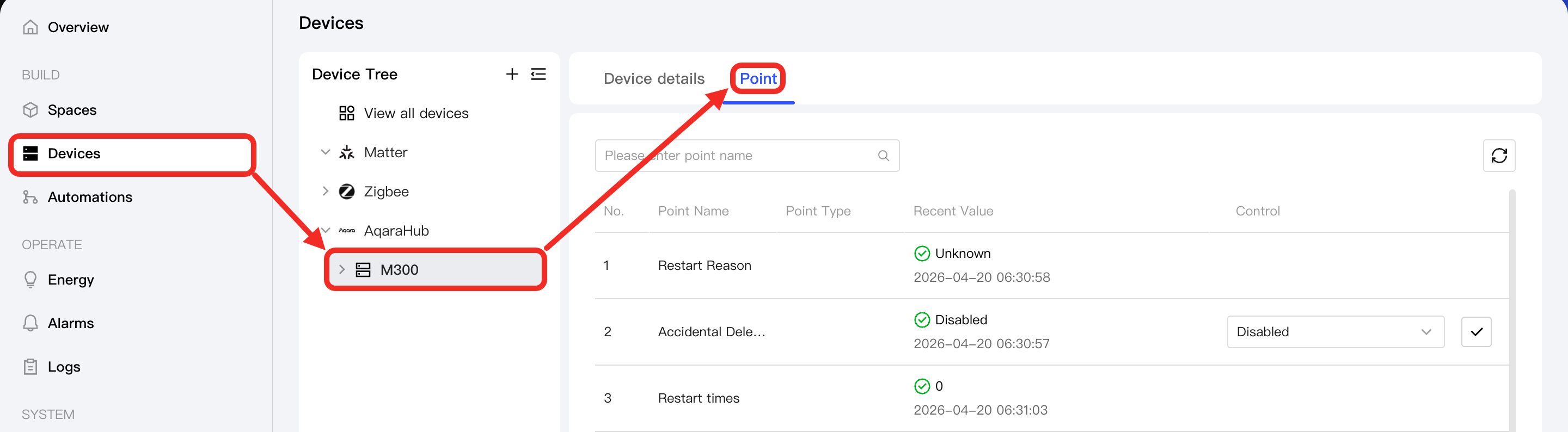
Go to the Devices page and find the device you want to view in the device tree on the left.
-
Select the device to open its management page.
-
Switch to the "Point" tab. Here, you will see a list of function points, with each point representing a field or status of the device. From this list, you can view the following fields:
Field Description Point Name The name of the function point. Point Type The category the function point belongs to. The editability of this filed varies based on the device protocol: - Aqara and Home Assistant ecosystem devices: not editable.
- BACnet IP, KNX IP, and Modbus TCP devices: editable.
Recent Value The most recent real-time value of the function point. Value Status The status of the current value. Possible values: - Disable: This function point is disabled.
- Fault: There is a configuration error in the device or function point.
- Down: Network issue causing offline status.
- Alarm: The current value has triggered an alarm.
- Unacked Alarm: The user hasn't acknowledged an alarm.
- Expired: Latest value for the device or point is not available.
- Unknown: Unknown status.
- Normal
Control For writable function points, you can set fields or perform operations such as switching on or off directly here. Once configured successfully, the Recent Valuewill be automatically updated to reflect the new status.