Data Export by MQTT
Aqara Studio comes with a built-in MQTT broker. This lets you export device data using the MQTT protocol, so third-party platforms can easily access and control all connected devices.
This guide will show you how to connect to MQTT and send/receive messages using the MQTTX desktop app.
Prerequisites
Before you begin, please download and install the MQTTX desktop app.
Steps
-
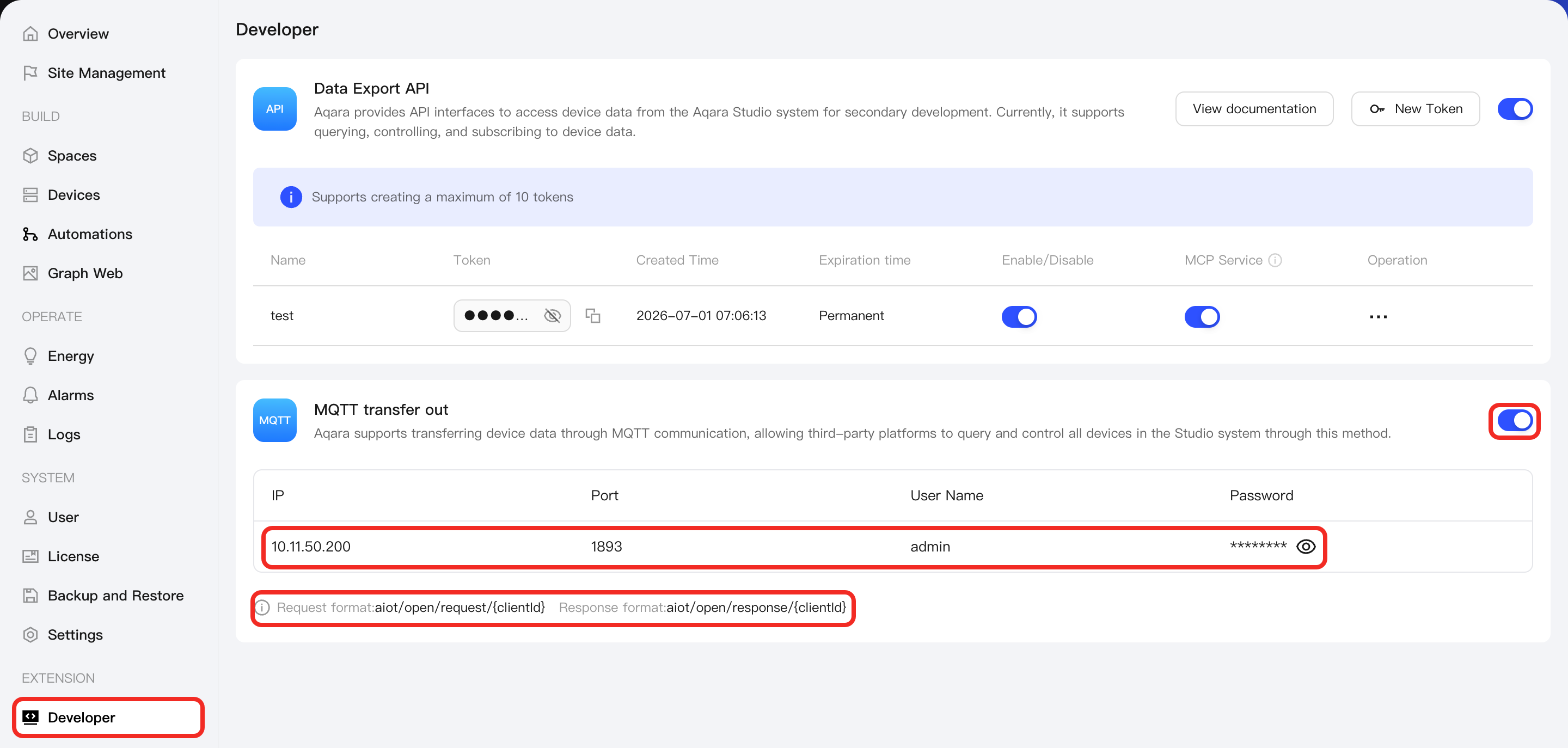
In the left sidebar of Aqara Studio, go to Developer and enable the MQTT transfer out service.
You will then see all the information needed to connect to MQTT (such as local IP, MQTT port, username, password), as well as the formats for request and response topics.
-
Follow the official MQTTX doc Getting Started - Connect, and use the information from the previous step to make the MQTT connection.

-
After you connect, click the New Subscription button. Use the Response Topic Format shown in Aqara Studio. Replace the ClientID in the topic with the actual ClientID automatically generated by MQTTX to subscribe for response messages.

-
Now, for the subscription you just made, copy the Request Topic Format shown in Aqara Studio, replacing the ClientID with your real MQTTX ClientID. Paste this into the Topic field. Then, write a JSON message (based on the parameters in the Studio API) and send it. You'll get a response back.
Here’s an example of sending a request to query the device information by pages:

And here’s what a sample response looks like:
