Use Aqara Studio Skill in OpenClaw Web UI
Overview
Aqara provides an OpenClaw skill for integrating Aqara Studio capabilities. Once installed, you can achieve the following in the OpenClaw Web UI:
- List devices, count the number of devices, read device status, and control devices;
- List spaces, create or rename spaces, and move devices between spaces;
- Create automations, view automations, update automation configurations, enable or disable automations, and delete automations.
The entire process requires no coding. You only need to configure the necessary information, making it easy to comprehensively manage Aqara devices and bringing great convenience to your smart space management.
Install the Skill
-
Install the Aqara OpenAPI Local Skill for your OpenClaw. For example, you can directly enter
Install Aqara OpenAPI Local Skillin the input box, and the Assistant will start installing the Skill. -
After installation, click Skills on the left sidebar. If you see
aqara-open-api-locallisted under WORKSPACE SKILLS, the installation was successful.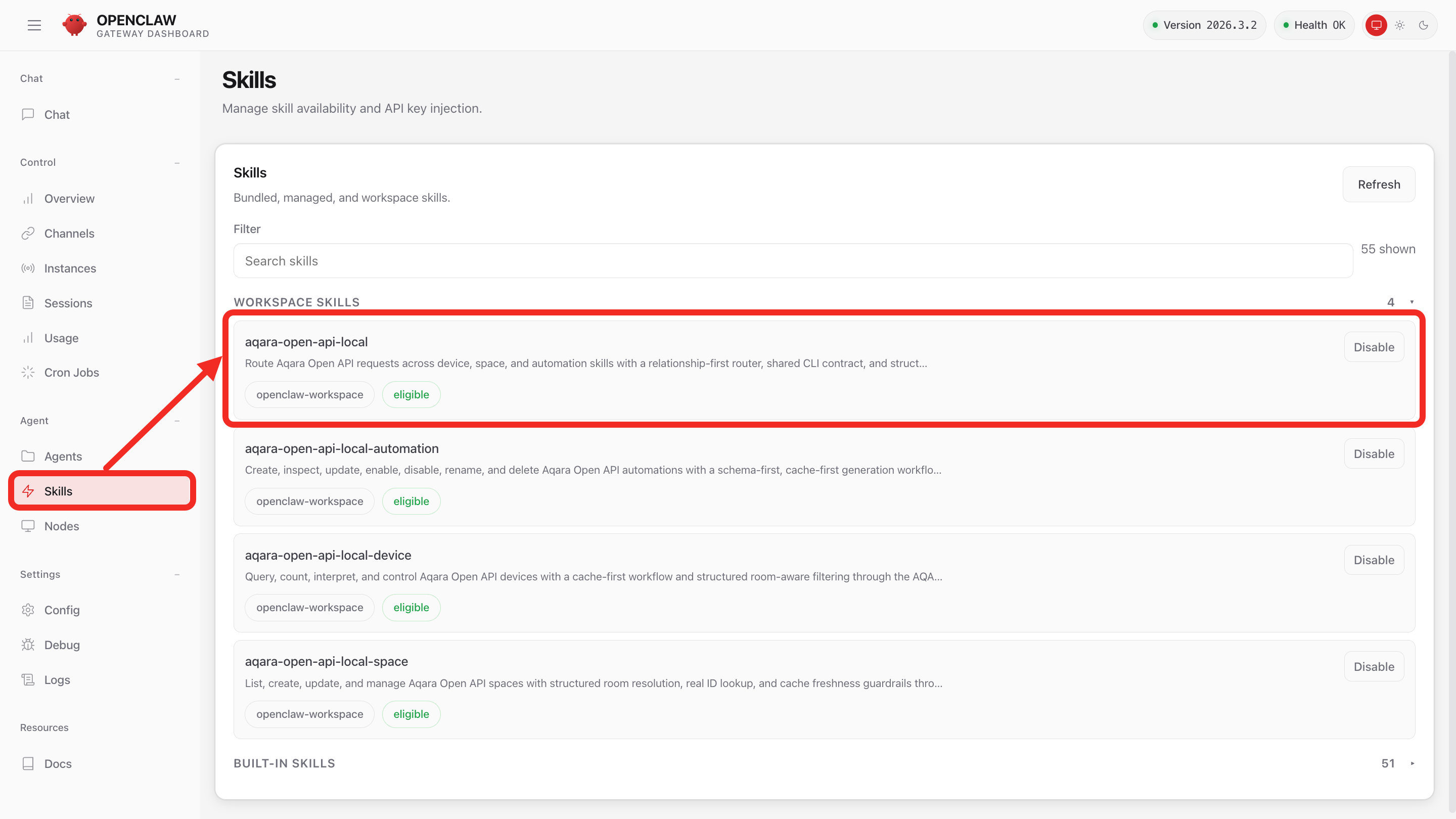
Configure the Skill
-
After installation, the Assistant will prompt you to provide
AQARA_ENDPOINT_URLandAQARA_OPEN_API_TOKENfor authentication.tipAQARA_ENDPOINT_URLis the HTTP Request URL of Aqara Studio, usually ending with/open/api/v1. The format is as follows:- Remote access disabled:
http://<Aqara_Studio_local_LAN_IP>/open/api/v1 - Remote access enabled:
https://<Aqara_Studio_remote_access_address>/open/api/v1
- Remote access disabled:
AQARA_OPEN_API_TOKENis the token used for authentication in Aqara Studio.
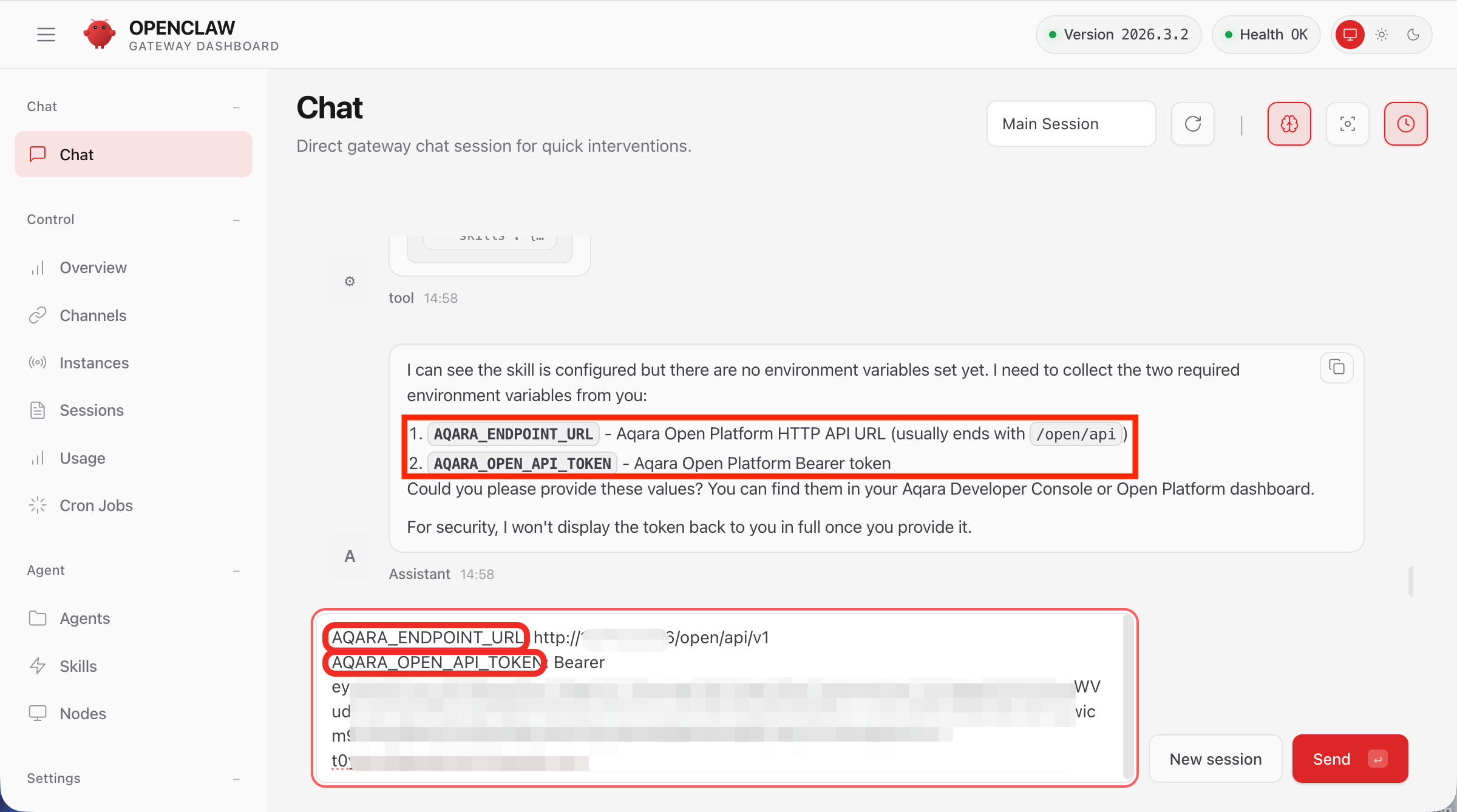
After submitting the above information, OpenClaw will automatically complete the required configuration.
-
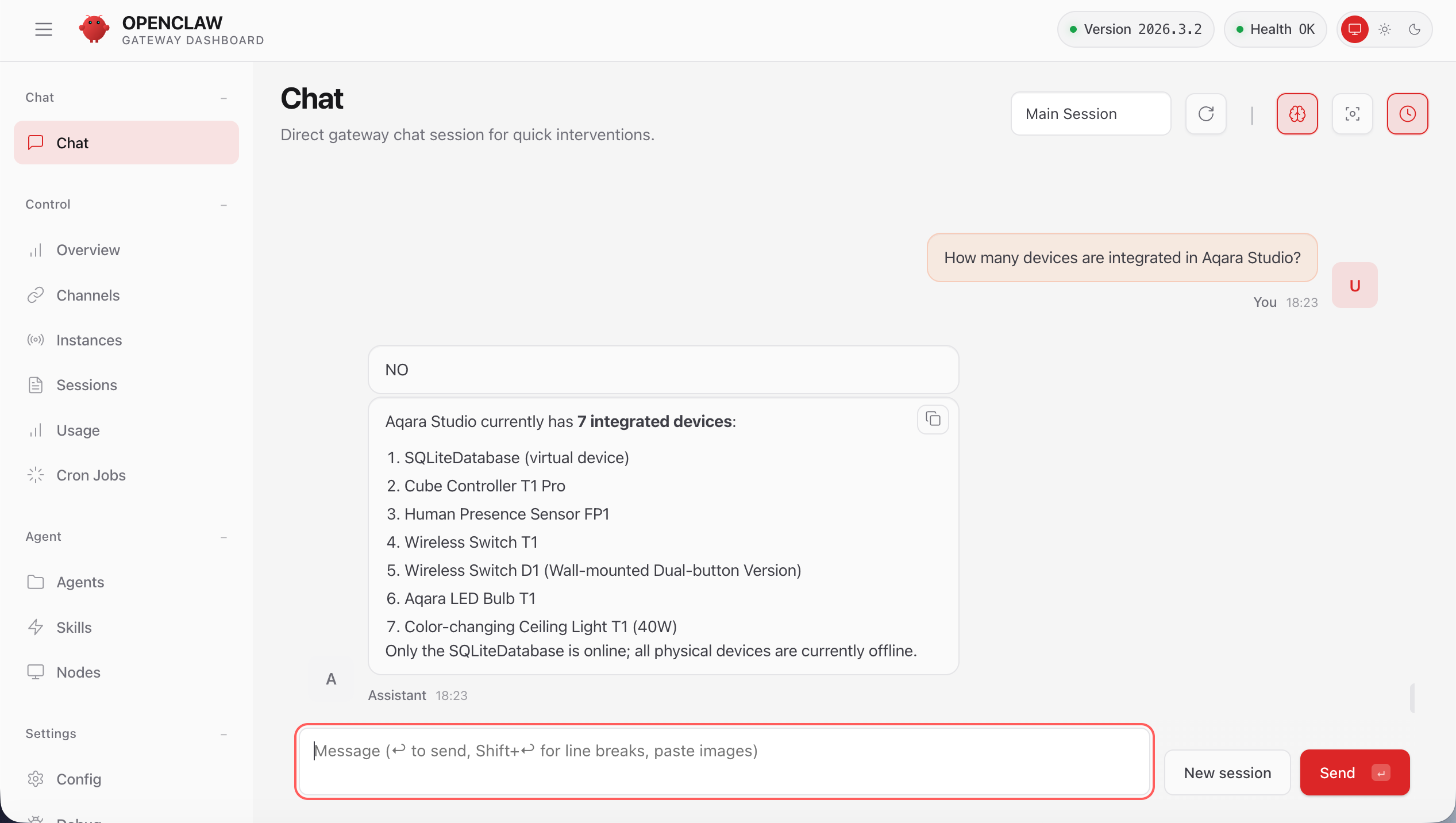
After the service is successfully configured, you can now view and manage all devices connected to Aqara Studio in real time through OpenClaw, achieving efficient device monitoring and convenient control.
For example, you can ask the assistant: How many devices are integrated in Aqara Studio?
FAQ
How to check the entered AQARA_ENDPOINT_URL and AQARA_OPEN_API_TOKEN?
-
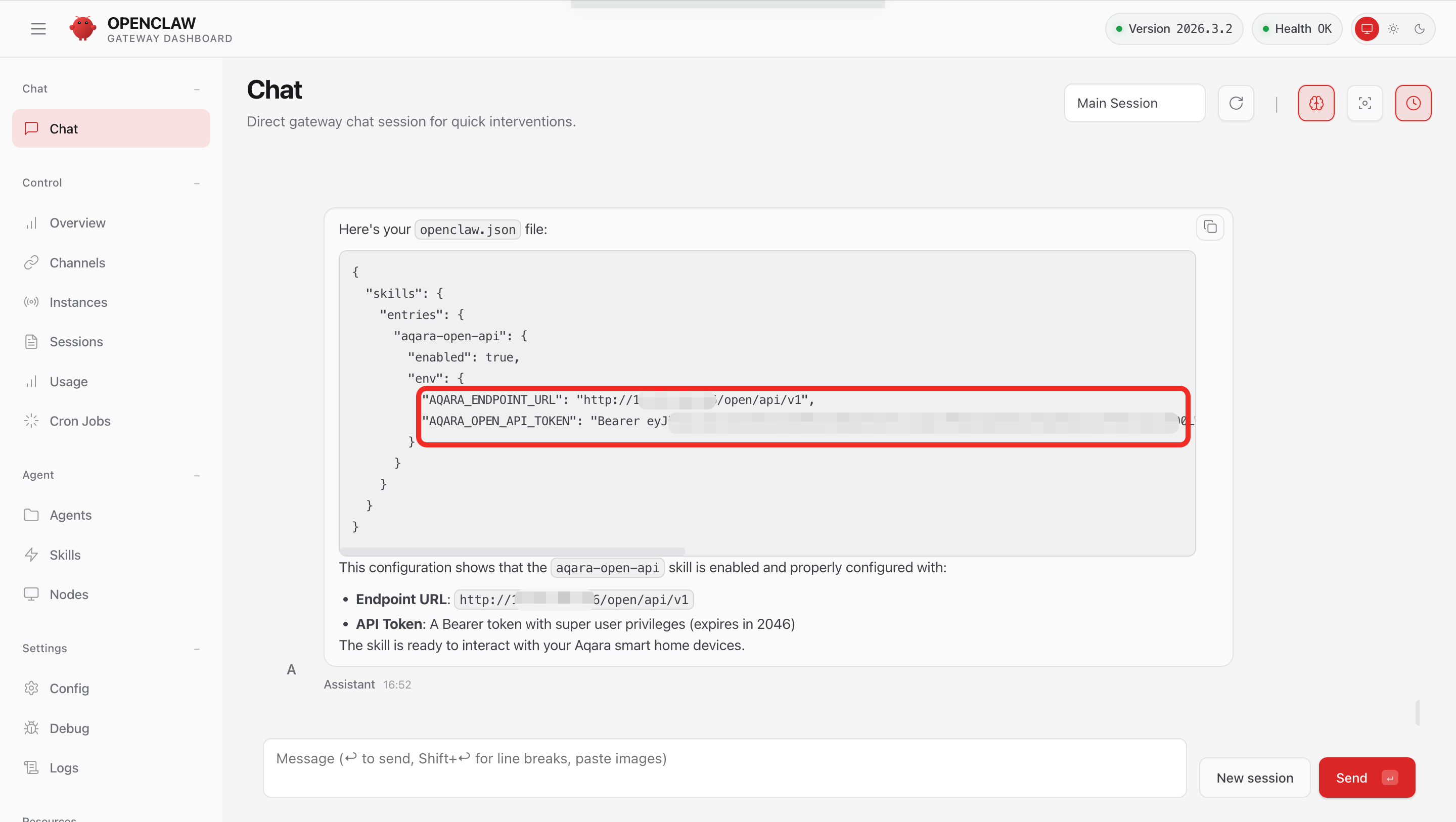
In the Chat session, ask the Assistant to output the openclaw.json file.
Output the openclaw.json file -
The Assistant will display the contents of the openclaw.json file in the chat window. You can find the configured
AQARA_ENDPOINT_URLandAQARA_OPEN_API_TOKENthere.