Backup and Restore
Aqara Studio supports backing up user data, helping you quickly recover operations and ensure data security by restoring backup data in the event of service failures or operational errors.
Backup Data
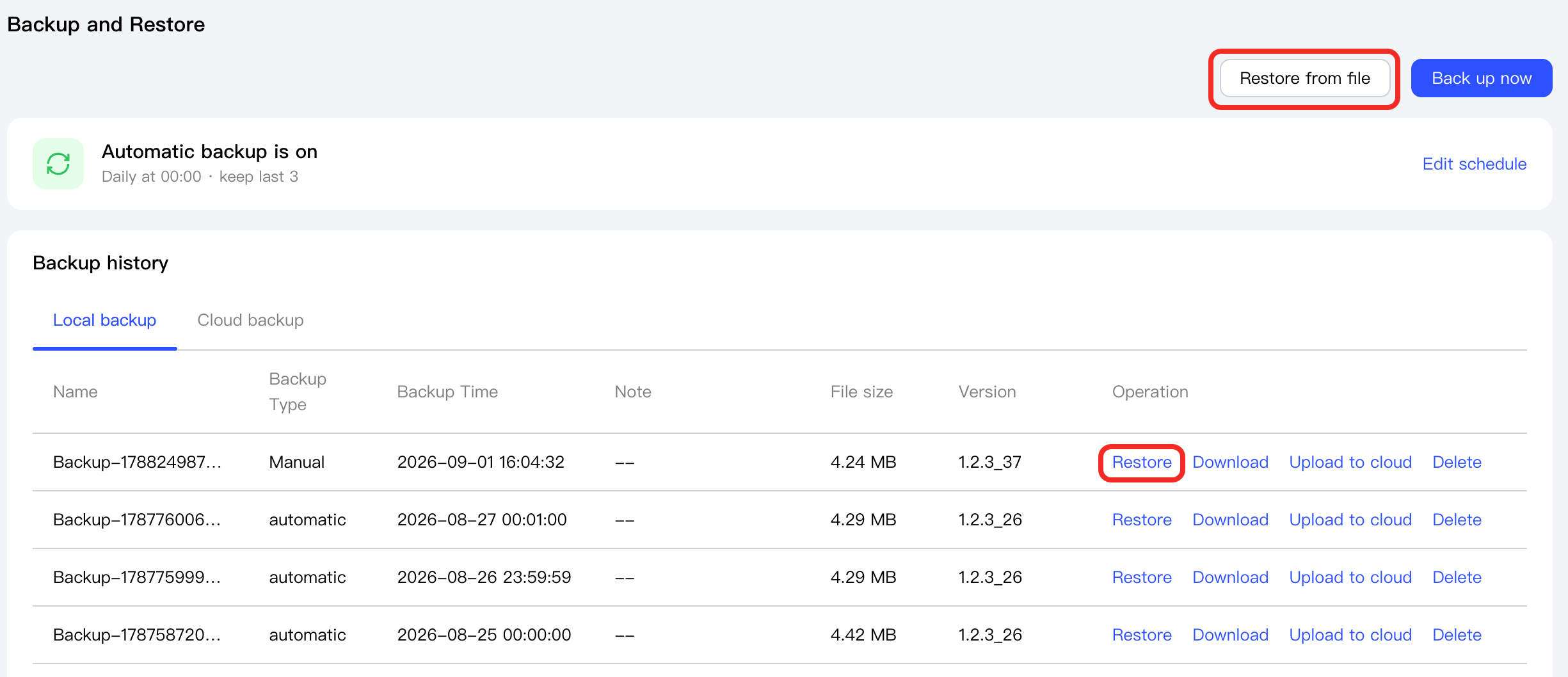
Navigate to the Backup and Restore page from the sidebar to start backup and manage backups.
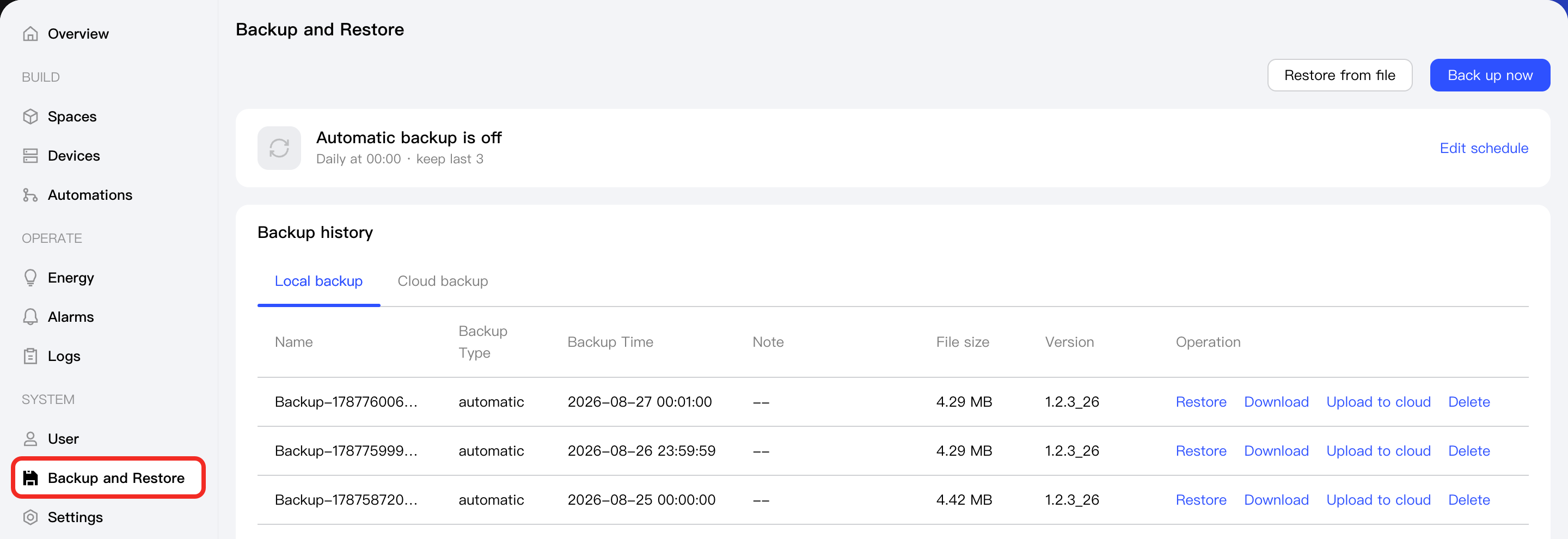
Start Backup
Aqara Studio uses a full backup mechanism that completely backs up user data. You can use two methods to back up: automatic backup and manual backup.
Automatic Backup
You can set up a backup interval, and the system will automatically create backups according to this schedule.
-
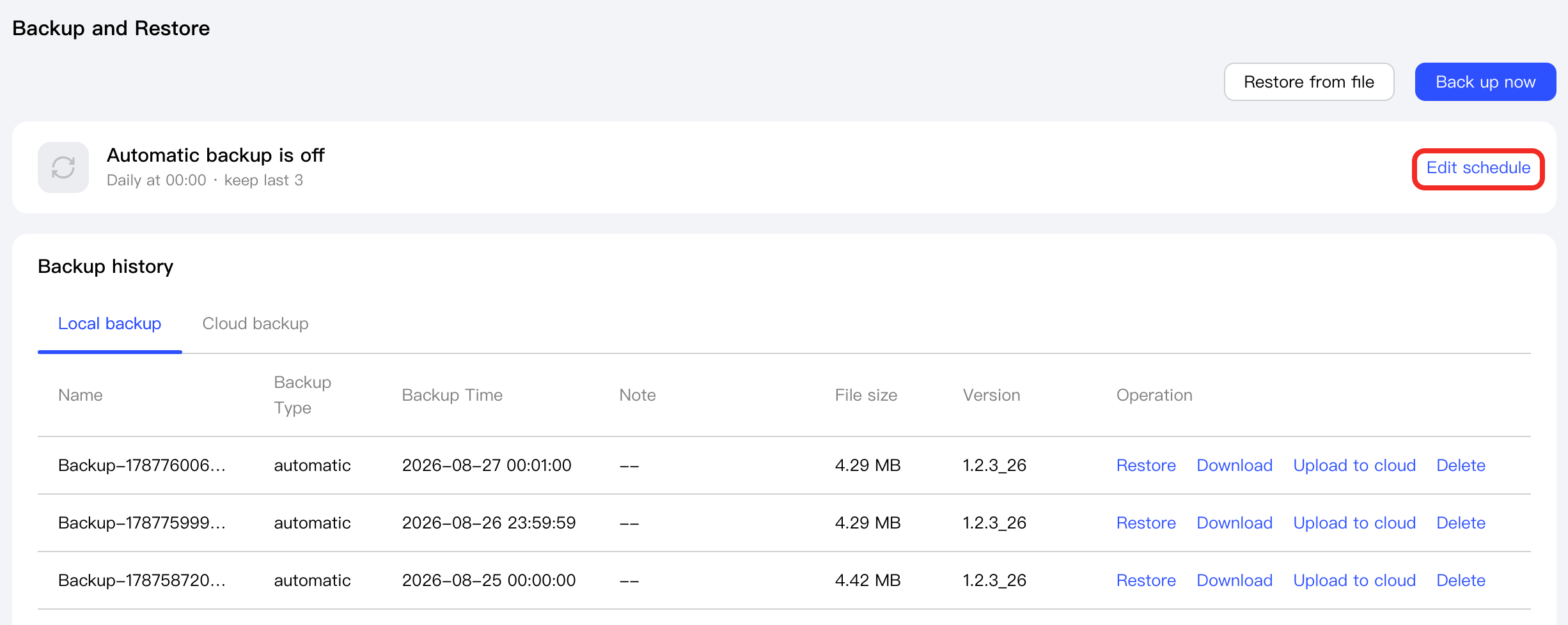
Click the Edit Schedule button.
-
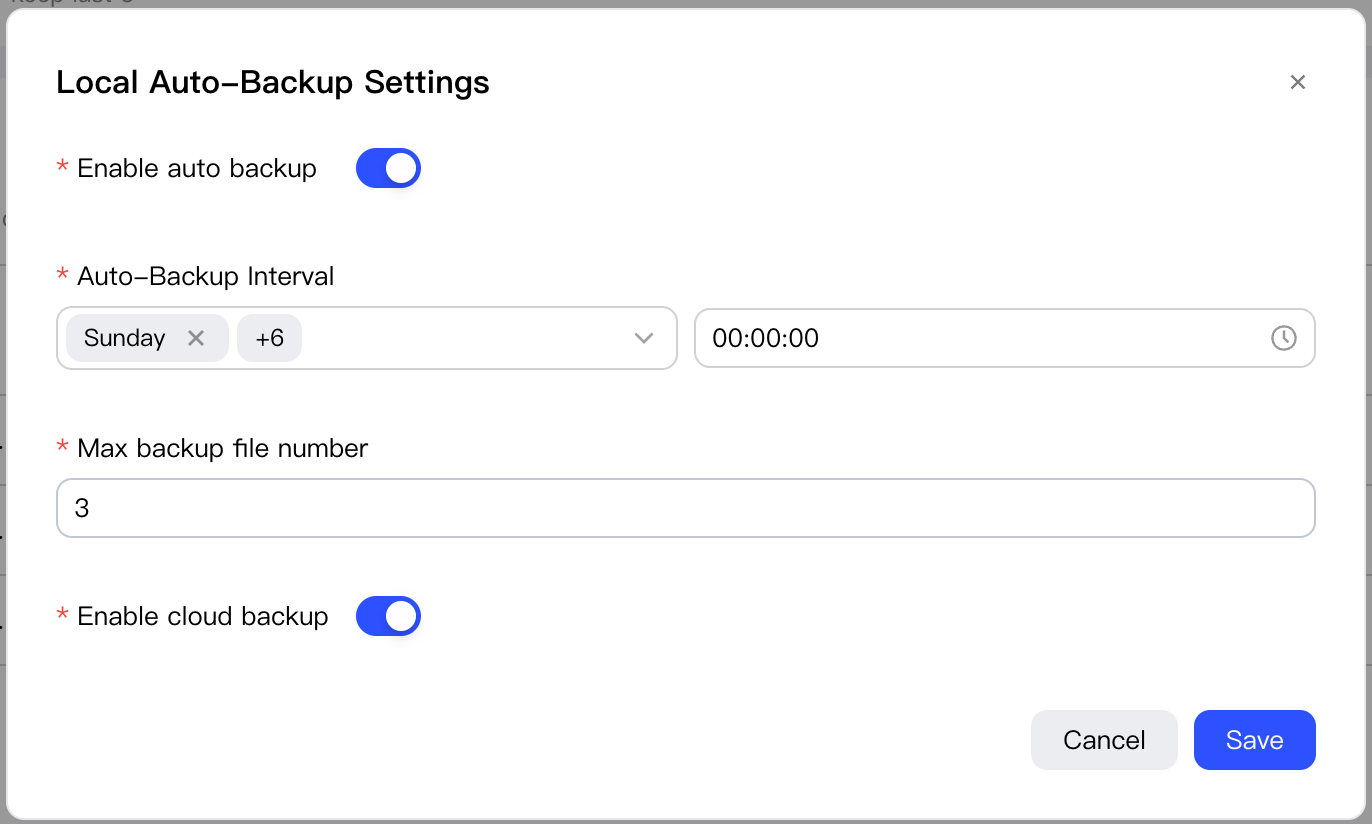
In the popup window, configure the following parameters:
- Enable automatic backup.
- Set the dates and time for automatic backups.
- Set the maximum number of automatic backup files allowed.
- Depending on whether you want to upload backup files to Aqara Cloud, choose whether to enable Cloud Backup.
- Click the Save button to complete the configuration.
Manual Backup
Click the Back up now button to instantly perform manual backup.

Manage Backups
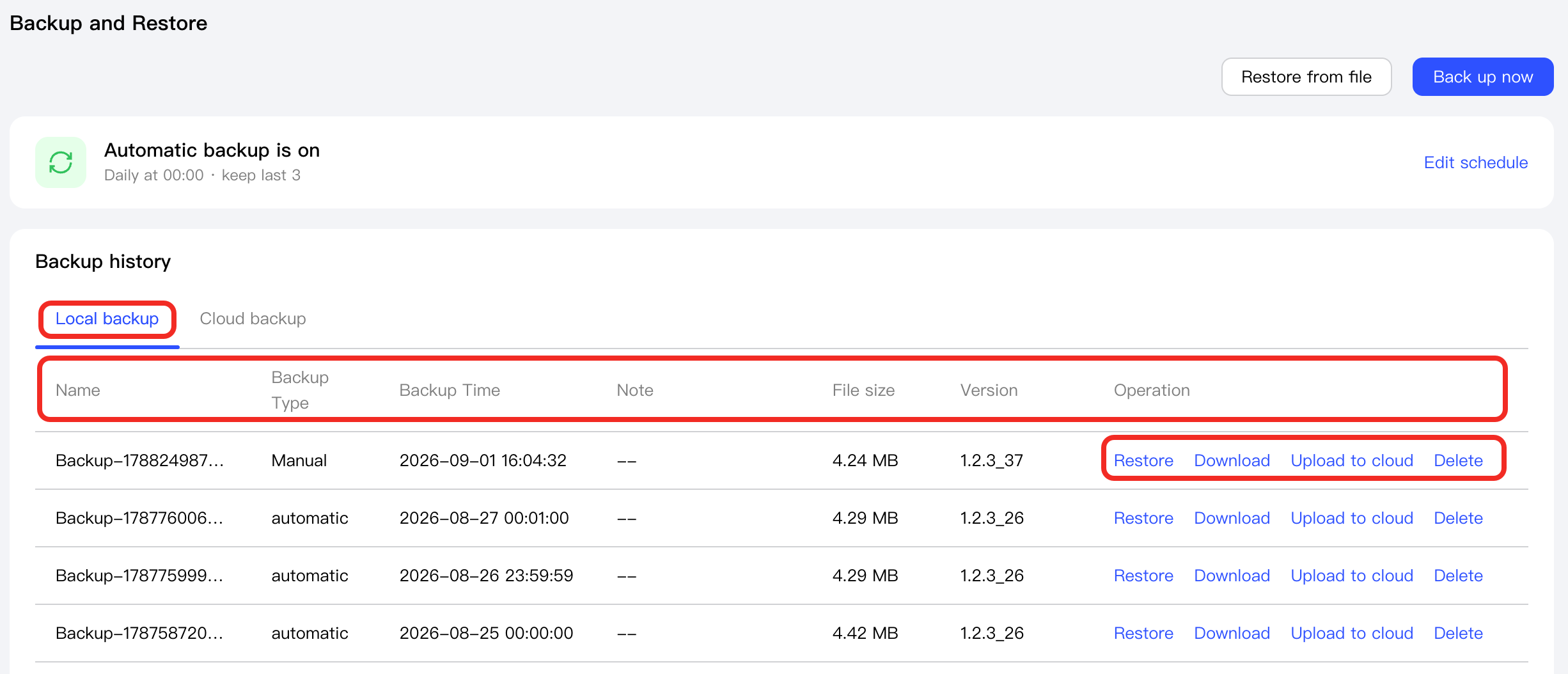
After a backup is successfully created, you can view detailed information about it (including name, backup type, backup time, remarks, file size, and Aqara Studio version) in the Local backup tab under Backup history.
The Aqara Studio version information is used only to indicate the software version at the time of backup creation; it does not mean that restoring from this backup will revert Aqara Studio itself to that version.
Additionally, you can perform the following operations on each backup:
- Restore: Restore your current system data with this backup.
- Download: Download this backup to your local device for management.
- Upload to Cloud: Upload this backup to Aqara Cloud.
- Delete: Delete this backup.
Restore Data
- Restoring data will cause the system to reboot and log out the current account. Be sure to save all important data before proceeding!
- Backups only save Aqara Studio's local data and do not include information related to cloud connections. Therefore, after restoring data, Aqara Studio will be unlinked from Aqara Cloud, and user data generated from binding Aqara Builder will be deleted; you will need to re-bind, but operation logs for those users will be retained and not affected.
You can restore user data using either of the following methods:
- In the Backup history, select any backup file and click "Restore" to restore data from that backup.
- Click the Restore from file button to select any backup file from your computer to restore.
FAQ
Can Aqara Studio backups be migrated and restored across different Edge Hub M300 devices?
Yes, but please ensure that both Aqara Studio versions of the source and target M300 are 1.2.3_37 or later.
The steps are as follows:
-
Access Aqara Studio on the source M300 device and download the backup file to your computer.
-
Power off the source M300 or perform a factory reset to prevent the target M300 from failing to connect to sub-devices later.
-
Access Aqara Studio on the target M300, and use the Restore from file feature to import the previously downloaded backup file into the target M300. This will complete the data migration.
After import, the target M300 will be able to fully access all data from the source M300 (including device information, automation configurations, etc.), and you will be able to control the original sub-devices directly without re-adding them.
To prevent the same sub-device from being managed by two M300 devices simultaneously, which could cause device status anomalies or intermittent loss of control. Make sure to keep the source M300 powered off after the target M300 has successfully connected and is able to control the sub-devices.
If you need to power on the source M300 again, please perform a factory reset first, and avoid using the same backup file to restore data in the future to ensure proper device operation.