Matter
This document is only applicable to the hub-integrated model of Aqara Studio.
This document explains how to connect Matter devices to Aqara Studio.
Aqara Studio supports the integration of Matter devices from Aqara and third-party brands.
Process
-
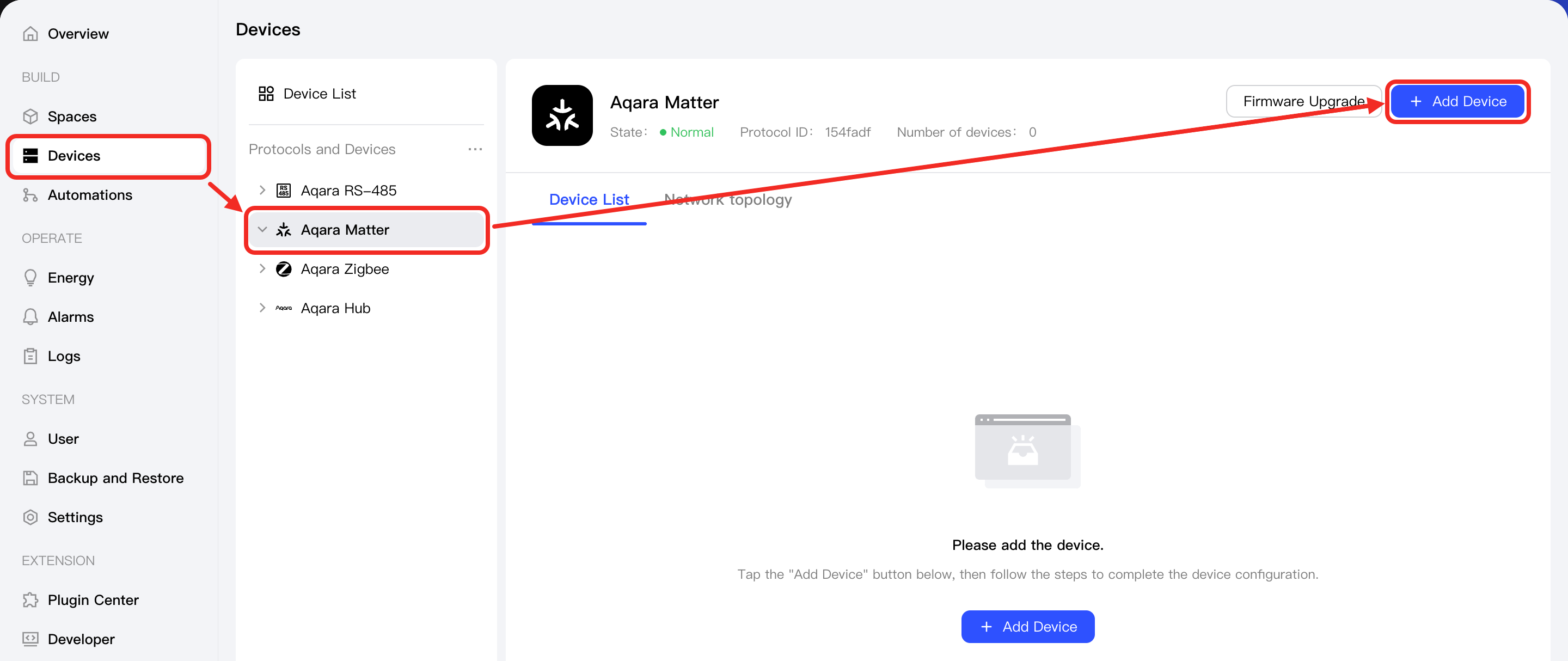
In the left sidebar, click to enter the Devices page. Select
Matterto open the management page, and click the Add Device button.
-
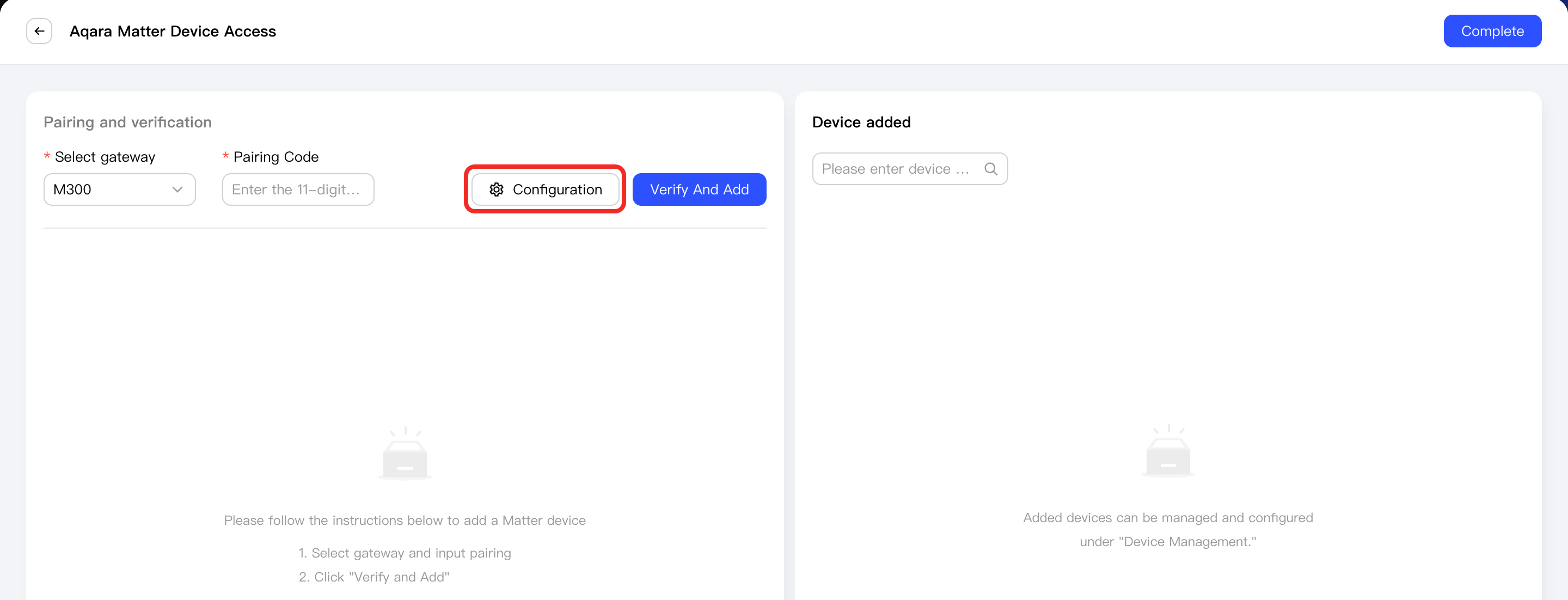
Click the Configuration button. In the pop-up window, enter the Wi-Fi information required for the sub-device to connect, and save the settings.
-
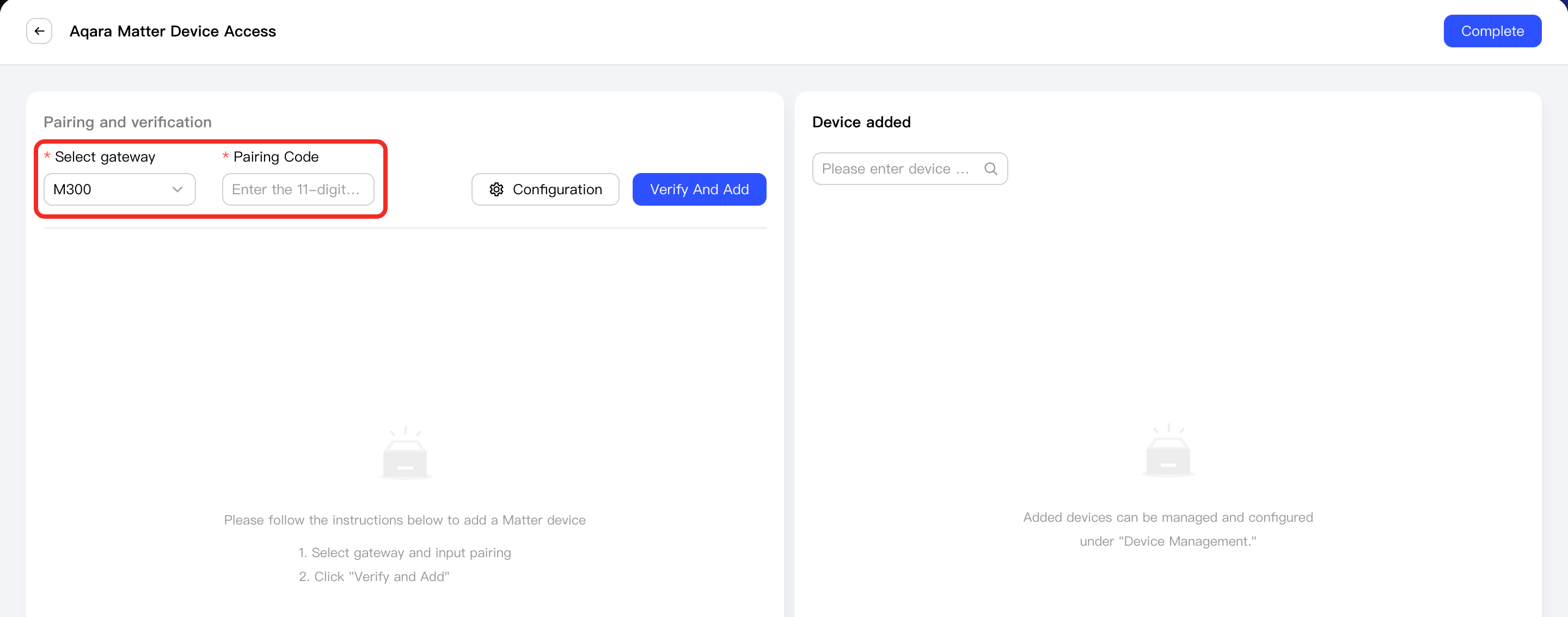
Select the gateway to which you want to bind the sub-device, and enter the device's 11-digit Matter pairing code.
-
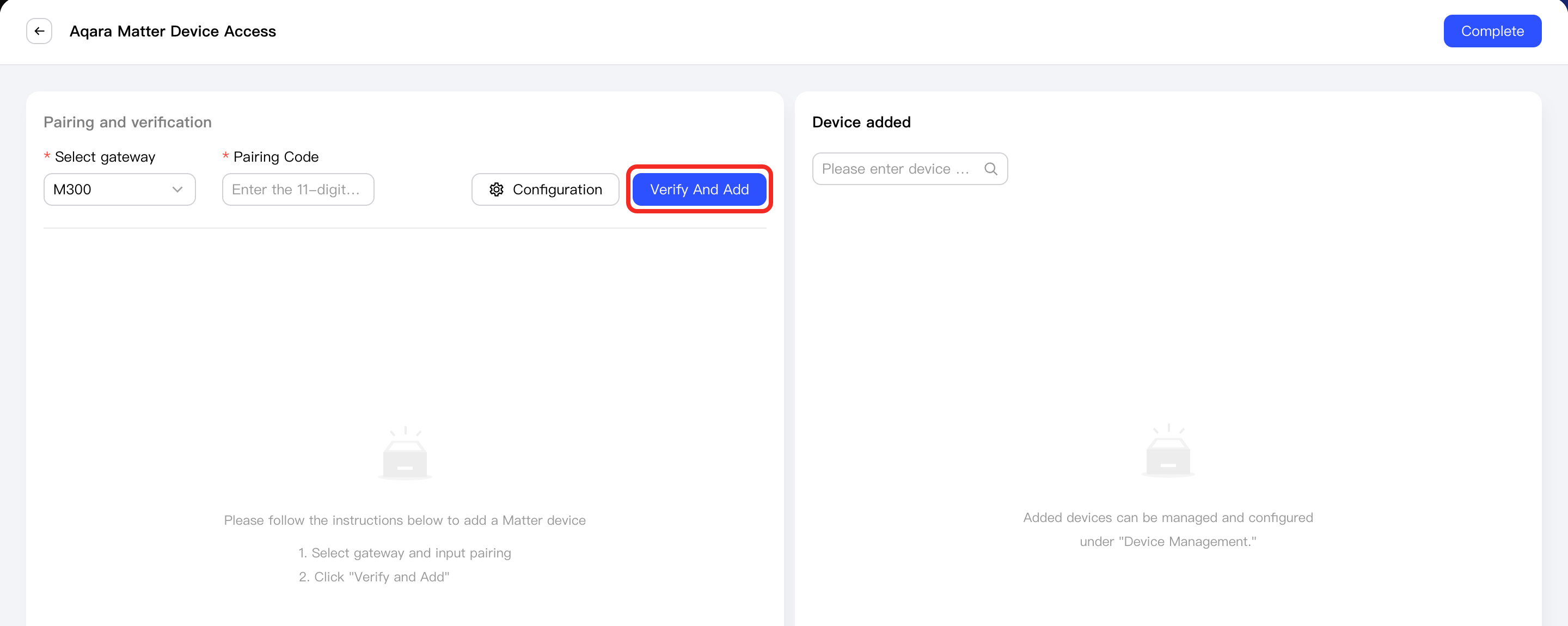
Put the sub-device into pairing mode, and click Verify and Add.
-
After the sub-device is successfully connected, it will appear in the Device added list.
Next Steps
Now, you can view details and control the device, or use the device in automation.
FAQ
How do I connect Aqara devices that support dual-protocol or multi-protocol by Matter?
If your Aqara device supports Matter as well as other protocols, please follow these steps to connect via Matter:
- If the device is already in Matter mode, you can connect following the process described in this document.
- If the device uses another protocol, first switch the device to Matter mode on the Aqara Home App or Aqara Life App. After switching, follow this document's process to connect.