Use Aqara Studio Skill in OpenClaw Web UI
Overview
Aqara provides an OpenClaw skill for integrating Aqara Studio capabilities. In the OpenClaw Web UI, you only need to input the specified instruction text to automatically install and configure the skill, enabling you to:
- Access and manage all devices connected to Aqara Studio
- Query device status, space lists, and other information using natural language
- Seamlessly control devices and retrieve data via OpenClaw
The entire process requires no coding. You only need to configure the necessary information, making it easy to comprehensively manage Aqara devices and bringing great convenience to your smart space management.
Process
-
Open your local OpenClaw Web UI.
-
In the left sidebar, select Chat and input the following text in the chat box:
Fetch and follow instructions from https://cdn.aqara.com/cdn/common/mainland/static/docs/OPENCLAW_OPEN_API_INSTALL.md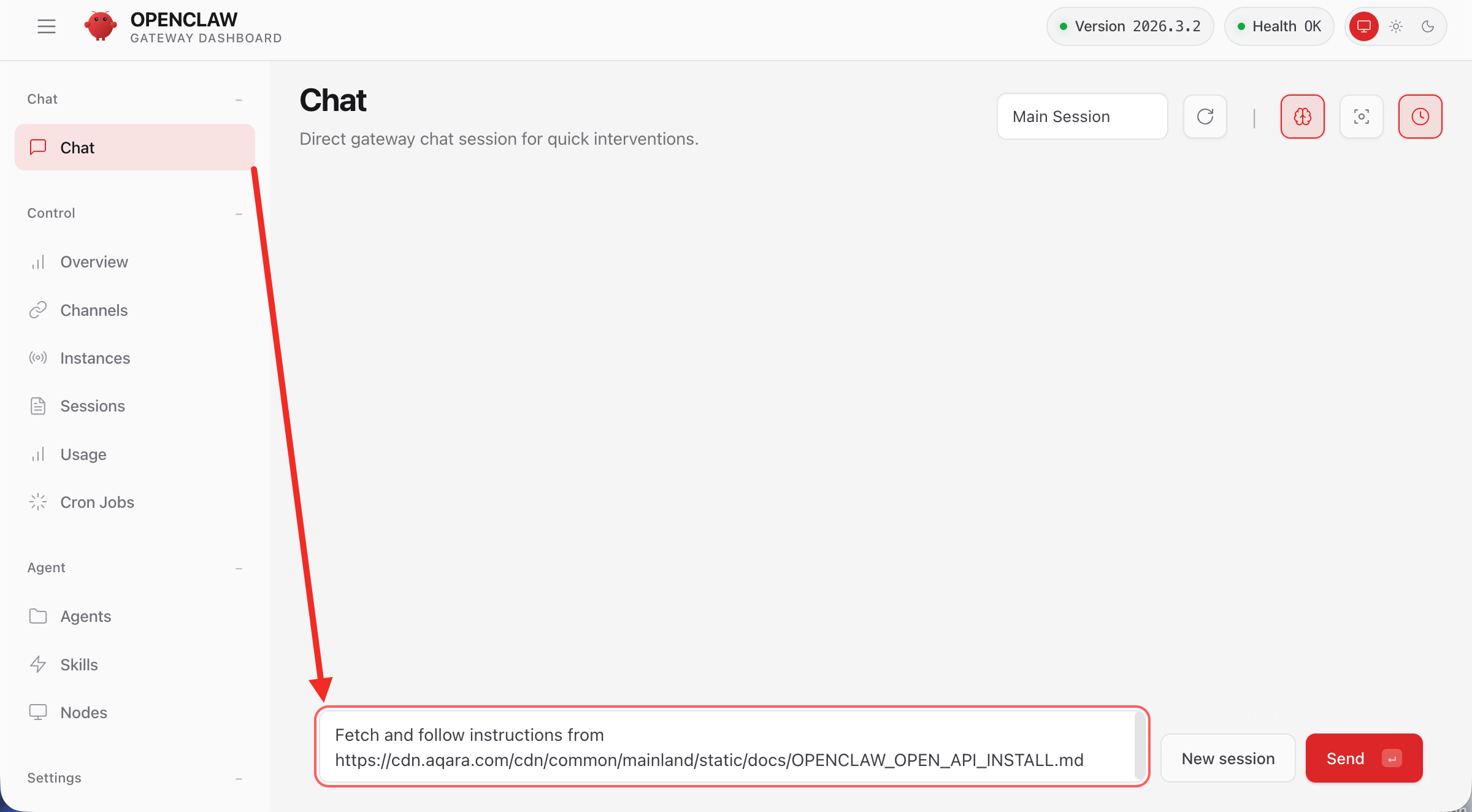
-
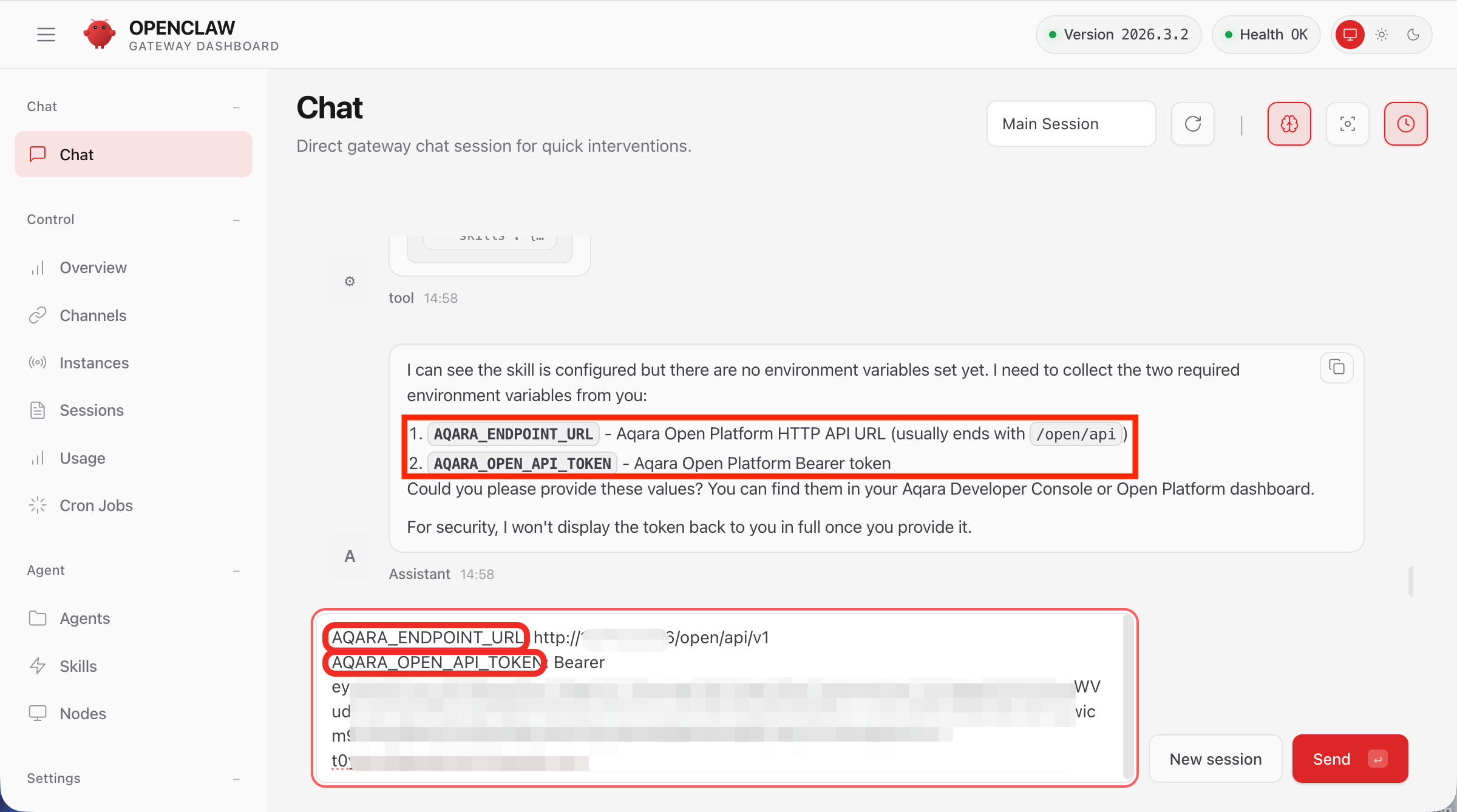
According to the Assistant’s instructions, provide
AQARA_ENDPOINT_URLandAQARA_OPEN_API_TOKEN.tipAQARA_ENDPOINT_URLis the HTTP Request URL of Aqara Studio, usually ending with/open/api/v1.AQARA_OPEN_API_TOKENis the token used for authentication in Aqara Studio.
-
After submitting the above information, OpenClaw will automatically complete the required configuration. It may automatically reload or restart the service. Please wait patiently.
-
Once OpenClaw has finished starting up, click Skills in the left sidebar. If you see
aqara-open-apilisted under WORKSPACE SKILLS, the plugin has been successfully installed.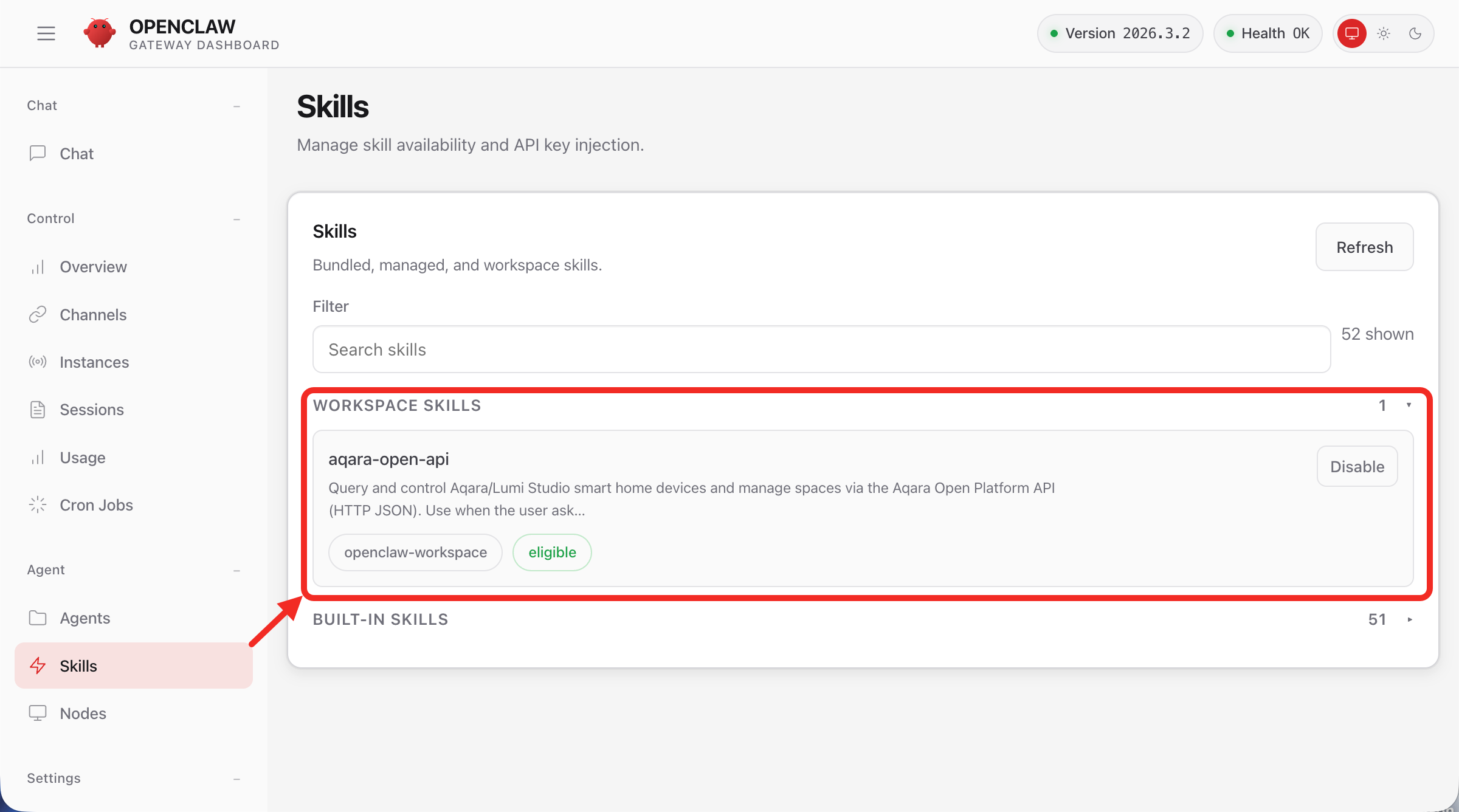
-
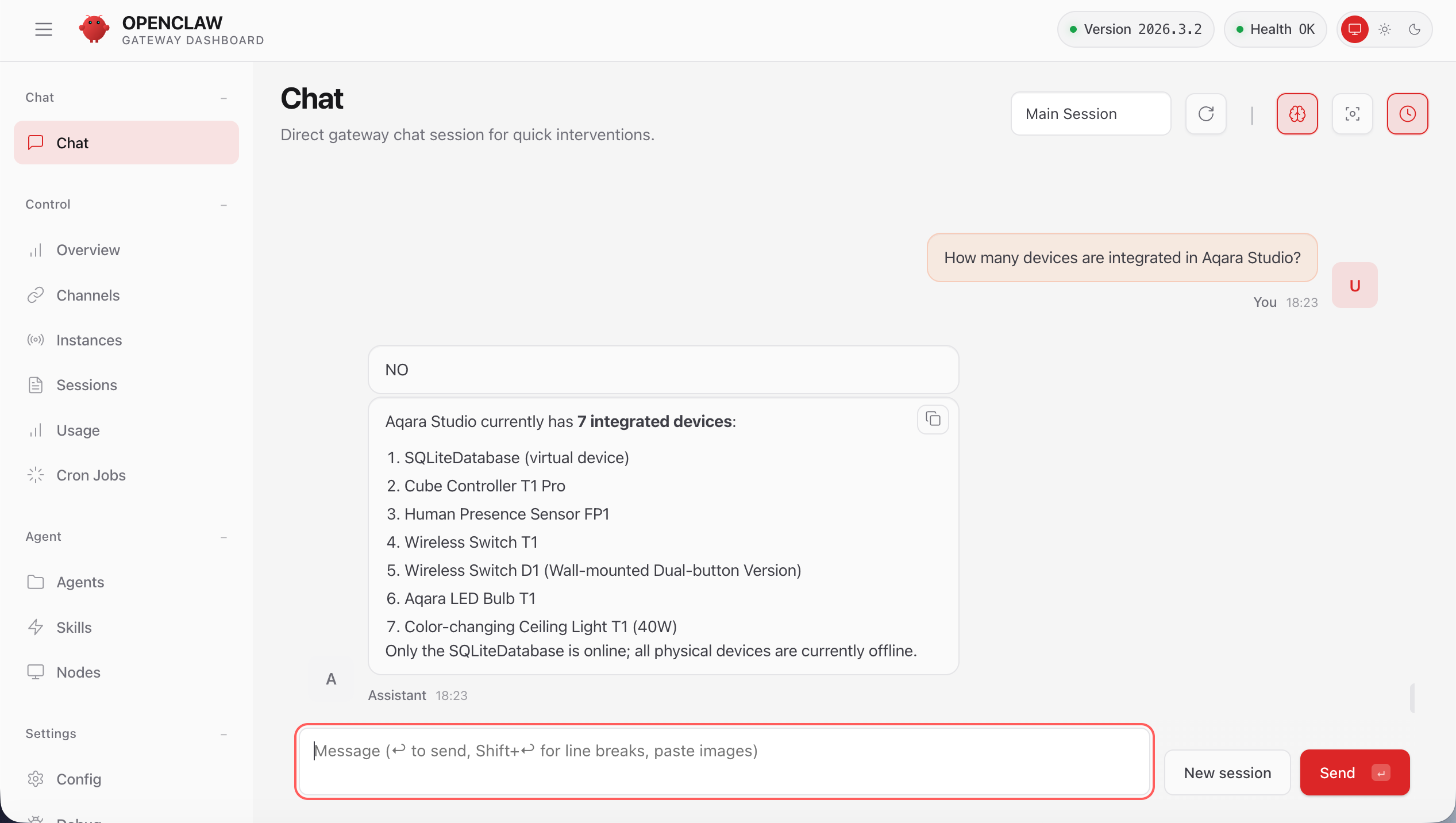
You can now view and manage all devices connected to Aqara Studio in real time through OpenClaw, achieving efficient device monitoring and convenient control.
For example, you can ask the assistant: How many devices are integrated in Aqara Studio?
FAQ
How to check the entered AQARA_ENDPOINT_URL and AQARA_OPEN_API_TOKEN?
-
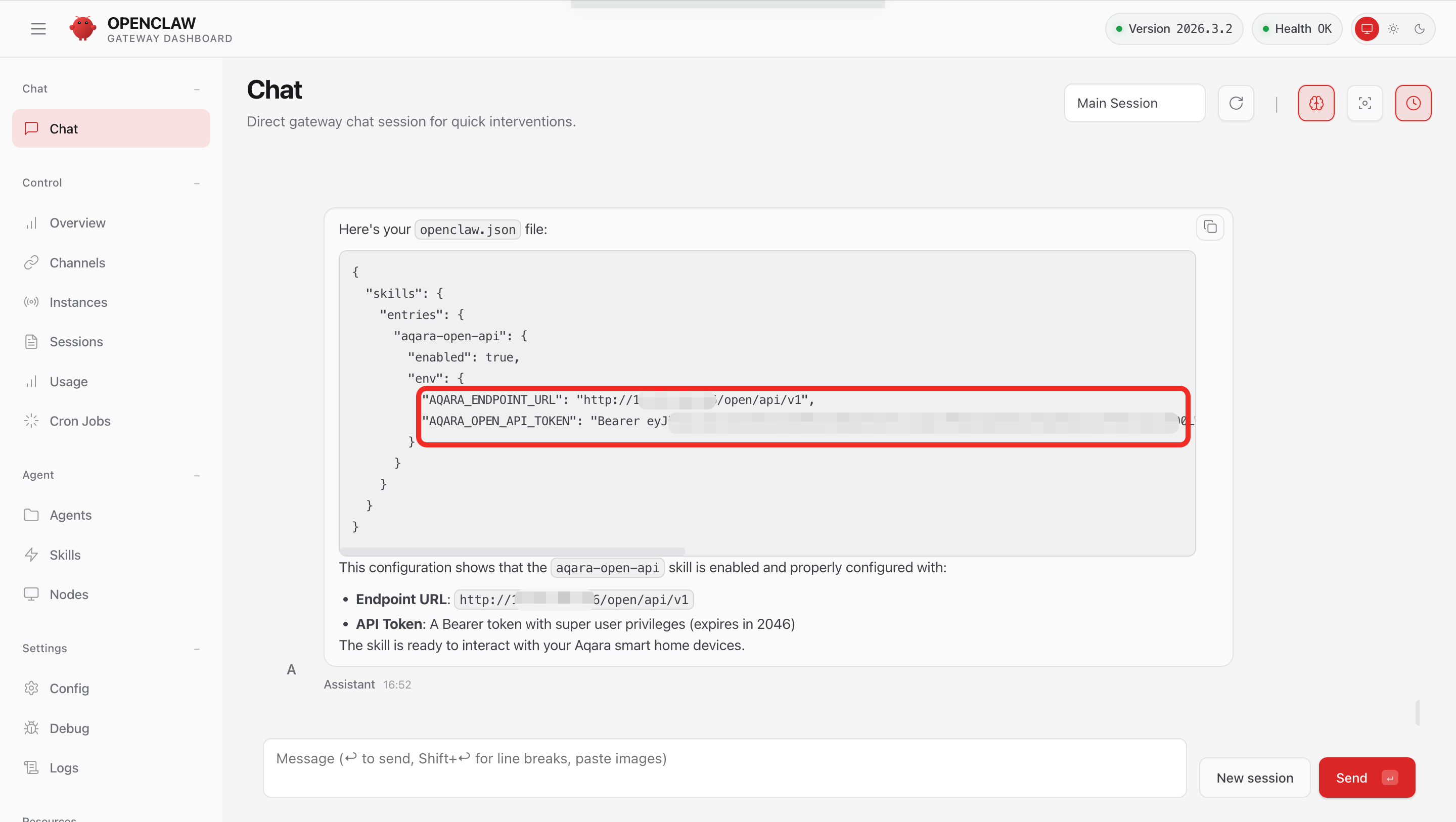
In the Chat session, ask the Assistant to output the openclaw.json file.
Output the openclaw.json file -
The Assistant will display the contents of the openclaw.json file in the chat window. You can find the configured
AQARA_ENDPOINT_URLandAQARA_OPEN_API_TOKENthere.