Connect to Aqara Studio MCP Server
What is MCP?
Model Context Protocol (MCP) is an open standard that gives AI applications a simple, unified way to connect with external systems. With MCP, AI tools like ChatGPT or Claude can securely and safely access data sources (such as files and databases), tools (like search or calculation), and workflows (for prompts and automation). This helps the AI not just understand what you want but also take real actions.
The value of MCP is to reduce integration costs, improve AI capabilities, and make user experiences better. Developers can build and reuse functions more quickly. AI apps can connect with a wide range of services and become more powerful. End users enjoy assistants that can actually help get things done. No matter if you are building a personal assistant, enterprise chat analytics, design, coding, or automation, MCP is a flexible bridge between AI and real-world systems.
What can you do with Aqara Studio MCP Server?
After connecting to the Aqara Studio MCP Server, you can:
- List spaces
- Update spaces
- Bind devices to spaces
- List devices
- Get device basic information
- Control devices
- Create automations
- List automations
- Update automation metadata
- Enable or disable automation
Prerequisites
Before using the MCP Server, please make sure you have completed the following steps:
Enable MCP Service
In the left sidebar, navigate to the Developer page. Find the MCP server card, and toggle the switch at the top right to quickly enable or disable the MCP service.
Get MCP Server URL
Different AI tools require different MCP Server URL formats. There are two main types:
LAN Address
LAN addresses work for apps like Cursor that can access your local computer or other devices on the same network.
-
Requirements: Make sure both Aqara Studio and apps like Cursor run in the same network.
-
Format:
http://<Local-LAN-IP>/open/api/mcptipThe LAN IP here means the IP address of the computer running Aqara Studio.
-
Example:
http://192.168.1.2/open/api/mcp
Remote Address
Remote addresses are used when the AI app only supports public (internet) access, such as ChatGPT or Manus. For example, the OpenAI platform only supports MCP Server addresses using HTTPS, not HTTP.
- Requirements: You need to set up Remote Access for Aqara Studio in advance.
- Format:
https://<Your-Remote-Domain>/open/api/mcp - Example:
https://your-mcp-domain.example.com/open/api/mcp
- Cloud-based tools like ChatGPT or Manus can only access public HTTPS addresses and cannot connect to HTTP addresses available only locally or via LAN.
- If you only need to access on your local machine or network, a LAN address is enough.
- If you want to use cloud AI apps (like ChatGPT or GPTs), you must use a public HTTPS address.
Get Your Token
Please see Developer Guide - Required Information to get your authorization token. The token is necessary so you can authenticate and connect to the Aqara Studio MCP Server.
Token format: Bearer <token>. Please replace <token> with the string you get from Aqara Studio (if the token already has "Bearer" at the start, just use it as is).
Use MCP Server with Cursor
For official Cursor documentation on MCP, see: Model Context Protocol (MCP).
-
In Cursor, open Settings. In the sidebar, select Tools & MCP, then click Add Custom MCP. This will open the
mcp.jsonfile.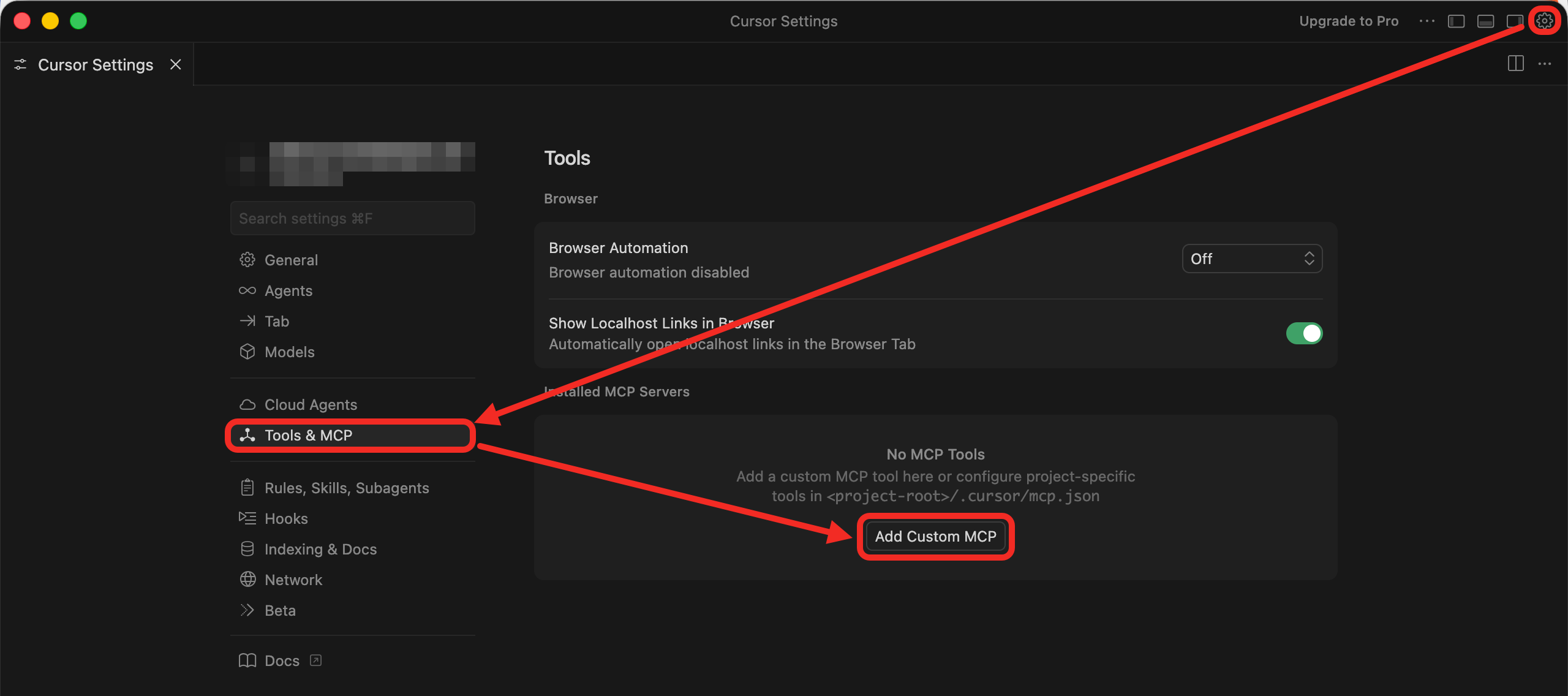

-
Copy and paste the following code to this file, replace the existing content, and save.
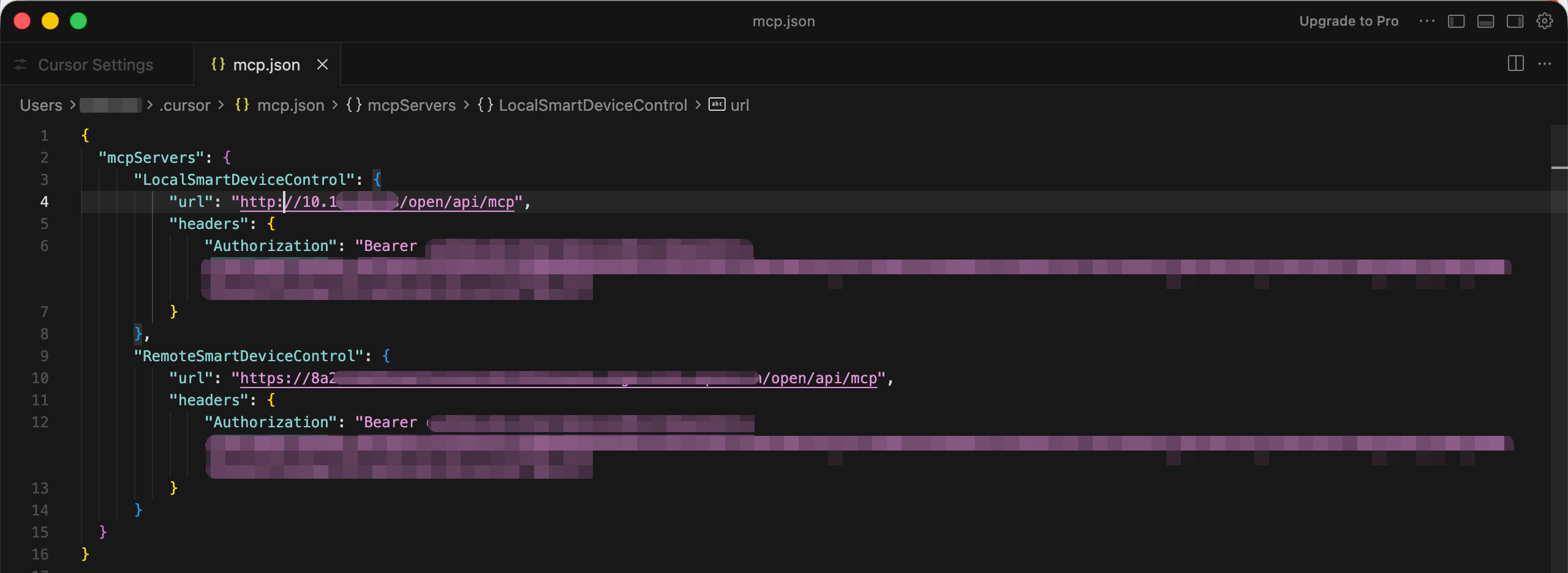
{
    "mcpServers": {
        /*
         * Config for LAN access to Aqara Studio MCP Server
         * "LocalSmartDeviceControl" is your custom MCP server name
         */
        "LocalSmartDeviceControl": {
            "url": "http://10.xx.xx.xx/open/api/mcp", // Replace xxx.xxx.xxx with LAN address of Aqara Studio
            "headers": {
                "Authorization": "Bearer xxx"  // Replace with your token from Aqara Studio
            }
        },
        /*
         * Config for remote (internet) access to Aqara Studio MCP Server
         * "RemoteSmartDeviceControl" is your custom MCP server name
         */
        "RemoteSmartDeviceControl": {
            "url": "https://xxx.xxx.xxx/open/api/mcp", // Replace xxx.xxx.xxx with your remote domain
            "headers": {
                "Authorization": "Bearer xxx" // Replace xxx with your token from Aqara Studio
            }
        }
    }
} -
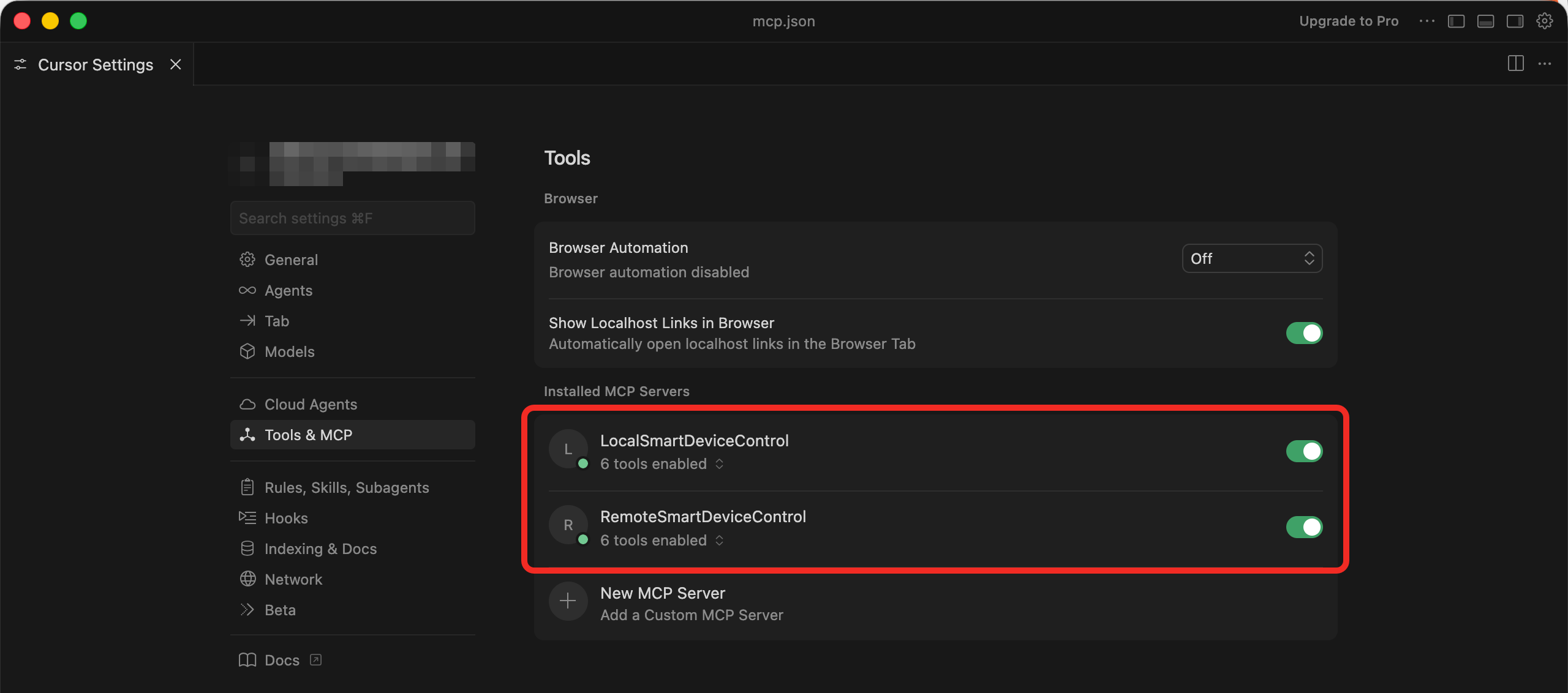
Tools & MCP will now show your newly added MCP servers and their connection status.
-
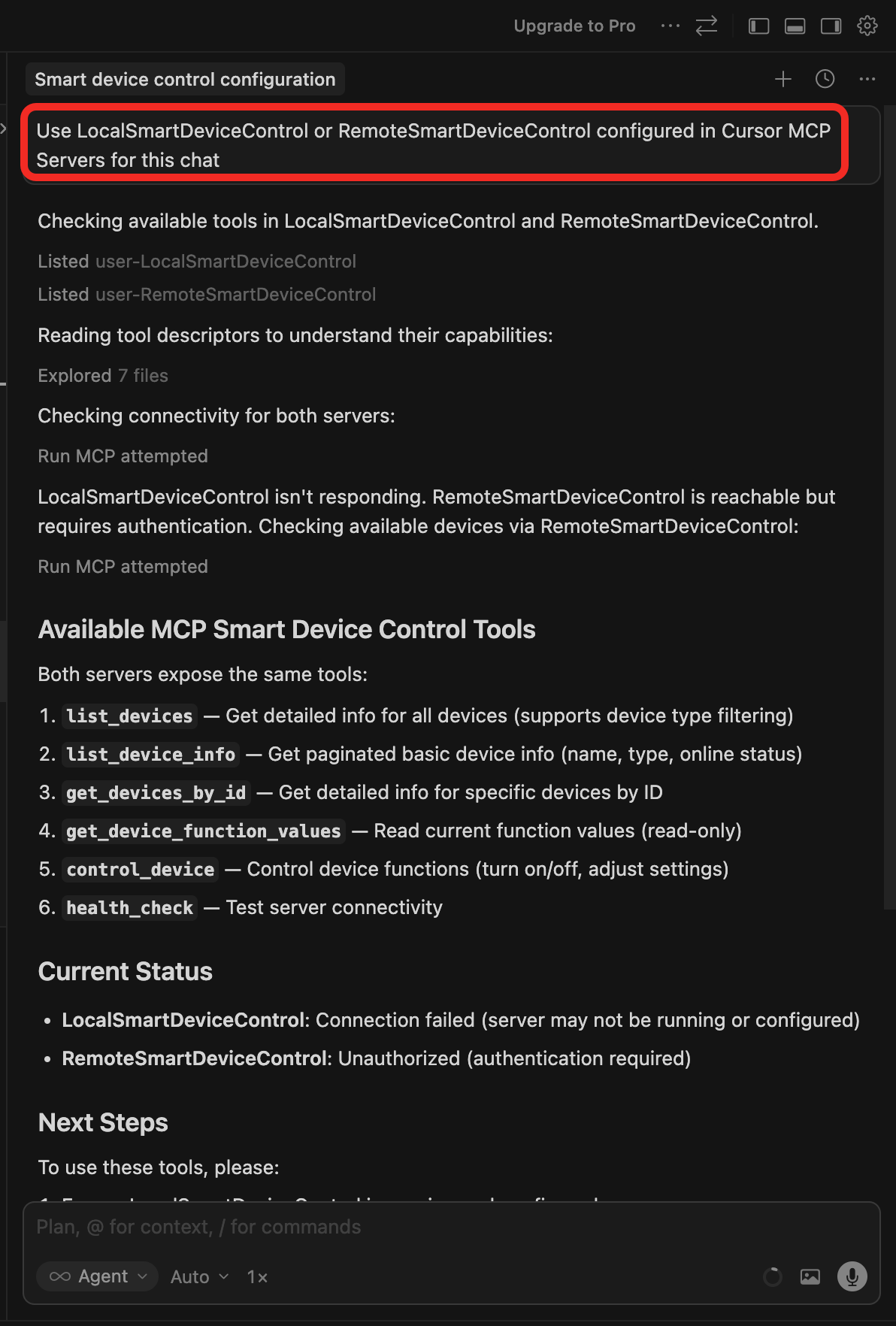
In the Cursor chat, type a command like:
- Use LocalSmartDeviceControl or RemoteSmartDeviceControl configured in Cursor MCP Servers for this chat
- Use LocalSmartDeviceControl or RemoteSmartDeviceControl from Tools & MCP
- Or some similar text asking Cursor to use one of your configured MCP servers.
tipIf Cursor says it does't detect an MCP, you can type already configured again in the chat and wait for MCP setup confirmation.
Use MCP Server with Manus
For the official Manus guide, see: Custom MCP Servers - Connecting a Custom MCP Server.
-
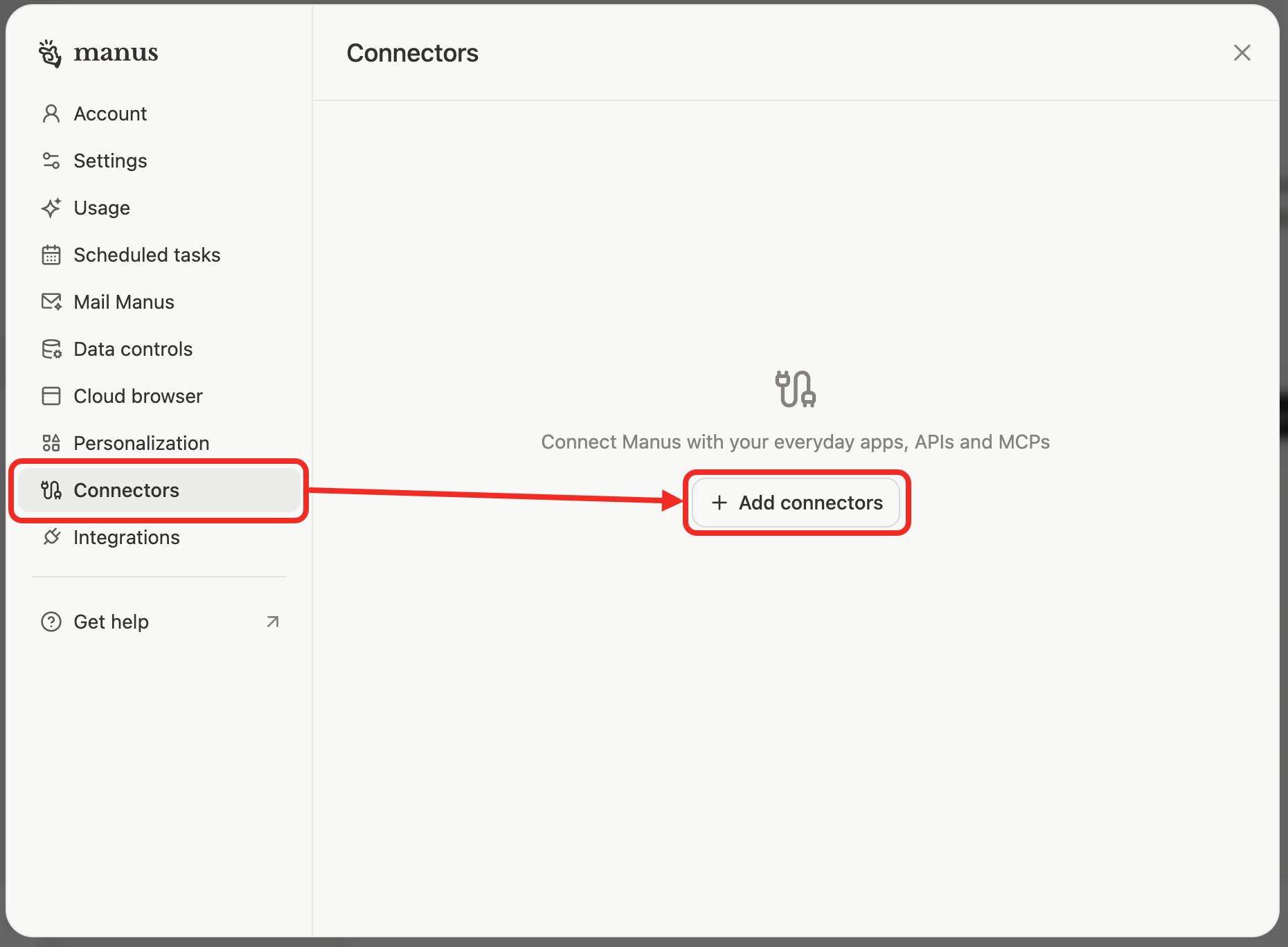
Go to Settings → Connectors, click Add Connectors
-
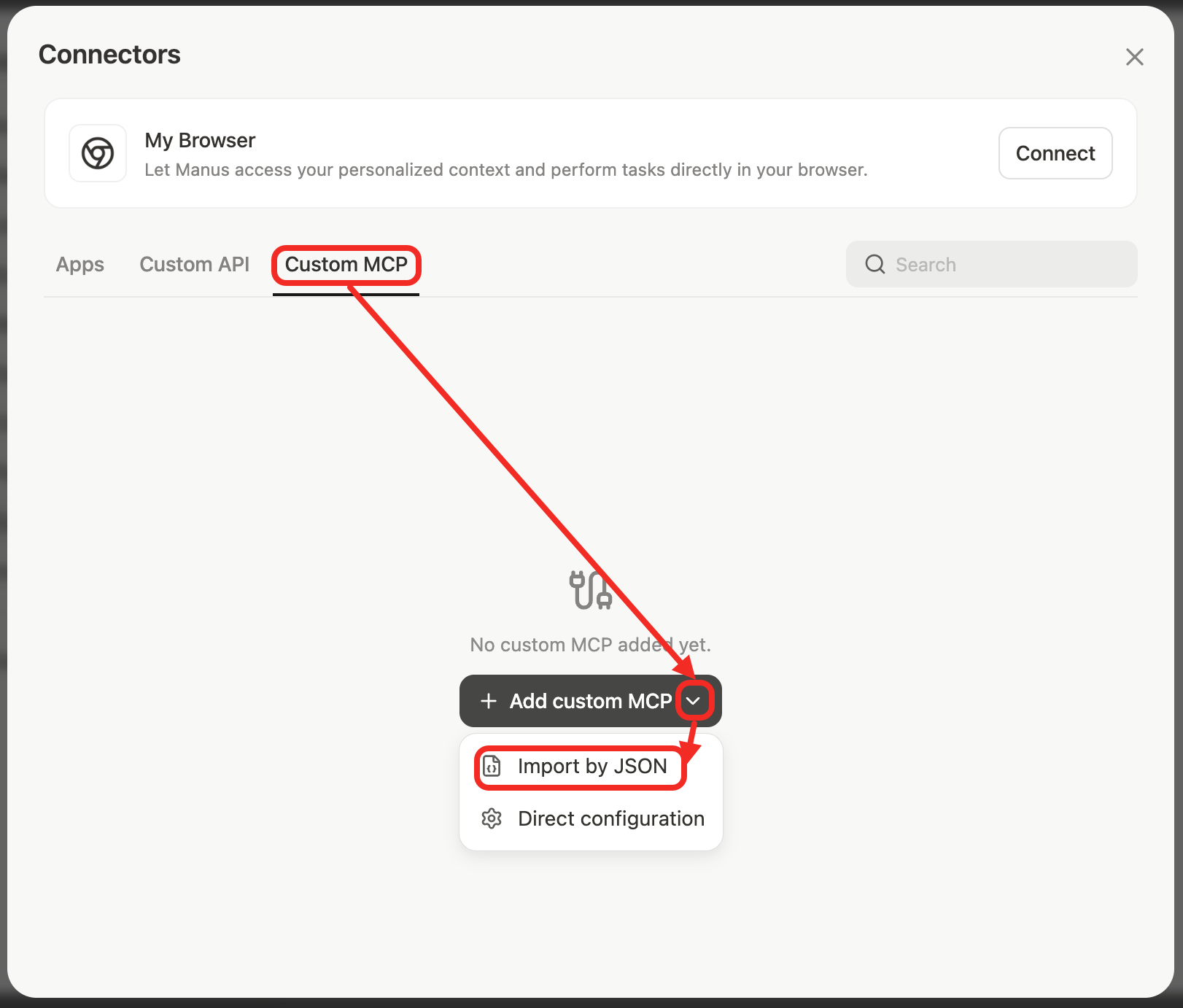
Select Custom MCP, then click Add Custom MCP Server -> choose Import By JSON
-
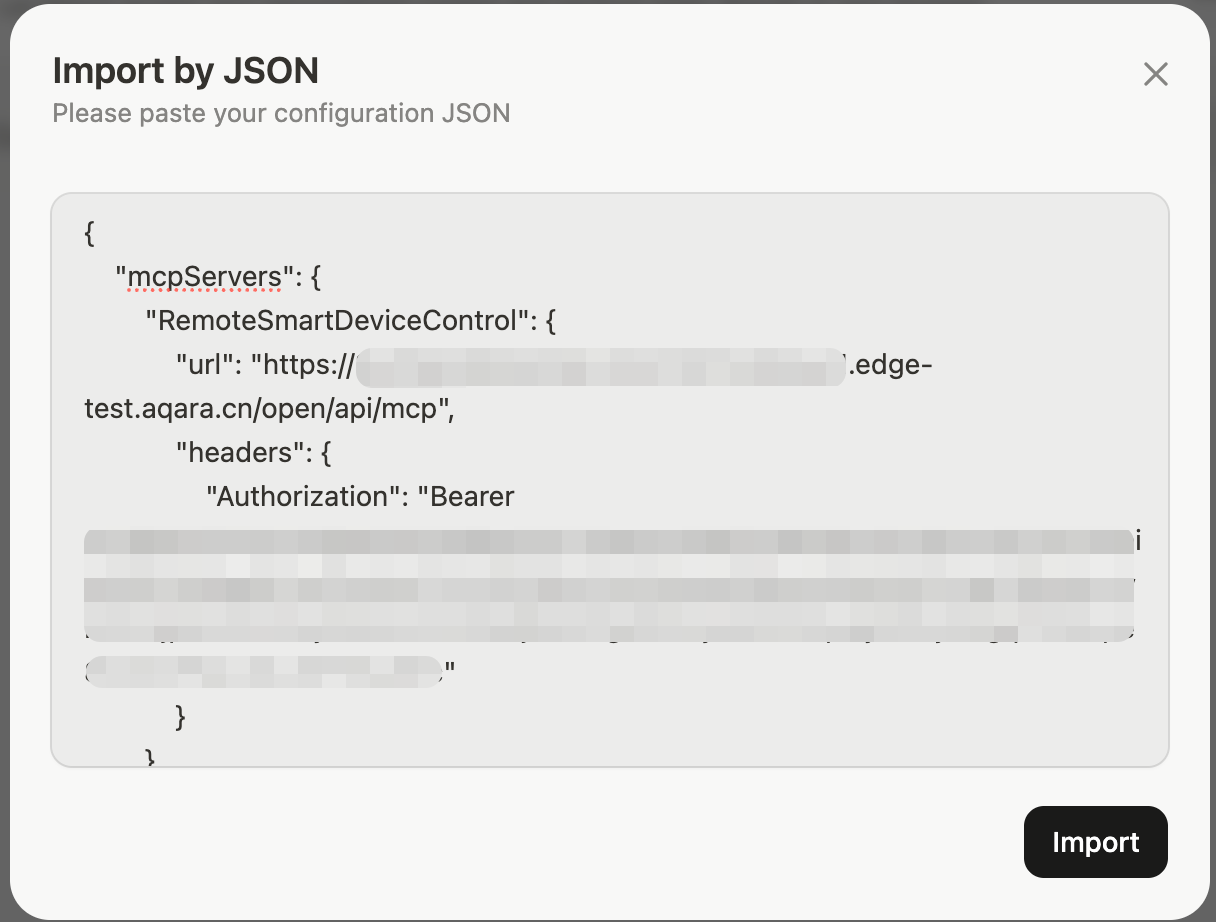
Copy the following MCP Servers JSON config into the popup, and click Import.
{
    "mcpServers": {
        /*
         * Configuration for remote access to Aqara Studio MCP Server
         * "RemoteSmartDeviceControl" is your custom MCP server name
         */
        "RemoteSmartDeviceControl": {
            "url": "https://xxx.xxx.xxx/open/api/mcp", // Replace xxx.xxx.xxx with remote address of Aqara Studio
            "headers": {
                "Authorization": "Bearer xxx" // Replace xxx with your token from Aqara Studio
            }
        }
    }
}
-
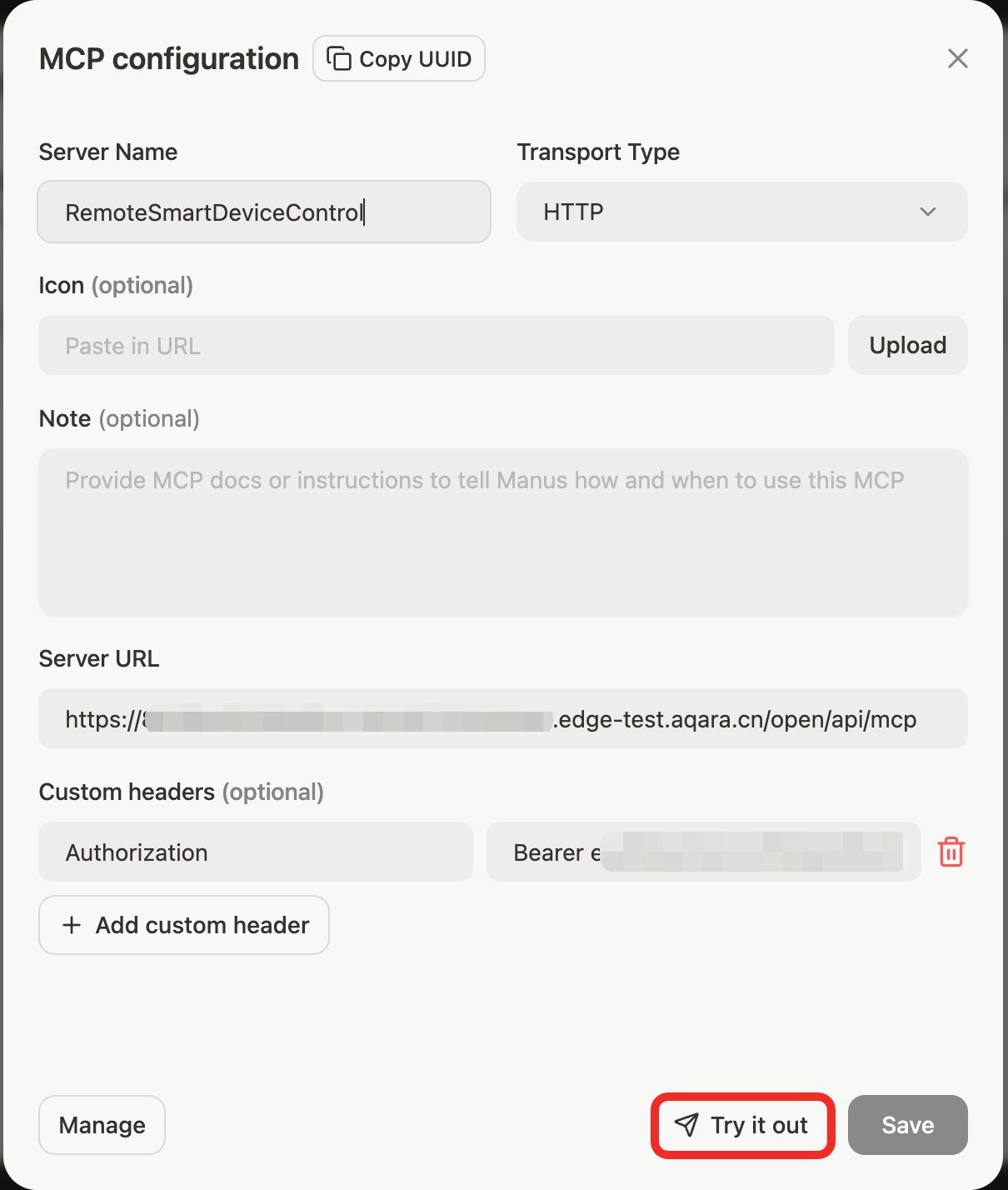
Click the newly created MCP, then click Try it out to use it.
-
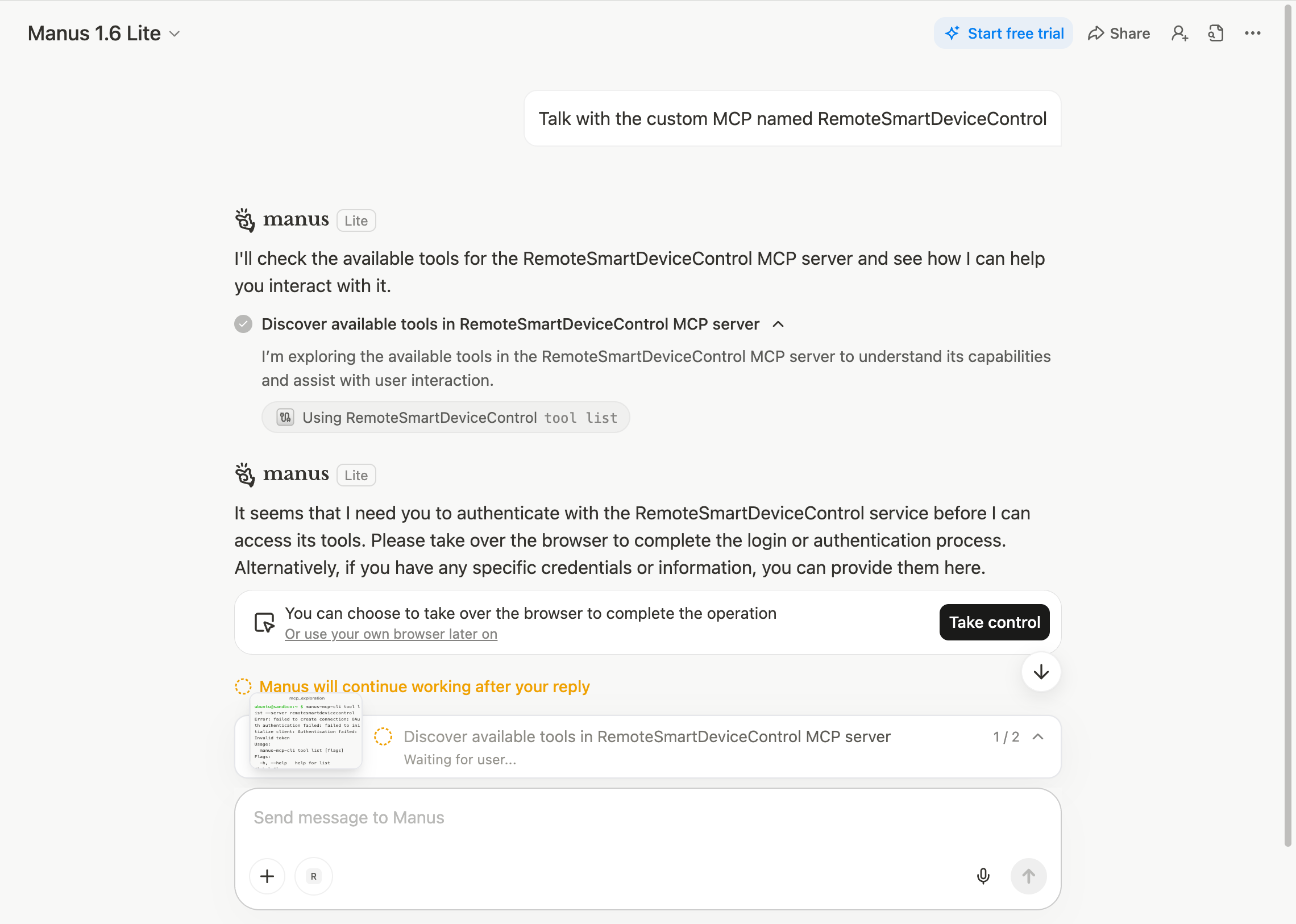
In the chat window, enter: Talk with the custom MCP named RemoteSmartDeviceControl.
You can also use similar commands to trigger the service.
Use MCP Server with ChatGPT
- For the official OpenAI guide on creating MCP apps in ChatGPT, see: ChatGPT Developer Mode - How to Use.
- Please note: According to OpenAI documentation, only ChatGPT Web Business and Enterprise/Edu users can use Apps, full MCP support, and Developer Mode. Please make sure your ChatGPT plan fits these requirements.
-
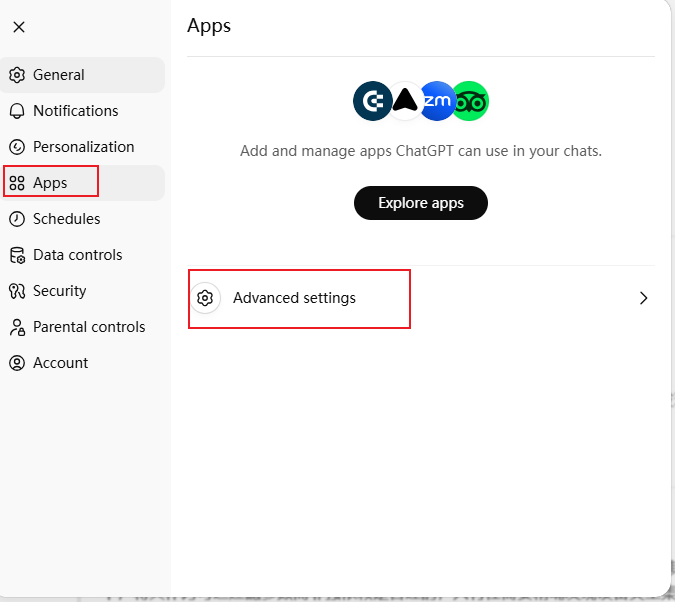
Go to Settings → Apps, and click Advanced settings.
-
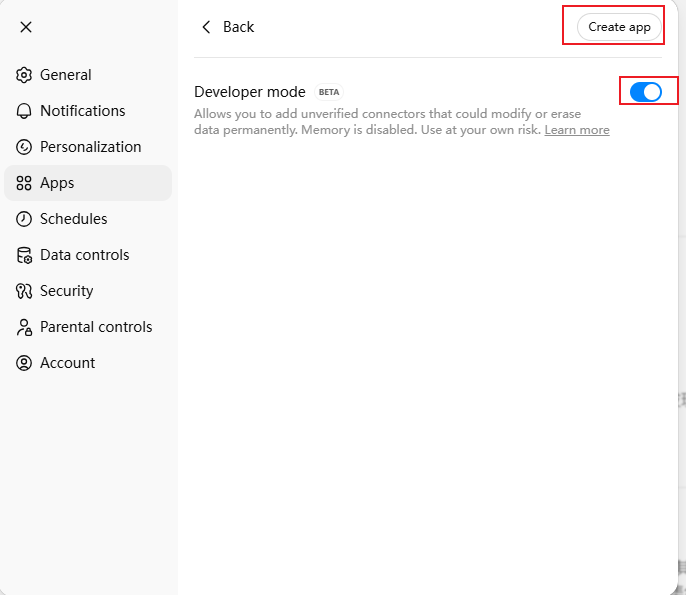
Turn on Developer mode and click Create app.
-
Fill in the following information and click Create:
Field Description Name App name. Description App description. MCP Server URL The MCP Server address in HTTPS protocol. Authentication Choose OAuth. Leave OAuth Client ID and Secret empty. 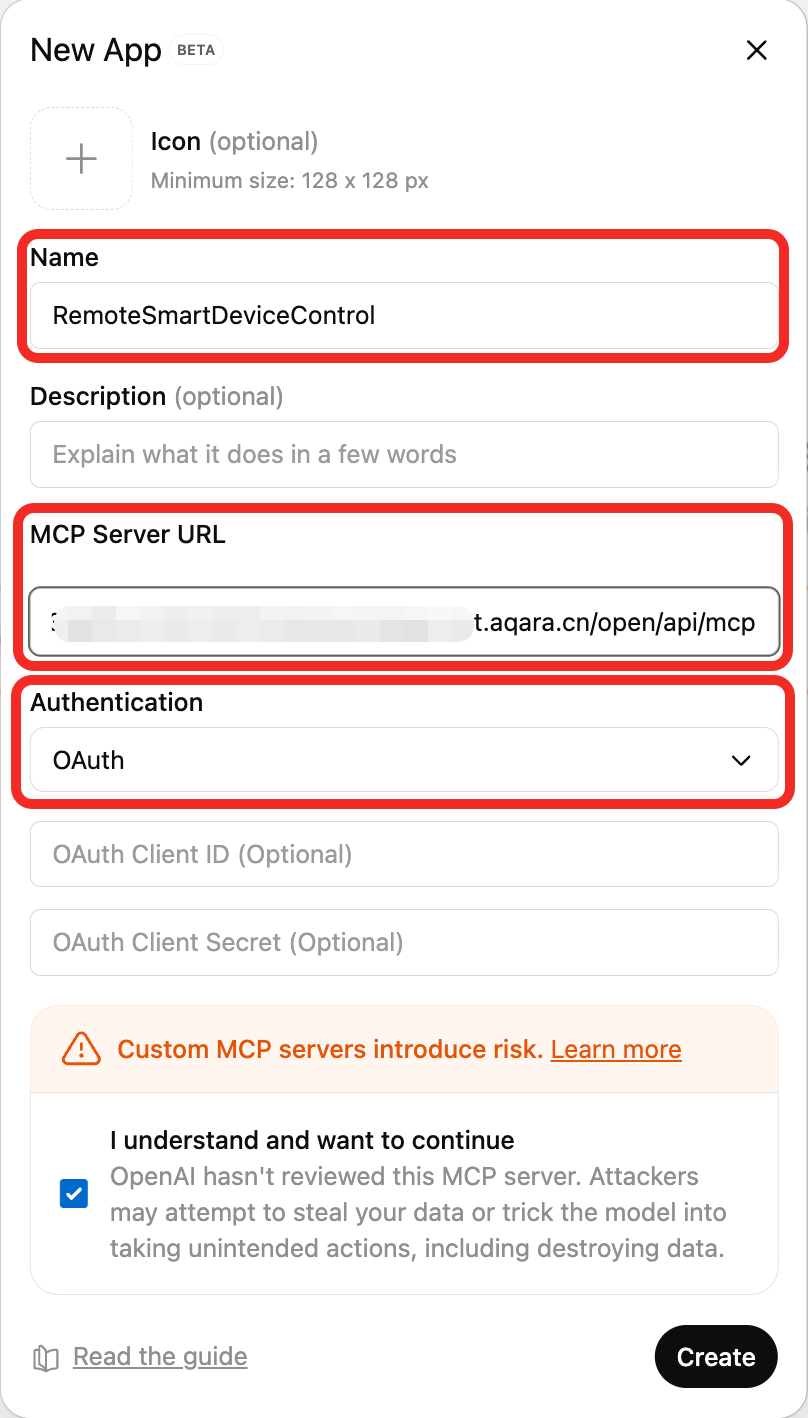
-
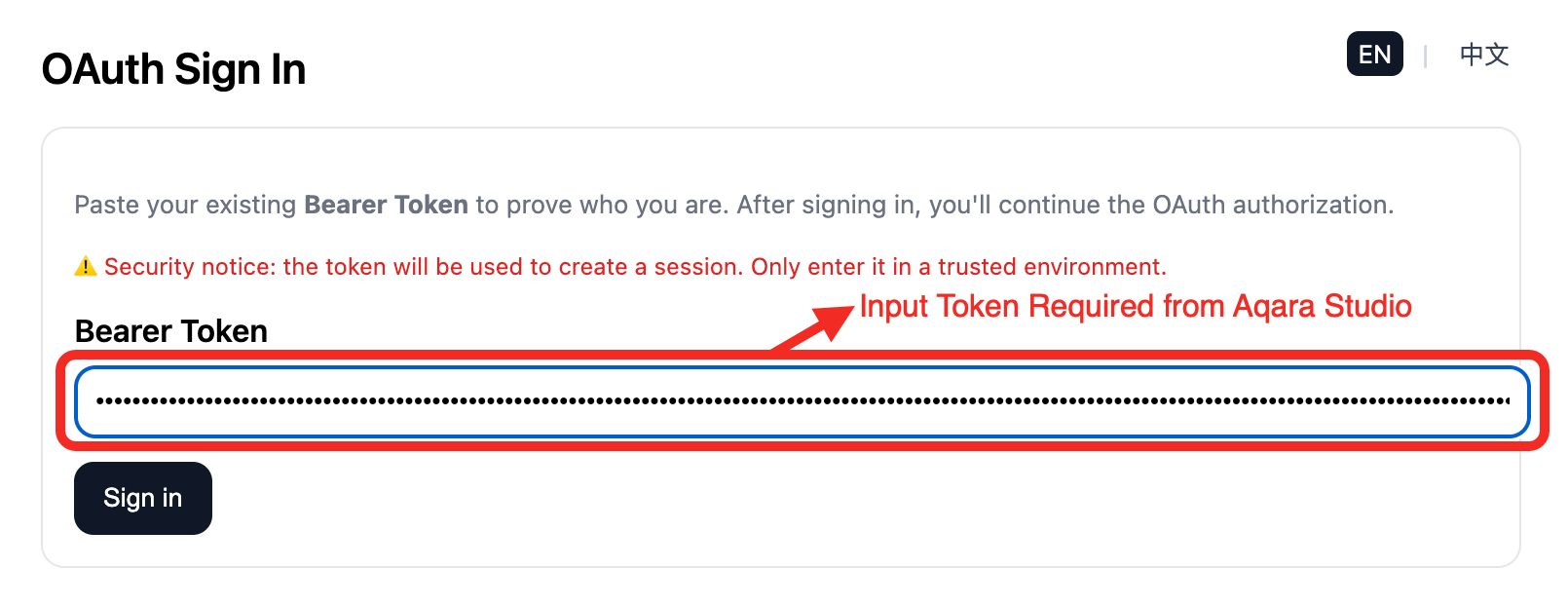
On the OAuth Sign In page, enter your token.
-
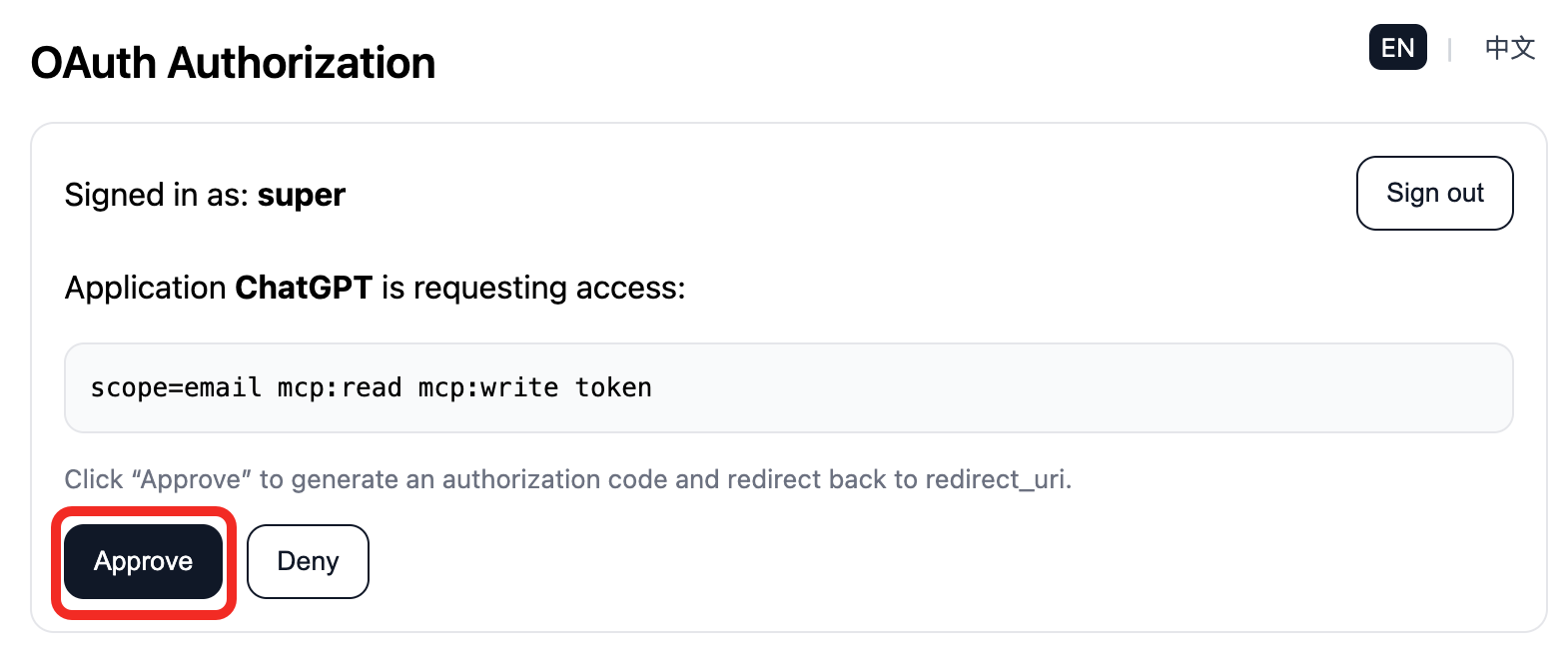
On the OAuth Authorization page, click Approve to activate your MCP app.
 tip
tipIf you want to change the token, just click Sign out on this page and you'll return to the OAuth Sign In page.
 tip
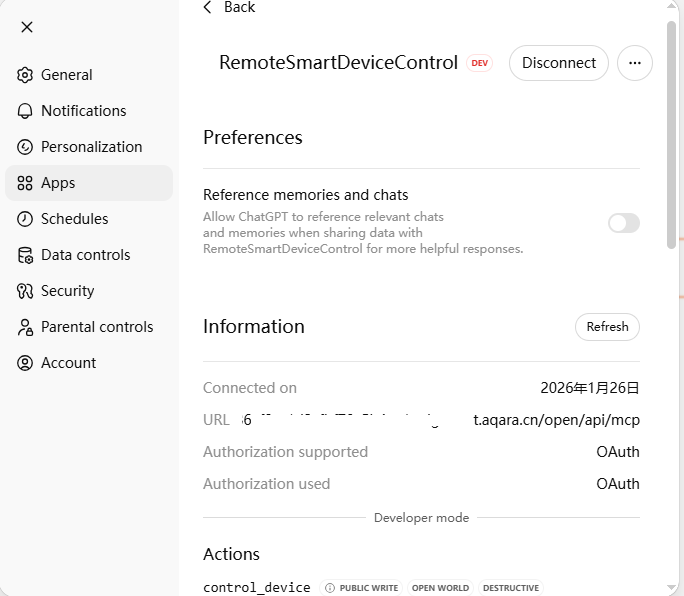
tipEvery 7 days, your MCP app may become disconnected. Just return to the OAuth login page, re-enter your token (you do not need to create a new one), and complete the authorization to continue using this app.
-
In the chat window, type: Talk with the custom MCP named RemoteSmartDeviceControl.
You can use similar commands to activate the MCP server.
Best Practices
Before controlling a device, it is best to let the AI check the device's capabilities first, then take action. This helps avoid mistakes and increases accuracy.