Flow
With flexible visual configuration, you can use various blocks to build data flow logic. This helps you quickly create automation flows for different scenarios. It also makes it easy to achieve smart control of IoT devices.
Prerequisites
Before you begin, make sure you have added devices in Aqara Studio. For the related steps, see the Device Integration documentation.
Create an Automation
In the left navigation bar, click Automation. Under the Automation tab, click the Create button.

Rename an Automation
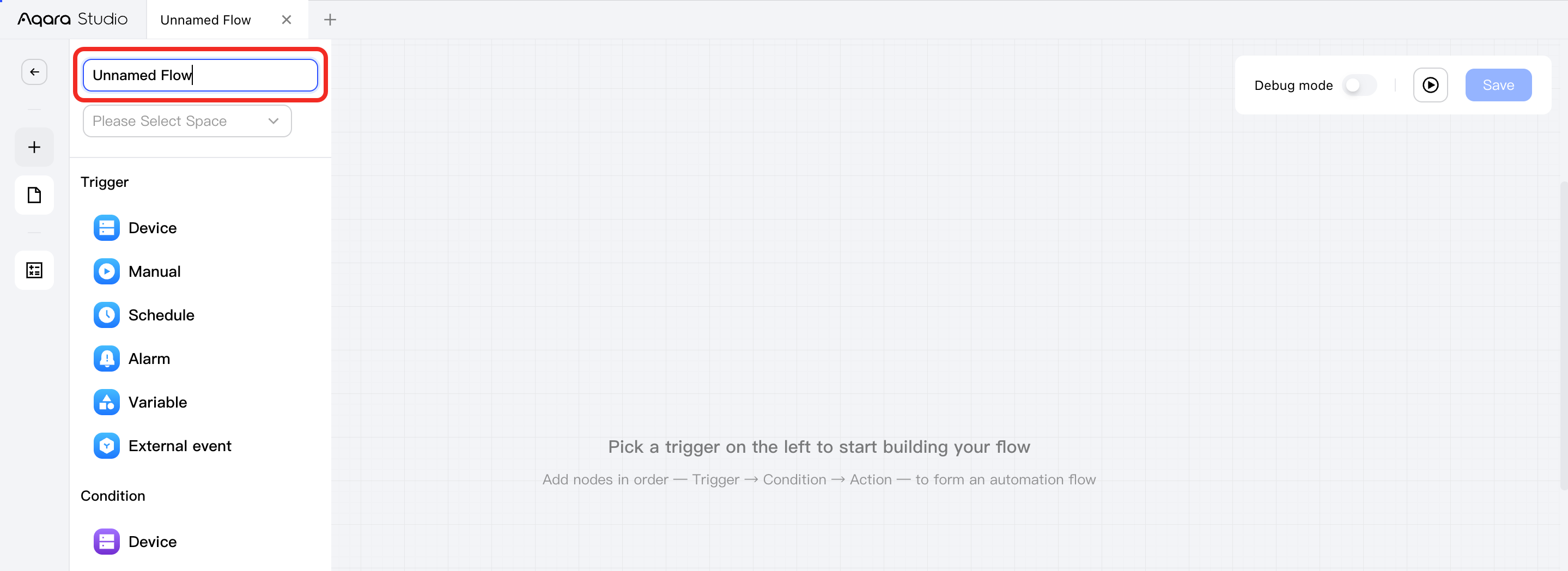
In the editor, click the automation name area in the upper left to rename it.
Assign Automation to a Space
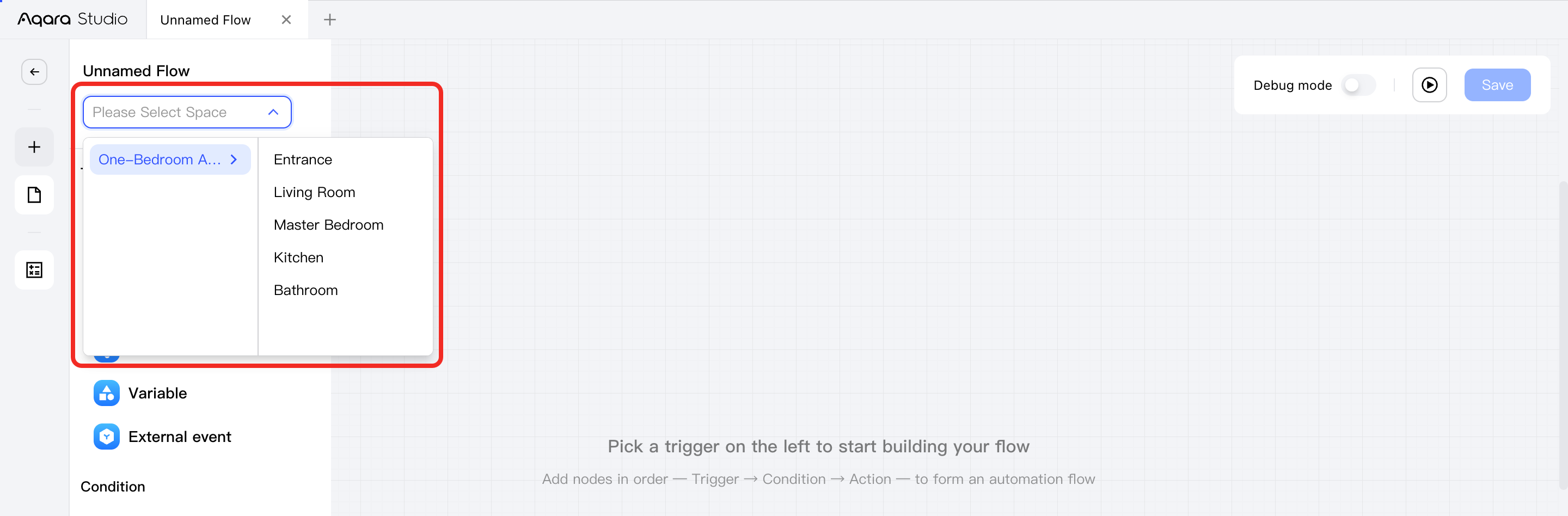
Below the automation name area, you can select and assign a space for the automation.
Add a Block
What is a Block?
In Aqara Studio, blocks serve as the "information hub" and "control center" of automation. Blocks visually transform complex backend automation logic (such as "turn on the light if someone is present and the light is low") into clear device states and one-tap scene switches, making automation intuitive and manageable.
Steps to Add
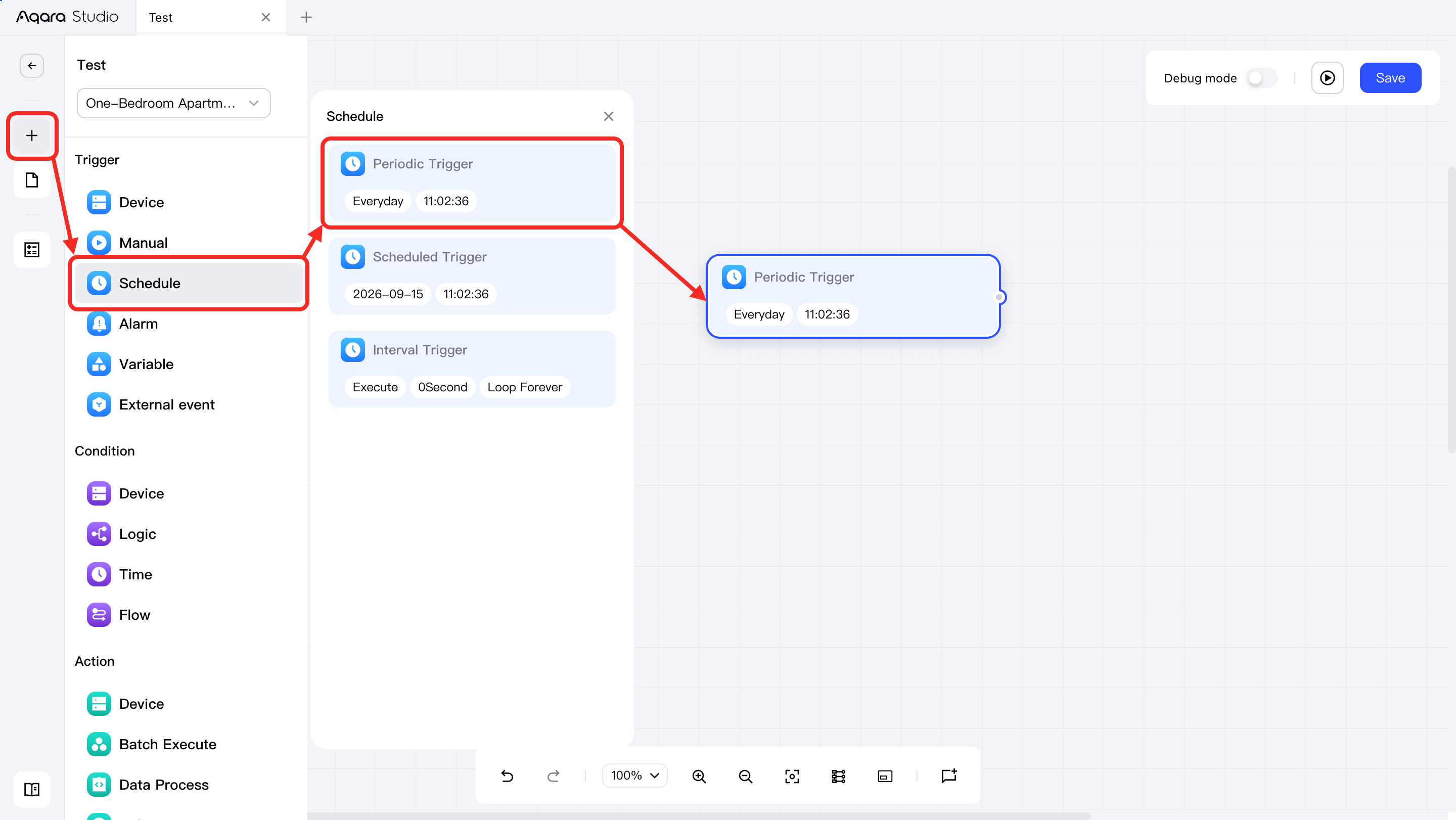
- Click the + button on the left sidebar of the canvas.
- Browse and select the required block type (such as trigger, condition, or action).
- Under the selected block type, further choose a specific block. For example, under trigger, click time to see the periodic trigger, scheduled trigger, and loop trigger blocks.
- Click the desired block to add it to the canvas.
Block Components
A block consists of the following elements:
| Element | Description |
|---|---|
| Input Node | If a block has an input node, it can be triggered. |
| Parameters | Used to set status to watch for, actions to perform, or other operations. |
| Output Node | If a block has an output node, it can trigger other steps. |
Block Categories
Flow supports the following types of blocks, each with its own role:
| Category | Description |
|---|---|
| Trigger | The starting node of a Flow. Can be triggered by device state changes (like a light being turned on), timing triggers, alarm events, and more to start the process. |
| Condition | The intermediate node of a Flow. Used to determine whether device state, time, logic, or comparisons meet the set criteria and accordingly direct the flow. |
| Action | The end node of a Flow. Used to deliver and execute various actions, including single or batch device control, data processing, delay, and more, to complete the automation loop. |
Connection Line
The connection method between different categories of blocks is as follows:
- Trigger: It only has output nodes, no input nodes. The output of one trigger block can be connected to multiple other blocks, serving as the starting point of a flow.
- Condition: It has both input and output nodes. Multiple blocks can have their outputs connected to the input of the same condition block; each output (such as for different condition results) of a condition block can connect to multiple subsequent blocks, enabling flow branching.
- Action: It acts as the endpoint of the flow, supports multiple input nodes, and can be triggered by several blocks at once; based on the actual requirement, it can also be set up with multiple output nodes to extend subsequent flows.
The input and output nodes of Flow blocks are mainly used for flow control, determining the direction of the process. For example, multiple inputs mean that flows from several blocks can converge on a single block, while multiple outputs mean the flow from one block can branch out to several subsequent steps.
These input and output nodes are not related to the actual flow of "data". Data processing and calculation are done inside the block and are not directly passed between blocks.
Additionally, the output of condition blocks features true/false branches to further control flow branching.
Block Operations
After adding a block to the canvas, you can right-click the block to open the action menu, allowing you to rename, copy, test, or delete the block.
Add Variables
What are Variables Used For?
You can create variables in Flow as trigger nodes, or use them in comparison operations, math operations, and data aggregation. These variables can also be modified or toggled by blocks, making your flows more flexible and intelligent.
Variable Types
Variables in Flow can be either global variables or local variables, with different application scopes as follows:
| Type | Application Scope |
|---|---|
| Global Variable | Shared and available across all Flows. |
| Local Variable | Only effective within the Flow where it was created, not accessible by other Flows. |
Create Variables
To create a variable:
- Click the variable icon on the left sidebar of the canvas, expand the variable drawer, then click the add button.
- In the pop-up New variable window, choose the data type, set the variable name, enter the initial value, and select the scope (global or local). After filling in the details, click Save.
- Once created, you can use the filter at the top of the variable drawer to view global or local variables, and find the new variable.
Debug and Test
After adding blocks and variables to the canvas and completing the connections, you can debug and test to ensure the automation Flow works correctly.
Debug
Debugging is used to check whether the flow between blocks in the automation process runs smoothly without obstruction.
In debug mode, Aqara Studio does not send simulated values to simulate trigger conditions, so devices will not actually execute operations.
Follow these steps:
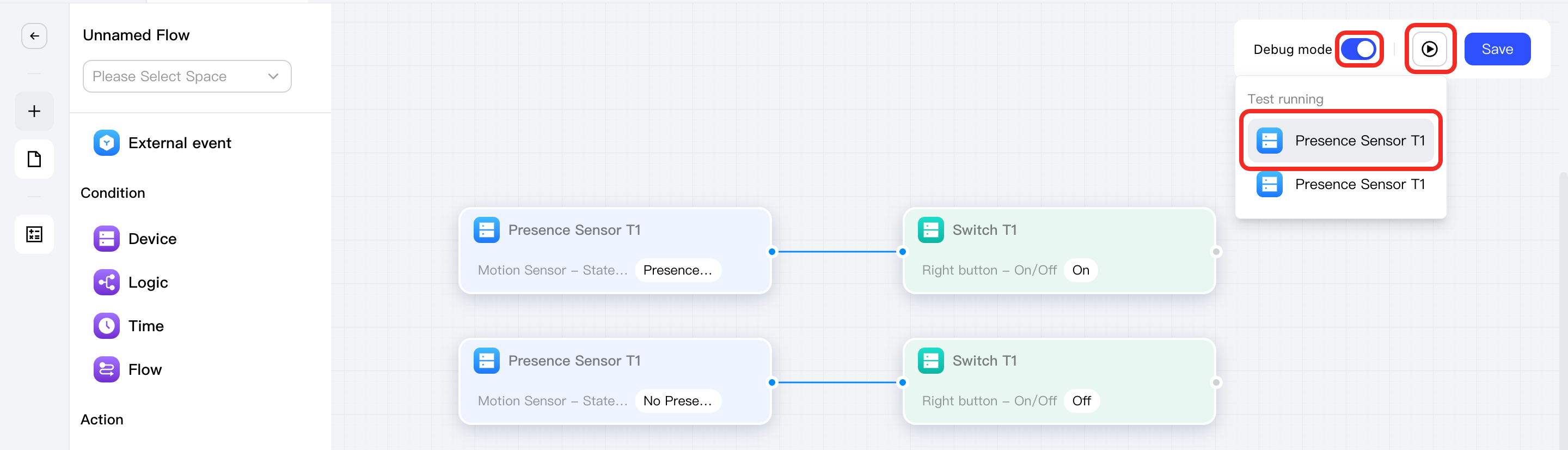
- Enable Debug Mode in the upper-left corner of the canvas.
- Click the ▶ icon to open the Test Run list. This list displays all Trigger blocks on the canvas.
- Select a Trigger block from the list. Aqara Studio will treat that trigger condition as satisfied and start executing the subsequent automation Flow.
- Wait for the Flow test completed prompt, which indicates that the Flow has passed debugging and can run normally.
Test
Testing is used to simulate a trigger condition being satisfied, thereby starting the automation Flow. You can observe whether actions are completed correctly (for example, whether a device state changes or a Flow is enabled).
Follow these steps:
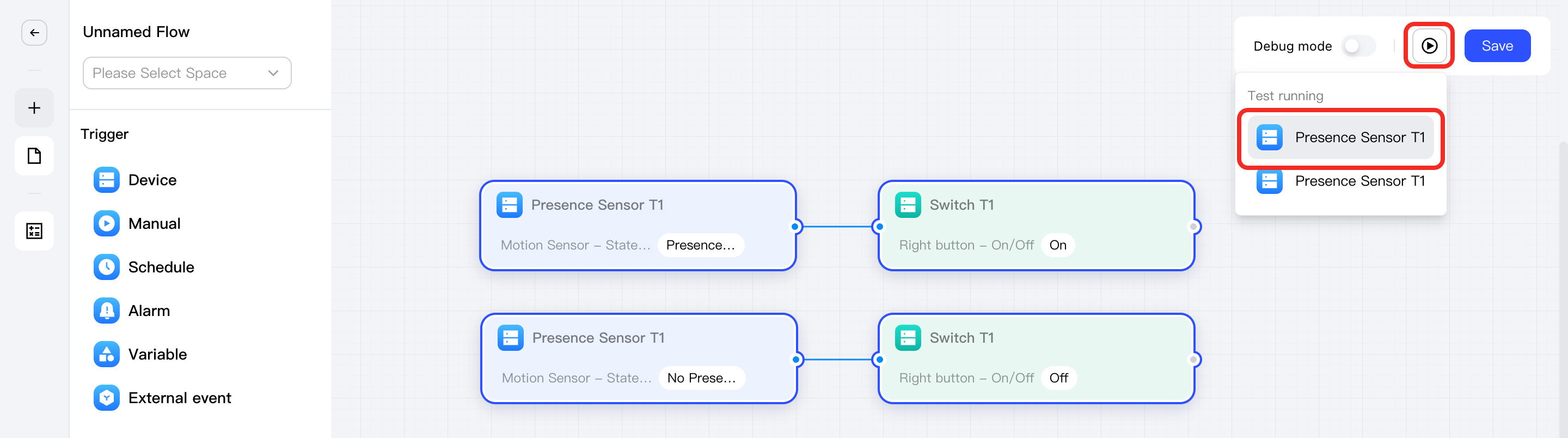
- Click the ▶ icon to open the Test running list. This list displays all Trigger blocks on the canvas.
- Select a Trigger block from the list. Aqara Studio will treat that trigger condition as satisfied and start executing the subsequent automation Flow.
- Wait for the Flow test completed prompt, which indicates that the Flow has passed testing and can run normally. Also observe whether actions are completed correctly (for example, whether a device state changes or a Flow is enabled).
Save
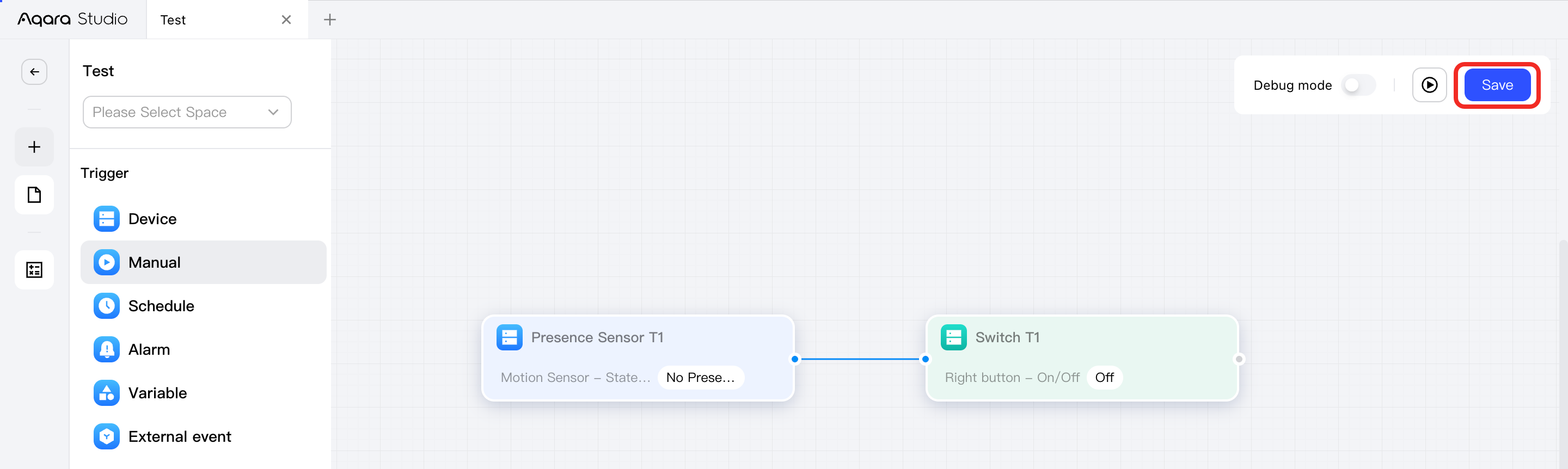
After completing the configuration, debugging, and testing above, and confirming that the current automation setup is correct, click the Save button to save the automation to Aqara Studio.
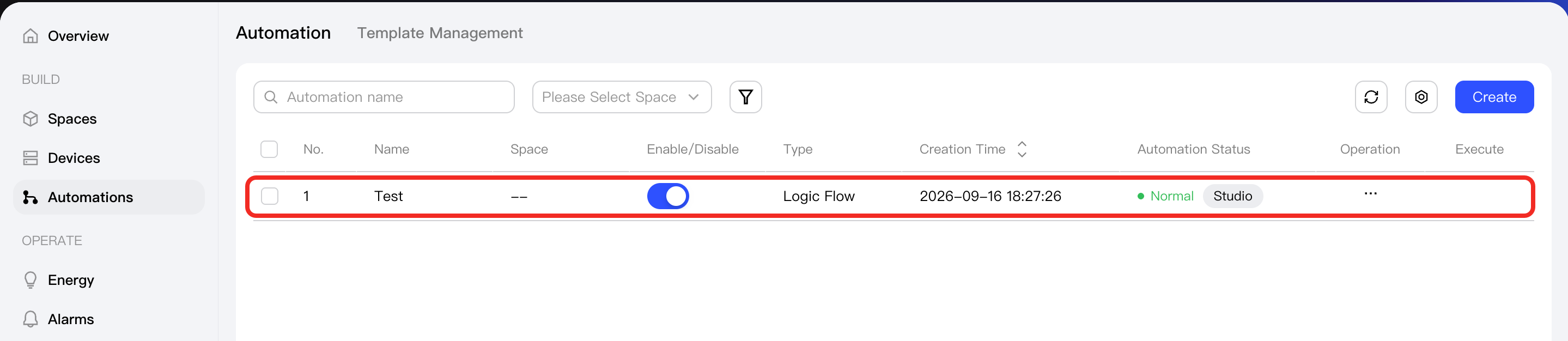
The page then navigates to the automation list, where you can see the automation you just saved. It is enabled by default.
Templates
Aqara Studio lets you convert an existing automation into a template so you can later reuse it as the basis for a new automation.
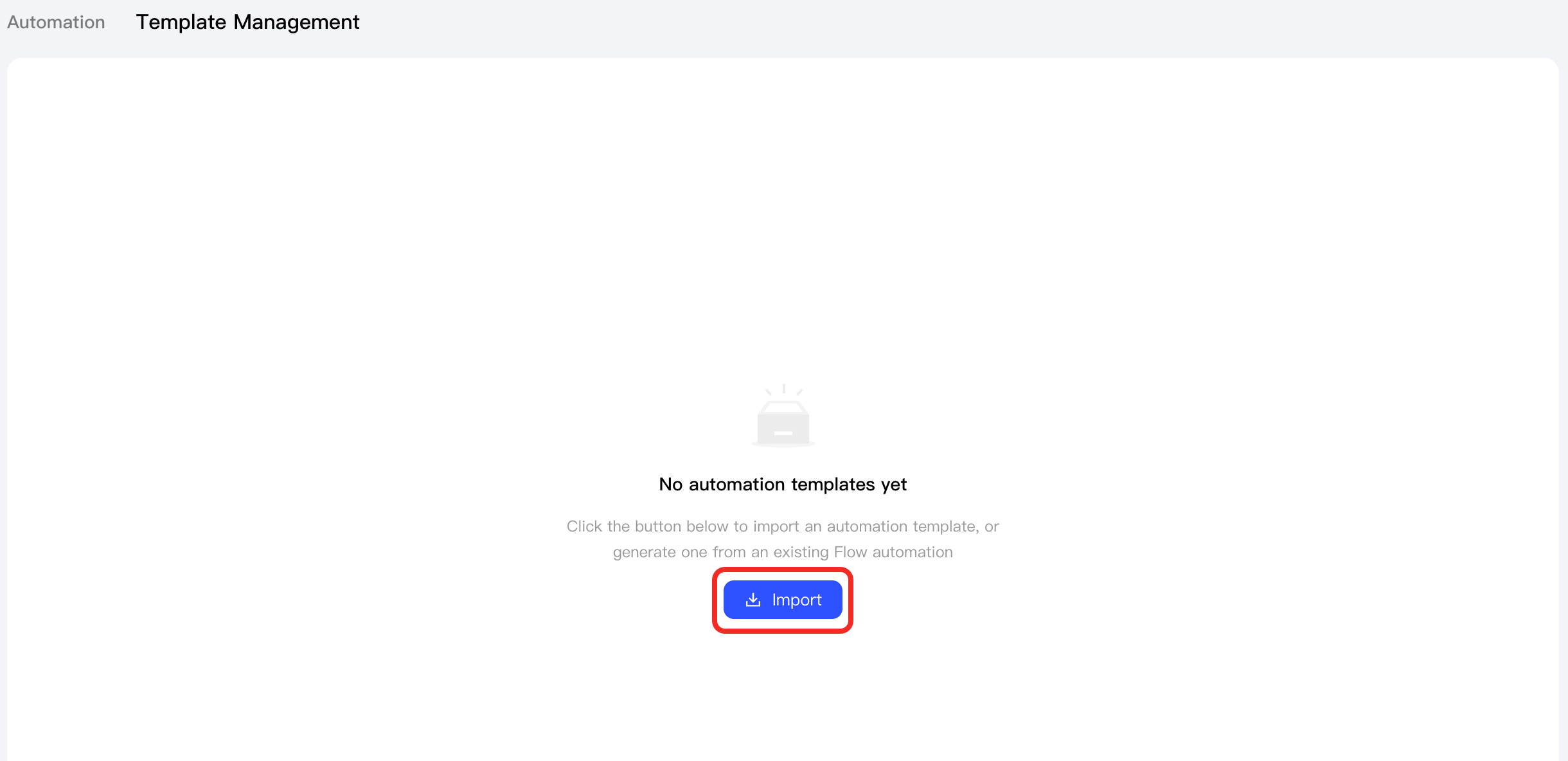
You can also export a template for local backup or import it into another Aqara Studio instance.
Generate a Template
To convert an automation into a template:
-
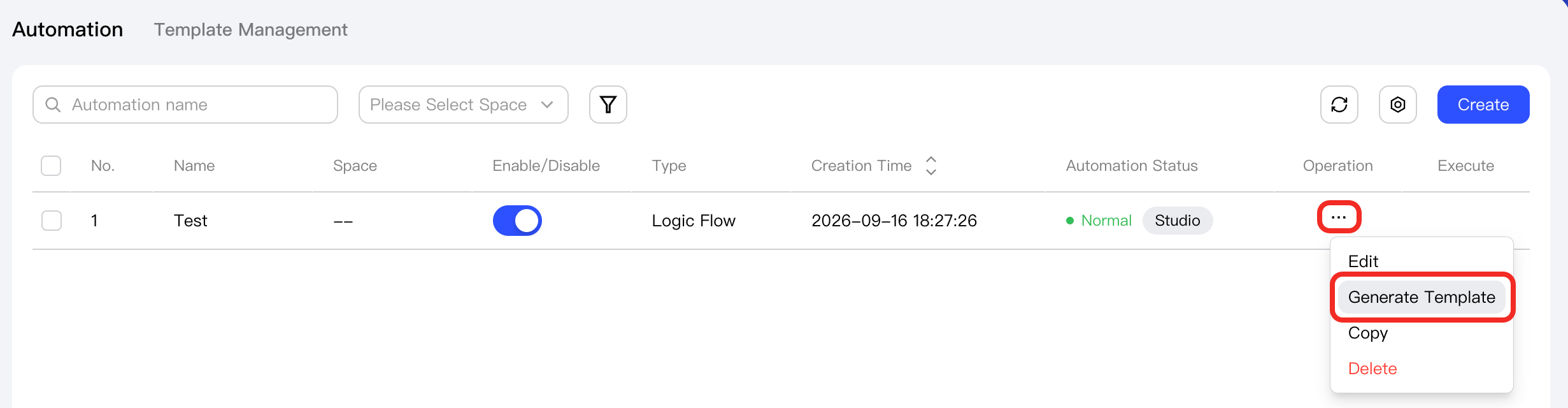
In the automation list, find the automation you want to convert, then click ... > Generate Template.
-
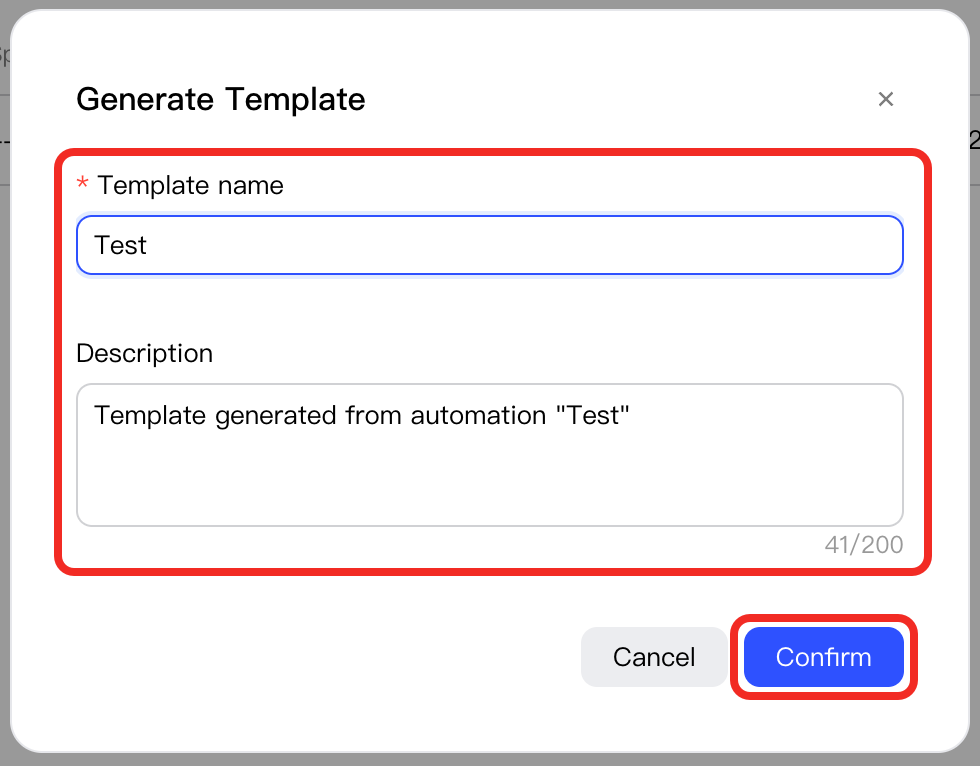
In the dialog, enter a template name. Aqara Studio generates a default description, which you can edit as needed to further explain the template’s purpose.
-
When the Template created successfully prompt appears, the automation has been converted into a template. Switch to the Template Management tab to see the newly converted template in the list.

Create an Automation from a Template
Creating an automation from a template lets you quickly build a new automation based on an existing template.
Follow these steps:
-
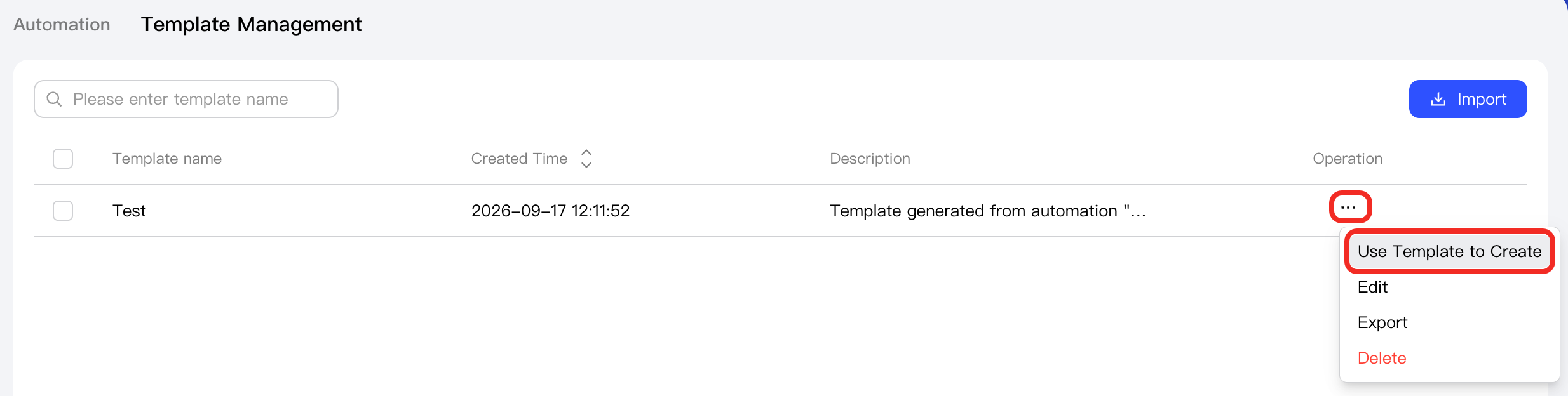
In the template list, find the template you want to use, then click ... > Use Template to Create. You will enter the automation editor.
-
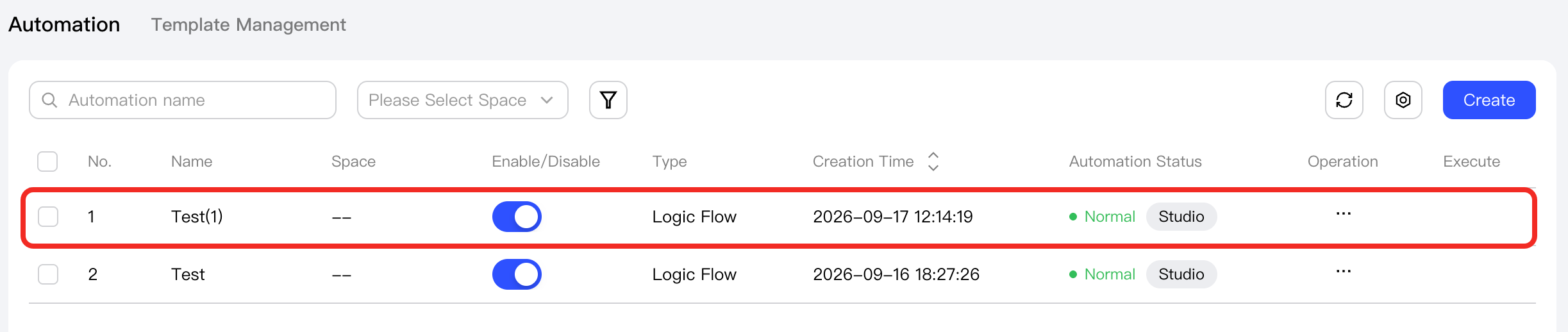
Return to the Automation tab. You will see a new automation added to the automation list.
Export a Template
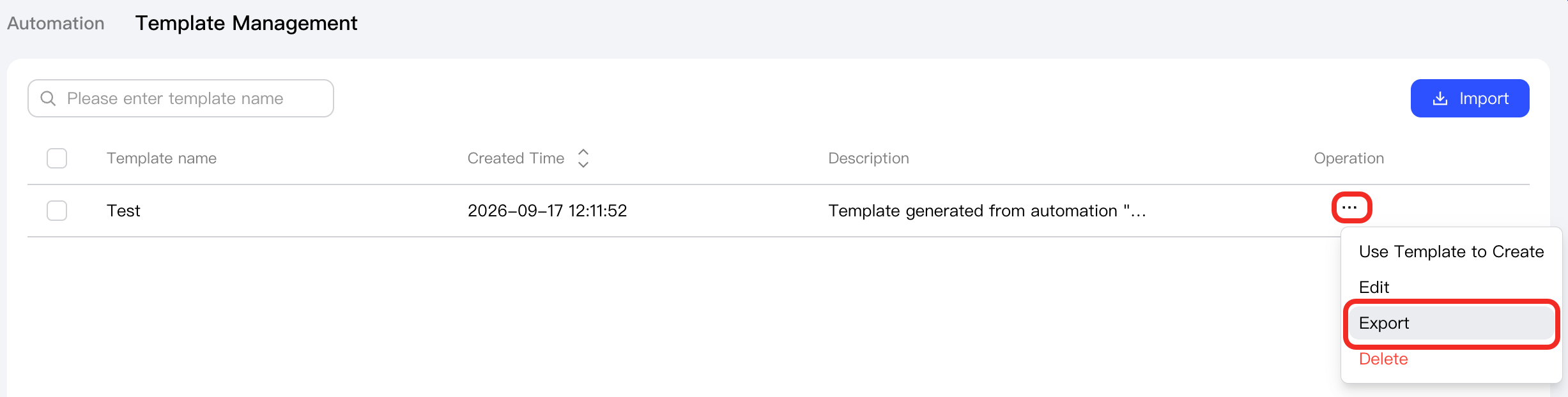
In the template list, find the template you want to export, then click ... > Export to download the template locally in JSON format.
Import a Template
To import a local automation template JSON file into Aqara Studio, click the Import button on the Template Management tab to start the import.