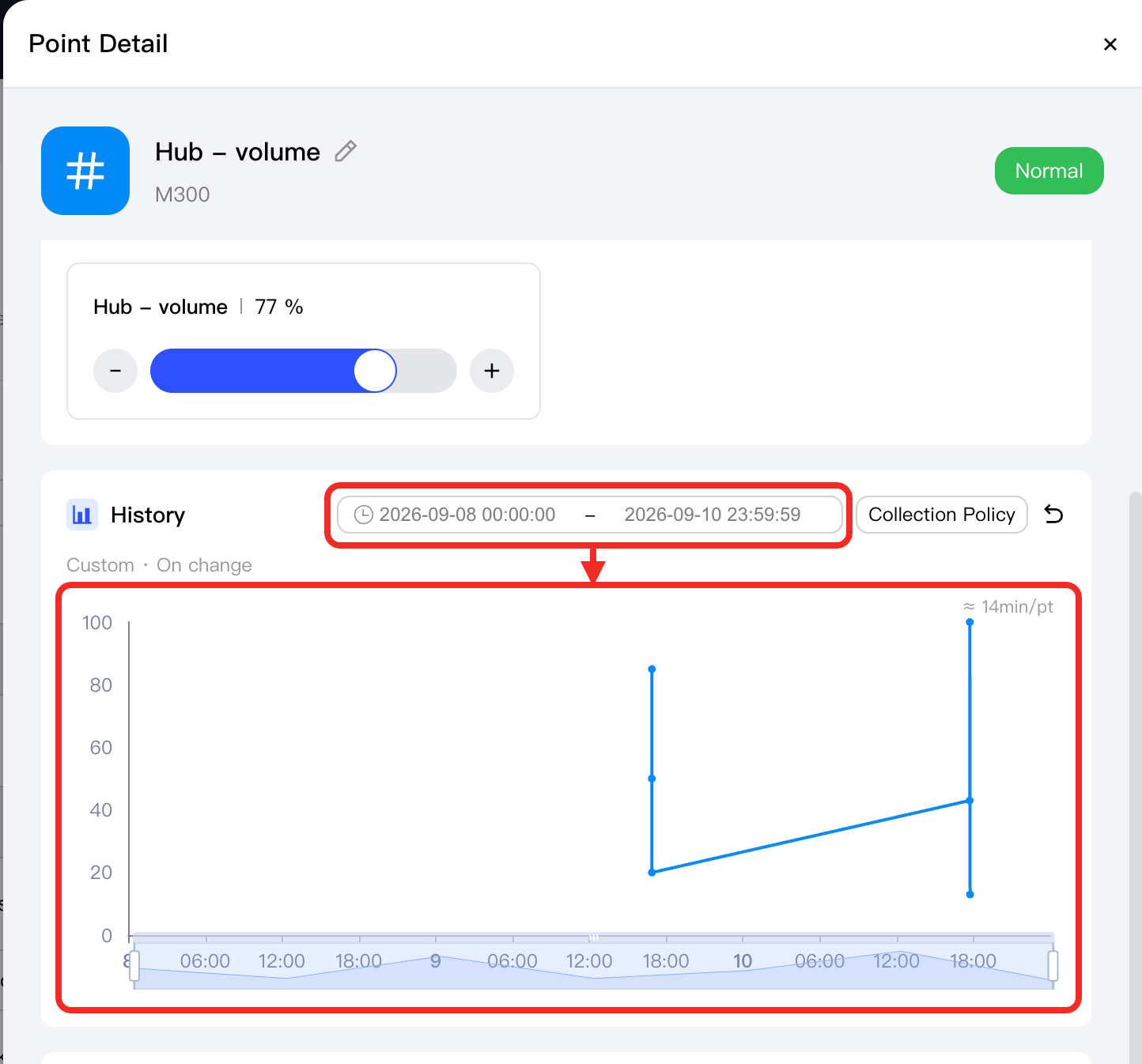
Display History
In Aqara Studio, you can quickly check and analyze historical data for device function points. Just set up collection rules, and the system will automatically track and show how a function point’s status changes over time. This helps you spot trends, find problems, and adjust device settings as needed. Below are the steps to configure and view historical data.
Steps
-
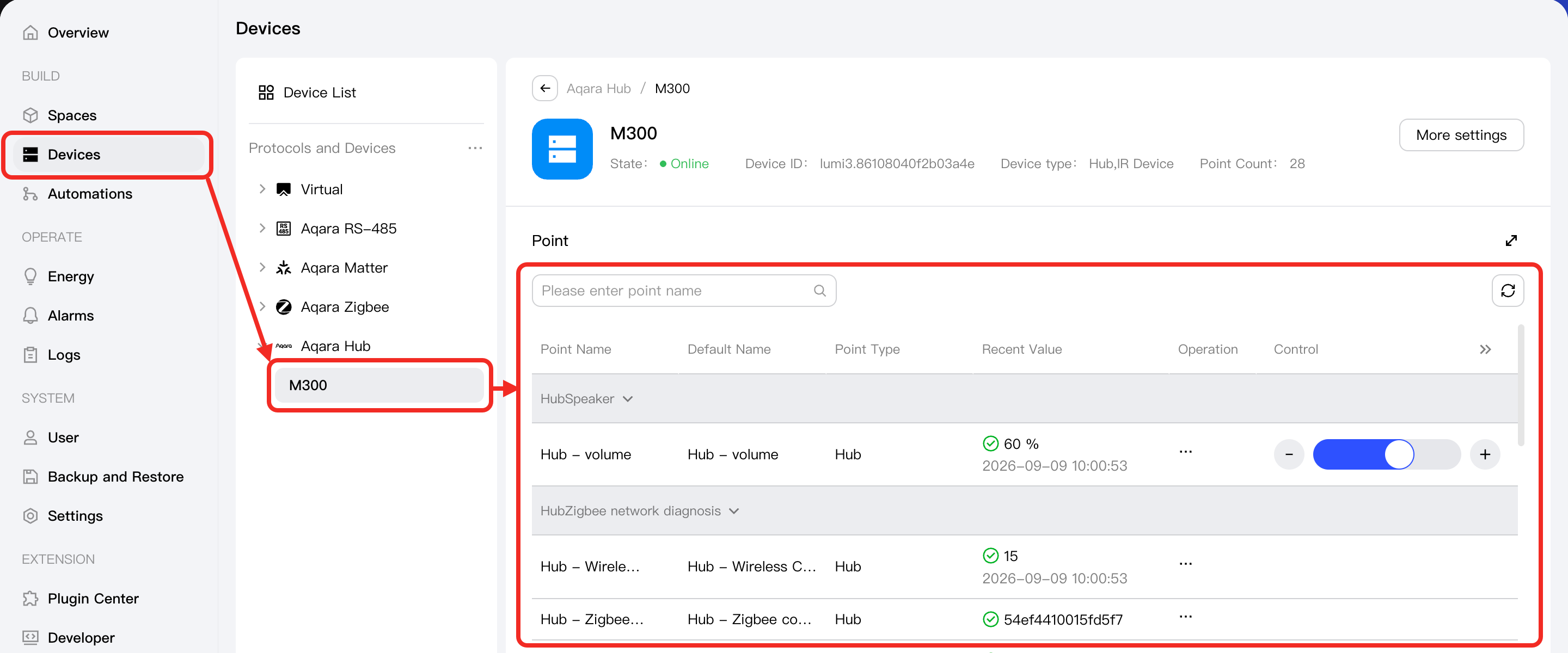
Go to the Devices page. In the Protocols and Devices tree on the left, select the device you want to view to open its management page. You will see a list of function points.
-
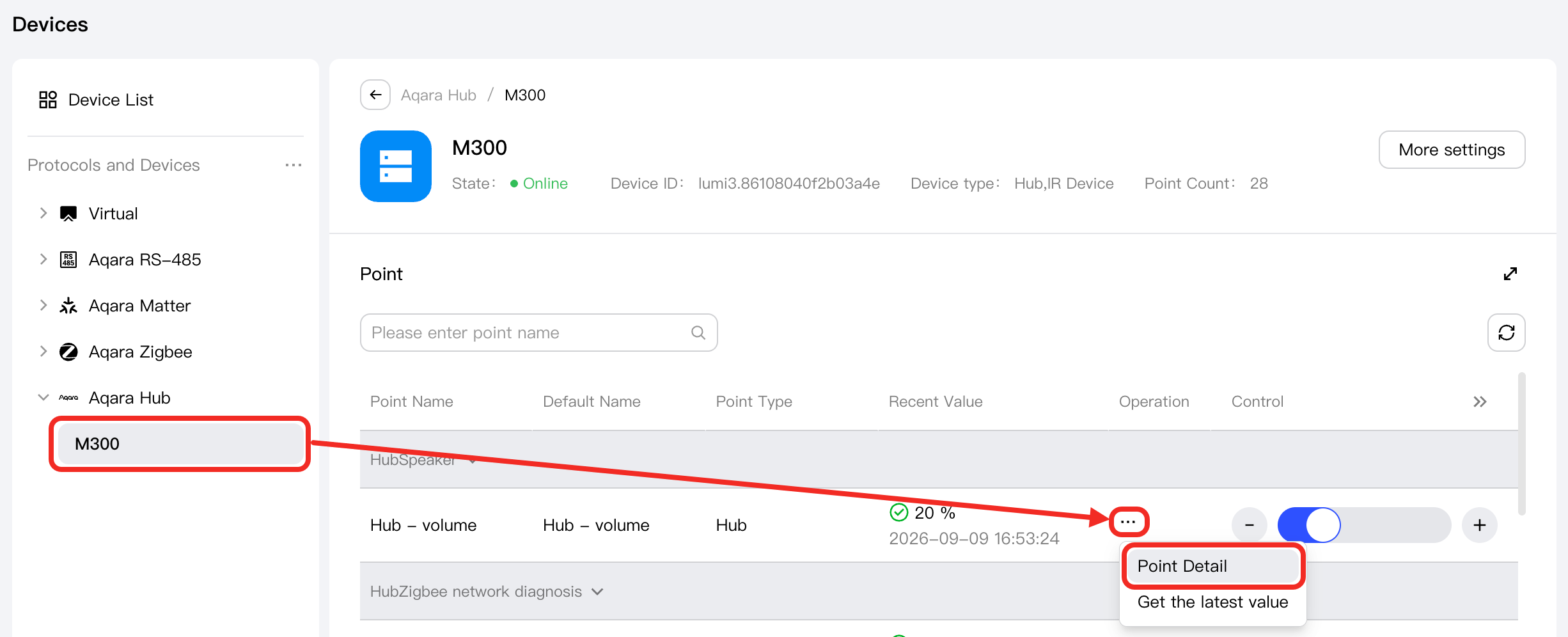
Find the function point you want to view, open the Actions menu, and select Function Point Details.
-
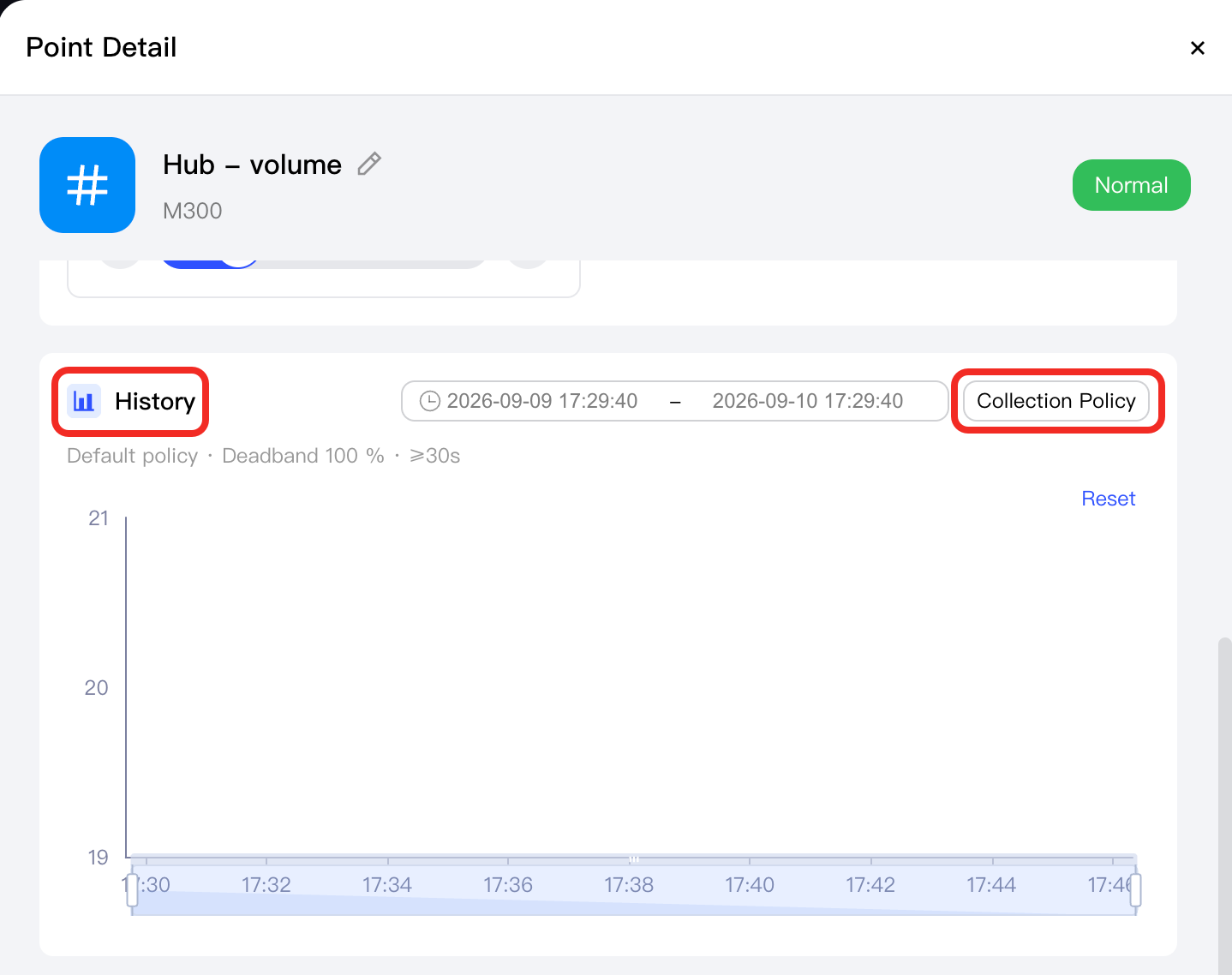
In the Function Point Details dialog, scroll down to the History section and configure the Collection Policy.
-
Define the time range. A historical data chart will be generated automatically below, so you can view the trend for that function point within the specified time range.