View and Control Function Points (Traits)
This article explains how to view and operate device function points (Traits) in Aqara Studio. You can read the real-time status of function points and control devices by writing function point fields.
tip
A Trait describes an attribute or state of a device and supports operations such as Read, Write, and Report.
Difference from Command: Trait supports Read, Write, Report, and other operations, while Command is only a command, without status.
Steps
Go to the Devices page and select the device you want to view in the Protocol and Device Tree on the left. Here, you will see a list of function points.
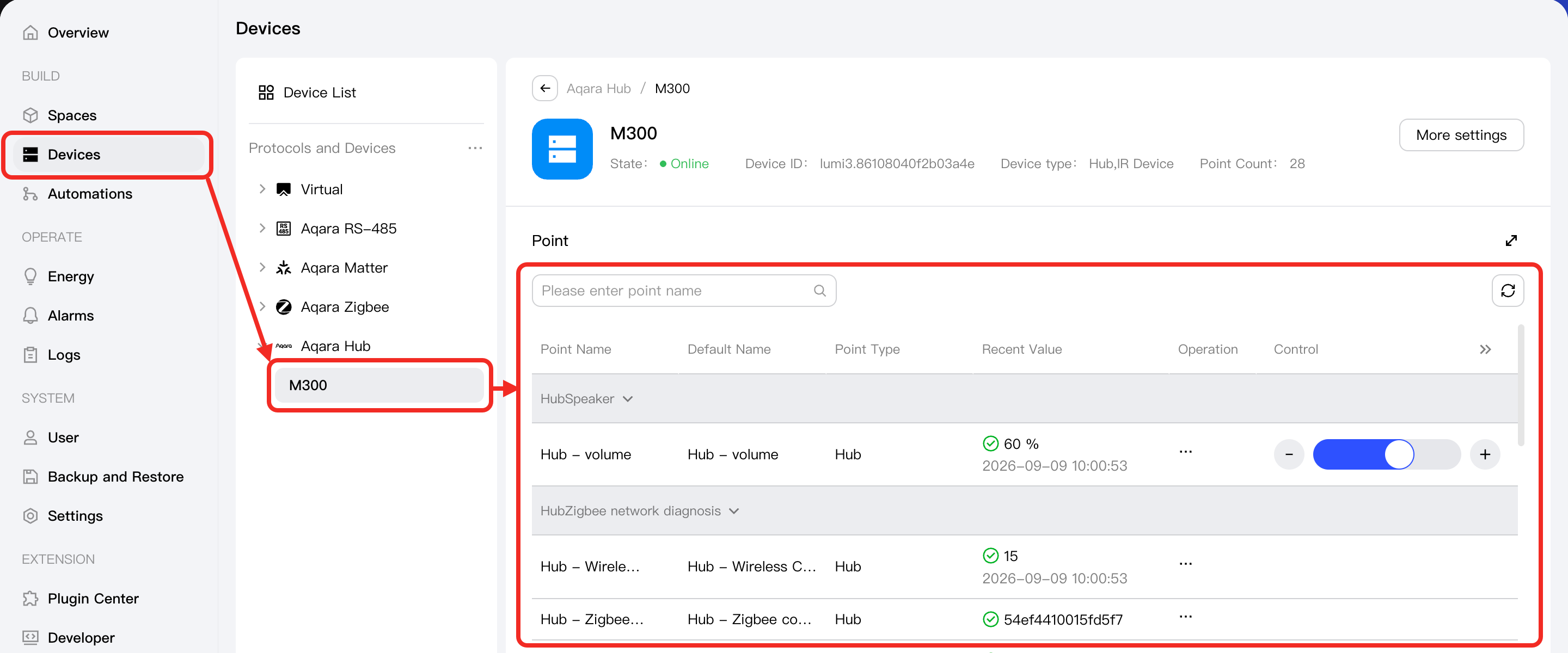
Each point represents a field or status of the device. You can view the following fields:
| Field | Description |
|---|---|
| Point Name | The display name of the function point. Default is the same as Default Name. You can modify it if needed. |
| Default Name | The default name of the function point. Cannot be edited. |
| Point Type | The category the function point belongs to. The editability of this filed varies based on the device protocol:
|
| Recent Value | The most recent real-time value of the function point. |
| Operation | You can perform the following operations on the function point:
|
| Control | For writable function points, you can set fields or perform operations such as switching on or off directly here. Once configured successfully, the Recent Value will be automatically updated to reflect the new status. |