Add Tags
To help you organize and identify devices and Points in your smart home system, Aqara Studio lets you add different types of tags to protocols, devices or points. This improves both the structure and efficiency of device management.
Tag Types
Aqara Studio offers two kinds of tags: mark tags and value tags.
- Mark tag: Used for identifying and classifying, protocols, devices and points. You cannot assign a value to a mark tag.
- Value tag: It allows you to set a value. You can use it to describe specific properties of a protocol, device or point.
How to Add Tags
Follow these steps to add tags (both mark tags and value tags) to protocols, devices, or points in Aqara Studio:
- Go to the Devices page. In the device tree on the left, locate the protocol, device or point you want to edit.
- Click the device or point, and navigate to its Device details tab.
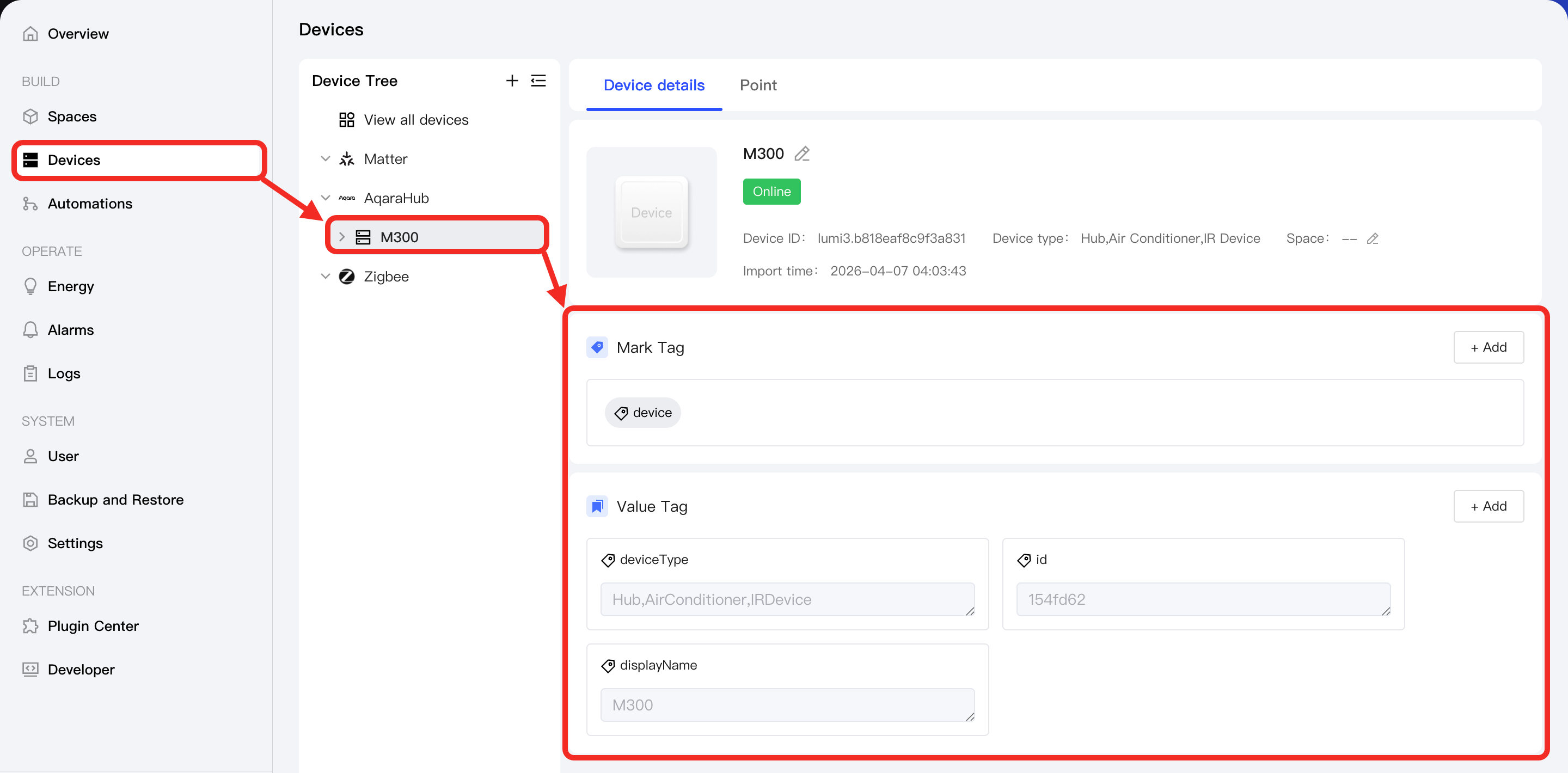
Mark Tag
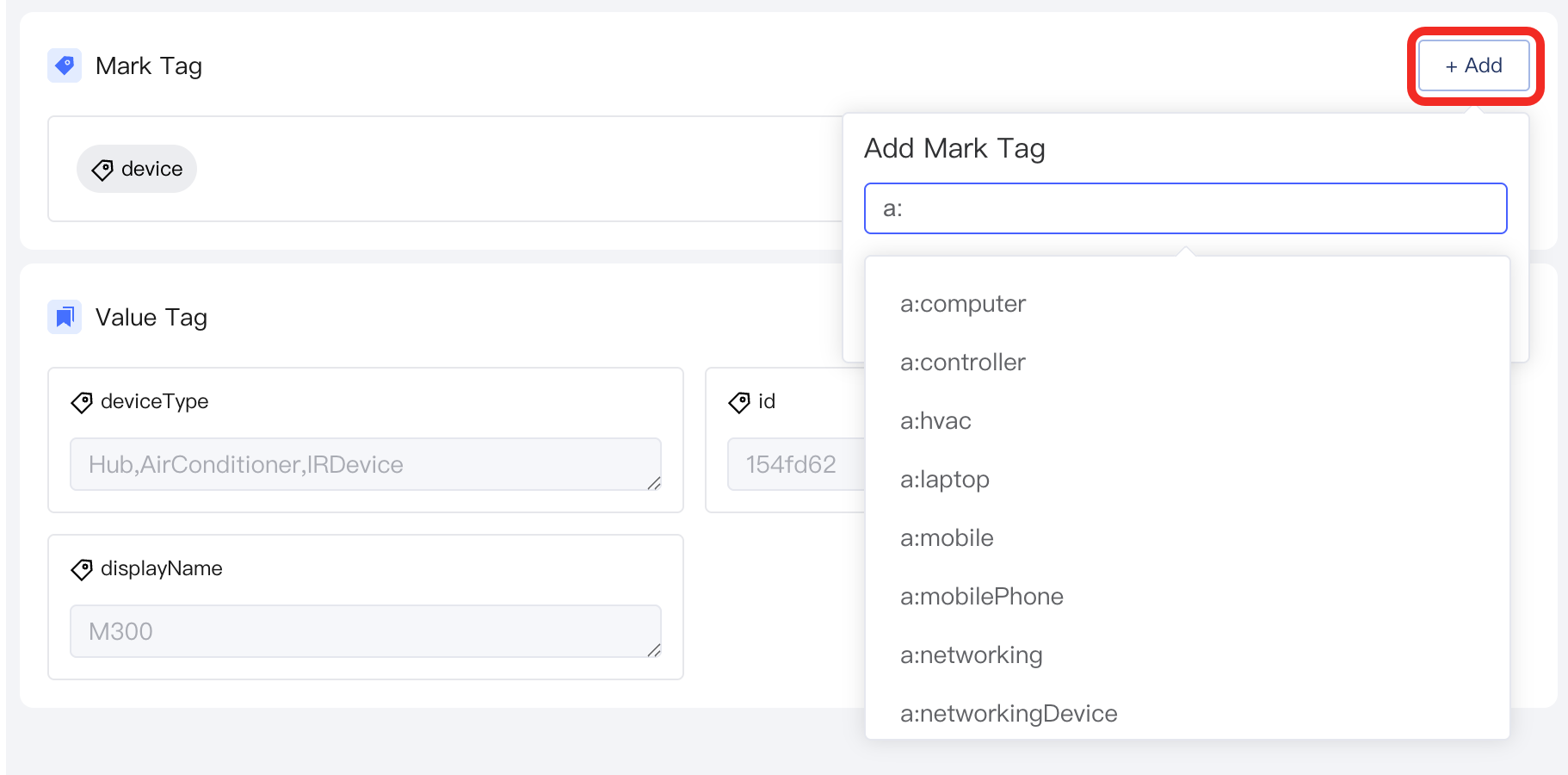
- In the Mark tag section, click the Add button.
- Select or enter a mark tag, and click Confirm. The tag will appear in the mark tag section.
Value Tag
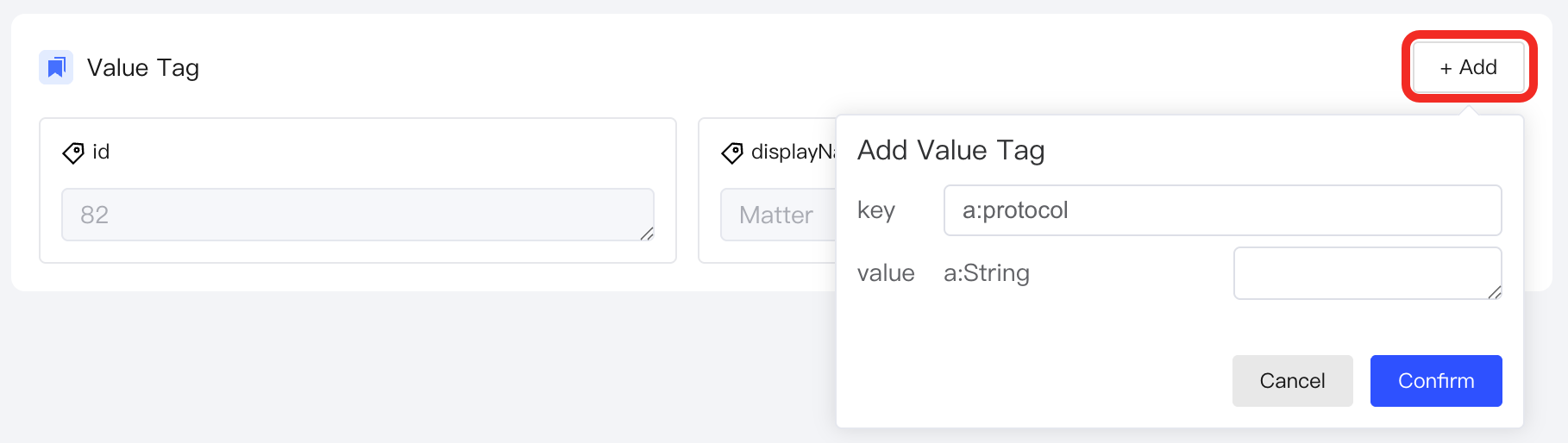
- In the Value tag section, click the Add button.
- Select a value tag, and assign it a value.
- After setting up, click Confirm. The new value tag will appear in this section.