Examples
Screenshots in this guide may look slightly different from what you see on your device. Please follow the actual interface for reference.
This article shows you multiple common automation logic examples. The devices used in the examples are for demonstration purposes only. You can replace them with any smart devices that have the same functionality to achieve the same automation effects.
Turn off lights at 23:00 every day
This logic will turn off the light bulb at 23:00 every night.
- Click the Timer Trigger button, select all 7 days of the week in the block to represent every day, choose
Specific Time, and set the time to23:00:00. - Click the Action button, select 1 light bulb from the device list, and choose the
Switchrelated block from the function block list. - In the above
Actionblock, set the light bulb toOnand connect it to the output point of theTimer Triggerblock.

Turn on air conditioner and set cooling mode when someone is in the room
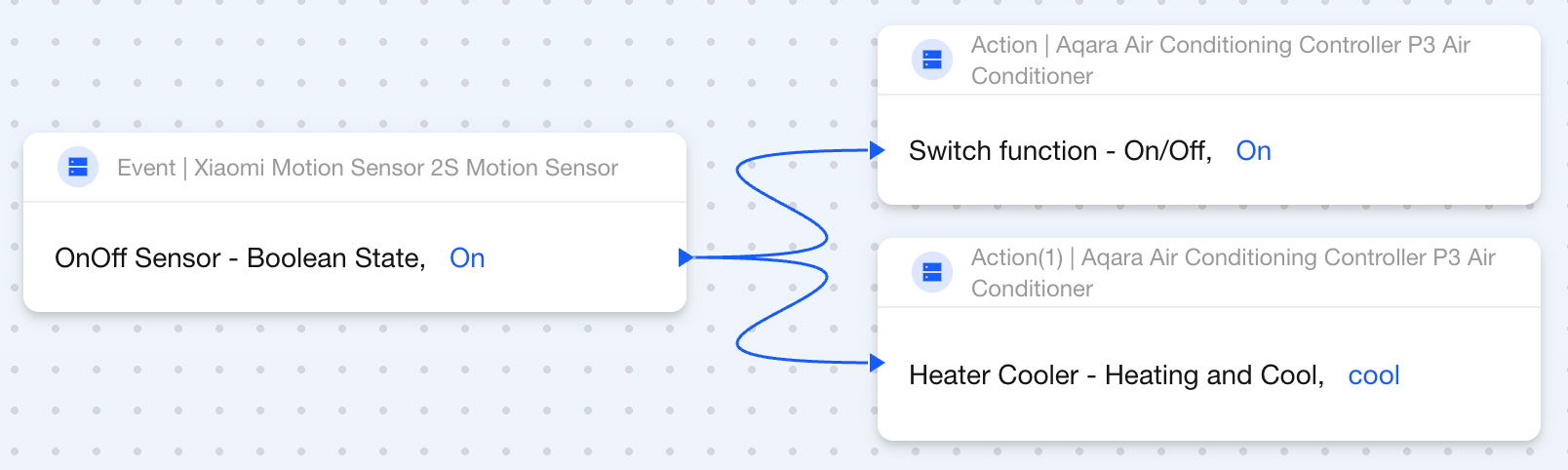
When someone is detected in the room, turn on the air conditioner and set it to cooling mode.
- Click the Event button, select a motion sensor from the device list, and choose the
OnOff Sensorrelated block from the function list to monitor whether someone is in the room. - In the above
Eventblock, configure theOnOff SensortoOn, indicating that when someone is detected in the room, the next operation will be triggered. - Click the Action button, select an air conditioner or air conditioner thermostat from the device list, and select both the
Switchrelated block and theHeating/Cooling Moderelated block from the function block list. - In the above
Actionblock, set theSwitchtoOnand theHeating/Cooling Modetocool, and connect both to the output point of theEventblock.
Automatically turn on lights when someone is in the room and it's dark
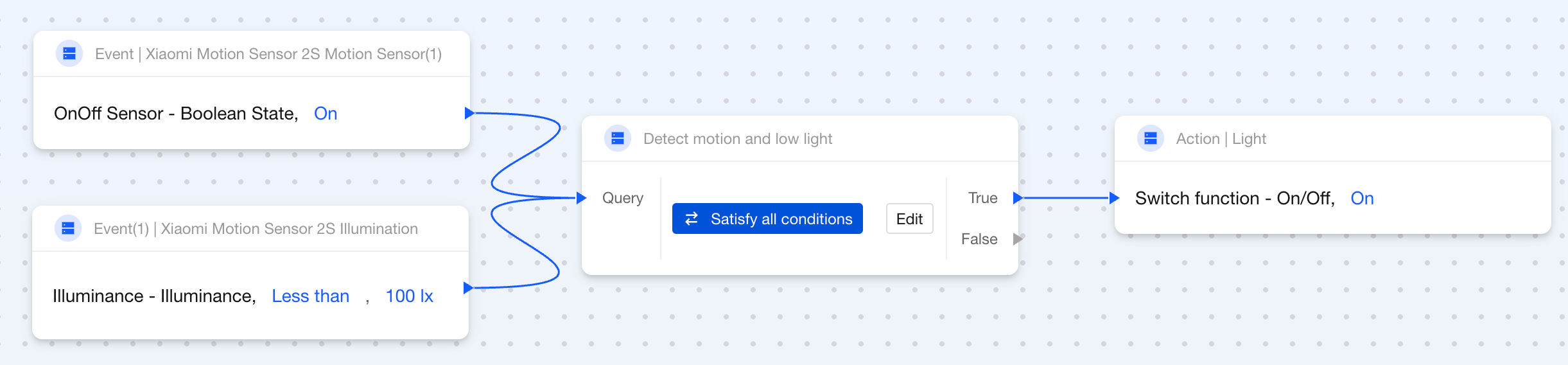
This logic will simultaneously detect whether someone is in the room and whether the current lighting is insufficient, and will only automatically turn on the light bulb when both conditions are met.
- Click the Event button, select a motion sensor, add a
Presenceblock, and set theOnOff SensortoOnto detect whether someone is in the room. - Click the
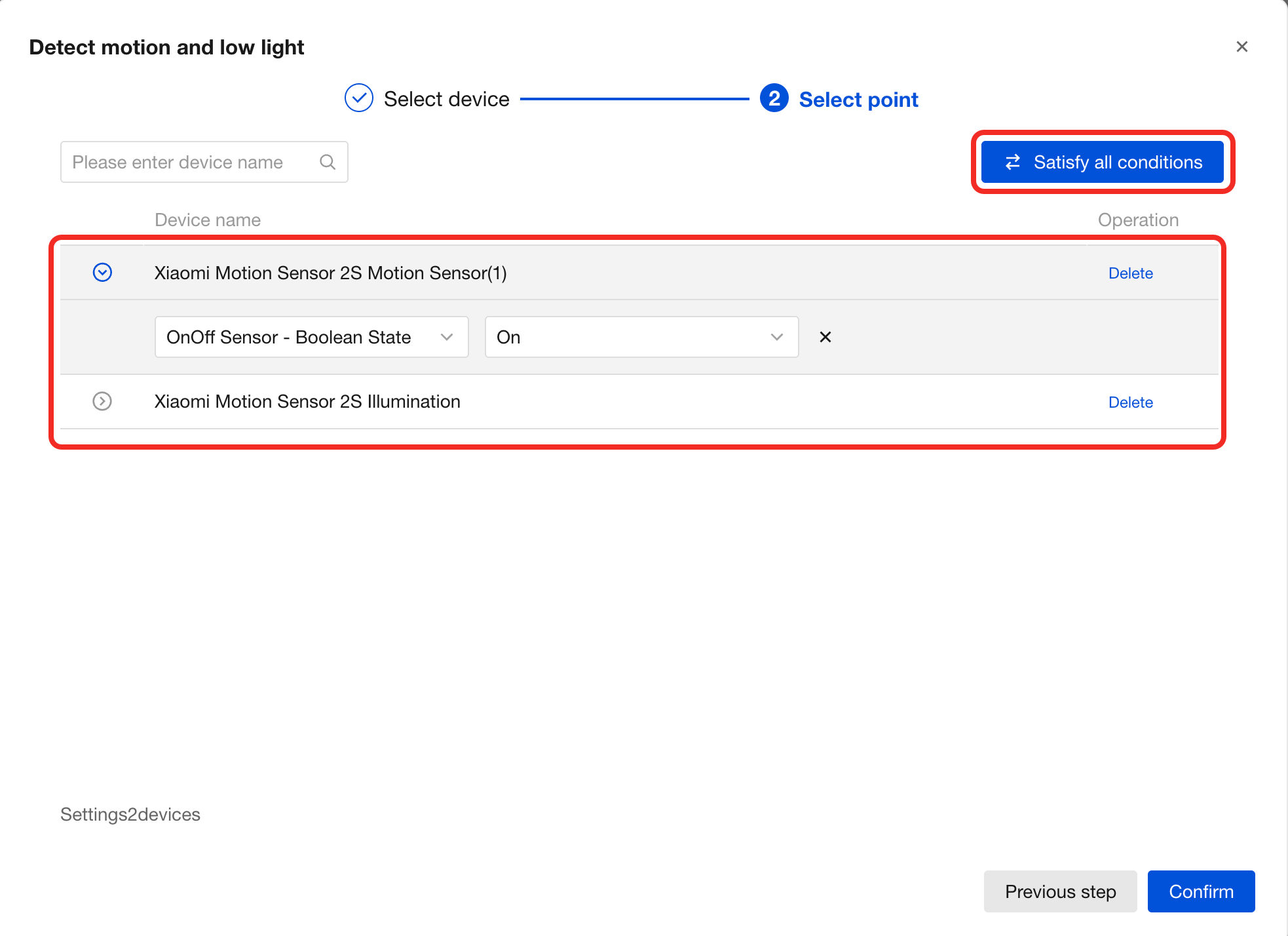
Eventbutton, select a light sensor, add anIlluminanceblock, and set the condition toIlluminance less than 100 luxto detect whether the room is dark. - Select the Condition block in batch, choose the above motion sensor and light sensor, add query conditions "Presence Status is On" and "Illuminance reading less than 100 lux" respectively, and set to "Meet all conditions". Ensure that subsequent actions are triggered only when both "someone is present" and "insufficient lighting" conditions are met.
- Connect the above two
Eventblocks to the input points of theConditionblock, so that a query will be triggered whenever someone is detected in the room or insufficient lighting is detected. - Click the Action button, select a light, add a
Switchblock, and set it toOn. - Connect the output point of the
Conditionblock to theActionblock to achieve the logic of automatically turning on the light when theConditionblock query result is true.
Automatically turn on lights when someone is in the corridor or it's dark
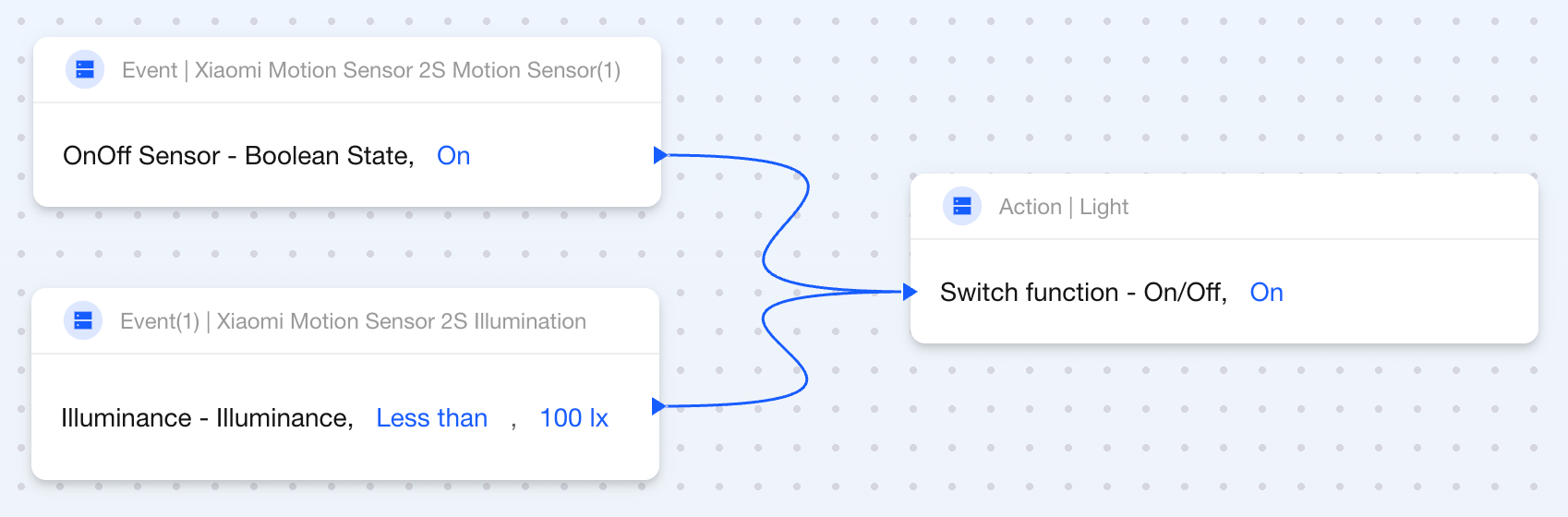
When someone is detected in the corridor or it's dark, this logic will turn on the lights.
- Click the Event button, select a motion sensor, add a
OnOff Sensorblock, and set theOnOff SensortoOnto detect whether someone is in the room. - Click the
Eventbutton, select a light sensor, add anIlluminanceblock, and set the condition toIlluminance less than 100 luxto detect whether the room is dark. - Click the Action button, select a light, add a
Switchblock, and set it toOn. - Connect the above two
Eventblocks to theActionblock respectively, indicating that the lights will be turned on when either event occurs.
Turn on lights with 1-minute delay when someone is in the room
When someone is detected in the room, this logic waits for 1 minute before turning on the lights.
- Click the Event button, select a motion sensor from the device list, and choose the
OnOff Sensorrelated block from the function list to monitor whether someone is in the room. - In this
Eventblock, configure theOnOff SensortoOn, indicating that when someone is detected in the room, the next operation will be triggered. - Add 1 Delay block, set the time to
1 minute, and connect its input point to the aboveEventblock. - Click the Action button, select a light bulb from the device list, and choose the
Switchrelated block from the function block list. - In the
Actionblock, set the light bulb toOnand connect it to the output point of the aboveDelayblock.
