Other Blocks
Screenshots in this guide may look slightly different from what you see on your device. Please follow the actual interface for reference.
Overview
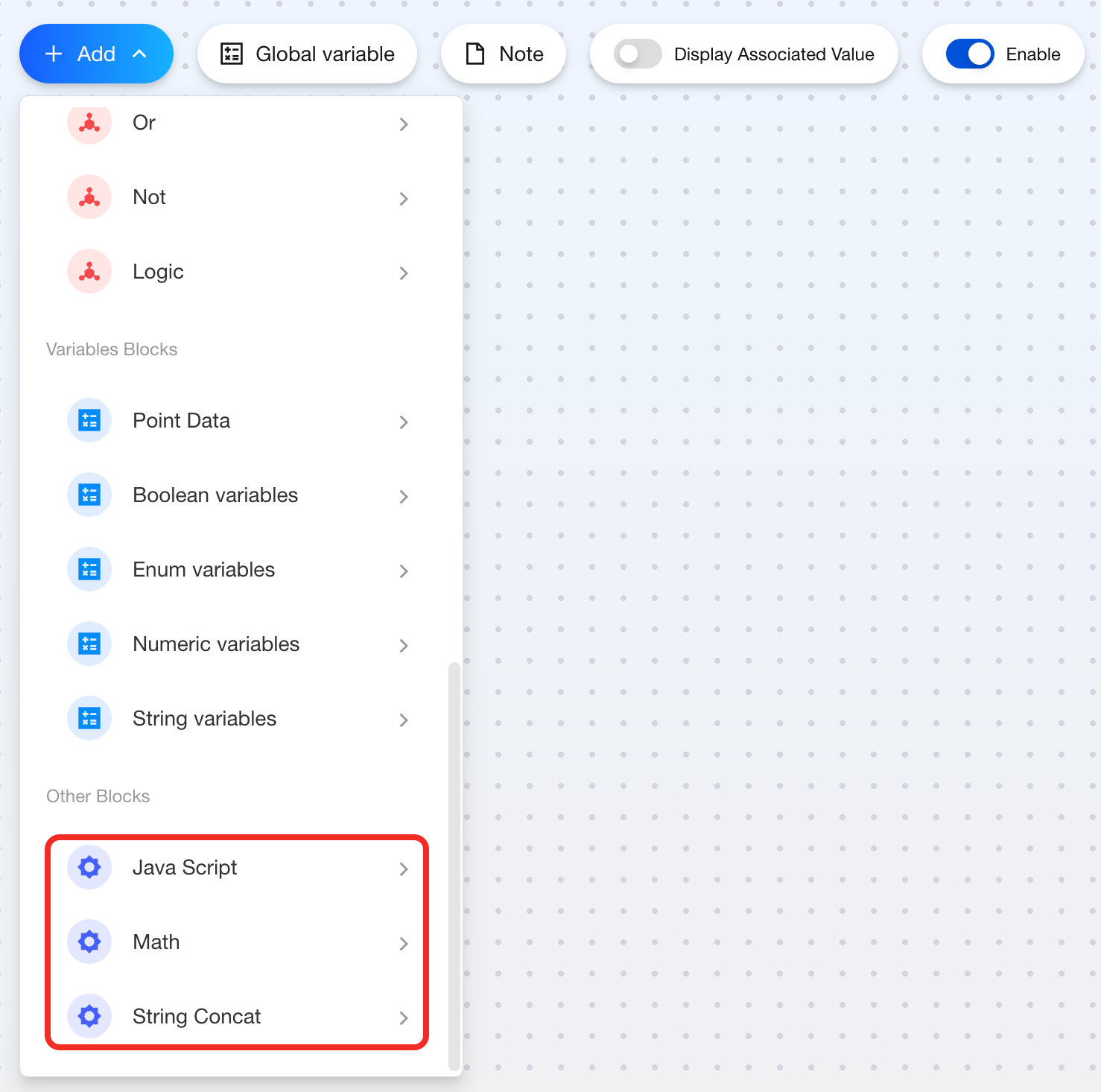
Aqara Studio offers more than basic functions like device control, scheduling, logic, and variables. It also provides Other Blocks that make your automation workflows more flexible and expressive.
This category includes JavaScript, Math, and String Concat. These blocks support advanced scenarios like custom conditions, dynamic value calculations, and formatted text generation. They help you achieve greater precision and customization in automation. With these blocks, you can move beyond basic logic and design more powerful workflows.
The other category includes the following blocks:
JavaScript
Feature
Use this block to customize the processing of string, numeric, and boolean variables.
Components
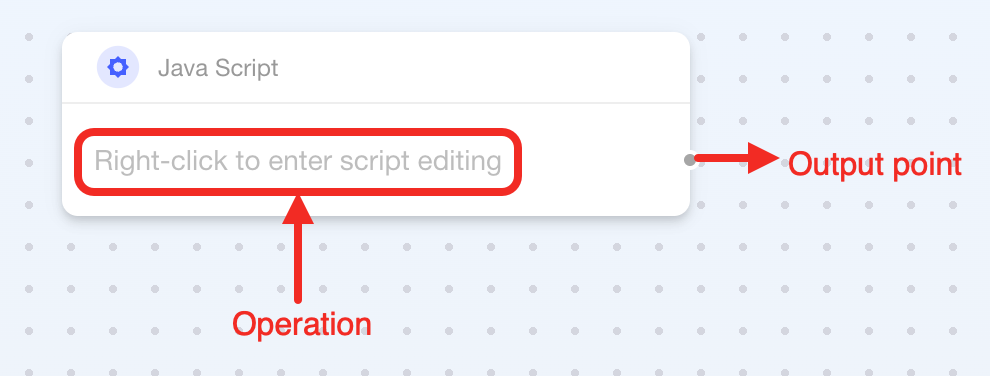
| Connection point / Operation | Required | Description |
|---|---|---|
| Input Point | ✔ | Add multiple parameter definitions in the script to create multiple input points on the block’s right side. Input points can connect to string, numeric, or boolean blocks (supports local variables, global variables, and point data). |
| Right-click | ✔ | Right-click the block to open the script editor. |
| Output Point | ✔ | Connects to a variable block to record script results, or to other blocks that receive data. |
How to Use
Here's how to use the JavaScript:
-
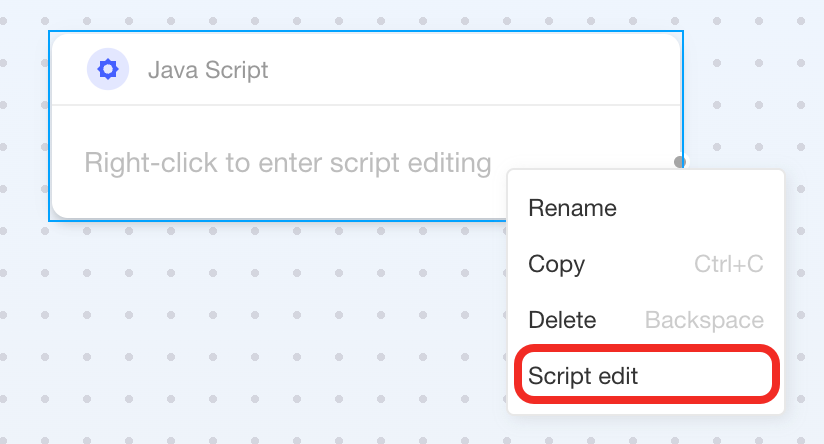
Right-click the block, select "Script edit" to enter the "Script Editor".
-
Click the + button, select 1 parameter type from the dropdown list, and define your parameter name in the "Edit name" popup to add 1 parameter button.
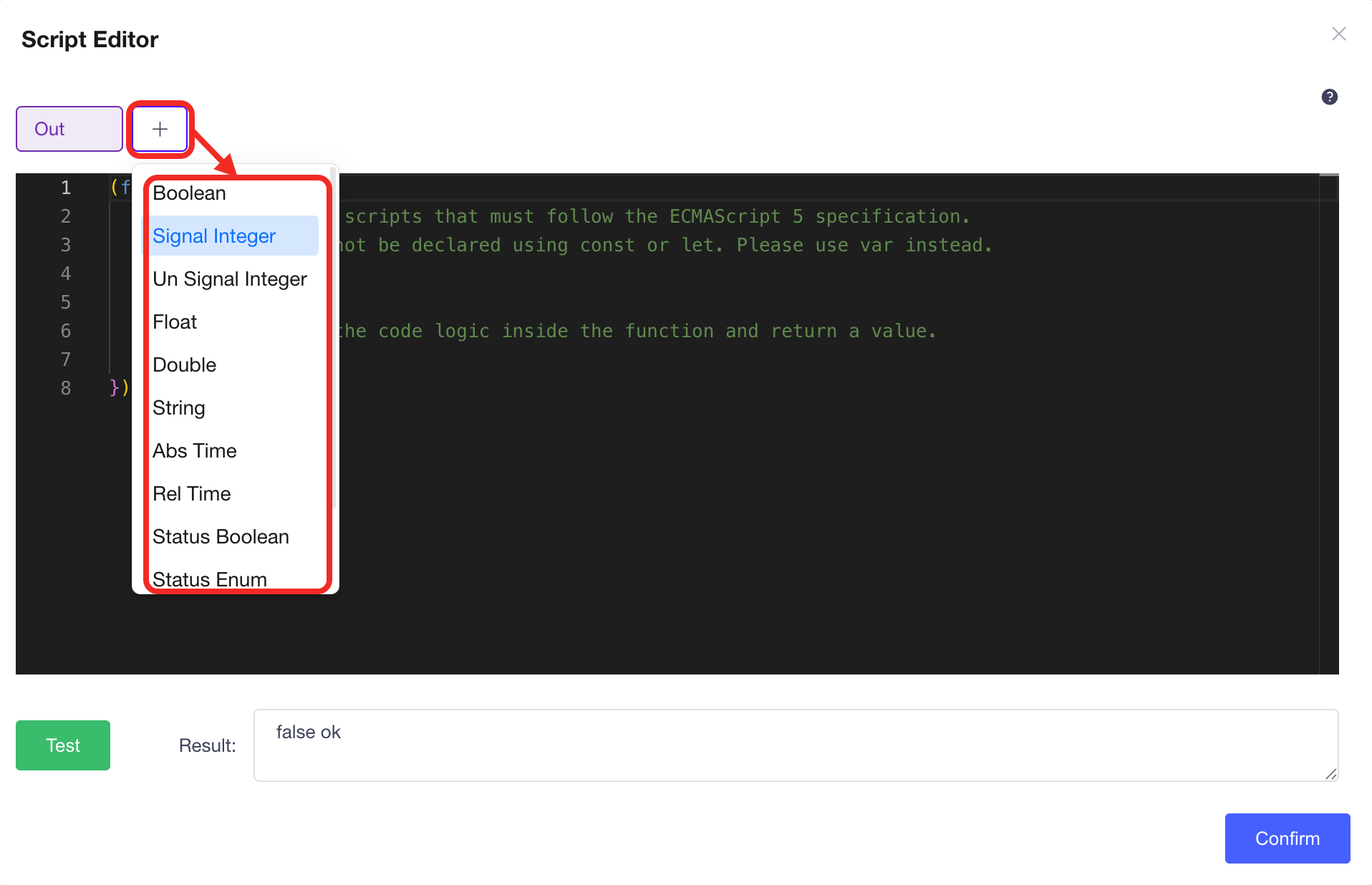
At this point, you can see that 1 new variable has been automatically added within the
function. Based on this, you can start writing your own script.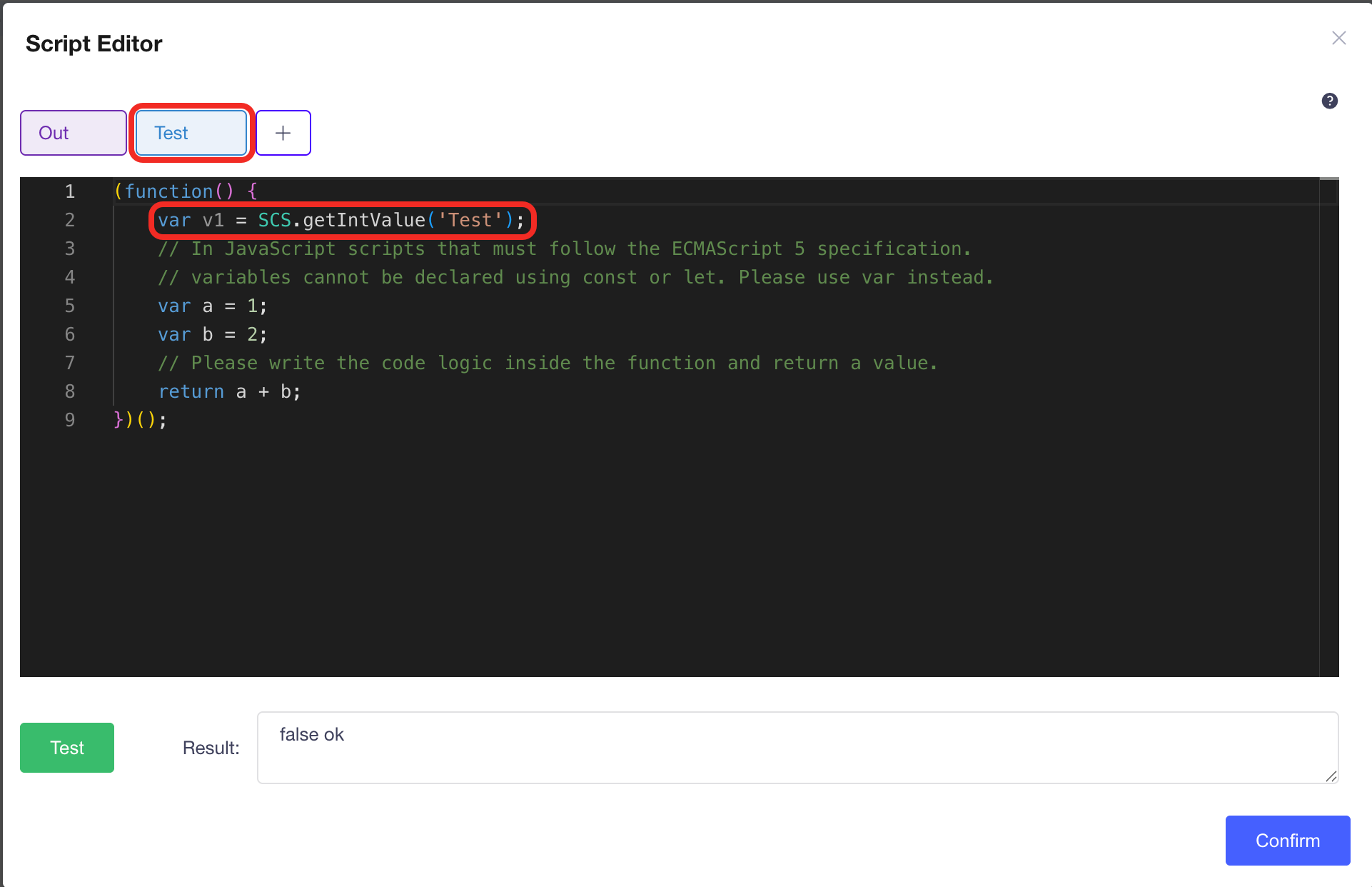
-
After completing script editing, click the Confirm button.
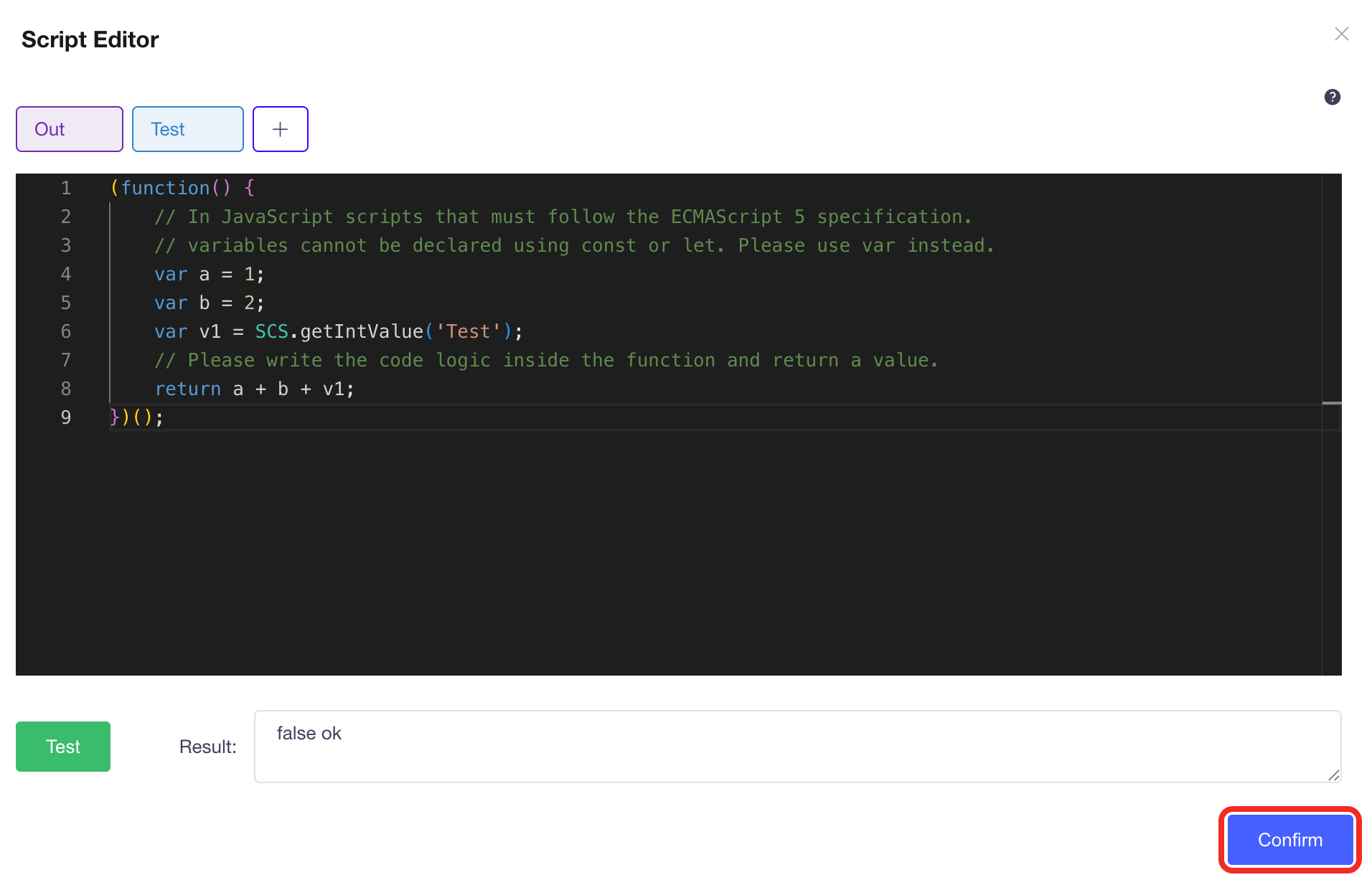
-
At this point, you can see that 1 input point has been added on the left side of the block.
Connect it to a Point Data block or other blocks that can provide values as an input parameter.
Connect 1 variable block on the right side of the block (must match the
returntype) to record the script results.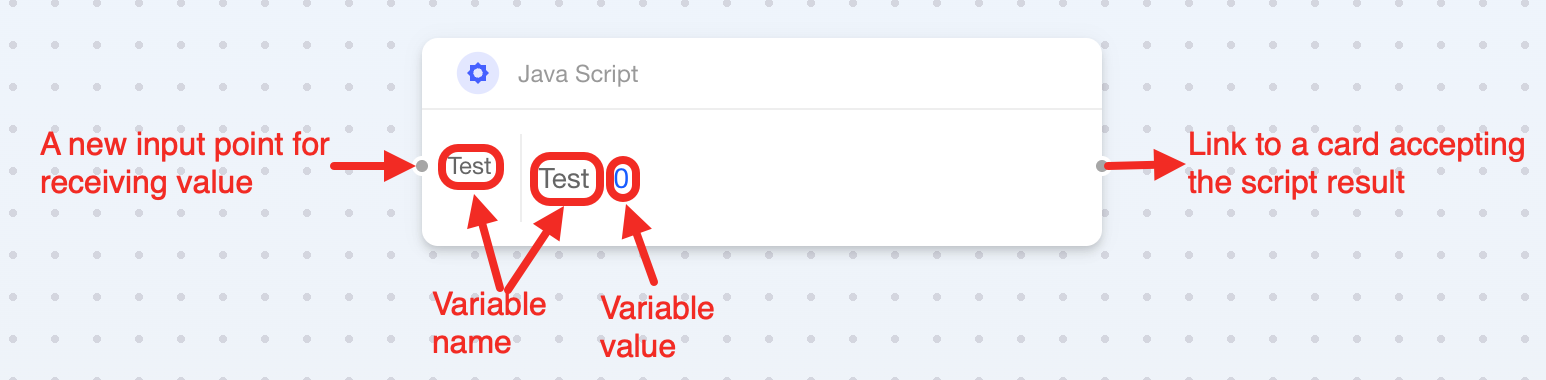
Math
Feature
If you want to calculate certain values in automation, you can use the "Math" block.
Components
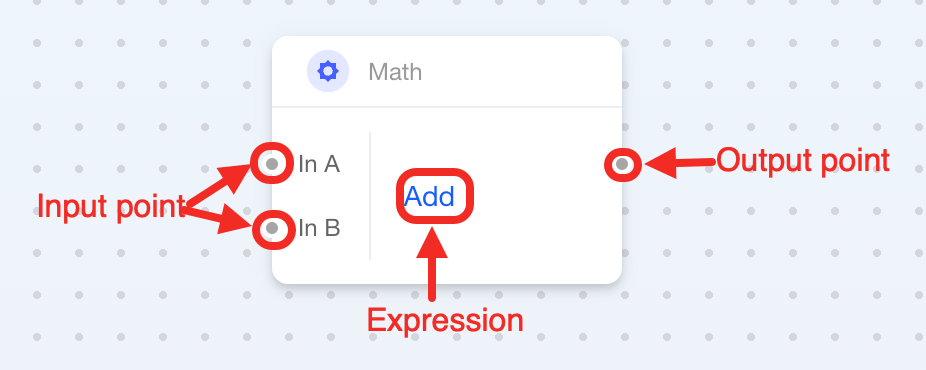
This block is multi-point type with 1 configurable parameter:
| Connection Point or Parameter | Required | Description |
|---|---|---|
| In A (Input Point) | ✔ | Input A. The first number. |
| In B (Input Point) | ✔ | Input B. The second number. |
| Mathematical Expression | ✔ | Select mathematical expression:
|
| Output Point | ✔ | Connect to 1 numeric variable block to record calculation result, or to other blocks that receive number. |
How to Use
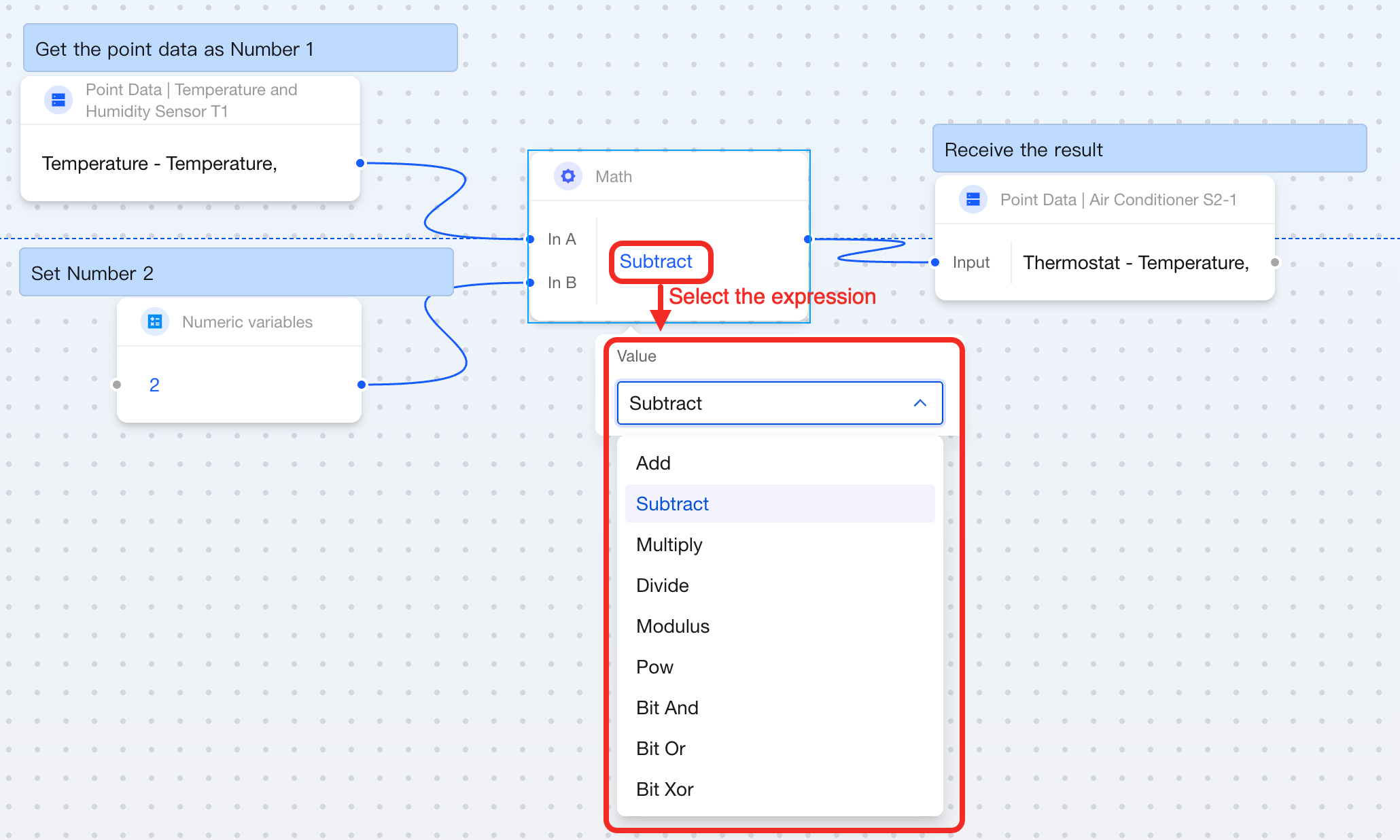
The above image demonstrates subtracting 2 from the outdoor thermometer reading as the indoor air conditioner's set temperature.
Here's how to use the Math block:
- Connect In A and In B to the left side of the block respectively. In A and In B can be Point Data blocks, Global Numeric Variable blocks, Numeric Variable blocks, or other blocks that can provide numeric values.
- Select a mathematical expression within the block.
- Connect 1 block that can accept numeric values to the right side of the block.
String Concat
Feature
If you want to combine multiple texts or variables into a complete text string, you can use the "String Concat" block.
Components
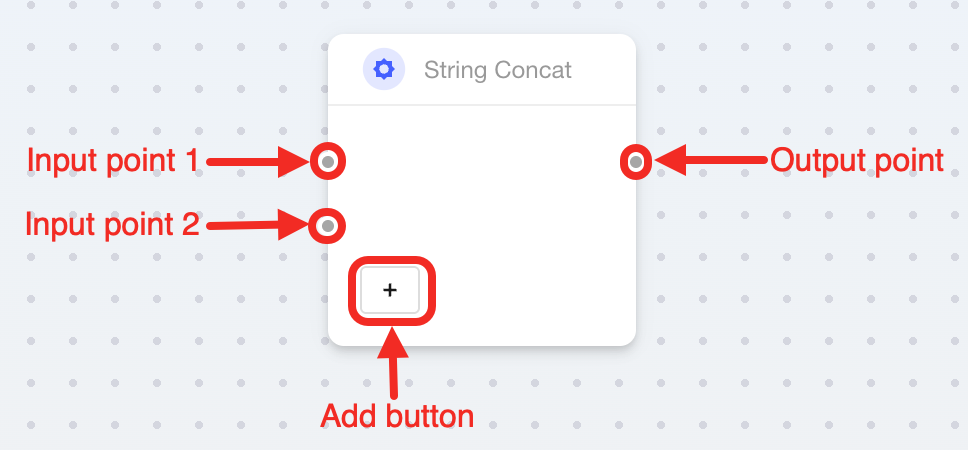
This block is multi-point type, supporting 2 input points and 1 output point by default, with 1 add button:
| Connection Point | Required | Description |
|---|---|---|
| Input Point 1 | ✔ | Connects any variable block as the text to be concatenated. |
| Input Point 2 | ✔ | Connects any variable block as the text to be concatenated. |
| Add Button | ✘ | Adds more input points to connect more text. |
| Output Point | ✔ | Connects to 1 string variable block for concatenation results. |
How to Use
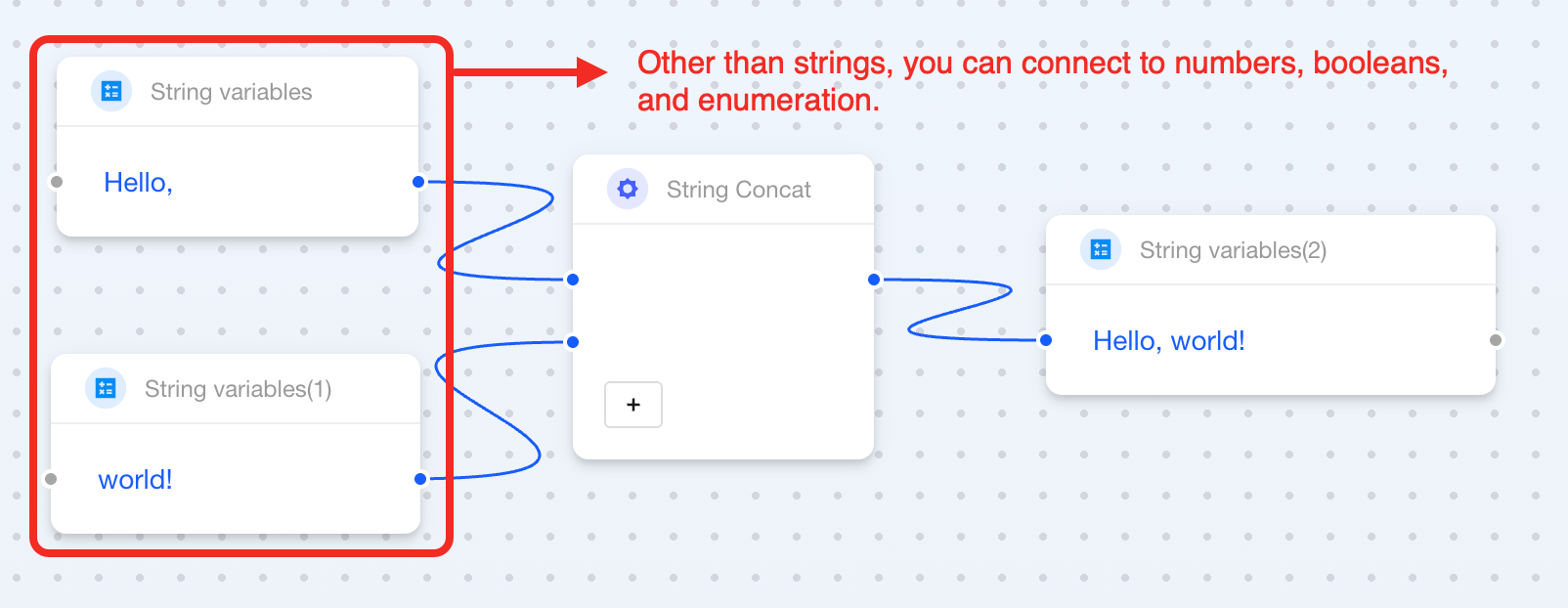
Here's how to use the String Concat block:
- Connect the variable blocks you want to concatenate (supports string, numeric, boolean, etc.) to the input points on the left side of the block.
- Connect 1
string variableblock to the right side of the block to record the concatenation results.
Counter
Feature
The Counter block is used for cumulative counting, supporting operations such as increment, decrement, preset value, and reset. It is suitable for various scenarios that require counting or accumulating values.
Typical scenarios include:
- People counting: Counting the number of people entering or exiting.
- Device counting: Recording the number of device switch-ons or runtime counts.
- Limited-action control: Triggering specific actions after reaching a set count.
Components
| Connection Point/Parameter | Required | Description |
|---|---|---|
| Count Up (Input Point) | ✘ | It connects to an Event or a Condition card. Each time the event or condition occurs, the count increases. |
| Count Down (Input Point) | ✘ | It connects to an Event or a Condition card. Each time the event or condition occurs, the count decreases. |
| Preset (Input Point) | ✘ | It connects to an Event or a Condition card. Each time the event or condition occurs, the count is reset to the preset value. |
| Clear (Input Point) | ✘ | It connects to an Event or a Condition card. Each time the event or condition occurs, the count is cleared (set to zero). |
| Preset Value (Parameter) | ✘ | The value to which the counter will reset when the Preset event occurs. |
| Count Increment (Parameter) | ✔ | The increment or decrement applied each time. Defaults to 1, customizable. |
| Output Point | ✔ | It outputs the current count, connectable to a card receiving numeric values. |