Process Blocks
Screenshots in this guide may look slightly different from what you see on your device. Please follow the actual interface for reference.
Overview
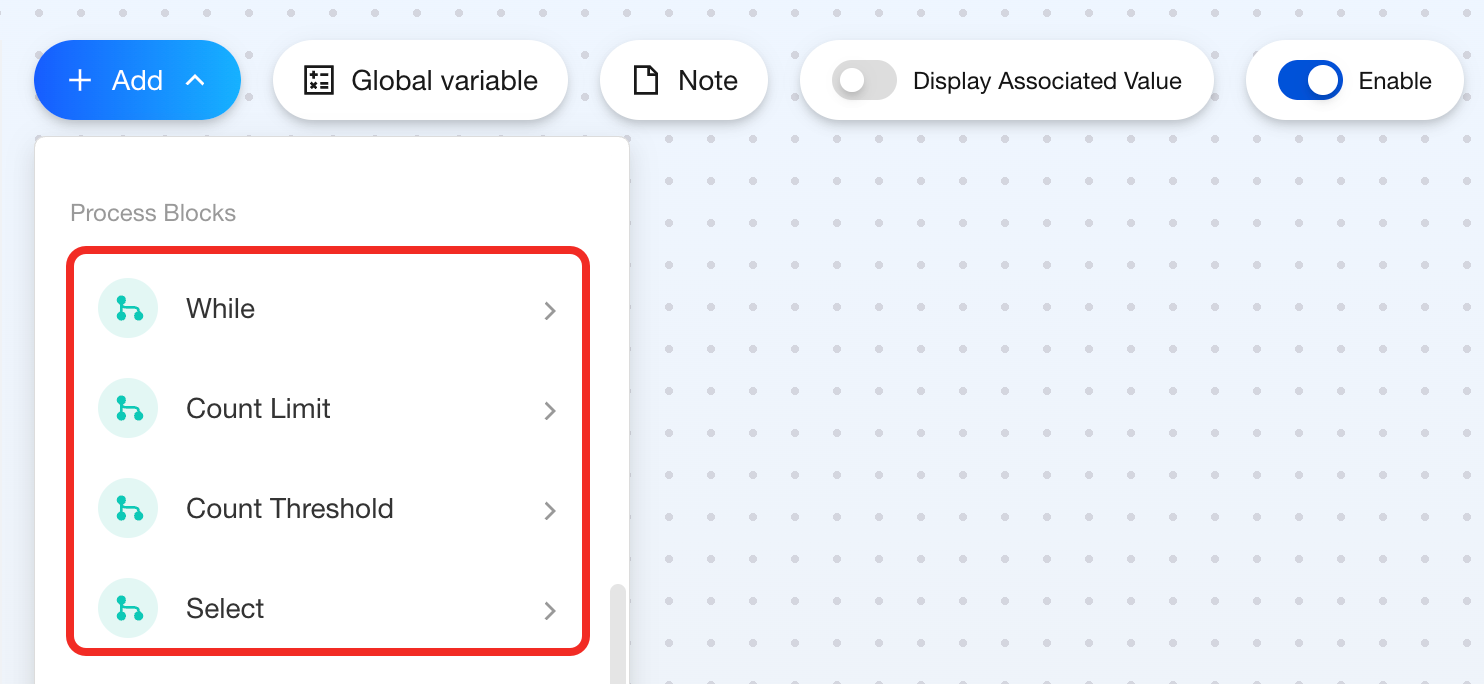
Beyond the basic Event–Condition–Action flow, you can also use advanced flow controls such as While, Count Limit, Count Threshold, and Select.
The Process category includes the following blocks:
While
Feature
Use this block when you want to repeat a step. It provides loop control so you can flexibly build timer-based loop automations.
Components
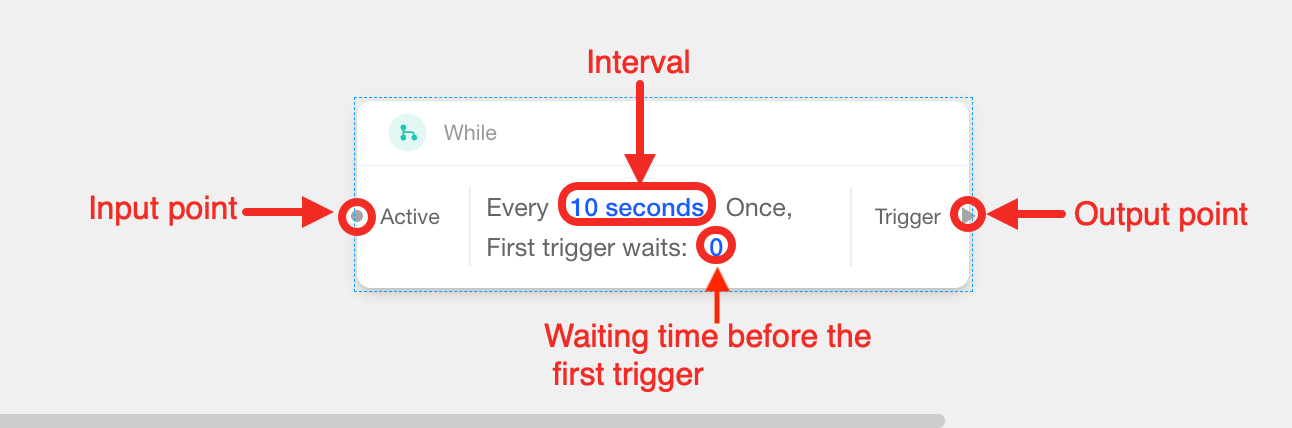
This block is dual-point type, with 1 input point, 1 output point and 1 parameter:
| Connection point / Parameter | Required | Description |
|---|---|---|
| Active (input) | ✔ | It controls when the loop starts and stops. The cards it connects depend on how you want to control the loop:
|
| Interval | ✔ | It sets the wait time between each execution. Choose seconds, minutes, or hours. |
| Waiting duration before the first trigger | ✘ | The wait duration before the first execution. After the loop starts, it will wait for this amount of time before performing the target action for the first time. For subsequent rounds, the regular interval you set will be used. Setting this parameter can help you avoid resource contention between devices or prevent multiple loops from starting at the same time, which is useful for device initialization, staggered startups, and similar scenarios. |
| Trigger (output) | ✔ | It connects the steps you want to repeat. |
How to Use
Steps vary depending on how many boolean values control the loop.
Single Boolean
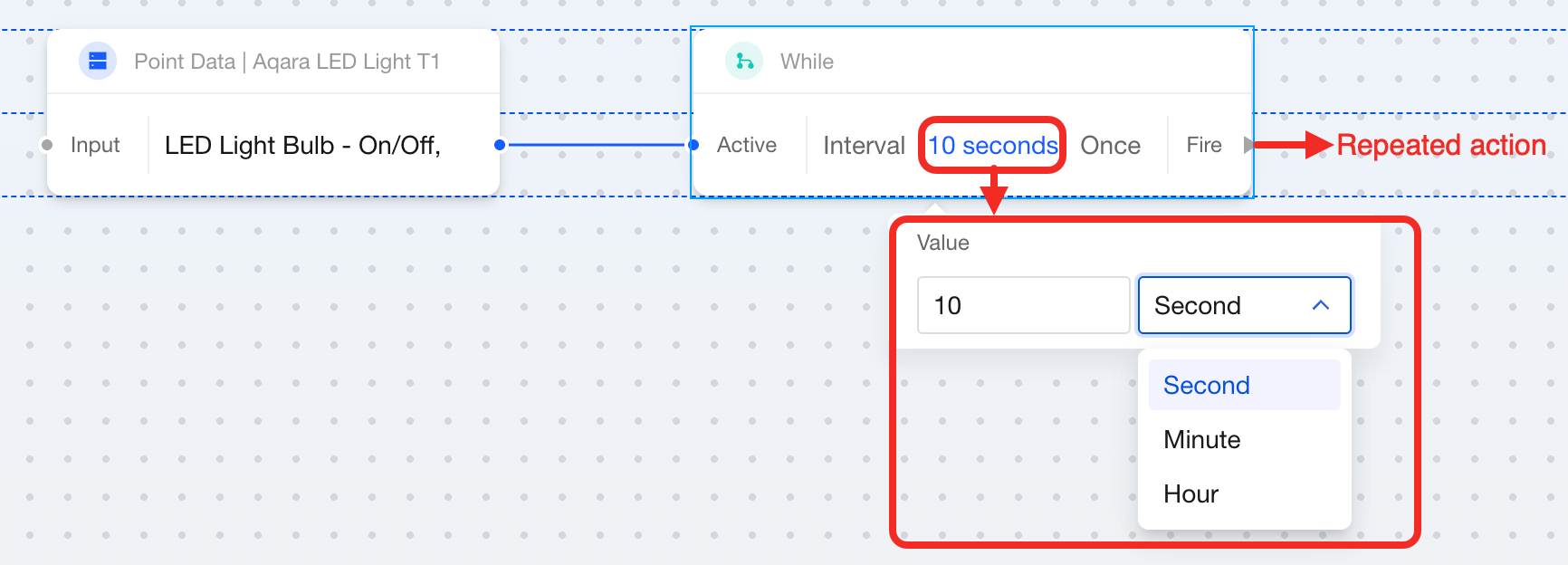
When one boolean controls the loop:
- On the left, connect a boolean
Point Datablock (for example, the on/off state of an Aqara LED Light T1). The device's real-time state will be passed to theWhileblock to start or stop the loop. - Set the interval, i.e., the time between each execution (seconds, minutes, or hours).
- On the right, connect the action to repeat.
Two Seperate Events
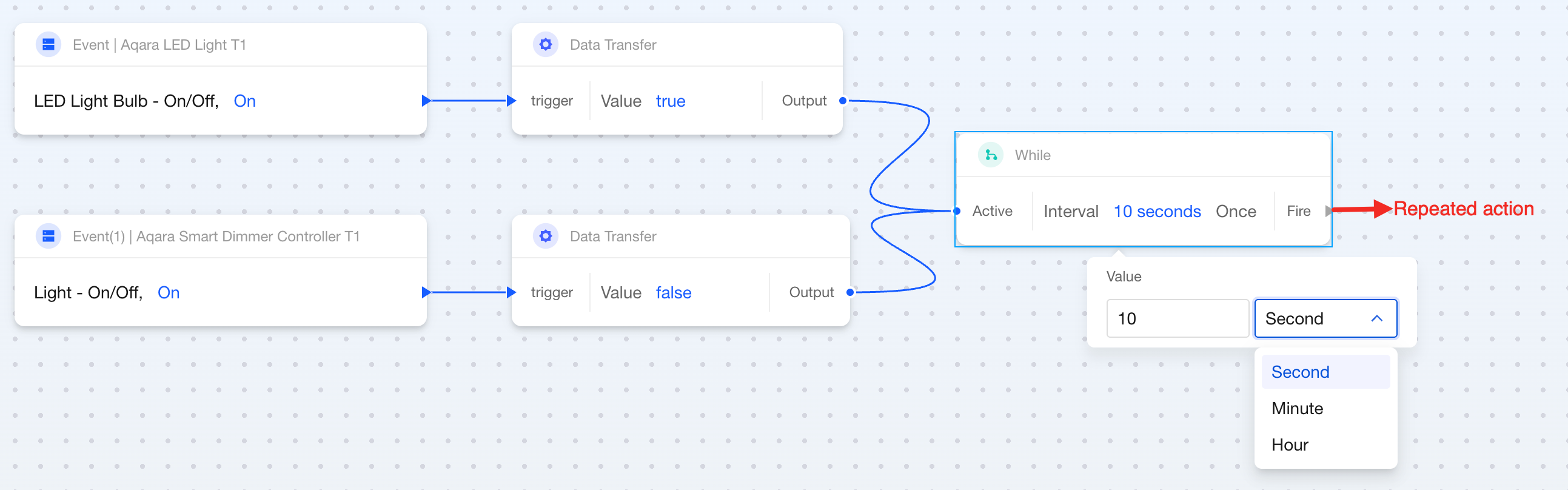
When two seperate events control the loop:
- Add two different
Whenblocks and connect both of their outputs to the While block's input. You will see aData Transferblock appear between theWhenandWhileblocks. This lets you convert an event or state to a boolean and pass it to the While block. - Specify which
Whenblock should convert totrue(start the loop) and which should convert tofalse(stop the loop). - Set the interval (seconds, minutes, or hours).
- On the right, connect the action to repeat.
Count Limit
Feature
Use this block to set a maximum number of times an action can be triggered.
Components
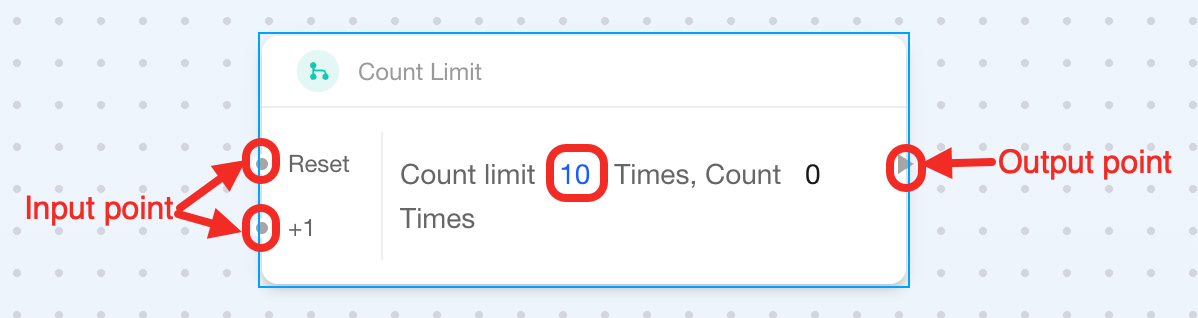
This is multiple-point block, with 2 input points*, 1 output point and 1 parameter:
| connection point or parameter | Required | Description |
|---|---|---|
| Reset (input) | ✔ | Resets the counter to zero when the connected step occurs. |
| +1 (input) | ✔ | Increments the counter by one when the connected step occurs and triggers the output step. |
| Count limit | ✔ | The maximum number of times the target step can be triggered. |
| Output | ✔ | Connect the target step to trigger. |
How to Use
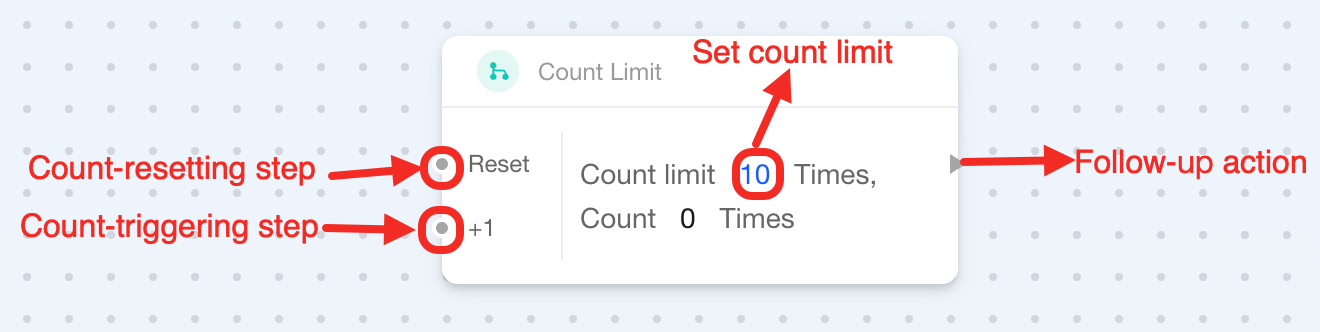
- Connect a step to the left-side +1 point. Each time it occurs, the counter increases and the target action is triggered.
- Connect a step to the left-side Reset input to clear the counter.
- Configure the maximum number of times the target action can be triggered.
- On the right-side Output, connect the target action. It will only be triggered by the +1 input up to the set limit.
Count Threshold
Feature
Use this block to trigger a step only after another step has occurred a specified number of times, reducing false triggers.
Components
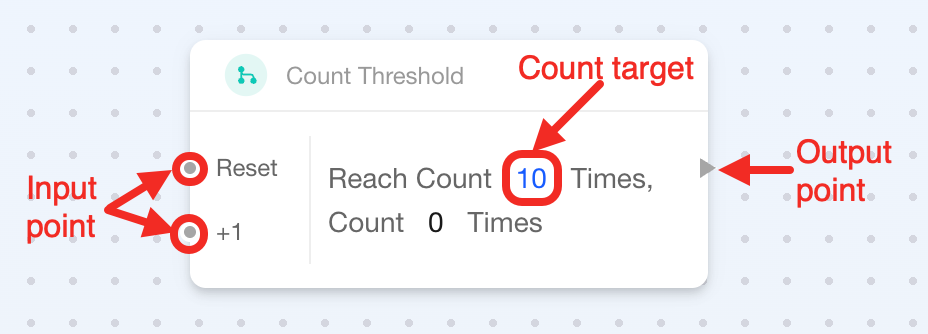
This is a multi-point block with two inputs, one output, and one parameter:
| Connection point / Parameter | Required | Description |
|---|---|---|
| Reset (input) | ✔ | It resets the counter to zero when the connected step occurs. |
| +1 (input) | ✔ | It starts or increments the count when the connected step occurs. |
| Count target | ✔ | The count target; when reached, the target step will be triggered. |
| Output | ✔ | Connect the target step to trigger. |
How to Use
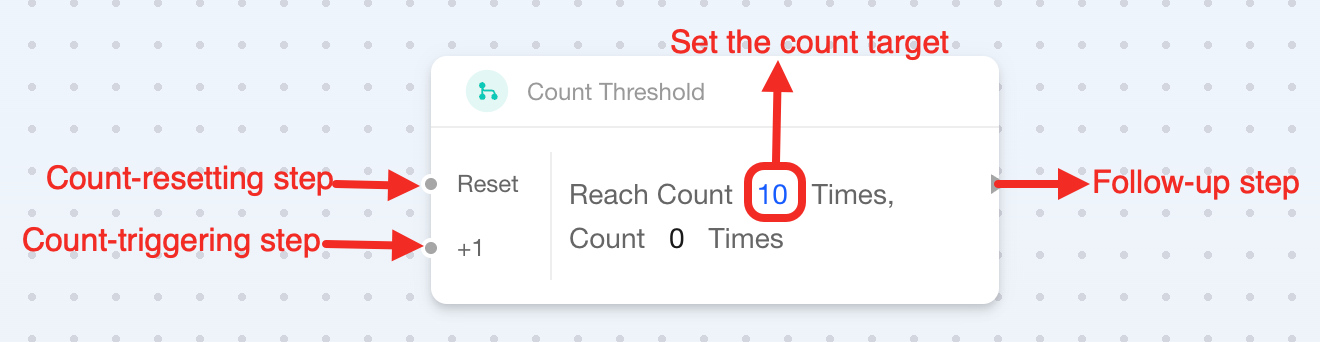
Here's how to set up a Count Threshold block:
- Connect the step to count to the left-side +1 point, and the step to reset the count to the Reset point.
- Set the count target inside the block.
- Connect the target action you want to trigger after the threshold is reached on the right-side output point.
- When the cumulative occurrences on the +1 input reach the target, the target step is triggered automatically.
Select
Feature
Use this block when you want a device to perform different actions under different scenes/modes.
Components
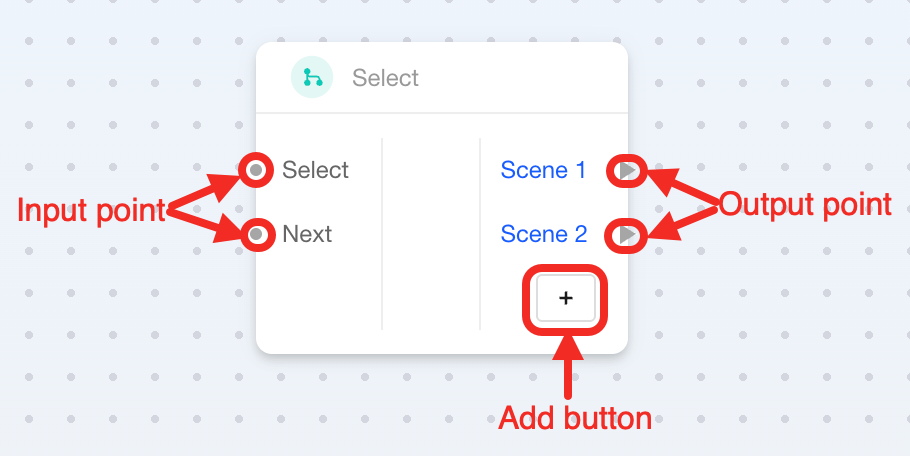
This is multiple-point block, with 2 input points, 2 output points and 1 add button:
| Connection point / Parameter | Required | Description |
|---|---|---|
| Select (input) | Choose one of these | When connected to a numeric block, you can select the scene based on the number. |
| Next (input) | It connects an Event block. When that Event block occurs, it switches to the next scene. | |
| Scene 1 (output) | ✔ | It connects Action blocks. |
| Scene 2 (output) | ✔ | It connects Action blocks. |
| Add button | ✘ | It can add more scenes to connect more actions. |
How to Use
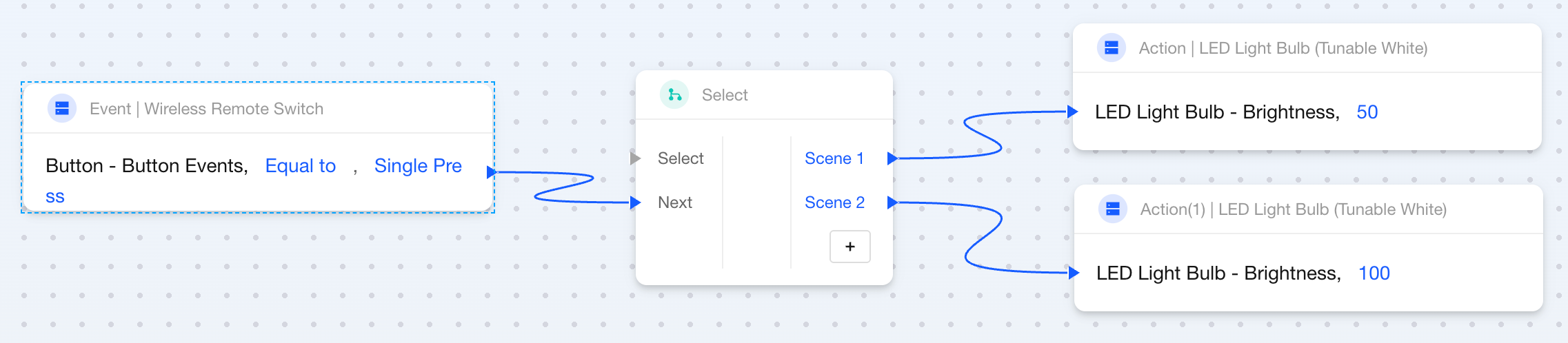
Here's how to set up a Select block by using the Next:
- On the left-side
Nextinput of the Select block, connect anEventblock. - On the right-side
Scene 1andScene 2outputs, connect differentActionsblocks for different actions.