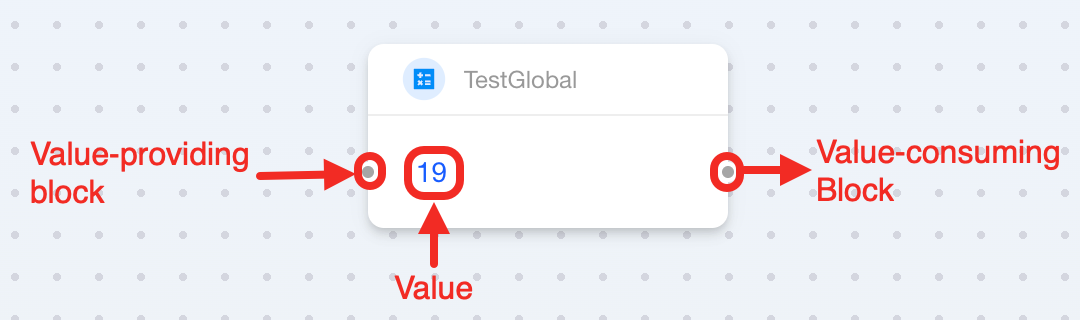
Variables Blocks
Screenshots in this guide may look slightly different from what you see on your device. Please follow the actual interface for reference.
Overview
In automation logic, variables are essential for flexibility and scalability. With Aqara Studio, you can not only assign live device data as variables, but also define custom variables of multiple types: Boolean, String, and Numeric.
These variables enable data storage and calculations, comparisons, text concatenation, and even advanced custom data-processing scripts.
The variables category includes the following blocks:
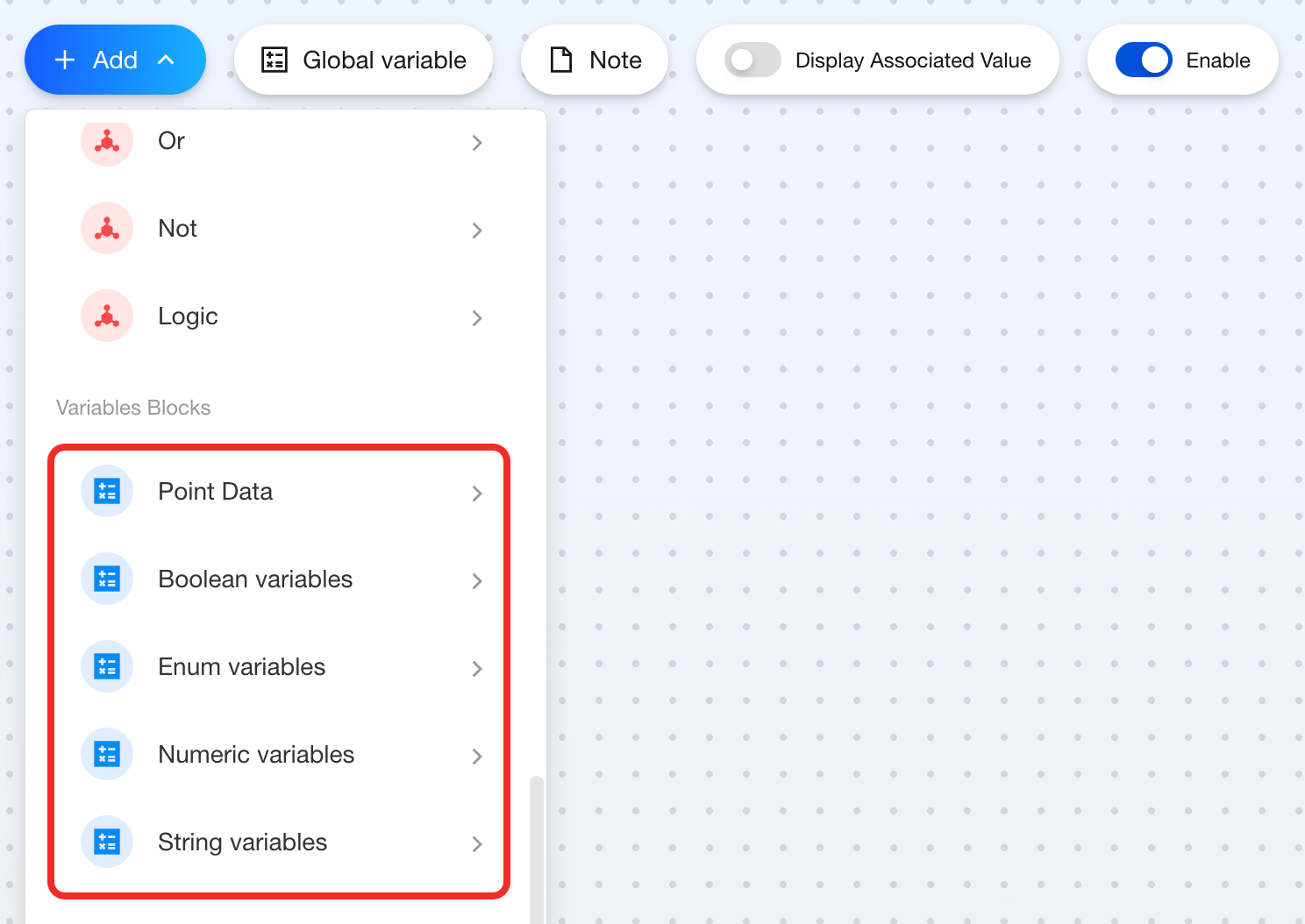
Point Data
Feature
Use the Point Data block to save real-time data collected by devices (such as temperature, humidity, brightness, switch status) as variables.
Components
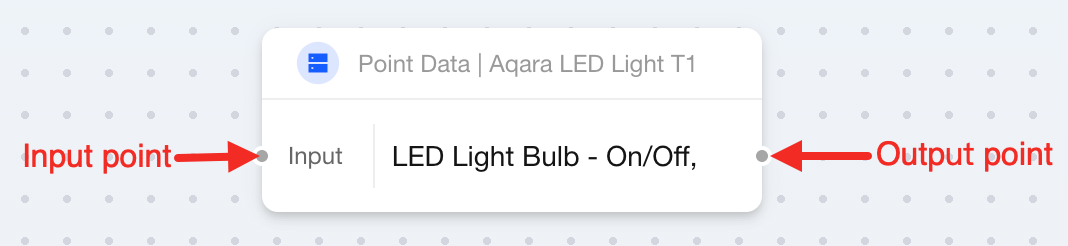
This is a dual-point block:
| Connection point/Parameter | Required | Description |
|---|---|---|
| Input Point | ✘ | It is used to control devices. It can connect to other Point Data blocks, Math, Logic, String Concat, or JavaScript blocks. It obtains their values to update its own value. |
| Output Point | ✘ | It outputs real-time data. It Can connect to other Point Data blocks, Math, Logic, String Concat, or JavaScript blocks. |
How to Use
Here's how to use the Point Data block:
-
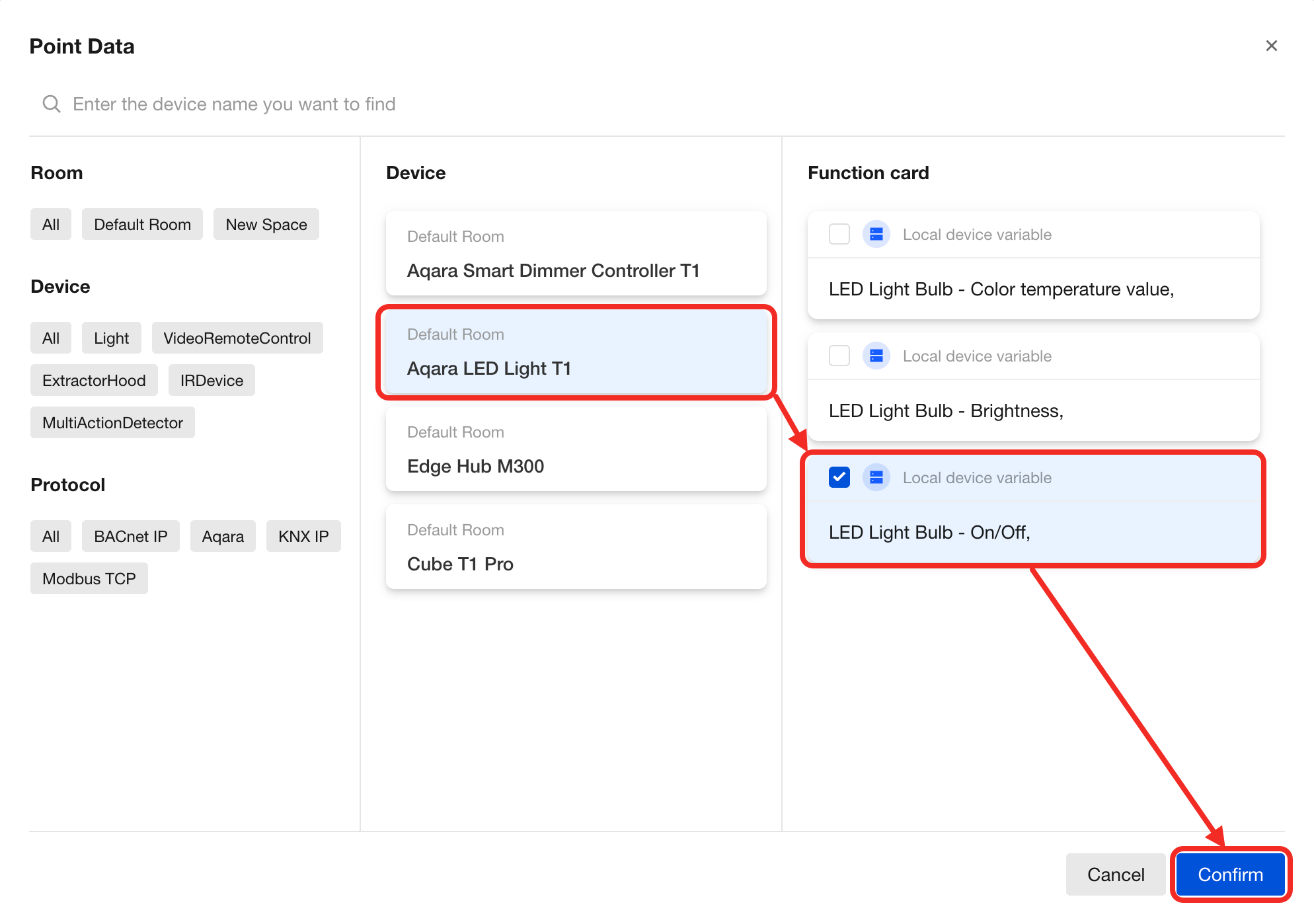
After selecting the block, a device selection window appears. You can view all available local device variables of the target device. Check the items you need to add listener blocks anywhere on the canvas and start listening in real time.
-
Connect value-providing blocks to the left side of the block, or connect value-consuming blocks to the right, such as
Point Data,Math,Logic,Numeric Variables,String Concat, orJavaScriptblocks.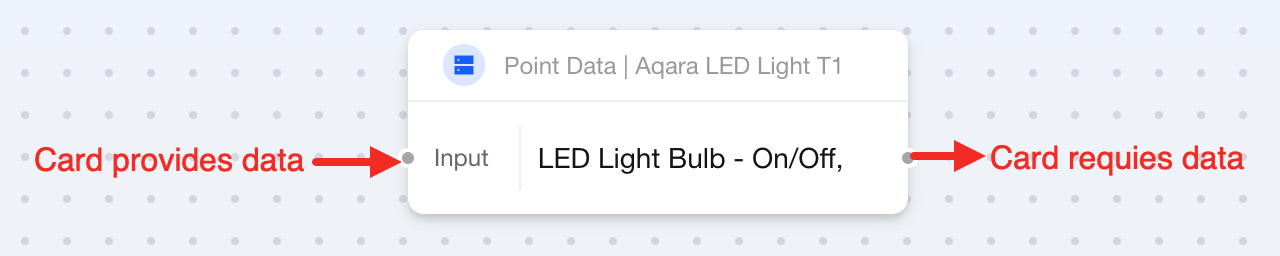
Boolean Variables
Feature
Use this block to create a local boolean variable when you need to define a boolean value, or store and pass boolean data during a flow.
Components
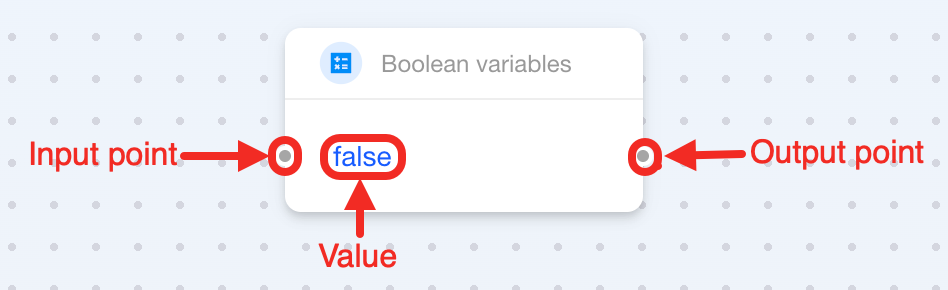
This is a dual-point block with 1 parameter:
| Connection point / Parameter | Required | Description |
|---|---|---|
| Input point | ✘ | It receives Boolean variables, and supports connection to the JavaScript block only. |
| Value | ✘ | Its meaning depends on input and output connections:
|
| Output point | ✘ | It outputs a boolean value, and supports connection to the JavaScript block only. |
The input point, boolean value, and output point are all optional. Connect or configure them based on your actual logic needs.
How to Use
Here's how to use the Boolean Variables block:
Use as a script parameter
- Define a boolean value in the
Boolean Variablesblock. - Connect a
JavaScriptblock to the right side.
Record script result
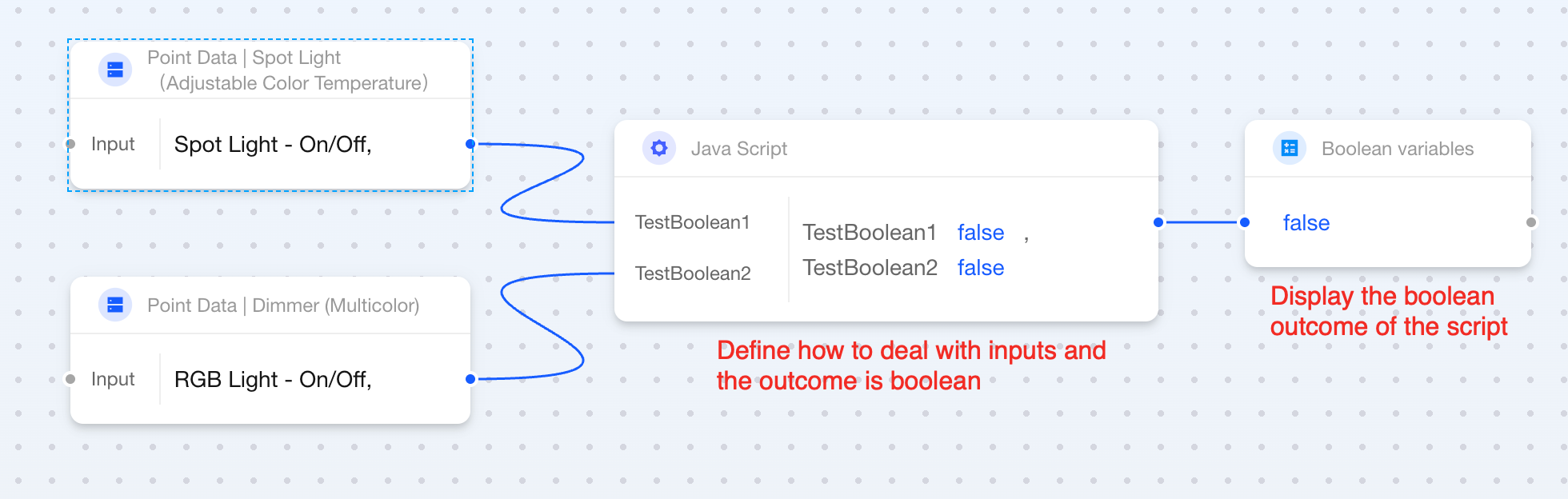
- Configure a
JavaScriptblock to process input data and output a boolean value. - Connect a
Boolean Variablesblock after the script block. After execution, the boolean value in the card displays the result.
Numeric Variables
Feature
Use this block to create a local numeric variable when you need to define a number, or to store and pass numeric data in a flow.
Components
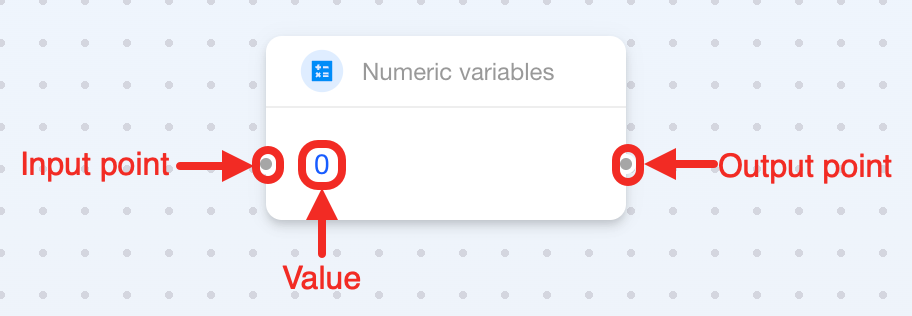
This is a dual-point block with 1 parameter:
| Connection point / Parameter | Required | Description |
|---|---|---|
| Input Point | ✘ | It receives a numeric value, and supports connections to Math and JavaScript. |
| Value | ✘ | Its meaning depends on input and output connections:
|
| Output Point | ✘ | It outputs your defined number, and supports connections to Math, Logic, and JavaScript. |
The input point, number value, and output point are all optional. Connect or configure them based on your actual logic needs.
How to Use
Depending on your need, you can use the Numeric Variables block as follows:
Use as parameters for Math, Logic, or JavaScript
- Use the
Numeric Variablesblock to define a number. - Connect a
Math,Logic, orJavaScriptblock to the right side.
Record script result
- Configure a
JavaScriptblock to process input data and output a number. - Connect a
Numeric Variablesblock after the script block. After execution, the number in the card shows the result.
Record Math or Logic results
- Connect a
Mathblock orLogicblock to the left side to receive its result.
String Variables
Feature
Use this block to create a local string variable when you need to define a string, or to store and pass string data in a flow.
Components

This is a dual-point block with 1 parameter:
| Connection point / Parameter | Required | Description |
|---|---|---|
| Input Point | ✘ | It receives string content, and supports connections to JavaScript and String Concat. |
| Value | ✘ | Its meaning depends on input and output connections:
|
| Output Point | ✘ | It oputputs a string, and supports connections to JavaScript or String Concat. |
The input point, string content, and output point are all optional. Connect or configure them based on your actual logic needs.
How to Use
Depending on your need, you can use the String Variables block as follows:
Use as a script parameter or part of concatenation
- Use the
String Variablesblock to define a string. - Connect a
JavaScriptorString Concatblock to the right side.
Record script result
- Configure a
JavaScriptblock to process input data and output a string. - Connect a
String Variablesblock after the script block. After execution, the string in the card shows the result.
Record concatenation result
- Connect a String Concat block to the left side to receive its result.
Global Variable
Variables created by blocks like Boolean Variables, Numeric Variables, and String Variables are local by default and only available within the current automation flow.
If you need to reuse variables across multiple automation flows, use global variables.
Set Global Variables
You can set global variables in two ways:
Convert an existing local variable
Right-click an existing variable block and select Set as global variable to convert it into a global variable definition block.
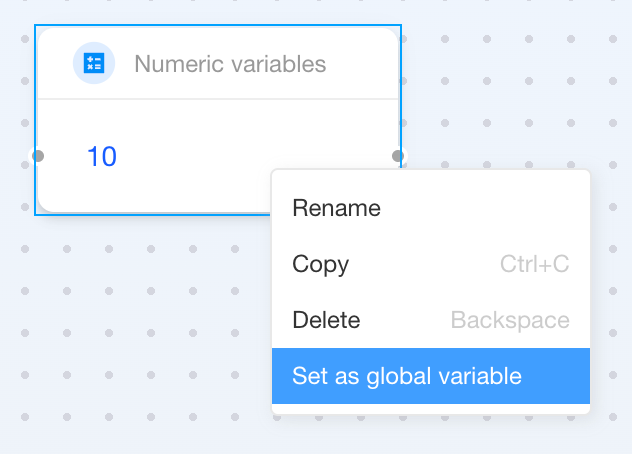
Create a global variable
-
Click Global variable at the top of the canvas and select New Variable in the dialog.
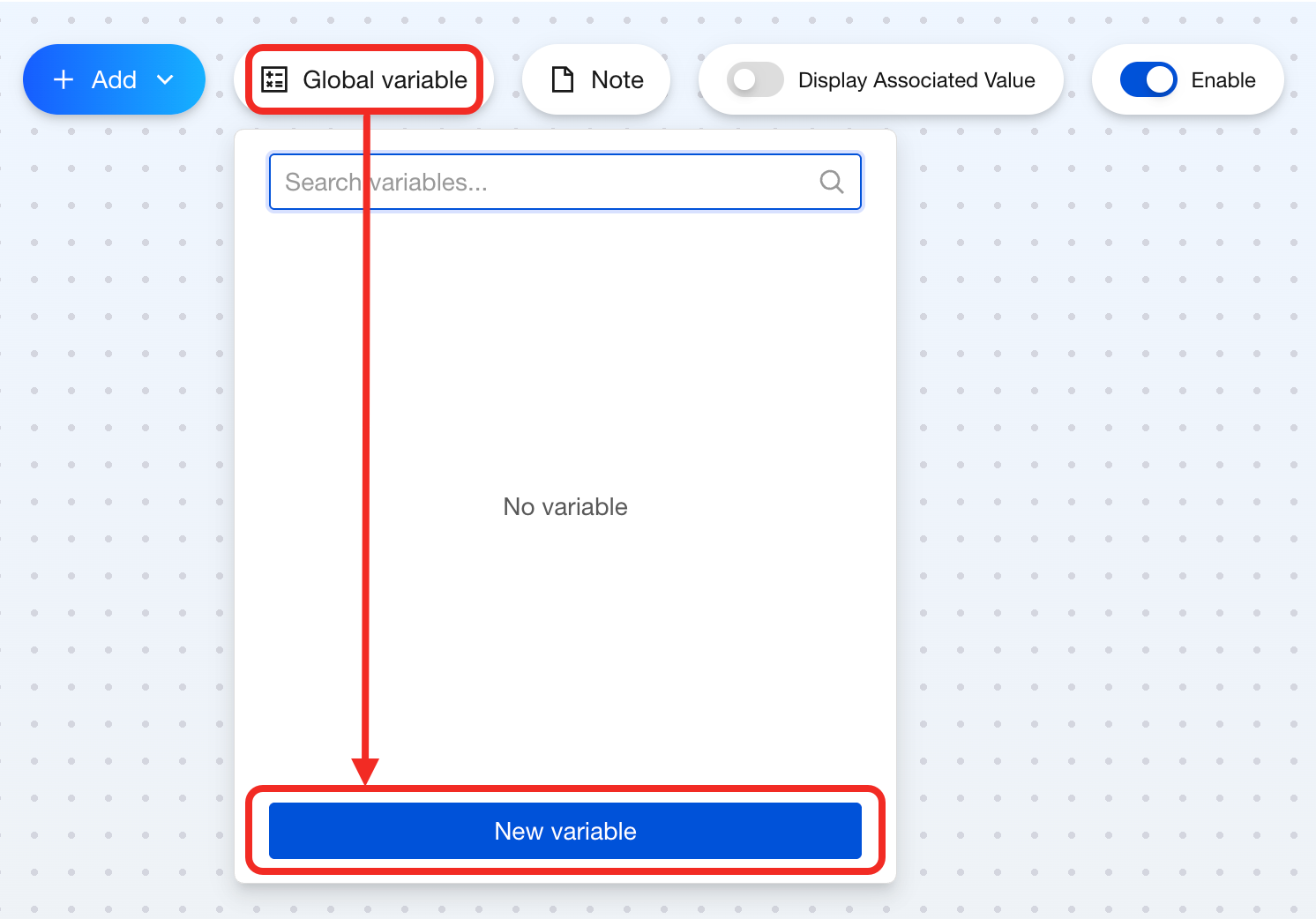
-
In the dialog, set the variable type, name, and value. Then click Confirm.
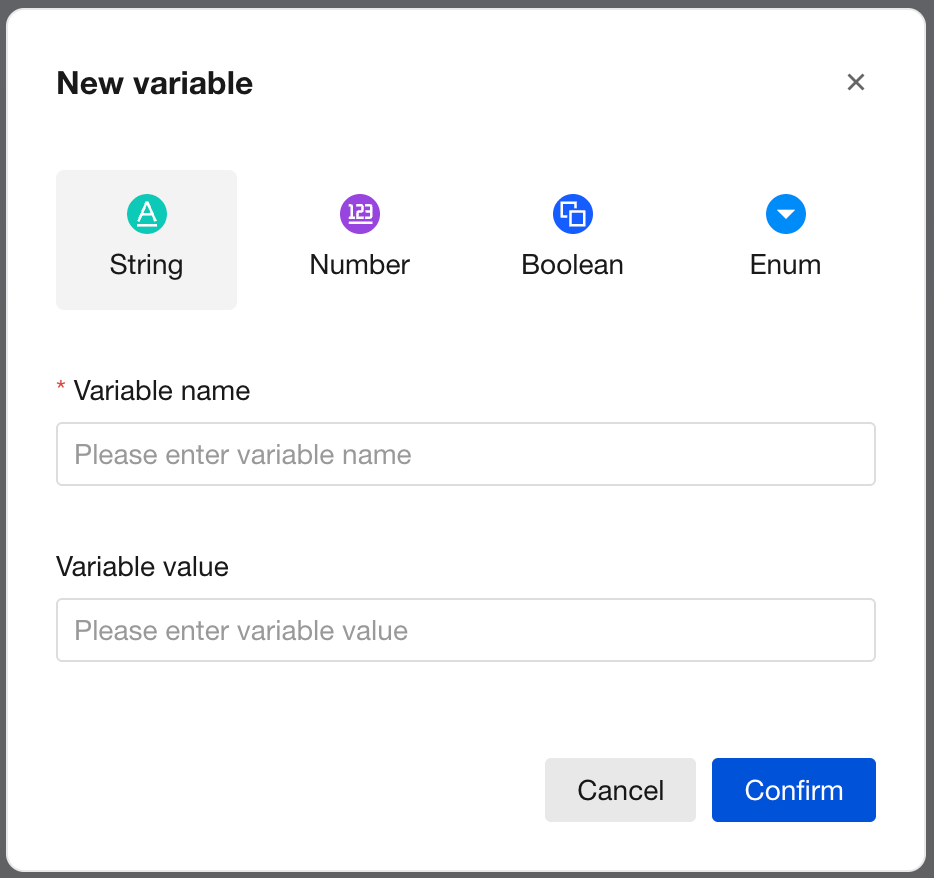
-
After confirming, place the variable block anywhere on the canvas. It serves as the definition of the global variable and can be referenced by other flows.
Use Global Variables
-
Click Global Variables at the top of the canvas and select the variable you need in the dialog.
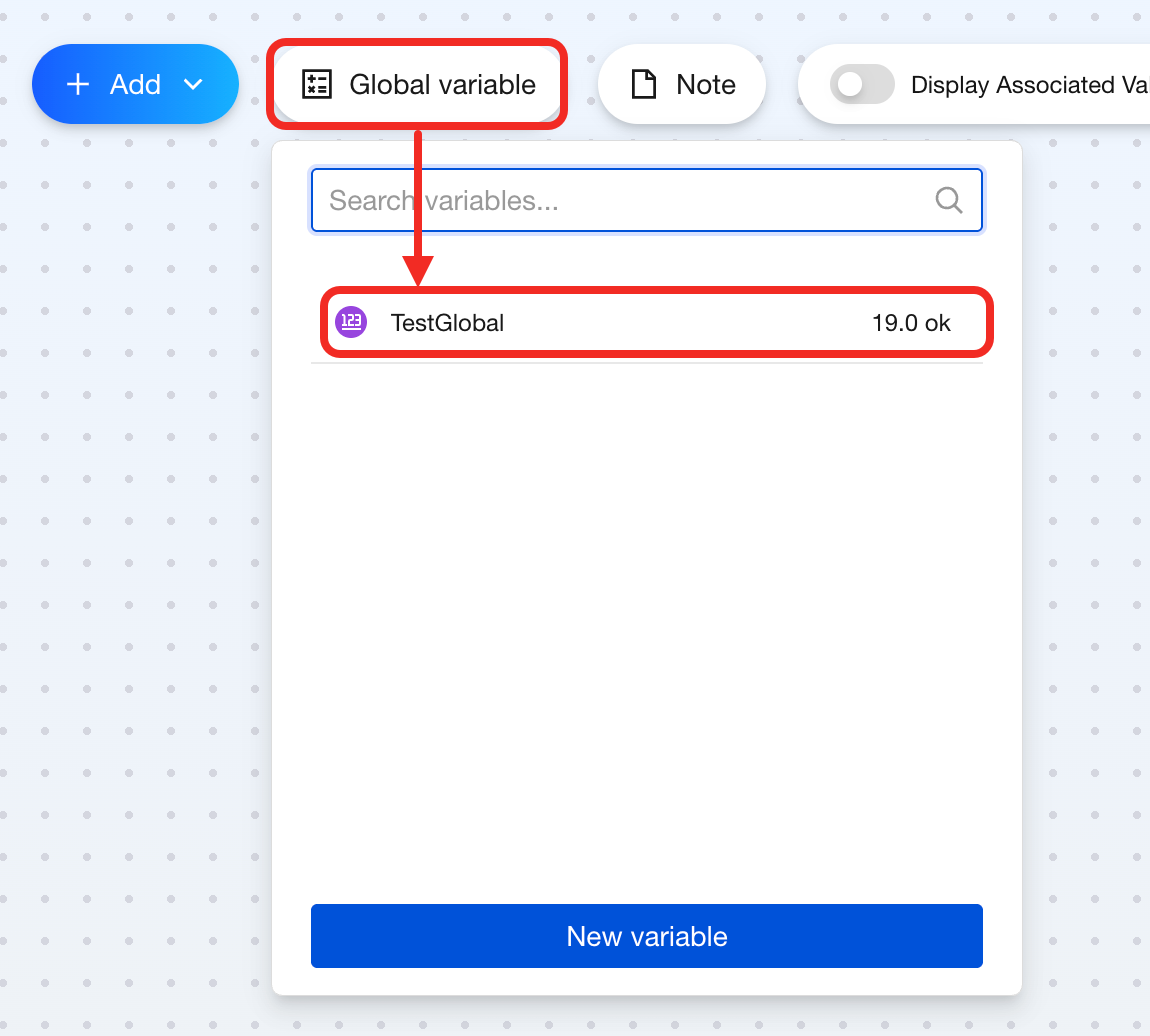
-
Click anywhere on the canvas to create the global variable block. This block is a single-output block Based on its type, connect it to other blocks as described in the relevant sections above.
-
Click anywhere on the canvas to create the global variable block. This is a dual-point block. It can receive new values or output its current value. Depending on the variable type, connect it to other blocks as described in the relevant sections above.