Sonos
This document explains how to connect Sonos devices to Aqara Studio.
Prerequisites
Before you begin, please ensure that you have successfully connected your Sonos devices to the same local network as Aqara Studio using the Sonos App.
Install the Plugin
Please refer to the Plugin Market instruction, and go to Aqara Builder Lab - Marketplace to install the Sonos Protocol Access plugin.
Add a Sonos Device
-
In the left sidebar, click to enter the Devices page. In the left Protocols and Devices panel, click the ... button and select Add Protocol.

-
Select
Sonos Accessin the popup.
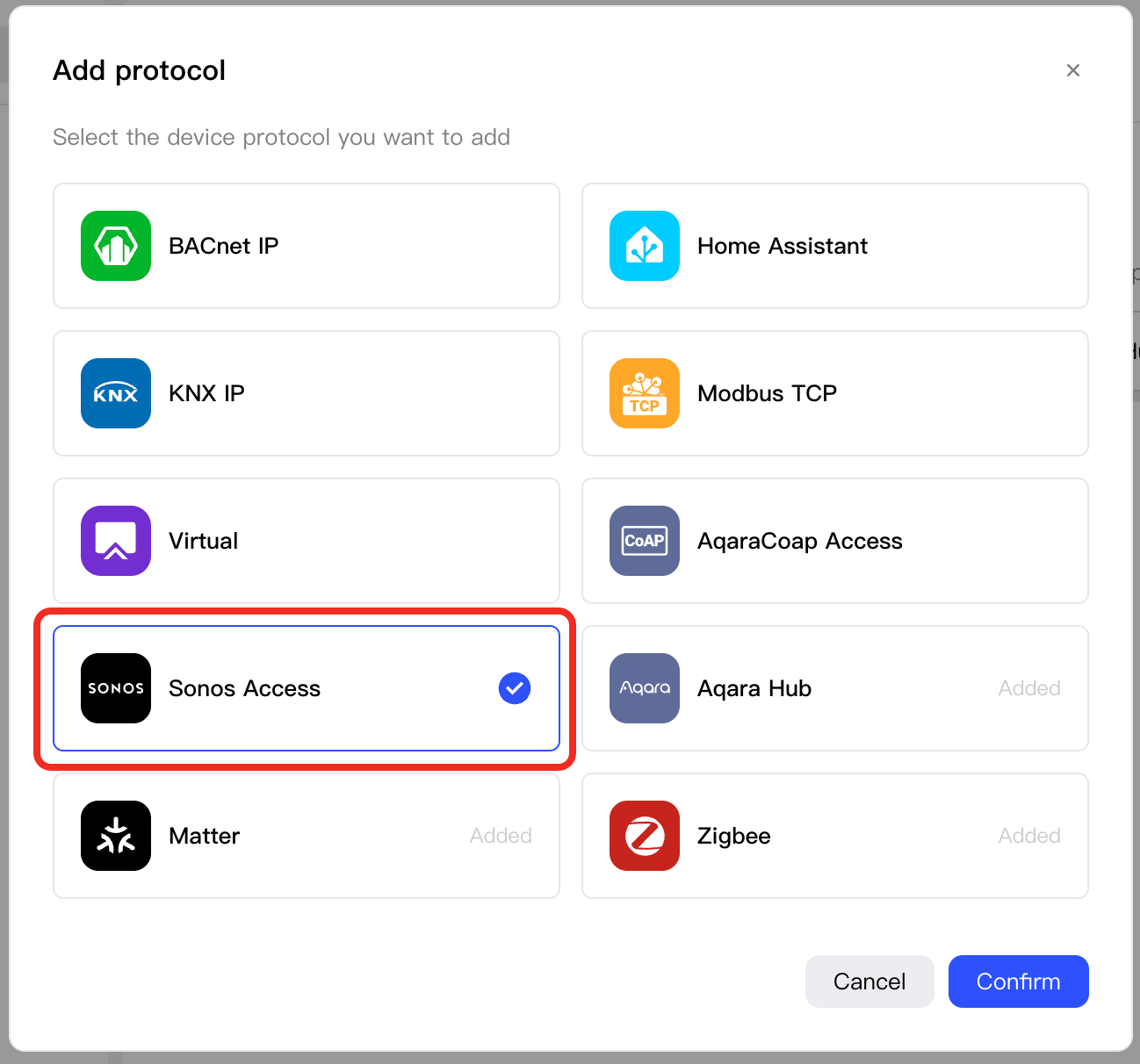 `.
`. -
Select
Sonos Access, click theAdd Devicebutton.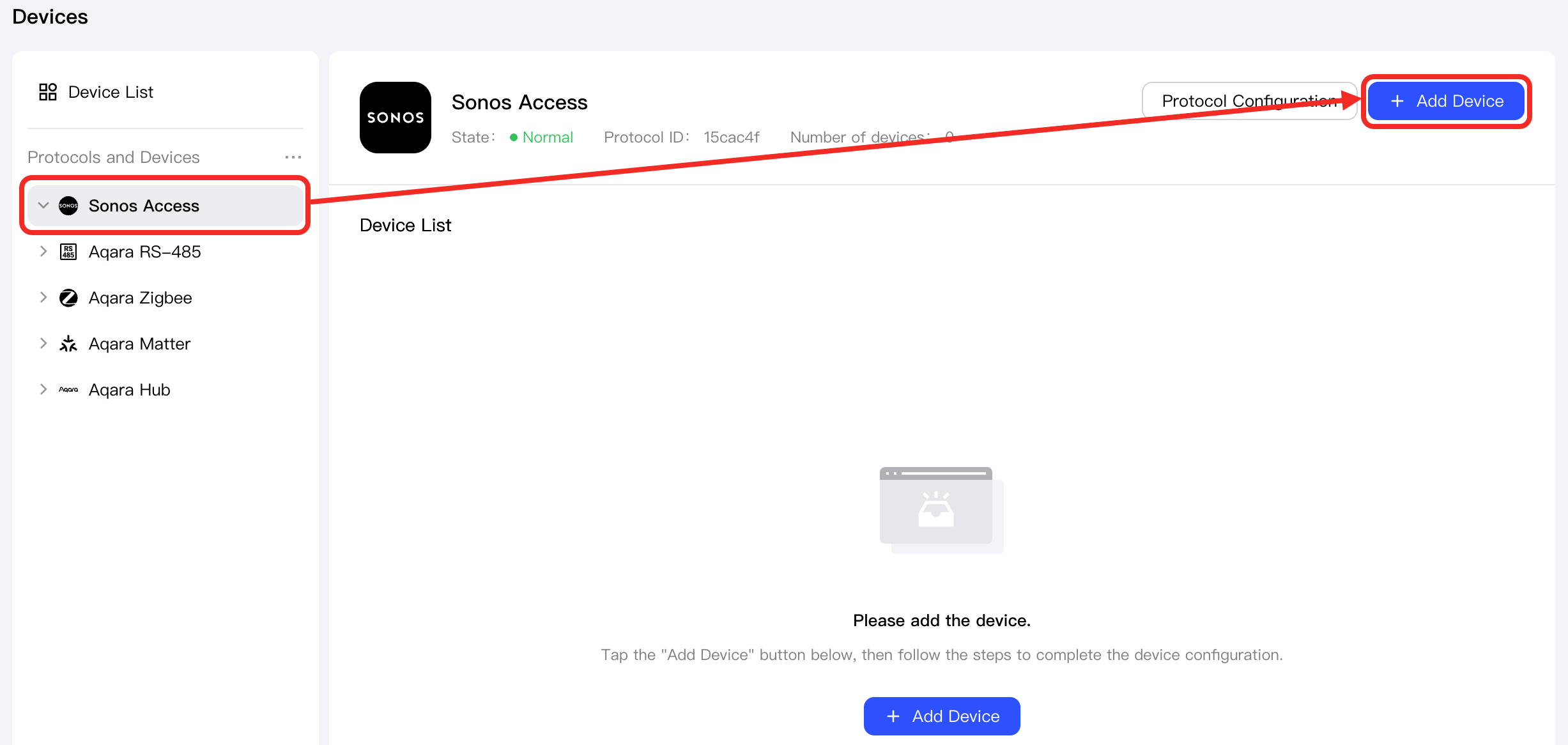
In the popup, select Auto Discovery and click the Start connecting the device button.
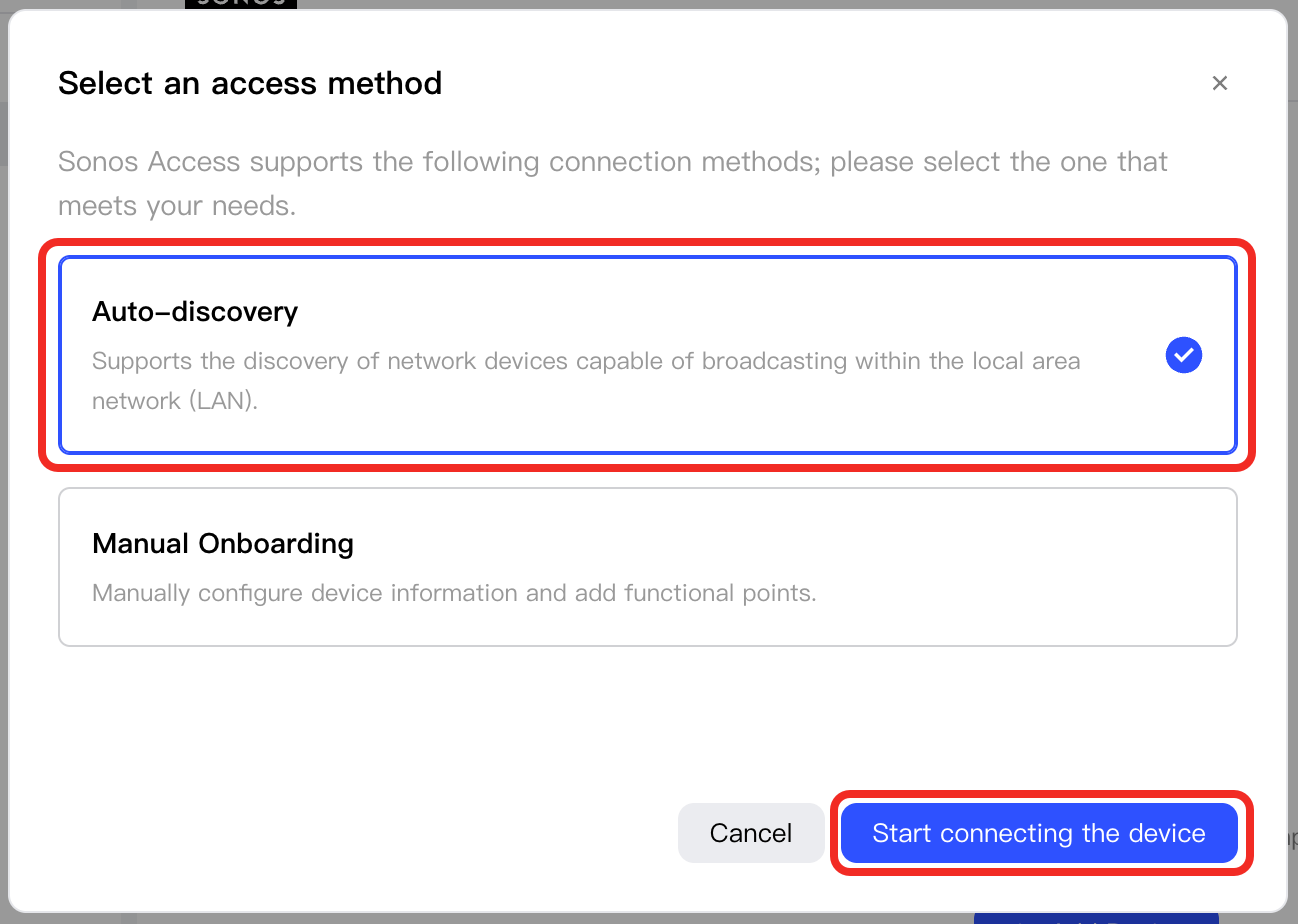
-
Click the “Discover Devices” button. Aqara Studio will then scan the network to find devices.
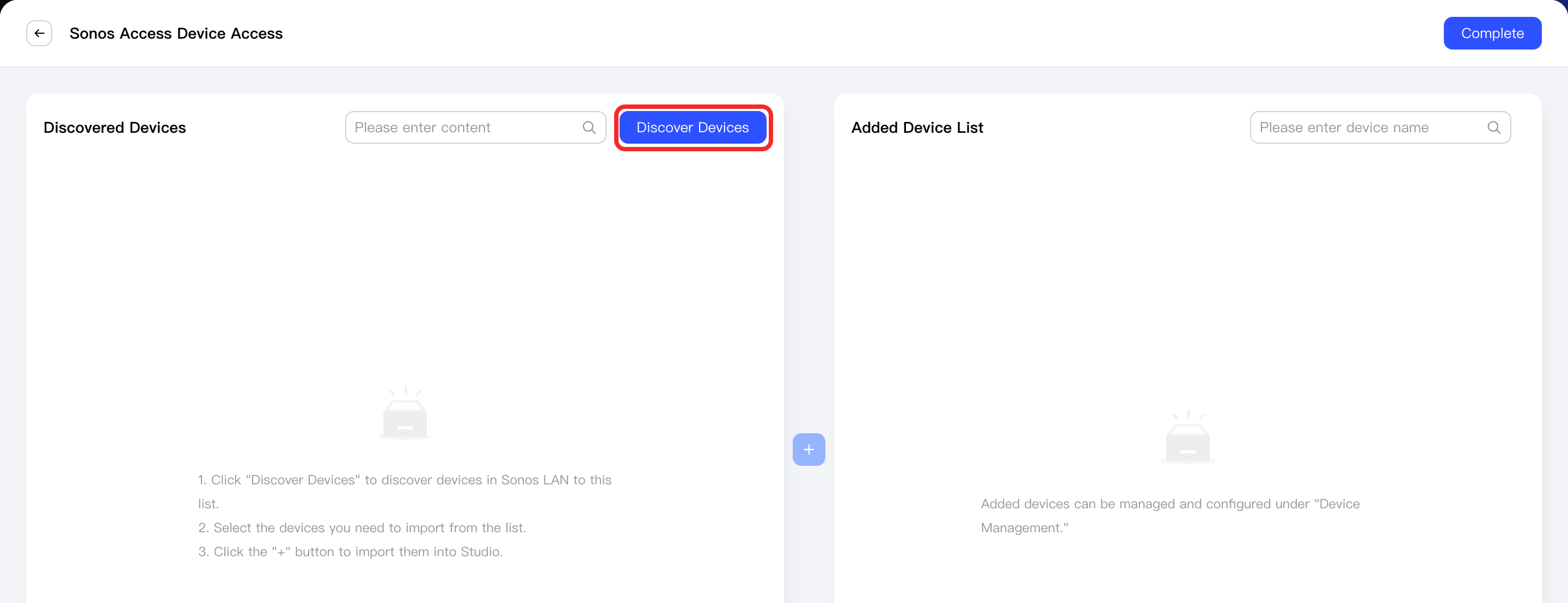
-
Select the device(s) you want to add, and click the "+" button in the center.
Newly added devices will appear in the Added Device List on the right. Click the Complete button to exit the add device process.
-
You will then see the successfully added devices under the Sonos Access node in the left Protocols and Devices panel, as well as in the device list on the Sonos Access management page.
Next Steps
Now, you can view details and control the device, or use the device in automation.