AIOT Data Migration
This article details how to migrate sub-device data from specific gateways (hereafter referred to as "source gateways") in the AIOT (Aqara Home App) to gateways in Studio (hereafter referred to as "target gateways"). The migration only supports Zigbee sub-device binding relationships.
Please read the following notes carefully to ensure you fully understand the risks of data migration:
- The migration only includes Zigbee sub-device binding relationships and network information. Automation/scenes and special configurations related to sub-devices need to be reconfigured in Aqara Studio after migration. The migration operation is irreversible.
- After Zigbee sub-devices have been migrated to the target gateway, you must manually restore the source gateway to factory settings to avoid communication failures that may lead to usage issues. If you still need to use the source gateway to control devices of other protocols, please re-add those devices to the source gateway after the migration.
Prerequisites
Before starting, please ensure your Aqara Studio is already connected to Aqara Cloud.
Install the Plugin
Please refer to the Plugin Market documentation:
- Go to Aqara Builder Lab - Marketplace and obtain the
AIOT Data Migrationplugin. - Assign it to Aqara Studio.
- Then go to the Plugin Center in Aqara Studio to install the plugin.
Check Compatibility
Before migrating data, please confirm that the firmware versions of both your source gateway and target gateway meet the minimum requirements, and refer to the compatibility table below to ensure your device models support this migration. Otherwise, migration will not be possible.
Source Gateway Firmware Requirements
The following source gateways and minimum firmware versions support migration:
| Product Name | Model | Minimum Version |
|---|---|---|
| M100 |
| 4.5.60_0019.0017 |
| M200 |
| 4.5.60_0019 |
| M3 |
| 4.5.60_0017 |
| Wall Gateway V1 | AHWG11LM | 4.5.60_0019.0017 |
Target Gateway Firmware Requirements
The following target gateways and minimum firmware versions support migration:
| Product Name | Model | Minimum Version |
|---|---|---|
| M300 |
| 4.5.70_0007 |
| AX100M |
| 4.5.70_0101 |
| AX200M | ZHWG42LM | 4.5.70_0009 |
Compatibility between Source and Target Gateways
Refer to the table below to confirm compatibility for data migration between your source gateway (in the first column) and target gateway (in the first row):
| M100 | M200 | M3 | Wall Gateway V1 | |
|---|---|---|---|---|
| M300 | ✓ | ✓ | ✓ | ✓ |
| AX100M | ✓ | ✗ | ✗ | ✗ |
| AX200M | ✓ | ✓ | ✗ | ✓ |
Migration Process
-
In the Plugin Center, locate the
AIOT Data Migrationplugin and click the Data Migration button. -
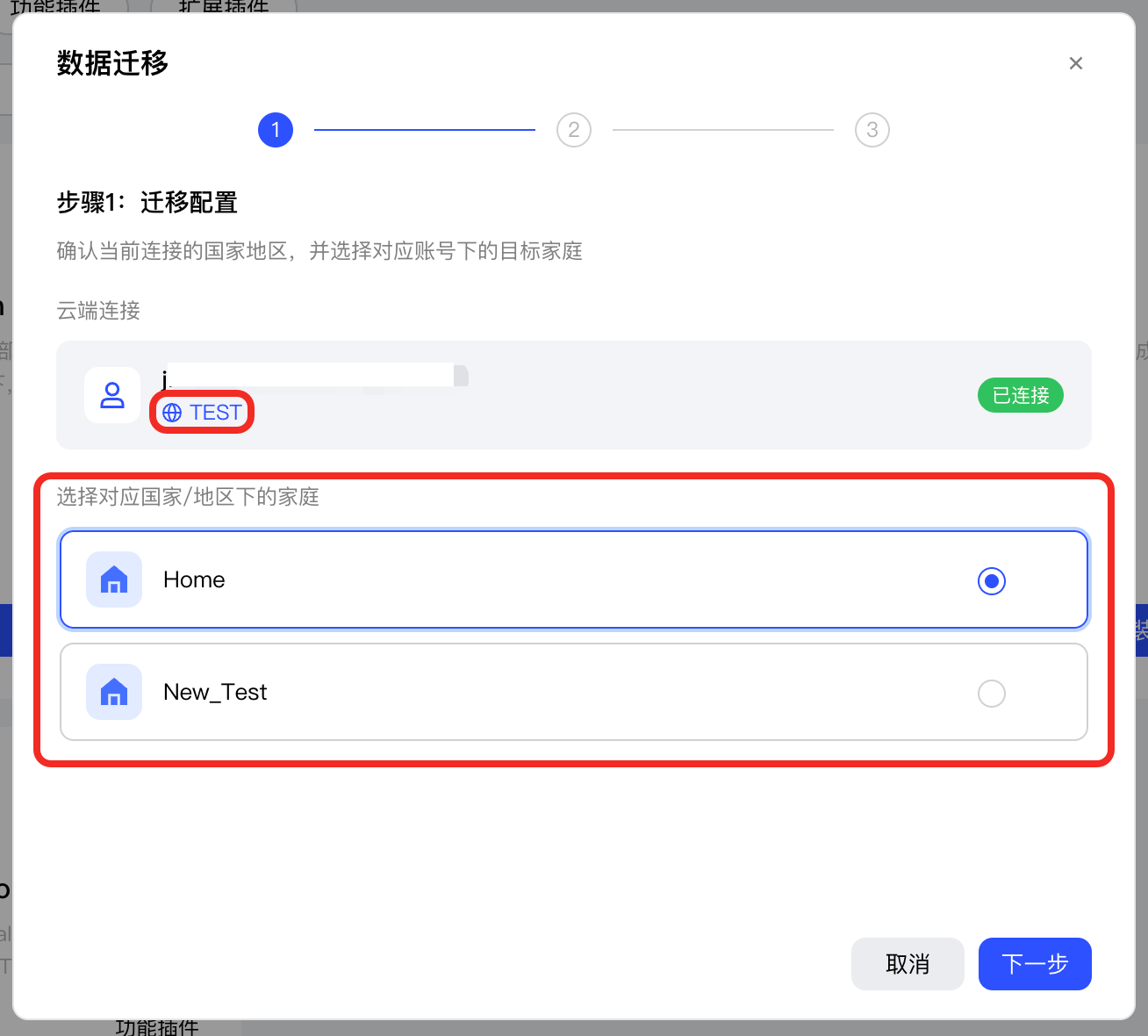
In the popup, you will need to confirm the currently connected region (the region you selected when connecting to the cloud).
After confirming it is correct, select one Home created by you in the Aqara Home App in that region.
After making your selection, click the Next Step button.
-
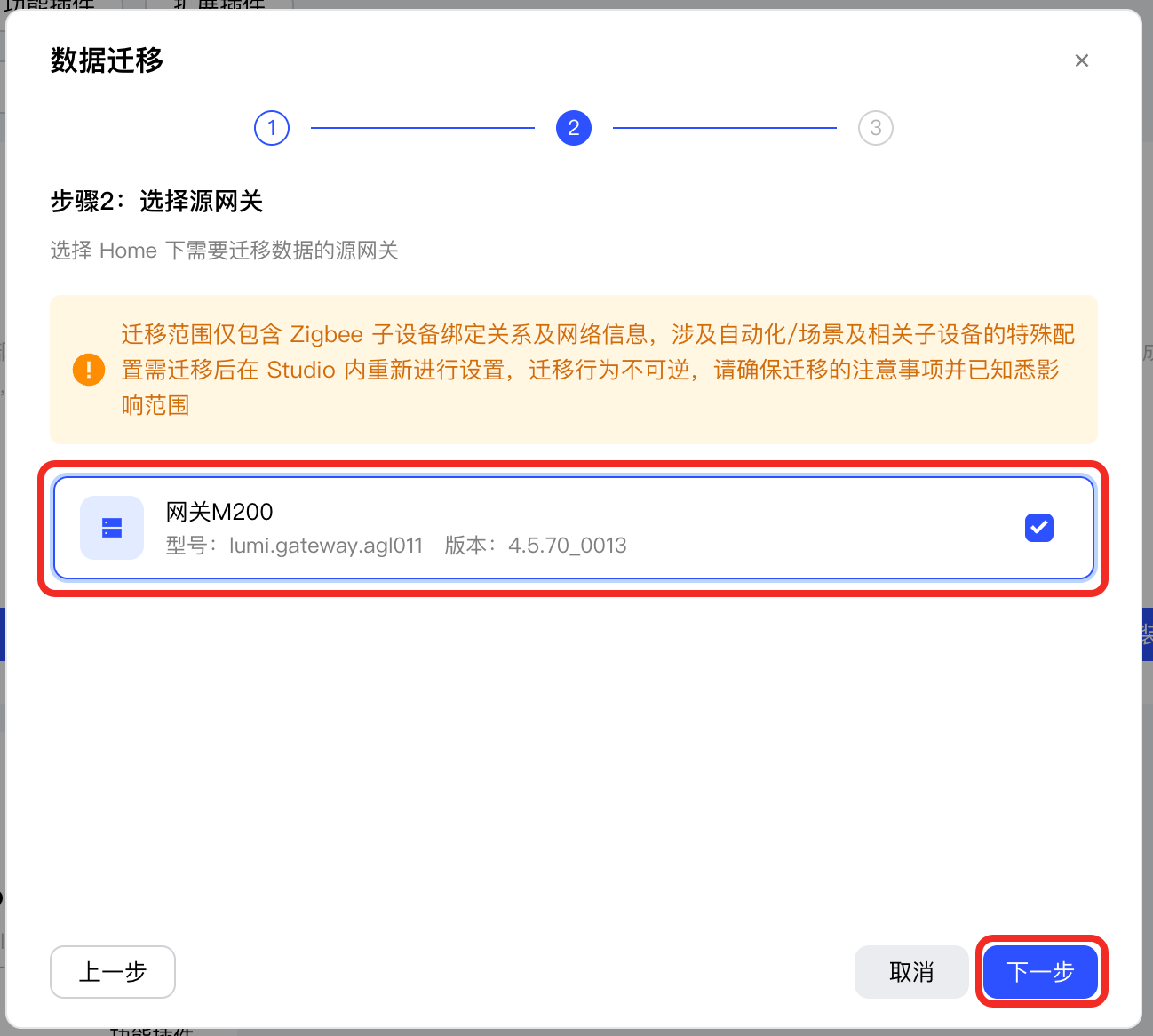
Select a gateway in this Home as the source gateway for data migration and click Next Step.
-
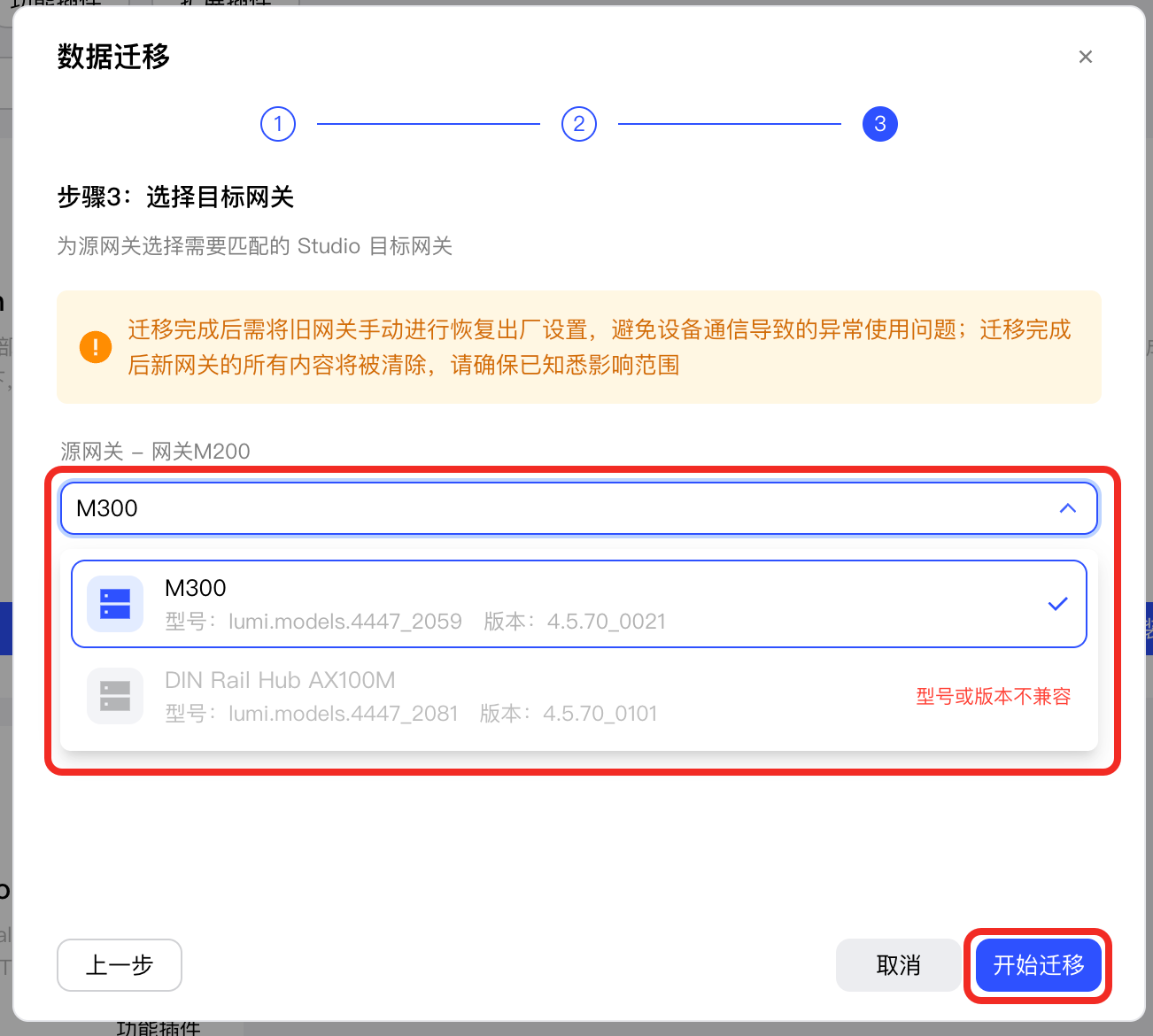
Select a gateway in Aqara Studio as the target gateway for migration and click Start migration.
-
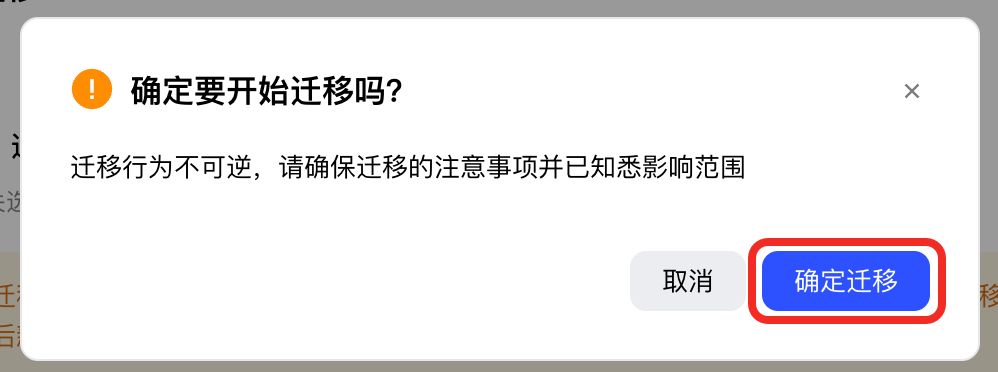
Confirm that you acknowledge the migration risks, then click Confirm Migration.
-
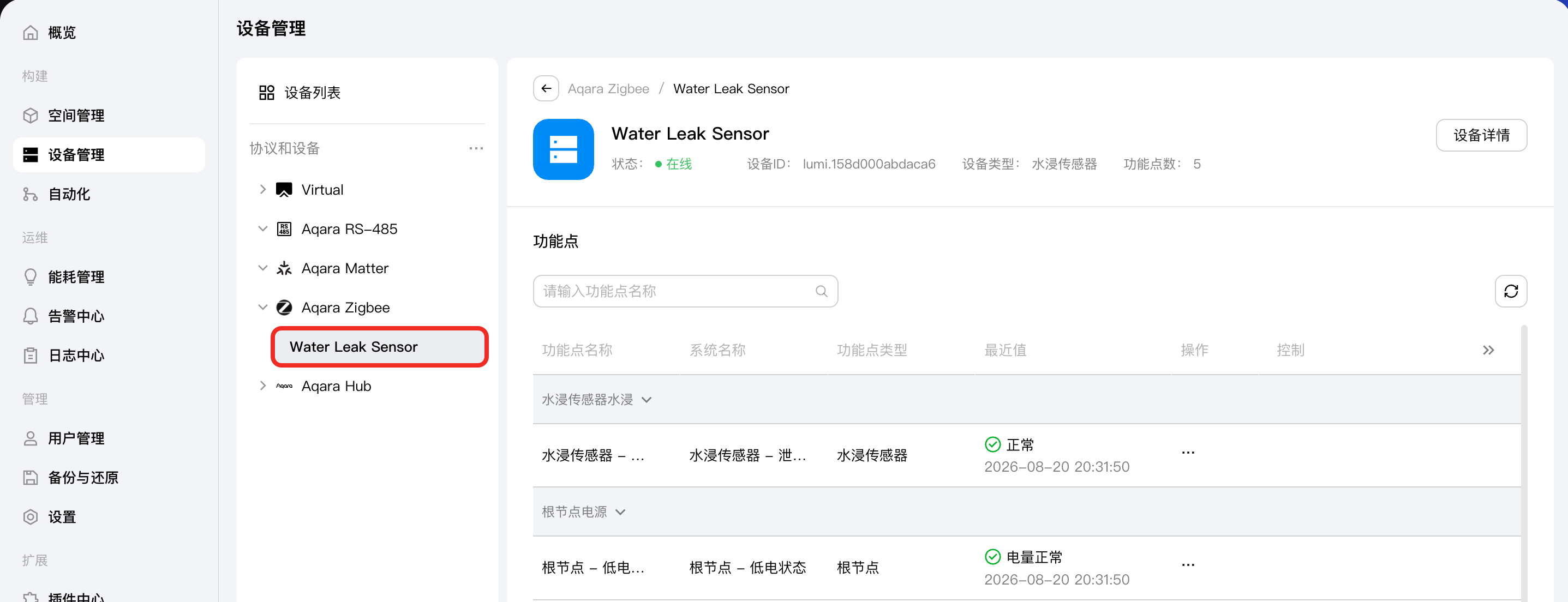
Once migration is successful, go to the Devices page. You will find the migrated sub-devices under the Aqara Zigbee node.
-
Manually reset the source gateway to factory settings to avoid abnormal usage due to device communication issues.
All contents on the target gateway will be cleared after the migration, and you will need to reconfigure.