Local Firmware Library
If your Aqara Studio is not connected to the Internet, you can upload firmware files to the local firmware library so as to update the Aqara Studio system version and firmware for the gateways (Aqara) and sub-devices (Aqara).
Prerequisites
Before proceeding, please make sure you have obtained the required firmware files from Aqara technical support and saved them on your local computer.
tip
Please confirm with Aqara technical support that the file names conform to the Aqara Studio file naming validation rules.
Upload Local Firmware
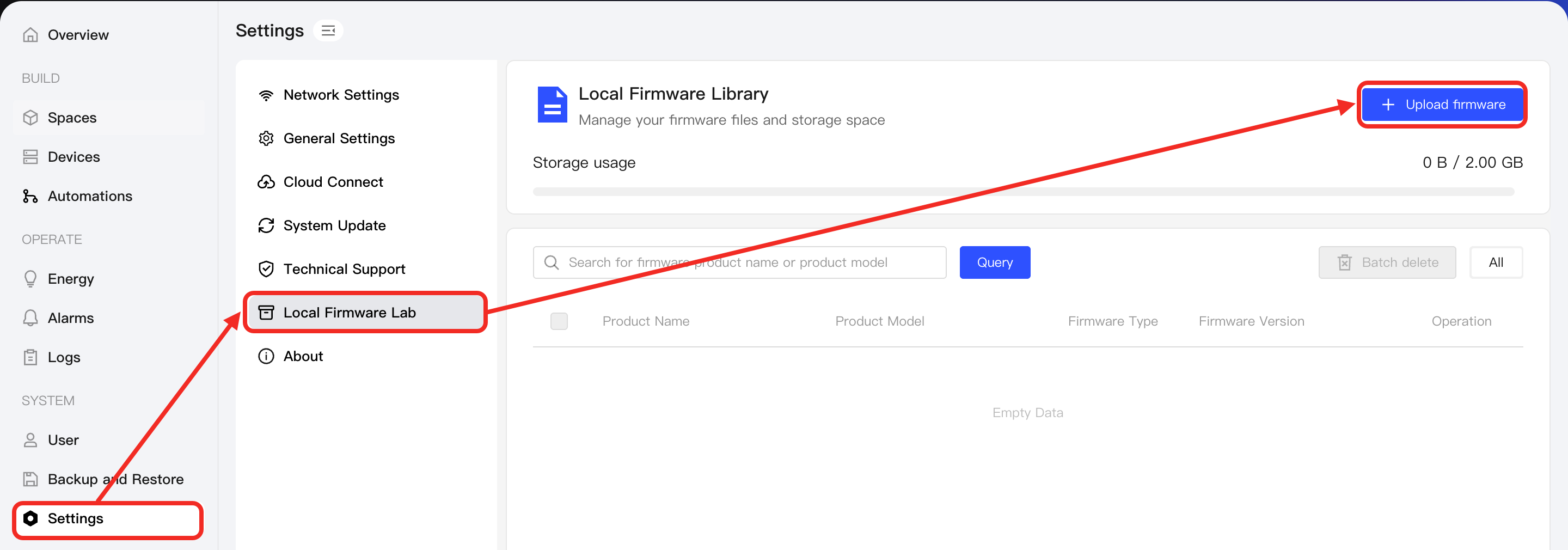
- In the left navigation bar, click Settings. On the settings page, select Local Firmware Lab from the sidebar. Click the Upload firmware button.
- In the pop-up window, select the firmware file you want to upload.
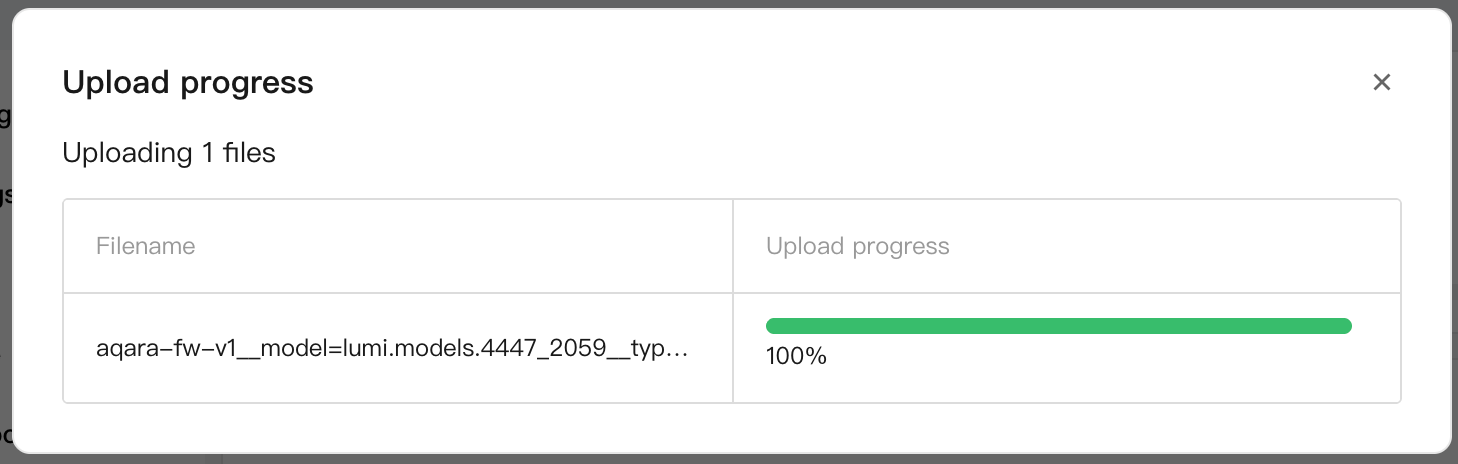
- You will then see an upload progress pop-up. When the progress bar reaches 100%, Aqara Studio will notify you that the firmware file has been successfully uploaded.
Next Step
Based on the type of your firmware, please refer to the relevant documentation to proceed with your update:
- Aqara Studio system version: System Update - Process
- Gateway (Aqara) and sub-device (Aqara) firmware: Firmware Upgrade - Steps