Custom Device
This document will guide you on how to create a virtual custom device in Aqara Studio and consolidate multiple function points from different devices, enabling more efficient unified management and control of your devices.
Create Custom Device
-
Click on Device Management in the left sidebar. Under Protocols and Devices, click the ... button and select Add Protocol.

-
In the popup, select
Virtualto add aVirtualnode.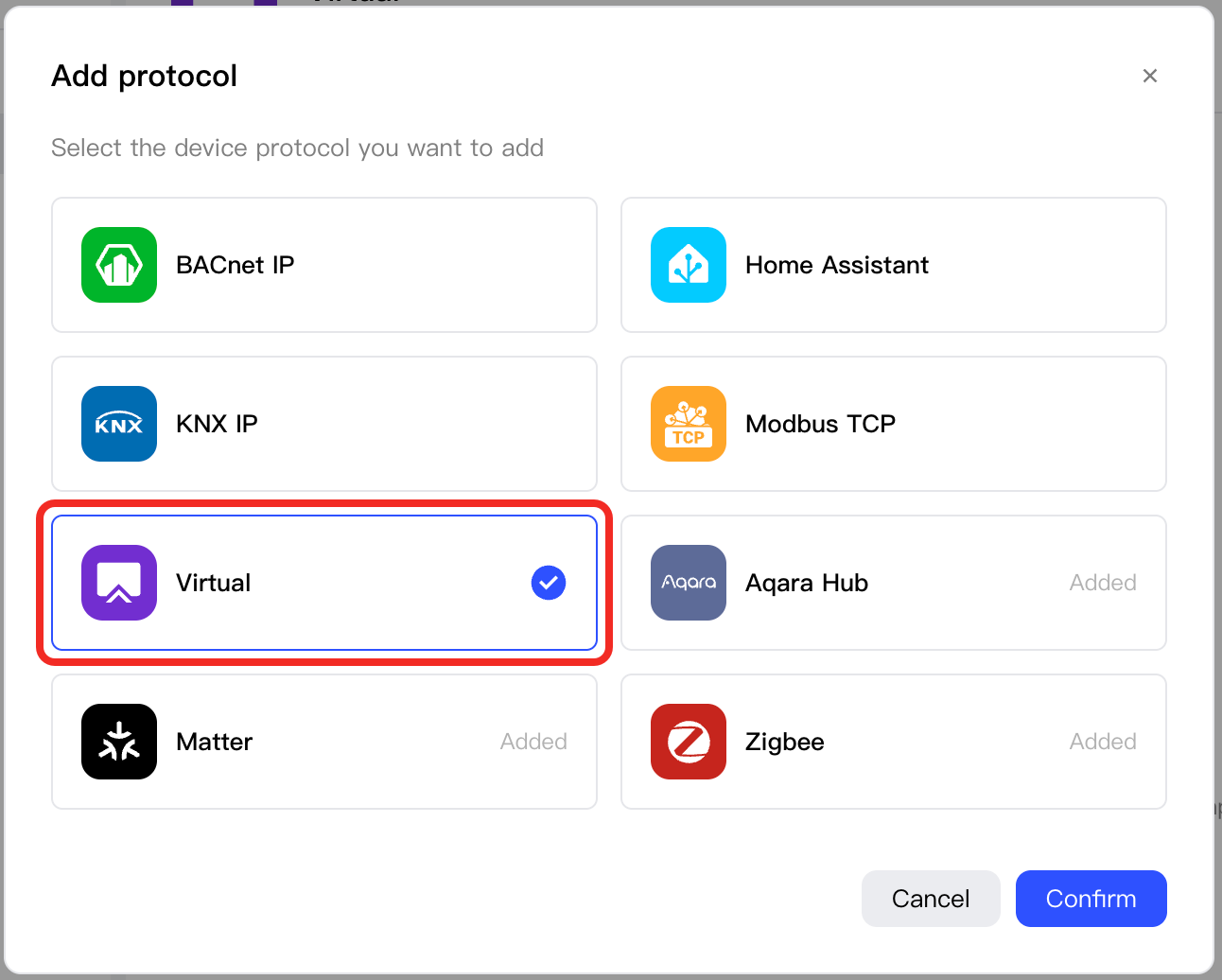
-
Select this node and click the
Add Devicebutton.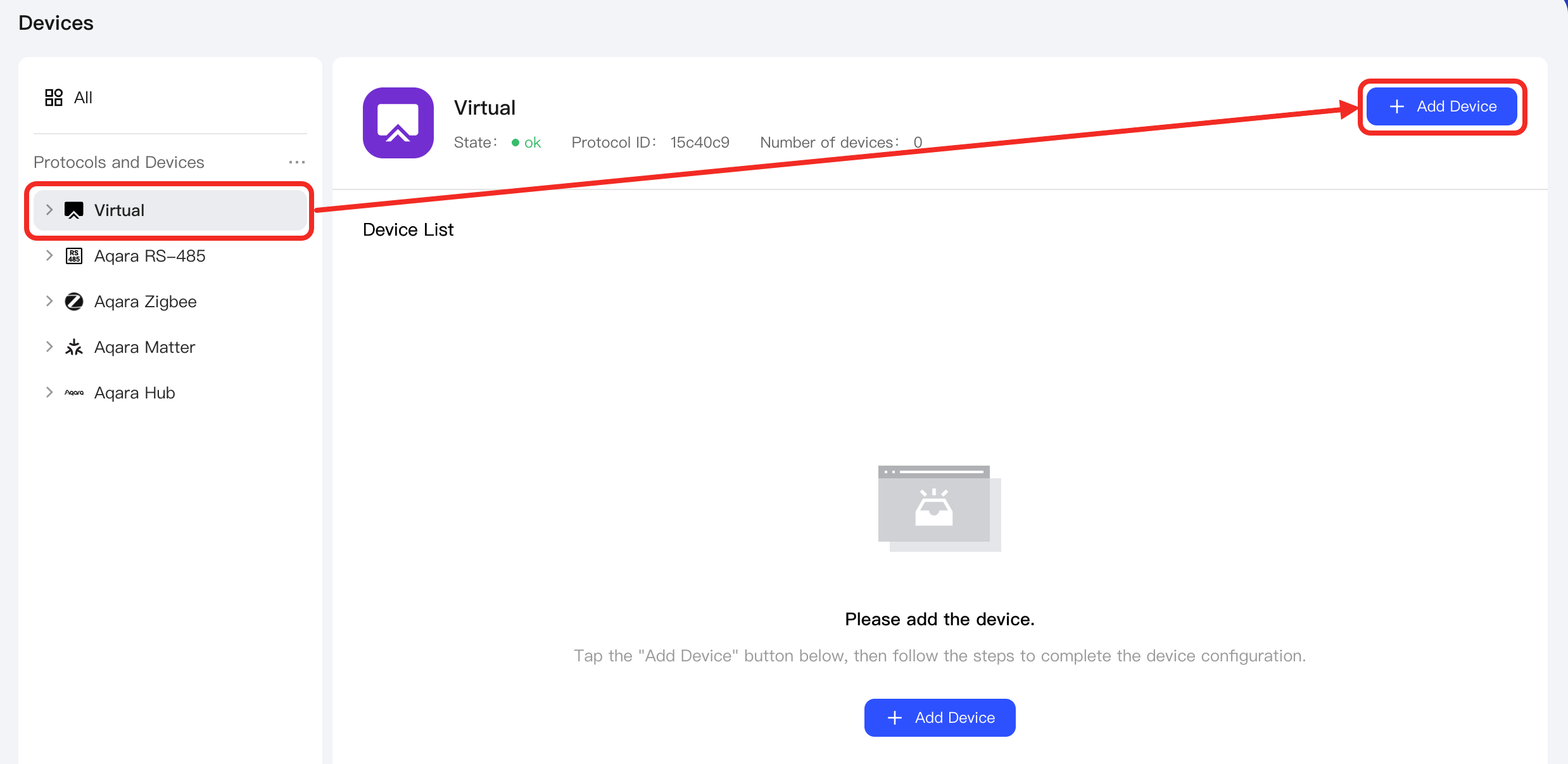
-
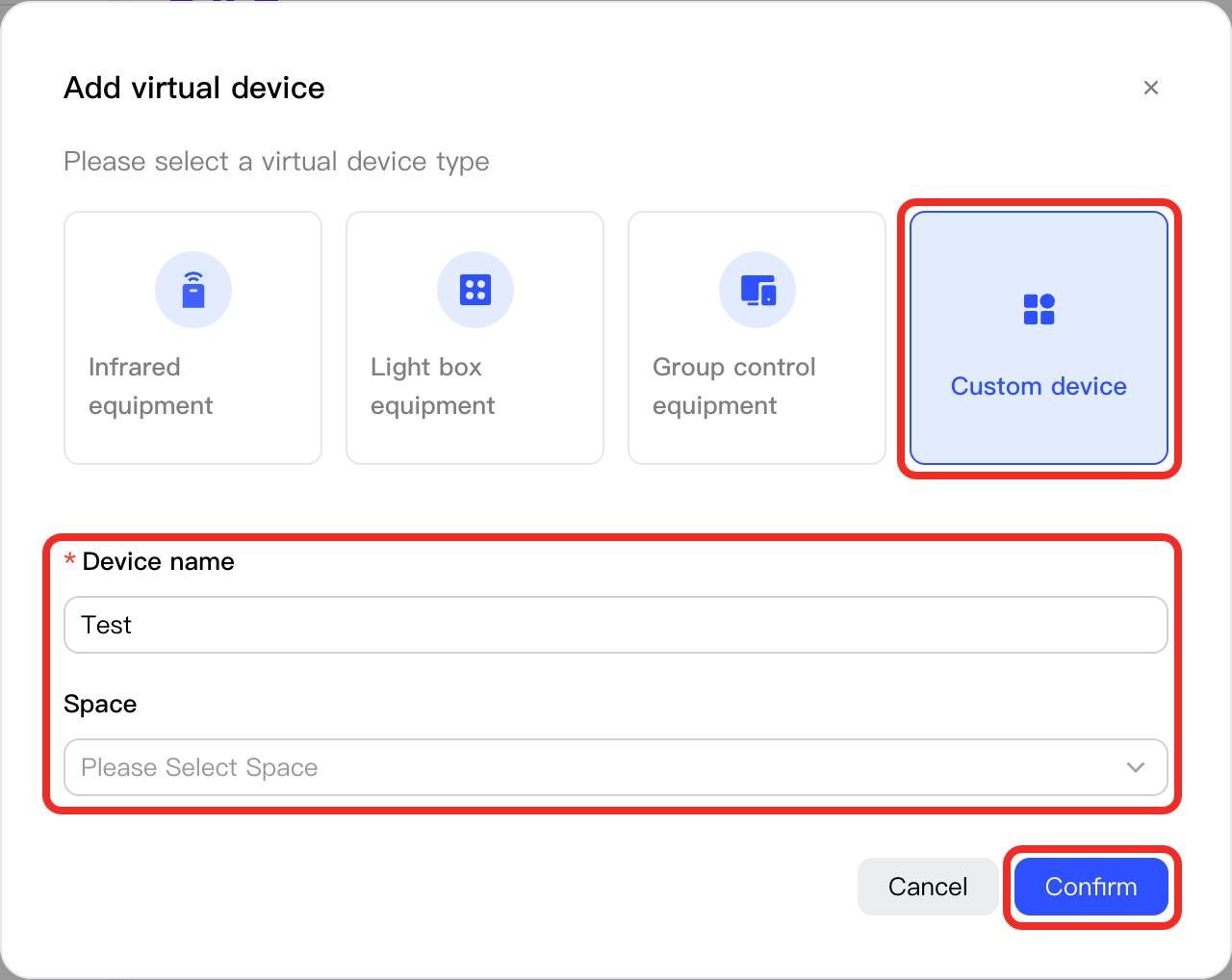
In the dialog, set Virtual Device Type to Custom Device, configure the equipment Name. You can also assign a space to the equipment.
-
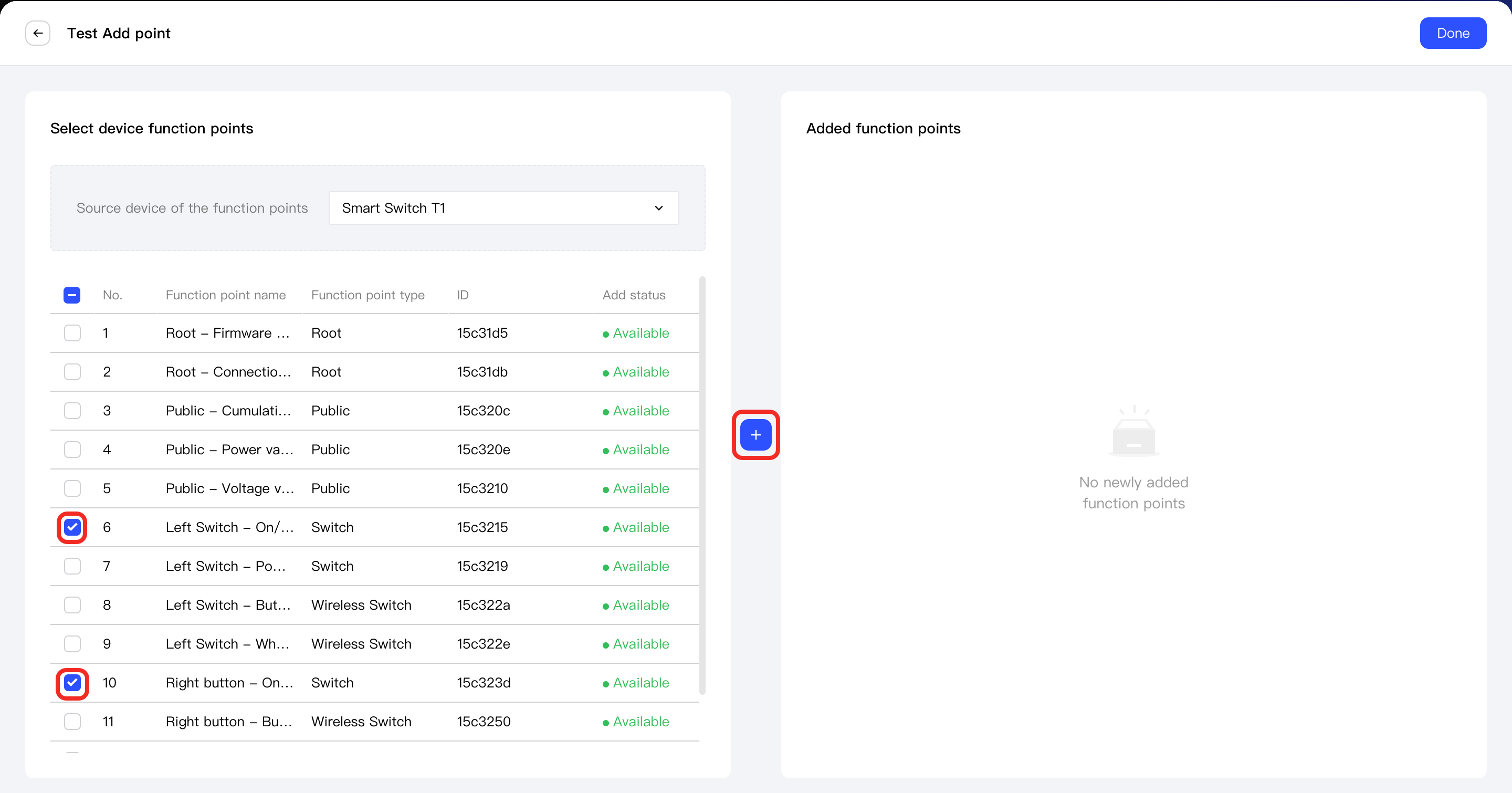
Select a device from the Source device of the function points dropdown.
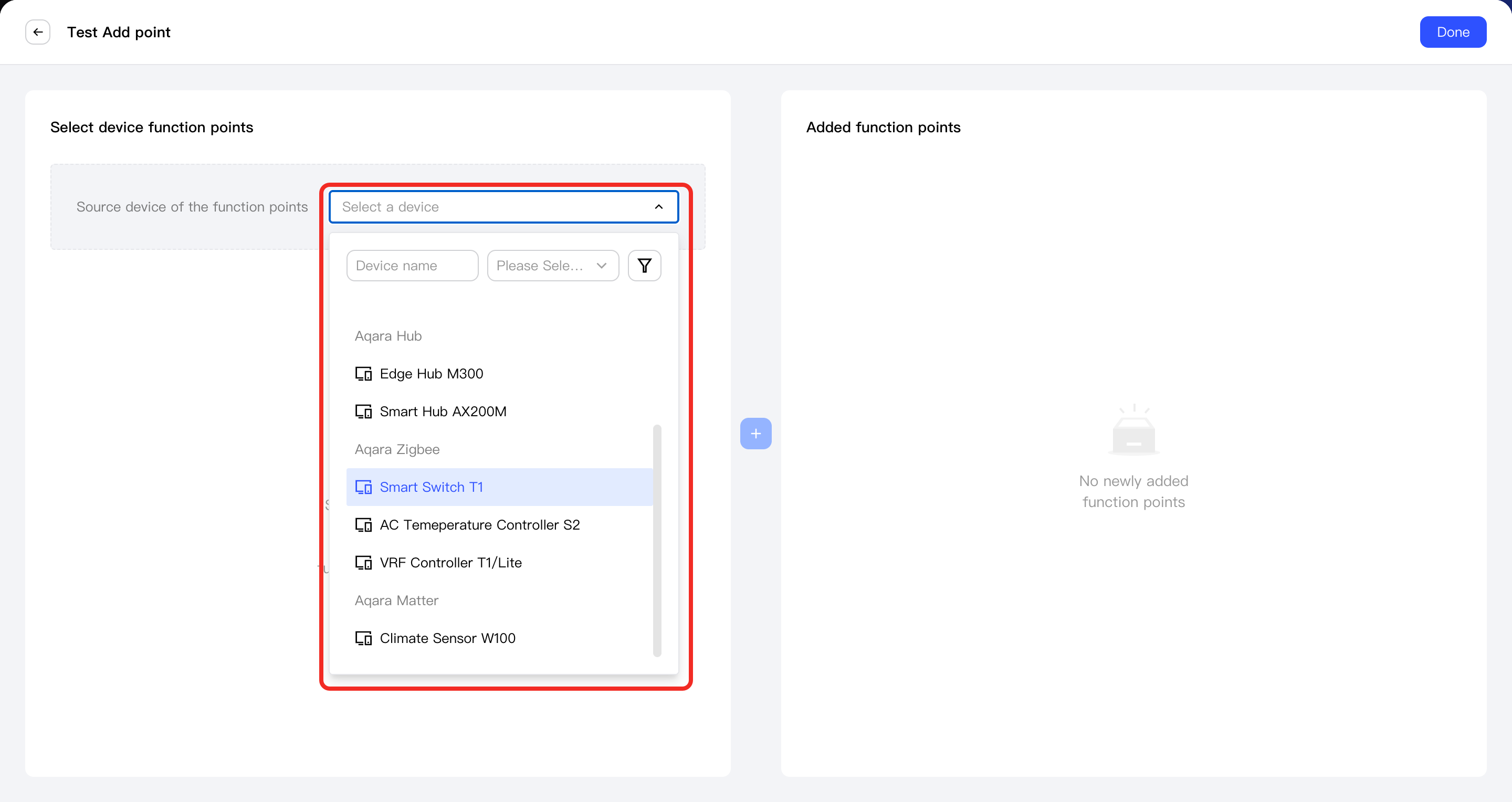
In the function point list of the selected device, check several function points, then click the + button to add them to the custom device.
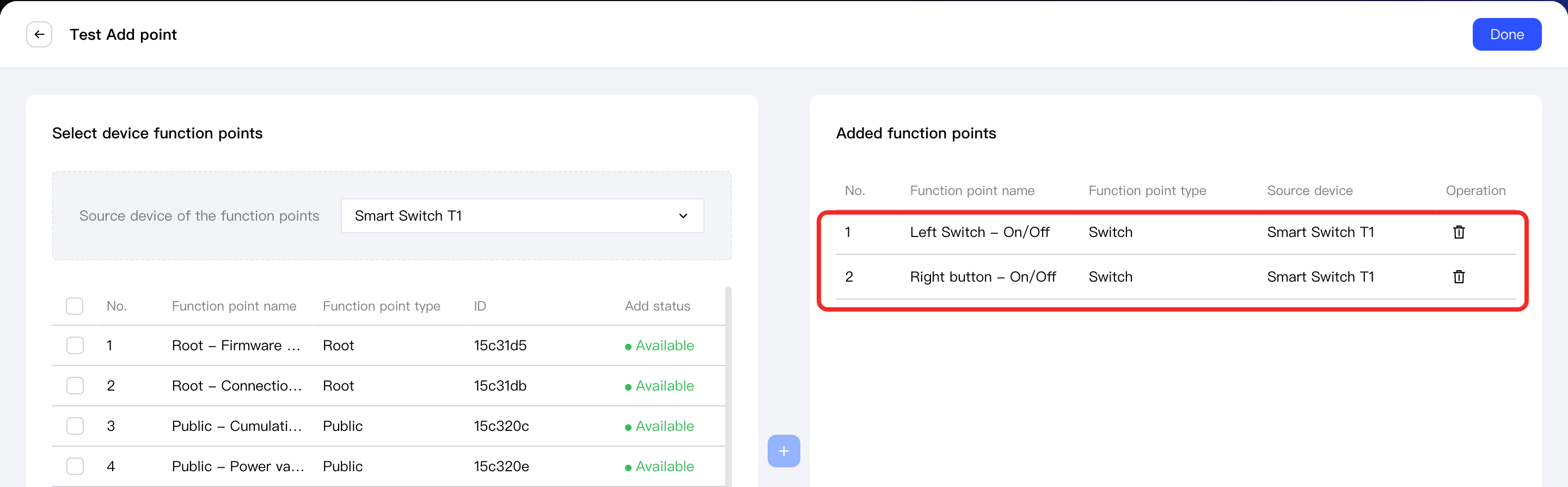
You can then view the added function points in the Added function points list.
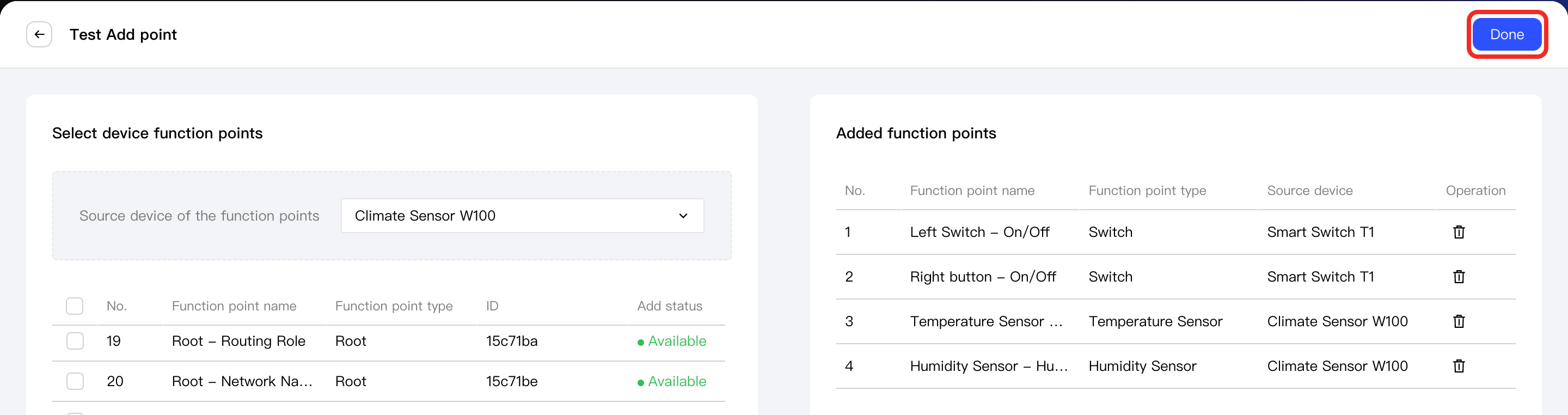
If you want to add function points from other devices to the custom device, continue selecting other devices from the Source device of the function points dropdown and check the corresponding function points.
After adding all function points, click the Done button to finish creating the custom device.
-
At this point, you will see the successfully added device under the
Virtualnode in the left Protocols and Devices panel, as well as in the device list on theVirtualmanagement page.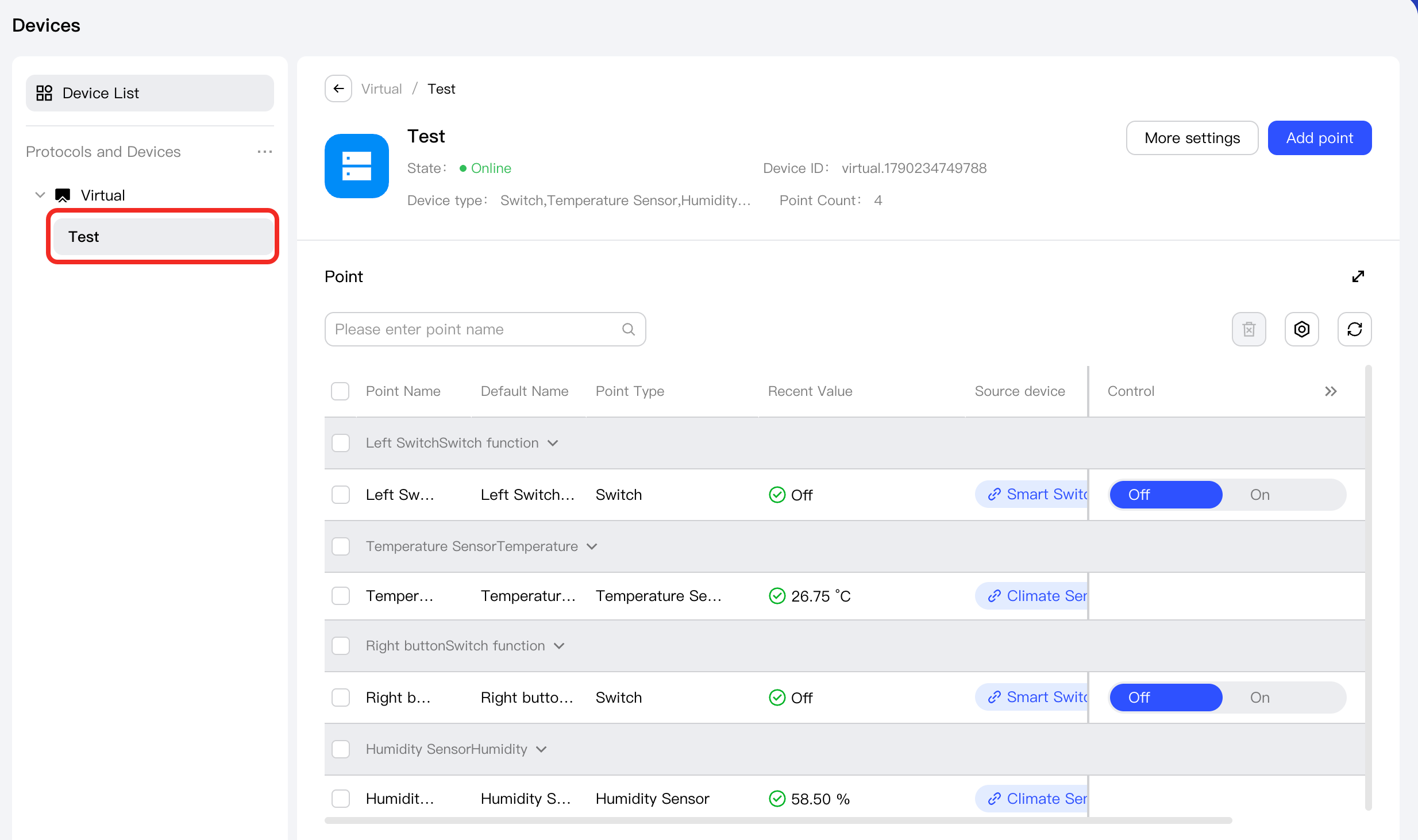
Next Step
Now, you can view details and control the device, or use the device in automation.