Group Control Equipment
This document explains how to create a virtual “group” (referred to as “group control equipment”) in Aqara Studio and add multiple smart devices with the same capabilities (for example, several lights in the same room) under it, so you can control all devices in the group with a single command instead of operating them one by one.
Create Group Control Equipment
-
Click on Device Management in the left sidebar. Under Protocols and Devices, click the ... button and select Add Protocol.

-
In the popup, select
Virtualto add aVirtualnode.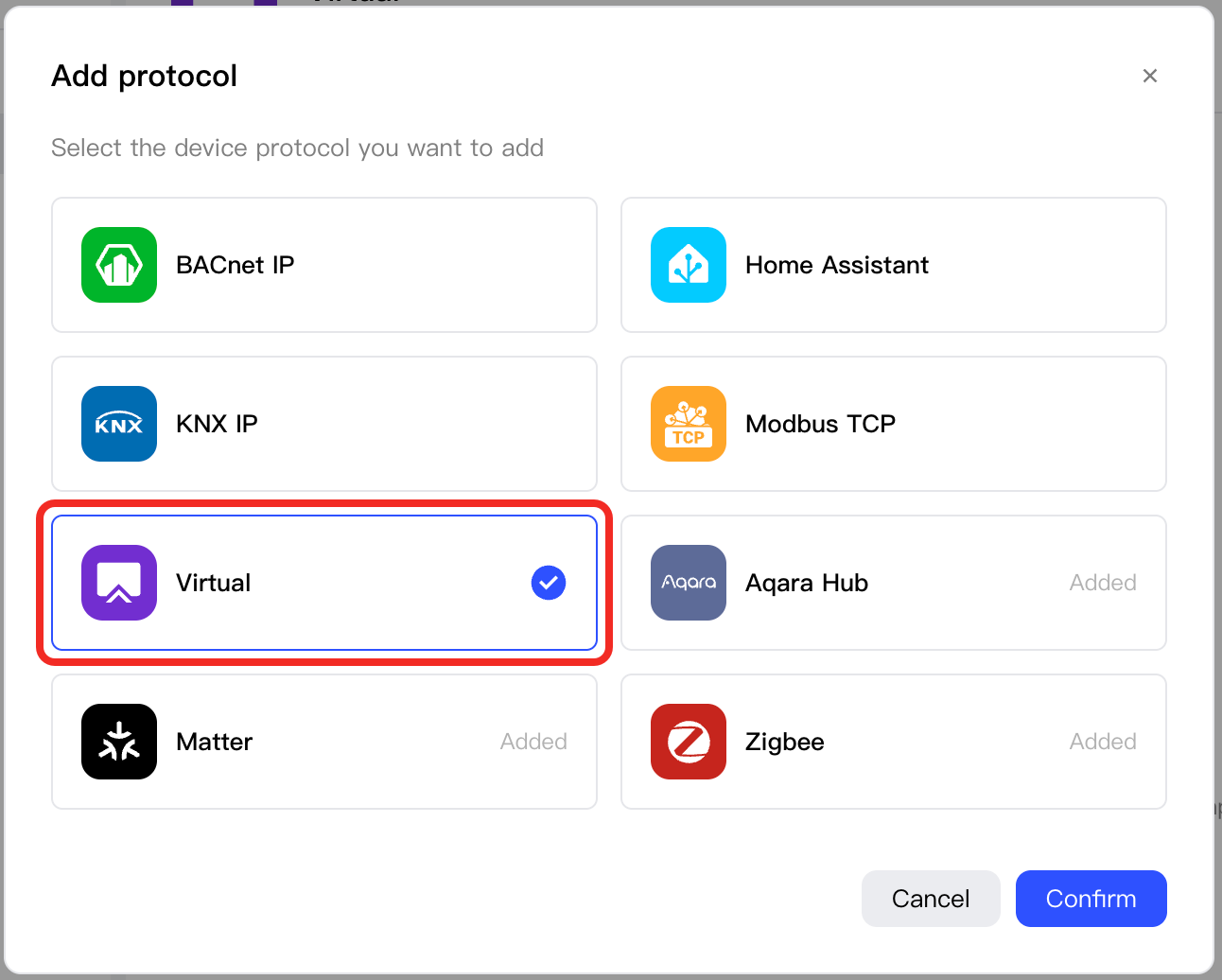
-
Select this node and click the
Add Devicebutton.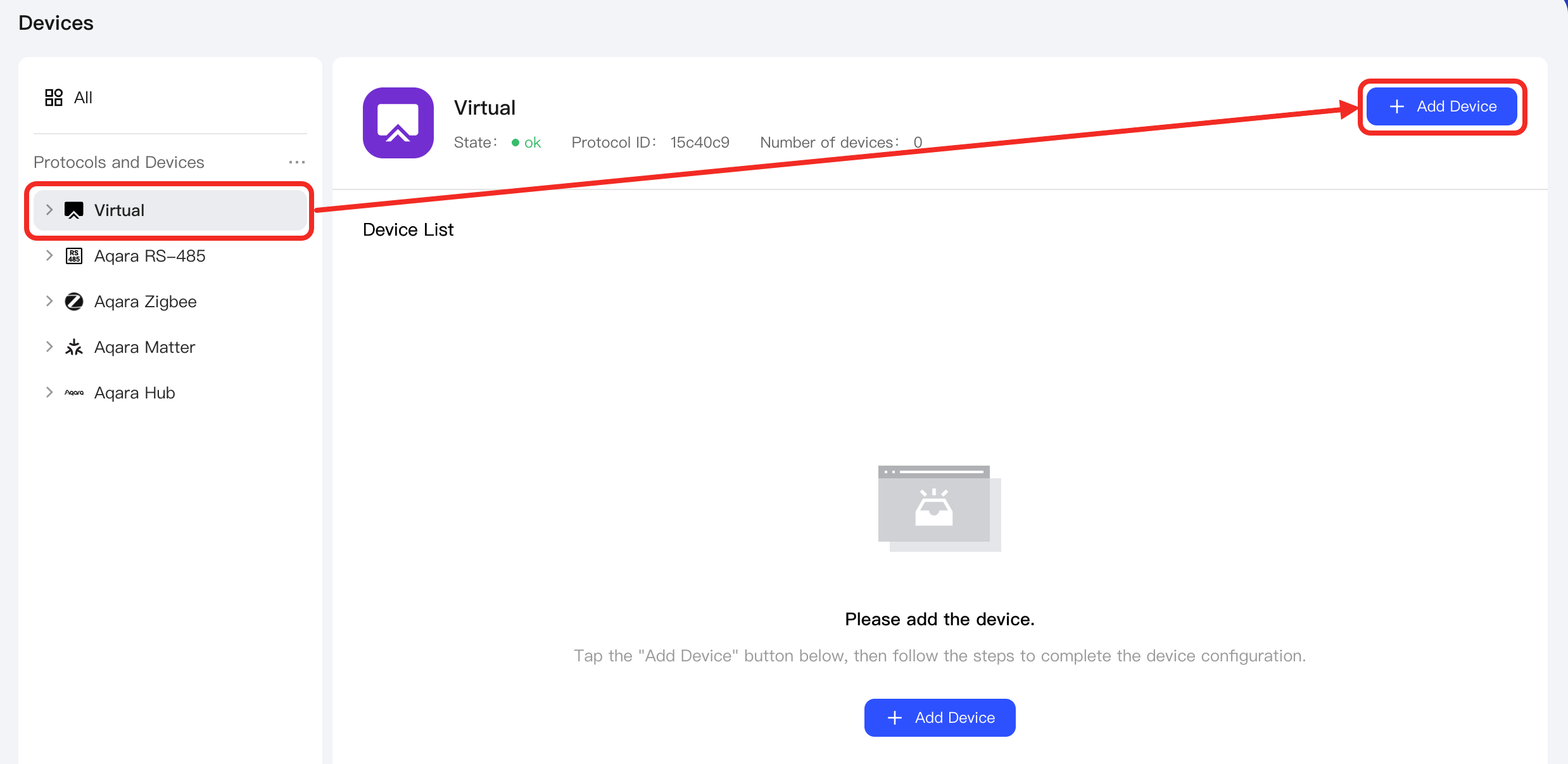
-
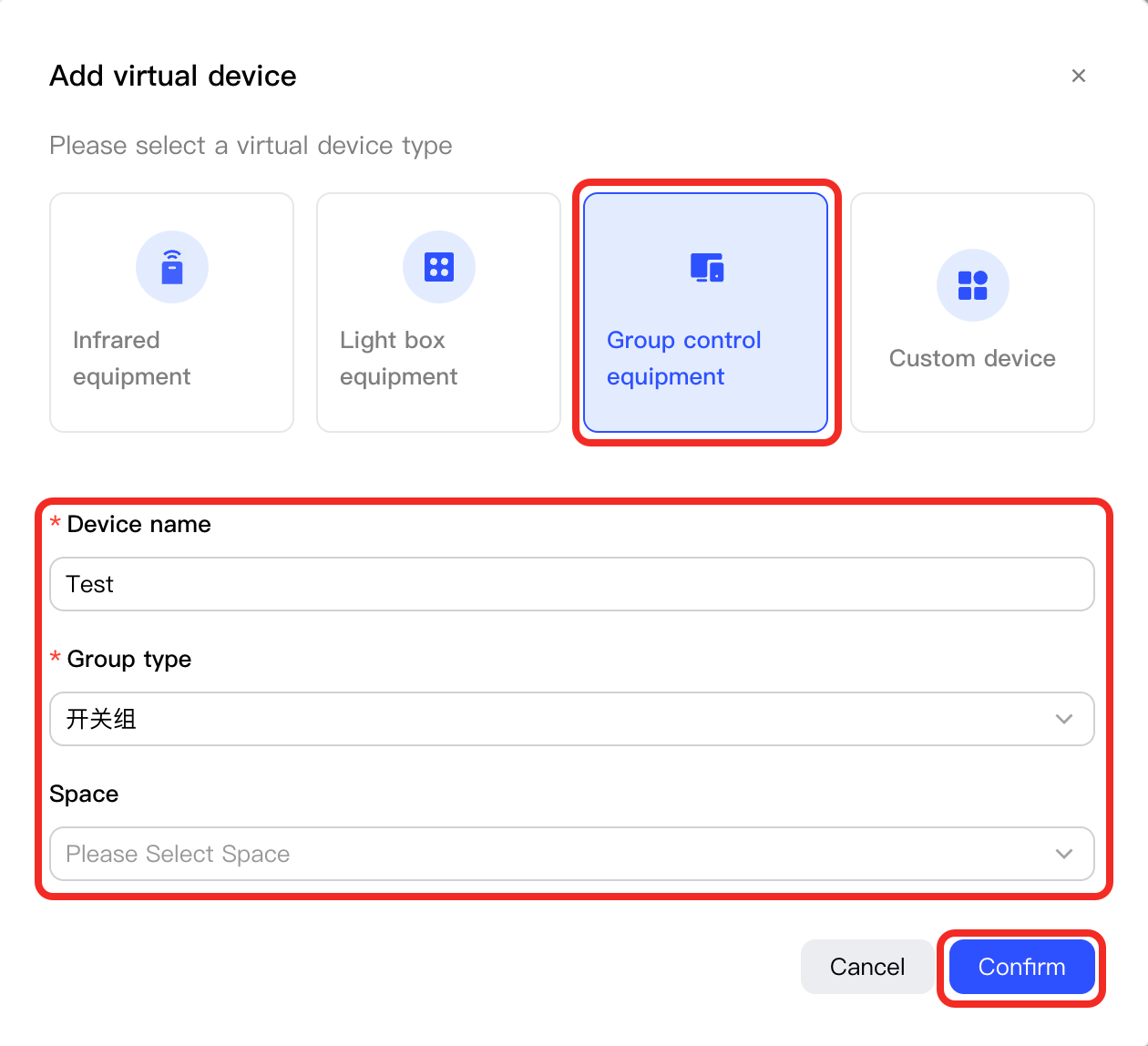
In the dialog, set Virtual Device Type to Group Control Equipment, configure the equipment Name, and select the Group Type. You can also assign a space to the equipment.
-
In the Add Members dialog, the system finds and lists Endpoints from all your devices that match the selected Group Type and have the same capabilities. Select the Endpoints you want to add as members of the group control equipment.
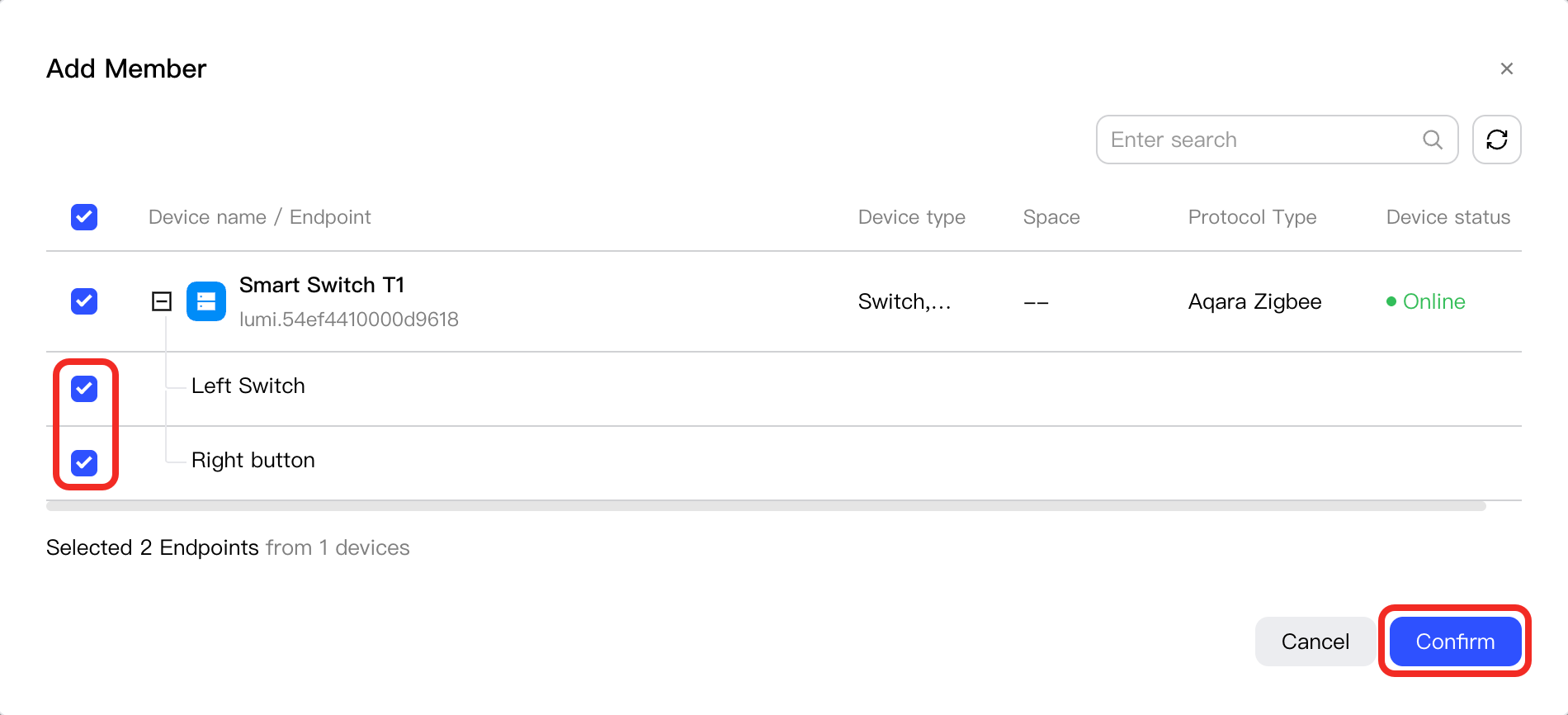
After selecting, click Confirm to finish creating the group control equipment.
Control Function Points
If you want to control group control equipment, follow the steps below so that all devices perform the operation in sync:
-
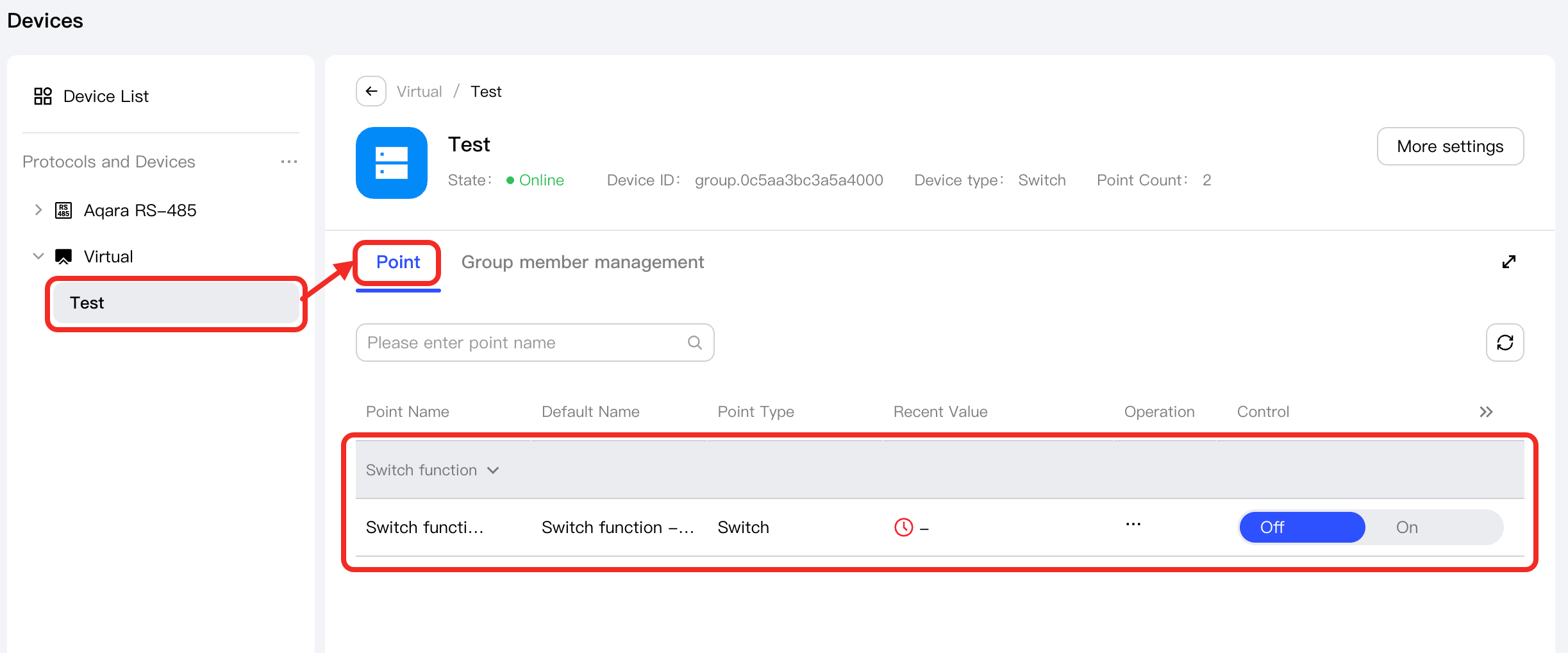
In the left Protocols and Devices tree, expand the
Virtualnode, find and select the group control equipment you just created to view its point list (only points applicable to all devices are included) in the Point tab. -
Find the target function point in the list and use the Control column to operate on it.
Group Member Management
After creating group control equipment, you can view, add, or remove members.
View Group Members
If you want to view the member (Endpoint) list of group control equipment, follow these steps:
-
In the left Protocols and Devices tree, expand the
Virtualnode, find and select the group control equipment you just created. -
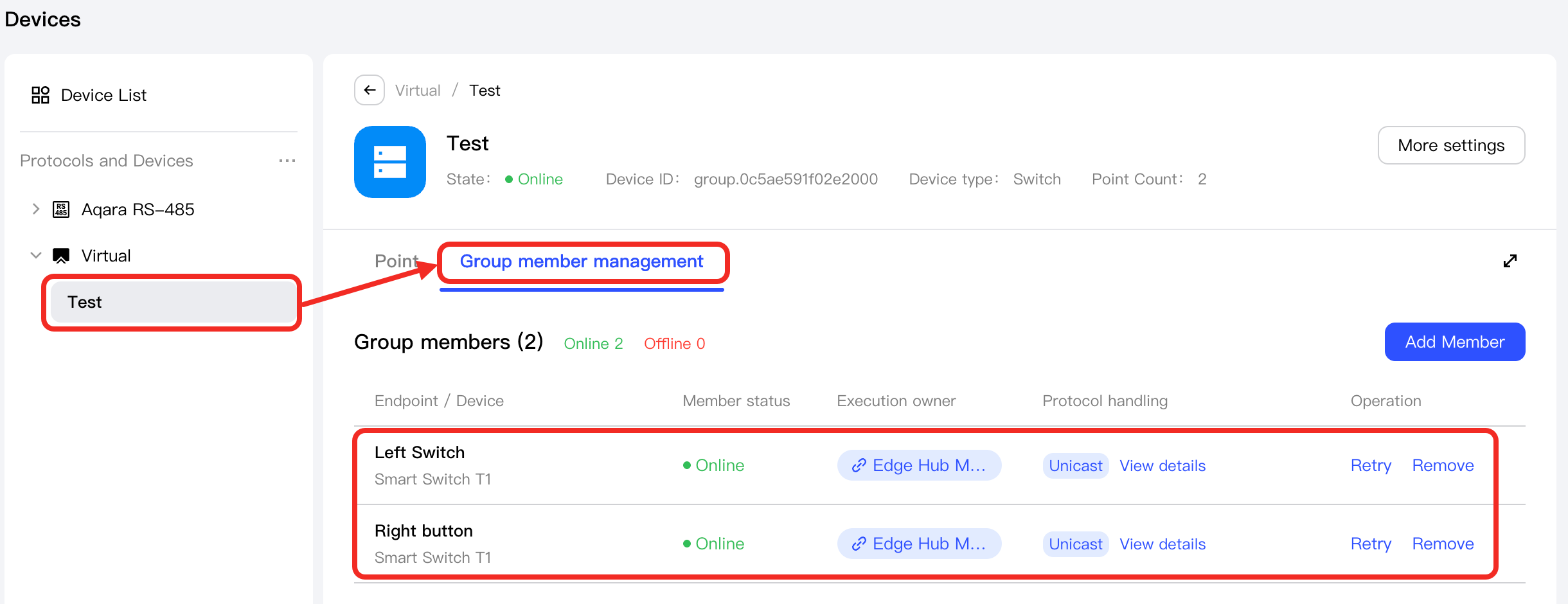
Switch to the Group member management tab to view the member list.
-
In this list, you can view the following information for each group member:
Field Description Member status Whether the member is online. Execution owner Indicates the actual device responsible for controlling this member—identifying which device ultimately executes the command. Protocol handling The actual processing method (unicast or multicast) used by this member in the current group.
Remove Members
If you want to remove an Endpoint from group control equipment, follow these steps:
- Refer to the View Group Members steps to open the member list of the group control equipment.
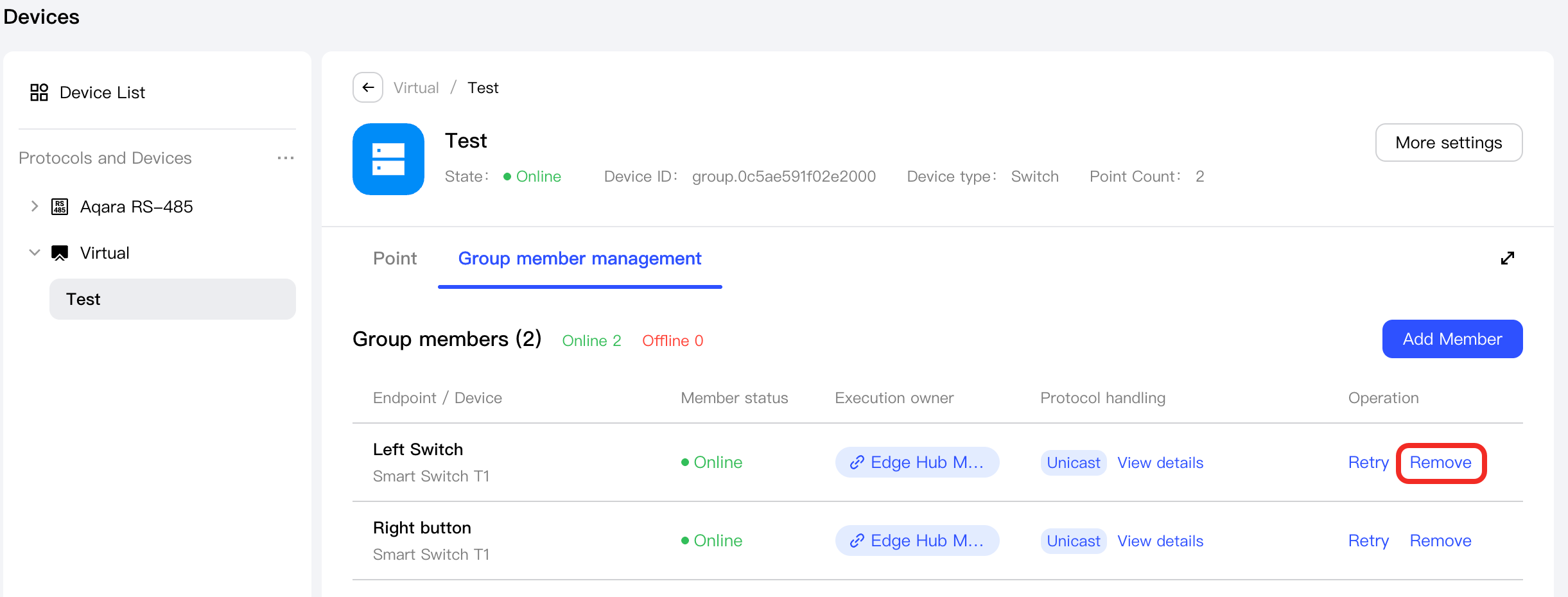
- Find the target Endpoint and click the Remove button to remove it from the group control equipment.
Add Members
If you want to add a new Endpoint to existing group control equipment, follow these steps:
- Refer to the View Group Members steps to open the member list of the group control equipment.
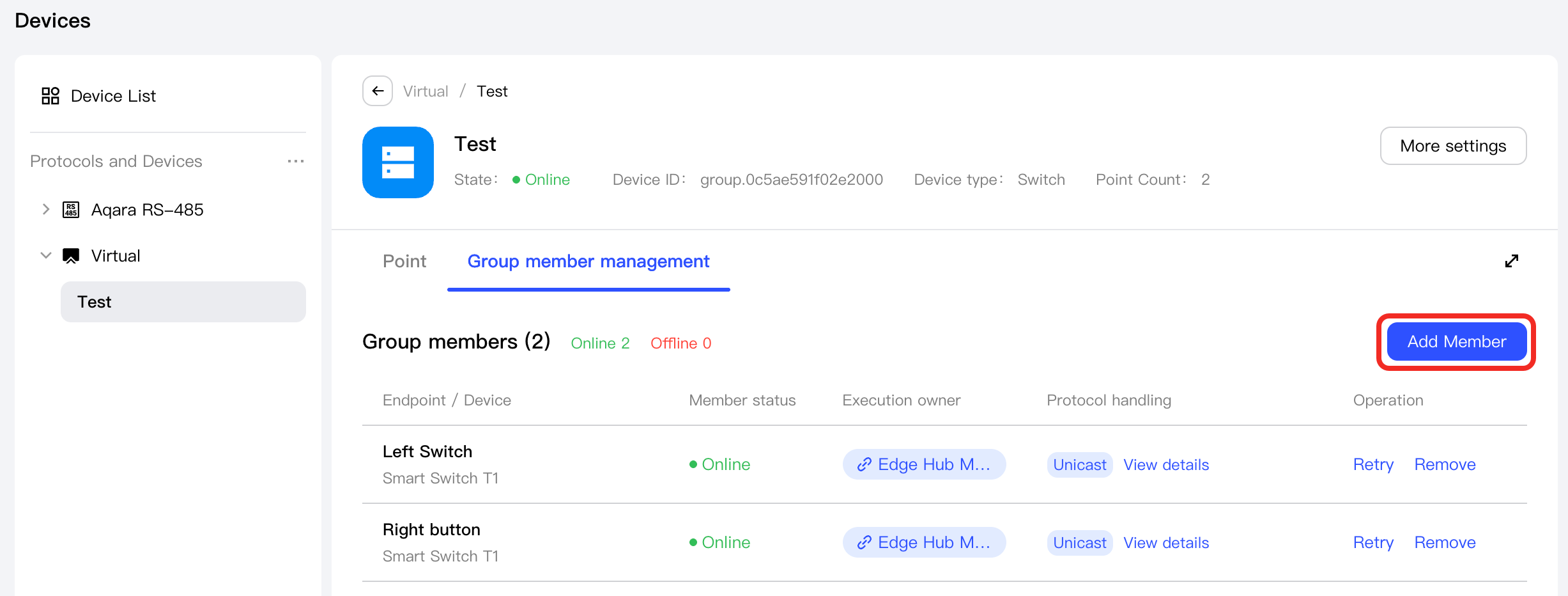
- Click the Add Member button to start the add flow.
Next Step
Now, you can view details and control the device, or use the device in automation.