HTTP Push
Aqara Studio supports real-time delivery of device data, object events, and alarms via HTTP Push. Simply configure a global webhook URL in the Studio, and Studio will send messages one by one to the specified address using HTTP POST.
This feature is suitable for the following scenarios:
- Synchronize device data to your own platform, data center, or alarm center.
- Receive object events such as device addition, deletion, and space changes in third-party systems.
How Does HTTP Push Work in Aqara Studio?
Aqara Studio's HTTP Push follows a "Studio proactively delivers, third-party service acknowledges" model:
- In Aqara Studio, configure the receiving address and select the event types to subscribe to; optional header fields and signature settings can also be added if needed.
- After saving the above configuration, Aqara Studio will immediately send a
WebhookVerificationmessage (HTTP POST) to your configured address to verify its availability. - You must return a response containing a
codeof 0 and achallengefield set to thedata.challengein theWebhookVerificationmessage. This indicates a successful receipt, and the address passes verification. Only then will Aqara Studio enable HTTP Push. - When a subscribed event occurs, Aqara Studio will send an HTTP
POSTrequest to your configured endpoint as per your settings.
Each request body contains only a single message, in JSON format.
5. After receiving a message, you should respond with a message containing a code of 0, indicating success.
HTTP Push is a real-time, best-effort delivery mechanism. It does not provide persistent message queues, historical message re-delivery, or guarantee global order.
Receiver Requirements
Before implementing HTTP Push, please ensure your receiver meets the following requirements:
| Item | Requirement |
|---|---|
| Protocol | Support for HTTP or HTTPS |
| HTTP Version | HTTP/1.1 |
| Receiving Address | A globally unique endpoint configured in Studio |
| HTTPS | Must correctly validate certificates |
| Redirect | Do not follow redirects |
| URL Limitations | Address must not contain query, fragment, or userinfo |
| Path Handling | Preserve consecutive slashes and existing percent encoding in the path |
Additionally, the receiver must support WebhookVerification validation requests. When saving your configuration, Studio will automatically verify the current settings; HTTP Push will only be enabled after successful verification. If re-enabled later, verification will be performed again.
Supported Message Types
Aqara Studio will send the following message types to your receiver:
| Message Type | Description |
|---|---|
TraitValueUpdate | Device functional point value change notification |
objectEvent | Object event, such as device addition, deletion, space changes, automation changes, etc. |
AlarmEvent | Alarm notification |
WebhookVerification | Webhook verification message, used to confirm receiver availability |
Business message bodies reuse the WebSocket v1 message schema. Except for the verification message (WebhookVerification), business messages usually contain the following common fields:
| Field | Description |
|---|---|
type | Message type, e.g., TraitValueUpdate, objectEvent, AlarmEvent |
version | Only v1 is supported currently |
msgId | Unique message ID for delivery tracing |
data | Main data payload |
code | Processing result code; 0 indicates success |
message | Processing result description |
Configuring Push in Aqara Studio
-
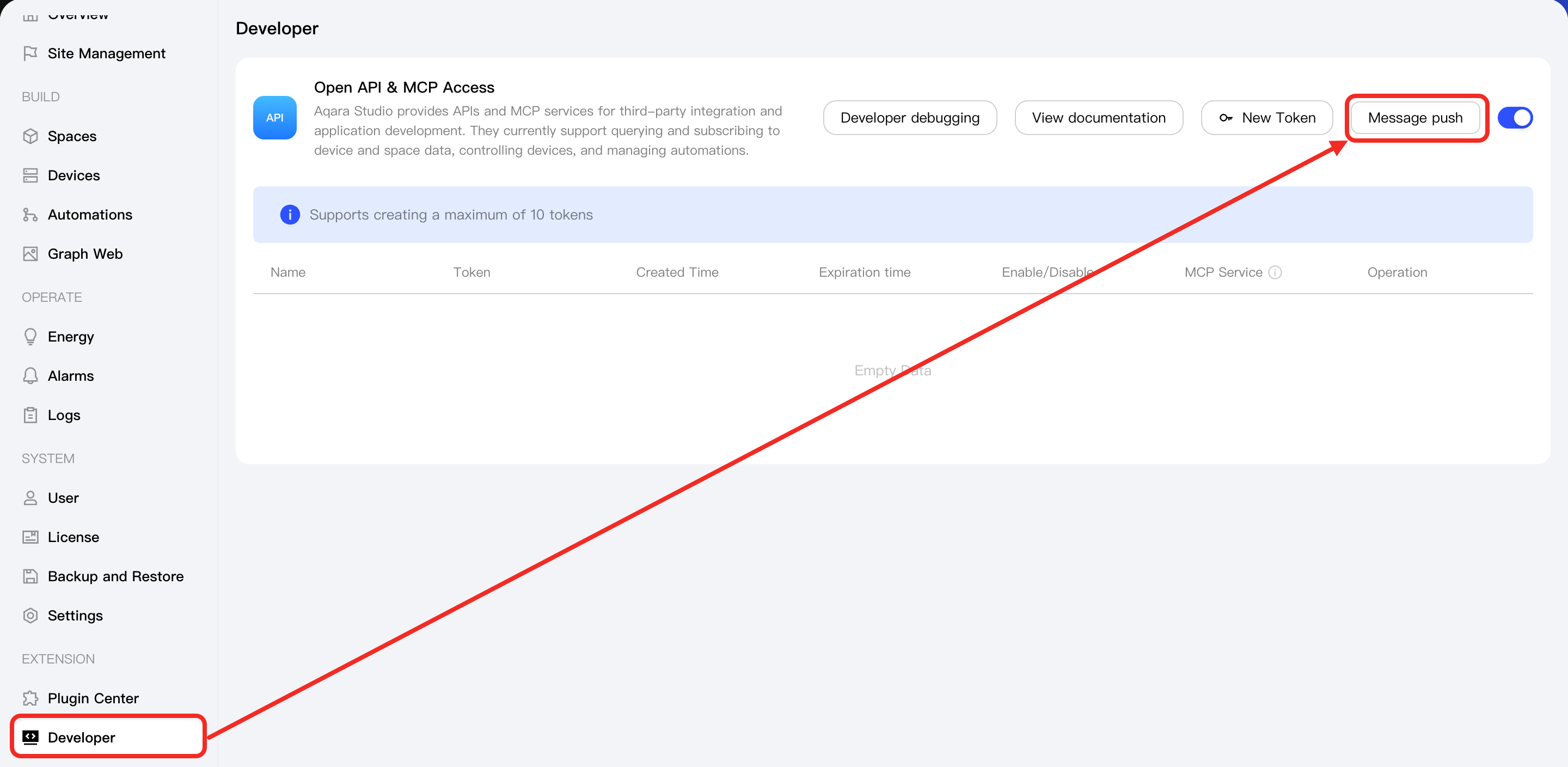
Log in to Aqara Studio and navigate to the Developer page in the sidebar. Locate the Open API & MCP Access section and select the Message Push button.
-
Fill out and save the following details in the popup window:
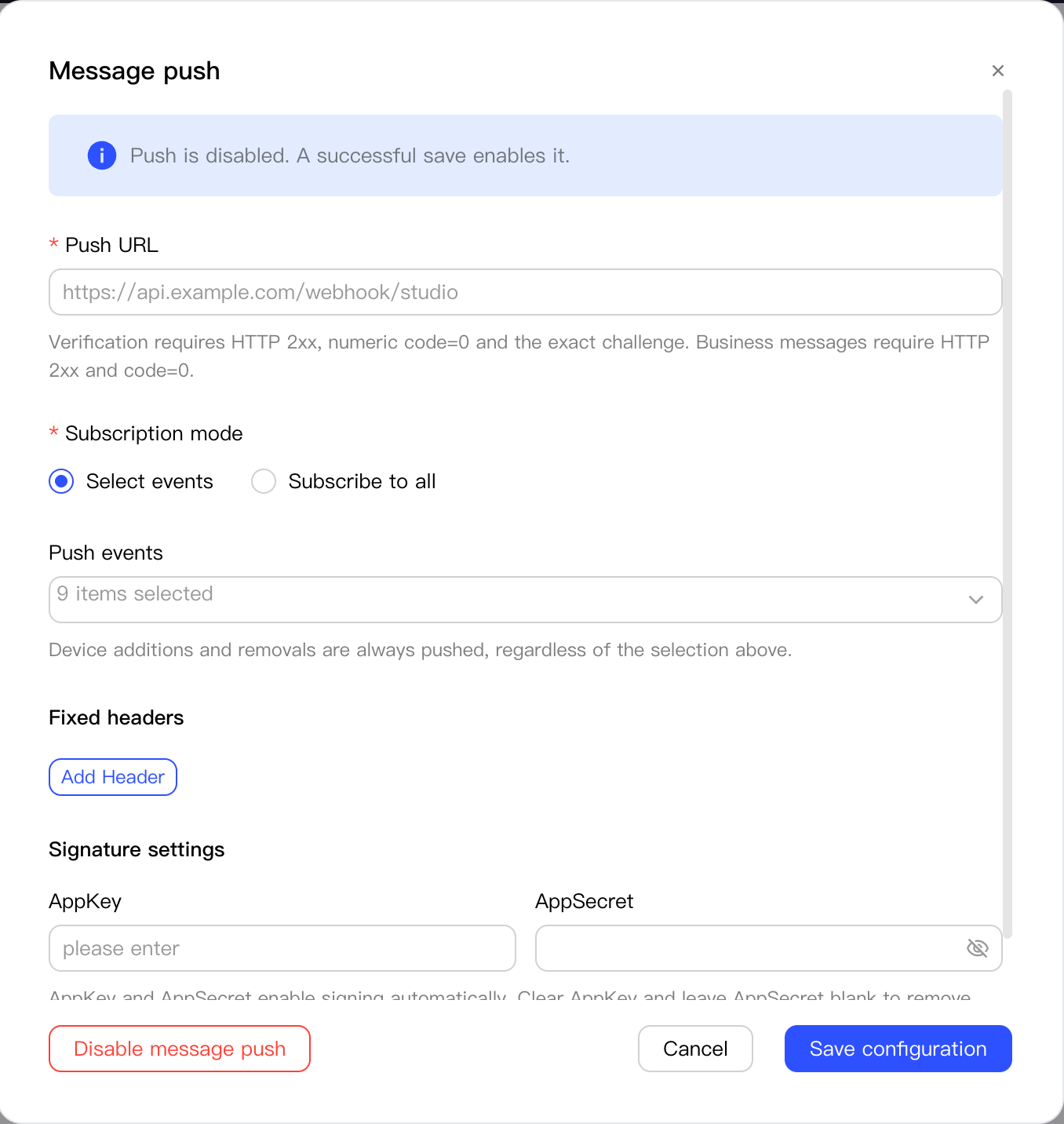
Item Required Description Push URL ✓ The address to receive push notifications. Ensure the address meets the Receiver Requirements.
Subscription Mode ✓ Choose a subscription mode:
- Select events: select specific event types to subscribe to.
- Subscribe to all: subscribe to all event types.
For more details, see Subscription and Default Push Rules
Push events ✗ Only available if Message Subscription Mode is set to Custom Subscription. You can select which event types to subscribe to.
Fixed headers ✗ Add custom header fields for requests. The following header names are prohibited:
X-Studio-Delivery-IdX-Studio-App-KeyX-Studio-TimeX-Studio-NonceX-Studio-Sign-VersionX-Studio-Sign
AppKey ✗ AppKey must be 1–128 printable ASCII characters, defined by you, no spaces allowed.
AppSecret ✗ AppSecret must be 1–4096 UTF-8 bytes, defined by you, and must not contain control characters.
Webhook Verification
Receiving a WebhookVerification Message
When you save an HTTP Push configuration or re-enable Push per the above steps, Aqara Studio will send a WebhookVerification message to your configured endpoint to verify receiver availability.
Sample verification message:
{
  "type": "WebhookVerification",
  "version": "v1",
  "msgId": "verify-39c63800-c8c1-4f4b-b77c-57f24f0de240",
  "data": {
    "challenge": "00112233445566778899aabbccddeeff"
  }
}
Returning a WebhookVerification Response
Upon receiving a WebhookVerification message, you must return a response with code as 0 and a challenge field matching the data.challenge in the received message. Only after this verification will Aqara Studio enable HTTP Push.
{
  "code": 0,
  "challenge": "00112233445566778899aabbccddeeff"
}
Verification messages are not retried. If verification fails, the current configuration will not take effect.
Request Format
When Studio sends requests to the receiver, the following characteristics apply:
- The request method is
POST. - The default
Content-Typeisapplication/json. - Each request body contains a single message.
- The response is returned in the same HTTP request.
- Any headers configured in Aqara Studio are sent as specified.
Request Headers
HTTP Push requests include at least the following headers:
| Header | Description |
|---|---|
X-Studio-Delivery-Id | A unique delivery ID for each request, formatted as a UUID |
X-Studio-App-Key | AppKey field. This is only included if you have configured AppKey and AppSecret in Aqara Studio. |
X-Studio-Time | Timestamp. Only included if AppKey and AppSecret are configured. |
X-Studio-Nonce | 32-character lowercase hex random value. Only included if AppKey and AppSecret are configured. |
X-Studio-Sign-Version | Signature version. Only included if AppKey and AppSecret are configured, value is always v1. |
X-Studio-Sign | Signature (HMAC-SHA256 in lowercase hex). Only included if AppKey and AppSecret are configured. |
Signature Verification Rules
If you configured AppKey and AppSecret in Aqara Studio, the receiver should use the AppSecret to validate the X-Studio-Sign header.
Reconstruct the Signing String from the plain request data, compute the HMAC using your AppSecret, and compare with the received X-Studio-Sign. The AppKey is sent in plaintext in the X-Studio-App-Key header; you may check it against your local copy. Data integrity and tamper resistance rely on signature verification.
Signing String
The signing string (signingString) is composed of the following six lines of UTF-8 text in order, joined by LF (\n), with no trailing line-break:
v1
AppKey
Delivery-Id
Time
Nonce
SHA256(raw-body)
Each line refers to:
| Line | Description |
|---|---|
v1 | Corresponds to X-Studio-Sign-Version |
AppKey | Corresponds to X-Studio-App-Key |
Delivery-Id | Corresponds to X-Studio-Delivery-Id |
Time | Corresponds to X-Studio-Time |
Nonce | Corresponds to X-Studio-Nonce |
SHA256(raw-body) | The SHA-256 (lowercase hex) of the raw request body |
Recommended Signature Verification Steps
- (Optional) Compare
X-Studio-App-Keywith your local AppKey. If mismatched, you may reject the request. - Construct the
signingStringusing request headers and the raw request body as specified above. - Generate the signature (a lowercase hexadecimal string) with the HmacSHA256 algorithm, using the your AppSecret as the key.
- Compare the result with the
X-Studio-Signheader; if equal, theX-Studio-Signpasses the verification.
On retry, the request body and X-Studio-Delivery-Id remain the same, but Time, Nonce, and Sign are regenerated.
Response Requirements
Aqara Studio considers a delivery successful only if the receiver returns a response that meets the following:
- HTTP status code is
2xx - Response body is uncompressed UTF-8 JSON
- JSON root
codefield is an integer literal0
The following values do not count as success:
0.00e0"0"null
Response Body Format
The response body should contain at least:
{
  "code": 0
}
For verification requests (WebhookVerification), the response must include the original challenge:
{
  "code": 0,
  "challenge": "00112233445566778899aabbccddeeff"
}
If processing fails, you can return a non-zero code:
{
  "code": 1
}
Response Body Limitations
| Item | Limit |
|---|---|
| Default response body size limit | 4096 bytes |
| Maximum response body size | 65536 bytes |
| Maximum JSON nesting depth | 128 (including root object) |
We recommend keeping responses as simple as possible and avoiding complex JSON structures and excessive response headers.
Subscription and Default Push Rules
After HTTP Push is enabled, not all events require manual selection to be sent. The current rules are:
| Category | Rule |
|---|---|
DEVICE_ADDED / DEVICE_REMOVED | Always sent, independent of subscription settings |
TraitValueUpdate | Enabled by default |
DEVICE_ENDPOINT_ADDED / DEVICE_ENDPOINT_REMOVED | Shared with device data/structure event group; enabled by default |
DEVICE_TRAIT_PARAMETER_UPDATE | Shared with device data/structure event group; enabled by default |
| Configurable object events | Up to 8 individual object events can be selected (default: all selected) |
| Alarm events | Disabled by default |
- You can deselect all options. In this case,
DEVICE_ADDEDandDEVICE_REMOVEDwill continue to be pushed. - "Full Subscription" includes all current and future object events.
- Disabling HTTP Push also stops all default event types.
Retry, Timeout, and Circuit Breaker
To avoid message backlog due to receiver issues, HTTP Push enforces explicit timeout, retry, and circuit breaker strategies.
Retry and Idempotency
Business messages are retried at most once. During retries, X-Studio-Delivery-Id remains unchanged, and the receiver should use it for idempotent handling.
When the receiver returns 429, it can specify a wait time via Retry-After, which only supports integer seconds from 0 to 30; if not provided or invalid, the default wait time is used.
WebhookVerification is not retried immediately. Successful verification is required when enabling or recovering push for the first time; if verification fails while modifying the configuration, the original configuration is not replaced, and existing push continues to run with the original configuration.
Timeout Rules
| Item | Value |
|---|---|
| Connection timeout | 5 seconds |
| Single HTTP call deadline | 5 seconds |
Circuit Breaker Rules
- After 5 consecutive final failures, circuit breaker is triggered.
- Probe backoff intervals: 1 minute, 5 minutes, 15 minutes, 1 hour, and 6 hours (maximum).
- No missed messages during the circuit break will be resent after recovery.
- After 10 consecutive successful business deliveries, the backoff level resets.
Data Size Limits
| Item | Limit |
|---|---|
| Maximum total header size | 32 KiB |
| Default single message size limit | 1 MiB |
| Maximum single message body size | 64 MiB |
If a message exceeds the size limit, it will not be sent.
Receiver Implementation Suggestions
To ensure stable HTTP Push operation, we recommend the following best practices for your receiver:
- Prioritize "fast receive, async process"; avoid long business logic within the 5-second timeout window.
- Use
X-Studio-Delivery-Idfor delivery tracing and implement idempotence per business requirements. - Do not rely on global order or expect historical message re-delivery.
- If signature verification is enabled, always use the raw request body for digest computation—do not use formatted JSON.
- Handle
WebhookVerificationseparately, and ensure thechallengeis returned exactly as received.
Example
Below is a typical push and acknowledgement example.
Studio Push Request
POST /hook HTTP/1.1
Content-Type: application/json
X-Studio-Delivery-Id: 0c9c109a-e724-469c-ae96-1f96e824c127

{
  "type": "WebhookVerification",
  "version": "v1",
  "msgId": "verify-39c63800-c8c1-4f4b-b77c-57f24f0de240",
  "data": {
    "challenge": "00112233445566778899aabbccddeeff"
  }
}
Receiver Response Example
HTTP/1.1 200 OK
Content-Type: application/json

{
  "code": 0,
  "challenge": "00112233445566778899aabbccddeeff"
}