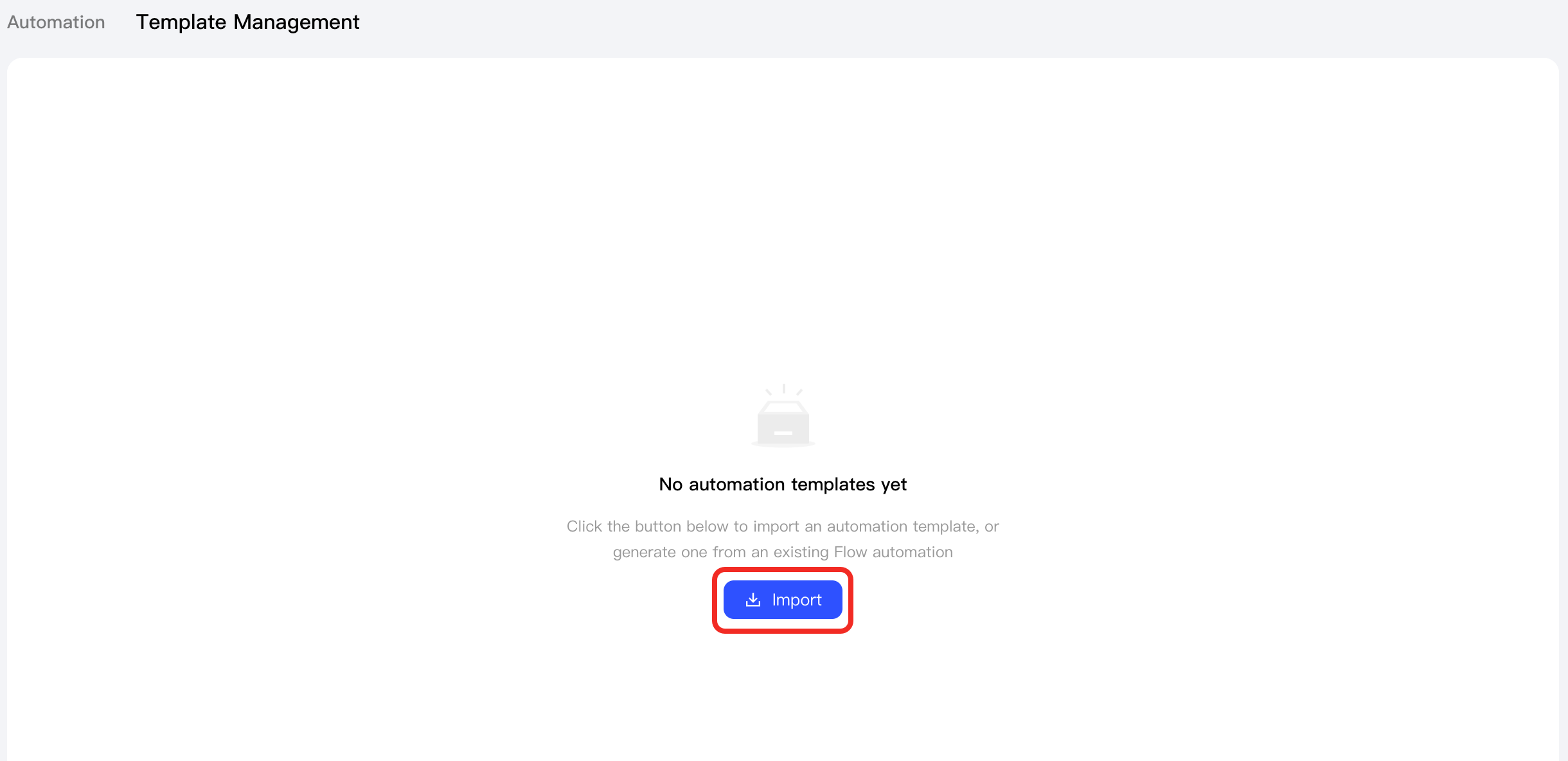
Templates
Aqara Studio lets you convert an existing automation or scene into a template so you can later reuse it as the basis for a new automation or scene.
You can also export a template for local backup or import it into another Aqara Studio instance.
Generate a Template
To convert an automation or scene into a template:
-
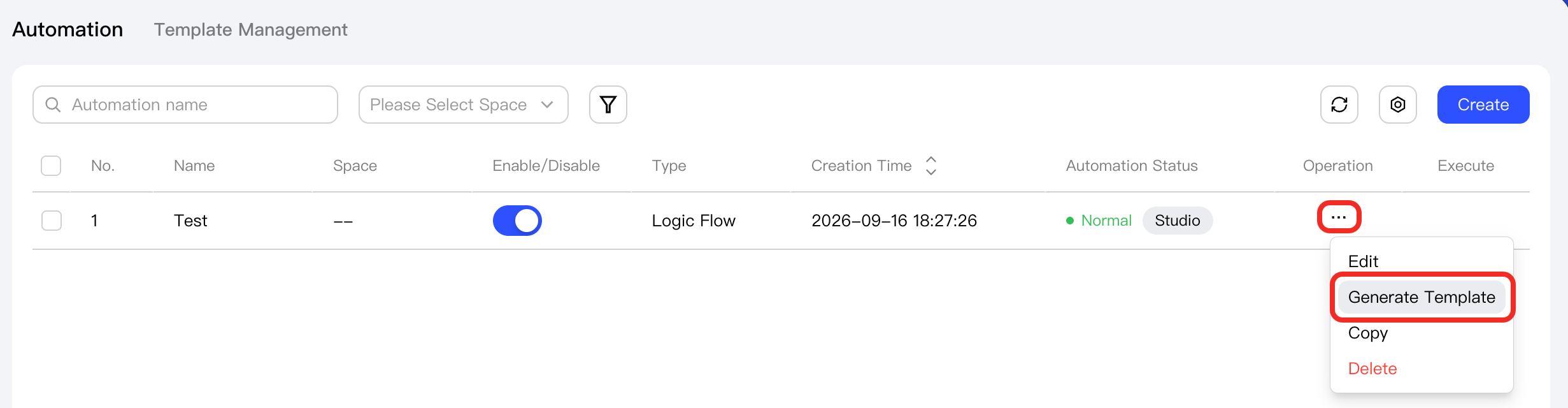
In the automation list or scene list, find the item you want to convert, then click ... > Generate Template.
-
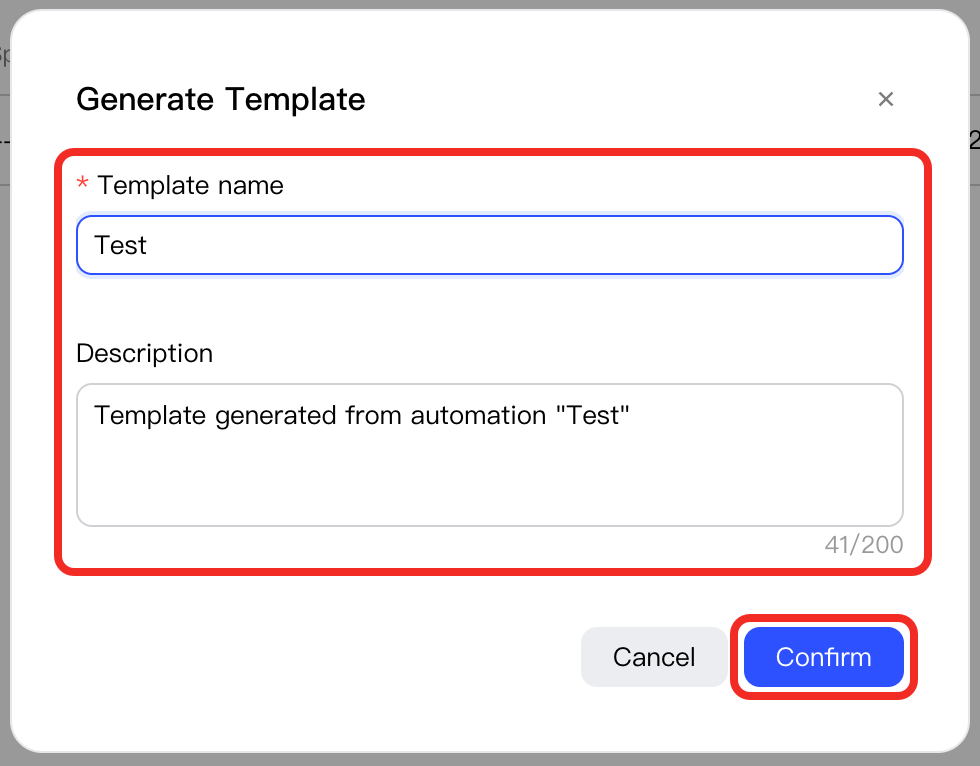
In the dialog, enter a template name. Aqara Studio generates a default description, which you can edit as needed to further explain the template’s purpose.
-
When a success prompt such as Template created successfully appears, the automation or scene has been converted into a template. Switch to the Templates tab to see the newly converted template in the list.

Create an Automation or Scene from a Template
Creating an automation or scene from a template lets you quickly build a new automation or scene based on an existing template.
Follow these steps:
-
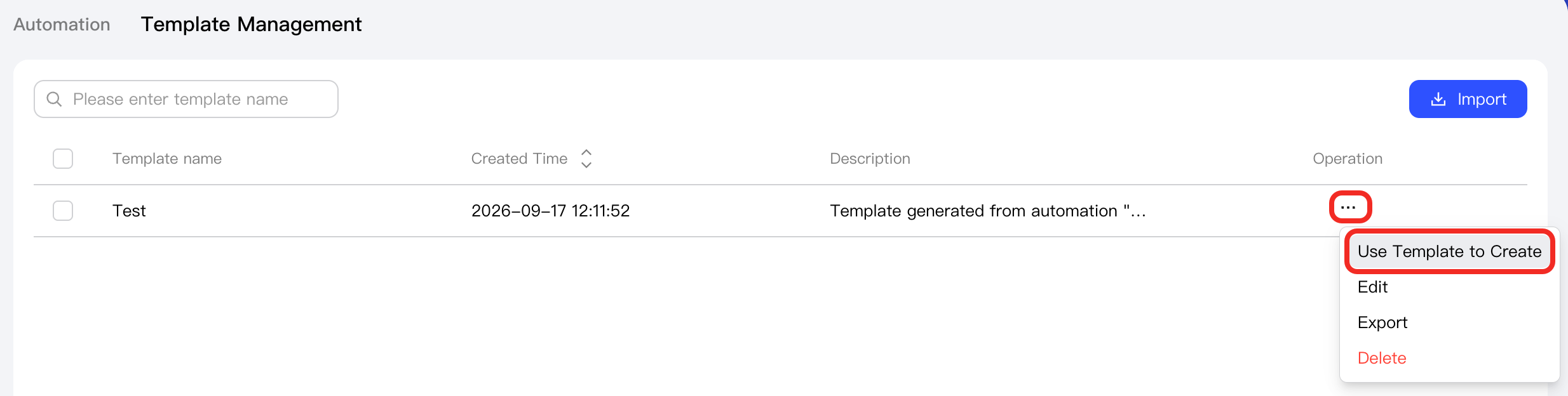
In the template list, find the template you want to use, then click ... > Use Template to Create. You will enter the editor for the newly created automation or scene.
-
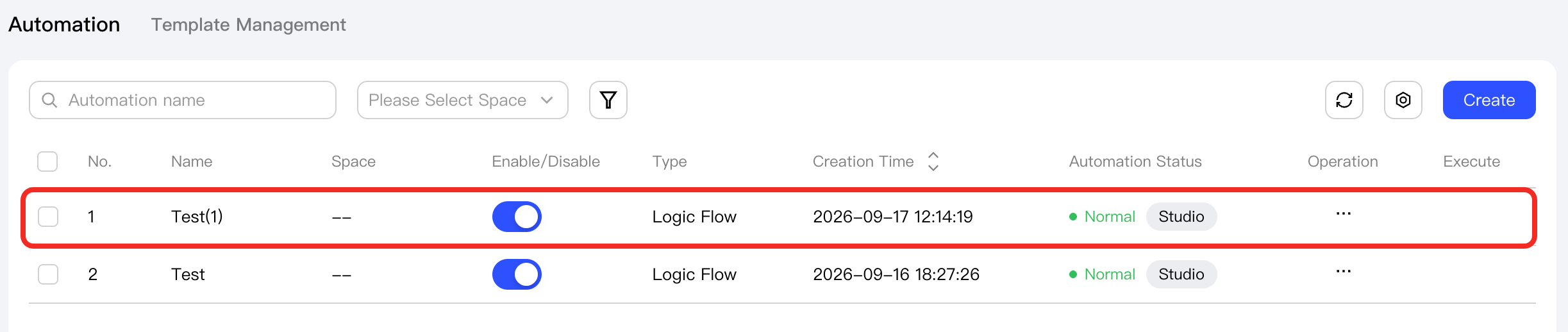
Return to the Automation or Scene tab. You will see a new automation or scene added to the corresponding list.
Export a Template
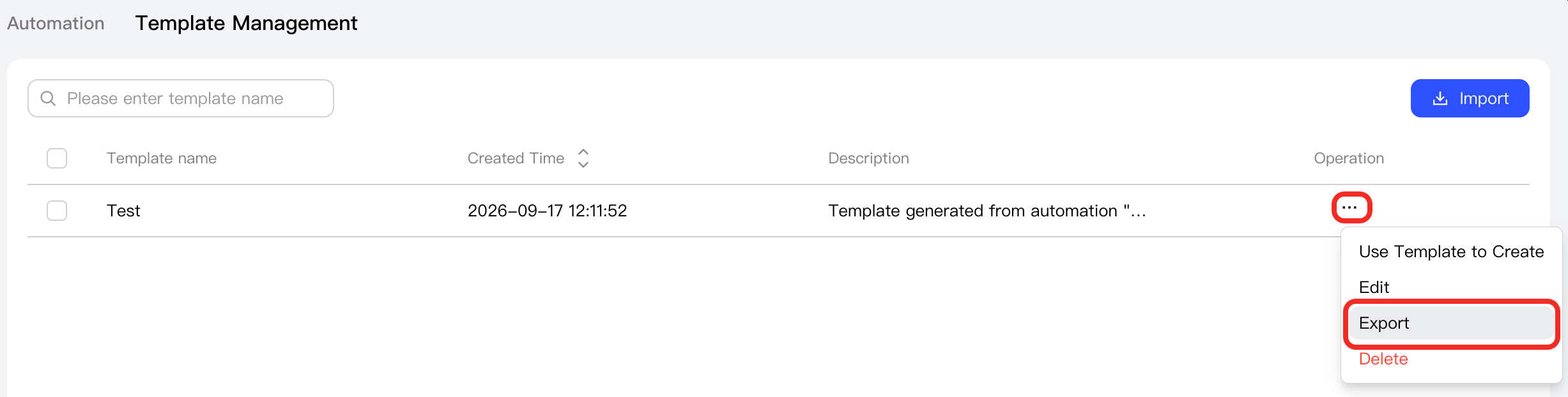
In the template list, find the template you want to export, then click ... > Export to download the template locally in JSON format.
Import a Template
To import a local automation template JSON file into Aqara Studio, click the Import button on the Template Management tab to start the import.