Export via Haystack Framework
This document provides a detailed guide on how to export smart devices from Aqara Studio to third-party platforms via Haystack framework, enabling you to flexibly manage and control your devices on third-party platforms.
Prerequisites
Before you begin, please use your Aqara Home App account to log in to Aqara Cloud, select your country or region, and bind it to a home within the Aqara Home App.
Install the Plugin
Please refer to the Plugin Market documentation and visit Aqara Builder to install the Haystack Export plugin.
Export Process
-
In the Plugin Center, find the
Haystack Exportplugin and click the Transfer Out button.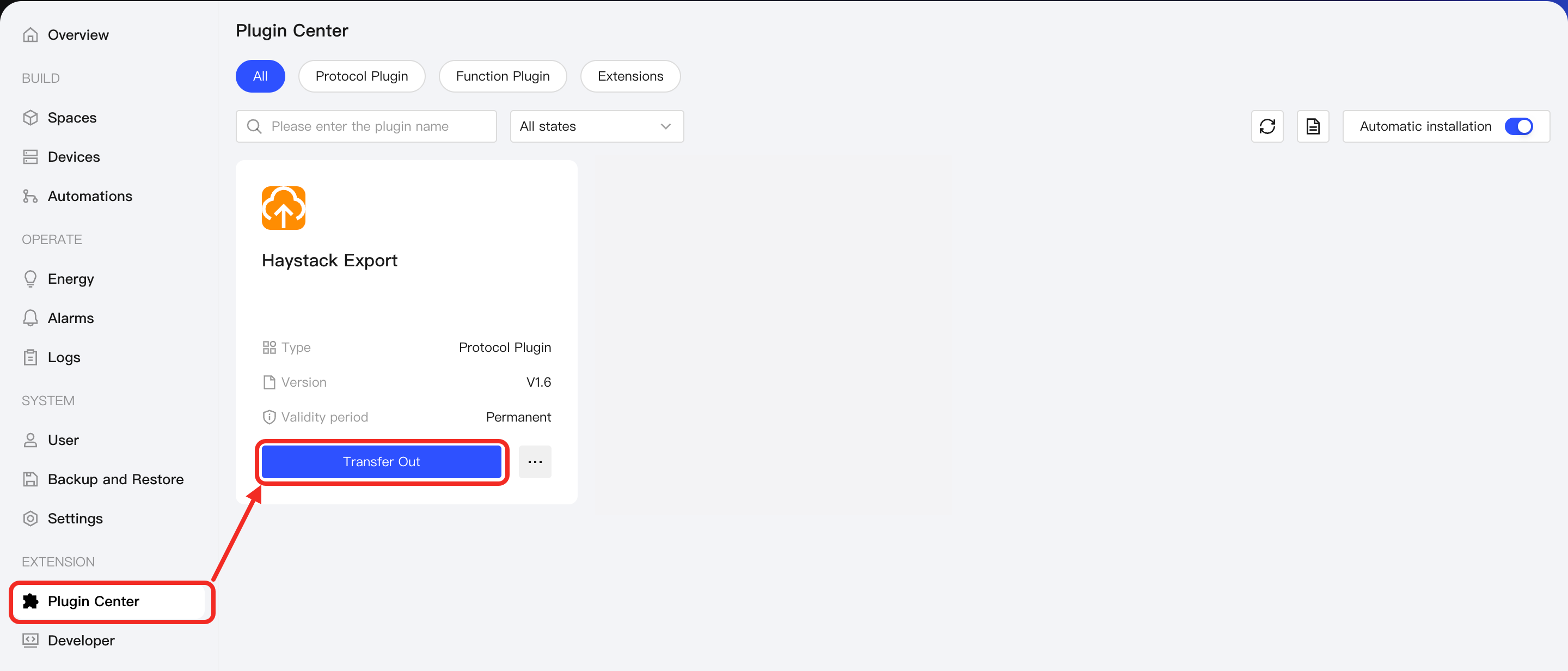
-
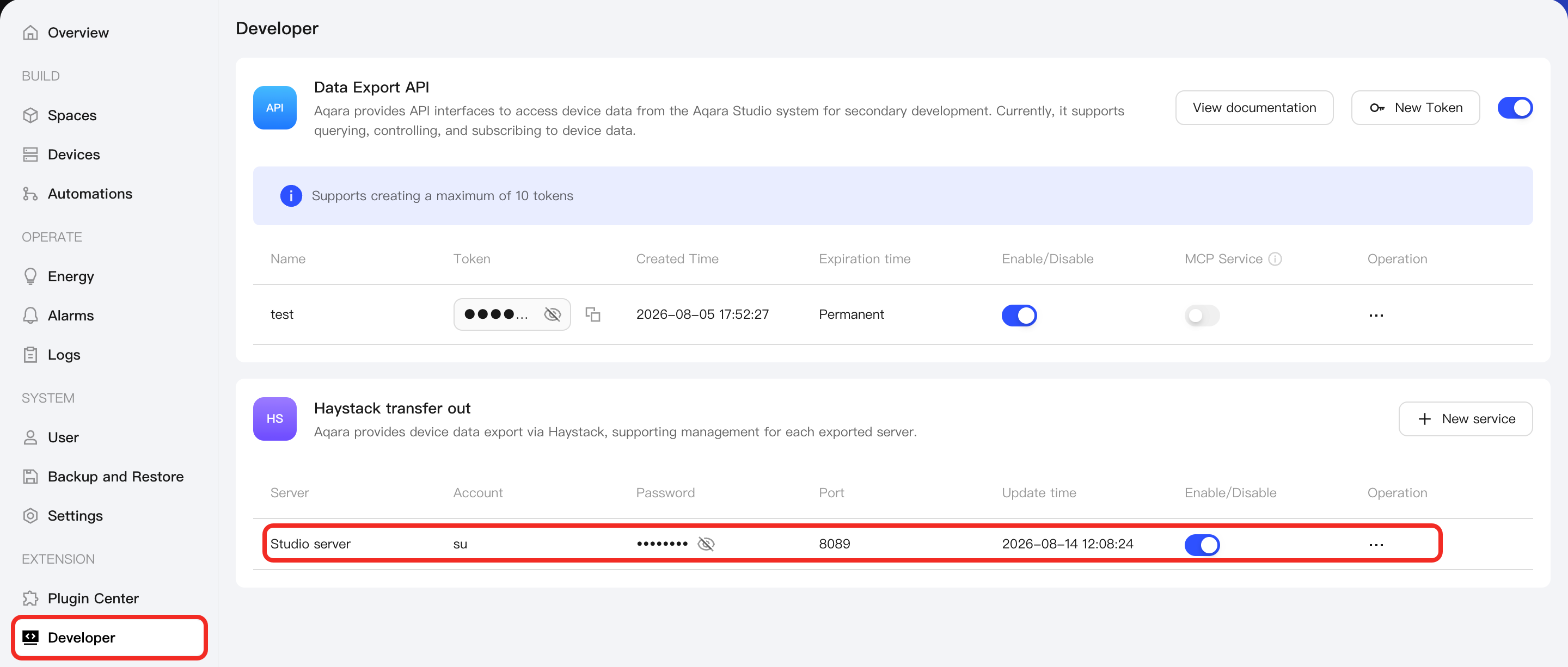
Aqara Studio will automatically redirect you to the Developer Center. Find Haystack Transfer Out, where you can see a default username and password that can be used to export all devices in Aqara Studio.
-
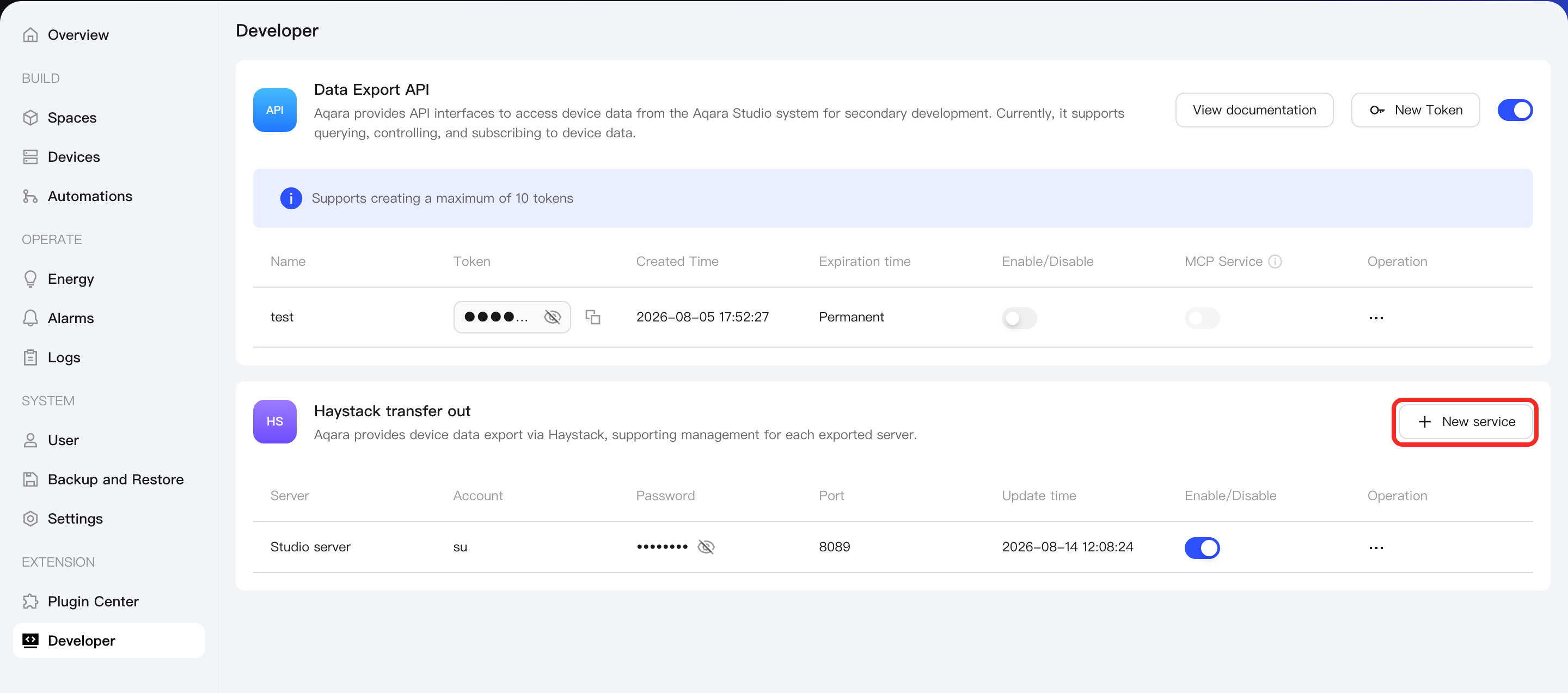
If you only want to export devices under a specific gateway, click New Service.
-
In the pop-up window, select the target gateway, set a username and password, and click Confirm.
tipCurrently, only devices under the DIN Rail Hub AX100M (Studio Version) and Hub AX200M (Studio Version) gateways are supported for specific export.
-
After that, you will see a new username and password under Haystack Export, which can be used to export all devices under that gateway.