Lights
Aqara lights support three scene control modes to flexibly meet diverse lighting needs:
- Static Scene: Set and display a single color and brightness.
- Dynamic Scene: Create a vivid atmosphere with dynamic transitions in color and brightness.
- Sequence Scene: Customize the duration and order of transitions between colors for gradient or choreography effects.
You can either use Aqara's preset scene modes, create custom scenes according to your needs, or copy your custom scenes to other devices.
The scene modes and available presets vary by Aqara light model. Please refer to your device's actual capabilities for details.
Use Default Scenes
-
On the Devices page, in the left-side Protocols & Devices tree, select your target light device and click Device details.
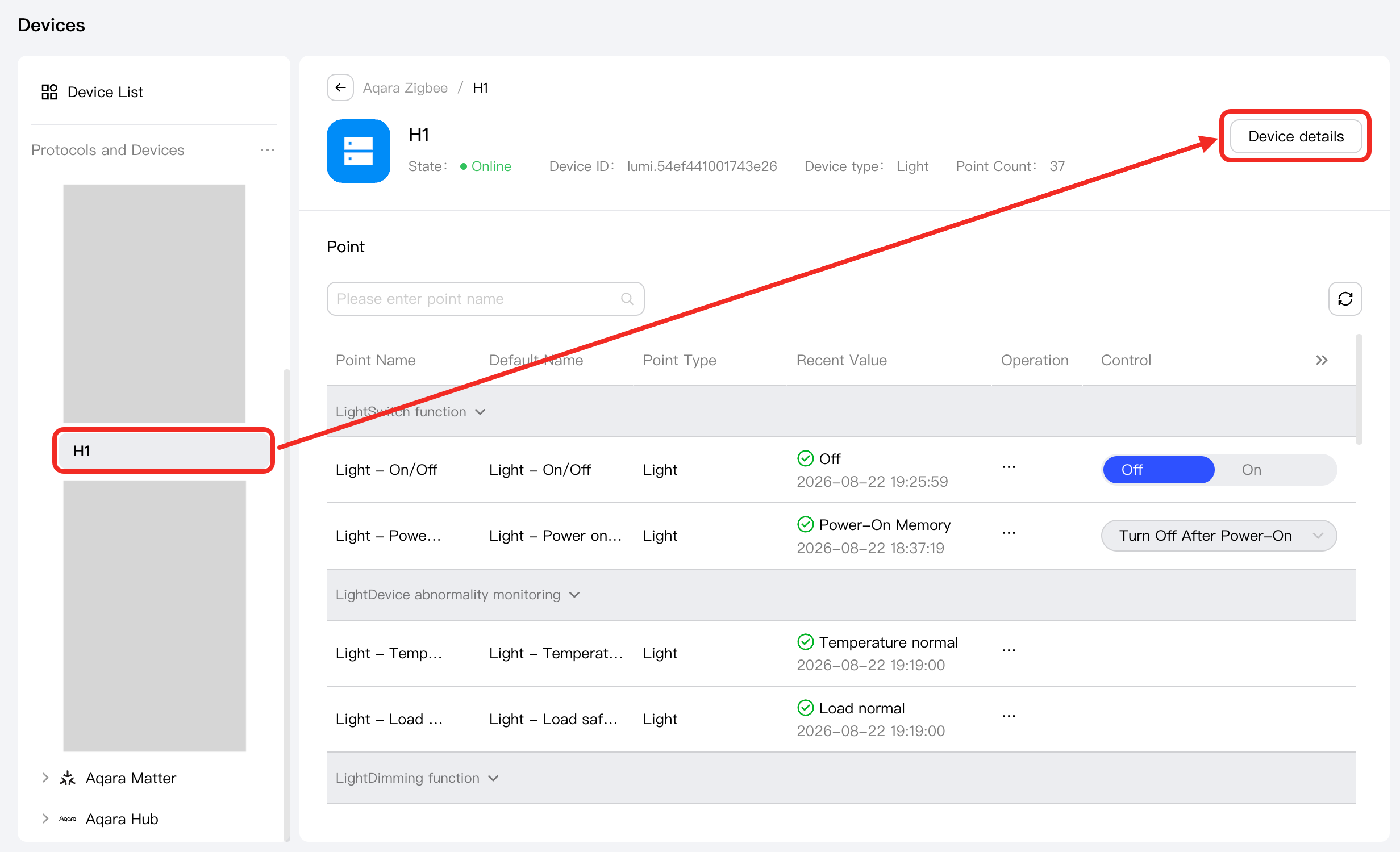
-
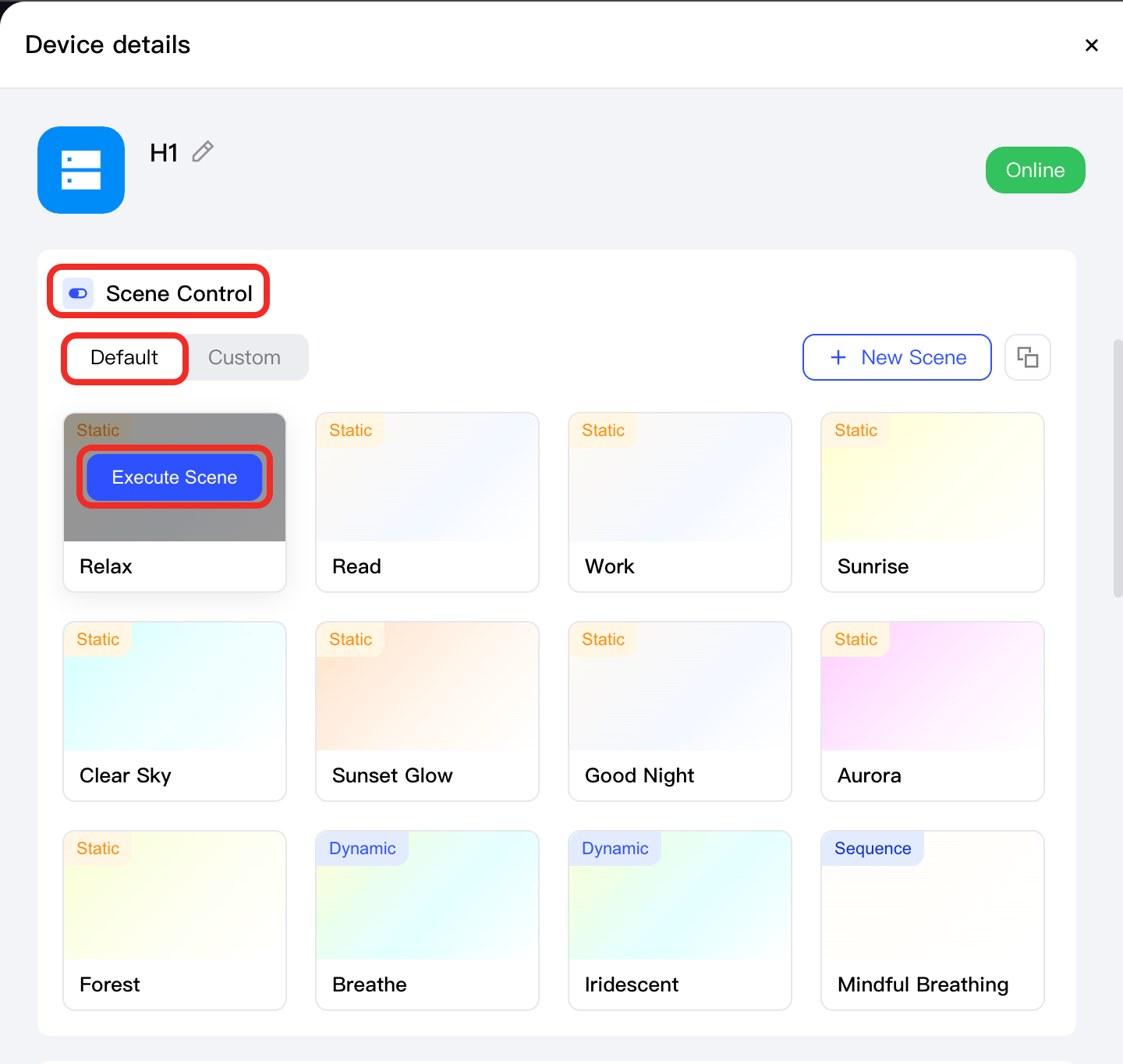
On the Device details page, find the Scene Control area. Under the Default tab, hover over a scene and click the Execute Scene button. After execution, the light will display the defined color and brightness of that scene.
Custom Scenes
In addition to Aqara's default scenes, you can also create your own scenes.
Create a Custom Scene
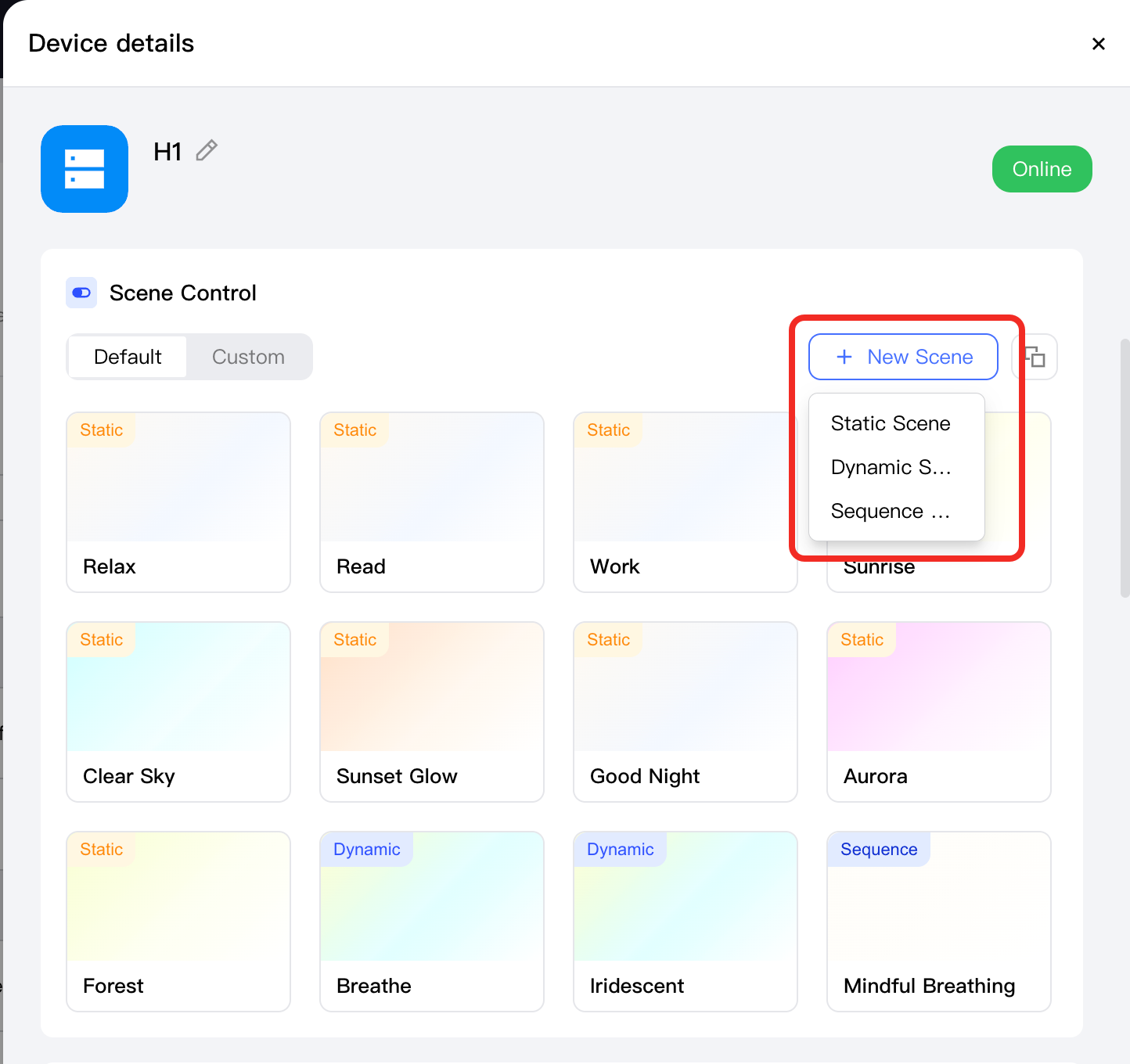
In the Scene Control area, click the New Scene button. From the dropdown menu, select the type of scene you want to create (Static Scene, Dynamic Scene, or Sequence Scene).
Configure the Custom Scene
Configure parameters based on the type of scene.
Static Scene
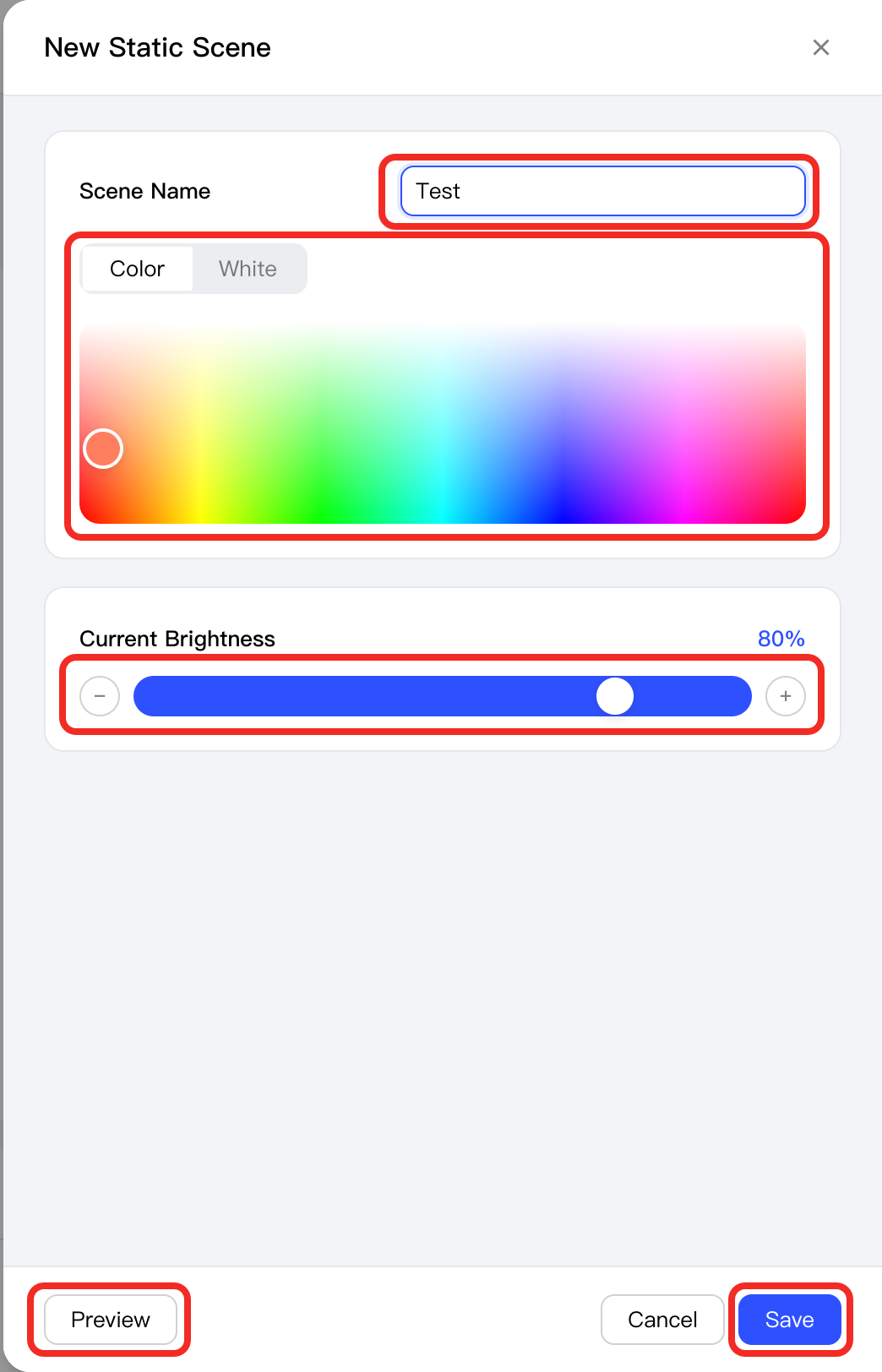
On the New Static Scene page:
- Set a scene name and choose a color and brightness.
- (Optional) Click the Preview button to view the effect and confirm if it meets your expectations.
- Click the Save button to complete creation.
Dynamic Scene
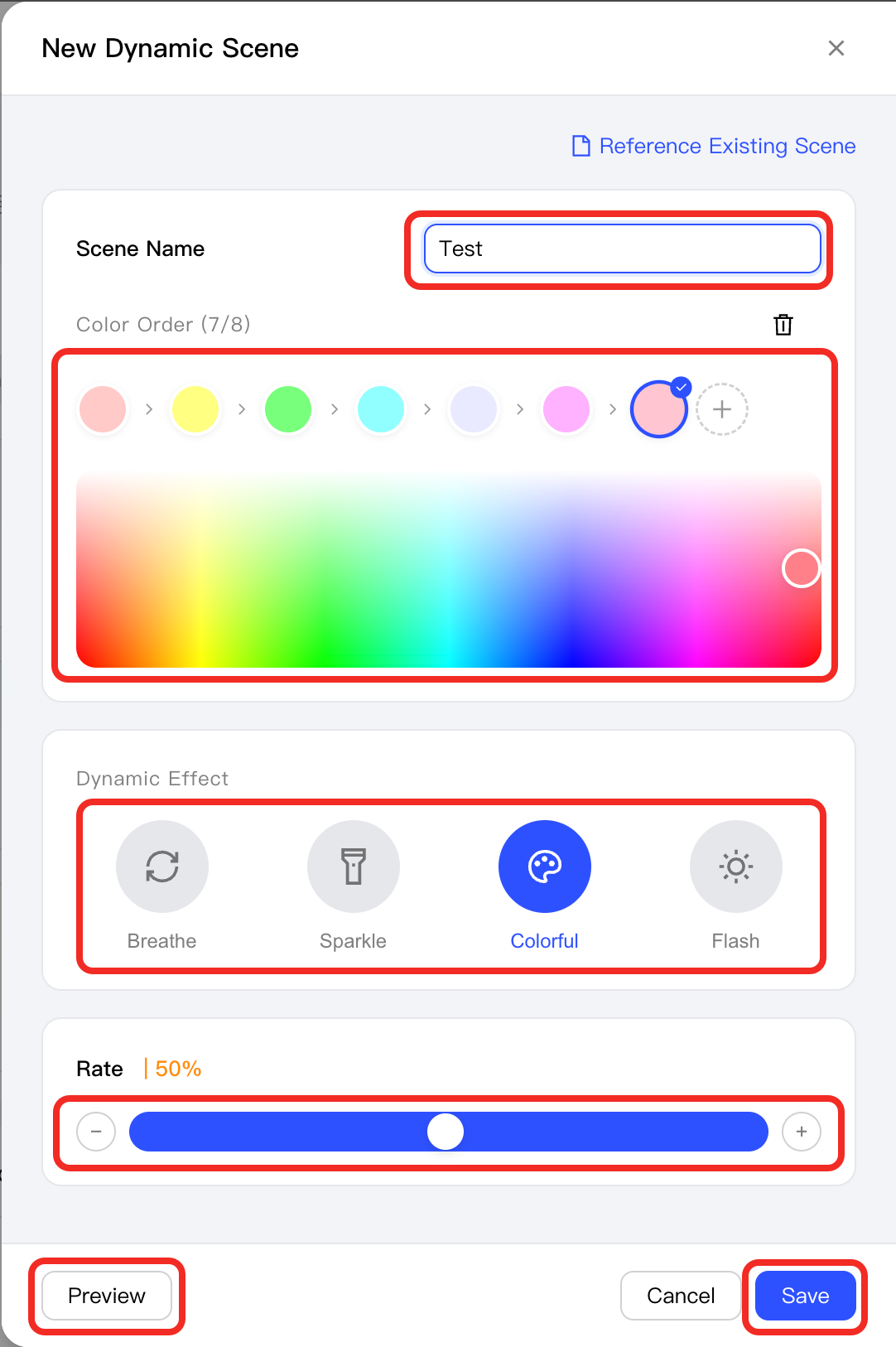
On the New Dynamic Scene page:
- Set a scene name, select multiple colors, choose a dynamic effect for global color switching, and set the switching speed.
- (Optional) Click the Preview button to view the effect and confirm if it meets your expectations.
- Click the Save button to complete creation.
Sequence Scene
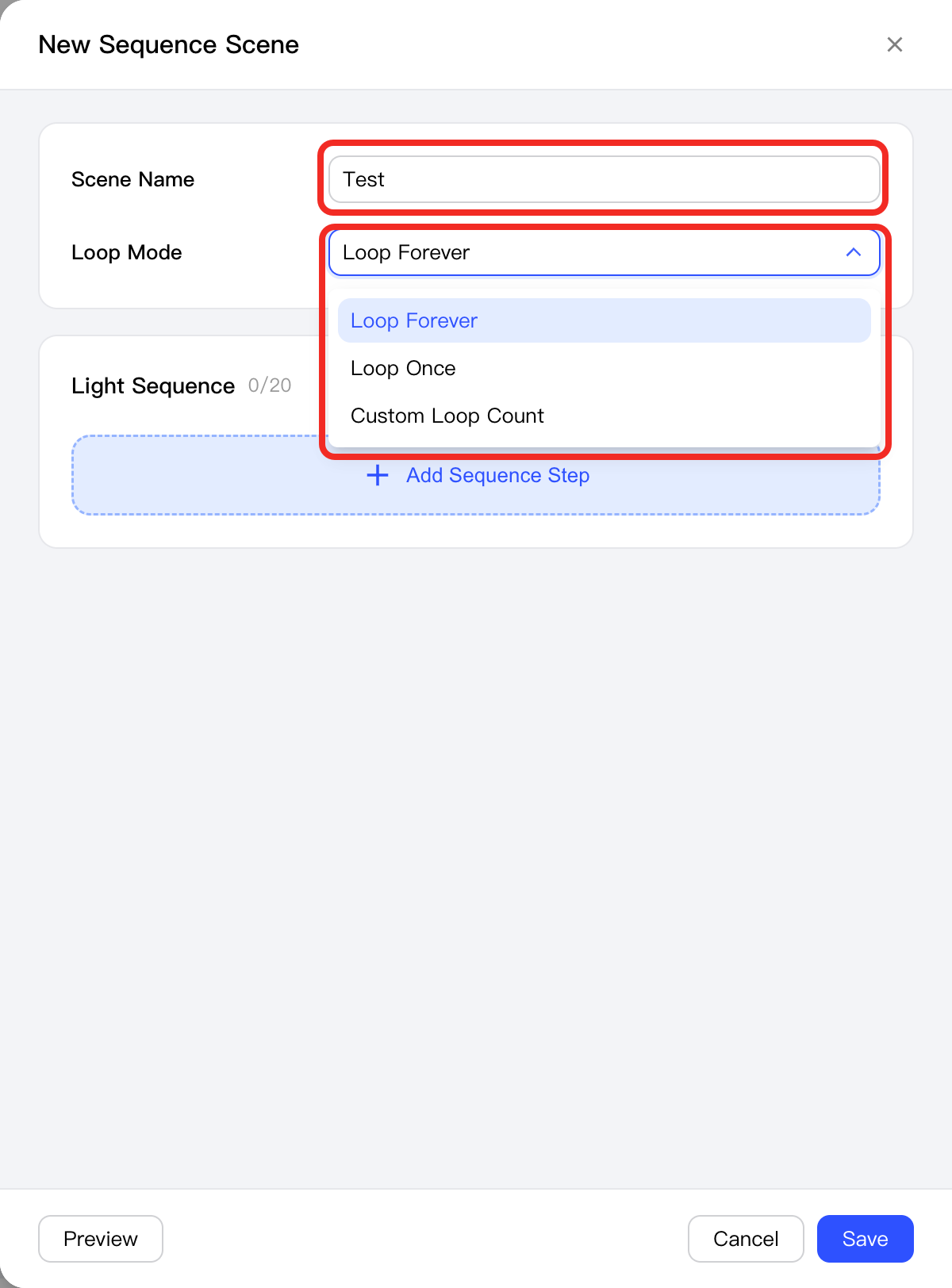
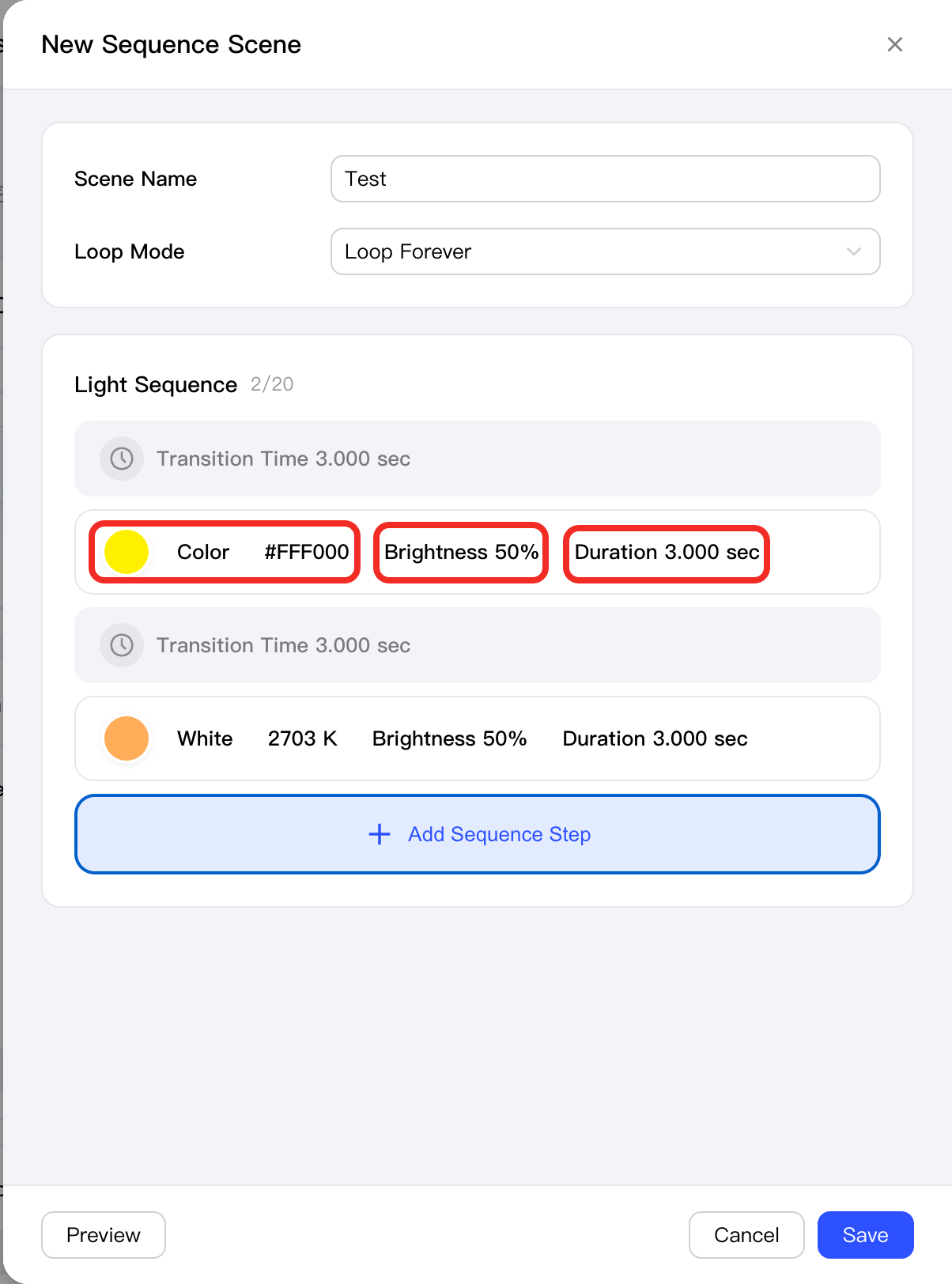
On the New Sequence Scene page:
-
Configure the scene name and loop mode.
-
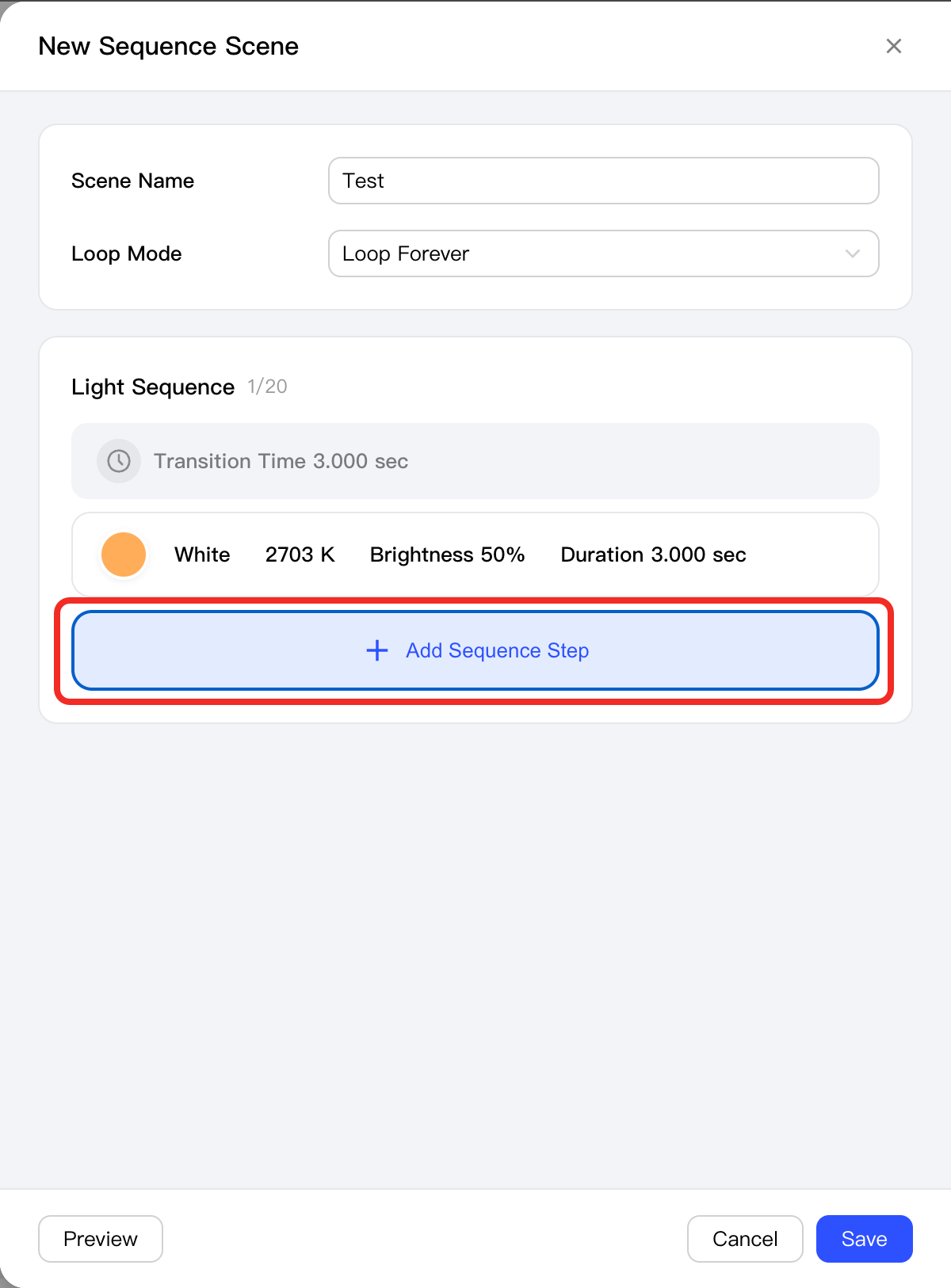
Click the Add Sequence Step button. Each time, you can add a step including "transition time, light color, brightness, and duration". Add multiple steps as needed to form a complete sequence.
-
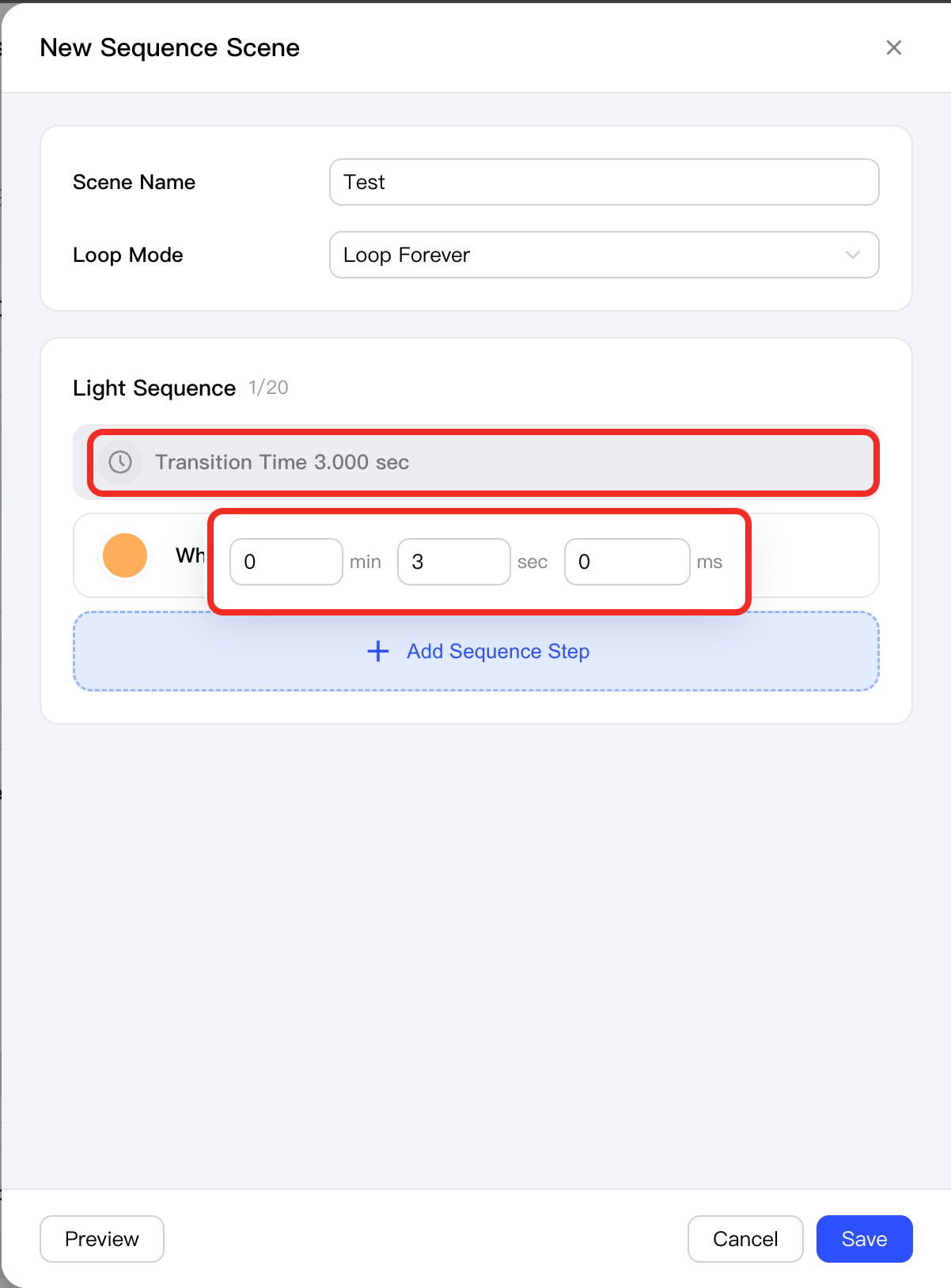
Click the Transition Time to configure it.
-
Click Color, Brightness, and Duration to configure each step as needed.
-
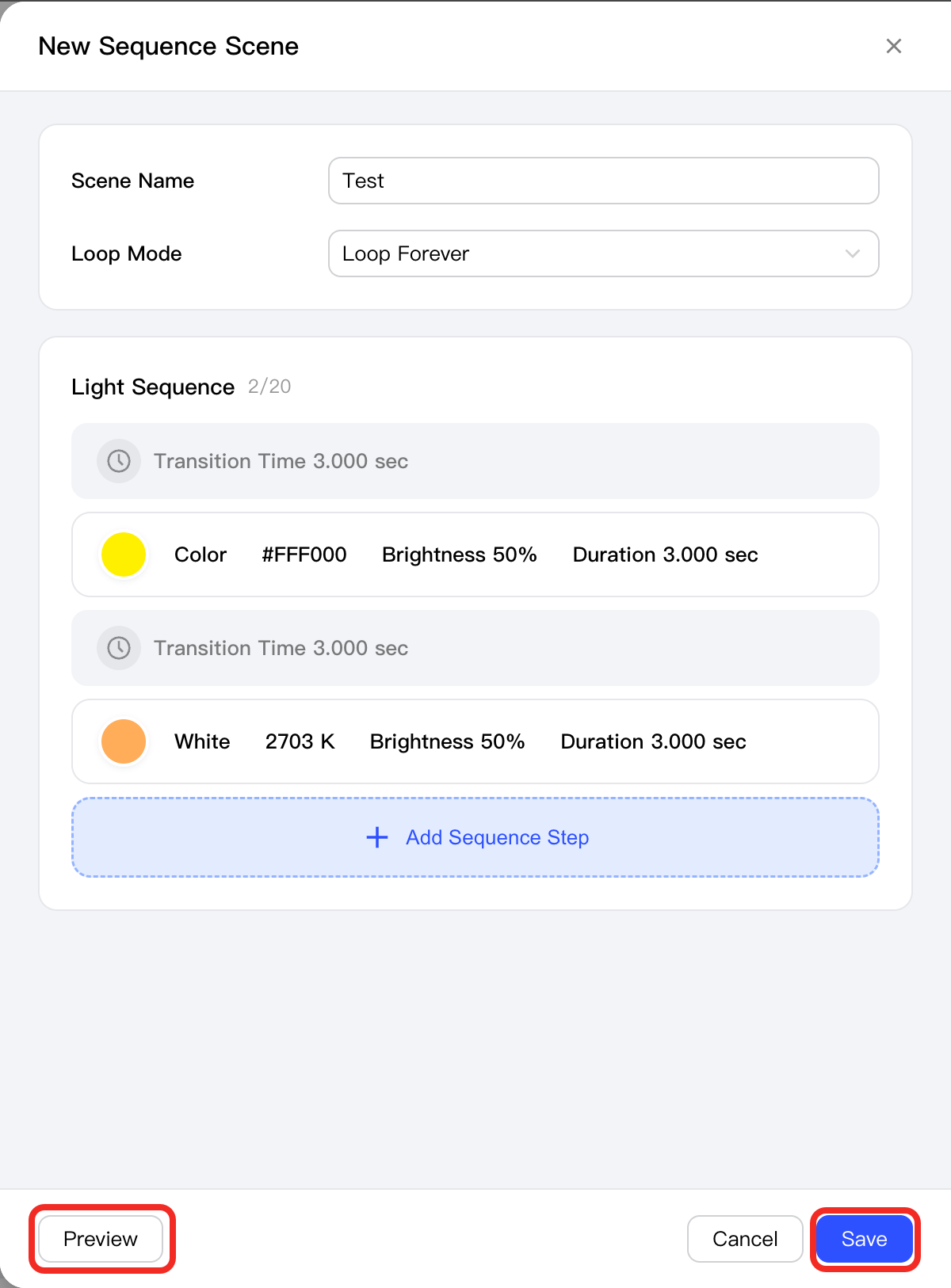
(Optional) Click the Preview button to view the effect and confirm if it meets your expectations.
-
Click the Save button to complete creation.
Reference Existing Scenes
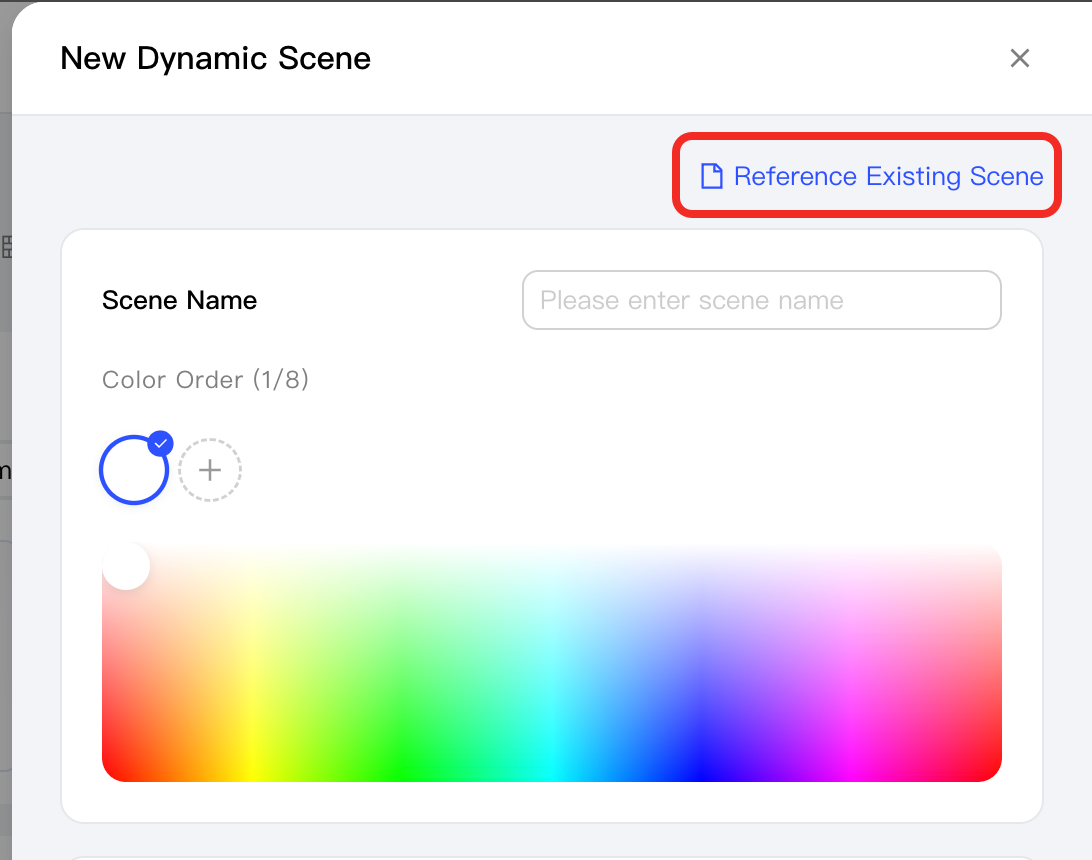
If you've already created other scenes and wish to use one in your current scene, click the Reference Existing Scene button. Select the scene you want to reference from the dropdown list to complete the reference.
Execute Custom Scene
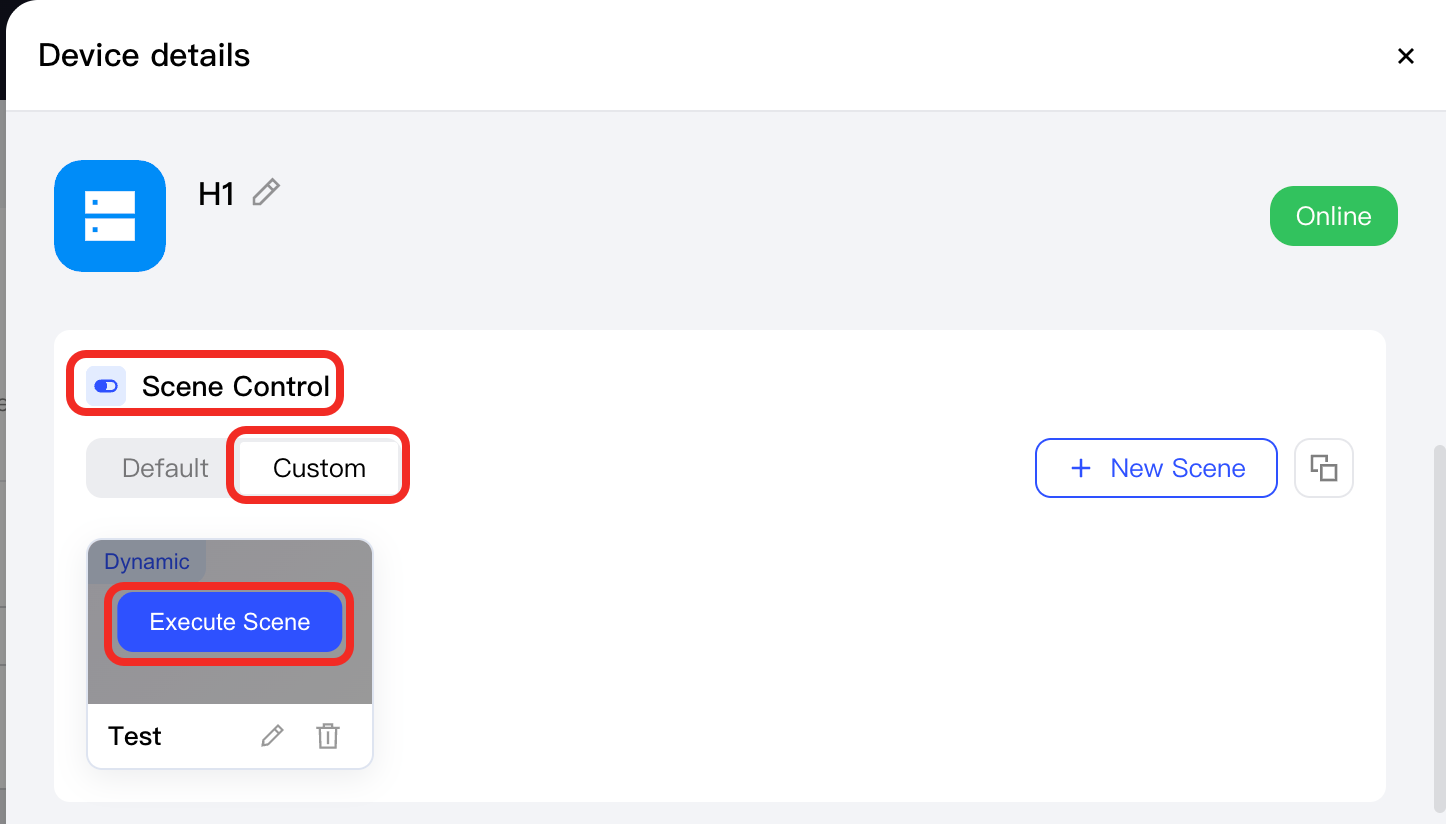
In the Scene Control area, switch to the Custom tab. Hover over a scene and click the Execute Scene button. After execution, the light will display the color and brightness defined in that scene.
Copy Custom Scenes to Other Devices
If you'd like to copy your custom scenes to other devices, follow these steps:
-
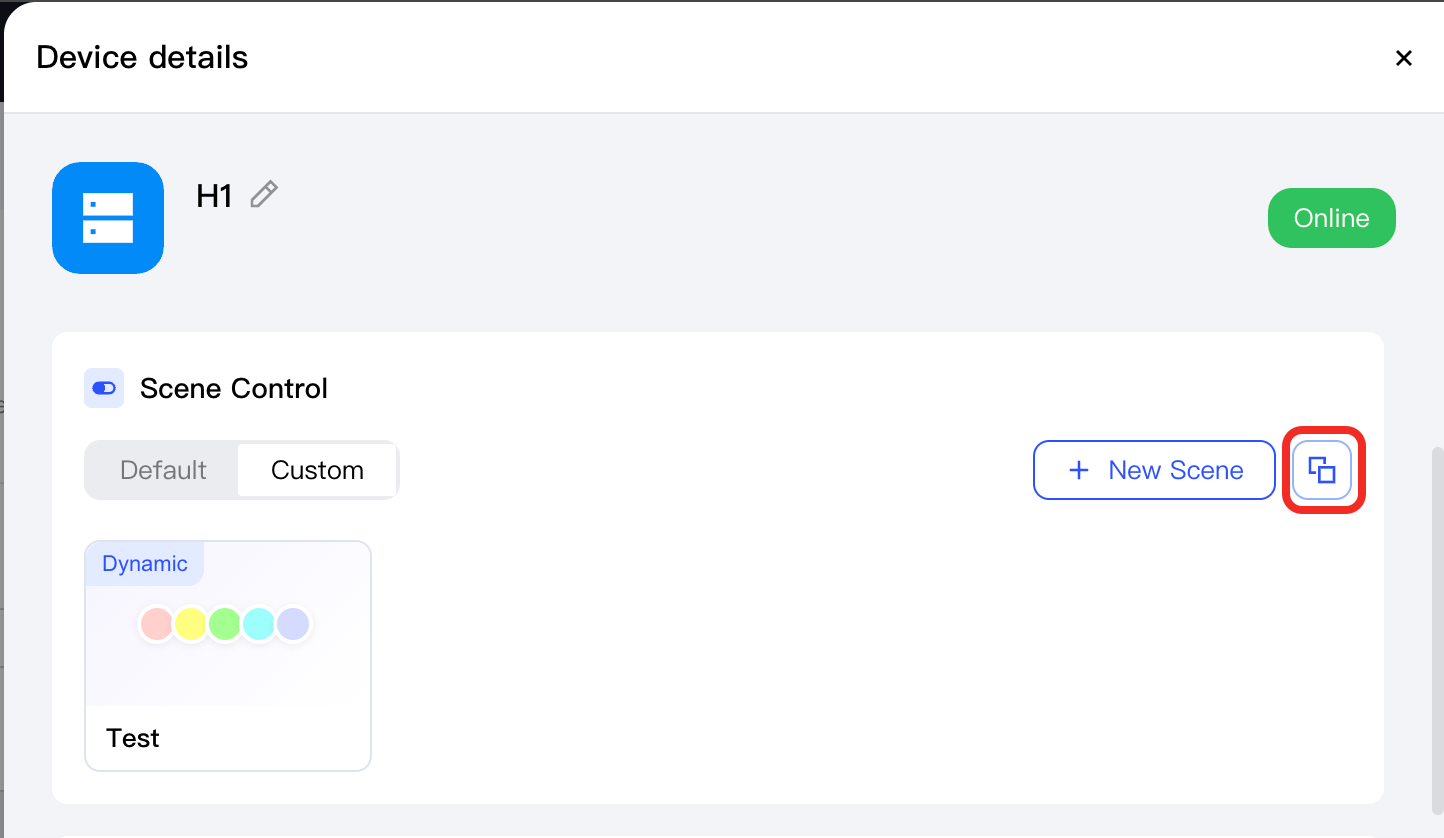
In the Scene Control area, click the Copy button.
-
In the pop-up window, select one or more custom scenes, select one or more target devices, and click the Save button to complete the copy.
-
Go to the target device, and in Device details > Scene Control, switch to the Custom tab to see the scenes copied to the target device.