Screens
This document explains in detail how to configure and publish Aqara screen device panels and standby, helping you flexibly customize display effects and operating modes.
Configure and Publish A Panel
1. Add a Panel
On the Devices page, find Aqara Hub in the Protocols and Devices tree on the left, select your target screen device, switch to the Panel Settings tab, and click Add Panel.
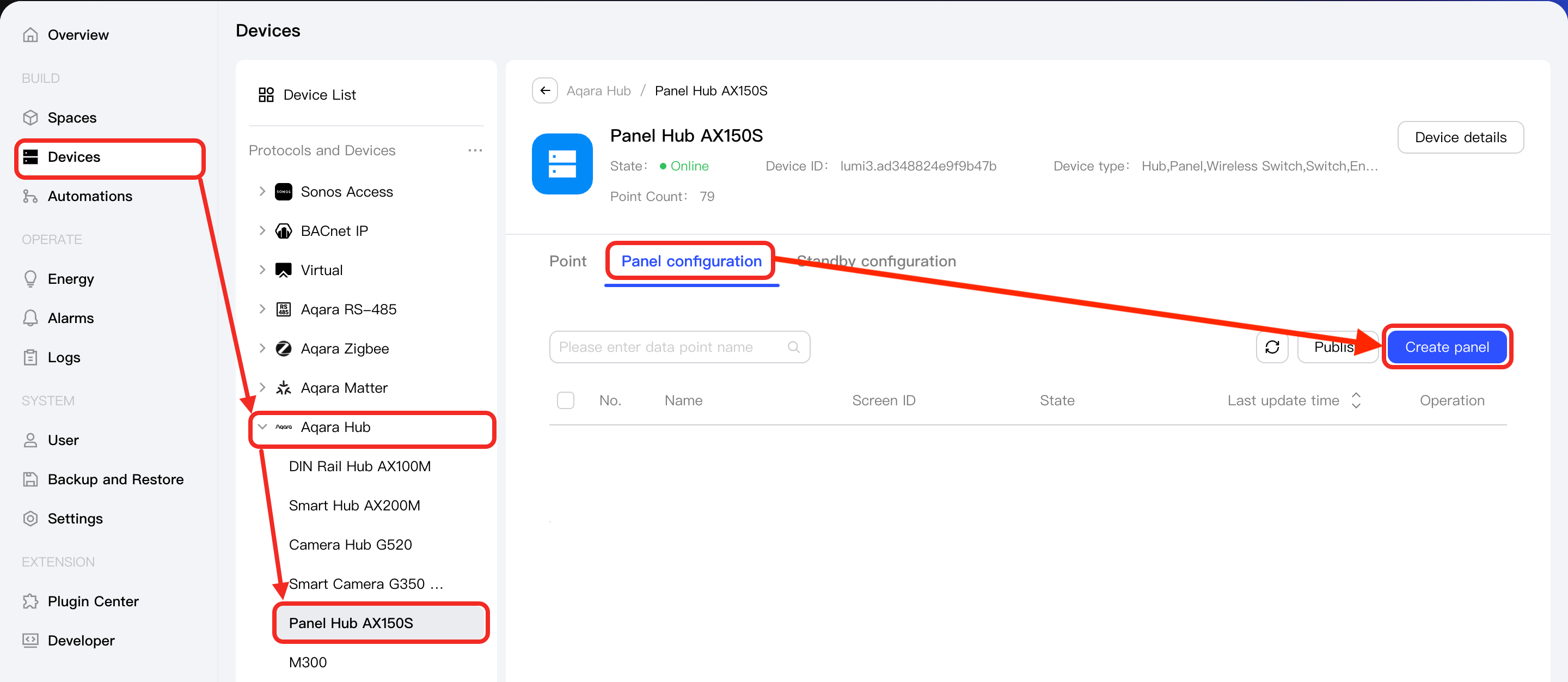
2. Select a Template or Blank Canvas and Name the Panel
In the New Panel pop-up window, select a template or blank canvas, name the panel, and click the Create button.
You can use any of the following options to configure the panel as needed:
| Option | Option | Advantage |
|---|---|---|
| Option A | Template only | More convenient, faster, and better looking. |
| Option B | Template or blank canvas + cards | More flexible while maintaining a certain degree of visual quality. |
| Option C | Template or blank canvas + cards + components | An advanced function with high flexibility, suitable for users with unique layout aesthetics. |
3. Edit the Panel
You will now enter the panel editing page, where you can configure the panel's components, templates, layers, styles, and properties.
Link Automation or Device Data
If you need to link components to automation or device data, make sure all related data sources have been configured. Otherwise, publishing may fail.
You only need to click the corresponding component or card, switch to the Properties tab in the right sidebar, and configure the linked automation or device data as needed.
Add Cards
If you need to add more Aqara-designed cards to the canvas, go to Component Library in the left sidebar, switch to the Cards tab, and click or drag any card to add it to the canvas.
Add Components
If you need to freely add and combine various components on the canvas, go to Component Library in the left sidebar, switch to the Components tab, and click or drag any component to add it to the canvas.
Currently, Components is a Beta feature.
4. Save the Panel
After finishing, click the Save button.
Once editing is complete, exit the panel editing page and return to the Panel Settings tab of the target screen device.
5. Preview the Panel
Locate the newly added panel in the list and click ... > Preview to view the panel effect.
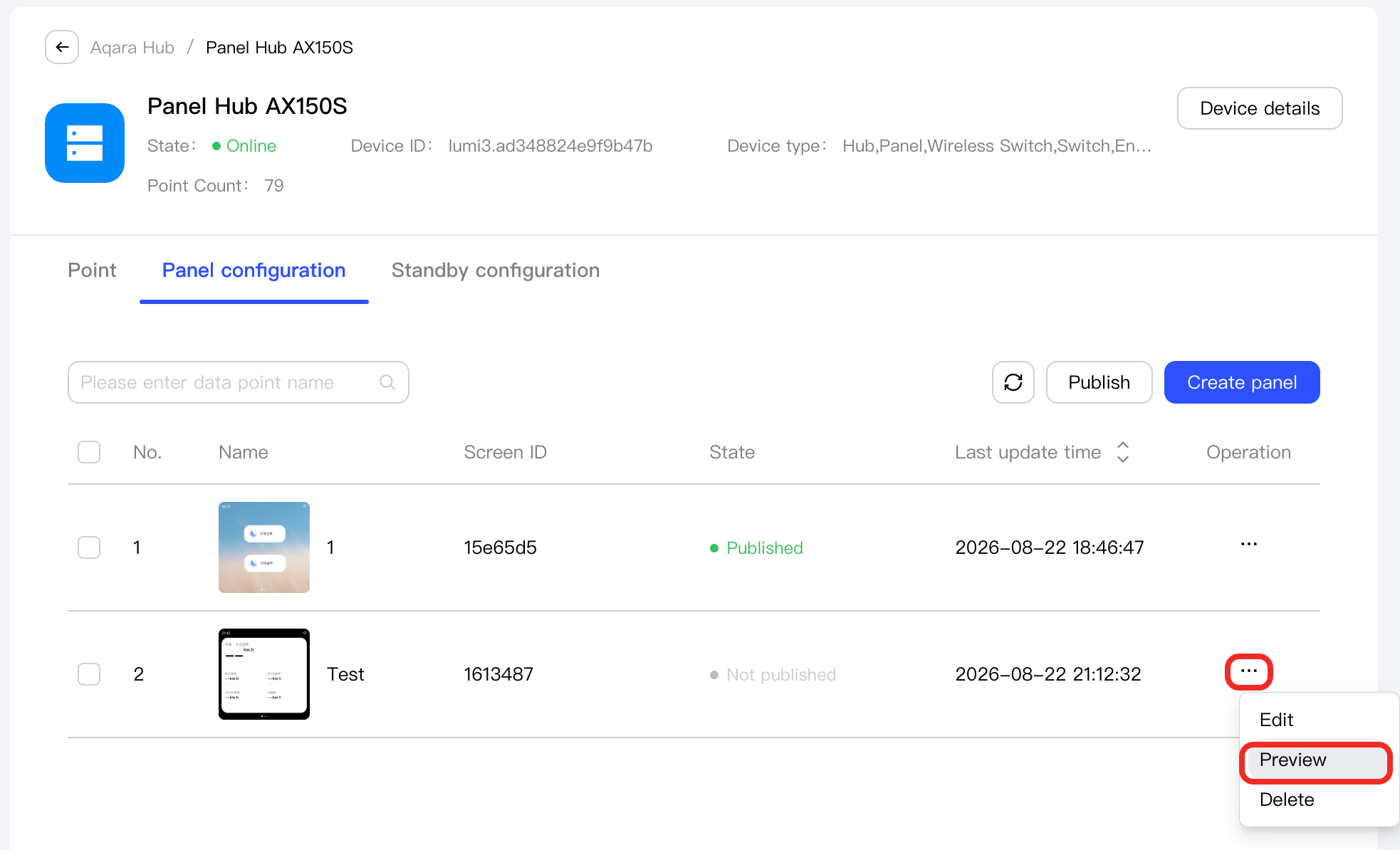
6. Publish the Panel
After confirming the effect, click the Publish button.
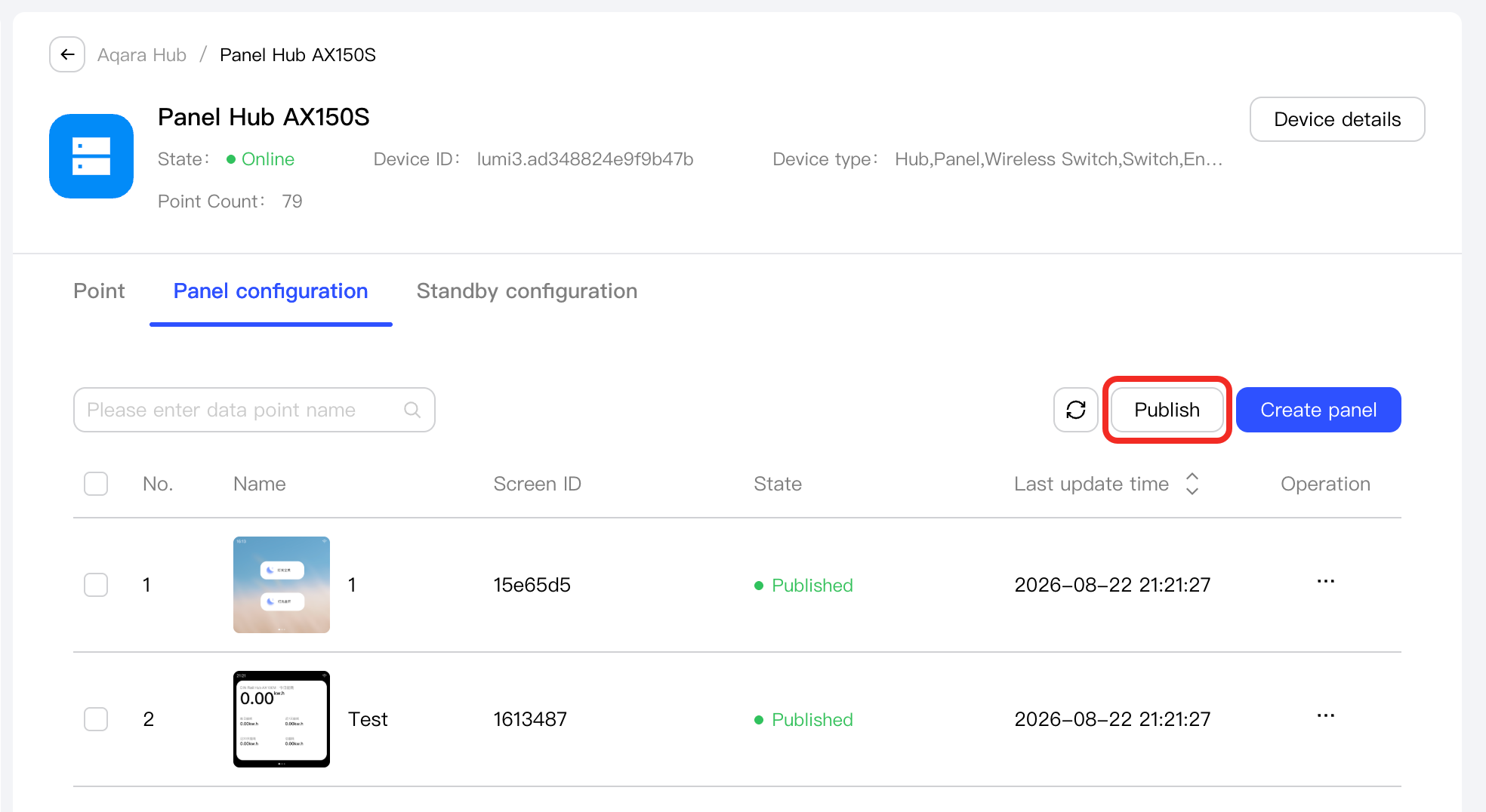
In the Publish pop-up window, select the panels to be displayed, adjust the order, and click the Confirm publish button.
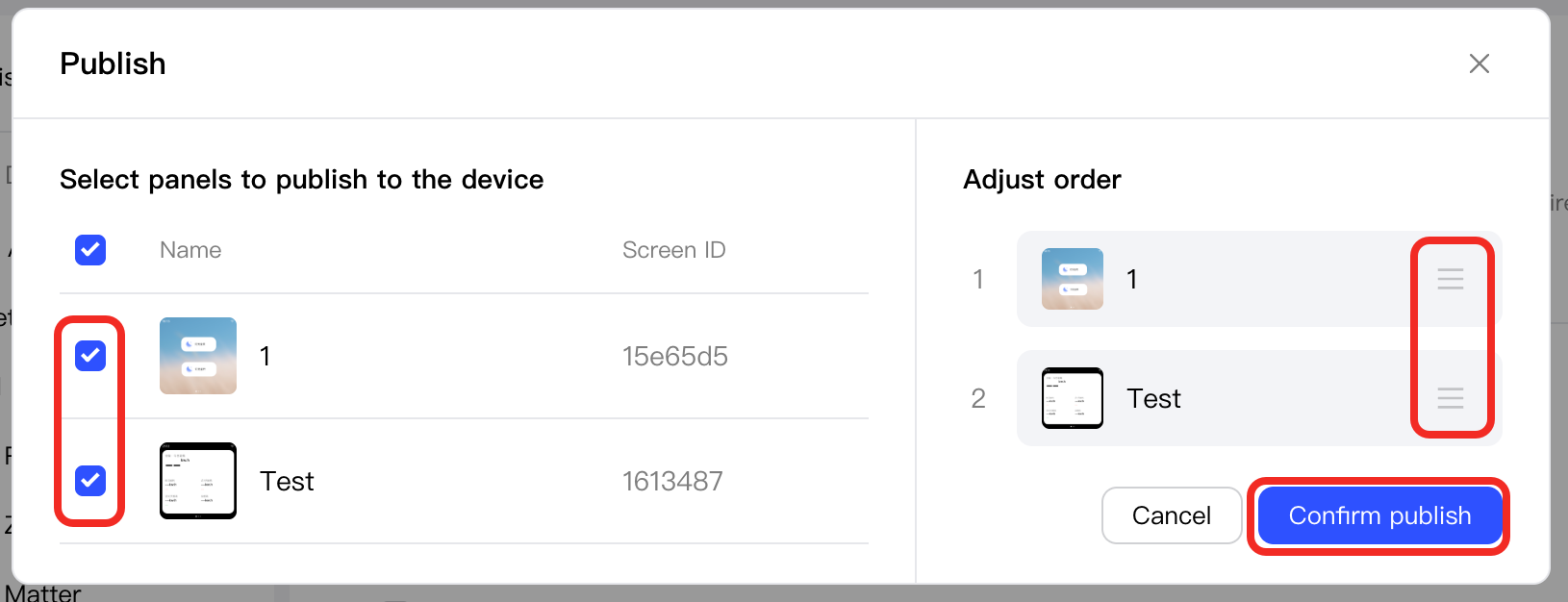
After successful publication, you can view the panel on the screen device.
Configure and Publish Standby
1. Add a Standby
On the Devices page, find Aqara Hub in the Protocols and Devices tree on the left, select your target screen device, switch to the Standby Settings tab, and click Add Standby.
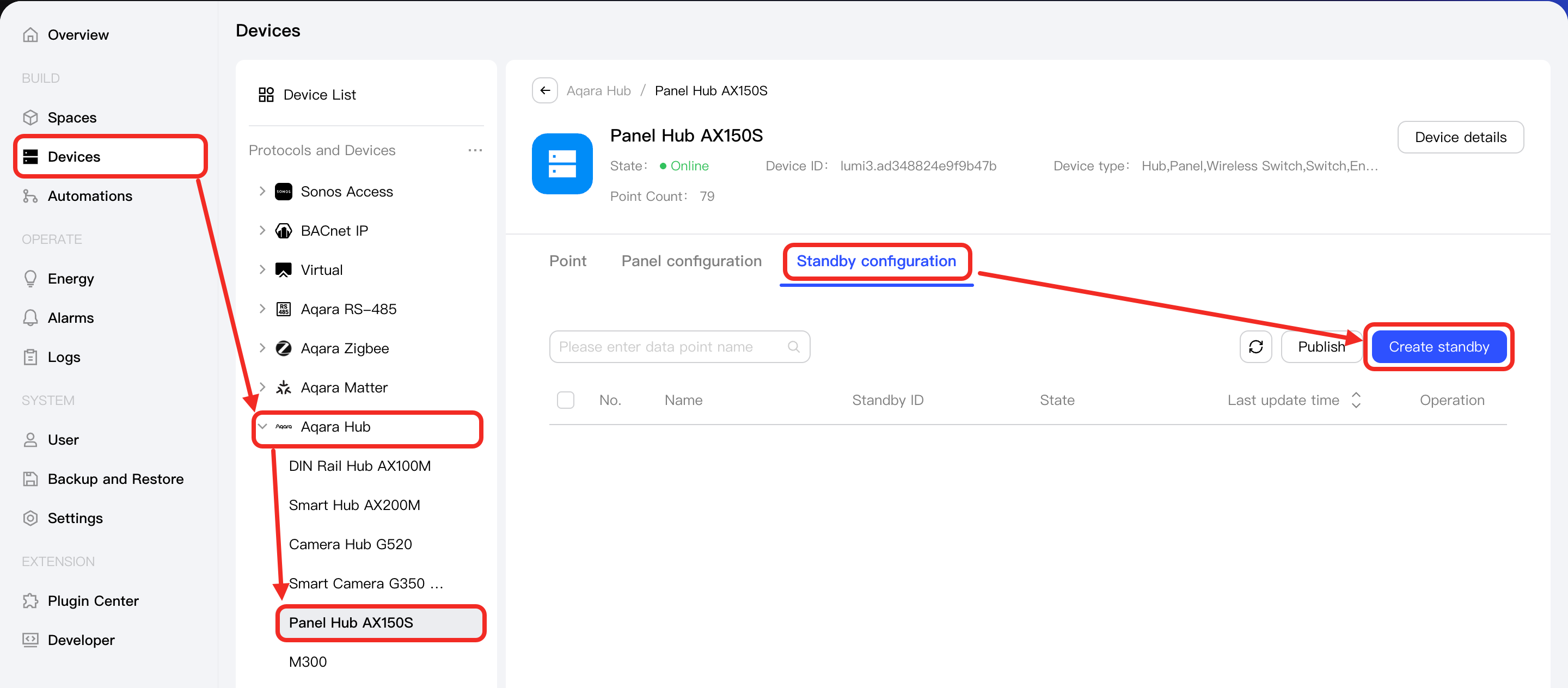
2. Select a Template or Blank Canvas and Name the Panel
The steps are the same as Panel > 2. Select a Template or Blank Canvas and Name the Panel.
3. Edit the Standby
The steps are the same as Panel > 3. Edit the Panel.
4. Save the Panel
The steps are the same as Panel > 4. Save the Panel.
5. Preview the Standby
The steps are the same as Panel > 5. Preview the Panel.
6. Publish the Standby
After confirming the effect, click the Publish button.
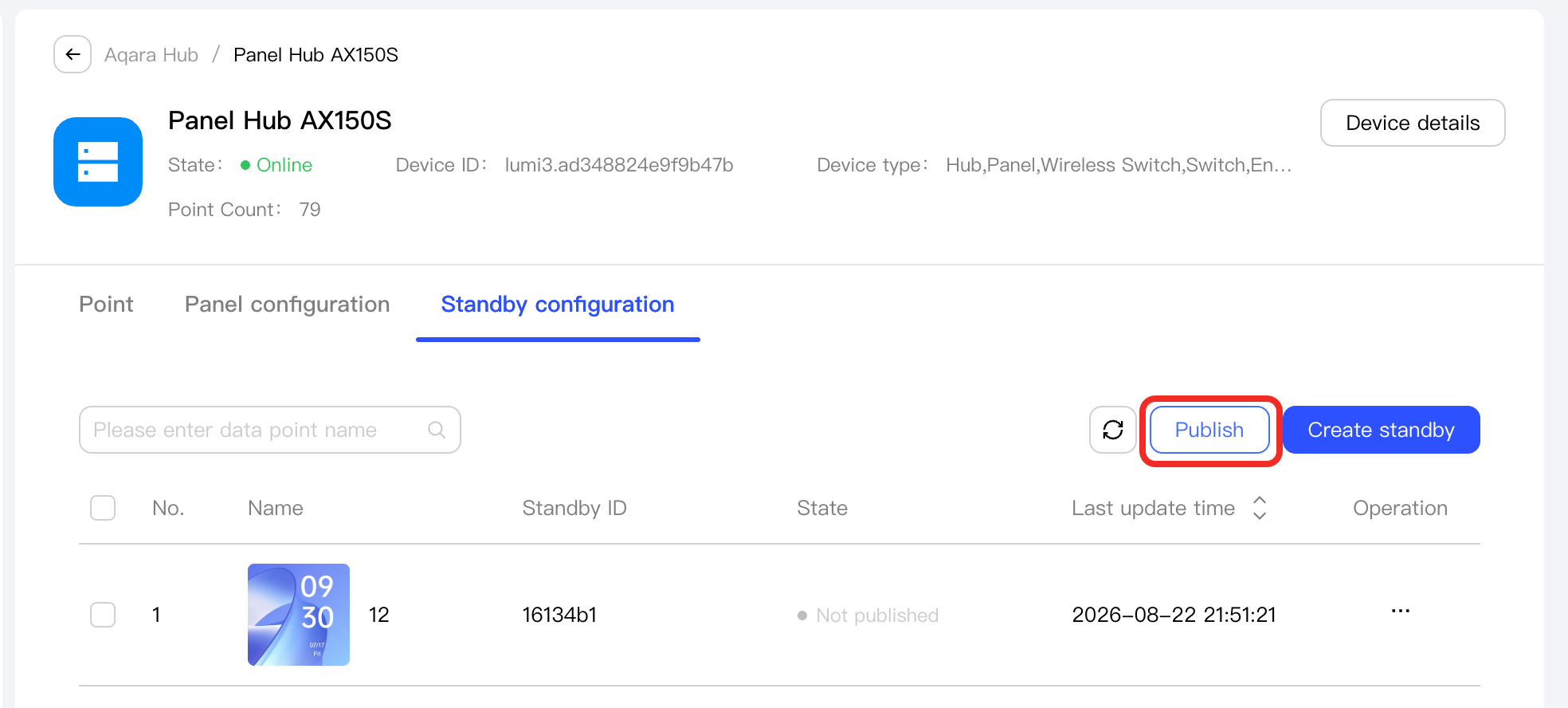
In the Publish pop-up window, select a standby and click the Confirm publish button.
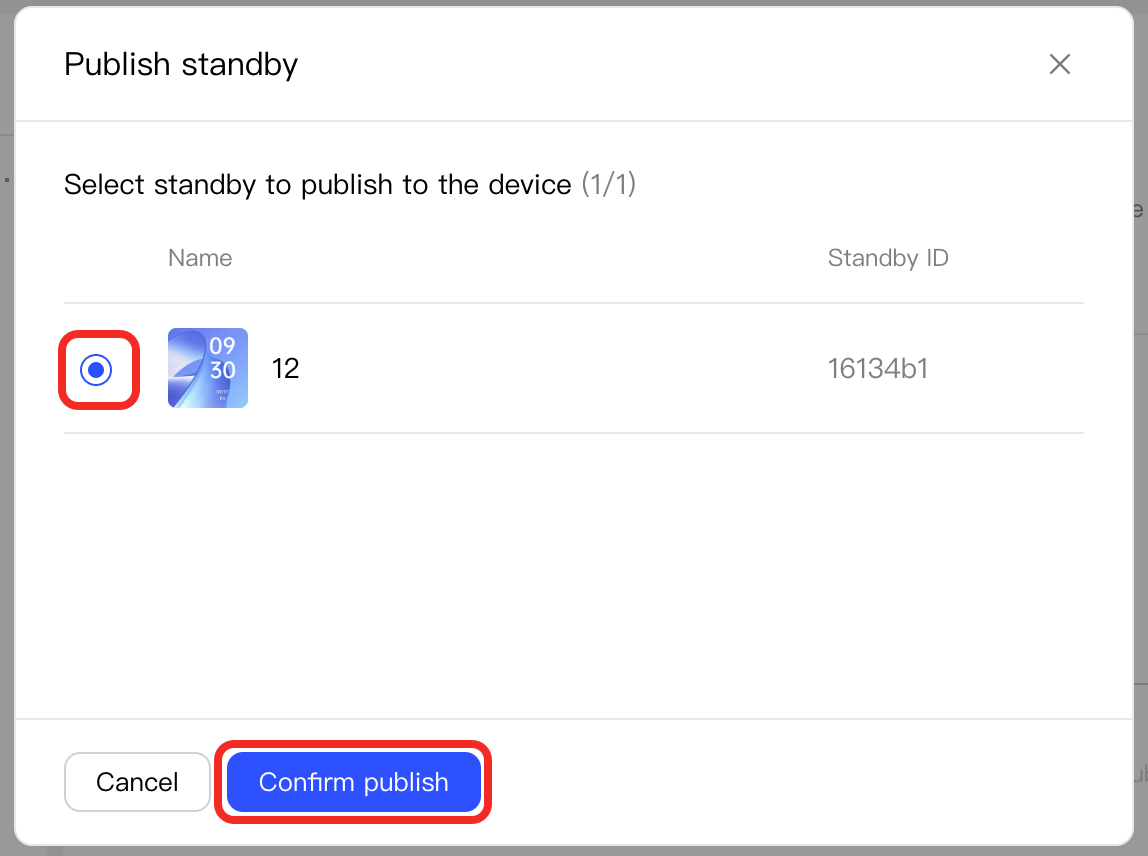
After successful publication, you can view the standby effect on the screen device.