Light Boxes
You can use Aqara Light Boxes to implement the following two scenario control modes:
- Static Scenario****: For displaying any image;
- Dynamic Sequence: For displaying video content provided by Aqara Studio by default.
Check Firmware Versions
Before you begin, please ensure that the following devices and software meet the minimum firmware version requirements:
| Name | Minimum Firmware Version |
|---|---|
| Aqara RS-485 Light Strip Controller | 0.00030 |
| DIN Rail Hub AX100M | 4.5.70_0101 |
| Aqara Studio | 1.2.3_11 |
Static Scenario
-
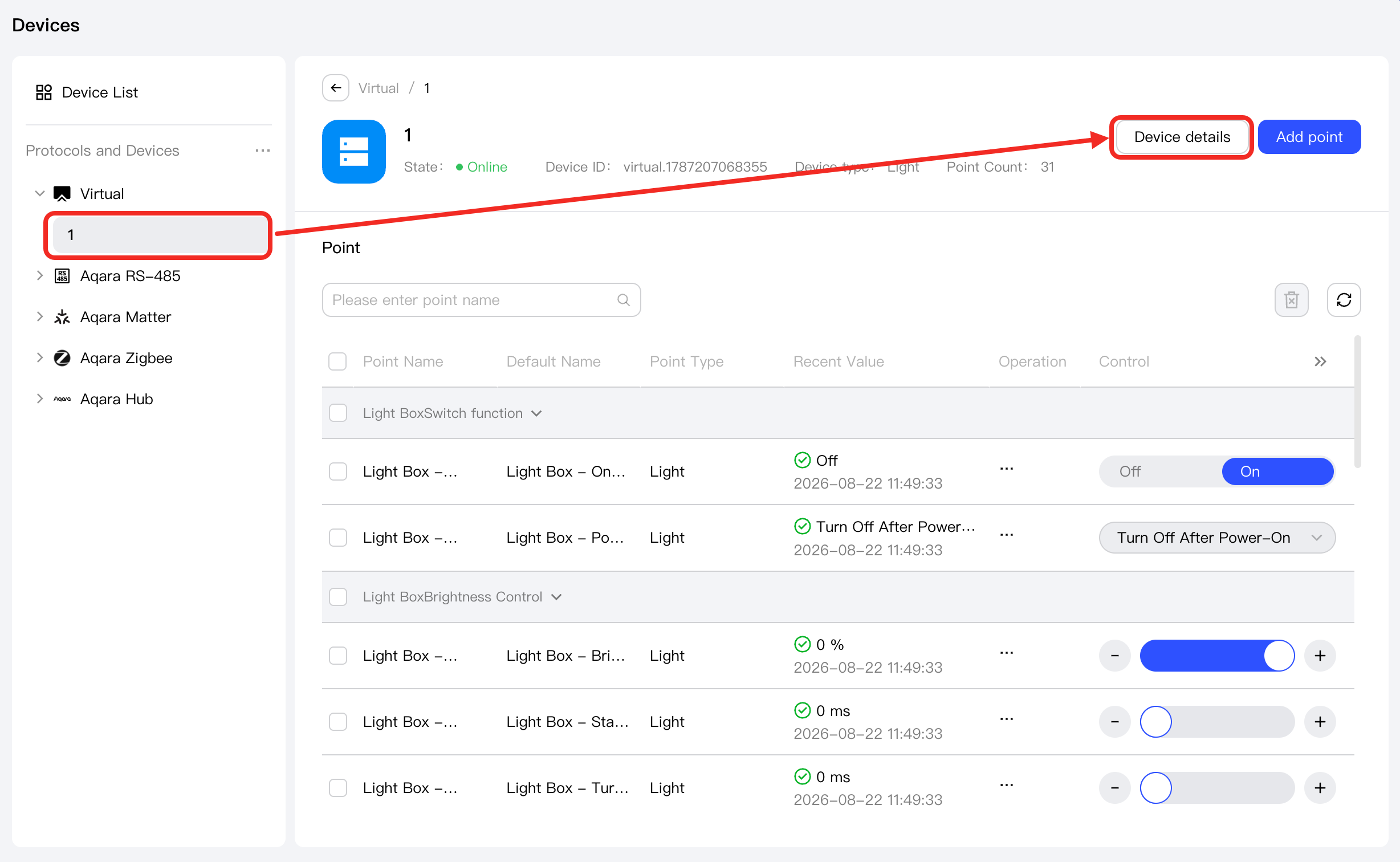
In the Devices page, select the target light box device in the Protocols and Devices tree on the left, and click Device details.
-
On the Device details page, switch to the Device Configuration tab, find the Scene Control section, and click the New button. From the dropdown menu, select Static Scenario.
-
In the pop-up window, configure the name of the scenario, upload an image, and set the brightness. Click the Save button to complete the creation.
tipThe aspect ratio of the crop box is consistent with the row and column settings of the light box canvas. When the ratio is not 1:1, it is normal for the crop box to not cover the entire image.
-
At this point, you will see the newly created scenario in the Scene Control section. Hover over the scenario and click the Execute Scenario button. After execution is complete, the light box will display the image you uploaded.
Dynamic Sequence
-
In the Devices page, select the target light box device in the Protocols and Devices tree on the left, and click Device details.
-
On the Device details page, switch to the Device Configuration tab, find the Scene Control section, and click the New button. From the dropdown menu, select Dynamic Sequence.
-
In the pop-up window, configure the name of the scenario, select an available video, set sequence parameters, and adjust the brightness. Click the Save button to complete the creation.
tipThe video crop ratio follows the row and column settings of the light box canvas. If the video cannot fully cover the entire canvas, please check your row and column configuration.
-
At this point, you will see the newly created scenario in the Scene Control section. Hover over the scenario and click the Execute Scenario button. After execution is complete, the light box will display the video you selected.